TencentDB for SQL Server 2017/2019/2022/2025 Enterprise Always On instances with two-node cloud disk architecture and TencentDB for SQL Server 2017/2019/2022/2025 Enterprise instances with multi-node cloud disk architecture support the replica node read-only feature. Enabling replica node read-only allows you to access replica nodes through their dedicated read-only addresses, which helps offload read requests from the primary node and effectively saves costs associated with read-only instances. You can enable or disable the replica node read-only feature and modify the network of the replica node read-only address in the console.
Prerequisites
The architecture and edition of the primary instance are: TencentDB for SQL Server 2017/2019/2022/2025 Enterprise Always On two-node, or TencentDB for SQL Server 2017/2019/2022/2025 Enterprise multi-node.
The storage type of the primary instance is: Enhanced SSD CBS/General SSD CBS.
The primary instance is running.
Note:
You can check whether the above information meets the requirements on the instance list page.
The primary/replica instances must be in a normal synchronization state.
Attention:
If the instance is newly created, you need to wait until the AG group is established and the synchronization between the primary and replica nodes is normal before enabling the replica node read-only feature.
Feature Limitations
Enabling replica-node read-only is affected by the data synchronization status of the primary/replica instances. If the data of the primary/replica instances is not synchronized, replica-node read-only cannot be enabled.
For two-node instances, replica node read-only is an independent instance status. After replica node read-only is enabled, replica nodes can only be accessed via the unique read-only address, which is irrelevant to the RO instance or the RO group of the RO instance. Therefore, replica nodes cannot be added to the RO group for weight settings.
For multi-node instances, when replica node read-only is enabled, multiple replica nodes share the same read-only address by default. You can set a weight for each replica node to distribute the traffic. You can also set different read-only addresses for different replica nodes to distribute the traffic. If you want to set different addresses, submit a ticket. After replica node read-only is enabled, replica nodes can only be accessed via the private network address. Public network access cannot be enabled for replica nodes.
After replica node read-only is enabled, replica nodes that are down or have a latency timeout will not be removed. If you access a replica node via the read-only address at this time, data latency may occur. After the node recovers, data synchronization will return to normal.
After replica node read-only is enabled, a momentary disconnection may occur during cross-AZ migration and switchover. Ensure that your business has a reconnection mechanism.
After replica node read-only is enabled, a momentary disconnection may occur during migration, configuration change, or switchover. Ensure that your business has a reconnection mechanism.
After replica node read-only is enabled, a momentary disconnection or prolonged interruption may occur during an HA switch. Ensure that your business has a reconnection mechanism.
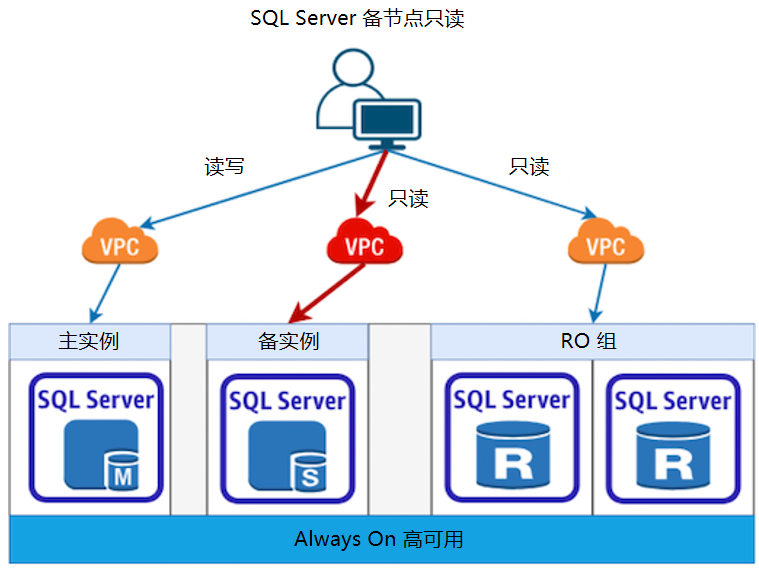
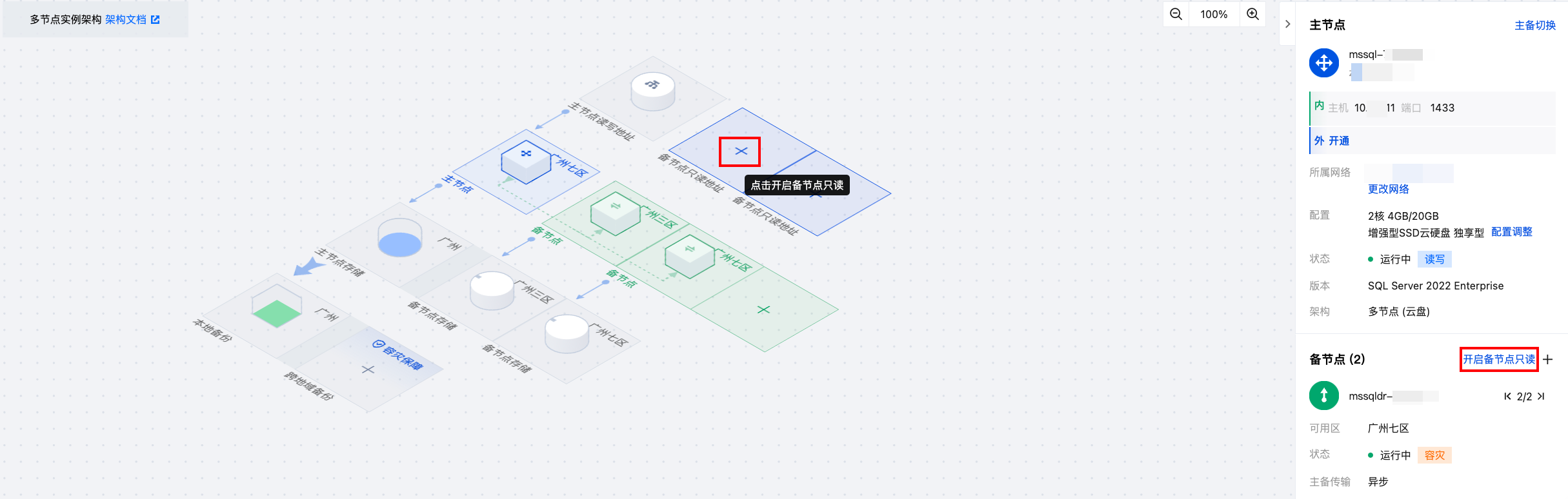
Replica-Node Read-Only Architecture Diagram
Enabling Replica Node Read-Only
The complete operations for enabling replica node read-only for two-node instances and multi-node instances vary slightly. See the steps on
tabs below for corresponding operations.
Note:
Replica-node read-only for multi-node instances has two modes: multiple replica with one read-only and one replica with one read-only. By default, the mode is multiple replica with one read-only. If you want to set the mode to one replica with one read-only, submit a ticket. Descriptions of the two modes are as follows: Mode 1 (multiple replica with one read-only): After replica node read-only is enabled, all replica nodes share the same read-only address. You can access all replica nodes of the instance through this read-only address.
Mode 2 (one replica with one read-only): After replica node read-only is enabled, each replica node is assigned a read-only address. You can access different replica nodes of the instance through the corresponding read-only address.
Multi-node (Multiple Replica with One Read-Only)
Multi-node (One Replica with One Read-Only)
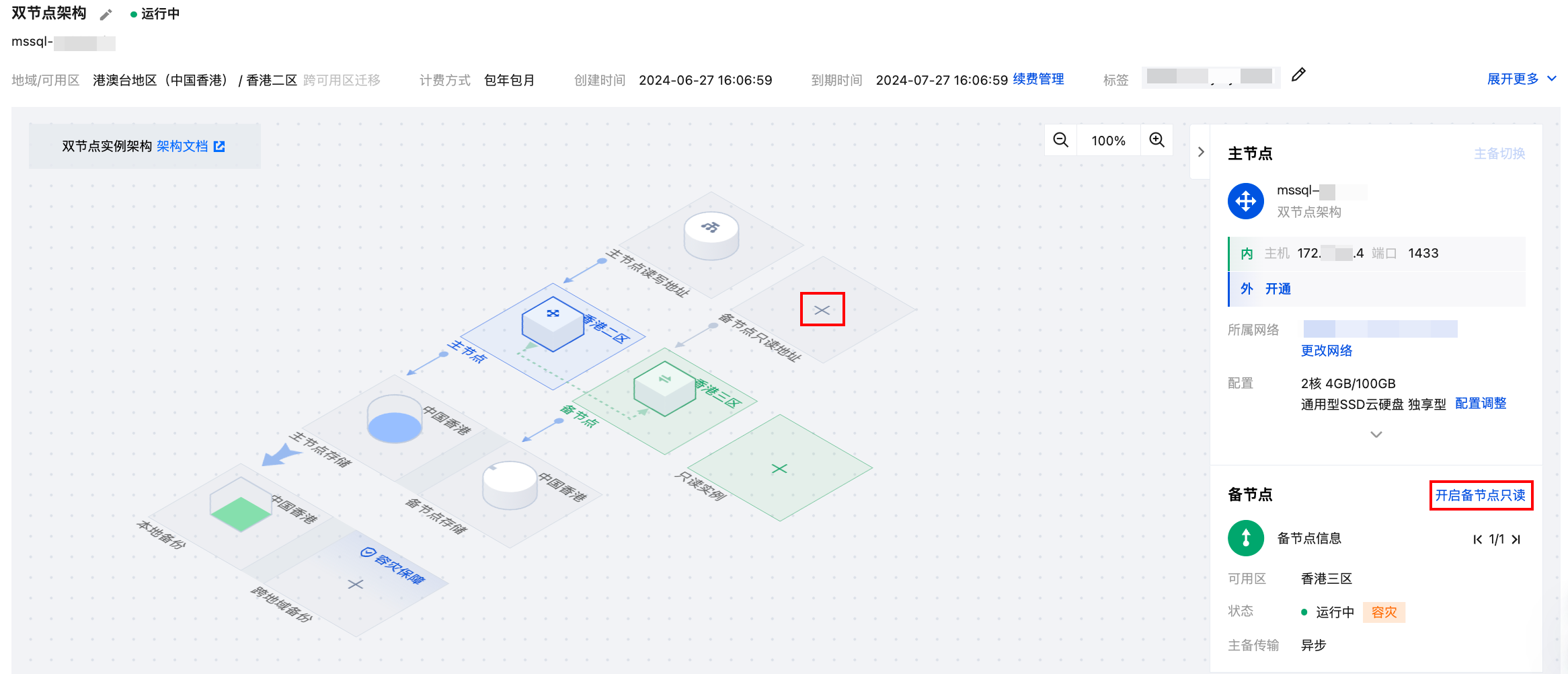
1. Log in to the SQL Server console and click Instance ID or Manage in the Operation column in the instance list to enter the instance details page. 2. Click Enable Replica Node Read-Only in the Instance Information area on the right side of the instance details page, or click "+" in the replica node read-only address area in the topology.
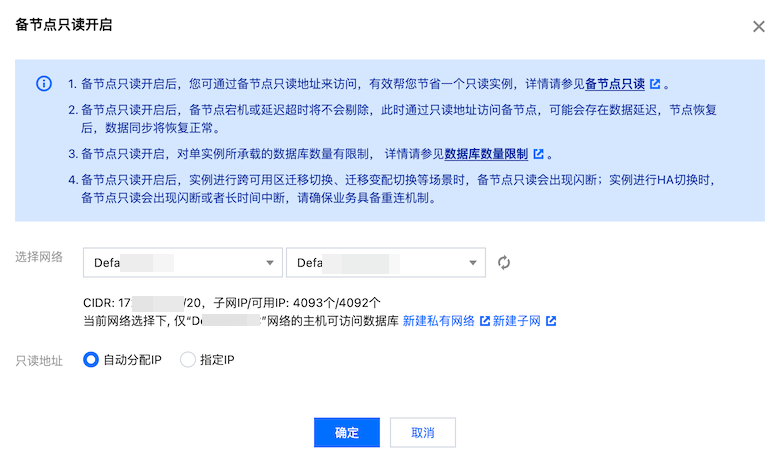
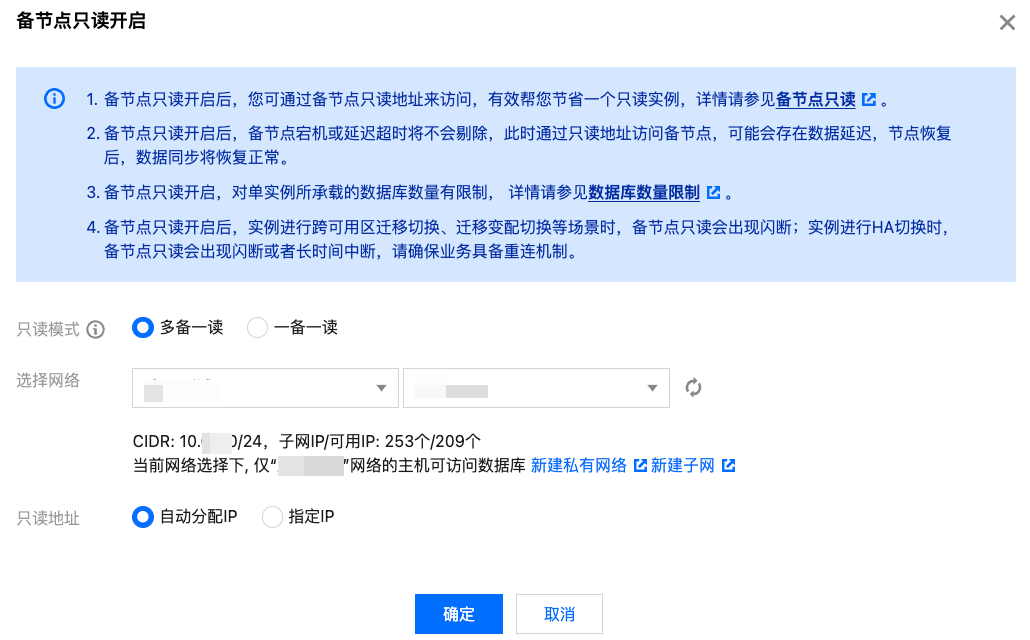
3. Complete the following configurations in the pop-up window for enabling replica node read-only, and click OK.
|
Select Network | Select a VPC. The VPC and subnet are the same as those of the read-write address of the primary node by default. You can also select another VPC. After the VPC is confirmed, only hosts under the selected VPC can access the database. |
Read-Only Address | Auto assign IP: The IP address is automatically assigned by the system. Specify IP: You can specify the IP address. |
Note:
If replica node read-only is enabled for the primary node, the read-only address will be bound to the new replica node after a replica node switch.
4. Replica node read-only is enabled when the instance status changes to Running.
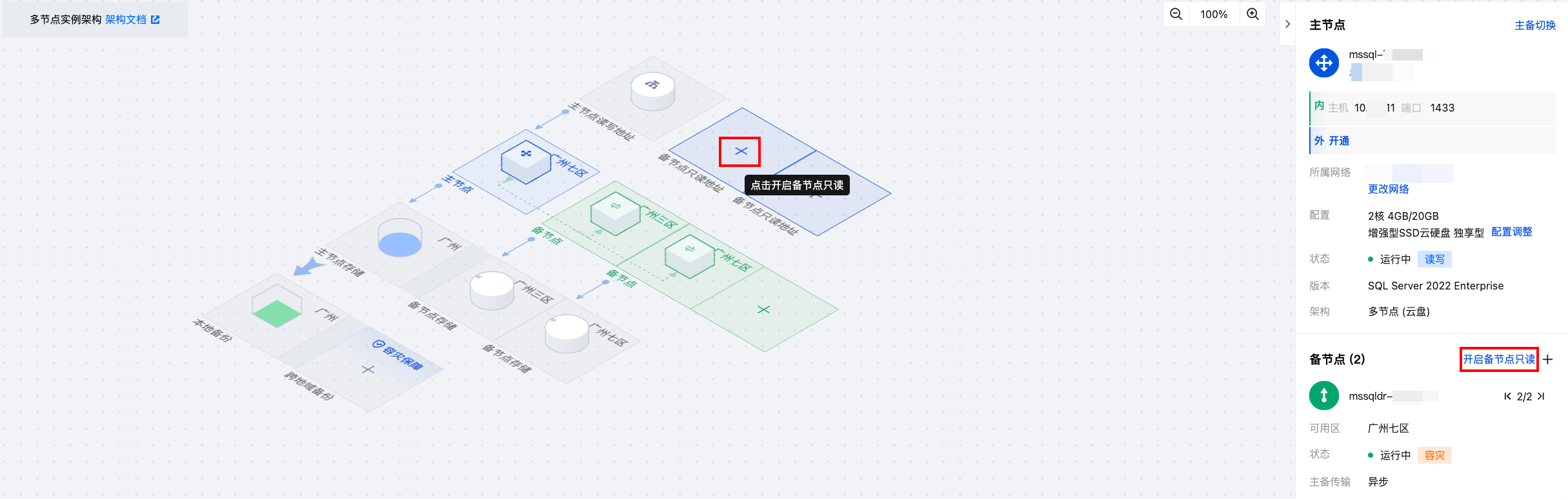
1. Log in to the SQL Server console and click Instance ID or Manage in the Operation column in the instance list to enter the instance details page. 2. Click Enable Replica Node Read-Only in the Instance Information area on the right side of the instance details page, or click "+" in the replica node read-only address area in the topology.
3. Complete the following configurations in the pop-up window for enabling replica node read-only, and click OK.
|
Read-Only Mode | Select Multiple replica with one read-only. |
Select Network | Select a VPC. The VPC and subnet are the same as those of the read-write address of the primary node by default. You can also select another VPC. After the VPC is confirmed, only hosts under the selected VPC can access the database. |
Read-Only Address | Auto assign IP: The IP address is automatically assigned by the system. Specify IP: You can specify the IP address. |
4. Replica node read-only is enabled when the instance status changes to Running.
5. Find each replica node in the Instance Information area on the right side of the instance details page, and click Modify next to the weight field.
6. Set the read weight in the pop-up window (range: 0–100) and click OK.
1. Log in to the SQL Server console and click Instance ID or Manage in the Operation column in the instance list to enter the instance details page. 2. Click Enable Replica Node Read-Only in the Instance Information area on the right side of the instance details page, or click "+" in the replica node read-only address area in the topology.
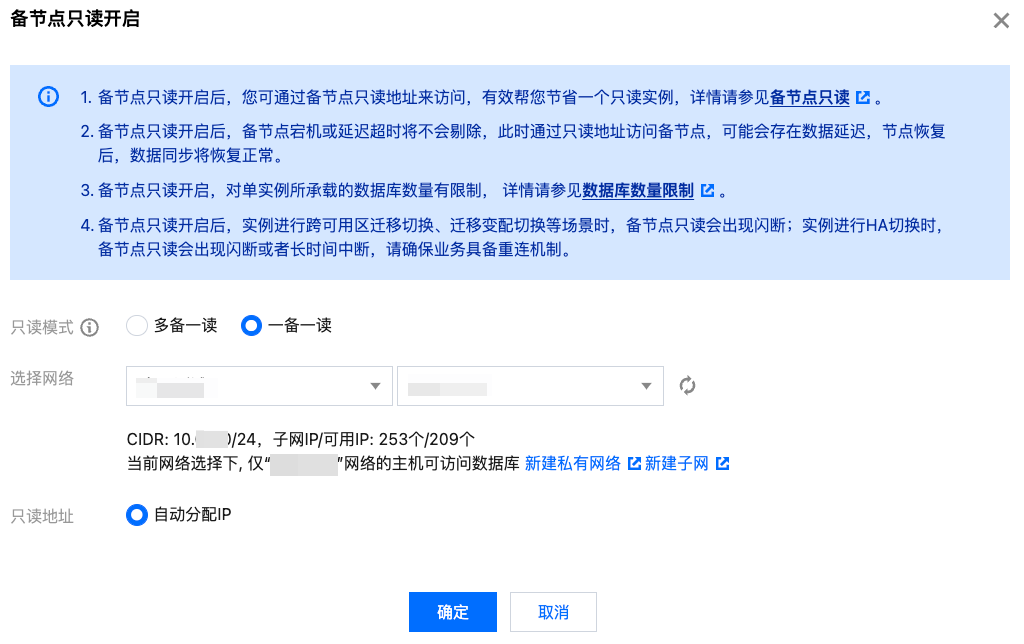
3. Complete the following configurations in the pop-up window for enabling replica node read-only, and click OK.
|
Read-Only Mode | Select One replica with one read-only. |
Select Network | Select a VPC. The VPC and subnet are the same as those of the read-write address of the primary node by default. You can also select another VPC. After the VPC is confirmed, only hosts under the selected VPC can access the database. |
Read-Only Address | Auto assign IP: The IP address is automatically assigned by the system by default. |
4. Replica node read-only is enabled when the instance status changes to Running.
Changing the Replica-Node Read-Only Network
After the replica node read-only feature is enabled, see Change Network if you need to modify the network of the replica node read-only address. Disabling Replica-Node Read-Only
Note:
After you disable replica-node read-only, the read-only address is closed. You cannot access replica nodes through the read-only address, and the IP address is released. If you need to disable replica-node read-only, confirm that your application system is not using the read-only address for connections to avoid unnecessary losses.
1. Log in to the SQL Server console and click Instance ID or Manage in the Operation column in the instance list to enter the instance details page. 2. Click Disable Replica Node Read-Only in the Instance Information area on the right side of the instance details page.
3. Click OK in the pop-up window.
FAQs
What Is the Impact on Application System Access to the Replica Node Read-Only Address If the Primary Node or Replica Node Fails After the Replica Node Read-Only Feature Is Enabled?
After the replica node read-only feature is enabled, if a primary node failure triggers a switch between primary and secondary, access through the read-only address is not provided until the original primary node recovers. This is to prevent the original replica node from being overwhelmed by a traffic surge. As a result, the corresponding application system cannot temporarily access replica node data. Read-only access to replica nodes is restored only after the original primary node recovers and is switched to a new replica node.
After the replica node read-only feature is enabled, if a replica node fails, the replica node temporarily stops providing services. The application system cannot access the instance through the replica node read-only address. Access is provided only after the replica node recovers.
Related APIs
|
| This API is used to enable or disable the read-only feature of the secondary node. |
| This API is used to modify the network of a running instance. |
| This API is used to query attributes of an instance. |