Quick Start
Download
Focus Mode
Font Size
Step 1: Installing CWPP
Note
When purchasing Tencent CVM or CPM 1.0, you can select Security Reinforcement to install the CWPP client automatically.
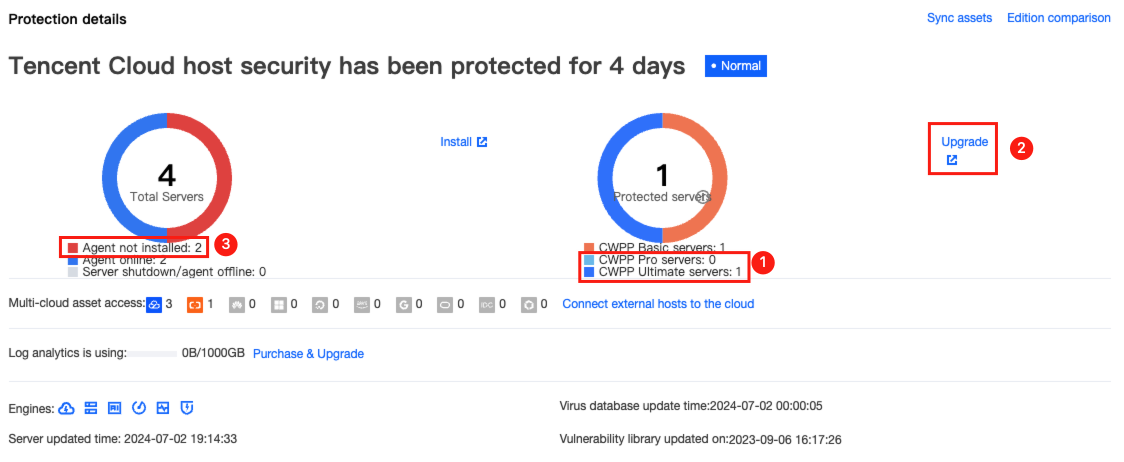
a. CVM with CWPP installed and Pro or Ultimate edition enabled enjoys comprehensive, multi-dimensional system security protection provided by CWPP.
b. CVM with Basic edition of CWPP installed can upgrade the service to Pro or Ultimate edition by clicking Upgrade on the right side.
c. CVM without CWPP can click Install on the right side and following the instructions below:
Windows CVM Environment
Supported Versions
The following versions are supported for now:
Windows server 2008, 2012, 2016, 2019, and 2022 (32-bit or 64-bit).
Windows 10 and 11 (64-bit).
CWPP Installation
Server Type | Server Products | Server Architecture | Network | Client Download and Installation |
Tencent Cloud | CVMs, Lighthouses, CPMs, and Edge Computing Machines | x86 | VPC network | Open the cmd command line window, and paste and run the following installation command:
|
Tencent Cloud | CVMs | x86 | Basic network | Open the cmd command line window, and paste and run the following installation command:
|
Non-Tencent Cloud | / | x86 | Public network and DC |
Due to the restriction of the command validity period, please go to the Host List to view the installation instructions and download and install the client. |
Installation Notes
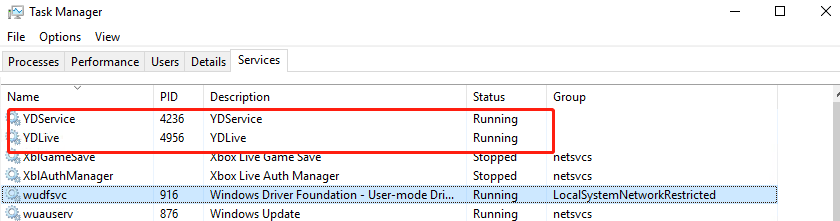
Verification of successful Windows installation: Open Task Manager and check whether the YDService and YDLive processes are called. If yes, the installation is successful.
Linux CVM Environment
Supported Versions
The following versions (64-bit) are supported for now:
TencentOS Server
Tencent tlinux
CentOS 6 or later versions
Ubuntu 9.10 or later versions
Debian 6 or later versions
RHEL 6 or later versions
OpenCloudOS
AlmaLinux
openSUSE
Rocky Linux
Red Hat 6 or later versions
Alibaba Cloud Linux
Amazon Linux
CWPP Installation
Server Type | Server Products | Server Architecture | Network | Client Download and Installation |
Tencent Cloud | CVMs, Lighthouses, CPMs, and Edge Computing Machines | x86 | VPC network |
|
Tencent Cloud | CVMs | x86 | Basic network |
|
Tencent Cloud | CVMs, Lighthouses, CPMs, and Edge Computing Machines | ARM | VPC network |
|
Tencent Cloud | CVMs | ARM | Basic network |
|
Non-Tencent Cloud | / | x86, ARM | Public network, DC |
Due to the restriction of the command validity period, please go to the Host List to view the installation instructions and download and install the client. |
Installation Notes
Run the command to check whether the YDService and YDLive processes are running. If yes, the installation is successful.
ps -ef | grep YD

Note: If the processes are not running, the program can be started by running the following command via a root user:
/usr/local/qcloud/YunJing/startYD.sh
Step 2: Operating CWPP
CWPP can process and display the security information of a server in real time. It supports detecting and isolating Trojan files, detecting vulnerabilities, identifying suspicious log-in behaviors and adding them to allowlist, blocking password-cracking attempts, and setting alarms. For details, see Operation Guide.
Step 3: Troubleshooting
If the host is hacked, you can follow the intrusion troubleshooting guide to troubleshoot the problem and restore the normal running of the website or system. For details, see Intrusions on Linux or Intrusions on Windows.
Step 4: Uninstalling CWPP
If you no longer need CWPP protection, you can uninstall it. There are two ways to uninstall CWPP: via the console and via the system. Here is a detailed introduction:
Uninstalling via the Console
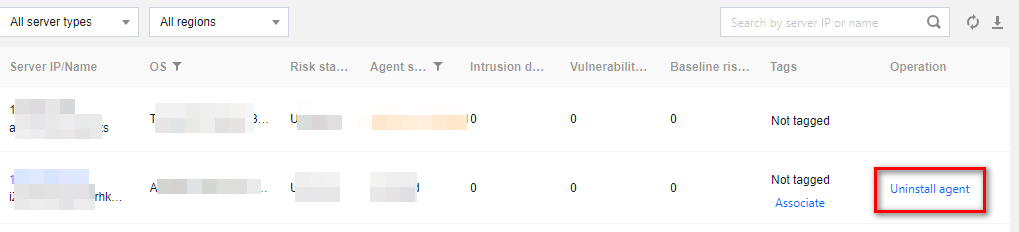
1. Log in to the CWPP Console. Select Assets > Server List in the left sidebar to check if CWPP is installed on your CVM.
2. In the Server List, select the server where you need to uninstall CWPP. Click Uninstall agent in the action bar on the right side.
Uninstalling via the System
Windows System: Follow the path
C:\\Program Files\\QCloud\\YunJing\\uninst.exe to locate the uninst.exe file and double-click to uninstall.Linux System: Enter the command
if [ -w '/usr' ]; then /usr/local/qcloud/YunJing/uninst.sh ; else /var/lib/qcloud/YunJing/uninst.sh ; fi to uninstall.FAQs
How to Handle Firewall Interception During Installation?
It is recommended to allow access to the CWPP backend server addresses in firewall policies:
VPC Domain Names:
so.yd.tencentyun.com, lo.yd.tencentyun.com, uo.yd.tencentyun.comVPC Network IP:
169.254.0.170Basic Network Domain Names:
so.yd.qcloud.com, uo.yd.qcloud.com, lo.yd.qcloud.comBasic Network IPs:
11.186.186.54, 11.186.186.55Non-Tencent Cloud Public Network Domain Names:
sop.yd.qcloud.com, uop.yd.qcloud.com, lop.yd.qcloud.comNon-Tencent Cloud Public Network IPs:
43.153.254.117、129.226.7.49Ports:
5574, 8080, 80, 9080 (Public network also needs to allow port 443)How to Configure if Not Using Default DNS?
If you are not using the default DNS, you need to forward all resolutions of the root domains
tencentyun.com and yd.qcloud.com to the default DNS.
Help and Support
Was this page helpful?
You can also Contact sales or Submit a Ticket for help.
Help us improve! Rate your documentation experience in 5 mins.
Feedback