This document will introduce how to view and process privilege escalation event details. It also instructs you on how to create an allowlist for setting permitted privilege escalation behaviors.
Overview
If an event occurs where entry into the system is gained with low privileges which subsequently escalated to higher privileges through certain means, it is highly likely to be an act of hacking, posing a threat to the security of hosts. The local privilege escalation feature can monitor in real-time privilege escalation events on your CVMs, and allow you to view the event details, process the events, and create the allowlist of permitted privilege escalation events.
Prerequisites
Local privilege escalation supports only the Pro Edition and Ultimate Edition hosts. Basic and unprotected hosts must upgrade to Pro edition or Ultimate edition to use this feature.
Directions
Alert List
1. Log in to the CWPP console. In the left sidebar, choose Intrusion Detection > Local Privilege Escalation to enter the local privilege escalation Alert list tab page.
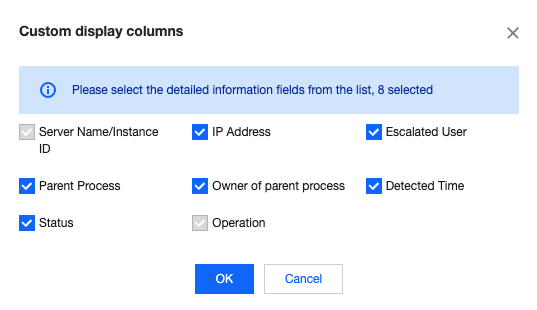
2. On the local privilege escalation Alert list tab page, you can view the list of alarm events of local privilege escalation and perform related operations. The list includes eight fields: Server Name/Instance ID, IP Address, Escalated User, Parent Process, Owner of Parent Process, Detected Time, Status, and Operation (Details | Process). The details displayed in the list can be user-defined.
Filter/Query: The local privilege escalation alarm list supports choosing dates to view corresponding alarm information. It also supports searching events by keywords and tags (multiple keywords separated by a vertical bar (|), and multiple filter tags separated by hitting the Enter key). Additionally, you can filter events by status.
Custom List Fields: At the top of the local privilege escalation alarm list, click
to set the columns to display in the list. After making your choices, click OK to save your settings.
Event Export: At the top of the local privilege escalation alarm list, click
to export the list.
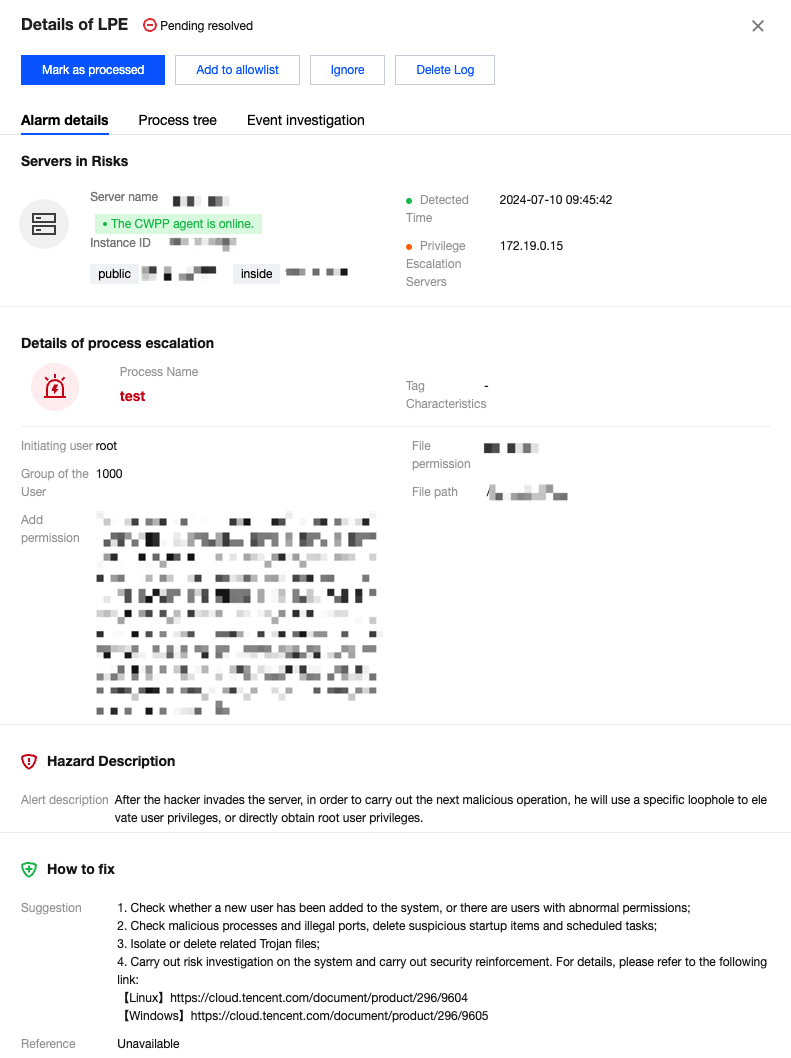
Details > Alert details: In the right action bar of the local privilege escalation alarm list, click Details and choose the Alert details tab to view the alarm details.
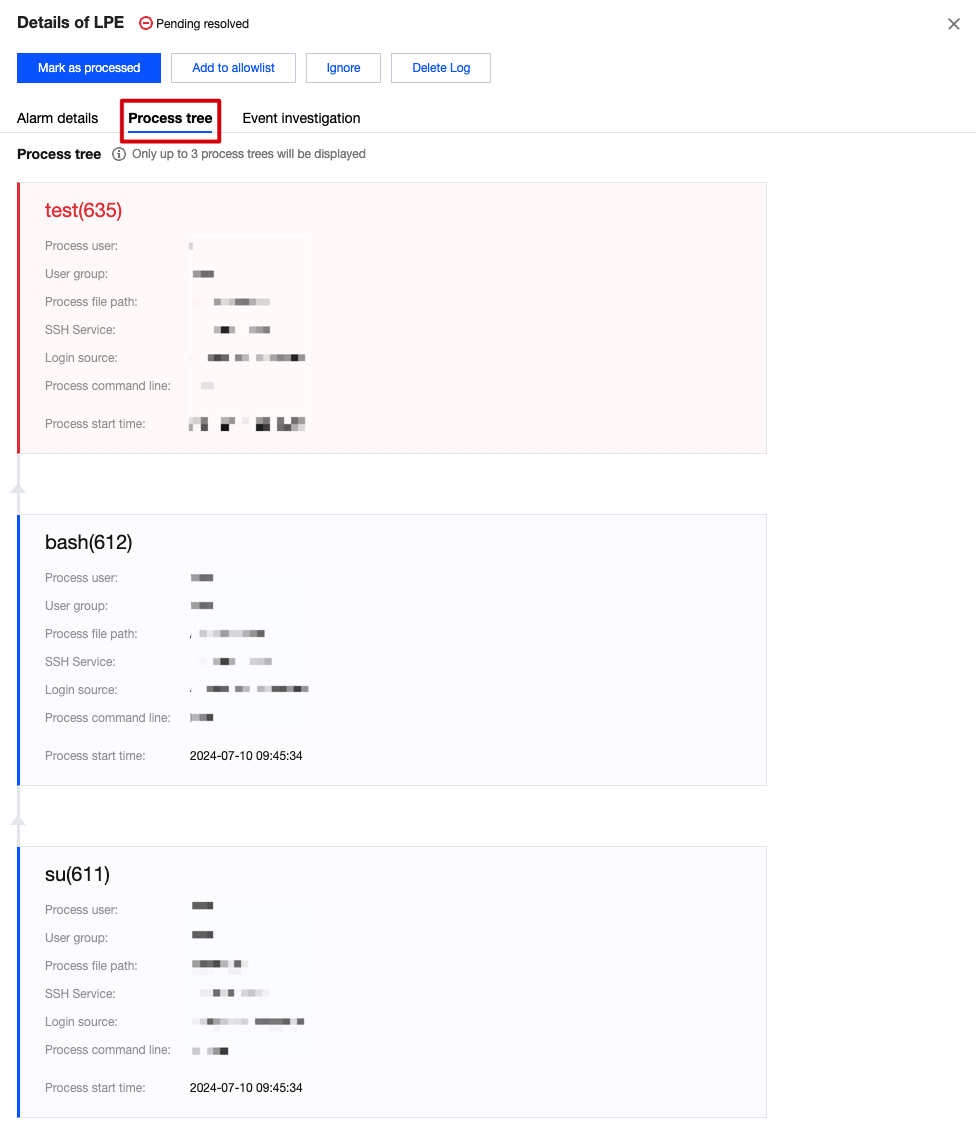
Details > Process tree: In the right action bar of the local privilege escalation alarm list, click Details and choose the Process tree tab to view details of the three most recent processes in reverse chronological order.
Details > Event investigation: In the right action bar of the local privilege escalation alarm list, click Details and choose the Event Investigation tab to enter the event investigation of the corresponding host list.
Note
Windows machines do not support the event investigation feature.
Only the Ultimate Edition supports the event investigation feature.
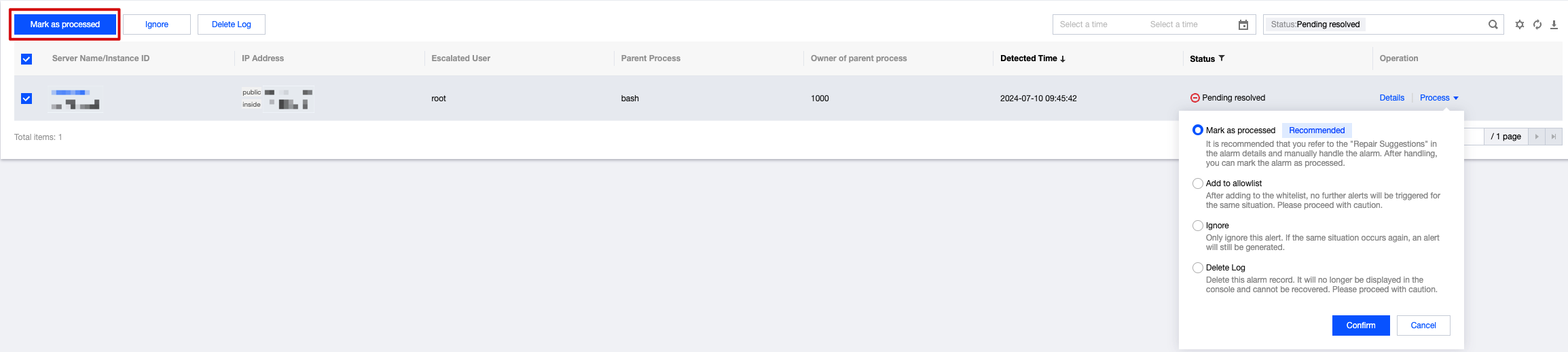
Marked as processed: Supports single or multiple selections of local privilege escalation alarm information. After the alarm is manually processed, it can be marked as processed.
Add to allowlist:
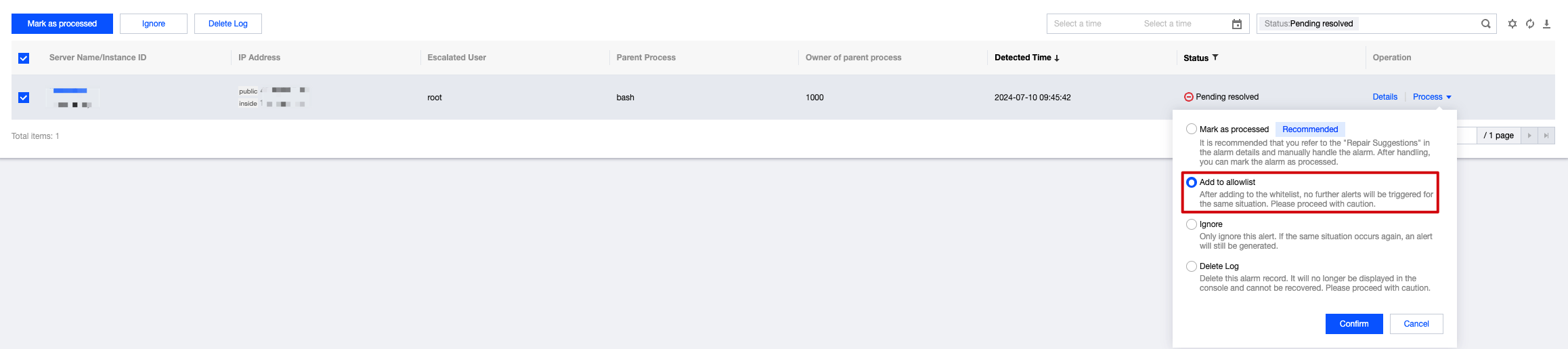
2.1.1 To add a local privilege escalation alarm event to the allowlist, you can click Process > Add to allowlist in the right action bar of the alarm information list, or click Add to allowlist on the details page.
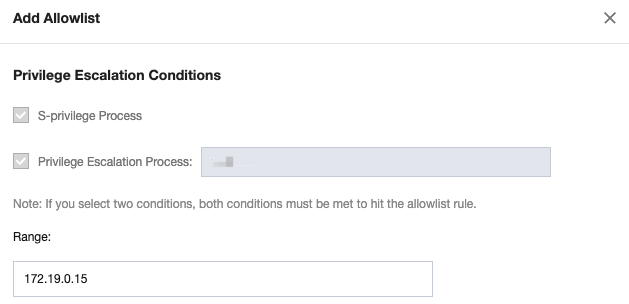
2.1.2 On the add new allowlist page, fill in the server range and click Confirm to add the local privilege escalation alarm to the allowlist.
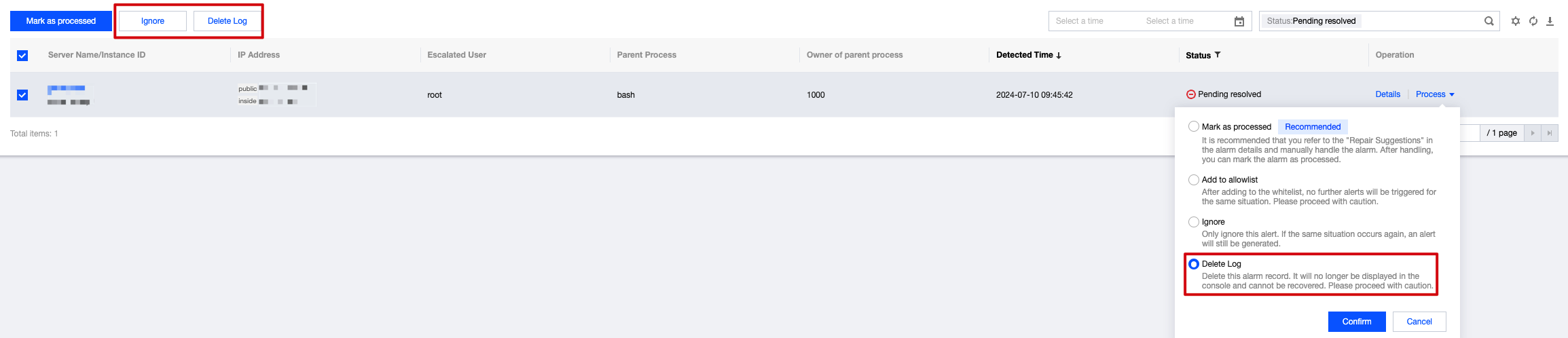
Ignore: Supports single or multiple selections of local privilege escalation alarm information. Only the selected alarms will be ignored. If the same situation occurs again, an alarm will still be triggered.
Delete Log (Proceed with Caution) : Supports single or multiple selections of local privilege escalation alarm information. If you delete the selected alarm records, they will no longer be displayed on the console and cannot be recovered.
3. Click the Server Name/Instance ID of the local privilege escalation alarm to view the details in the Intrusion Detection tab of the host list.
Allowlist Management
The local privilege escalation feature supports adding to the allowlist. If you set the allowlist conditions for privilege escalation, events that meet the conditions will be added to the allowlist.
1. Log in to the CWPP console. In the left sidebar, choose Intrusion Detection > Local Privilege Escalation.
2. On the Local Privilege Escalation page, click Allowlist Policies > Add Allowlist.
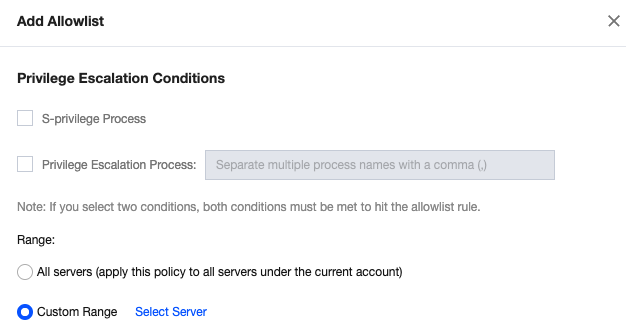
3. On the add allowlist page, set the privilege escalation conditions, including: S-privilege process, custom privilege escalation process (supporting multiple process names, separated by commas, e.g., 123.exe,test.exe), and also select the server range covered by the conditions. Click OK.
Caution
S-privilege: Set the file to have the privileges of the file owner during the execution, which is equivalent to temporarily assuming the identity of the file owner.
When both conditions are checked, both must be met to hit the allowlist.
If the server range is set to all servers, this allowlist condition will be trusted for all servers under the user's APPID. Proceed with caution.
4. After settings, you can view this condition in the allowlist management list. Events that meet this condition in the event list will be marked as allowlist events.
5. On the allowlist management page, you can filter and delete the allowlist.
Filtering: Configured allowlists support searching by keywords and tags (multiple keywords separated by a vertical bar (|), and multiple filter tags separated by hitting the Enter key). Filtering by S-privilege is also supported.
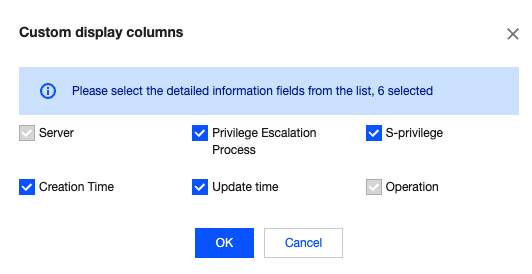
Custom List Fields: At the top of the allowlist, click
to set the columns to display in the list. After your selections, click OK to save your settings.
Editing: In the right action bar of the target allowlist, click Edit to edit the existing allowlist.
Delete: In the allowlist, you can select one or multiple configured allowlists for deletion.