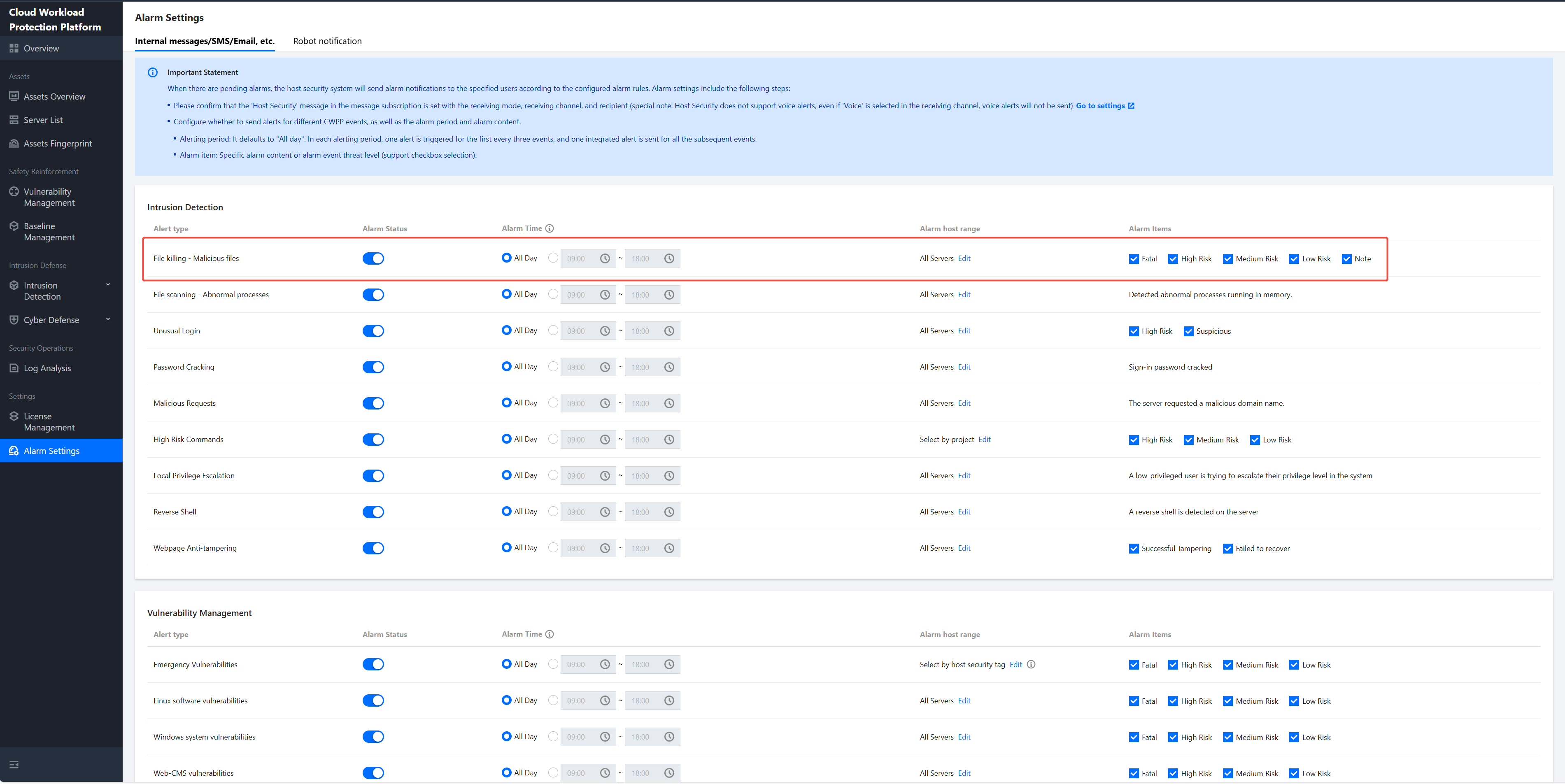
When malicious files are detected on the server under a user's Tencent Cloud account, if the file is not hit in the file allowlist, real-time alerts will be triggered by host security.
Processing Steps
Upon receiving a malicious file Alarm, please follow the steps below:
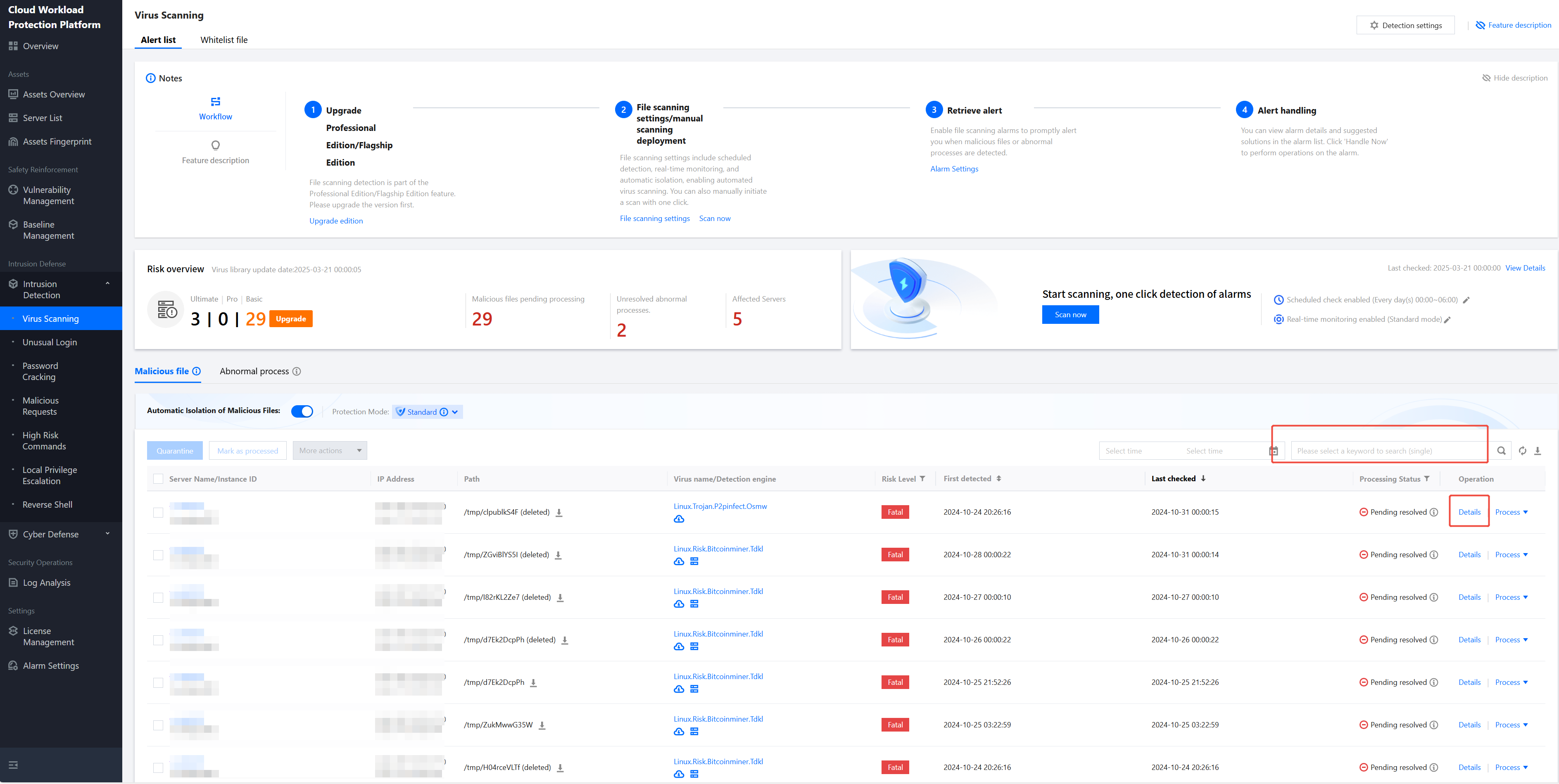
1. Log in to the CWPP Console. In the left sidebar, select Intrusion Detection >Virus Scanning.
2. On the virus scanning page, search by Instance ID, locate the specific alarm and click details.
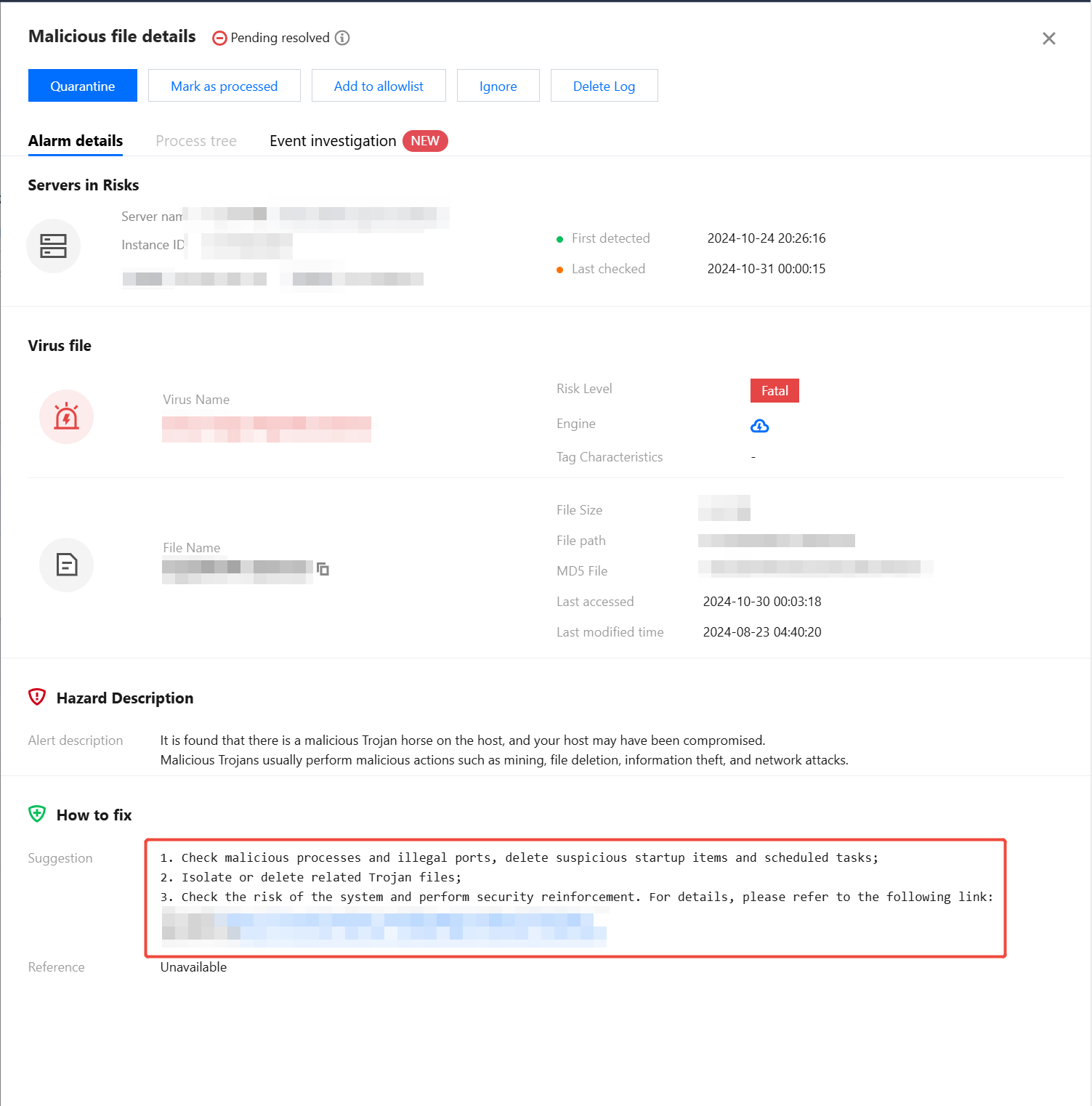
3. After checking alarm details, please confirm whether this malicious file is a false alarm. If it is a false alarm, please perform step 4. If it is not a false alarm, please perform step 5.
Note:
Whether this malicious file is a false alarm can be determined by several ways.
Contact the business team to judge whether the file is a required file for normal business operation.
Query threat intelligence and judge whether the file is marked as a malicious sample by the public network.
Whether this file behavior causes further triggering of more Alarms.
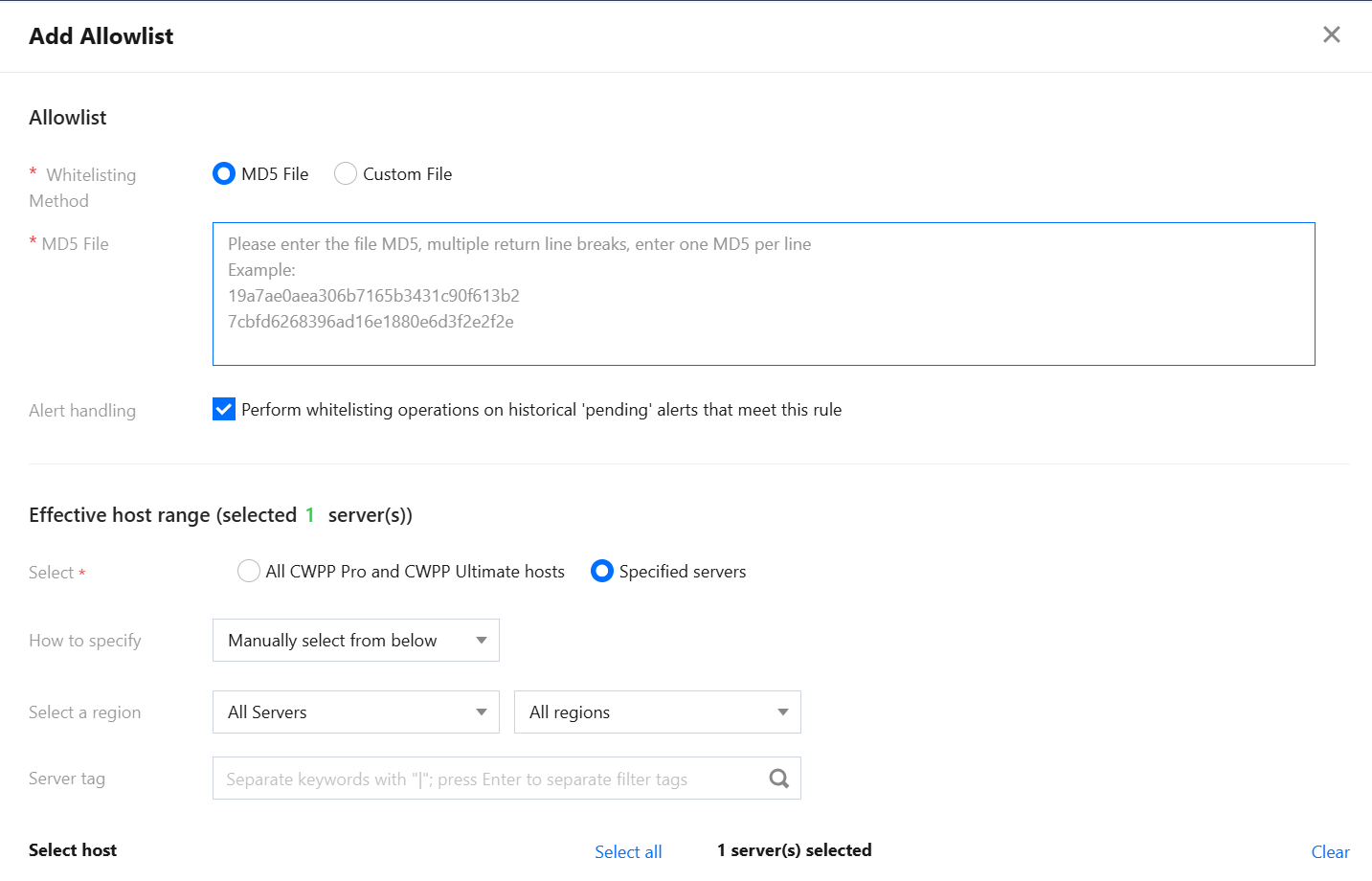
4. Clearly a false alarm. Please add this file to the allowlist. Subsequently, if this file is detected again, it will be ignored and no alarm will be generated. And contact us to report the false alarm.
5. Clearly not a false alarm. Please refer to the recovery suggestions in the alarm details for handling.
- Click Quarantine to quarantine this file and end related processes. The alarm handling status will become "Quarantined".
- Log in to the host, find the corresponding file, manually delete or quarantine it and end related processes. Then mark the alarm as processed on the console. The alarm handling status will become "Resolved".
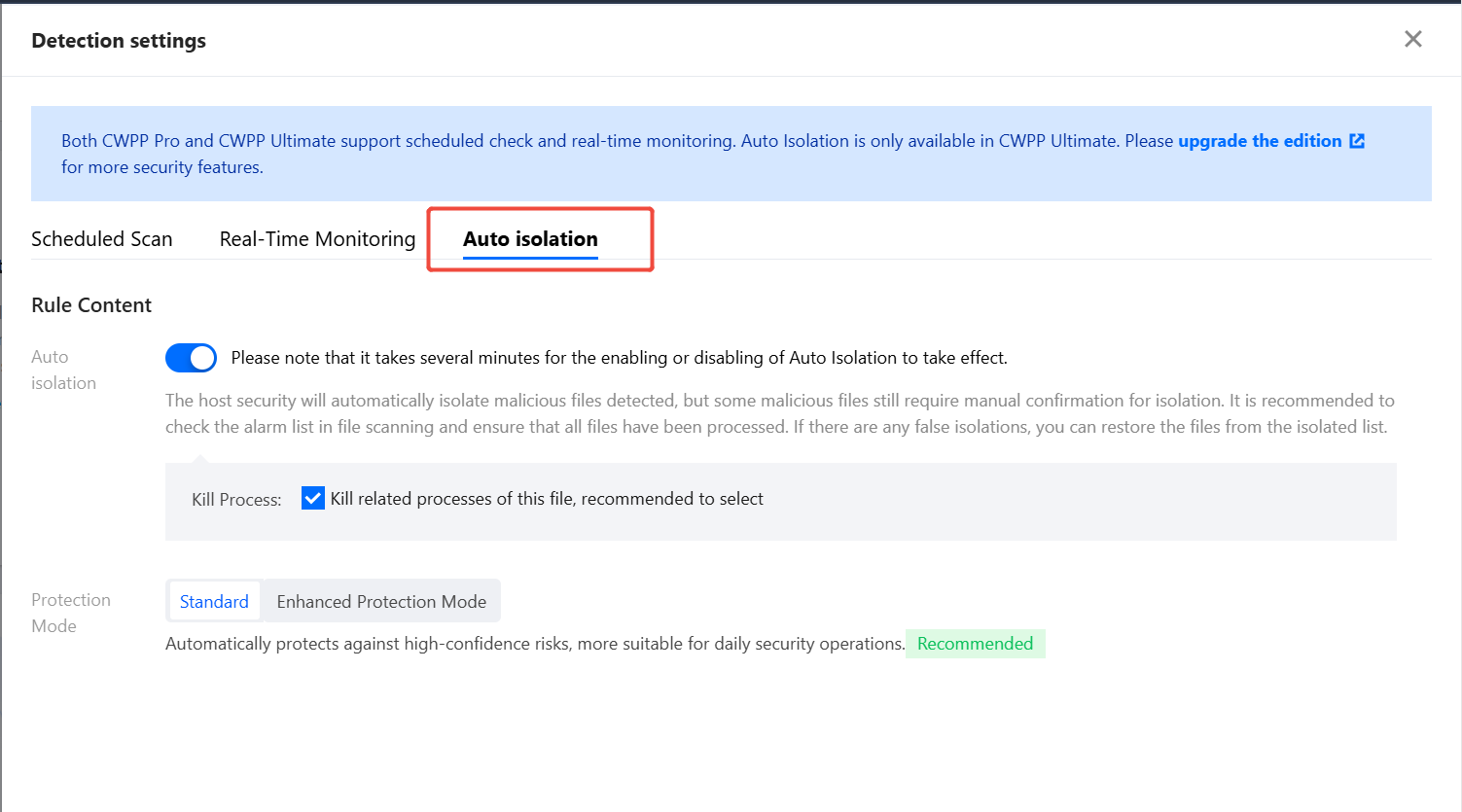
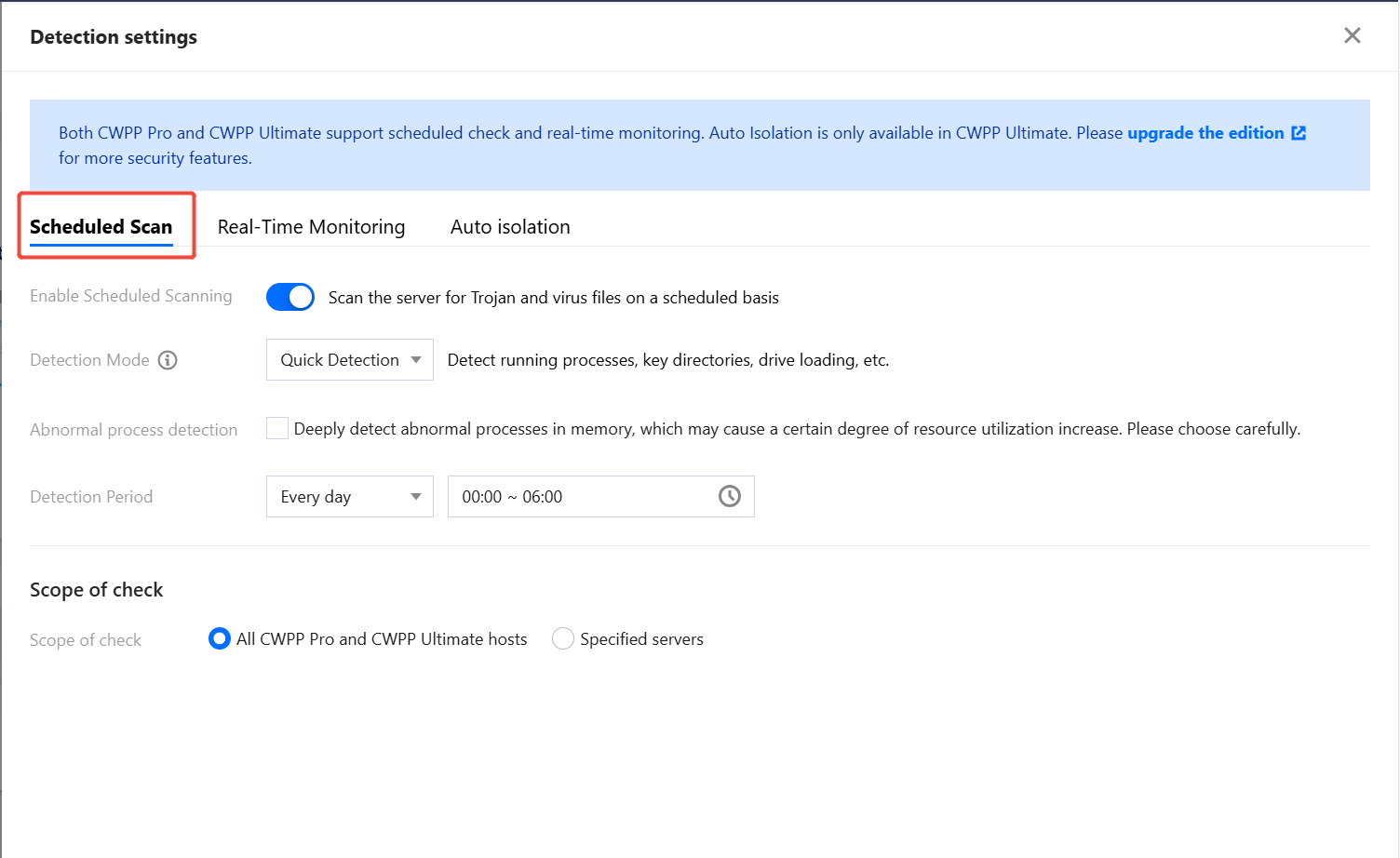
6. On the virus scanning page, click Detection Settings in the upper right corner. It is recommended to enable the auto-isolation switch. If a malicious file is detected, it will be automatically isolate immediately.
Note:
Not all detected malicious files can be automatically quarantined. Manual confirmation of quarantine for some malicious files is still required. It is recommended to check the alarm list in the file detection and elimination and ensure all resolved.
If a file is falsely quarantined, please restore it from the quarantined list.
To turn on or off auto isolation, configuration is required. There is several minutes delay before taking effect.
FAQs
Where to Configure Alarms for Malicious Files?
On the Alarm Settings Page, configure the alarm time, alarm host range, and alarm items for file killing - malicious files.
How to Set Up Regular Inspection for Malicious Files?
On the virus scanning Page, click Detection Settings in the upper right corner. Open the Detection Settings popup and perform scheduled scan settings.
If a File Has Been Deleted and a Malicious File Scan Is Performed Again, What Will the Original Alarm Handling Status Become?
The original alarm handling status will become "cleaned".