Automatic Backup Settings
Download
Focus Mode
Font Size
TencentDB for PostgreSQL automatically backs up data according to the default backup settings. You can also modify the automatic backup settings and select to perform backups during resource idle time all day. This document introduces how to perform automatic backup settings through the PostgreSQL console.
Notes
It is recommended that you try to choose off-peak periods to perform backups.
Backup may take a long time if the data volume is large.
Backup files have a retention time, which defaults to 7 days. Please download promptly the backup files that need to be kept to your local system, or use SCF to transfer PostgreSQL historical backups.
The backup mode is physical backup, while logical backup is not supported currently.
Directions
1. Log in to the TencentDB for PostgreSQL console. In the instance list, select a region and click an instance ID to enter the instance management page.
2. On the instance management page, select the Backup and Restoration tab and click Auto-Backup Settings.

3. In the pop-up backup settings window, perform the configuration of the following options.
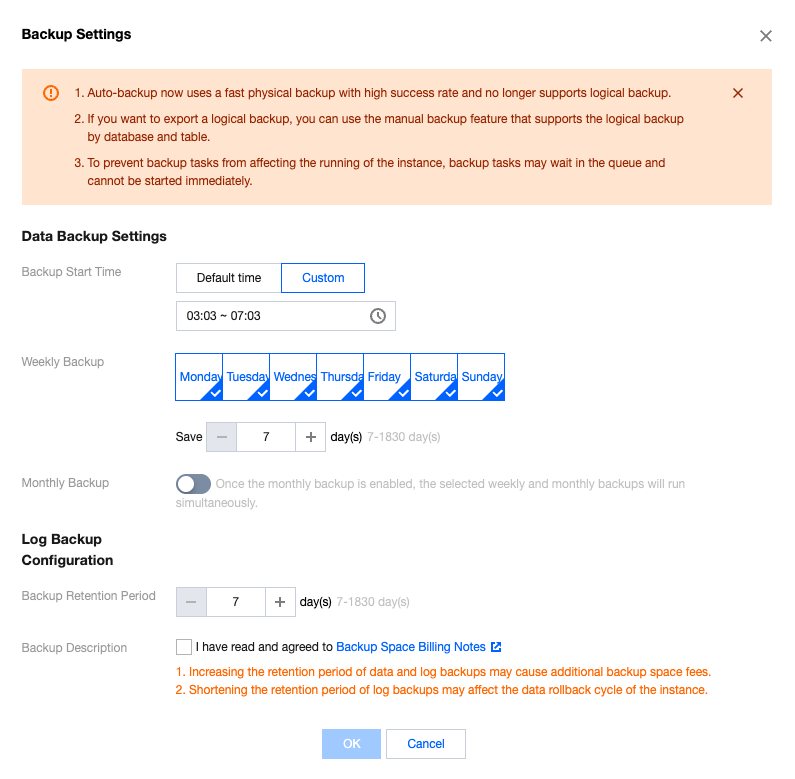
Parameter | Description |
Backup Start Time | Support selecting the default time (to perform backup during idle time of resources throughout the day) or customizing the backup start time. The backup will be initiated within this time range. If the backup fails to be initiated within this time period due to an unexpected reason, this backup will no longer start and will be initiated during the next backup start time period. Default time is the backup initiation time automatically assigned by the system. Support custom selection of backup start time. Set it to the off-peak period. Backup initiation time is merely the time when the backup starts and does not represent the backup end time. For example, if you select 02:00 - 06:00 to enable backup, the system will initiate backup at a certain point within the time range of 02:00 - 06:00, depending on the backend backup policy and backup system status. |
Weekly Backup | Select by the scale of one week, and support consecutive or interval selection from Monday to Sunday. Chosen by default for Monday to Sunday, 7 days. Support custom selection of backup time. However, to ensure the security of your data, please set up at least two backups per week. |
Weekly backup retention time | Weekly backup files can be retained for 7–1830 days. It defaults to 7 days. The backup set will be auto-deleted upon expiry. |
Monthly Backup | Select based on a one-month (31 days) scale. The backup data backed up monthly can be set with a separate retention time. Off by default. After turning on the switch, you can choose any number of days from 1 to 31. Particularly, if the 31st is selected, the backup this time will be skipped directly in months without the 31st. Monthly backup and weekly backup are carried out simultaneously, and all data will be stored. |
Monthly backup retention time | Monthly backup files can be retained for 7–1830 days. It defaults to 7 days. The backup set will be auto-deleted upon expiry. |
log backup retention time | Log backup data retention time setting: Retainable for 7–1830 days, defaults to 7 days. |
4. Once configured, click OK. Once the notification in the upper-right corner prompts that the backup setting is successful, the automatic backup setting is completed.

Help and Support
Was this page helpful?
You can also Contact sales or Submit a Ticket for help.
Help us improve! Rate your documentation experience in 5 mins.
Feedback