Set Up a Remote Disaster Recovery Environment for PostgreSQL Locally on CVM
Download
Focus Mode
Font Size
Background
To ensure normal business operation, a highly available database architecture is essential. Once a database experiences problems such as data loss or unavailability, it can cause significant impact and financial loss. With a primary-backup architecture, when the primary database cannot work due to a sudden hardware fault, the secondary database can immediately take over the service to ensure the normal provision of the database service. Building a PostgreSQL disaster recovery environment on a self-built CVM in the cloud can synchronize cloud data to local storage, improving the ability to respond to force majeure.
This document mainly introduces how to build a primary-secondary environment with TencentDB for PostgreSQL as the primary database and self-built PostgreSQL on CVM as the secondary database.
Prerequisites
The PostgreSQL database of the same version must be installed in the CVM. For detailed installation instructions, refer to the official documentation for PostgreSQL. For Linux CVM configuration, see Quickly Configuring Linux CVM. Example usage uses PostgreSQL version 14.
Note:
This method requires the use of the pg_basebackup tool. Both tools only support PostgreSQL Version 13 or higher.
Step 1: Physically Back Up the Primary Cloud Database Data to the Local Secondary Database on the CVM
1. Log in to the Cloud Virtual Machine (CVM) with the root account and run the following command to install the Chinese Character Set.
1.1. If your CVM system is Debian/Ubuntu, please use root privileges to run the following command:
[root@VM-10-18-tencentos ~]# sudo locale-gen zh_CN.UTF-8
1.2. If your CVM system is CentOS/TencentOS, use root permission to execute the following command to access the configuration file content:
[root@VM-10-17-tencentos ~]# vi /etc/locale.conf
Press the "i" key to enter edit mode, and modify the file content to:
LANG="zh_CN.UTF-8"
Press esc to exit edit mode, then directly enter :wq to save modifications and exit. After exiting, execute the following command to make the configuration take effect:
[root@VM-10-17-tencentos ~]# source /etc/locale.conf
1.3. Installation complete. You can use the following command to check whether the character set is installed successfully:
[root@VM-10-17-tencentos ~]# locale -a | grep zh_CNzh_CNzh_CN.gb18030zh_CN.gb2312zh_CN.gbkzh_CN.utf8
If the returned information is prefixed with "zh", the installation is successful.
2. Create an ordinary permissions user. If an ordinary permissions user already exists in your local database, skip this step.
Note:
When creating a backup data directory, you must use an ordinary permissions user. PostgreSQL, for security reasons, does not allow the startup command pg_ctl to run as the root or postgres super user.
Use the following command to create an ordinary user pgsql.
[root@VM-10-6-tencentos pgsql]# useradd -r -s /bin/bash pgsql
3. Rename the directory to back up the data directory in the current CVM.
The system default data directory is /usr/local/pgsql/data. Change the command according to actual conditions.
Execute the following commands. Use the regular user account pgsql to stop the running PostgreSQL service.
[root@VM-10-17-tencentos ~]# su - pgsql #Log in to the local database as the regular user account pgsql[pgsql@VM-10-17-tencentos ~]$ cd /usr/local/pgsql/data[pgsql@VM-10-17-tencentos data]$ /usr/local/pgsql/bin/pg_ctl stop -D /usr/local/pgsql/datawaiting for server to shut down.... doneserver stopped
Execute the following commands to rename the data catalog and use it as a backup. For example, the backup directory name is data-bak-2025, which can be changed according to actual conditions.
[pgsql@VM-10-6-tencentos postgresql-14.2]# mv /usr/local/pgsql/data /usr/local/pgsql/data-bak-2025
Re-create a new data directory /usr/local/pgsql/data as the directory for the database to store data. Modify the permissions of the new database directory to 700, that is, only the directory owner has read, write, and execute permissions, and other users have no operation permissions.
[pgsql@VM-10-6-tencentos postgresql-14.2]# cd /usr/local/pgsql[pgsql@VM-10-6-tencentos pgsql]# mkdir data[pgsql@VM-10-6-tencentos pgsql]# chmod 700 data
4. Execute the following commands to use the pg_basebackup tool to back up primary database data online.
Among them, fill in the IP address of the cloud database after the -h parameter, and fill in the account for connecting to the database after the -U parameter. Here it is dbadmin. If the cloud database and the CVM are under the same VPC, it is advisable to fill in the internal network IP of the cloud database.
[pgsql@VM-10-6-tencentos pgsql]# exit[root@VM-10-6-tencentos pgsql]# date && /usr/local/pgsql/bin/pg_basebackup -R -Xs -D /usr/local/pgsql/data -h *.*.*.* -p 5432 --verbose -P -U dbadmin && datePassword:
Note: Password:. Input the password for database account and press Enter.
Finally, the displayed information "pg_basebackup: base backup completed" signifies that the physical backup is successful.
Step 2: Modify the Configuration File and Add the Primary/Replica Link
1. Execute the following commands to enter the postgresql.conf configuration file.
[root@VM-10-6-tencentos pgsql]# vi /usr/local/pgsql/data/postgresql.conf
Press the "i" key to enter edit mode. Find the following content, and add the English character "#" at the beginning of each line to comment it out.
synchronous_standby_namesextension_blacklisttencentdb_enable_copy_totencentdb_relcache_evict_numtencentdb_relcache_max_numsoft_limit_connectionsshared_preload_librariestencentdb_syscache_max_numbasebackup_exclude_pathstencentdb_syscache_evict_numtencentdb_enable_trusted_extensiontencentdb_az_fivedisable_dblink_connect_to_othertencentdb_enable_superuser_unsafe_behaviour
Note:
Open source environments cannot recognize special parameters. Comment out all items with the prefix tencentdb in the configuration files.
And, modify the following items:
port = 5432 # Change the original port number to 5432log_directory = '/usr/local/pgsql/logs' # Can be set as neededlog_destination = 'csvlog' # Change the original 'csvlog,auditlog' to log_destination = 'csvlog'
Finally, add two rows at the end of the file.
unix_socket_directories = '/usr/local/pgsql/data' # Can be set as neededprimary_conninfo = 'host=*.*.*.* port=5432 user=dbadmin password=corresponding password' # Fill in the cloud database IP address for host, and fill in the account name for connecting to the database for user.
After modification, press esc to exit edit mode, and enter :wq to save changes and exit the file.
2. Execute the following commands to enter the pg_hba.conf configuration file.
[root@VM-10-6-tencentos pgsql]# vi /usr/local/pgsql/data/pg_hba.conf
Press the i key to enter edit mode. Find the following content and add the English character # at the beginning of the line to comment it out.
host all postgres 0.0.0.0/0 reject
After modification, press esc to exit edit mode, and enter :wq to save changes and exit the file.
Step 3: Start the Database and View Backup Data
Log in with the regular user account pgsql and start the database locally to the CVM:
[root@VM-10-6-tencentos pgsql]# su - pgsql[pgsql@VM-10-6-tencentos pgsql]$ /usr/local/pgsql/bin/pg_ctl -D /usr/local/pgsql/data -l logfile startwaiting for server to start.... doneserver started
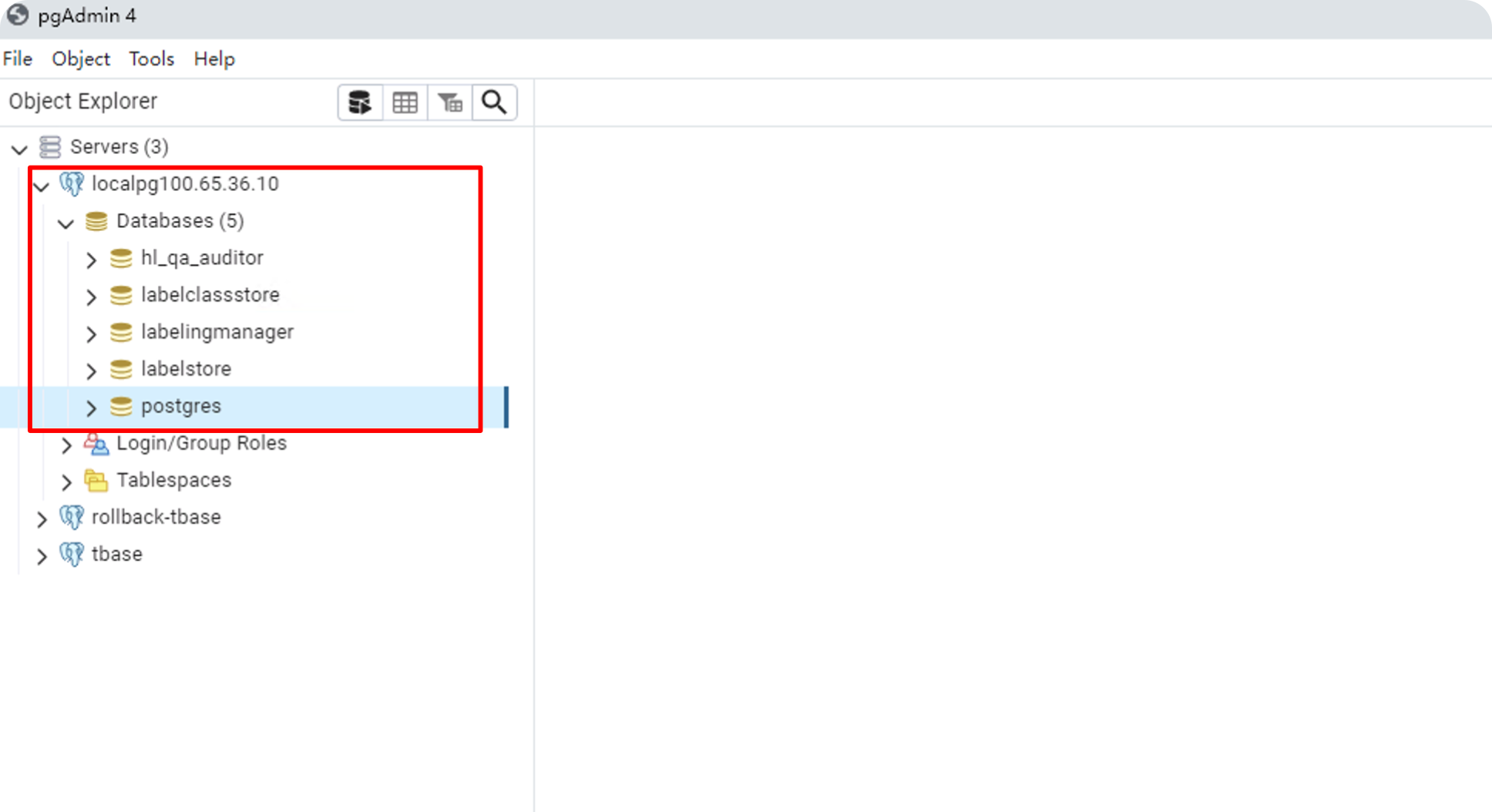
Connect to the database on the CVM through the pgAdmin client, and you can view the physical backup data.
Step 4: Verify the Primary/Replica Link
Log in to the TencentDB for PostgreSQL console, log in to the database instance, and execute the following SQL statement:
select * from pg_stat_replication;
As shown below, the execution result will display the primary/replica link just created.
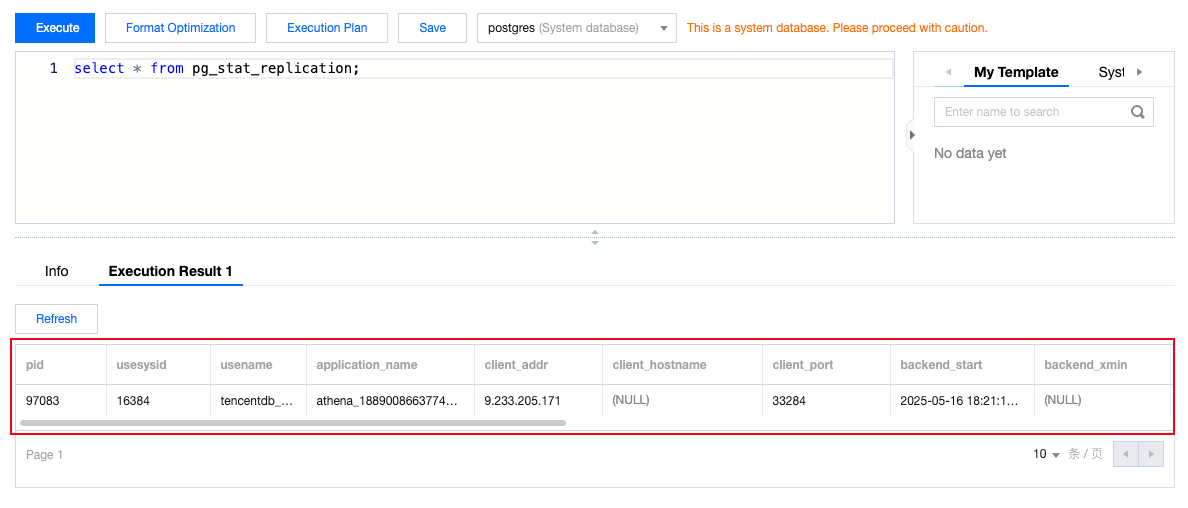
The master-slave environment is successfully constructed.
Help and Support
Was this page helpful?
You can also Contact sales or Submit a Ticket for help.
Help us improve! Rate your documentation experience in 5 mins.
Feedback