Introduction
Download
Focus Mode
Font Size
Overview
TencentDB for PostgreSQL supports setting automatic and custom CPU scaling for instances, which effectively alleviates performance pressure caused by sudden requests, adapts to peak business traffic, and ensures the stability of online businesses. It also supports CPU scale-in during periods of decreased traffic to avoid resource waste. This document introduces the feature of CPU elastic scaling.
Feature Type
The CPU elastic scaling feature includes automatic scaling and custom scaling. When automatic scaling is enabled, you need to set scale-out and scale-in rules. When custom scaling is enabled, first select the number of cores for scale-out and then choose the scale-in time. For scale-out time, you can select now, which means the CPU will scale out immediately without automatic scale-in afterward, and this feature needs to be disabled manually. Alternatively, you can scale out the CPU by time period or cycle, where the CPU scales out within the selected period or cycle and automatically scales in within other periods. This enables more granular configuration of the CPU elastic scaling policy for instances, better aligning with actual business fluctuations.
Automatic Scaling
Automatic scale-out description
After Elastic CPU scale-out > Automatic scale-out is enabled, when the average CPU utilization of the database instance within the observation window reaches the set threshold, the system will double the number of CPU cores based on the original computing specification. For example, if the original computing specification has 4 CPU cores, it will be increased to 8 cores. If the user's Tencent Cloud account balance is insufficient or the host lacks sufficient CPU resources (which is less possible), scaling will not be performed, and a scaling failure event will be sent.
Note:
Only support doubling the number of CPU cores from the original computing specification. The already increased number of CPU cores cannot be further increased. For example, if the increased number of CPU cores is 8, it cannot be increased to 16 cores.
Automatic scale-in description
After Automatic scale-out under Elastic CPU scale-out is enabled, during the observation window set for the scale-in rules, if the CPU utilization falls below the set threshold, the system will automatically scale in the number of CPU cores back to the original computing specification.
Note:
After the Elastic CPU scale-out > Automatic scale-out feature is enabled, the system monitors the database instance based on the latest configuration parameters. When the database instance meets the automatic scale-in conditions, the system will automatically scale in the database instance.
For how to enable or disable automatic scale-out and set scaling rules, see Configuring Auto Scale-out.
Custom Scale-Out
Custom scaling description
When Elastic CPU scale-out > Custom scale-out is enabled, if the scale-out time is set to now, the instance will run with the increased number of CPU cores immediately. If the scale-out time is set by time period or cycle, the instance will run with the increased number of CPU cores within the selected period or cycle, and automatically scale in outside the selected period or cycle.
Manually disabling scale-out
After Elastic CPU scale-out > Custom scale-out is enabled, if the scale-out time is set to now, when the business does not require more CPU resources, the user needs to manually disable the CPU elastic scaling feature. Otherwise, the billing will continue.
Description of the Number of Cores for Automatic Scale-Out and Custom Scale-Out
The default number of CPU cores for automatic scale-out is set to be double the original number of CPU cores for the instance and cannot be modified. For example, if the original number of CPU cores for the instance is 4 cores, 4 cores will be added for scale-out, resulting in a total number of 8 cores after scaling.
CPU cores for the custom scale-out feature support scale-out units of 1 core, with a maximum limit set at double the original number of CPU cores for the instance. For example, if the original instance specification has 4 CPU cores, the cores for scale-out can be set to 5, 6, 7, or 8 cores.
Whether automatic scaling or custom scaling is used, the original number of CPU cores of an instance cannot exceed 32. For example, if the original specification of the instance is 48 cores and 480 GiB of memory, the CPU elastic scaling feature is not supported.
Billing Instructions
Event Alarm Description
For automatic scaling and custom scaling, you can set up event alarms and configure alarm notifications. The following are the event metrics and descriptions for CPU elastic scaling.
Scaling Type | Event Metric | Description |
Automatic scaling | ExpandCpuSucceeded | CPU elastic scale-out succeeded. |
| ExpandCpuFailed | CPU elastic scale-out failed. |
| ContractCpuSucceeded | CPU elastic scale-in succeeded. |
Custom scaling | ExpandCpuSucceeded | CPU elastic scale-out succeeded. |
| ExpandCpuFailed | CPU elastic scale-out failed. |
| ContractCpuSucceeded | CPU elastic scale-in succeeded. |
There are two reasons for automatic scaling failure and custom scaling failure: insufficient Tencent Cloud account balance or insufficient host CPU resources (which has a very low probability). If scale-out fails due to insufficient account balance, the user can top up the account and try again. For other reasons, submit a ticket for feedback.
Feature Impact Description
The CPU elastic scaling feature takes effect on both the primary node and the secondary node simultaneously. If an HA switch occurs for the high-availability instance after the feature takes effect, the node after the switch will also use the scaled-out CPU specifications. After automatic scale-in is enabled or custom scale-out is disabled, the node will automatically scale in to the original CPU specification.
The feature needs to be enabled separately for read-only instances, which are not scaled out simultaneously. After the elastic CPU scaling feature is enabled and triggered for the primary instance, the CPU specification used by the read-only instances mounted to the primary instance will not be scaled out simultaneously. The CPU elastic scaling feature needs to be enabled for each read-only instance separately.
If the CPU elastic scaling feature has been enabled for an instance and the instance needs modifying instance configuration, note that the feature will be disabled after the adjustment is completed. Promptly monitor whether the CPU meets business needs after adjustment. If you want to use the feature again, re-enable it.
FAQs
1. After enabling the automatic scale-out feature of CPU elastic scaling, how do I determine whether automatic scale-out is effective?
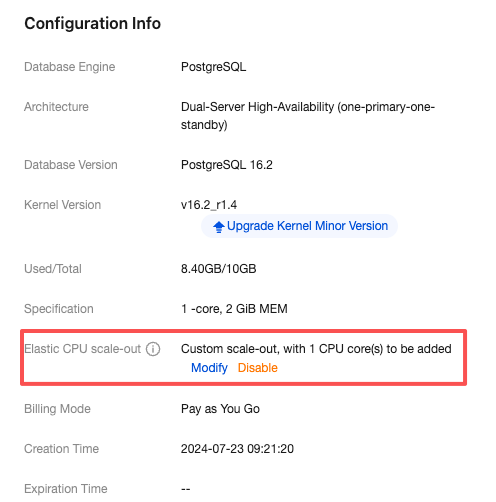
When the average value of the instance's monitoring metric CPU utilization reaches the set automatic scale-out threshold, the instance will be automatically scaled out. You can check whether it takes effect in the instance configuration on the instance details page. If the actual number of cores is additionally displayed after the number of CPU cores in the specification, it means that the scale-out is in effect. As shown in the figure below, 1 (2) cores indicate that the current instance has already been automatically scaled out to 2 cores.
Additionally, you can view the CPU elastic scaling records of the instance in the task list. For details, see Query Scaling Tasks.
2. Will the execution of a CPU elastic scaling task interrupt the connection to the instance?
In the CPU elastic scaling feature, both scale-out and scale-in operations merely modify the instance configuration information in the management system and will not cause any impact on the instance.
3. After the CPU elastic scaling operation succeeds, do the statistics of the monitoring metric CPU utilization change?
After CPU elastic scaling, the total number of CPU cores of the instance is the sum of the CPU core number in the purchased specification and the CPU core number from elastic scaling. For example, if the instance specification is 2 cores and 4 GiB of memory, and 2 cores are added through automatic scaling, the total number of CPU cores of the instance is 4. The monitoring metric CPU utilization uses the total number of CPU cores of the instance for statistics.
Help and Support
Was this page helpful?
You can also Contact sales or Submit a Ticket for help.
Help us improve! Rate your documentation experience in 5 mins.
Feedback