Setting Automatic Scale-Out
Download
Focus Mode
Font Size
This document introduces operations related to setting automatic scale-out.
Prerequisites
The computing specification of the instance before the CPU elastic scaling feature is enabled should be less than or equal to 32 cores.
Your Tencent Cloud account should have a sufficient balance to support scale-out.
The underlying machine supports scale-out. If scale-out is not supported for the underlying machine, the operation of setting automatic scale-out will fail.
Billing Instructions
Enabling Automatic Scaling
Note:
After automatic scale-out is enabled, there is a very low probability that the feature will fail to be triggered. The backend will retry multiple times until the operation is successful.
Automatic scaling is performed by continuously monitoring the CPU utilization metric. To avoid frequent scale-out and scale-in, it is recommended to set reasonable scale-out and scale-in rules.
1. Log in to the PostgreSQL console. In the Instance List, and click Instance ID or Manage in the Operation column to enter the Instance Details page.
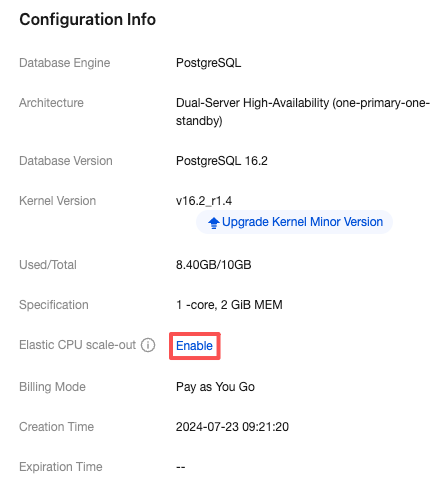
2. Choose Instance Details > Configuration Info > Elastic CPU scale-out, and click Enable.
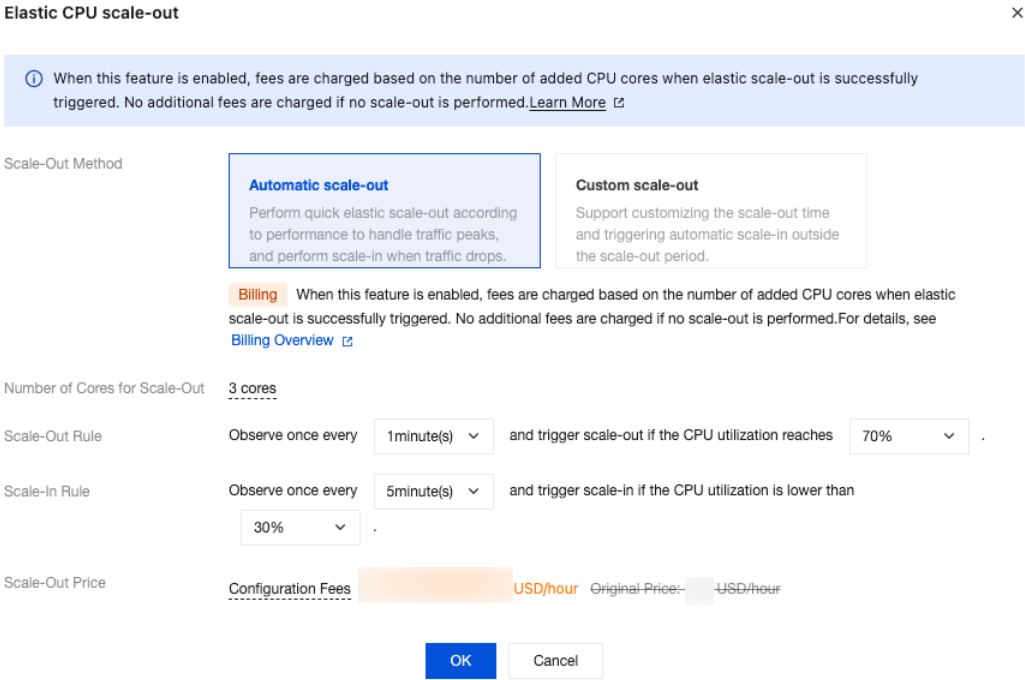
3. In the Elastic CPU scale-out window, complete the following configurations. Confirm the scaling cost and click OK.
Parameter | Description |
Scale-Out Method | Automatic scale-out and custom scale-out are supported. Select automatic scale-out here. Automatic scale-out: Perform a quick elastic scale-out operation based on performance to adapt to traffic peaks, and perform scale-in when traffic drops. Custom scale-out: Perform scale-out during a custom time period or cycle, and automatically perform CPU scale-in during other periods. |
Number of cores for Scale-Out | The default value is consistent with the number of CPU cores of the current instance specification. For example, if the current instance specification is 2 cores and 4 GiB of memory, the number of cores for scale-out will also be 2 cores. After scale-out is successfully triggered, the CPU of the instance will be 4 cores. |
Scale-Out Rule | Set the observation period and threshold for triggering scale-out. Observation period: Supported options are 1 minute, 3 minutes, 5 minutes, 10 minutes, 15 minutes, and 30 minutes. Threshold: Supported options include 40%, 50%, 60%, 70%, 80%, and 90%. The system will automatically monitor the CPU utilization metrics during the observation period. When the set threshold is reached, a CPU scale-out operation will be initiated. |
Scale-In Rule | Set the observation period and threshold for triggering scale-in. Observation period: Supported options include 5 minutes, 10 minutes, 15 minutes, and 30 minutes. Threshold: Supported options include 10%, 20%, and 30%. The system will automatically monitor the CPU utilization metrics during the observation period. When the set threshold is reached, a CPU scale-in operation will be initiated. |
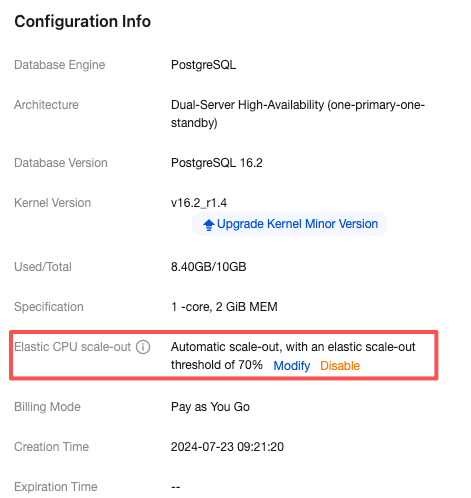
4. After automatic scaling is enabled successfully, the interface is as shown in the figure below.
Modifying the Elastic Scale-out Policy for CPU
After CPU elastic scaling is enabled, the CPU elastic scaling method and corresponding policy can be modified. The modifications take effect immediately, and the system will execute according to the new CPU elastic scaling policy.
1. Log in to the PostgreSQL console. In the Instance List, and click Instance ID or Manage in the Operation column to enter the Instance Details page.
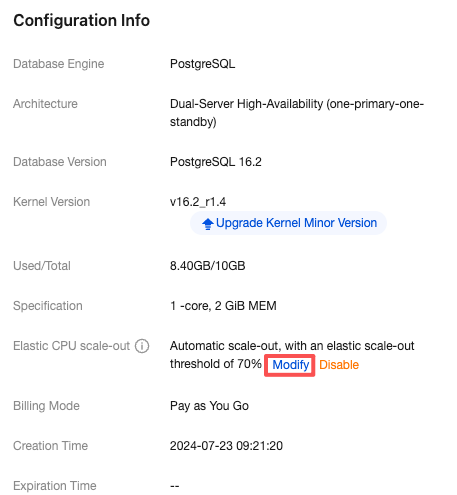
2. Choose Instance Details > Configuration Info > Elastic CPU scale-out, and click Modify.
Disabling Automatic Scaling
Note:
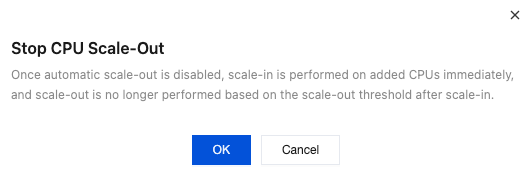
Note: After automatic scale-out is disabled, the CPU cores after scale-out will be immediately scale-in to the number before instance scale-out. After scale-in, scale-out will not be performed based on the scale-out threshold.
1. Log in to the PostgreSQL console. In the Instance List, and click Instance ID or Manage in the Operation column to enter the Instance Details page.
2. Choose Instance Details > Configuration Info > Elastic CPU scale-out, and click Disable.
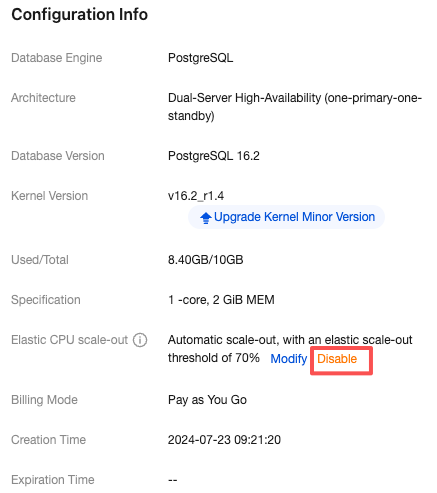
3. Click OK in the pop-up window of Stop CPU Scale-Out.
Help and Support
Was this page helpful?
You can also Contact sales or Submit a Ticket for help.
Help us improve! Rate your documentation experience in 5 mins.
Feedback