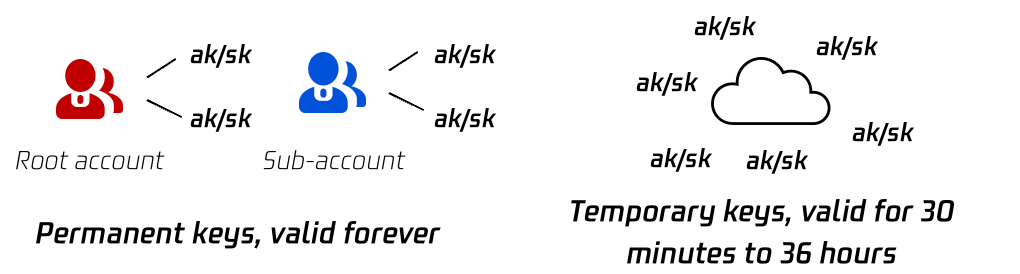
Temporary keys are temporary access credentials provided by Security Token Service (STS). A temporary key consists of three parts: TmpSecretId, TmpSecretKey, and token. Compared with a permanent key, a temporary key has the following characteristics:
A temporary key has a short validity period (30 minutes to 36 hours), and will not expose a permanent key, reducing the risk of account disclosure.
When getting a temporary key, you can set temporary permissions by passing in the policy parameter to further constrain the user's permission scope.
Therefore, temporary keys are suitable for temporary authorization scenarios such as frontend direct upload. Compared with permanent keys, temporary keys are more secure to be distributed to untrusted users.
Getting a Temporary Key
You can get a temporary key via COS STS SDK or by calling the STS API directly.
For more information, see Generating and Using Temporary Keys.
Permissions of Temporary Keys
You need a CAM user account (Tencent Cloud root account or sub-account) to apply for a temporary key. When getting a temporary key, you can pass in the policy parameter to add a temporary policy to the temporary key to further constrain the user's permission scope.
If the policy parameter is not set, the temporary key obtained has the same permissions as those of the CAM user.
If the policy parameter is set, the temporary key obtained will, based on the CAM user's permissions, further constrain the permission scope to the scope specified by the policy parameter.
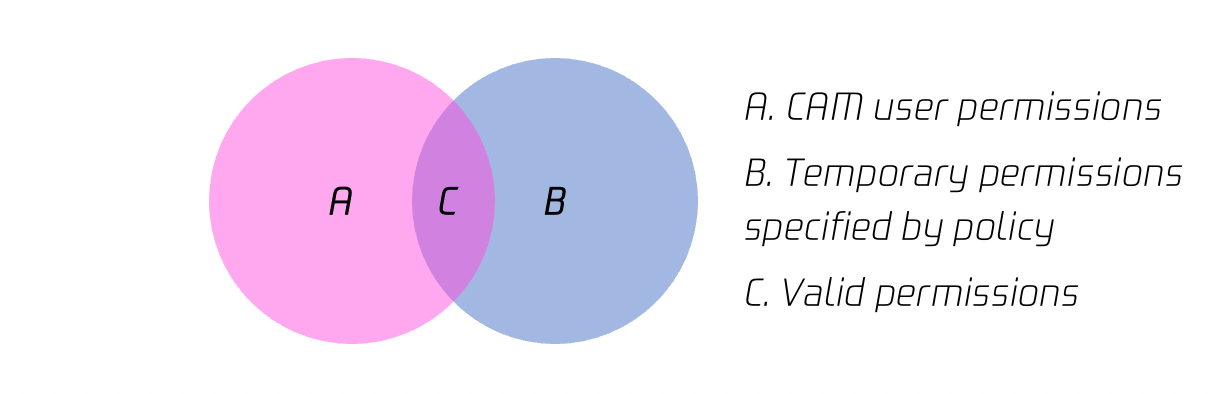
Assume that A represents the original permissions of the CAM user, B represents the permissions that are set for the temporary key by using the policy parameter, and the intersection of A and B is the final valid permissions of the temporary key.
As shown in the figure below, the intersection of the CAM user permissions and the temporary permissions specified by policy is valid permissions:
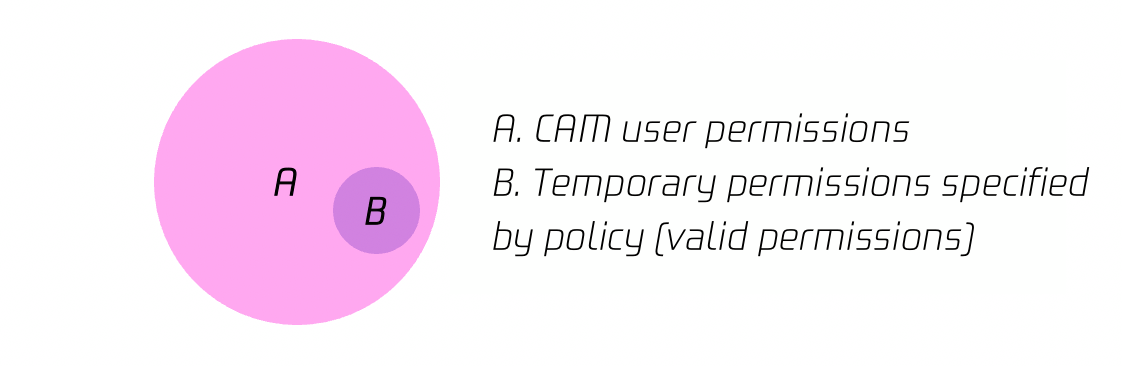
As shown in the figure below, the temporary permissions specified by policy are within the CAM user permissions, and therefore, the temporary permissions specified by policy are valid permissions.
Accessing COS Using a Temporary Key
A temporary key consists of a SecretId, a SecretKey, and a token. Multiple temporary keys can be generated for each root account or sub-account. Compared with permanent keys, temporary keys have shorter validity periods (30 minutes to 36 hours). Therefore, temporary keys are suitable for temporary authorization scenarios such as frontend direct upload. Compared with permanent keys, temporary keys are more secure to be distributed to untrusted users. For more information, see Generating and Using Temporary Keys and Temporary Key Security Guide for Frontend Direct Upload to COS.
Initiating API requests
Similar to a permanent key, you can use a temporary key to generate a signature and enter it in the request header Authorization to form a signed request. Upon receiving the request, COS verifies whether the signature is valid and whether the temporary key has expired.
For the signature algorithm, see Request Signature. COS provides a signature generation tool. You can also use a COS SDK to generate signatures. For more information, see Implementing Signature in SDK.
Using an SDK development tool
After installing an SDK development tool, you can use a temporary key to initialize the user identity information. In addition, you can use a temporary key (SecretId, SecretKey, and token) to initialize COSClient and directly use an SDK to perform operations such as upload and download without generating signatures. For more information on how to generate a temporary key, see Generating and Using Temporary Keys.
The following is an example of the corresponding Java SDK code. For demos of other languages, see the corresponding quick start documentation in SDK Overview.
// 1. Pass in the obtained temporary key (tmpSecretId, tmpSecretKey, sessionToken).
// 2. Set the bucket region. For abbreviations of COS regions, please visit https://www.tencentcloud.com/document/product/436/6224?from_cn_redirect=1.
// `clientConfig` contains the set methods to set region, HTTPS (HTTP by default), timeout, and proxy. For detailed usage, please see the source code or the FAQs about the SDK for Java.
Temporary keys are used to authorize third parties to temporarily access COS. For example, when a user develops a client app and stores data in a COS bucket, it is unsafe to store the permanent key directly on the app client, but the client needs to be granted the upload and download permissions. For this scenario, you can use a temporary key.
As shown in the figure above, the user has developed the app client, and the permanent key is stored in the user server. The following steps are required to use a temporary key for frontend direct upload:
1. The app client requests a temporary key from the user server for data upload and download.
2. Using a permanent key, the user server requests a temporary key from the STS server.
3. The STS server returns the temporary key to the user server.
4. The user server delivers the temporary key to the app client.
5. The app client uses the temporary key to generate a signed request to request the COS for data upload and download.
Temporary keys are applicable to frontend direct data upload scenarios. You can use temporary keys by referring to the following best practices: