tencent cloud

Cloud Object Storage

Release Notes and Announcements
Release Notes
Announcements
Product Introduction
Overview
Features
Use Cases
Strengths
Concepts
Regions and Access Endpoints
Specifications and Limits
Service Regions and Service Providers
Billing
Billing Overview
Billing Method
Billable Items
Free Tier
Billing Examples
Viewing and Downloading Bill
Payment Overdue
FAQs
Getting Started
Console
Getting Started with COSBrowser
User Guide
Creating Request
Bucket
Object
Data Management
Batch Operation
Global Acceleration
Monitoring and Alarms
Operations Center
Data Processing
Content Moderation
Smart Toolbox
Data Processing Workflow
Application Integration
User Tools
Tool Overview
Installation and Configuration of Environment
COSBrowser
COSCLI (Beta)
COSCMD
COS Migration
FTP Server
Hadoop
COSDistCp
HDFS TO COS
GooseFS-Lite
Online Tools
Diagnostic Tool
Use Cases
Overview
Access Control and Permission Management
Performance Optimization
Accessing COS with AWS S3 SDK
Data Disaster Recovery and Backup
Domain Name Management Practice
Image Processing
Audio/Video Practices
Workflow
Direct Data Upload
Content Moderation
Data Security
Data Verification
Big Data Practice
COS Cost Optimization Solutions
Using COS in the Third-party Applications
Migration Guide
Migrating Local Data to COS
Migrating Data from Third-Party Cloud Storage Service to COS
Migrating Data from URL to COS
Migrating Data Within COS
Migrating Data Between HDFS and COS
Data Lake Storage
Cloud Native Datalake Storage
Metadata Accelerator
GooseFS
Data Processing
Data Processing Overview
Image Processing
Media Processing
Content Moderation
File Processing Service
File Preview
Troubleshooting
Obtaining RequestId
Slow Upload over Public Network
403 Error for COS Access
Resource Access Error
POST Object Common Exceptions
API Documentation
Introduction
Common Request Headers
Common Response Headers
Error Codes
Request Signature
Action List
Service APIs
Bucket APIs
Object APIs
Batch Operation APIs
Data Processing APIs
Job and Workflow
Content Moderation APIs
Cloud Antivirus API
SDK Documentation
SDK Overview
Preparations
Android SDK
C SDK
C++ SDK
.NET(C#) SDK
Flutter SDK
Go SDK
iOS SDK
Java SDK
JavaScript SDK
Node.js SDK
PHP SDK
Python SDK
React Native SDK
Mini Program SDK
Error Codes
Harmony SDK
Endpoint SDK Quality Optimization
Security and Compliance
Data Disaster Recovery
Data Security
Cloud Access Management
FAQs
Popular Questions
General
Billing
Domain Name Compliance Issues
Bucket Configuration
Domain Names and CDN
Object Operations
Logging and Monitoring
Permission Management
Data Processing
Data Security
Pre-signed URL Issues
SDKs
Tools
APIs
Agreements
Service Level Agreement
Privacy Policy
Data Processing And Security Agreement
Contact Us
Glossary

Count Folders

PDF
Focus Mode
Font Size
Last updated: 2026-03-04 15:35:31

Introduction

You can obtain statistics for a folder (directory) via the COS console, including the total number of objects and the total size of objects in the current folder. For details about folders and directories, see folder and directory.
Note
Object storage stores objects in a flat structure without the concept of folders. To maintain user habits, it implements "folders" by naming objects with a "/" suffix in the object key. In fact, a "folder" in object storage is an object with a storage size of 0KB.

Must-Knows

COS performs List Objects statistics by default. If the number of files exceeds 100,000, it performs inventory statistics. For more information, see Inventory Feature Overview.
Metadata Acceleration Bucket currently only supports statistics for folders (directories) with fewer than 100,000 files. If the number of files exceeds 100,000, it is recommended to use HDFS du command or API inventory statistics.
If you have enabled versioning, the statistics will only be calculated for the current version and will not include historical versions or delete markers. For more details, see Versioning Overview.
COS charges for List Objects and inventory on demand: List Objects request fees are incurred when using List statistics, while inventory feature fees are incurred when using inventory statistics. For details, see Product Pricing.
When a folder (directory) contains a large number of objects, the statistics process may take some time. Please wait patiently.

Operation Steps

Start Statistics

1. Log in to the COS Console.
2. In the left sidebar, click Bucket List to go to the bucket list page.
3. Locate the bucket where the folder resides, click its bucket name to go to the bucket management page.
4. In the left sidebar, select File List to go to the file list page.
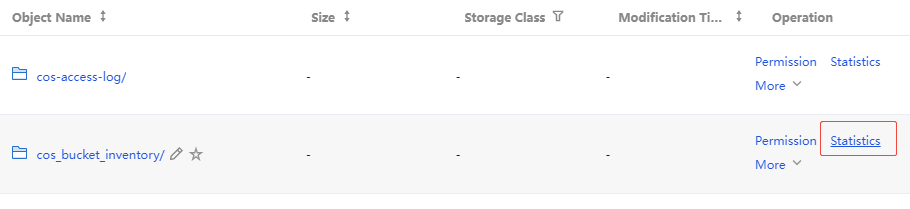
5. Locate the target folder, then click Statistics in the right-hand Operation column, or hover over the Size column and click Statistics.


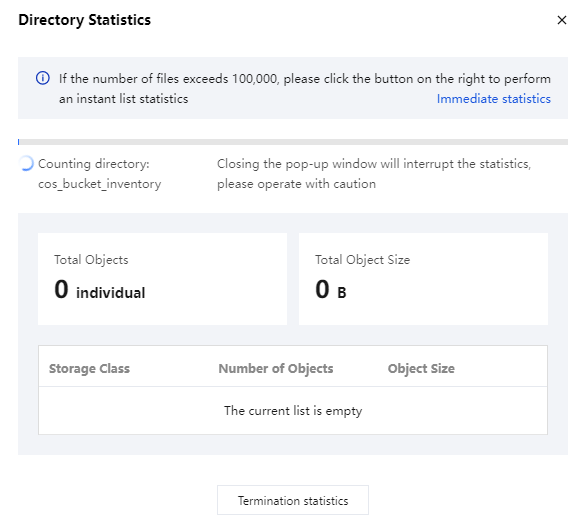
6. In the pop-up window, you can view the statistics of the folder, including the total number of objects and the total size of objects.
Note:
Do not close the pop-up window during the List Objects statistics process, otherwise the statistics will be aborted.


7. If the number of files exceeds 100,000, a pop-up will prompt you to perform inventory statistics. Click Use Real-time Inventory to proceed. If the number of files is less than 100,000, you can directly view and download the results after statistics are completed. For operational steps, skip directly to Statistical Results.

8. After the real-time inventory is clicked to use, go to the real-time inventory statistics configuration pop-up. Configure the "Filter Storage Type" configuration item as needed. After configuration, click Start Statistics to perform inventory statistics. For more information on inventory, see Inventory Feature Overview.

9. Inventory statistics can be paused by closing the pop-up window for later viewing. However, do not switch or refresh the file list page, otherwise the statistics status will no longer be displayed directly in the list. If you switch or refresh, manually go to the inventory report storage path to view the results.
Note:
Supports simultaneous statistics for up to 3 directories.


View and Download Statistical Results

The following describes the steps to view and download the List Objects statistics results and inventory statistics results .

List Objects Statistics Results

If it is List Objects statistics, the results can be viewed or downloaded through the following two methods.
Note:
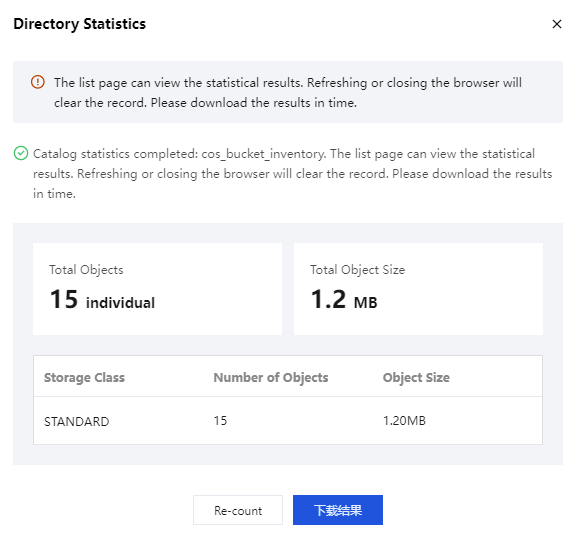
After the statistics are completed, do not refresh or close the browser, otherwise the records will be cleared. Please download the results promptly.
1. View in the statistics pop-up window: After statistics are completed, you can directly view or download the statistical results in the pop-up window, including the total number of objects and the total size of objects.


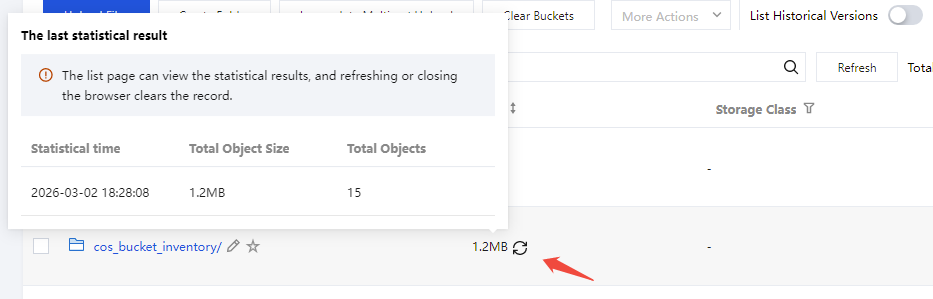
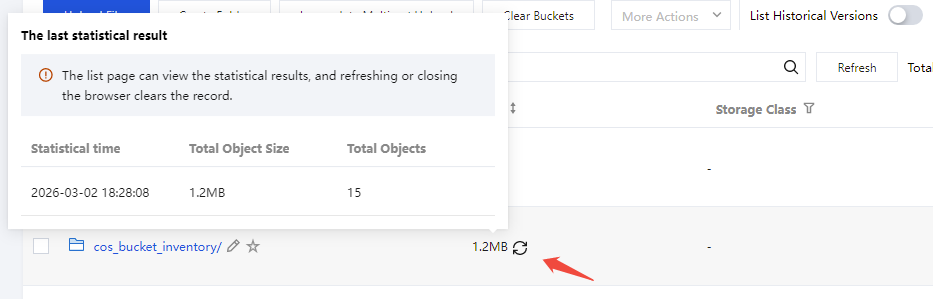
2. View in the size column of the file list page: After the statistics are completed, you can close the pop-up window and return to the file list page. In the size column, you can view the total size of objects. Hover the mouse over this result to further view the total number of objects and the statistics time.


Inventory Statistics Results

If it is inventory statistics, the results can be viewed or downloaded through the following two methods.
Note:
After the statistics are completed, do not refresh or close the browser, otherwise the records will be cleared. Please download the results promptly.
1. View in the statistics pop-up window: After statistics are completed, you can directly view or download the statistical results in the pop-up window, including the total number of objects and the total size of objects.

2. View in the size column of the file list page: After the statistics are completed, you can close the pop-up window and return to the file list page. In the size column, you can view the total size of objects. Hovering the mouse over this result allows you to further view the total number of objects and the statistics time.


3. View in the inventory path: After the statistics are completed, you can view the results in the inventory report storage path. For more information, see Inventory Feature Overview and Set Up Inventory.

Help and Support

Was this page helpful?

Help us improve! Rate your documentation experience in 5 mins.

Feedback