tencent cloud

Tencent Kubernetes Engine

Release Notes and Announcements
Release Notes
Announcements
Release Notes
Product Introduction
Overview
Strengths
Architecture
Scenarios
Features
Concepts
Native Kubernetes Terms
Common High-Risk Operations
Regions and Availability Zones
Service Regions and Service Providers
Open Source Components
Purchase Guide
Purchase Instructions
Purchase a TKE General Cluster
Purchasing Native Nodes
Purchasing a Super Node
Getting Started
Beginner’s Guide
Quickly Creating a Standard Cluster
Examples
Container Application Deployment Check List
Cluster Configuration
General Cluster Overview
Cluster Management
Network Management
Storage Management
Node Management
GPU Resource Management
Remote Terminals
Application Configuration
Workload Management
Service and Configuration Management
Component and Application Management
Auto Scaling
Container Login Methods
Observability Configuration
Ops Observability
Cost Insights and Optimization
Scheduler Configuration
Scheduling Component Overview
Resource Utilization Optimization Scheduling
Business Priority Assurance Scheduling
QoS Awareness Scheduling
Security and Stability
TKE Security Group Settings
Identity Authentication and Authorization
Application Security
Multi-cluster Management
Planned Upgrade
Backup Center
Cloud Native Service Guide
Cloud Service for etcd
TMP
TKE Serverless Cluster Guide
TKE Registered Cluster Guide
Use Cases
Cluster
Serverless Cluster
Scheduling
Security
Service Deployment
Network
Release
Logs
Monitoring
OPS
Terraform
DevOps
Auto Scaling
Containerization
Microservice
Cost Management
Hybrid Cloud
AI
Troubleshooting
Disk Full
High Workload
Memory Fragmentation
Cluster DNS Troubleshooting
Cluster kube-proxy Troubleshooting
Cluster API Server Inaccessibility Troubleshooting
Service and Ingress Inaccessibility Troubleshooting
Common Service & Ingress Errors and Solutions
Engel Ingres appears in Connechtin Reverside
CLB Ingress Creation Error
Troubleshooting for Pod Network Inaccessibility
Pod Status Exception and Handling
Authorizing Tencent Cloud OPS Team for Troubleshooting
CLB Loopback
API Documentation
History
Introduction
API Category
Making API Requests
Elastic Cluster APIs
Resource Reserved Coupon APIs
Cluster APIs
Third-party Node APIs
Relevant APIs for Addon
Network APIs
Node APIs
Node Pool APIs
TKE Edge Cluster APIs
Cloud Native Monitoring APIs
Scaling group APIs
Super Node APIs
Other APIs
Data Types
Error Codes
TKE API 2022-05-01
FAQs
TKE General Cluster
TKE Serverless Cluster
About OPS
Hidden Danger Handling
About Services
Image Repositories
About Remote Terminals
Event FAQs
Resource Management
Service Agreement
TKE Service Level Agreement
TKE Serverless Service Level Agreement
Contact Us
Glossary

Quickly Creating a Standard Cluster

PDF
Focus Mode
Font Size
Last updated: 2024-12-11 17:47:11
This document describes how to quickly create a container cluster using TKE.

Step 1. Sign Up for a Tencent Cloud Account

Before using TKE, you need to sign up for a Tencent Cloud account and complete the identity verification.

Step 2. Top Up Online

TKE charges cluster management fees based on the specifications of the managed clusters, and charges cloud resources fees based on the actual usage. For billing modes and prices, see TKE Billing Overview. In this document, a managed cluster is created. You still need to pay for services such as cluster worker nodes, persistent storage, and CLB instances bound to the service. Before making a purchase, top up your account as instructed in Payment Methods.

Step 3. Authorize TKE

Log in to the Tencent Cloud console, select Tencent Cloud services > Tencent Kubernetes Engine to enter the TKE console and authorize TKE according to the prompts. If you have already authorized TKE, skip this step.

Step 4. Create a Cluster

Log in to the TKE console to create a cluster.

Cluster information

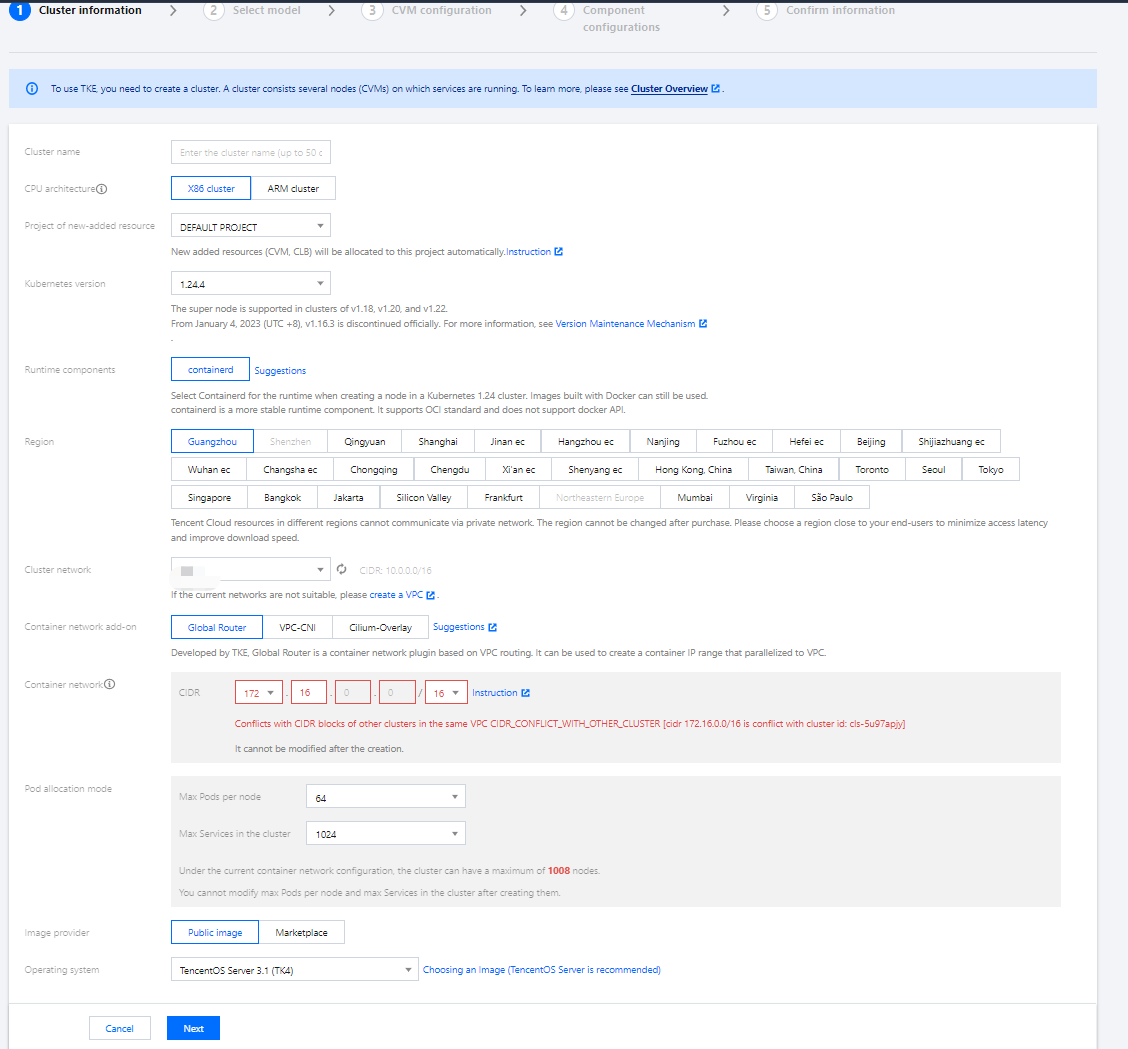
On the Cluster Information page, enter the cluster name and select the region of the cluster, the cluster network, and container network. Keep other default options unchanged and click Next.


Cluster Name: Enter the cluster name. We use "test" as the cluster name in this document.
Region: select a region closest to you. For example, if you are in “Shenzhen”, please select “Guangzhou”.
Cluster Network: Assign IP addresses within the node network address range to the servers in the cluster. Here we select VPC.
Container Network: Assign IP addresses within the container network address range to the containers in the cluster. Here, we select an available container network.

Selecting a model

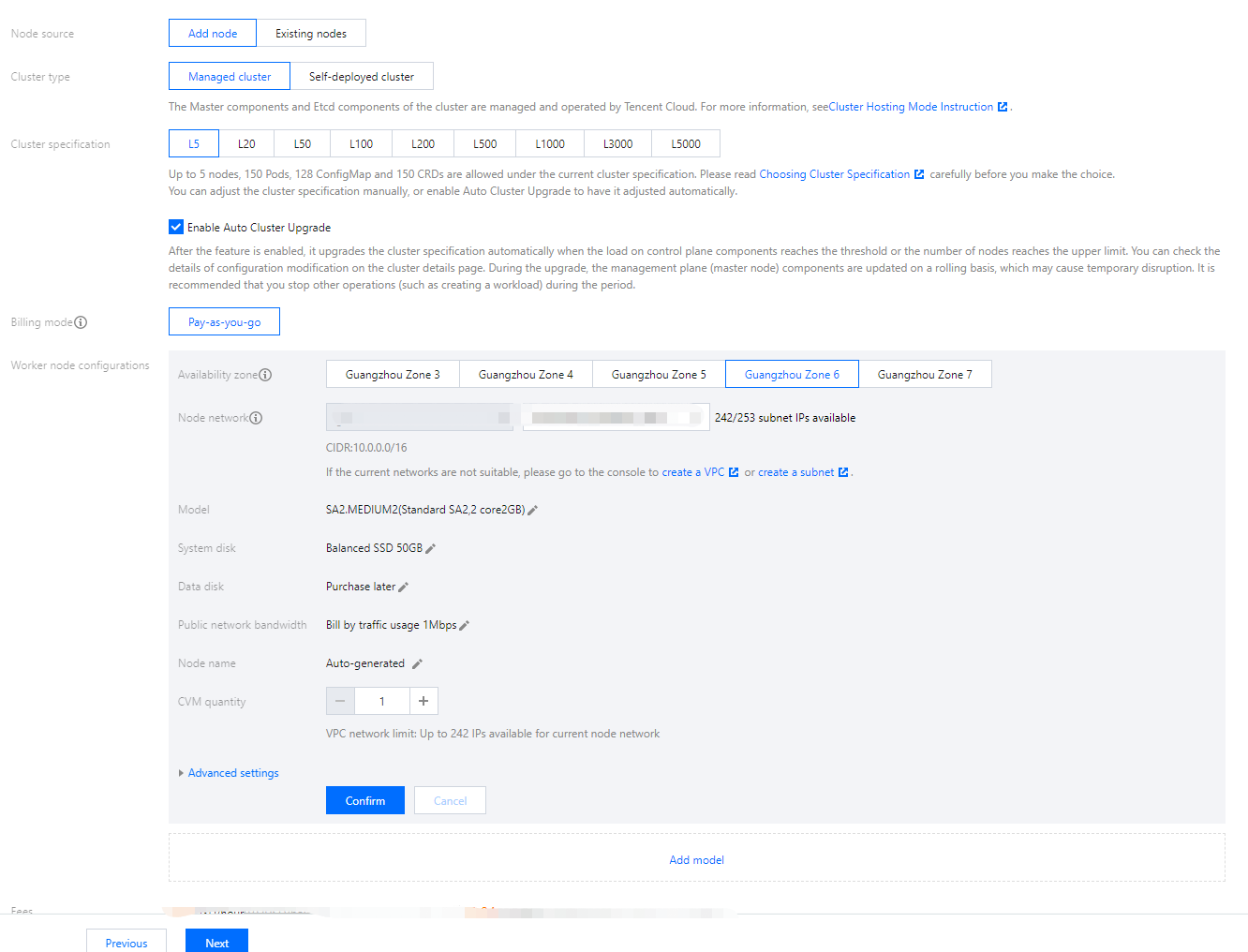
On the Select Model page, confirm the billing mode, select an availability zone and the corresponding subnet, confirm the node model, and click Next.

Node Source: You can select Add Node or Existing Nodes. Here, we select Add Node.
Cluster Type: You can select Self-deployed Cluster or Managed Cluster. Here we select Managed Cluster.
Cluster Specification: Multiple cluster specifications are provided. Here we select L5.
Billing Mode: Only Pay-as-you-go is available.
Worker Configurations: You only need to select an availability zone and the corresponding subnet and confirm the node model. Keep other default settings unchanged.
Availability Zone: Here we select Guangzhou Zone 6.
Node Network: Here we select the subnet under the current VPC.
Model: Here we select **SA2.MEDIUM2 (Standard SA2, 2-core 2 GB)**.

CVM configuration

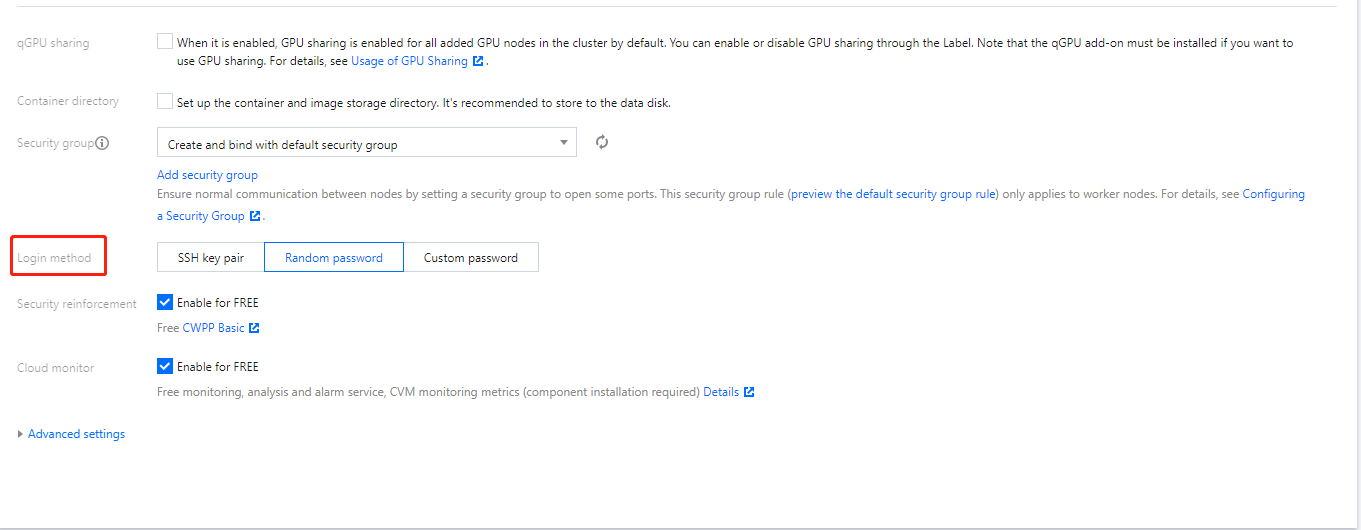
On the CVM configuration page, select the login method, keep other default settings unchanged, and click Next.

Login Method: You can select SSH Key Pair, Random Password or Custom Password. Here we select "Random Password".

Add-on configurations

On the Add-on Configurations page, you can choose the add-ons you need, including storage, monitoring, and image. If you don't need them, click Next. Here, we choose not to install add-ons and keep other default settings unchanged.

Information confirmation

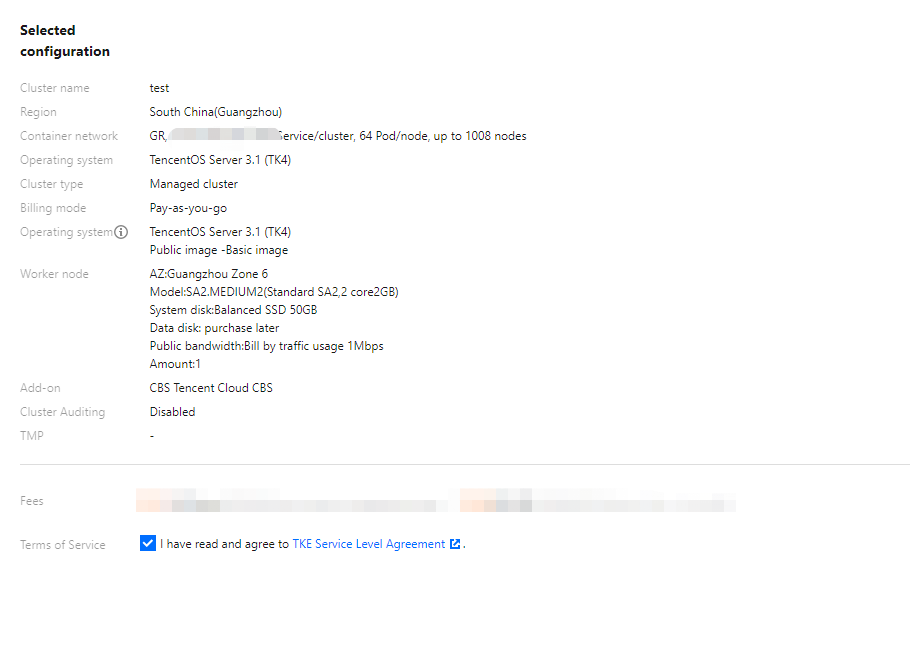
On the Confirm Info page, confirm the selected configuration information and billing mode for the cluster, read and indicate your consent to the TKE SLA, and click Done.


You can create your first TKE general cluster after making the payment. Then, you can view the created cluster in the TKE console.

Step 5. View the Cluster

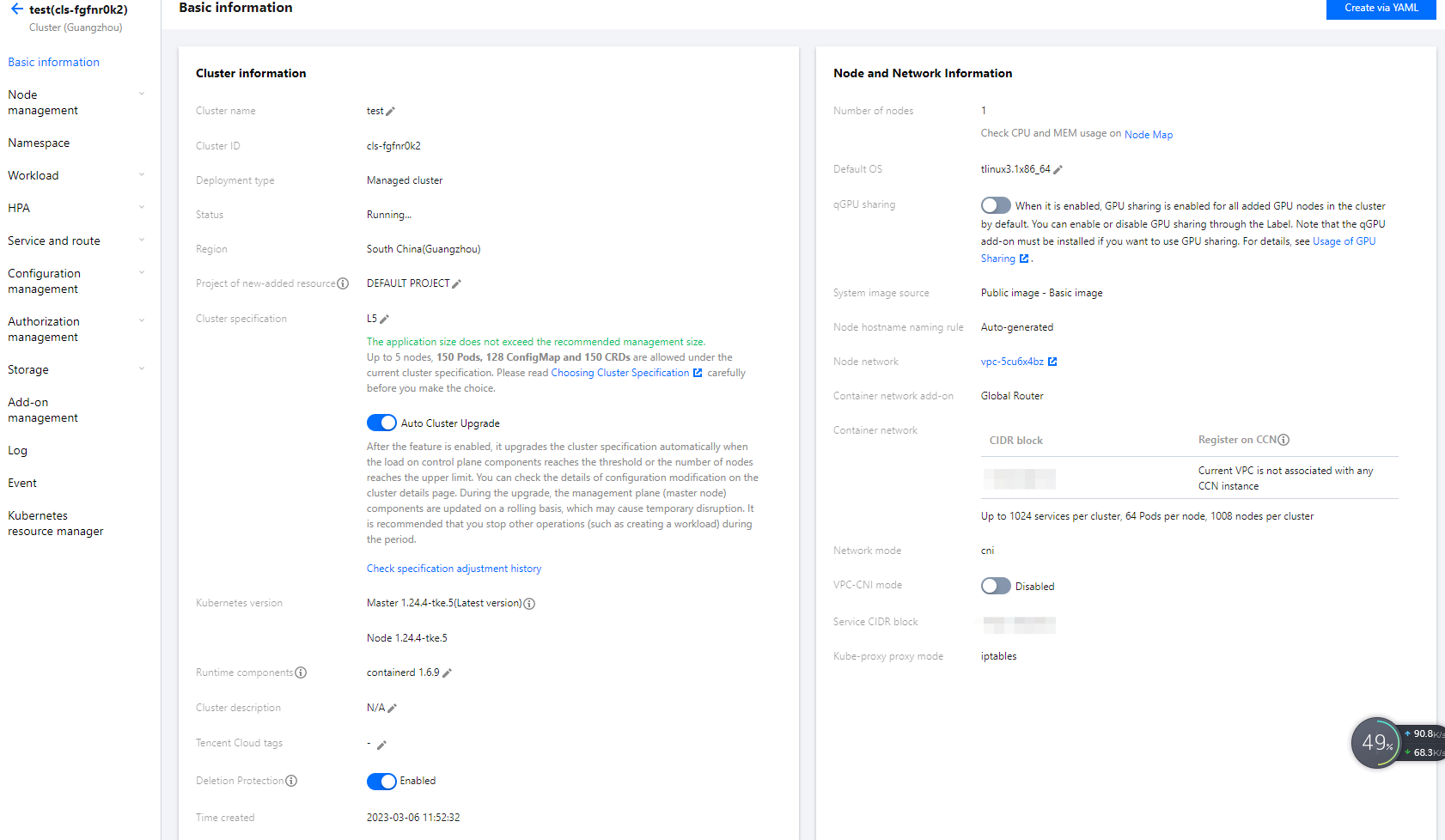
You can view clusters that have been created in the cluster list. You can click the cluster ID to enter the details page, and then view the cluster, node, network, and API Server information on the Basic Information page.


Step 6. Delete Clusters

Once started, clusters will start to consume resources. To avoid unnecessary costs, you can follow the steps below to clear all the resources.
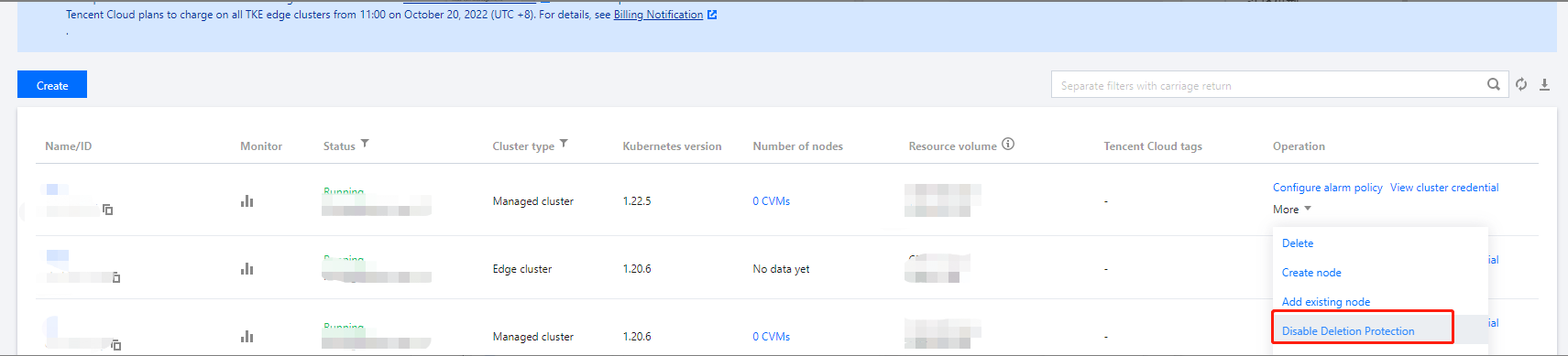
1. Select Cluster on the left sidebar. On the Cluster Management page, select More > Disable Deletion Protection on the right of the target cluster.

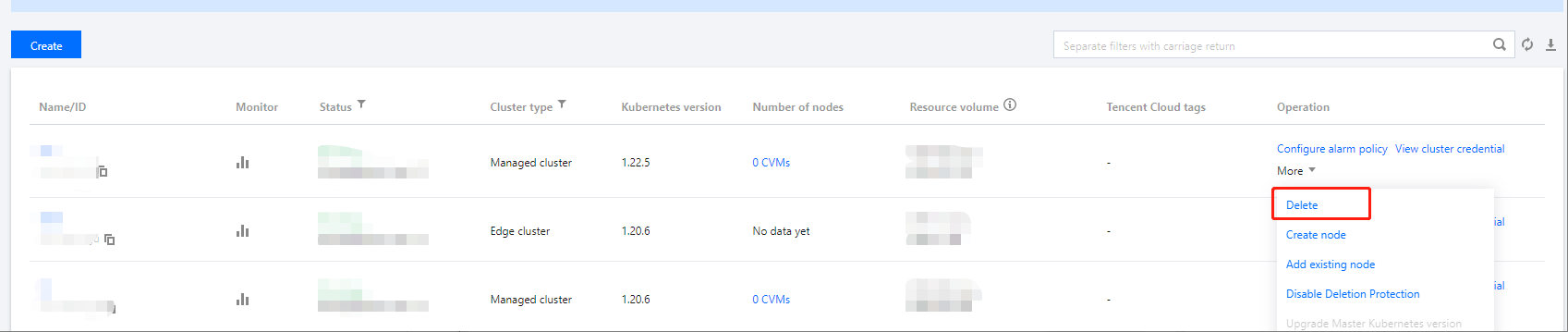
2. Select More > Delete on the right of the cluster.

3. Confirm related information in the Delete clusters pop-up window and click Confirm to delete clusters.

Subsequent Operation: Using a Cluster

Now you know how to create and delete clusters in TKE. You can set workloads and create services in the clusters. Common tasks include:

Troubleshooting

For detailed directions on how to create a general cluster in the TKE console, see Creating a Cluster. If you encounter any problems during the use, contact us for assistance.

Help and Support

Was this page helpful?

Help us improve! Rate your documentation experience in 5 mins.

Feedback