FAQs for Native Nodes
Download
Focus Mode
Font Size
Whether Cost Allocation by Tag Is Supported by Native Nodes?
Cost allocation by tag is supported. The tags set for a node pool take effect on all nodes in the pool. Notes:
1. When a native node pool is created, it inherits the cluster tag preferentially by default. Please ensure that the cloud tag key does not conflict with any tag of the cluster.
2. When the cluster tag is updated, it will be synchronized to the native node pool, and to all its native nodes as well.
How Can We Configure System Disk Monitoring Alerts?
1. Log in to TCOP, and choose Alert Management > Policy Management.
2. Click Create New Policy and configure alerts.
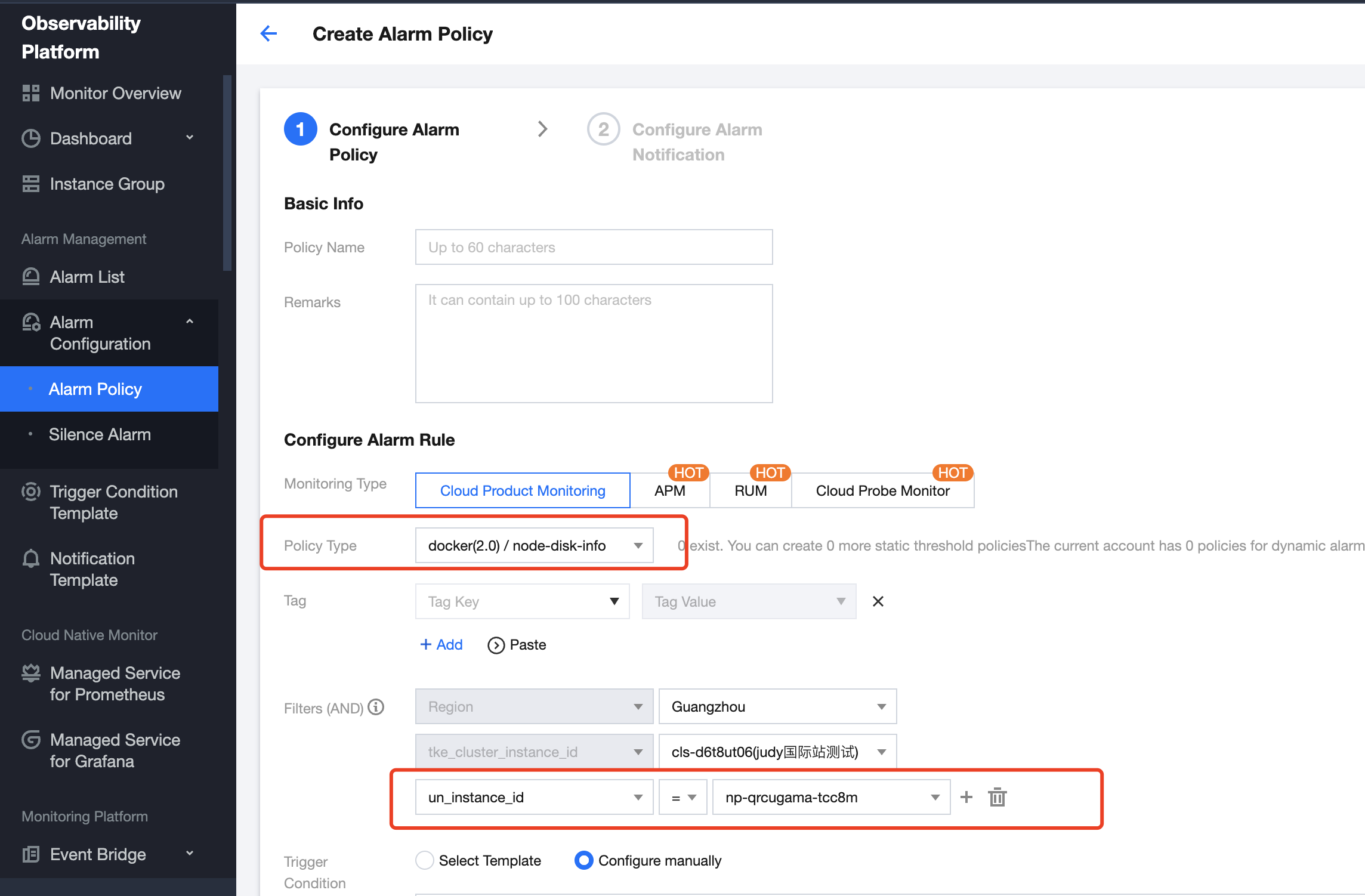
3. On the alert configuration page, select Cloud Product Monitoring as the monitoring type, and select either Container Service (2.0)/Node disk information or Container Service (2.0)/Node disk IO as the policy type.
4. Sequentially select Region, Cluster and Node ID, and set the target native node as the alert object, as shown in the following figure:
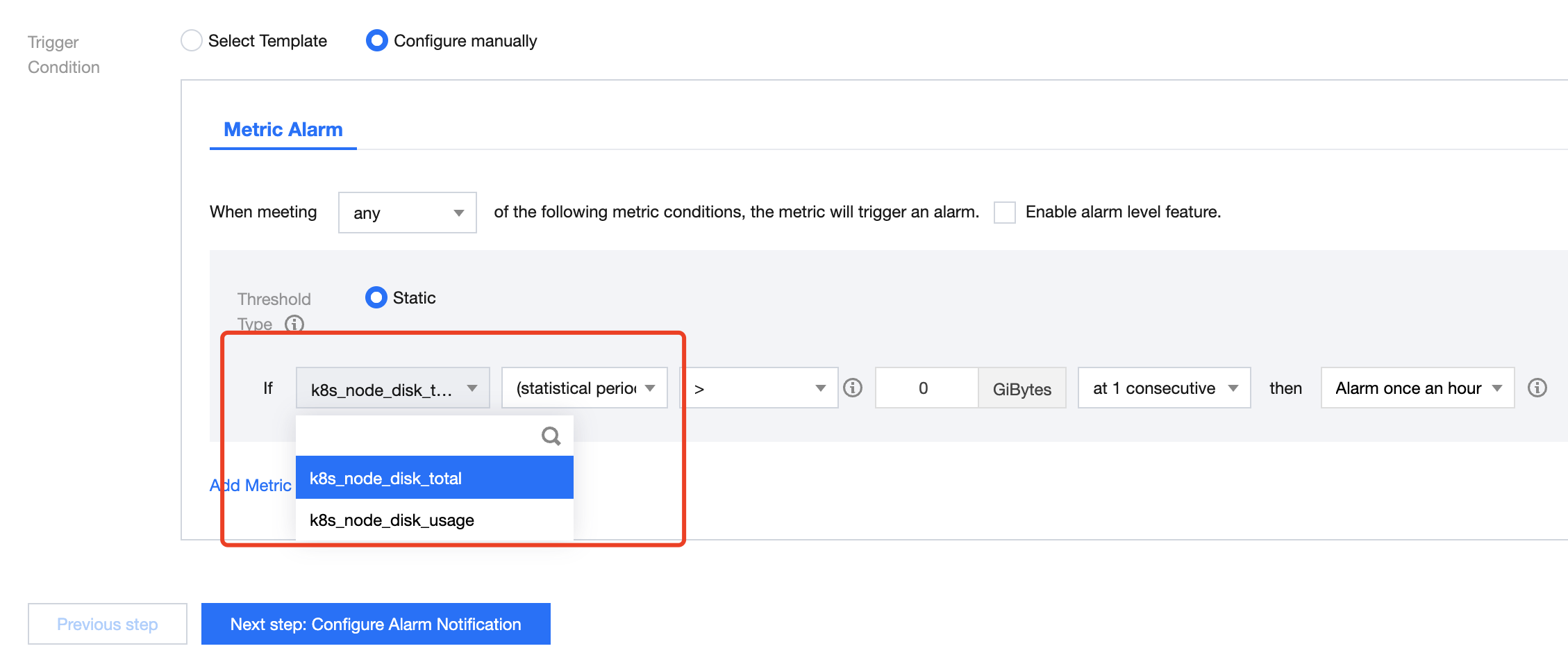
5. Select Total Disk Capacity, Disk Utilization, and Disk Write Bandwidth as alert metrics, as shown in the following figure:
6. Click Next: Configure Alarm Notification. For alert notification configuration details, see Notification Template.
7. Click Finish.
How Can We View the Resource Quantity of a Container Within Itself?
Background
When viewing container resources in standard containers (for example, with the top command), the resources of the entire machine are visible. This can cause confusion for some monitoring, troubleshooting, and even some businesses (such as deciding the queue length based on certain parameters under proc). The native node image has the capability to control container resource visibility. By mounting cgroupfs to the host directory and then using bind mount to mount the directory's files to the corresponding /proc location in the container during creation, you can view the container's own resource quantity within itself. That is, commands like free, top, and loadavg within the container will display the container's own values.
Usage
You need to set the following annotation on the pod:
Field annotation | Meaning |
cloud.tencent.com/cgroupfs="* " | This means all containers within the pod apply the cgroupfs capability. |
cloud.tencent.com/cgroupfs="container1,container2" | This means that only container 1 and container 2 in the pod apply the cgroupfs capability. |
Note:
This feature requires the containerd version to be later than 1.4.3-tke.3 or 1.6.9-tke.3.
Help and Support
Was this page helpful?
You can also Contact sales or Submit a Ticket for help.
Help us improve! Rate your documentation experience in 5 mins.
Feedback