Anomaly Detection
Download
Focus Mode
Font Size
Anomaly Detection Concept
Cost anomaly detection helps you efficiently identify and alert exceptional fluctuations in expenses. Based on the anomaly detection results, you can make decisions as soon as possible to reduce costs and minimize risk.
Feature Introduction
Enabling Anomaly Detection
You can log in to the Tencent Cloud Billing Center, select Cost Management > Anomaly Detection from the left menu bar to enter the cost anomaly detection page. For first-time use, click Free Enable to activate the detection feature.
Note:
Enable anomaly detection capability requires continuous consumption of over 1 USD for nearly 60 days.
Anomaly detection uses machine learning to identify and assist in detecting abnormal charges, so the data is for reference only. With continuous use and feedback, detection data will gradually become more accurate.
Configuration Anomaly Detection
After entering the Cost Anomaly Detection webpage, click Detection Enabled at the top of the page, then click Set to initiate anomaly detection configuration.
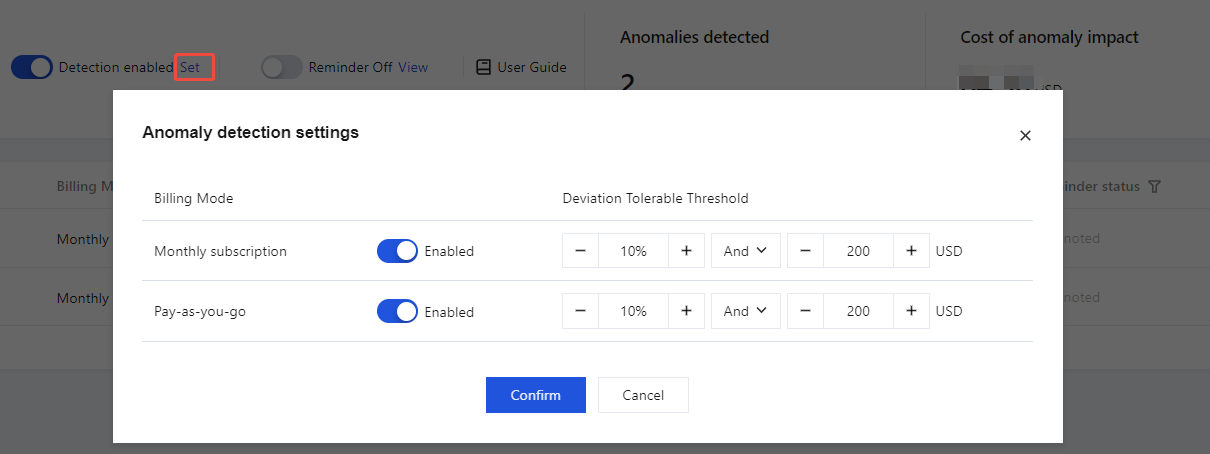
Supports enabled/disabled anomaly detection and tolerance thresholds for monthly subscription and pay-as-you-go billing.
Monthly Subscription anomaly detection switches is disabled by default, Pay-As-You-Go anomaly detection switches is enabled by default (if both are disabled, anomaly detection will also be turned off).
You can control anomaly detection sensitivity by setting the deviation tolerable threshold. The smaller the deviation tolerable threshold, the more sensitive the anomaly detection.
The tolerance threshold supports setting by percentage and absolute currency value. It can be set individually and also supports AND and OR configurations.
The default tolerable threshold is 10% and 200 USD. For example, when the impact amount exceeds both 10% and 200 USD simultaneously, it will be flagged as an exception.
Notes:
Tolerable thresholds are checked daily at T+1 level. If the actual amount is below or exceeds the predicted amount beyond the tolerable threshold, an anomaly will be detected.
Anomaly detection supports the total cost of monthly subscription and pay-as-you-go billing, and only detects normal deductions. It requires excluding refunds, errors, and bill adjustments.
Disabling Anomaly Detection
You can click the button in front of Detection Enabled at the top of the Cost Anomaly Detection page to disable anomaly detection, or you can also configure it in the anomaly detection settings page by turning off Monthly Subscription and Pay-As-You-Go to disable anomaly detection.
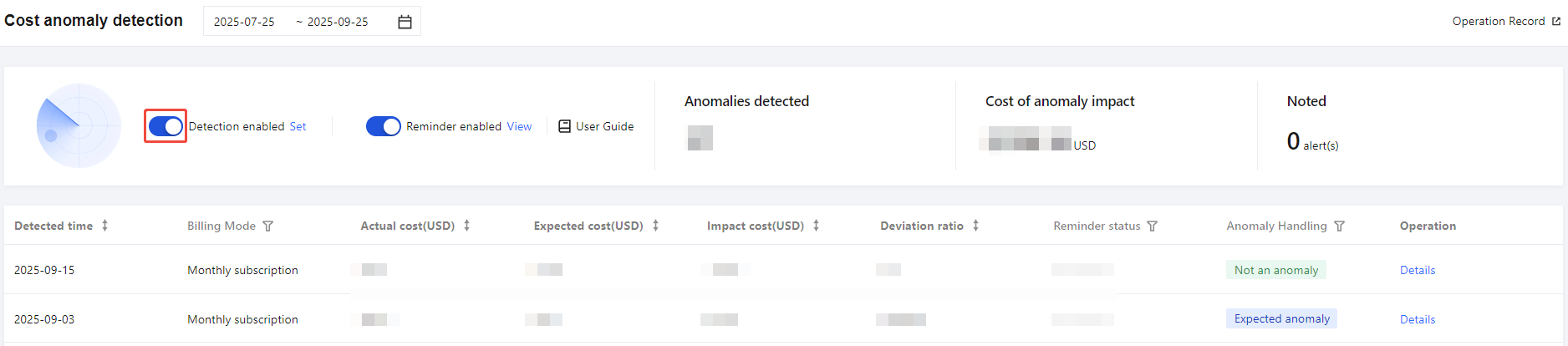
Anomaly detection is disabled, and the backend stops receiving algorithm exception pushes for the account.
After anomaly detection is disabled, you can still view the historical anomaly detection list page (it will not return to the free activation page) and retain issues that occurred during the enabling process, but no new issues will be added.
If restarted, it will again receive exception pushes detected by the algorithm, but not display abnormal events during closure.
Reminder Setting
Enabling Reminders
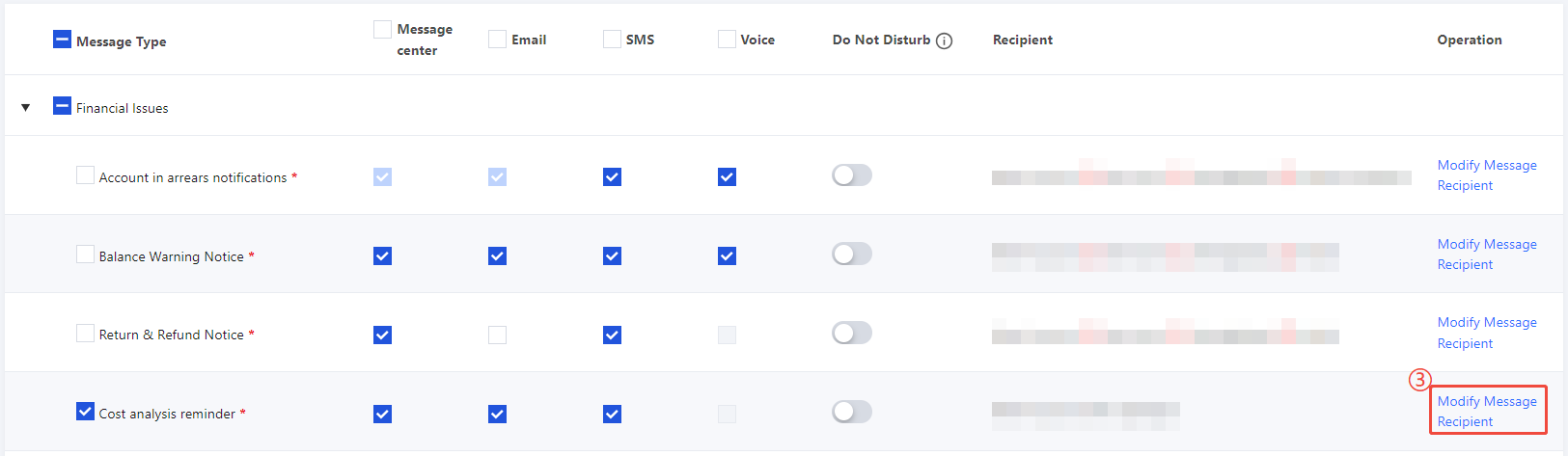
1. You can click Set/View behind the Reminder Enabled module on the Cost Anomaly Detection webpage, then click Message Subscription.

2. On the message subscription page, find Cost analysis reminder, click Modify Message Recipient to set the message reminder recipient.
Disabling Reminders
To disable reminders, you can click the button in front of Reminder Enabled to turn it off.
Anomaly Detection Overview
You can select the anomaly detection time interval in the time window at the top of the Cost Anomaly Detection webpage (recent 90 days displayed by default).
The anomaly detection overview page includes modules for anomaly detection, reminder settings, anomalies detected, and cost of anomaly impact. It supports viewing the enabled/disabled status of detection and reminders, and also allows configuring to turn them on or off as needed.

Anomaly Detection List
Anomaly Detection List: detected time, billing mode (Pay-As-You-Go, Monthly Subscription),actual cost,expected cost, Impact cost,deviation ratio, reminder status, anomaly Handling, operation.
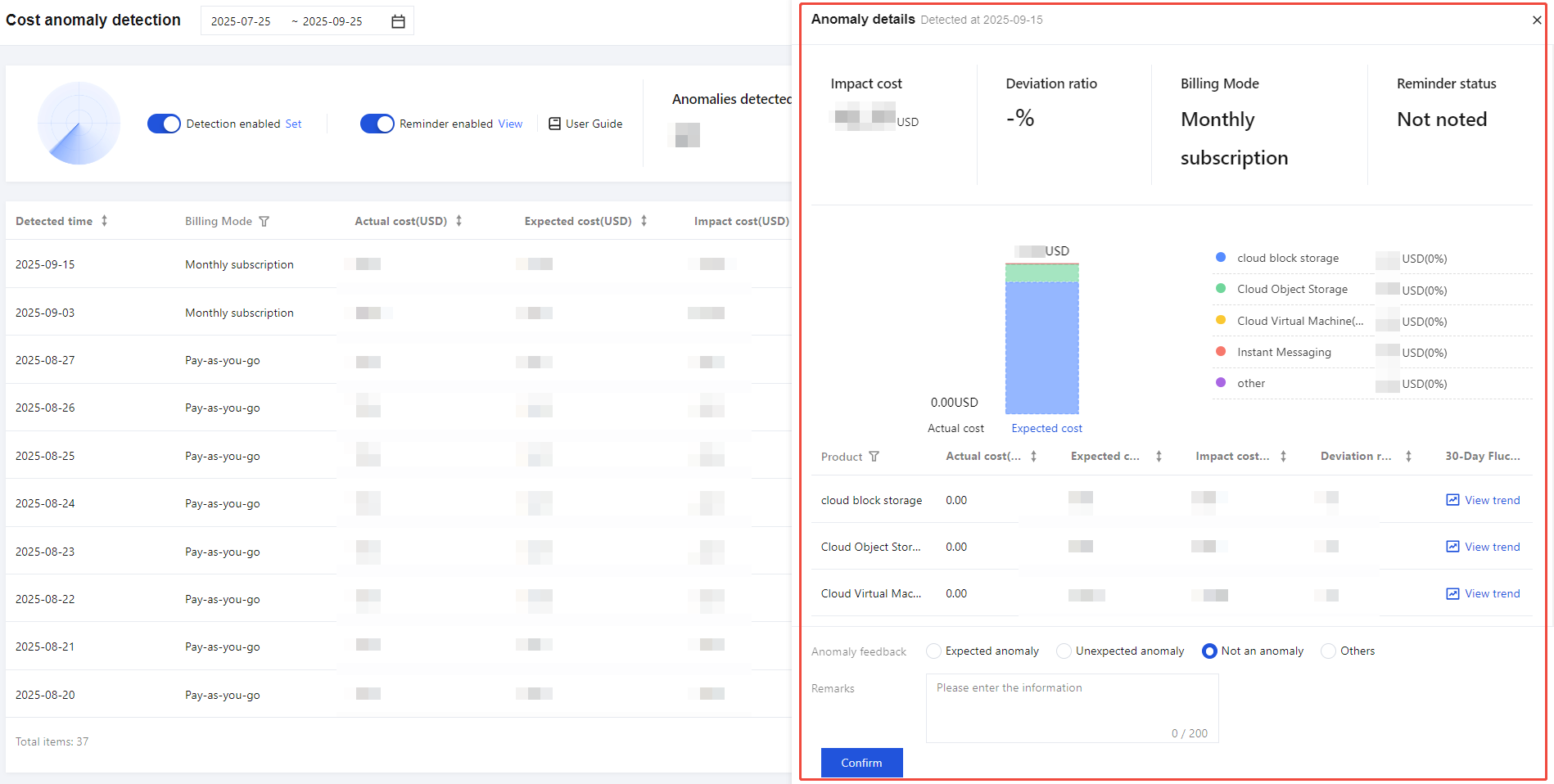
1. You may click Details in the operation column of the Cost Anomaly Detection list to go to the cost anomaly details page.

2. The cost anomaly details page contains the following information and operations:
Viewable details include the specific product causing the anomaly, actual cost, expected cost, impact cost, deviation ratio, and 30-day fluctuation trend.
For this exception, you can mark it as: Expected anomaly , Unexpected anomaly, Not an anomaly, Others.
Note:
The system can continuously improve the accuracy of the algorithm's detection exception based on your exception handling feedback.
Viewing Operation Records
You can view the anomaly detection configuration record and configuration message in the Operation Record page at the top right of the Cost Anomaly Detection page.

Help and Support
Was this page helpful?
You can also Contact sales or Submit a Ticket for help.
Help us improve! Rate your documentation experience in 5 mins.
Feedback