tencent cloud

Billing Center

Release Notes
Announcements
Signing Entity Change Description
Announcement on Upgrade of Bill Fields
Billing Details
Billing Mode
Frozen Funds
Balance Notifications
Refunds
Billing Mode
Yearly/Monthly Subscription Products
Purchase Guide
Purchasing Cloud Services
Payment Methods
Beneficiary Account Bank Transfer
Top-up
Payment Methods for Prepaid Products
Post-paid Account Payment
Auto-payment
Transactions
Promo Vouchers
Savings Plan
Renewal Management
Bill Management
View bills
Bill Introduction
Fields in Bills
Usage Details
Billing Export Center
Bill subscription
Saving Bills to COS
Granting Billing-related CAM Access
Self-Service Invoice
Tax Management
FOCUS 1.0
FOCUS 1.0 Conformance Gaps
Cost Management
Consumption Bill Overview
Consumption Bill Description
Anomaly Detection
Fields in Consumption Bill
Cost Explorer
Budget Management
Cost Allocation Management
Cost Allocation Units
Cost Allocation Bill
Cost Allocation Tags
Cost Allocation Backtracking
API Documentation
API Category
Funds Management APIs
Order Management APIs
Resource Management APIs
Bill Management APIs
Cost Allocation Management APIs
Cost Management APIs
Making API Requests
Organization Account APIs
Data Types
Error Codes
FAQs
Bills
Promo Vouchers
Renewal

Balance Notifications

PDF
Focus Mode
Font Size
Last updated: 2024-03-18 09:33:08

Balance Notifications

To send you timely balance information and help ensure the continuity of your resources, the system provides three types of balance notifications: custom balance alert, available credit alert, and credit change notification.

Custom Balance Alerts

Alert rules
Intended for all customers.
Alerts are triggered when your account balance is below the specified threshold.
Only one alert is sent daily (00:00–24:00) and the alerts stop after five days.
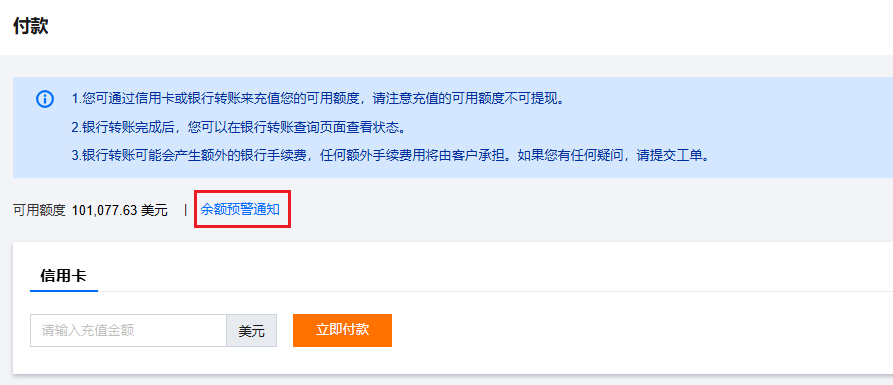
1. Log in to the console, go to Billing Center > Payment Management > Payment, and click Balance alert.


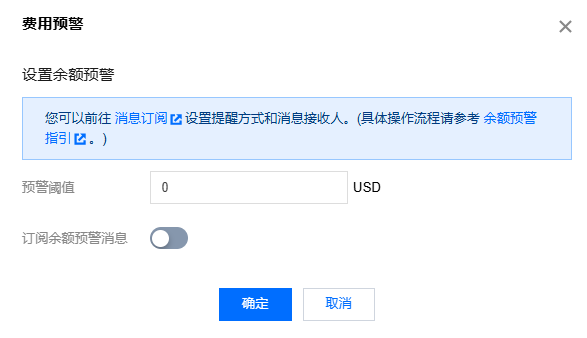
2. Select Receive balance alerts, enter an alert threshold (up to nine integer digits and two decimal digits; negative numbers are supported), and click Confirm.


Available Credit Alerts

Alert rules
Intended for customers that have applied for a credit limit through a Tencent Cloud sales representative.
Alerts are automatically triggered when the used credit reaches 70% of the available credit.
Alerts are sent at four levels: 70–79%, 80–89%, 90–99%, and ≥ 100%.
Only one alert is sent daily (00:00–24:00) and the alerts stop after five days.

Temporary Credit Expiration Alerts

Alert rules
Intended for customers that have applied for a temporary credit limit through a Tencent Cloud sales representative.
Alerts are triggered 7 days before your temporary credit limit expires. If the credit limit takes effect for less than 7 days, alerts will be sent according to the actual number of effective days. To ensure the normal use of your cloud resources, please top up your account or contact the sales rep to assess whether to increase the credit limit.
Only one alert is sent daily (00:00–24:00), and multiple expiration records are sent in one alert together. The alerts are sent until the expiration date.

Credit Change Notifications

Intended for customers that have applied for a credit limit through a Tencent Cloud sales representative.
Notifications are triggered when a sales rep allocates, repossesses, or cancels credit for a customer.
Only one notification is sent in real time.

Specifying recipients and delivery methods

The default recipients are the account creator, global resource collaborators, and the finance administrator.
The default method for delivering notifications is via SMS.
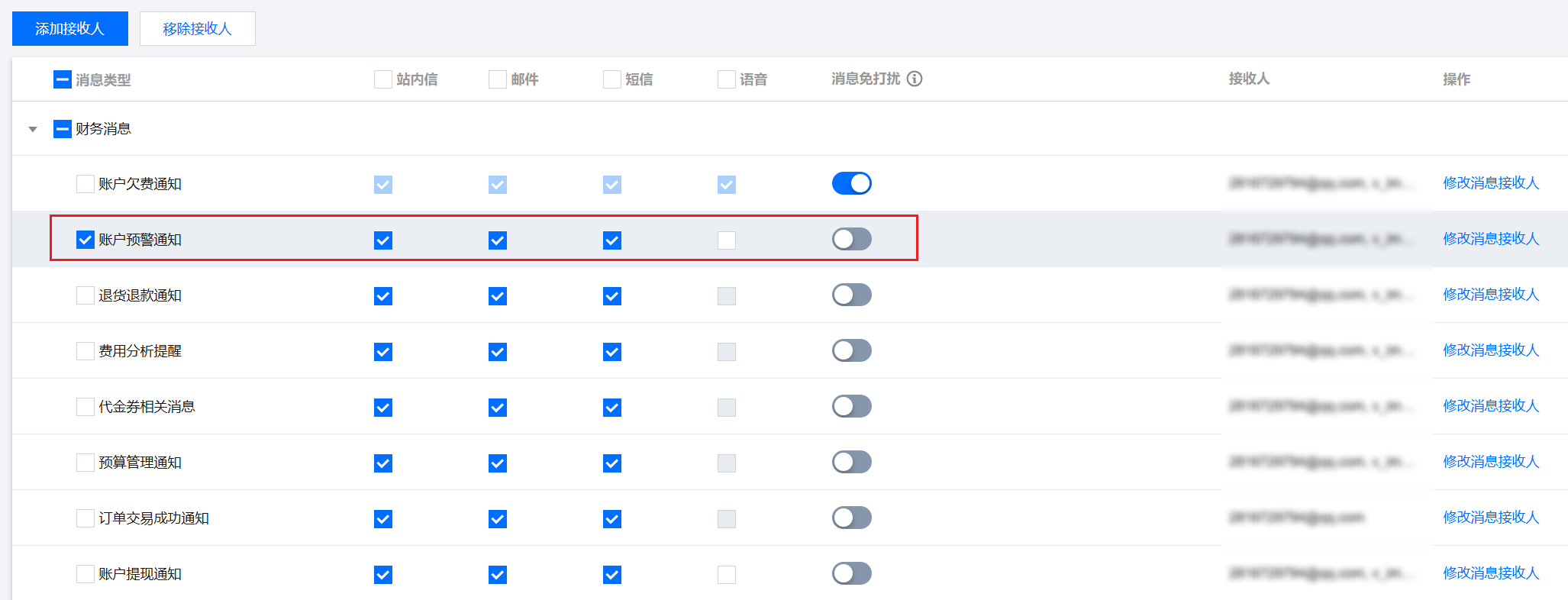
To modify the recipients and notification delivery methods, go to the Message Subscription page in the console.
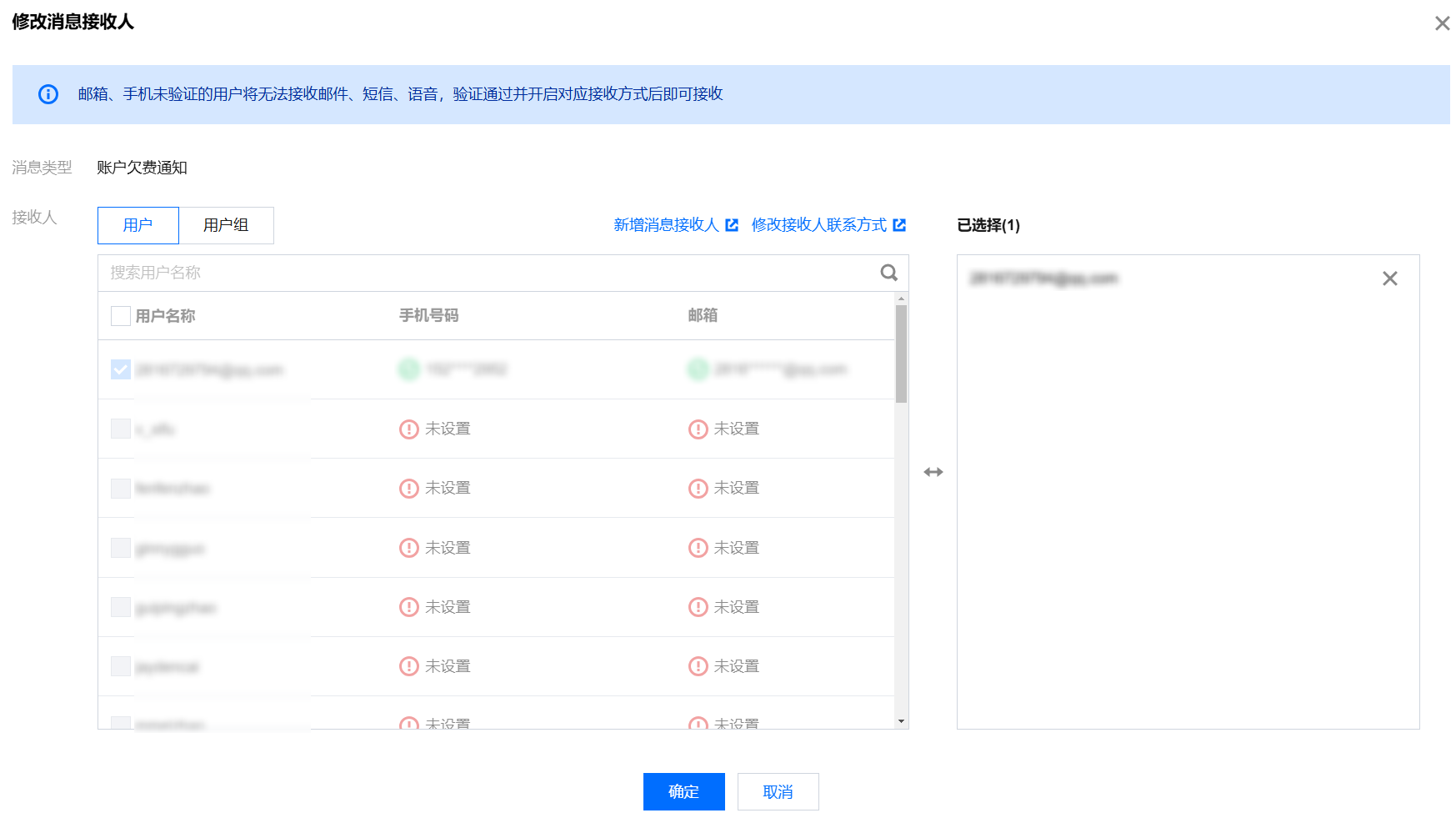
1. Select Balance Warning Notice and click Add recipient or Modify Message Recipient.


2. In the pop-up window, modify the recipients and the notification delivery methods, and click OK.


Disabling notifications

If you do not want to receive balance notifications anymore, unselect Receive balance alerts.

Help and Support

Was this page helpful?

Help us improve! Rate your documentation experience in 5 mins.

Feedback