1. Check whether LogListener is installed on the machine corresponding to the IP address. For installation instructions, see LogListener Installation and Deployment.
3. Check whether the IP address added to the machine group matches the IP address identified by LogListener. You can view the IP address detected by LogListener by executing the following code.
Linux
Windows
LogListener version 3.4.0 and above:
//Check heartbeat and configuration
systemctl check loglistener
//Verify the machine IP address
cd /opt/loglistener/ && grep -n 'agent_ip' conf/loglistener.yaml
LogListener version < 3.4.0:
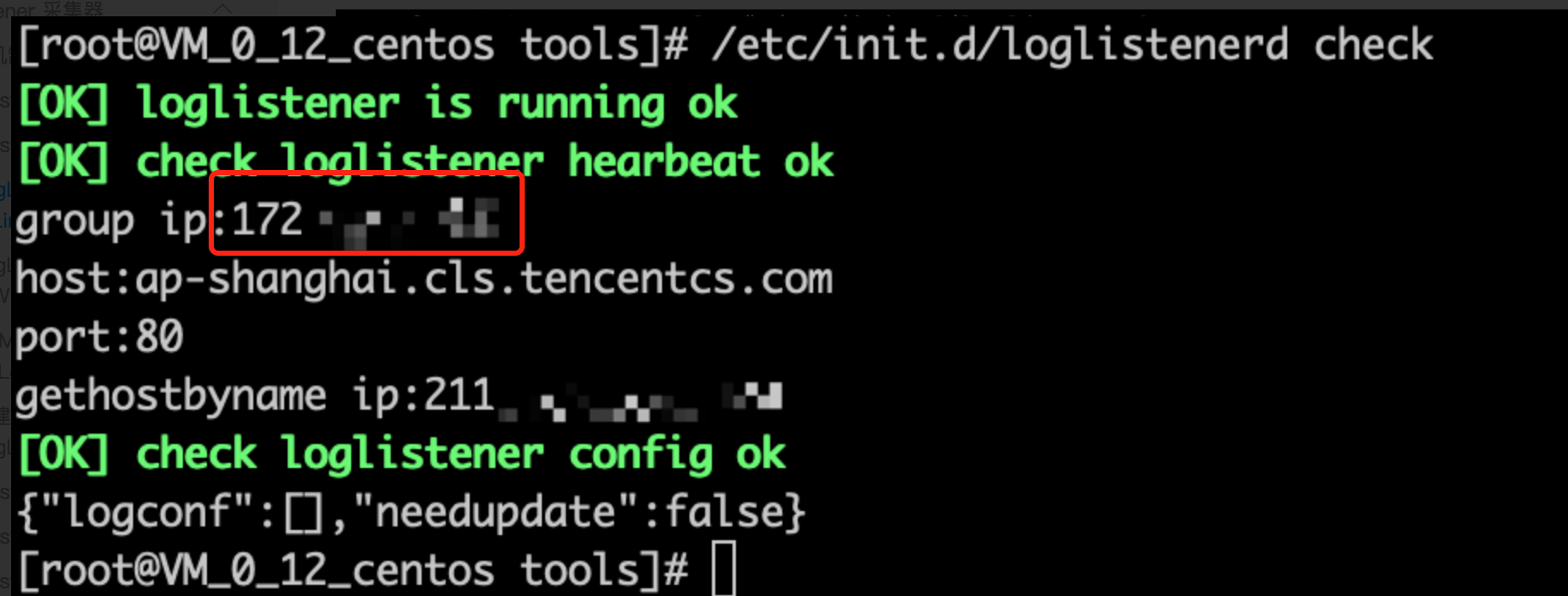
/etc/init.d/loglistenerd check
In the returned data, you can confirm the IP address identified by LogListener by viewing group ip, as shown in the following figure:
Using the installation path C:\\Program Files (x86)\\Tencent\\LogListener as an example, run Windows PowerShell as an administrator. Then, in the installation path, run the following command to check the heartbeat and configuration of LogListener:
.\\loglistener_work.exe check
In the returned data, you can confirm the IP address identified by LogListener by viewing group_id, as shown in the following figure:
3. Check whether the machine id of LogListener matches the machine id configured in the machine group. You can refer to the following steps to view the machine id of LogListener.
Linux
Windows
LogListener version 3.4.0 and above: Using the installation path /opt/loglistener as an example, you can run the following command in the /opt/loglistener/conf directory to view and configure the LogListener configuration file.
grep -n 'agent_labels' loglistener.yaml
No output indicates that the current machine is not configured with a machine id, as shown in the following figure:
Here, `agent_labels` is defined as the machine id of LogListener. Ensure that this id matches the one configured in the machine group.
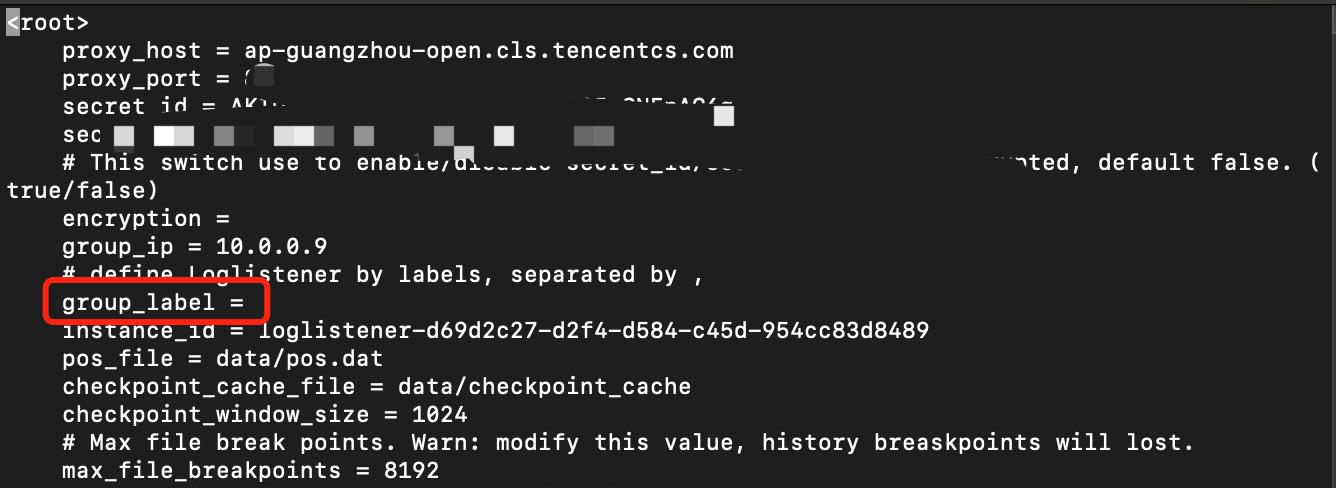
LogListener version < 3.4.0: Using the installation path /usr/local/ as an example, you can run the following command in the /usr/local/loglistener/etc directory to view and configure the LogListener configuration file.
vim loglistener.conf
Here, `group_label` is the machine id of LogListener. Ensure that this id matches the one configured in the machine group.
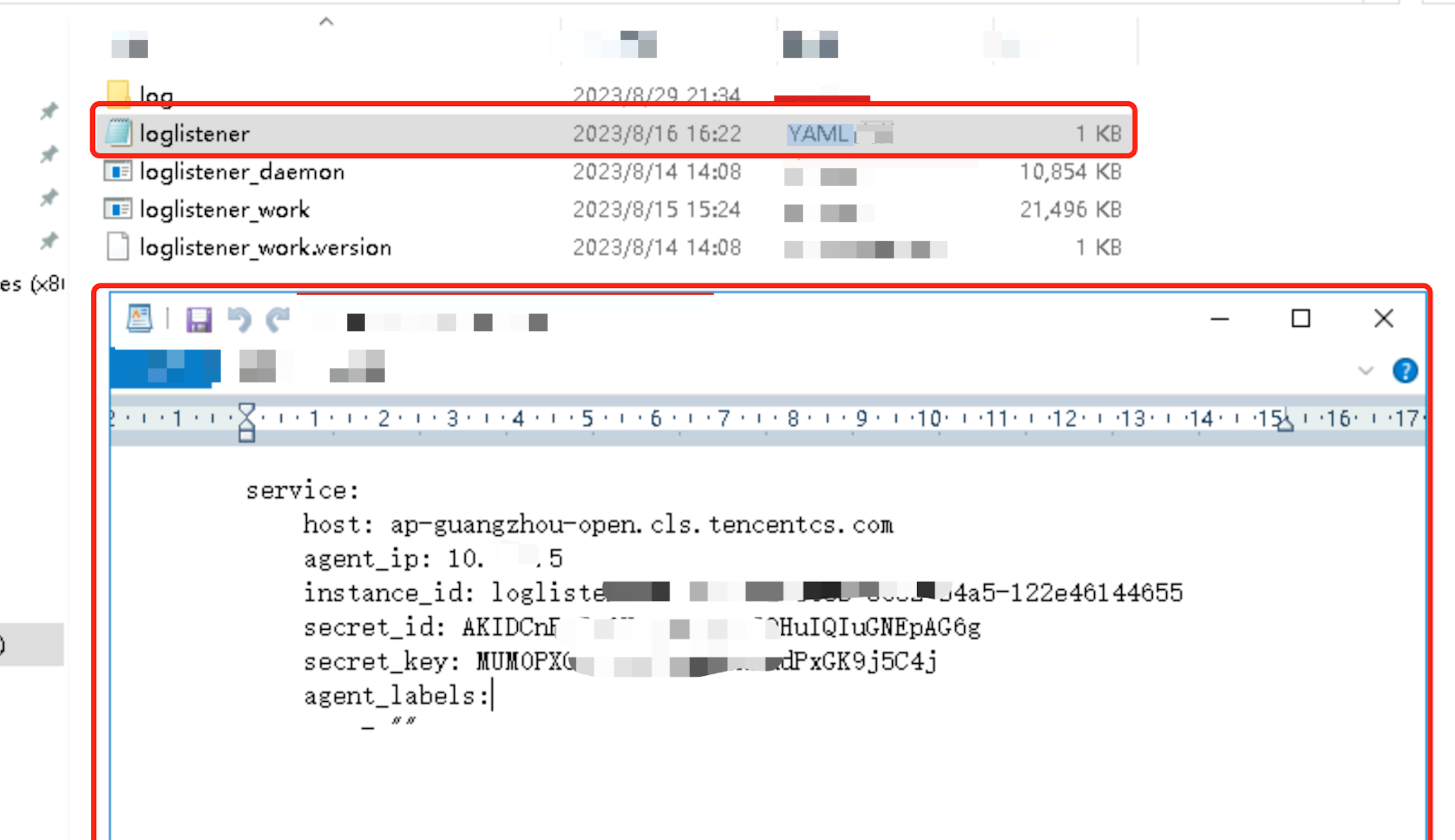
Using the installation path C:\\Program Files (x86)\\Tencent\\LogListener as an example, locate the LogListener configuration file `loglistener.yaml` in the installation directory and open it with any editor, as shown in the following figure:
Here, `agent_label` is defined as the machine id of LogListener. Ensure that this id matches the one configured in the machine group.
Machine Group: Abnormal Machine Status
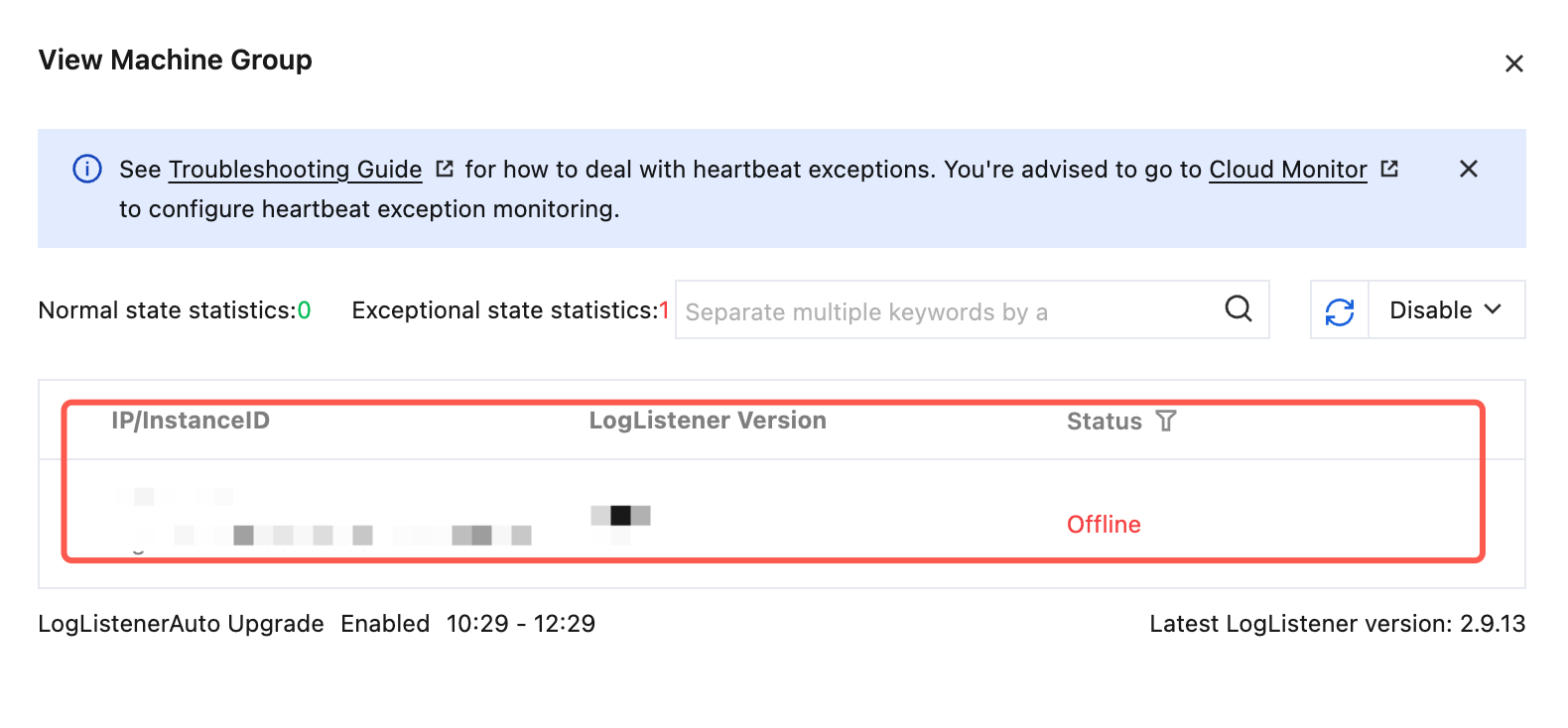
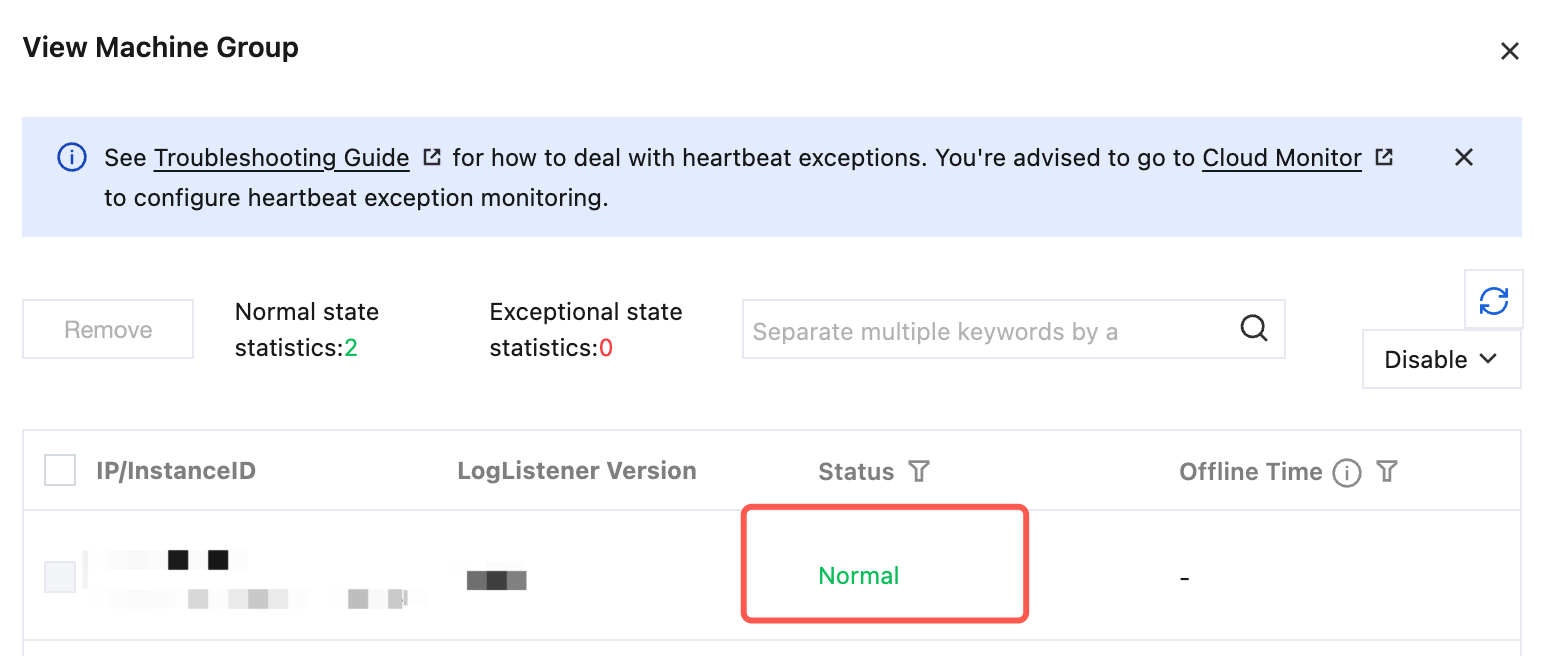
After completing the machine group configuration, you can view the machine heartbeat associated with that machine group by clicking the machine group name on the Machine Group Management page. A normal status indicates that the machine heartbeat is being reported normally. If the status is not normal (as shown in the following figure), it indicates that LogListener on that machine is abnormal.
Abnormal heartbeat
When the status is abnormal heartbeat, it means that the connection between LogListener and Cloud Log Service backend is interrupted, which will cause LogListener to fail to upload logs normally. You can further troubleshoot the cause of connection interruption by the following methods:
The LogListener Quick Diagnostic Tool can quickly diagnose whether LogListener is started, whether the heartbeat is normal, and whether configuration pulling is normal. Execute the following command in the command line:
LogListener version 3.4.0 and above:
systemctl check loglistener
LogListener version < 3.4.0:
/etc/init.d/loglistenerd check
If LogListener is running normally, the result returned by the diagnostic tool is as shown in the following figure:
LogListener Process Exception: If the text [ERROR] loglistener is not running appears as shown in the following figure, it indicates that LogListener is not started. Start it by executing `systemctl start loglistener`. For more operation commands, see Common Operations for LogListener.
LogListener Heartbeat Abnormal: If the text [ERROR] check loglistener heartbeat fail appears as shown in the following figure, it indicates that the LogListener heartbeat is abnormal.
There are many causes of abnormal heartbeats in LogListener, and the most common ones include:
Network is abnormal. Run the following command to check whether the network environment is connected. The "cls domain name" in the command is the CLS service domain name. See the Available Regions document to fill it in.
telnet <cls domain name> 80
The secret key information is incorrect. Go to the LogListener installation directory and run ./bin/check. If the output at the end is as follows, it indicates that the secret key information is incorrect.
The secret key lacks permissions. Go to the LogListener installation directory and run ./bin/check. If the output at the end is as follows, it indicates that the secret key lacks permissions. Configure the reporting permissions according to the Policy Template.
2. Check for the IP address of the machine group
Check whether the IP address added to the machine group is the IP address obtained during the LogListener installation process.
1. Go to the LogListener installation directory and run the following command to check the IP address configured for LogListener.
LogListener Version ≥3.4.0
LogListener Version <3.4.0
Note:
Unless otherwise specified, the installation directory of LogListener is usually /opt/loglistener.
grep agent_ip conf/loglistener.yaml
Note:
Unless otherwise specified, the installation directory of LogListener is usually /usr/local/loglistener.
grep group_ip etc/loglistener.conf
2. Log in to the CLS console, click Machine Group Management, and view the IP address configured for the machine group. The IP address configured for the machine group must exactly match the IP address obtained by LogListener.
Directory overflow
When the status is directory overrun, it causes logs from directories beyond the allowed limit for LogListener to be uncollectable. You can repair it in the following ways:
1. Run the following command to view the collection configuration associated with the current LogListener.
//LogListener version 3.4.0 and above
systemctl check loglistener
//LogListener version < 3.4.0
/etc/init.d/loglistenerd check
2. In the above return results, the logconfig array contains all collection configurations of the current LogListener. For each collection configuration, you can check whether the wildpath may vaguely match a large number of directories that do not need to be collected, such as fuzzy paths in the root directory like /root/**/error.log.
3. After the target collection configuration that can be optimized is found, view the topicid associated with the collection configuration from the returned data in Step 1, and go to the CLS console to find the target log topic based on this topicid, optimize or delete the collection configuration.
File overflow
When the status is file overrun, it means that the number of collection files monitored by LogListener has exceeded the specification limit of 10000, which will result in LogListener being unable to collect logs from files beyond this limit. You can repair it in the following ways:
1. Run the following command to view the collection configuration associated with the current LogListener.
//LogListener version 3.4.0 and above
systemctl check loglistener
//LogListener version < 3.4.0
/etc/init.d/loglistenerd check
2. In the above return results, the logconfig array contains all collection configurations of the current LogListener. For each collection configuration, you can check whether the wildpath may fuzzy match a large number of files that do not need to be collected, such as log files with any name that are fuzzy matched from the root directory like /root/**/*.log.
3. After the target collection configuration that can be optimized is found, check the topicid associated with the collection configuration from the returned data in Step 1, and go to the CLS console to find the target log topic based on this topicid, optimize or delete the collection configuration.
CPU overflow
When the status is CPU overrun, it means that the CPU usage of LogListener has exceeded the preset threshold. You can troubleshoot and repair it in the following ways:
Optimizing the Target Collection Directory
1. Run the following command to view the collection configuration associated with the current LogListener.
//LogListener version 3.4.0 and above
systemctl check loglistener
//LogListener version < 3.4.0
/etc/init.d/loglistenerd check
2. In the above return results, the logconfig array contains all collection configurations of the current LogListener. For each collection configuration, you can check whether the wildpath may fuzzy match a large number of files that do not need to be collected, such as log files with any name that are fuzzy matched from the root directory like /root/**/*.log.
3. After the target collection configuration that can be optimized is found, check the topicid associated with the collection configuration from the returned data in Step 1, and go to the CLS console to find the target log topic based on this topicid, optimize or delete the collection configuration.
Optimizing Regular Expressions
1. Run the following command to view the collection configuration associated with the current LogListener.
//LogListener version 3.4.0 and above
systemctl check loglistener
//LogListener version < 3.4.0
/etc/init.d/loglistenerd check
2. In the above return results, the logconfig array contains all collection configurations of the current LogListener. For each collection configuration that has a fullregex or multi_fullregex field, you can check whether the regular expression is overly complex.
3. After the target collection configuration that can be optimized is found, check the topicid associated with the collection configuration from the returned data in Step 1, and go to the CLS console to find the target log topic based on this topicid, optimize or delete the collection configuration.
Increasing the CPU Usage Limit for LogListener
LogListener Version ≥3.4.0
LogListener Version <3.4.0
1. Using the LogListener installation directory `/opt/loglistener` as an example, run the following command to open the LogListener configuration file:
vim conf/loglistener.yaml
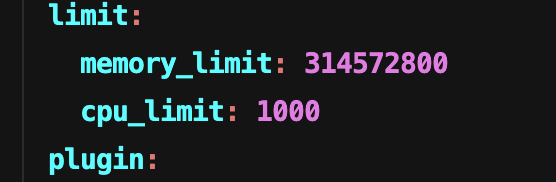
2. In the LogListener configuration file, locate the cpu_limit and increase the CPU utilization limit as needed (it is recommended to increase it gradually by 500/1000 while ensuring resources for business processes), as shown in the following figure:
3. After completing the configuration, save the file and restart LogListener.
systemctl restart loglistener
1. Using the LogListener installation directory /usr/local/loglistener as an example, run the following command to open the LogListener configuration file:
vim etc/loglistener.conf
2. In the LogListener configuration file, locate cpu_usage_thres and increase the CPU utilization limit as needed (it is recommended to increase it gradually by 500/1000 while ensuring resources for business processes), as shown in the following figure:
3. After completing the configuration, save the file and restart LogListener.
systemctl restart loglistenerd
Increasing CPU Resource Quotas
In a K8s environment, ensure that the CPU quota for the Pod: loglistener under the DaemonSet: tke-log-agent is sufficient.
Out of Memory
When the status is memory overrun, it indicates that the memory usage of LogListener has exceeded the preset threshold. You can repair it in the following ways:
LogListener Version ≥3.4.0
LogListener Version <3.4.0
1. Using the LogListener installation directory `/opt/loglistener` as an example, run the following command to open the LogListener configuration file.
vim conf/loglistener.yaml
2. In the LogListener configuration file, locate max_mem (unit: Bytes) and increase the memory usage limit as needed, as shown in the following figure:
Note:
It is recommended to gradually increase the value by 1 - 2 times the current value, provided that sufficient memory resources are ensured for business processes and business stability is not affected.
3. After completing the configuration, save the file and restart LogListener.
systemctl restart loglistener
1. Using the LogListener installation directory /usr/local/loglistener as an example, run the following command to open the LogListener configuration file.
vim etc/loglistener.conf
2. In the LogListener configuration file, locate max_mem (unit: Bytes) and increase the memory usage limit as needed, as shown in the following figure:
Note:
It is recommended to gradually increase the value by 1 - 2 times the current value, provided that sufficient memory resources are ensured for business processes and business stability is not affected.
3. After completing the configuration, save the file and restart LogListener.
systemctl restart loglistenerd
Authentication Failure
Verifying Key Validity
When the status is authentication failure, it indicates that the secret key configured in LogListener is incorrect or has expired. You can repair it in the following ways:
LogListener Version ≥3.4.0
LogListener Version <3.4.0
The secret key is no longer exposed in plaintext in the local configuration file. If authentication failure still occurs, it usually indicates that the secret key used by the current instance has expired, permissions are abnormal, or the configuration has not been correctly delivered. Please verify whether the console secret key and machine group configuration are valid. If necessary, you can reinstall LogListener.
1. Using the LogListener installation directory /usr/local/loglistener as an example, run the following command to open the LogListener configuration file.
vim etc/loglistener.conf
2. In the LogListener configuration file, locate secret_id and secret_key and verify whether they are correct and valid. If they are invalid, modify them with the correct secret key information, as shown below:
3. After completing the configuration, save the file and restart LogListener.
systemctl restart loglistenerd
Server Time Correctness
Ensure that the server time is accurate; otherwise, authentication may fail.
1. For Linux servers, you can refer to the following methods for checking:
date
timedatectl status
Focus on verifying the following information:
Local time: whether the current local time is correct.
Time zone: whether the time zone matches the region where the server is located. For example, the Chinese mainland region typically uses Asia/Shanghai.
System clock synchronized: whether it is yes.
NTP service: whether it is active.
2. If the time zone is incorrect, you can run the following command to modify it (using the Chinese mainland region as an example):