Batch Protection Rule
ダウンロード
フォーカスモード
フォントサイズ
Tencent Cloud WAF batch protection rules module supports users in centralized configuration of protection rules for multiple protected objects with the same protection policy.
Batch Configure Custom Allow Rule
The batch protection rules page provides the batch configuration feature for custom allow rule.
Regarding the feature introduction and detailed operation guidance for custom allow rule, for details, see Custom Allow Rule.
Add Custom Allow Rule
Note:
A single domain supports multiple custom allow rule rules being effective.
1. Log in to the WAF console, and at the top of the left sidebar, switch the console to the region where the instance is located (Chinese mainland/non-Chinese mainland).
2. In the left sidebar, choose Bulk Protection > Batch protection rules > Custom allow rules.
3. On the custom allow rule page, click Add rule, configure the relevant parameters, and click OK.
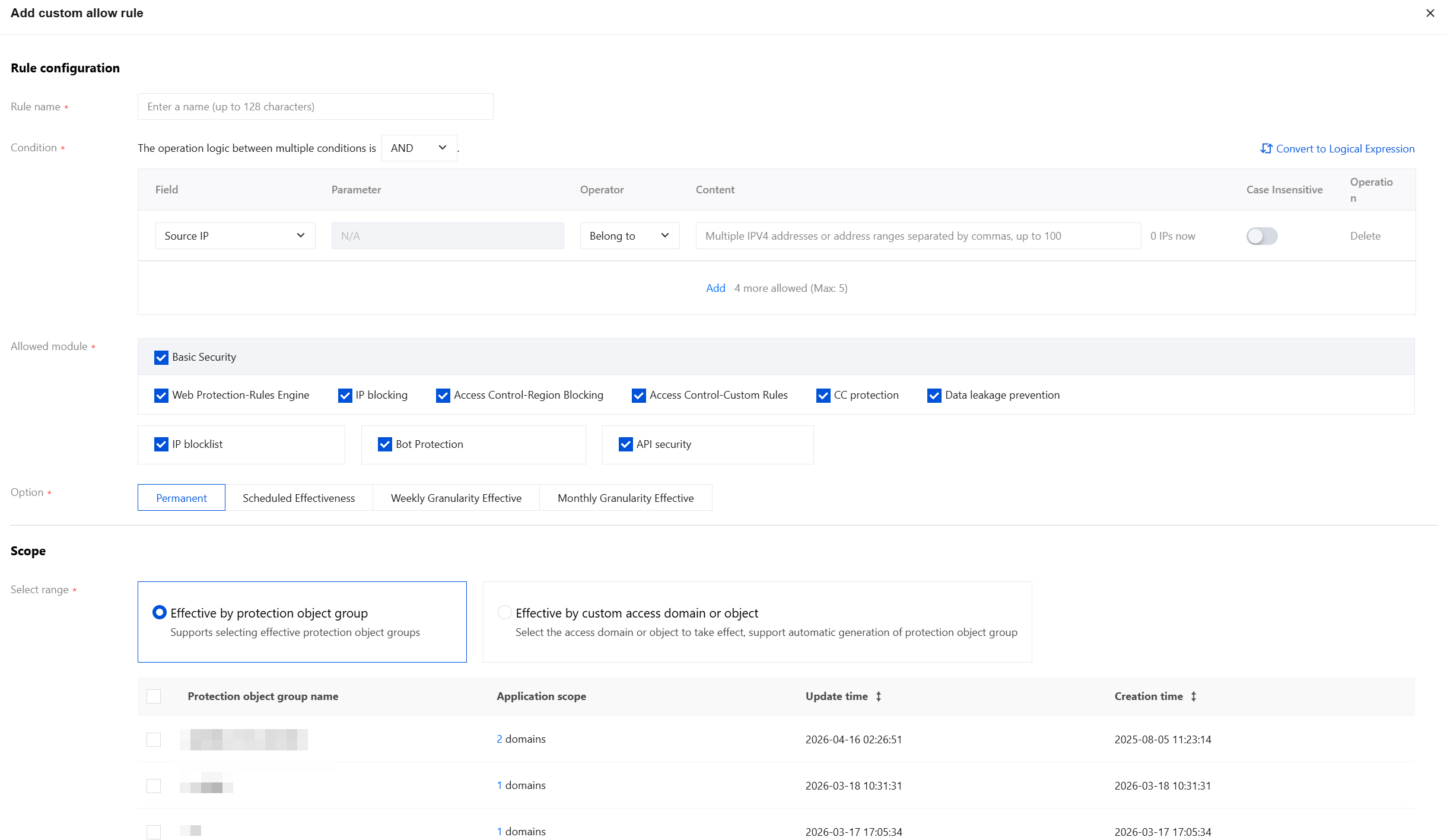
Field description:
Rule name: Custom rule name, up to 50 characters.
Condition: For the field description of the matching method, see Match Mode Field Description. You can add up to 5 rules.
Allowlisting module: Select the module to apply the custom allow rule configuration here.
Basic security
Web Protection - Rules Engine
IP Blocking
Access Control - Region Blocking
Access Control - Custom Rules
CC Protection
Data leakage prevention
IP blocklist
Bot Protection
API security
Option: You can choose from Permanent, Scheduled Effectiveness, Weekly Granularity Effective or Monthly Granularity Effective.
Scope: The selection includes taking effect by protected object groups and by custom access domains/objects.
Take effect by protected object groups: Select the configured protected object groups below, supporting one-click select all.
Take effect by custom domains or objects: You can filter by domain or instance attributes. Hold down the Shift key to multi-select (up to 300 objects). After the access domains or objects are selected, you can one-click simultaneously generate protected object groups.
Management Custom Allow Rule
On the Custom Allow Rule page, you can select multiple resource attributes for querying. The corresponding positions in the Action column allow rules to be edited or deleted.
Note:
Deleted rules cannot be recovered and need to be re-added to take effect.

Batch Configure IP Allowlist
The Batch Protection Rules page provides batch configuration functionality for the IP Allowlist.
Add IP Allowlist
Note:
A single domain supports multiple IP Allowlist rules taking effect.
1. Log in to the WAF console, and at the top of the left sidebar, switch the console to the region where the instance is located (Chinese mainland/non-Chinese mainland).
2. In the left sidebar, choose Bulk Protection > Batch protection rules > IP allowlist.
3. On the IP Allowlist page, click Add address, configure relevant parameters, and click OK.
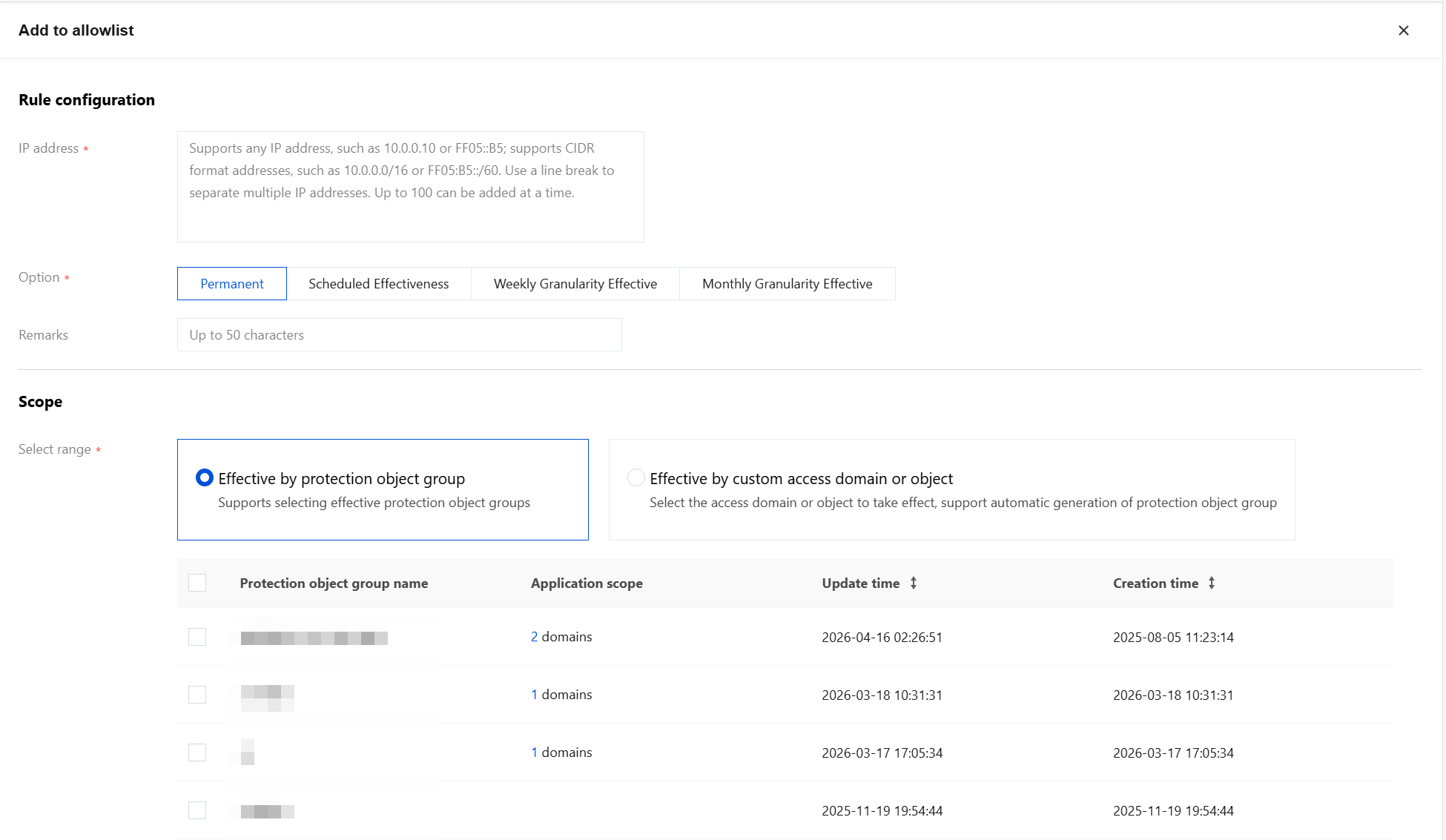
Field description:
IP address: Supports any IP address, such as 10.0.0.10 or FF05::B5; supports CIDR format addresses, such as 10.0.0.0/16 or FF05:B5::/60. Separate entries with line breaks, with a maximum of 100 entries added at once.
Option: Options include Permanent, Scheduled Effectiveness, Weekly Granularity Effective or Monthly Granularity Effective.
Remarks: Custom, within 50 characters.
Select range: Options include applying to protected object groups or custom access domains/objects.
Take effect by protected object groups: Select the configured protected object groups below, supporting one-click select all.
Take effect by custom domains or objects: You can filter by domain or instance attributes. Hold down the Shift key to multi-select (up to 300 objects). After the access domains or objects are selected, you can one-click simultaneously generate protected object groups.
Manage IP Allowlist
On the IP Allowlist page, you can select multiple resource attributes for querying. In the corresponding cell of the operation column, you can edit or delete rules.
Note:
Deleted rules cannot be recovered and need to be re-added to take effect.

Batch Configure IP Blocklist
The batch protection rules page provides the batch configuration feature for IP blocklist.
For details on the feature introduction and detailed operation guidance of IP blocklist, see IP Blocklist.
Add IP Blocklist
Note:
A single domain supports multiple IP blocklist rules taking effect.
1. Log in to the WAF console, and at the top of the left sidebar, switch the console to the region where the instance is located (Chinese mainland/non-Chinese mainland).
2. In the left sidebar, choose Bulk Protection > Batch protection rules > IP blocklist.
3. On the IP blocklist page, click Add address, configure the relevant parameters, and click OK.
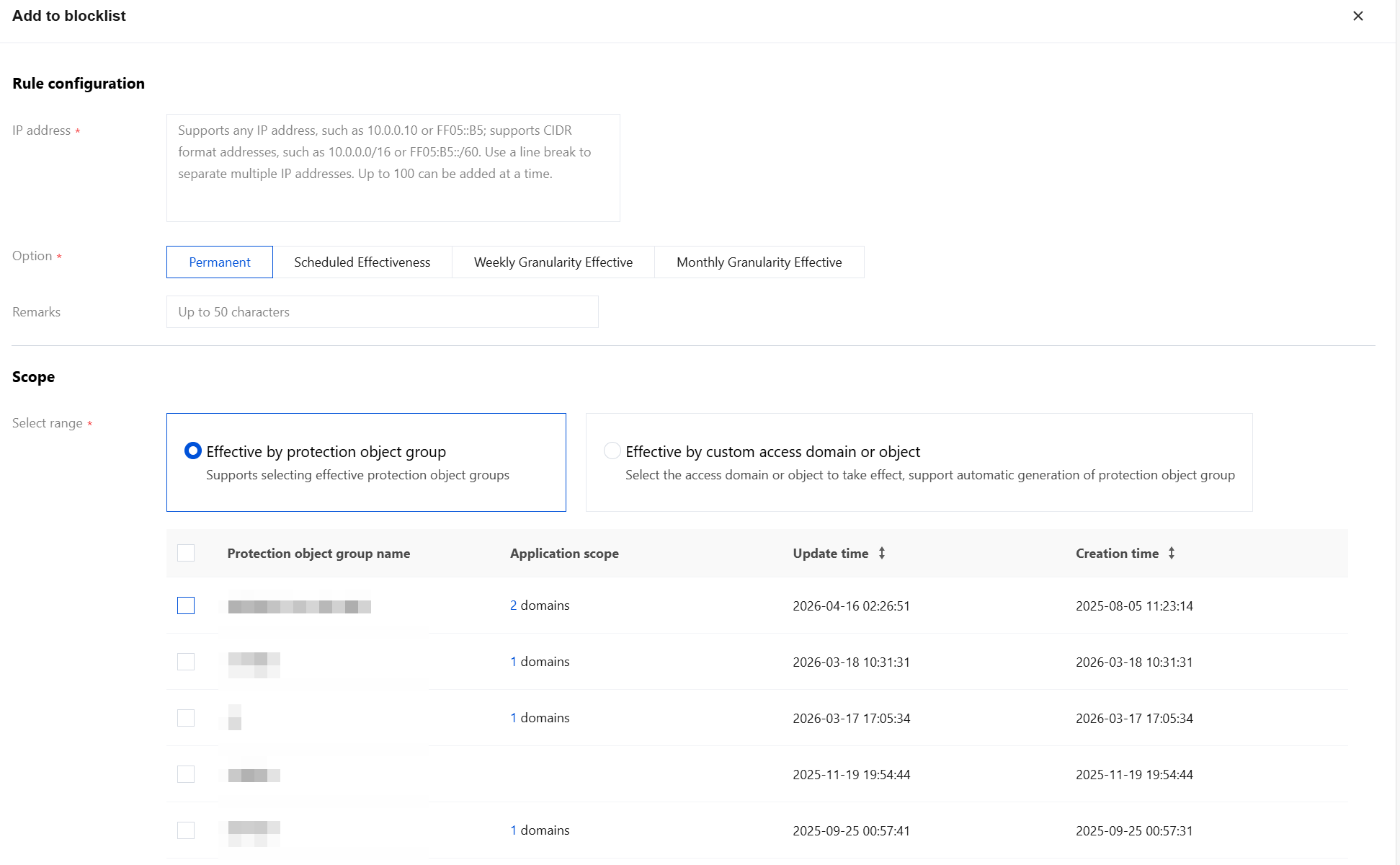
Field description:
IP address: Supports any IP address, such as 10.0.0.10 or FF05::B5; supports CIDR format addresses, such as 10.0.0.0/16 or FF05:B5::/60. Separate entries with line breaks, with a maximum of 100 entries added at once.
Option: Options include Permanent, Scheduled Effectiveness, Weekly Granularity Effective or Monthly Granularity Effective.
Remarks: Custom, within 50 characters.
Select range: Options include applying to protected object groups or custom access domains/objects.
Take effect by protected object groups: Select the configured protected object groups below, supporting one-click select all.
Take effect by custom domains or objects: You can filter by domain or instance attributes. Hold down the Shift key to multi-select (up to 300 objects). After the access domains or objects are selected, you can one-click simultaneously generate protected object groups.
Manage IP Blocklist
On the IP blocklist page, you can select multiple resource attributes to query, and in the operation column, you can edit or delete rules at the corresponding positions.
Note:
Deleted rules cannot be recovered and need to be re-added to take effect.

Batch Configure Web Security
The batch protection rules page provides capabilities for batch configuration of Web Security.
For the functional introduction and detailed operational guidance on Web Security, see Rule Engine (New).
Add Web Security
Note:
A single domain supports multiple Web Security Rules taking effect.
1. Log in to the WAF console, and at the top of the left sidebar, switch the console to the region where the instance is located (Chinese mainland/non-Chinese mainland).
2. In the left sidebar, choose Bulk Protection > Batch protection rules > Web Security.
3. On the Web Security page, click Create Rule Template, enter the Template Name and Remarks, and click OK.
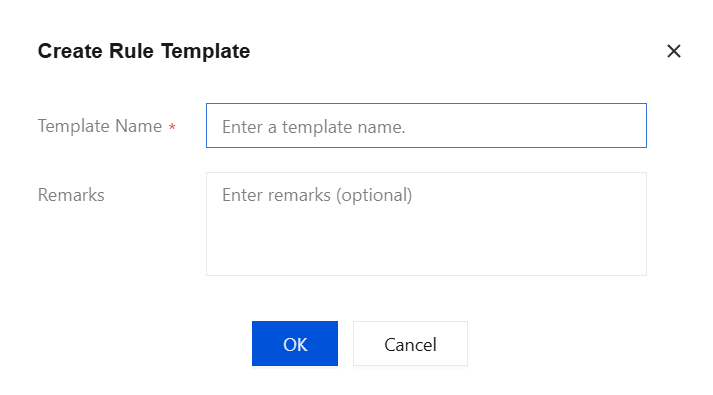
4. At the top of the Effective Object page, click Configure Now to configure effective objects.
4.1 Support filtering based on various attributes of domains and instances, allow multiple selection by holding down the Shift key (up to 300 objects). After domains or objects are selected, protection object groups can be synchronously generated with one click.
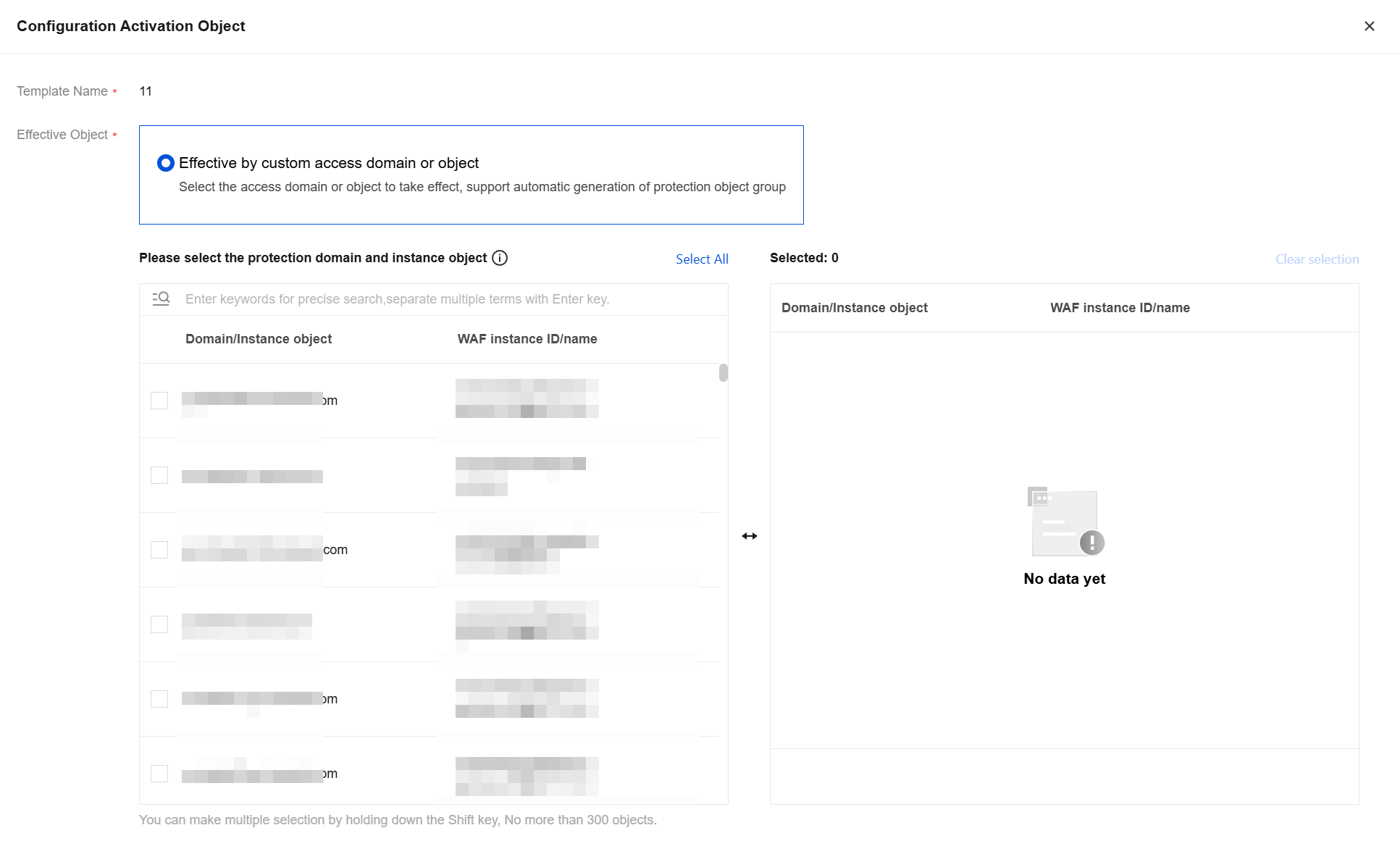
4.2 Click OK to return to the Effective Object page.
5. Below the Effective Object page, you can manage Web security rules. For details, see Managing the Rules.
Manage Web Security Rules
On the Web Security page, you can search by template name and edit or delete rules in the corresponding Operation column.
Note:
Deleted rules cannot be recovered and need to be re-added to take effect.
The Web Security default template is the system default template and cannot be deleted.

Batch Configure IP Blocking
The Batch Protection Rules page provides the feature for batch configuration of IP blocking.
For the feature description and detailed operation instructions of IP address blocking rules, see IP Blocking.
Add IP Blocking
Note:
Only one IP blocking rule can take effect per domain.
1. Log in to the WAF console, and at the top of the left sidebar, switch the console to the region where the instance is located (Chinese mainland/non-Chinese mainland).
2. In the left sidebar, choose Bulk Protection > Batch protection rules > IP blocking.
3. On the IP Blocking page, click Add rule, configure the relevant parameters, and click OK.
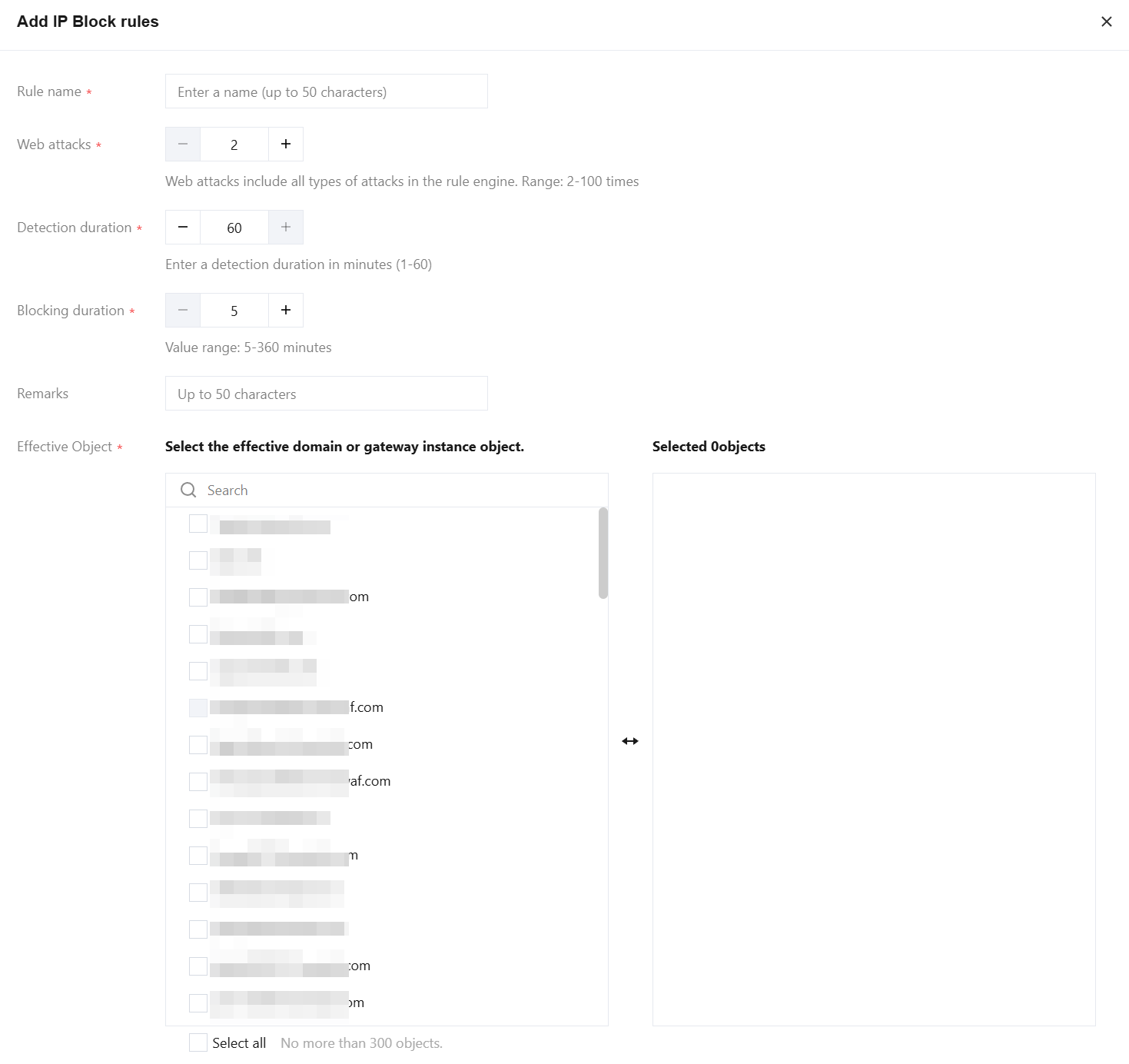
Field description:
Rule name: Custom rule name, up to 50 characters.
Web attacks: The number of times the attack source IP triggers Web attacks (triggered by the rule engine, excluding modules such as AI engine, custom policies, and CC attacks) within a specified period. Attack number range: 2 to 100 times.
Detection duration: Specifies the duration for detecting the attack source IP address. The detection duration ranges from 1 to 60 minutes.
Blocking duration: The duration for blocking requests from this IP address. Blocking time range: 5 to 360 minutes.
Remarks: Up to 50 characters.
Effective Object: Select the domain names or gateway instances to take effect. Selecting all is supported, but no more than 300 objects are allowed.
Manage IP Blocking
On the IP Blocking page, you can select multiple resource attributes for querying. Rules can be edited or deleted in the corresponding operation column.
Note:
After deletion, the rules cannot be recovered, but you can continue to configure IP blocking rules for single objects or batches of objects.

Batch Configure Regional Blocking
The batch protection rules page provides the feature to configure region blocking rules in batches.
For the feature introduction and detailed operations guide of region blocking rules, see Region Blocking.
Add Region Blocking
Note:
Only one region blocking rule can be active for a single domain name.
1. Log in to the WAF console, and at the top of the left sidebar, switch the console to the region where the instance is located (Chinese mainland/non-Chinese mainland).
2. In the left sidebar, choose Bulk Protection > Batch protection rules > Region blocking.
3. On the Region Blocking page, click Add rule, configure the relevant parameters, and click OK.
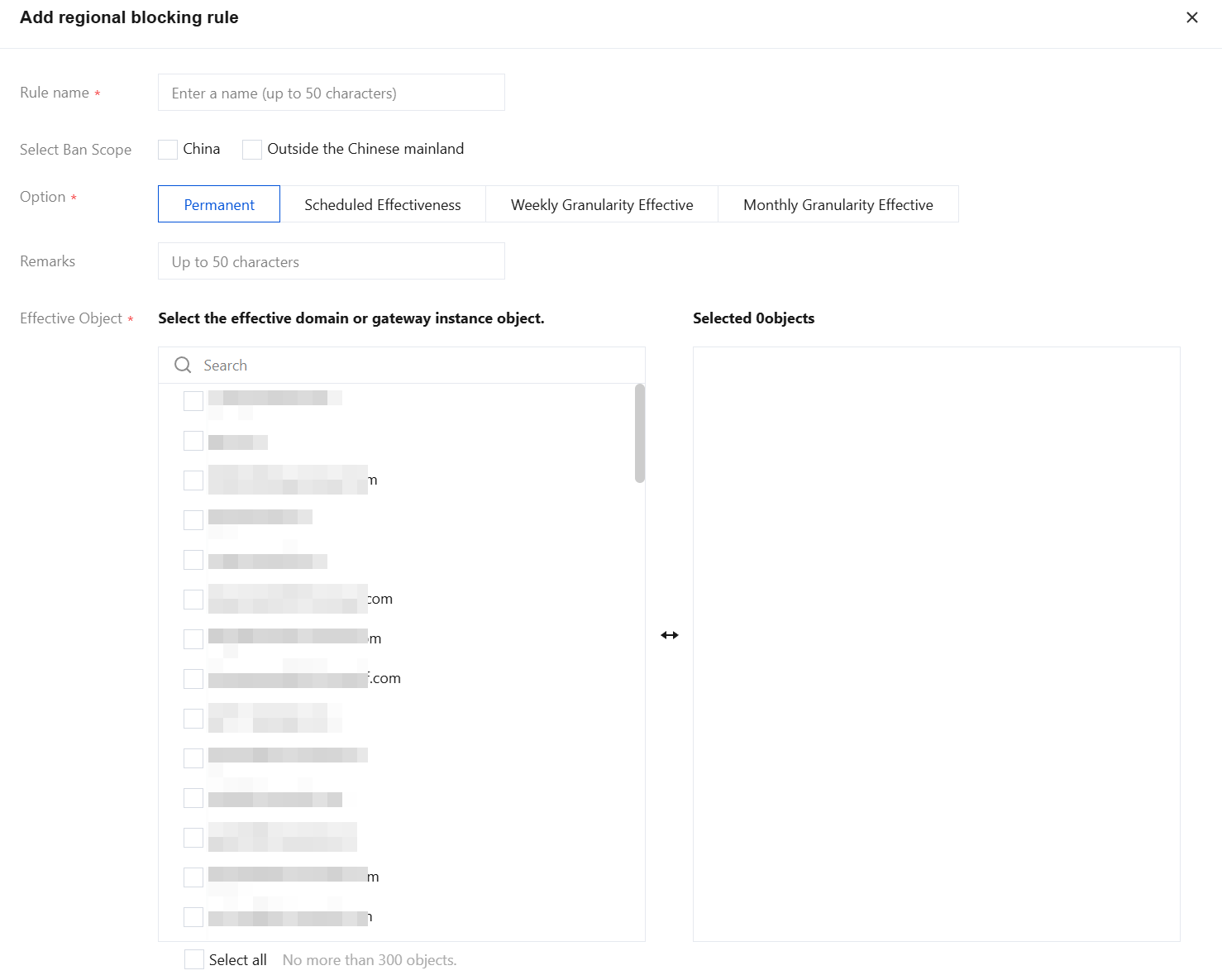
Field description:
Rule name: Custom rule name, up to 50 characters.
Select Ban Scope: Select the China/Outside the Chinese mainland regions to be blocked. For details about supported regions, see Region Blocking.
Option: You can choose from Permanent, Scheduled Effectiveness, Weekly Granularity Effective or Monthly Granularity Effective.
Remarks: Up to 50 characters.
Effective Object: Select the domain names or gateway instances to take effect. Selecting all is supported, but no more than 300 objects are allowed.
Manage Region Blocking
On the Region Blocking page, you can query resources by selecting multiple attributes, and edit or delete rules in the corresponding Operation column.
Note:
Deleted rules cannot be recovered and need to be re-added to take effect.

Batch Configure Access Control
The batch protection rules page provides the batch configuration feature for access control rules.
Add Access Control
Note:
A single domain name supports multiple access control rules taking effect.
1. Log in to the WAF console, and at the top of the left sidebar, switch the console to the region where the instance is located (Chinese mainland/non-Chinese mainland).
2. In the left sidebar, choose Bulk Protection > Batch protection rules > Access control.
3. On the Access Control page, click Add rule, configure the relevant parameters, and click OK.
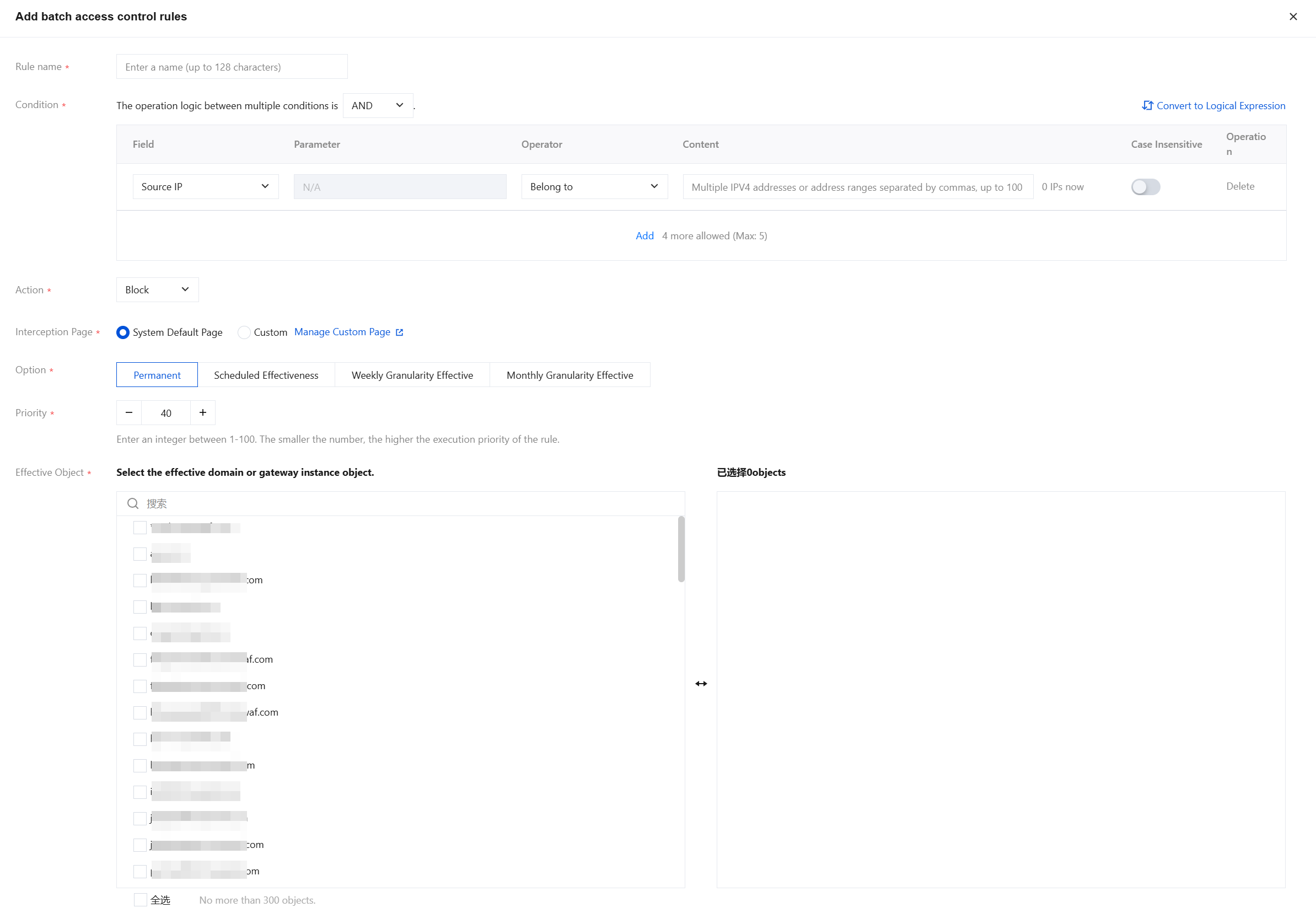
Field description:
Rule name: Custom rule name, up to 50 characters.
Condition: Up to five conditions can be configured for feature control in each access control policy. Multiple conditions within a policy have an "AND" relationship, meaning the policy takes effect only when all conditions are matched. For details about the match mode field description, see Match Mode Field Description.
Action: Each access control policy can be configured with four processing actions after matching: Block, CAPTCHA, Observe, and JS validation.
Block: WAF intercepts the access that hits the policy.
CAPTCHA: WAF performs CAPTCHA verification on the access that hits the policy, such as image-based Captcha.
Observe: WAF observes the access that hits the policy.
JS validation: WAF performs JS validation on the access that hits the policy.
Note:
JS validation is supported only in the Enterprise edition and above. If your current edition does not support it, upgrade your WAF edition first. For details, see WAF Plan Upgrade Method.
Interception Page: You can choose between System Default Page and Custom. You can manage custom pages in System Settings > Custom Page.
Option: Options include Permanent, Scheduled Effectiveness, Weekly Granularity Effective or Monthly Granularity Effective.
Priority: A smaller priority value indicates a higher priority. For example, 1 has the highest priority, and 100 has the lowest.
Effective Object: Select the domain names or gateway instances to take effect. Selecting all is supported, but no more than 300 objects are allowed.
Manage Access Control
On the access control page, you can select multiple resource attributes for querying. Rules can be edited or deleted in the operation column, and batch deletion of rules is supported.
Note:
Deleted rules cannot be recovered and need to be re-added to take effect.

Batch Configure CC Protection
The batch protection rules page provides the batch configuration feature for CC protection.
For feature introduction and detailed operation guidance on CC protection rules, see CC Protection Rule Setting.
Add CC Protection
Note:
A single domain supports multiple CC protection rules being effective.
1. Log in to the WAF console, and at the top of the left sidebar, switch the console to the region where the instance is located (Chinese mainland/non-Chinese mainland).
2. In the left sidebar, choose Bulk Protection > Batch protection rules > CC protection.
3. On the CC protection page, click Add rule, configure the relevant parameters, and then click OK.
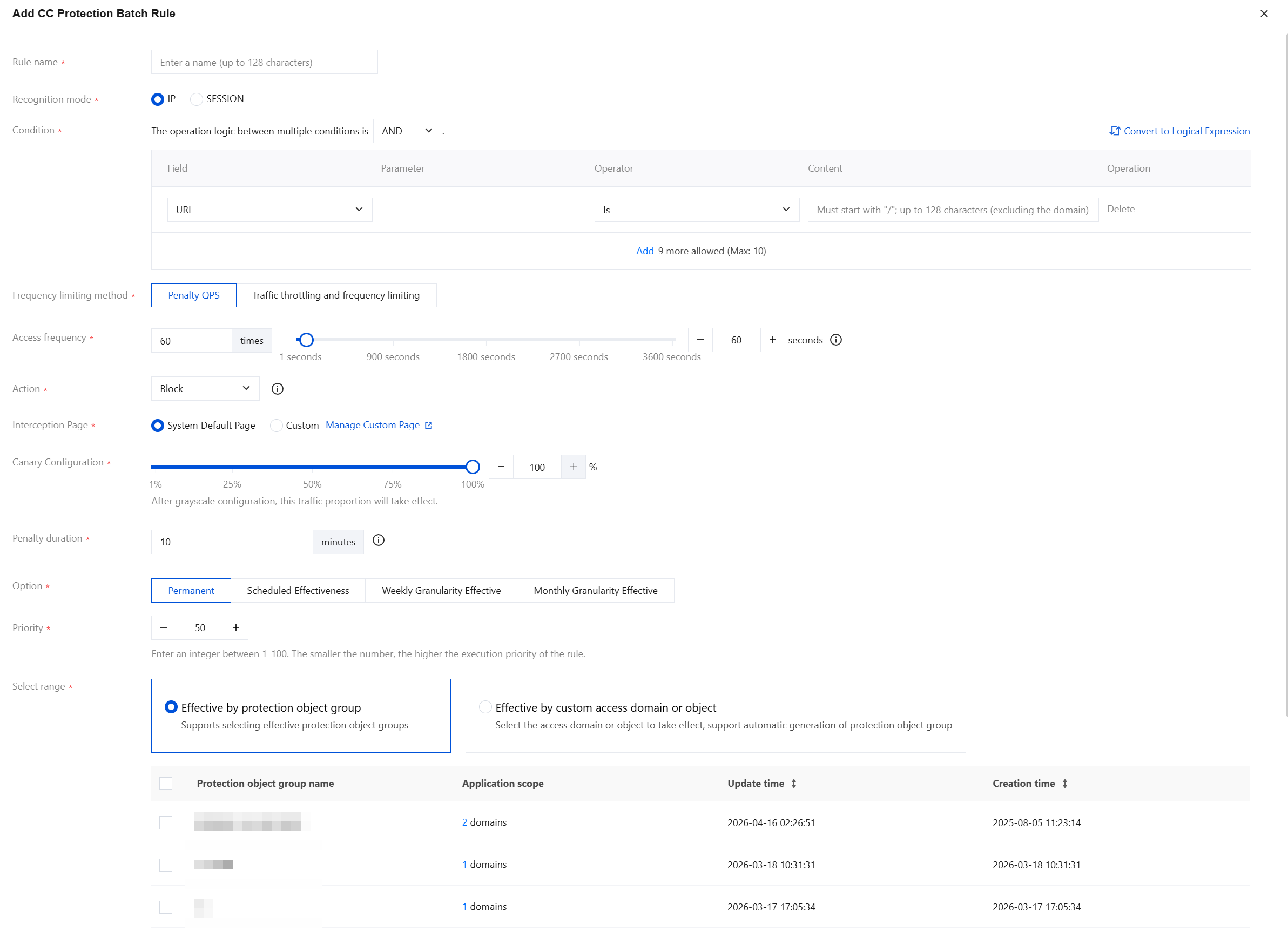
Field description:
Rule name: The name of the CC protection rule, up to 50 characters.
Recognition mode: Supports IP address and SESSION identification modes, defaults to IP address.
Apply to: When Recognition mode is set to SESSION, you need to select or add application objects here.
Condition: The match conditions for CC protection rules frequency control, defaults to URL. Supports setting multiple match conditions. The multiple conditions of the same rule are in an "AND" relationship, and actions are executed only when all conditions are satisfied, with a maximum of 10 configurable. For details, see Match Mode Field Description.
Frequency limiting method: You can choose between penalty-based frequency limiting and throttling-based frequency limiting.
Penalty QPS: Imposes custom-duration handling on clients triggering frequency rules, processing their requests within the set time based on the enforcement action.
Traffic throttling and frequency limiting: Strictly controls the number of requests from clients triggering frequency rules by limiting their maximum requests per unit time based on enforcement actions. This feature is only available to instances that have purchased BOT Protection or API Security.
Access frequency: Set the access frequency based on your business needs. It is recommended to set it at 3 times - 10 times the normal access rate. For example, if a website typically receives 20 visits/minute per user, configure it to 60 visits/minute - 200 visits/minute. Adjust according to the severity of attacks.
Action: Defaults to interception, can be configured as needed. Details of each action are as follows:
Action Type | Description |
Observe | Session requests that meet the matching conditions will be monitored and logged. |
Block | If the protection path configured in the rule is the root directory (/), triggering it will block access to all website pages for that IP address or Session. If the protection path configured in the rule is a specific subpath (such as /login), triggering it will only block access to that path and its subpaths for the IP address or Session. |
Precision block | Requests that meet the frequency control conditions will trigger precise interception. Unlike regular interception, precise interception only blocks IP address or Session requests that meet the conditions within the effective scope, rather than blocking the entire website. |
CAPTCHA | Only used for browser access scenarios. Session requests that meet the matching conditions will undergo a Captcha challenge. If the challenge fails, the interception action will be executed. If the challenge succeeds, normal access is allowed within the penalty duration, and the Captcha result will be recorded in the log, with the status marked as Observation. |
Precise Captcha | Requests that meet the frequency control conditions will trigger precision human-machine recognition. This initiates a Captcha challenge for the IP address or Session's website access requests. If the challenge fails, the interception action will be executed. If the challenge succeeds, normal access is allowed during the penalty duration. Captcha results are recorded in logs and marked as Observation. |
JS validation | Requests that meet the matching conditions will undergo JavaScript validation and have their logs recorded. Note: JS validation is supported only in the Enterprise edition and above. If your current edition does not support it, upgrade your WAF edition first. For details, see WAF Plan Upgrade Method. |
Interception page: You can choose between System Default Page and Custom. You can manage custom pages in > Custom Page.
Canary Configuration: The default value is 100%. It can be set to any integer between 1% and 100%. After configuration, the rule will apply to the specified percentage of traffic.
Penalty duration: The default is 10 minutes, with a minimum of 1 minute and a maximum of one week.
Option: Options include Permanent, Scheduled Effectiveness, Weekly Granularity Effective or Monthly Granularity Effective.
Priority: The default value is 50. You can enter an integer 1-100. A smaller number indicates a higher execution priority for this rule. For rules with the same priority level, the one created later takes precedence.
Select range: Options include applying to protected object groups or custom access domains/objects.
Take effect by protected object groups: Select the configured protected object groups below, supporting one-click select all.
Take effect by custom domains or objects: You can filter by domain or instance attributes. Hold down the Shift key to multi-select (up to 300 objects). After the access domains or objects are selected, you can one-click simultaneously generate protected object groups.
Manage CC Protection
On the CC protection page, you can select multiple resource attributes for querying. Rules can be edited or deleted in the corresponding column of the operation list, and batch deletion of rules is also supported.
Note:
Deleted rules cannot be recovered and need to be re-added to take effect.

Batch Configure BOT Custom Rules
The batch protection rules page provides batch configuration features for custom BOT rules, supporting centralized rules configuration for multiple protected objects that share the same BOT protection policy.
For the feature introduction and detailed operation guidance of BOT custom rules, see Client-Side Risk Identification.
Add BOT Custom Rules
Note:
The maximum configurable number for batch protection BOT custom rules is 50.
Batch protection BOT rules do not consume the quota for single-domain BOT rules. The single-domain quota only counts the number of rules exclusively used by that domain.
1. Log in to the WAF console, and at the top of the left sidebar, switch the console to the region where the instance is located (Chinese mainland/non-Chinese mainland).
2. In the left sidebar, choose Bulk Protection > Batch protection rules > BOT Custom Rules.
3. On the BOT custom rules page, click Add rule, configure the relevant parameters, and click OK.
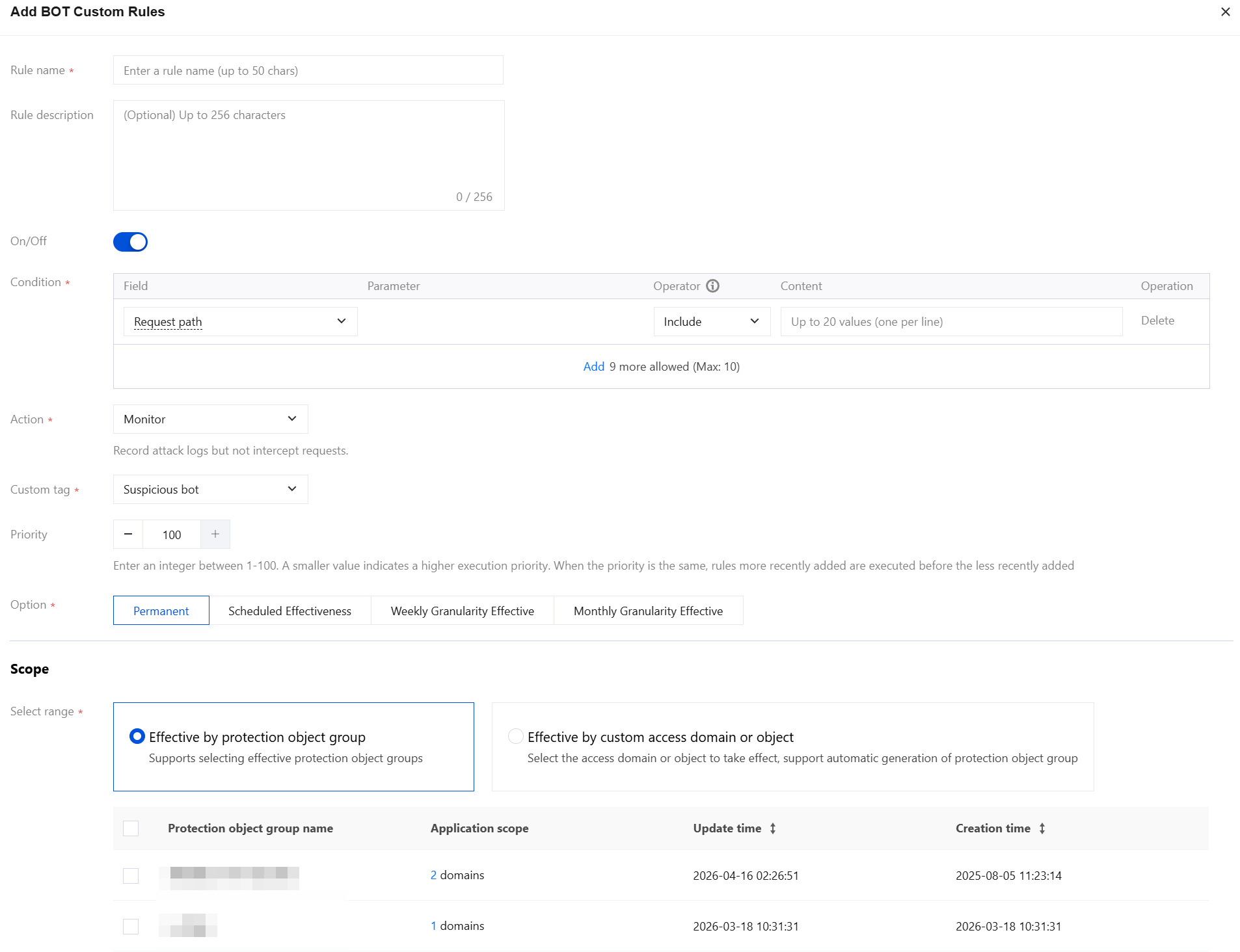
Field description:
Rule name: Enter the rule name, which cannot exceed 50 characters.
Rule description: Enter the rule description, with a maximum of 256 characters.
On/Off: The enabling status of the rule. If the rule is disabled, it means the rule is not enabled.
Condition: For the field description of the matching method, see Match Mode Field Description. You can add up to 10 rules.
Action: Can be set to Monitoring, JS verification, Human-machine recognition, Interception, Trust, or a multi-action hybrid policy.
Action Type | Description |
Monitor | Session requests that meet the matching conditions will be monitored and logged. You can view the monitored session information under Custom Types in BOT Details. |
JS validation | Requests that meet the matching conditions will undergo JavaScript validation and have their logs recorded. Notes: JS Validation is supported only in the Enterprise edition and above. If your current edition does not support it, upgrade your WAF edition first. For details, see WAF Plan Upgrade Method. |
CAPTCHA | Applicable only to browser access scenarios. Session requests that meet the matching conditions will undergo a Captcha challenge. If the challenge fails, interception will be executed. If successful, the session will proceed with normal access. Click Advanced settings next to Human-machine recognition to configure the number of Captcha retry attempts, releasing duration, and interception duration. |
Block | Session requests that meet the matching conditions will be intercepted. The interception results can be checked in Attack Logs, and real-time information about blocked IP addresses can be viewed in IP Block Status. When the interception action is selected, it supports setting the response page content for requests matching the rule, and customizing the return page content. |
Trust | Session requests that meet the matching conditions will be allowed without logging. |
Multi-action hybrid policy | Configure multiple action types and set differentiated handling actions for different effective scopes. |
Custom Tag: Can be set to Friendly BOT, Malicious BOT, Normal Traffic, or Suspected BOT.
Tag type | Description |
Friendly bot | Identify the traffic from this access source as friendly or legitimate BOT. |
Malicious bot | Identify the traffic from this access source as a BOT that generates malicious traffic or unfriendly access requests to the website. |
Normal | Identifies access traffic as normal human-generated traffic. |
Suspicious bot | The traffic from this access source is suspected to be BOT, but it cannot be determined whether it is harmful to the website. |
Priority: Enter an integer from 1 to 100. A smaller number indicates a higher execution priority for this rule. For rules with the same priority value, the later the creation time, the higher the priority.
Effective Mode: Can be set to Permanent, Scheduled, Weekly Granularity, or Monthly Granularity.
Managing BOT Custom Rules
On the BOT custom rules page, you can select multiple resource attributes for querying. Rules can be edited or deleted in the operation column, and batch deletion of rules is supported.
Note:
Deleted rules cannot be recovered and need to be re-added to take effect.

フィードバック