tencent cloud

Tencent Real-Time Communication

Release Notes and Announcements
Release Notes
Recent Product Announcement
TRTC Live (TUILiveKit) Product Launch Announcement
TRTC Conference Official Editions Launched
The commercial version of Conference is coming soon
Terms and Conditions Applicable to $9.9 Starter Package
Rules for the "First Subscription $100 Discount" Promotion
Announcement on the Start of Beta Testing for Multi-person Audio and Video Conference
TRTC Call Official Editions Launched
License Required for Video Playback in New Version of LiteAV SDK
TRTC to Offer Monthly Packages
Product Introduction
Overview
Concepts
Features
Strengths
Use Cases
Performance Statistics
Tencent RTC Quickplay: Experience Ultimate Real-Time Audio and Video Interaction!
Purchase Guide
Billing Overview
Free Minutes
Monthly subscription
Pay-as-you-go
TRTC Overdue and Suspension Policy
FAQs
Refund Instructions
User Tutorial
Free Demo
Call
Overview
Activate the Service
Run Demo
Integration
Offline Call Push
Conversational Chat
On-Cloud Recording
AI Noise Reduction
UI Customization
Calls integration to Chat
Additional Features
No UI Integration
Server APIs
Client APIs
Solution
ErrorCode
Release Notes
FAQs
Conference
Overview(TUIRoomKit)
Activate the Service (TUIRoomKit)
Run Demo(TUIRoomKit)
Integration(TUIRoomKit)
Screen Sharing (TUIRoomKit)
Schedule a meeting (TUIRoomKit)
In-meeting Call (TUIRoomKit)
UI Customization(TUIRoomKit)
Virtual Background (TUIRoomKit)
Conference Control (TUIRoomKit)
Cloud Recording (TUIRoomKit)
AI Noise Reduction (TUIRoomKit)
In-Conference Chat (TUIRoomKit)
Robot Streaming (TUIRoomKit)
Enhanced Features (TUIRoomKit)
Client APIs (TUIRoomKit)
Server APIs (TUIRoomKit)
FAQs (TUIRoomKit)
Error Code (TUIRoomKit)
SDK Update Log (TUIRoomKit)
Live
Billing of Video Live Component
Overview
Activating the Service (TUILiveKit)
Run Demo
No UI Integration
UI Customization
Live Broadcast Monitoring
Video Live Streaming
Voice Chat Room
Advanced Features
Client APIs
Server APIs
Error Codes
Release Notes
FAQs
RTC Engine
Activate Service
SDK Download
API Examples
Usage Guidelines
API Reference Manual
Advanced Features
AI Integration
Overview
Configure MCP Server
Install Skills
Integration Guide
FAQ
RTC RESTFUL API
History
Introduction
API Category
Room Management APIs
Stream mixing and relay APIs
On-cloud recording APIs
Data Monitoring APIs
Pull stream Relay Related interface
Web Record APIs
AI Service APIs
Cloud Slicing APIs
Cloud Moderation APIs
Making API Requests
Call Quality Monitoring APIs
Usage Statistics APIs
Data Types
Appendix
Error Codes
Console Guide
Application Management
Package Management
Usage Statistics
Monitoring Dashboard
Development Assistance
Solution
Real-Time Chorus
FAQs
Migration Guide
Billing
Features
UserSig
Firewall Restrictions
How to Downsize Installation Package
Android and iOS
Web
Flutter
Electron
TRTCCalling for Web
Audio and Video Quality
Others
Legacy Documentation
RTC RoomEngine SDK(Old)
Integrating TUIRoom (Web)
Integrating TUIRoom (Android)
Integrating TUIRoom (iOS)
Integrating TUIRoom (Flutter)
Integrating TUIRoom (Electron)
TUIRoom APIs
On-Cloud Recording and Playback (Old)
RTC Analytics Monthly Packages (Previous Version)
Protocols and Policies
Compliance
Security White Paper
Notes on Information Security
Service Level Agreement
Apple Privacy Policy: PrivacyInfo.xcprivacy
TRTC Policy
Privacy Policy
Data Processing And Security Agreement
Glossary

H5

PDF
Focus Mode
Font Size
Last updated: 2024-05-29 15:06:32
This document will introduce TUIRoomKit conference control in detail, helping you to better master the operation of TUIRoomKit functions before and during the meeting. Through this document, you can make full use of TUIRoomKit’s features to achieve high-quality audio and video conferences.

After a user creates and enters a room on H5, the owner or administrator can select any ordinary member in the member list popped up on the right side by clicking the member button on the toolbar at the bottom to perform the meeting control operations such as banning, setting as administrator, etc., and can also perform the meeting control operations such as mute all the members in the room.


Pre-meeting control

When creating and joining a room, you need to create and enter the room with pre-set parameters related to the meeting to ensure that the meeting runs smoothly through the relevant features of TUIRoomKit pre-meeting control.


// Note the package name:
// if you are using the vue2 version change the package name to @tencentcloud/roomkit-web-vue2.7
import { conference } from '@tencentcloud/roomkit-web-vue3';
conference.start('123456', {
roomName: 'TestRoom',
isSeatEnabled: false,
isOpenCamera: false,
isOpenMicrophone: false,
});
Field
Type
Meaning
isSeatEnable
bool
Whether to open the room for on-stage speaking (default false)
isOpenCamera
bool
Whether to enable the camera (default true)
isOpenMicrophone
bool
Whether to turn on the microphone (default true)
Note:
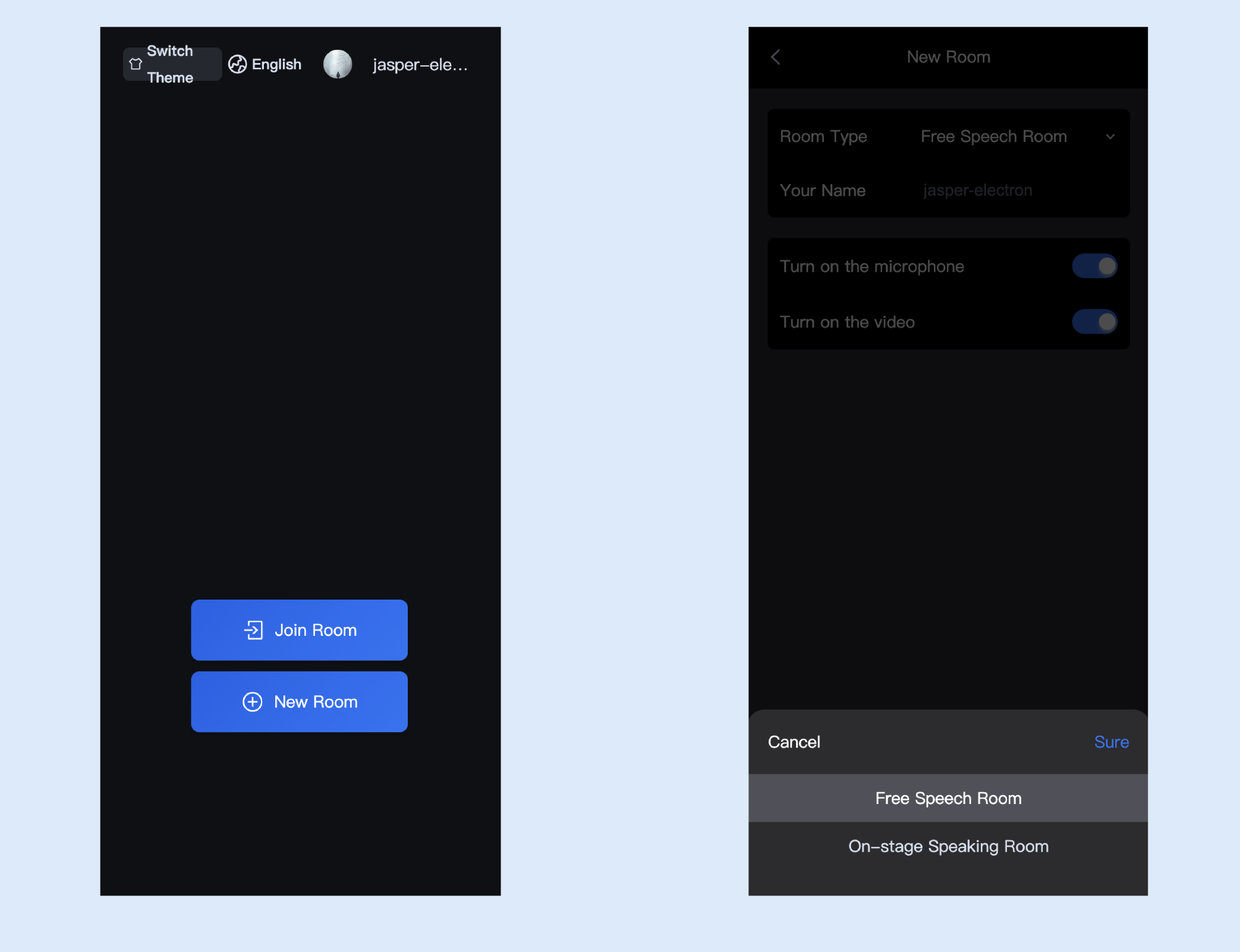
The above is an introduction to creating rooms and adding room parameters in the above code. For example, depending on the value of the parameter isSeatEnable, you can create a free speech room and a stage speech room, in which the two types of rooms will have different features of the control and operable functions:
Free Speech Room: Ordinary users can speak freely and switch on and off the microphone and camera.
Room for on-stage speakers: Only on-stage users are free to switch the microphone and camera on or off, and ordinary audience members can apply to become on-stage users by raising their hands.

in-session control

Management of the Free Speech Room

When the room type is Free Speech Room, the room owner or administrator can manage all members of the club in Members > In Member List.
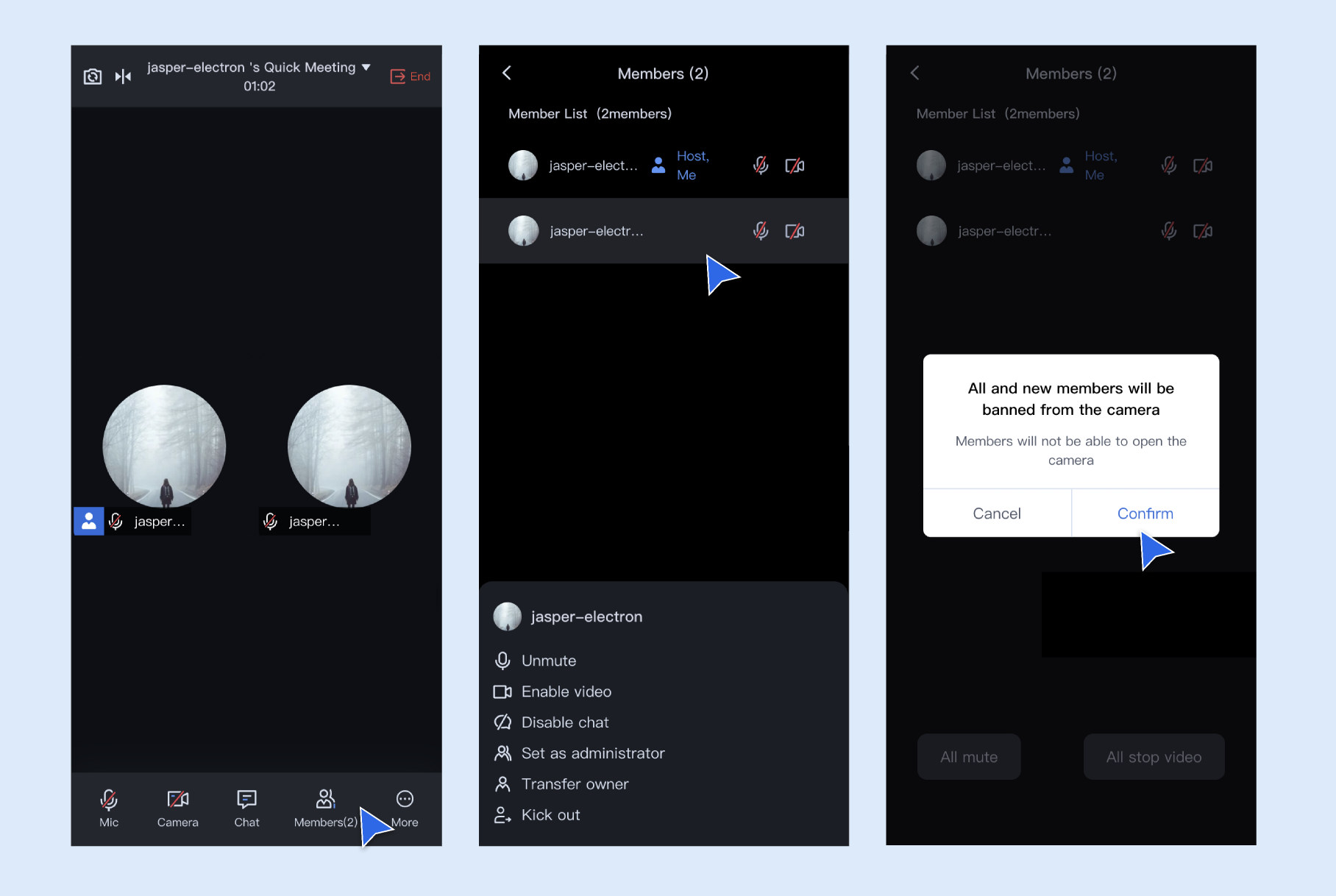
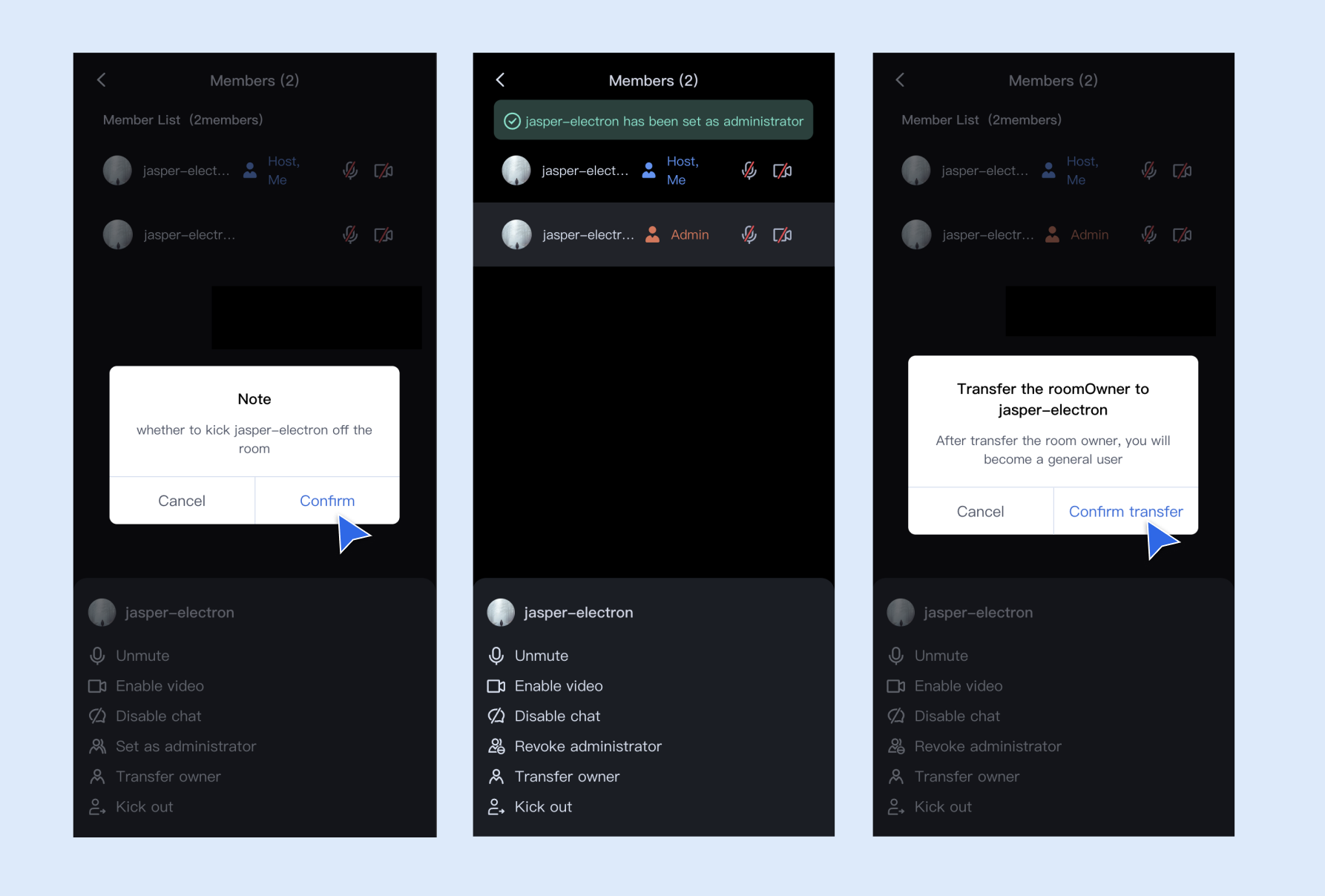
The host or administrator can select any member for individual control: unmute/mute them, as well as click more to request video on/off, ban/unban, set as administrator, forward to the host, kick out of the room, and more.


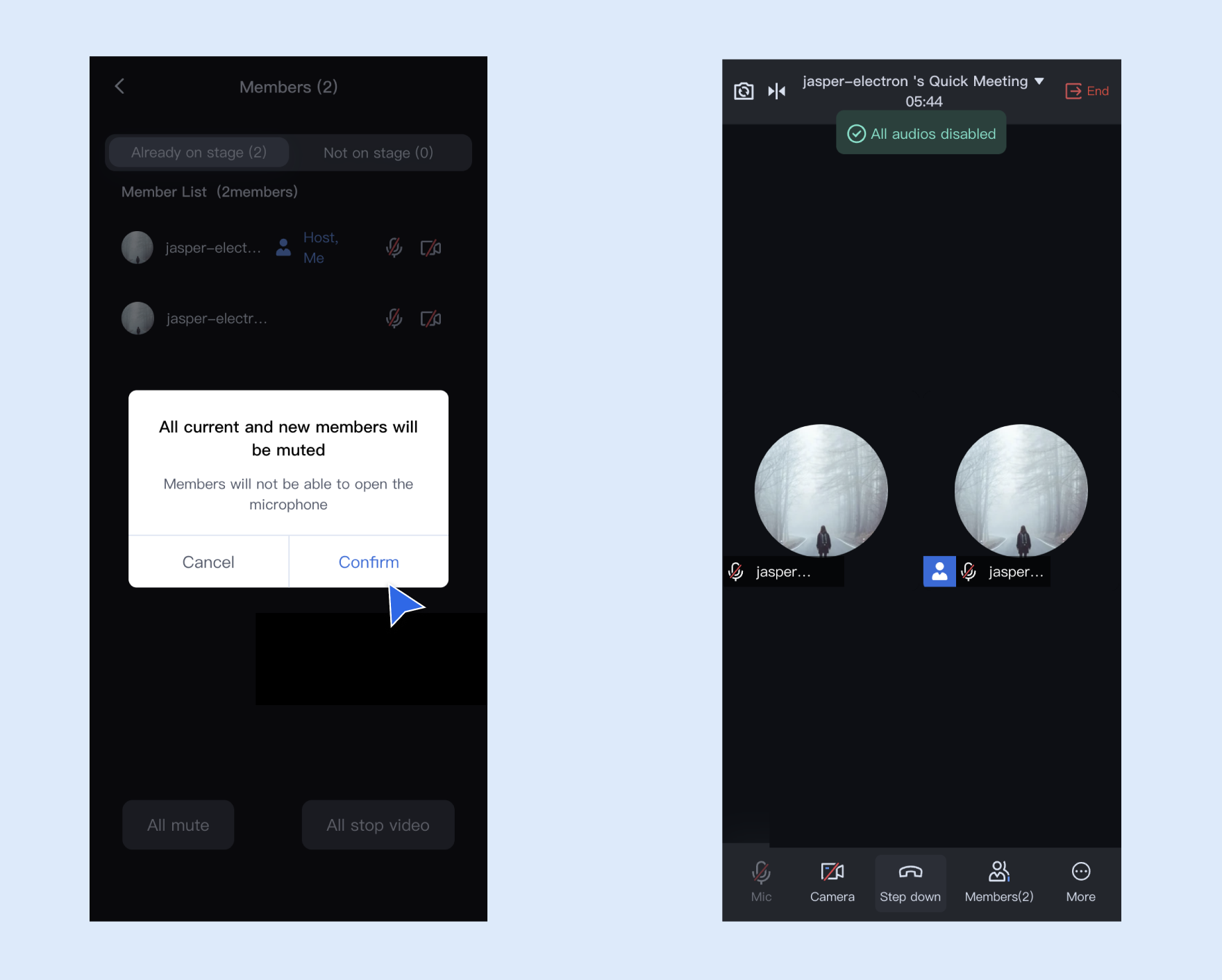
The host or administrator can control all members of the room: mute/unmute all or ban/unban all.


Management podium room

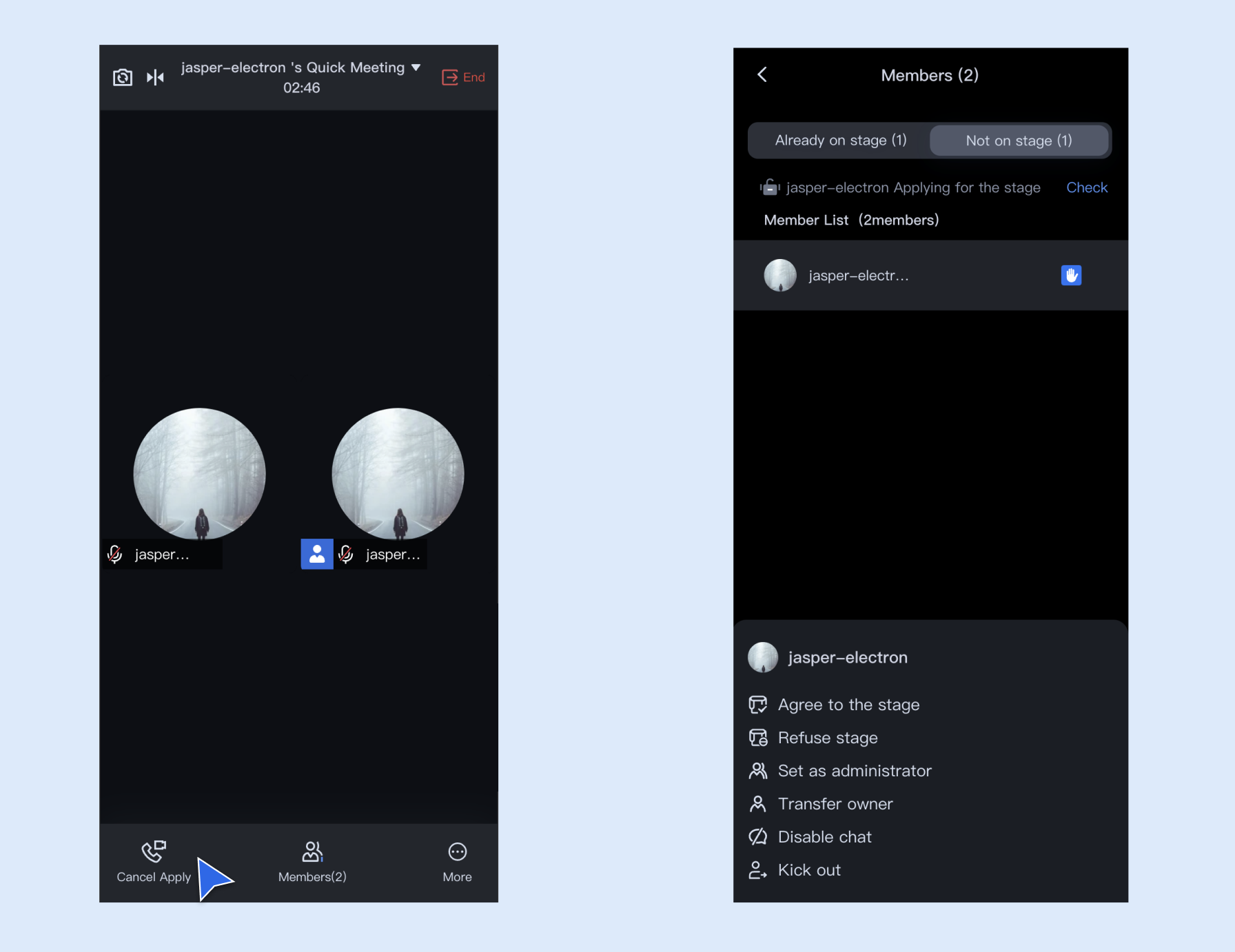
When the room type is Speaker Room, the room owner or administrator can manage the on-stage status of the selected members in the On-stage request, in addition to managing the members of the meeting in the Members > Members list.
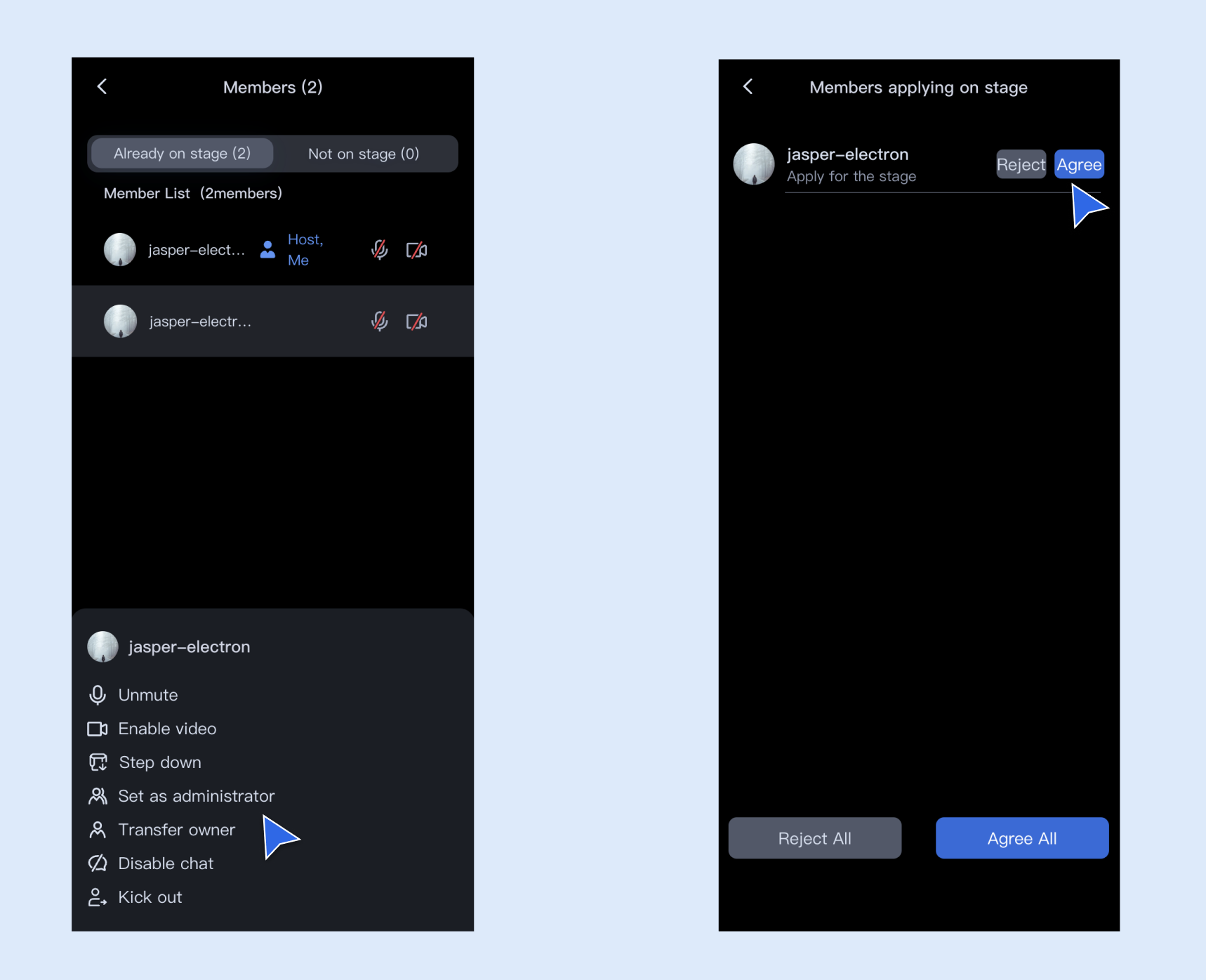
Moderators or administrators can select any ordinary member for individual control: in addition to unmute/mute, turn on video/turn off video, ban/unban, set as administrator, transfer to moderator, and kick out of the room contained in the free speech room, the invitation to go on stage, agree to go on stage/refuse to go on stage, and get off the stage, etc., which are unique to the room of the speaker on stage, are also available.


The host or administrator can manage the status of the members in the room who have applied for on-stage application: they can agree or reject the selected members in the on-stage application, or agree or reject all the members who have applied for on-stage application.

Help and Support

Was this page helpful?

Help us improve! Rate your documentation experience in 5 mins.

Feedback