tencent cloud

Tencent Real-Time Communication

Release Notes and Announcements
Release Notes
Recent Product Announcement
TRTC Live (TUILiveKit) Product Launch Announcement
TRTC Conference Official Editions Launched
The commercial version of Conference is coming soon
Terms and Conditions Applicable to $9.9 Starter Package
Rules for the "First Subscription $100 Discount" Promotion
Announcement on the Start of Beta Testing for Multi-person Audio and Video Conference
TRTC Call Official Editions Launched
License Required for Video Playback in New Version of LiteAV SDK
TRTC to Offer Monthly Packages
Product Introduction
Overview
Concepts
Features
Strengths
Use Cases
Performance Statistics
Tencent RTC Quickplay: Experience Ultimate Real-Time Audio and Video Interaction!
Purchase Guide
Billing Overview
Free Minutes
Monthly subscription
Pay-as-you-go
TRTC Overdue and Suspension Policy
FAQs
Refund Instructions
User Tutorial
Free Demo
Call
Overview
Activate the Service
Run Demo
Integration
Offline Call Push
Conversational Chat
On-Cloud Recording
AI Noise Reduction
UI Customization
Calls integration to Chat
Additional Features
No UI Integration
Server APIs
Client APIs
Solution
ErrorCode
Release Notes
FAQs
Conference
Overview(TUIRoomKit)
Activate the Service (TUIRoomKit)
Run Demo(TUIRoomKit)
Integration(TUIRoomKit)
Screen Sharing (TUIRoomKit)
Schedule a meeting (TUIRoomKit)
In-meeting Call (TUIRoomKit)
UI Customization(TUIRoomKit)
Virtual Background (TUIRoomKit)
Conference Control (TUIRoomKit)
Cloud Recording (TUIRoomKit)
AI Noise Reduction (TUIRoomKit)
In-Conference Chat (TUIRoomKit)
Robot Streaming (TUIRoomKit)
Enhanced Features (TUIRoomKit)
Client APIs (TUIRoomKit)
Server APIs (TUIRoomKit)
FAQs (TUIRoomKit)
Error Code (TUIRoomKit)
SDK Update Log (TUIRoomKit)
Live
Billing of Video Live Component
Overview
Activating the Service (TUILiveKit)
Run Demo
No UI Integration
UI Customization
Live Broadcast Monitoring
Video Live Streaming
Voice Chat Room
Advanced Features
Client APIs
Server APIs
Error Codes
Release Notes
FAQs
RTC Engine
Activate Service
SDK Download
API Examples
Usage Guidelines
API Reference Manual
Advanced Features
AI Integration
Overview
Configure MCP Server
Install Skills
Integration Guide
FAQ
RTC RESTFUL API
History
Introduction
API Category
Room Management APIs
Stream mixing and relay APIs
On-cloud recording APIs
Data Monitoring APIs
Pull stream Relay Related interface
Web Record APIs
AI Service APIs
Cloud Slicing APIs
Cloud Moderation APIs
Making API Requests
Call Quality Monitoring APIs
Usage Statistics APIs
Data Types
Appendix
Error Codes
Console Guide
Application Management
Package Management
Usage Statistics
Monitoring Dashboard
Development Assistance
Solution
Real-Time Chorus
FAQs
Migration Guide
Billing
Features
UserSig
Firewall Restrictions
How to Downsize Installation Package
Android and iOS
Web
Flutter
Electron
TRTCCalling for Web
Audio and Video Quality
Others
Legacy Documentation
RTC RoomEngine SDK(Old)
Integrating TUIRoom (Web)
Integrating TUIRoom (Android)
Integrating TUIRoom (iOS)
Integrating TUIRoom (Flutter)
Integrating TUIRoom (Electron)
TUIRoom APIs
On-Cloud Recording and Playback (Old)
RTC Analytics Monthly Packages (Previous Version)
Protocols and Policies
Compliance
Security White Paper
Notes on Information Security
Service Level Agreement
Apple Privacy Policy: PrivacyInfo.xcprivacy
TRTC Policy
Privacy Policy
Data Processing And Security Agreement
Glossary

Flutter

PDF
Focus Mode
Font Size
Last updated: 2024-07-05 19:07:47
In video conferences, participants can send messages in real-time in the chat area, share opinions and ideas, and create a relaxed and pleasant communication environment by exchanging emoticons and animations. To maintain the order of the meeting, the host or administrator can set to prohibit participants from sending messages in the chat, ensuring the focus and efficiency of the conference content. By flexibly using these features, video conferences can provide efficient and convenient communication experiences for various scenarios.

Feature Introduction

Text, Multimedia Information Interaction

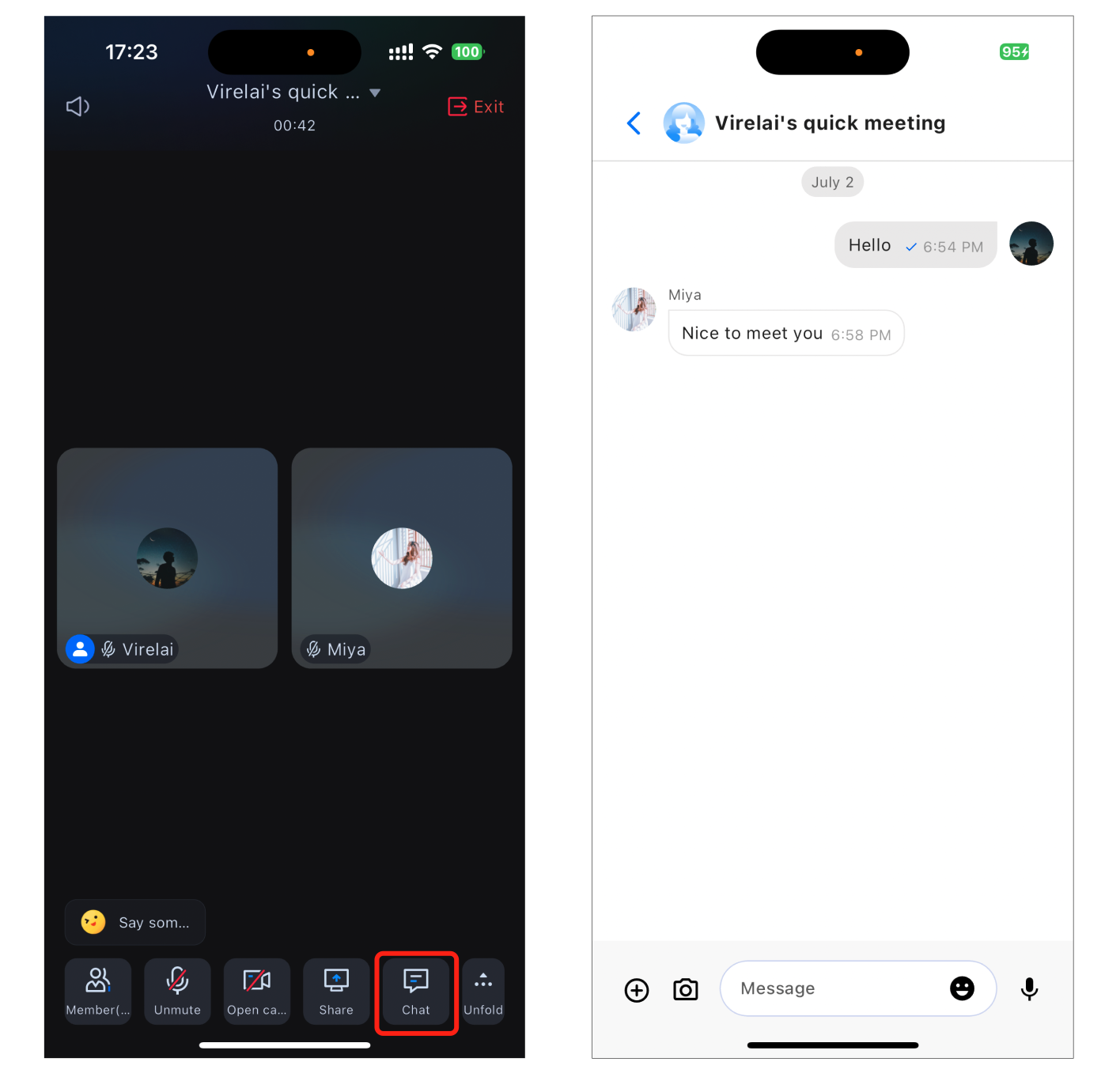
Click the Chat option at the bottom of the conference interface to access the chat interface. Participants can freely send text, pictures, videos, and voice messages, enabling real-time communication without disrupting the conference flow.


Emoji Interaction

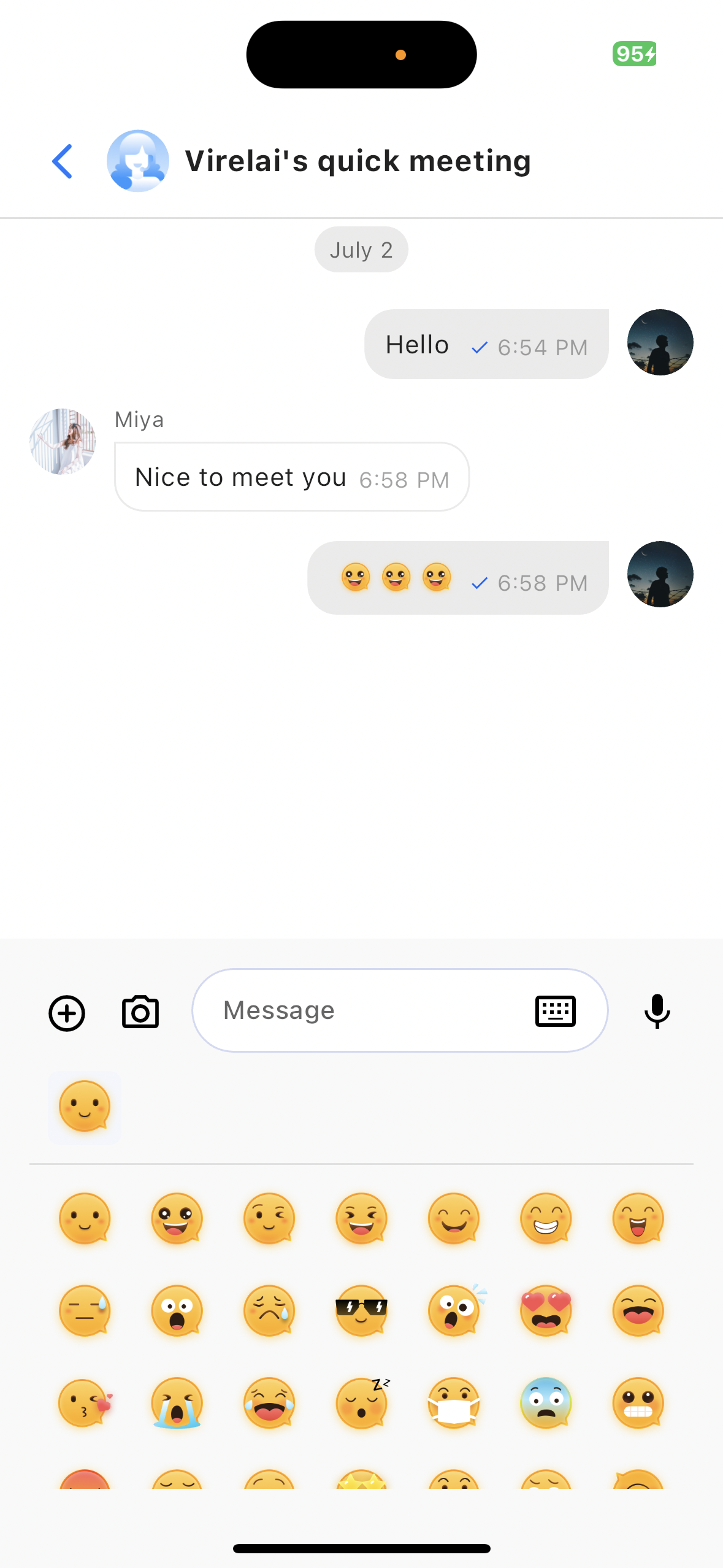
Click the Emoji Icon in the message board editor in the chat interface to bring up the emoji list. Click the corresponding emoji to display it in the message board for sending.


Chat permissions in the control panel

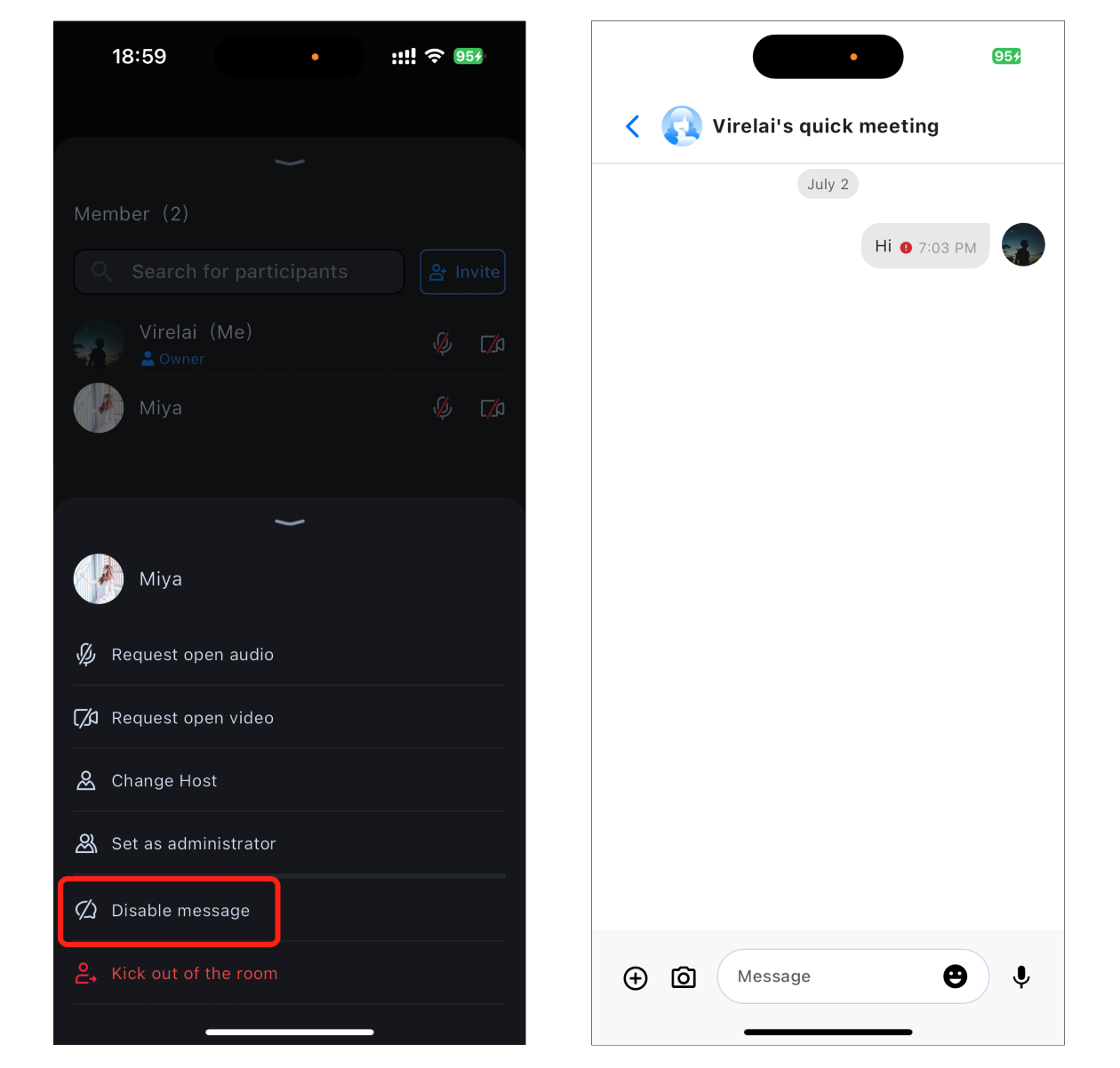
The host/administrator can set a member’s chat permissions in Member Management. If muted, regular members will not be able to send messages.


feature Integration

Integrate chat component

Add the tencent_cloud_chat_message plugin dependency to your project's pubspec.yaml file.
dependencies:
tencent_cloud_chat_message: latest version

International Language Configuration

This step is required. First, import the localization tools into the entry file of the application.
import 'package:tencent_cloud_chat_intl/localizations/tencent_cloud_chat_localizations.dart';
Next, add the localization configuration to entries provided by third-party packages such as MaterialApp or GetMaterialApp. Here, GetMaterialApp is used as an example:
GetMaterialApp(
localizationsDelegates: const [
/// Your original configuration
GlobalMaterialLocalizations.delegate,
/// Add this line
...TencentCloudChatLocalizations.localizationsDelegates,
],
supportedLocales: [
/// Your original configuration
...S.delegate.supportedLocales,

/// Add this line
...TencentCloudChatLocalizations.supportedLocales,
],
/// Other settings
)

Initialization and Login

Add the following code to your project. Its function is to complete the initialization and log in to by calling the relevant interfaces in the chat component. This step is crucial, as the chat can only be used normally after initialization. Therefore, please be patient and check whether the relevant parameters are configured correctly. Among the parameters, sdkAppId, userID, and userSig, you have already used them when logging in to TUIRoomKit.
import 'package:tencent_cloud_chat/components/component_config/tencent_cloud_chat_message_common_defines.dart';
import 'package:tencent_cloud_chat/components/component_config/tencent_cloud_chat_message_config.dart';
import 'package:tencent_cloud_chat/models/tencent_cloud_chat_models.dart';
import 'package:tencent_cloud_chat/tencent_cloud_chat.dart';
import 'package:tencent_cloud_chat_message/tencent_cloud_chat_message.dart';

await TencentCloudChat.controller.initUIKit(
options: TencentCloudChatInitOptions(
sdkAppID: 'SDKAPPID', // Your SDKAPPID
userID: 'userID', // Your userID
userSig: 'userSig', // Your userSig
),
components: TencentCloudChatInitComponentsRelated(
usedComponentsRegister: [TencentCloudChatMessageManager.register], // Register chat components
componentConfigs: TencentCloudChatComponentConfigs(
messageConfig: TencentCloudChatMessageConfig(
// The following configuration is recommended.
showMessageSenderName: ({groupID, topicID, userID}) => true,
showSelfAvatar: ({groupID, topicID, userID}) => true,
defaultMessageMenuConfig: ({groupID, topicID, userID}) =>
TencentCloudChatMessageDefaultMessageMenuConfig(
enableMessageForward: false,
enableMessageSelect: false,
),
),
),
),
plugins: [],
);
Using Emojis (Optional)

If you need to send and receive emojis, you need to configure as follows:

Add Dependencies

In your project's pubspec.yaml file, add the tencent_cloud_chat_sticker plugin dependency.

Complete configuration

In the plugins of Initialization and Login in the previous step, add the following code:
plugins: [
TencentCloudChatPluginItem(
name: "sticker",
initData: TencentCloudChatStickerInitData(
useDefaultSticker: true, // Default stickers, only this sticker pack can interoperate with TUIRoomKit from other platforms.
useDefaultCustomFace_4350: false, // If you do not need to use TUIRoomKit from other platforms, you can enable the following emoji pack.
useDefaultCustomFace_4351: false,
useDefaultCustomFace_4352: false,
userID: 'userId', // Your userId
).toJson(),
pluginInstance: TencentCloudChatStickerPlugin(
context: context,
),
),
],
Note:
To respect the copyright of emoji designs, the TUIRoomKit example project does not include large emoji cut elements. Before official commercial use, please replace them with your own designs or other emoji packs you have copyright to. The default Little Yellow Face emoji pack is copyrighted by Tencent Cloud, and can be licensed for a fee. If you wish to obtain a license, you can Submit a ticket to contact us.

Using Chat

When you create or join a conference successfully, you need to pass the chatWidget into the conference page, ConferenceMainPage . After passing it in, the chat button will display in the bottom toolbar. Clicking the chat button will automatically navigate to chatWidget.
Navigator.push(
context,
MaterialPageRoute(
builder: (context) => ConferenceMainPage( // Conference main page
chatWidget: TencentCloudChatMessage(
options: TencentCloudChatMessageOptions(groupID: 'yourConferenceId'), // Your Confere
),
),
),
);
After completing the above configuration, you can click the chat button to chat during the conference.

Help and Support

Was this page helpful?

Help us improve! Rate your documentation experience in 5 mins.

Feedback