Function
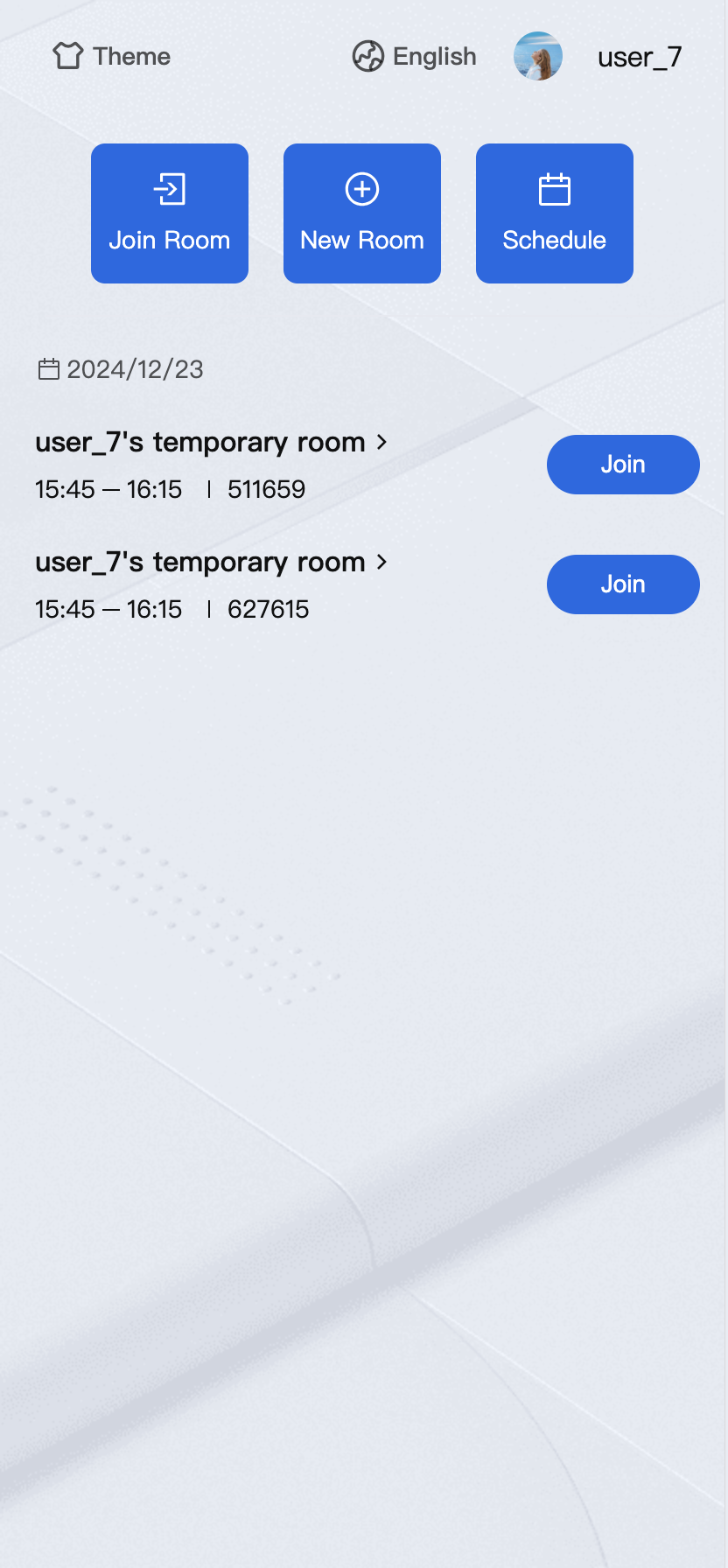
TUIRoomKit introduces a new feature for schedule conference, which allows users to reserve a room and schedule a meeting on their schedule.
Note:
TUIRoomKit since v2.6.0 Web (H5) supports the ability to book a room, view room list, modify room information, etc. Integrate with the latest version of TUIRoomKit to experience the room booking process.
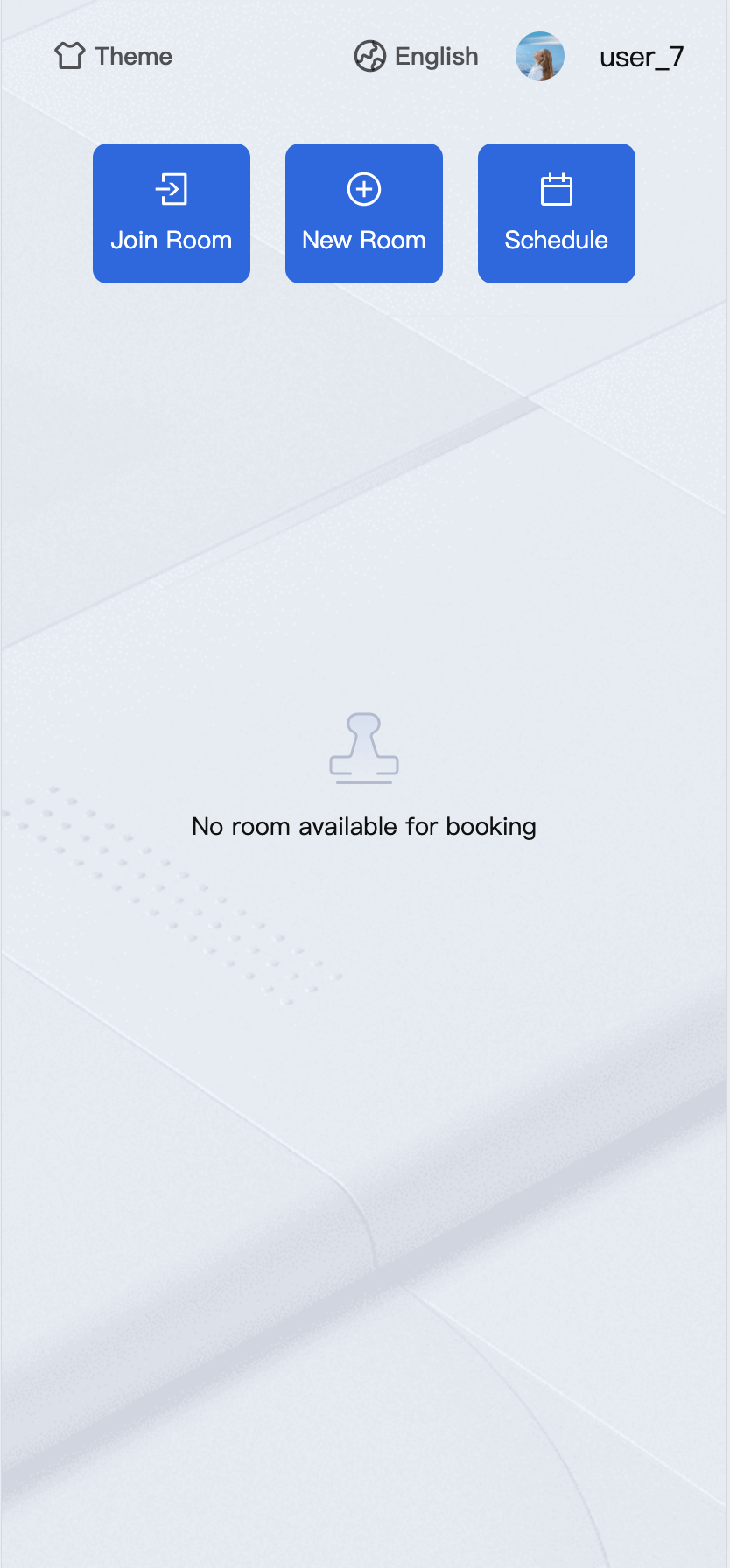
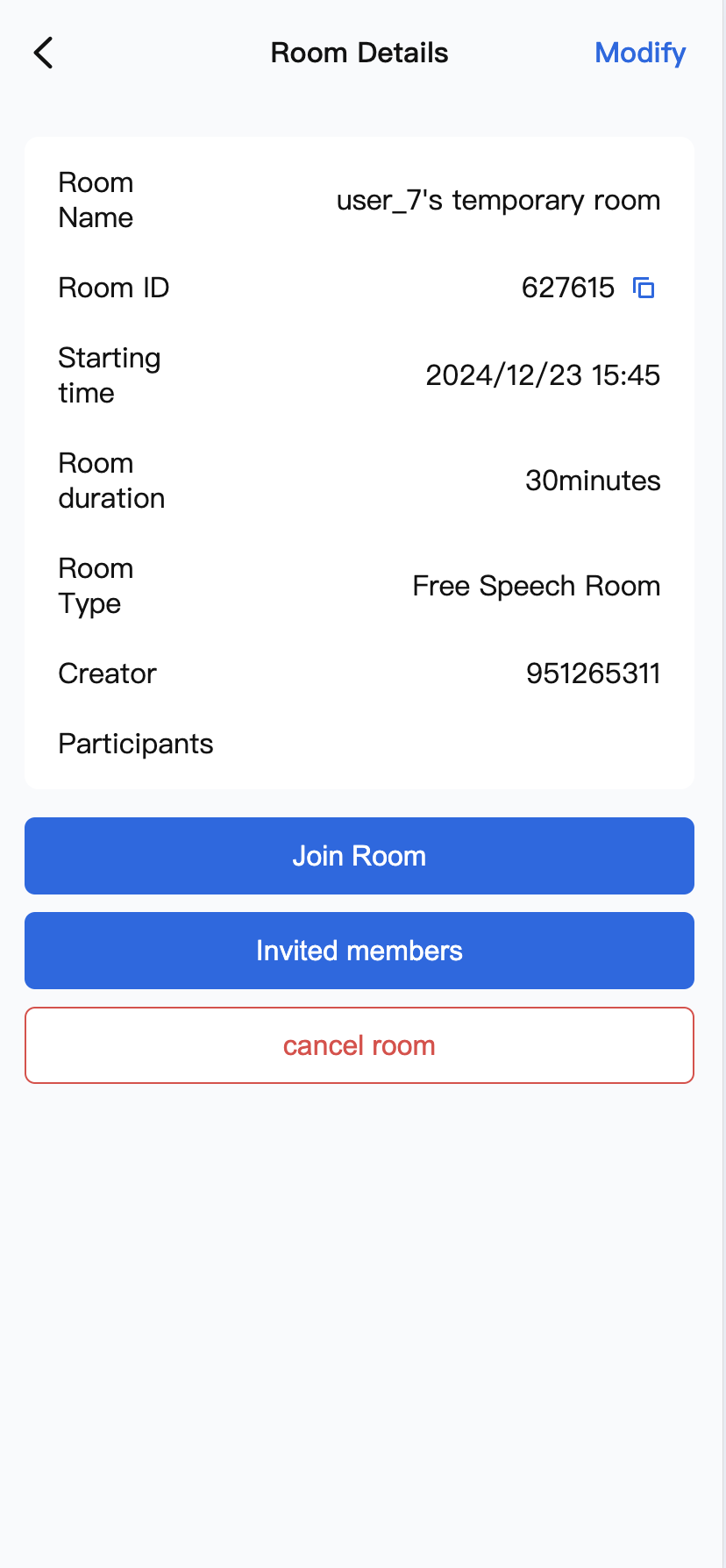
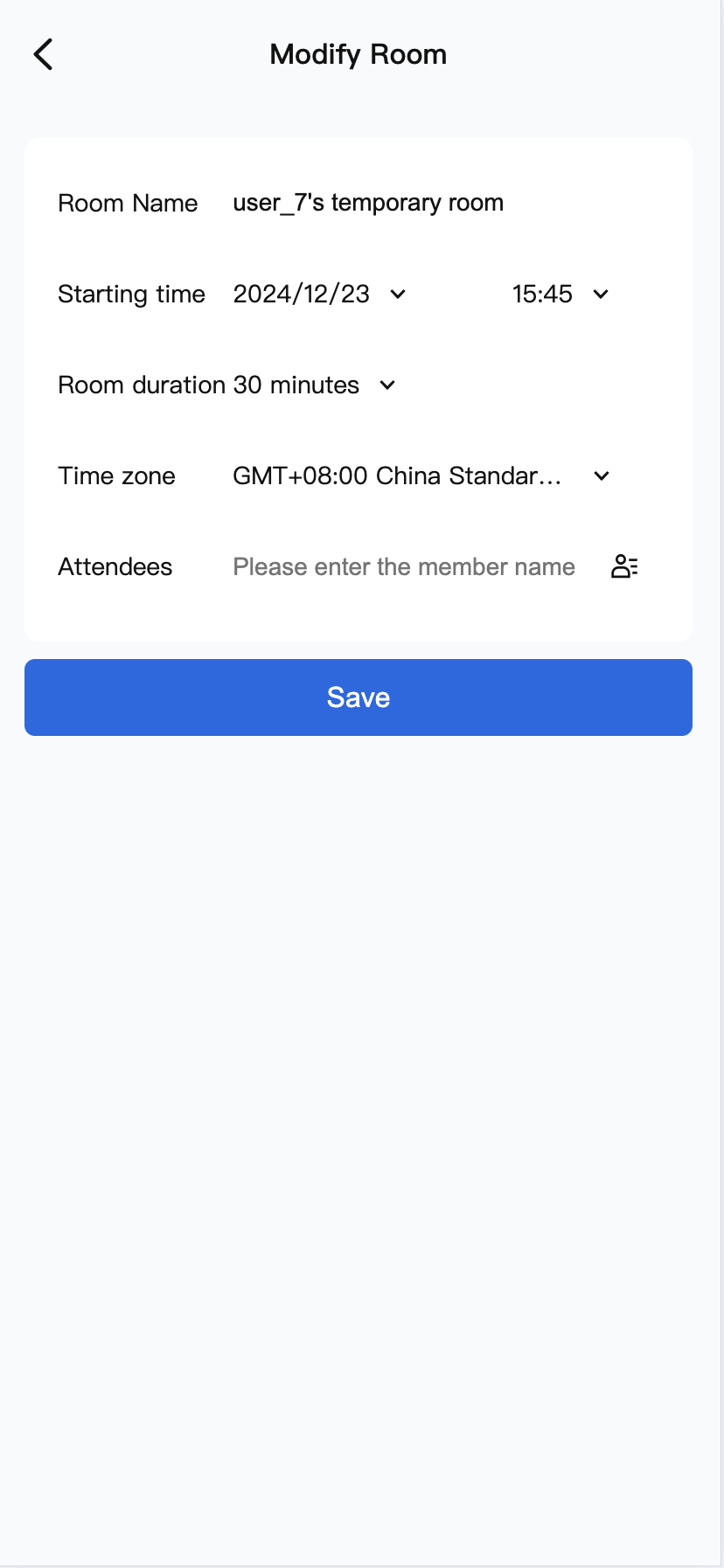
List of meetings | Schedule Conference Parameters | Invite Meeting Members | Meeting Details |
| | | |
Preparation conditions
Room reservation example run-through
Note:
You need to introduce PreConferenceView (the preview component) and ConferenceMainView (the main body of the TUIRoomkit UI component). In the example, we use the v-show and v-else directives to control the showing and hiding of the two components, and you can also use route jumping to switch between the components.
In the PreConferenceView component, you control whether the scheduled room features are shown or hidden by setting the value of the enable-scheduled-conference property. In addition, the component listens to the on-enter-room event, so when the user clicks into the room, the join interface is invoked by triggering the handleEnterRoom method. In the ConferenceMainView component, the on-destroy-room event is listened to, and the onDestroyRoom method is triggered when the room is destroyed.
<template>
<PreConferenceView
v-show="isShowPreConferenceView"
:enable-scheduled-conference="true"
@on-enter-room="handleEnterRoom"
/>
<ConferenceMainView
v-show="!isShowPreConferenceView"
display-mode="permanent"
@on-destroy-room="onDestroyRoom"
/>
</template>
<script setup lang="ts">
import { ref } from 'vue';
import { PreConferenceView, conference, ConferenceMainView } from '@tencentcloud/roomkit-web-vue3';
const isShowPreConferenceView = ref(true);
const init = async () => {
conference.login({
sdkAppId: 0,
userId: '',
userSig: '',
});
};
init();
async function handleEnterRoom(roomOption: Record<string, any>) {
const { roomId } = roomOption;
await conference.join(roomId, {
isOpenCamera: false,
isOpenMicrophone: false,
});
isShowPreConferenceView.value = false;
}
function onDestroyRoom() {
isShowPreConferenceView.value = true;
init();
}
</script>
Schedule Conference Introduce
Schedule Conference
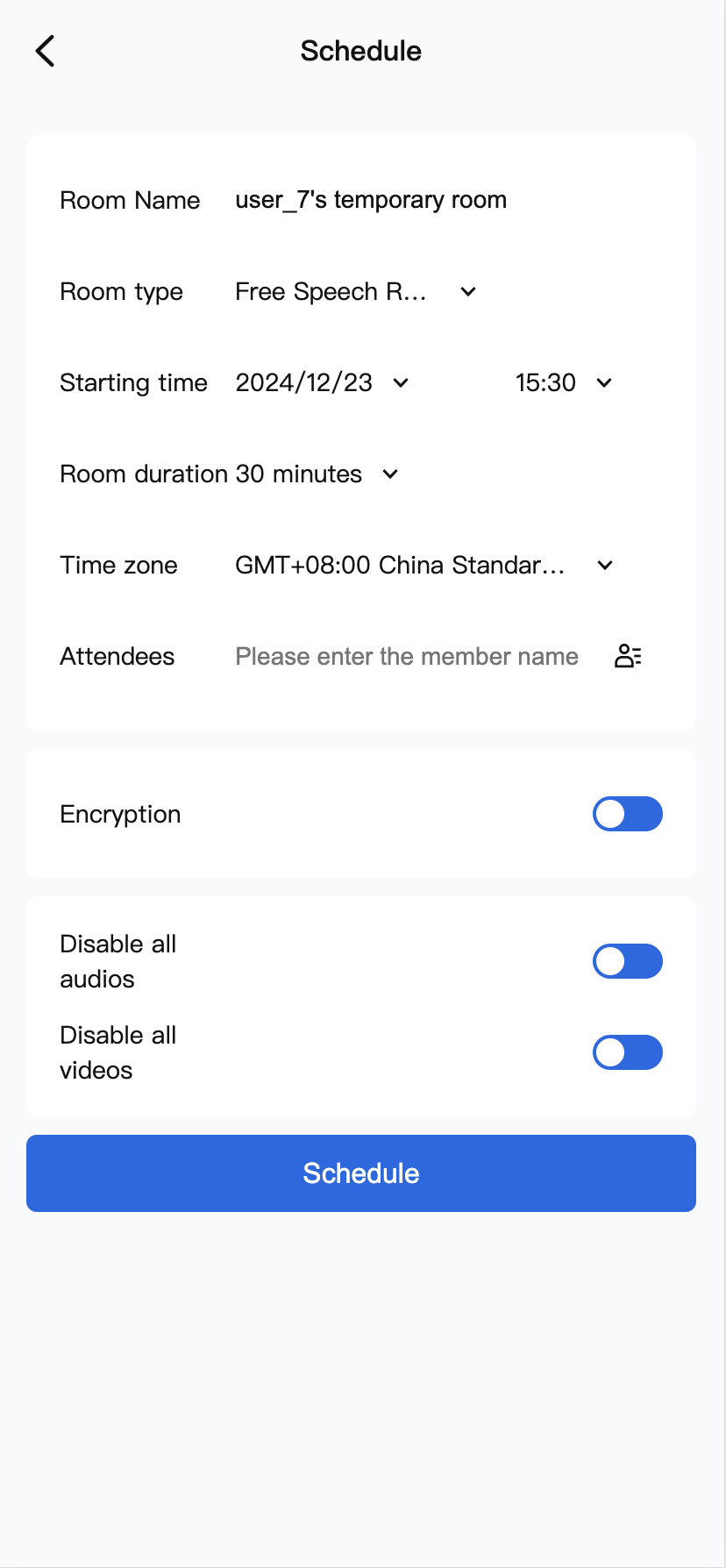
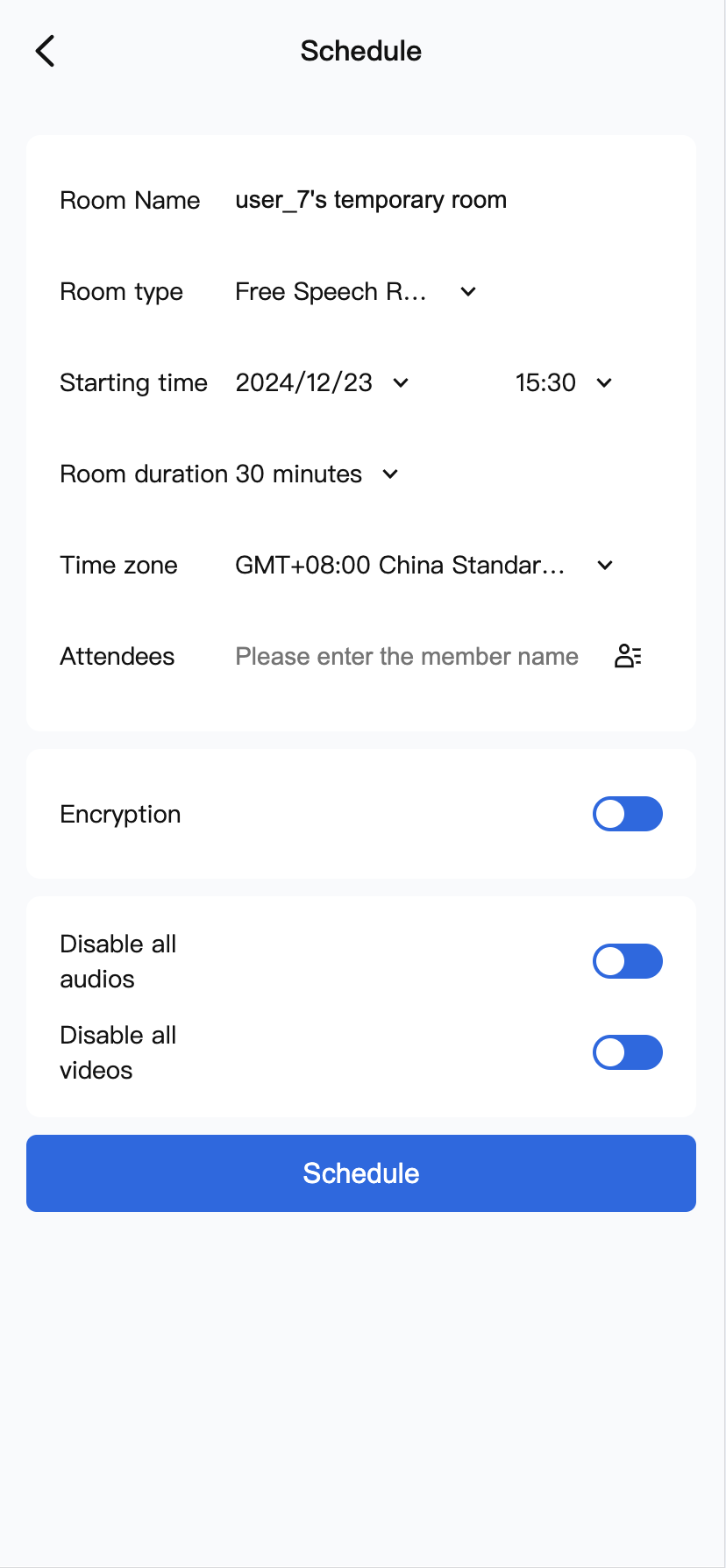
Properties that can be set for a scheduled meeting: among them, you can set the following contents: room name, room type, start time, room duration, time zone, invited members (you need to import the member list), room encryption, member management (all mute, all forbidden to draw), and so on.
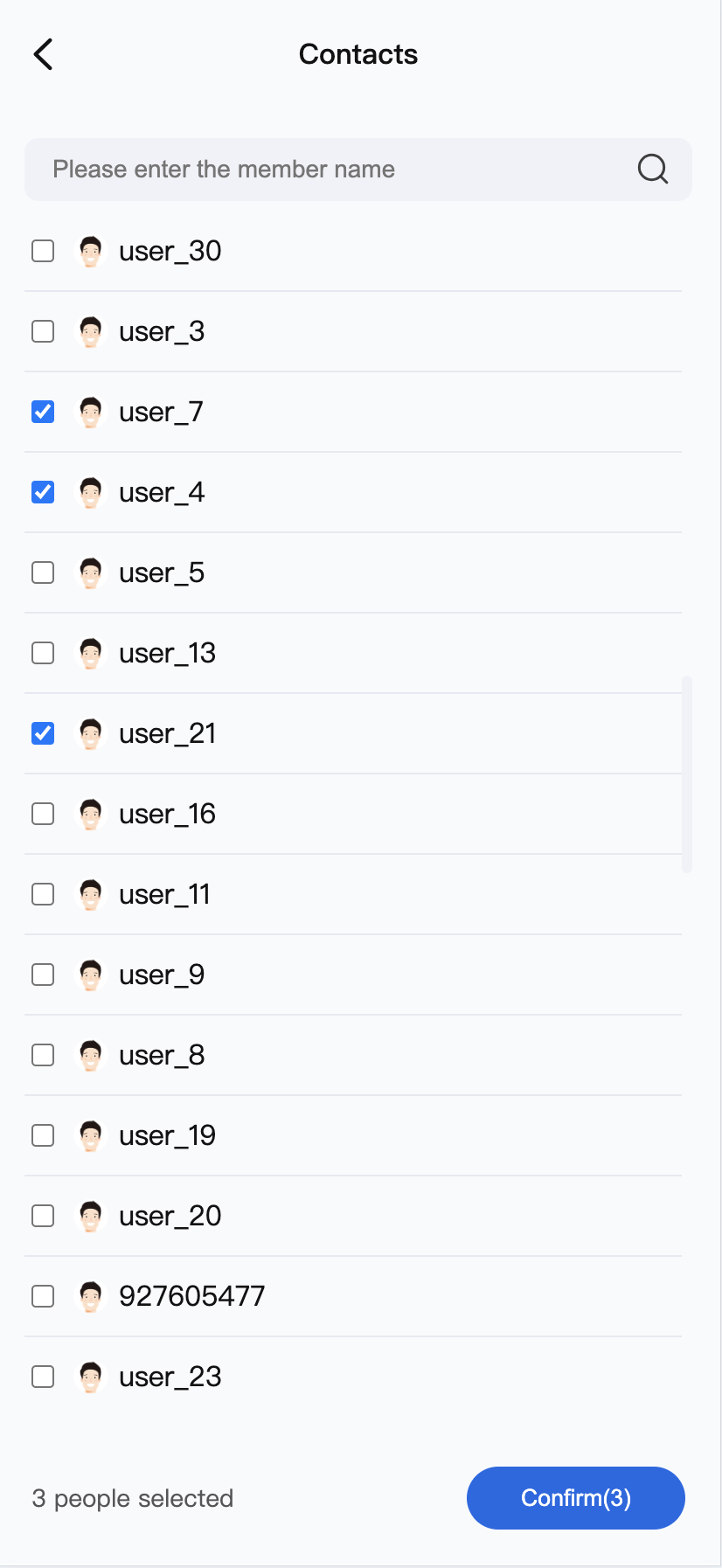
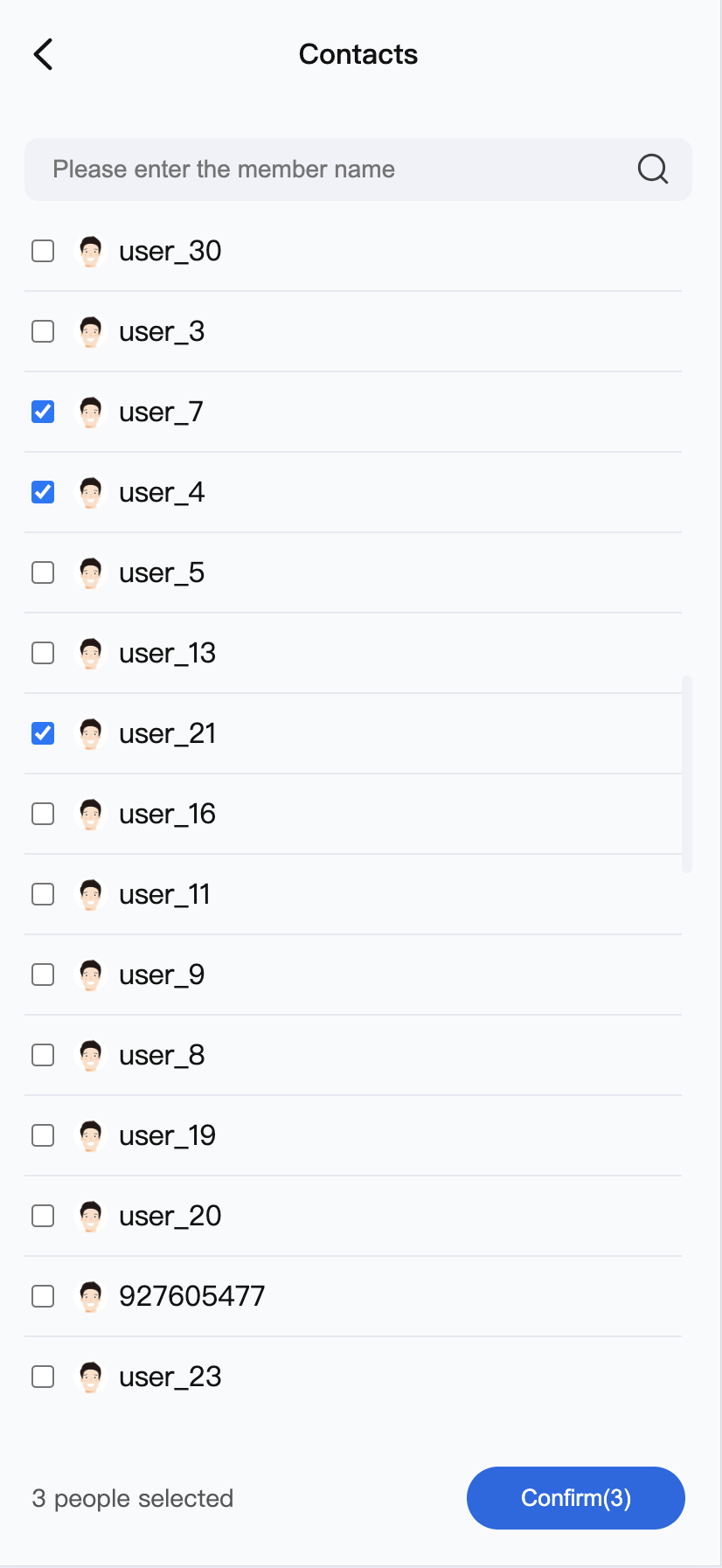
How to invite members: Click “Add” to invite members.
Note:
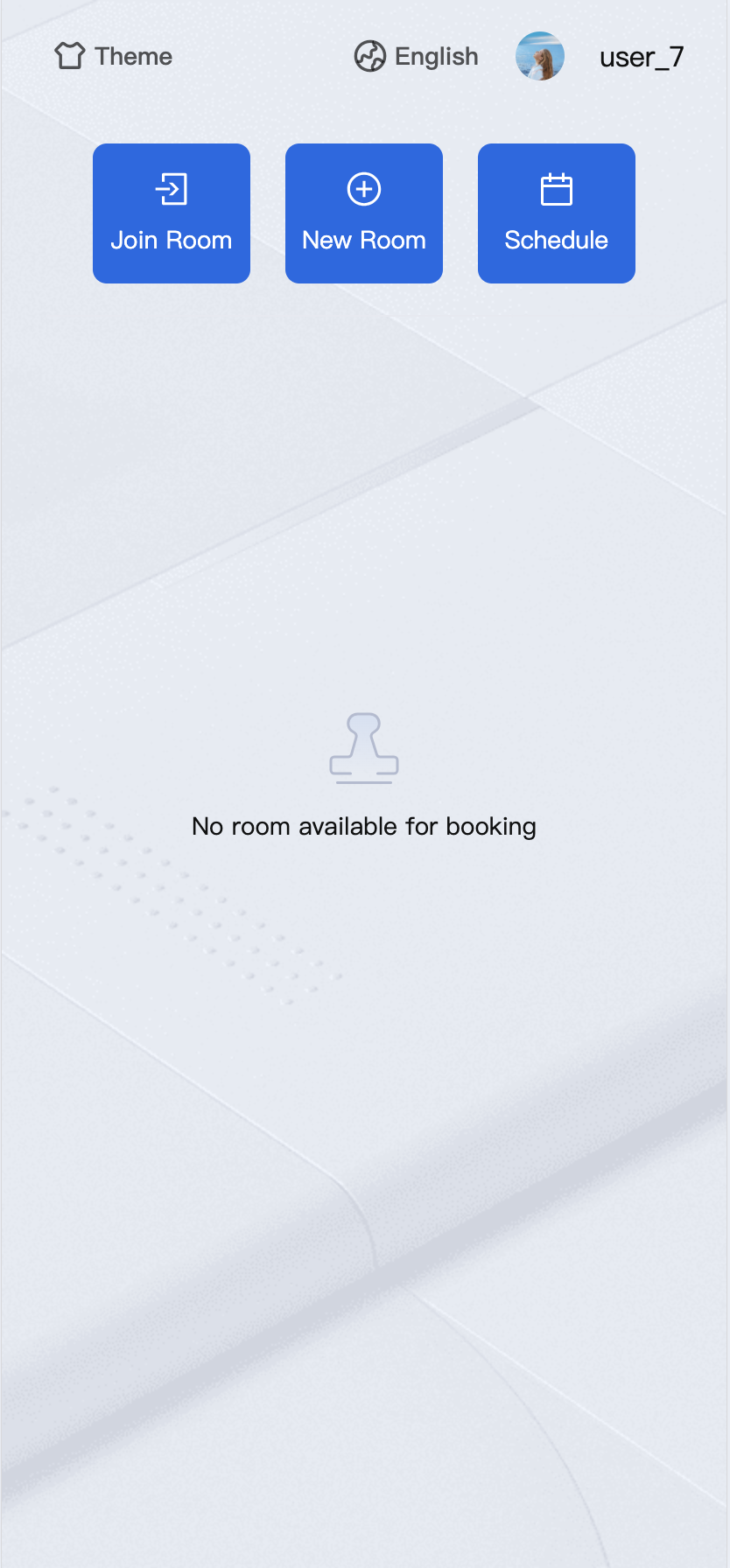
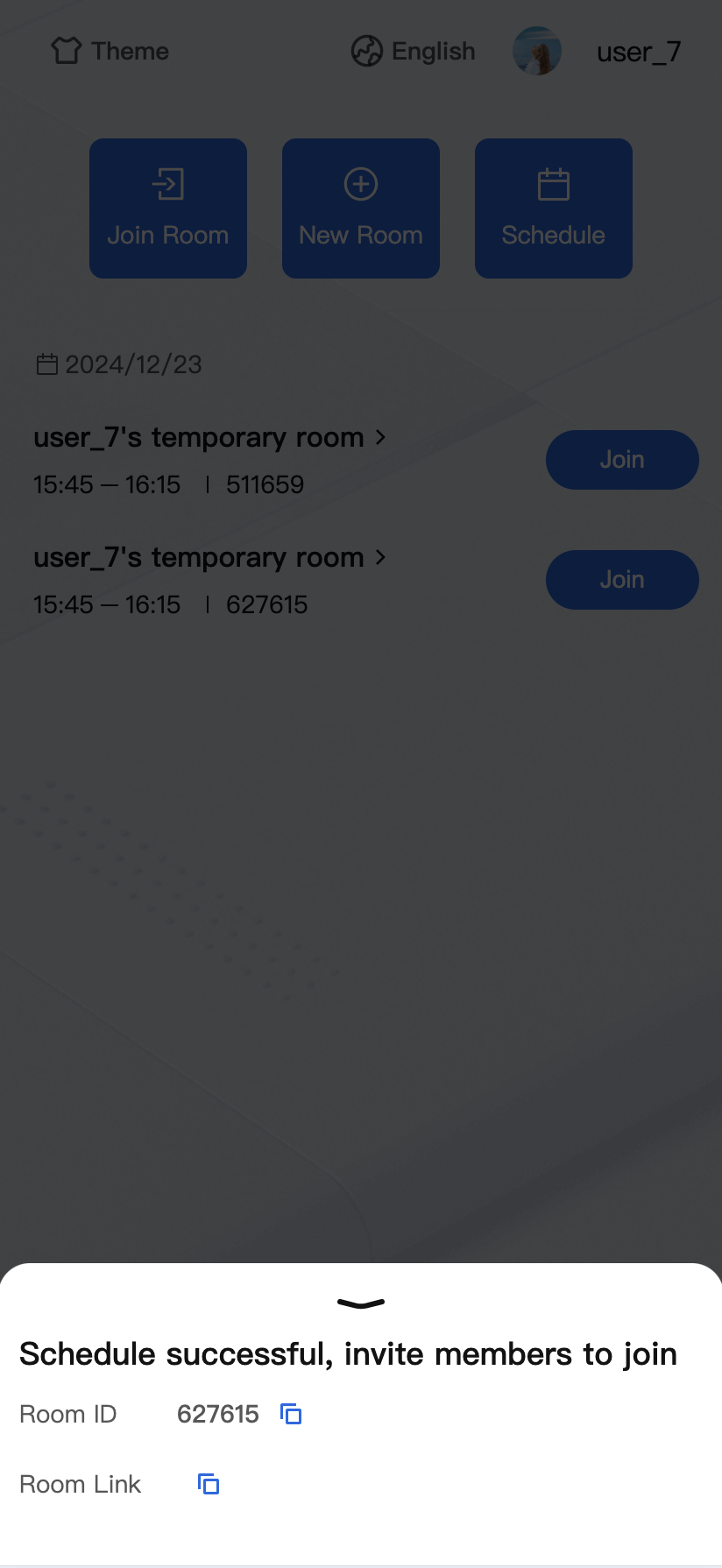
TUIRoomKit's invite members list is derived from IM friends, so you need to use IM to add friends. You can replace the user data by adding IM friends. In this case, you need to use the IM REST API to get the IM friend chain data by adding a friend relationship. If you are importing data from an attendee's address book or adding users, see Adding Friends. If you want to remove an attendee, you can delete the buddy relationship in the IM relationship chain, see deleting users. Preview page | Fill in the parameters of the scheduled meeting | Invite meeting members | Successful booking |
| | | |
View Meeting Details and Modify Meeting Information
The meeting list provides the following features:
View Meeting List: The list includes meetings you have created and meetings you have been invited to.
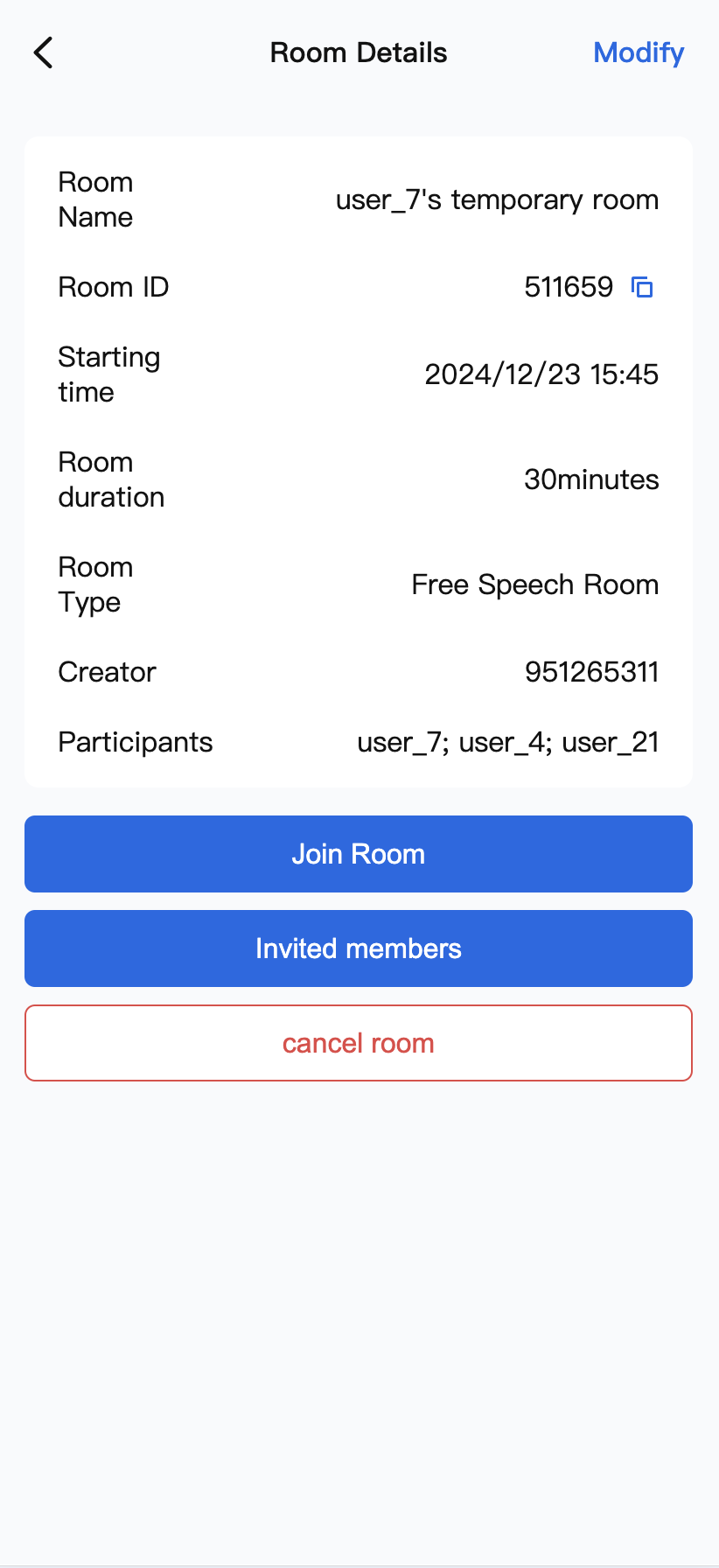
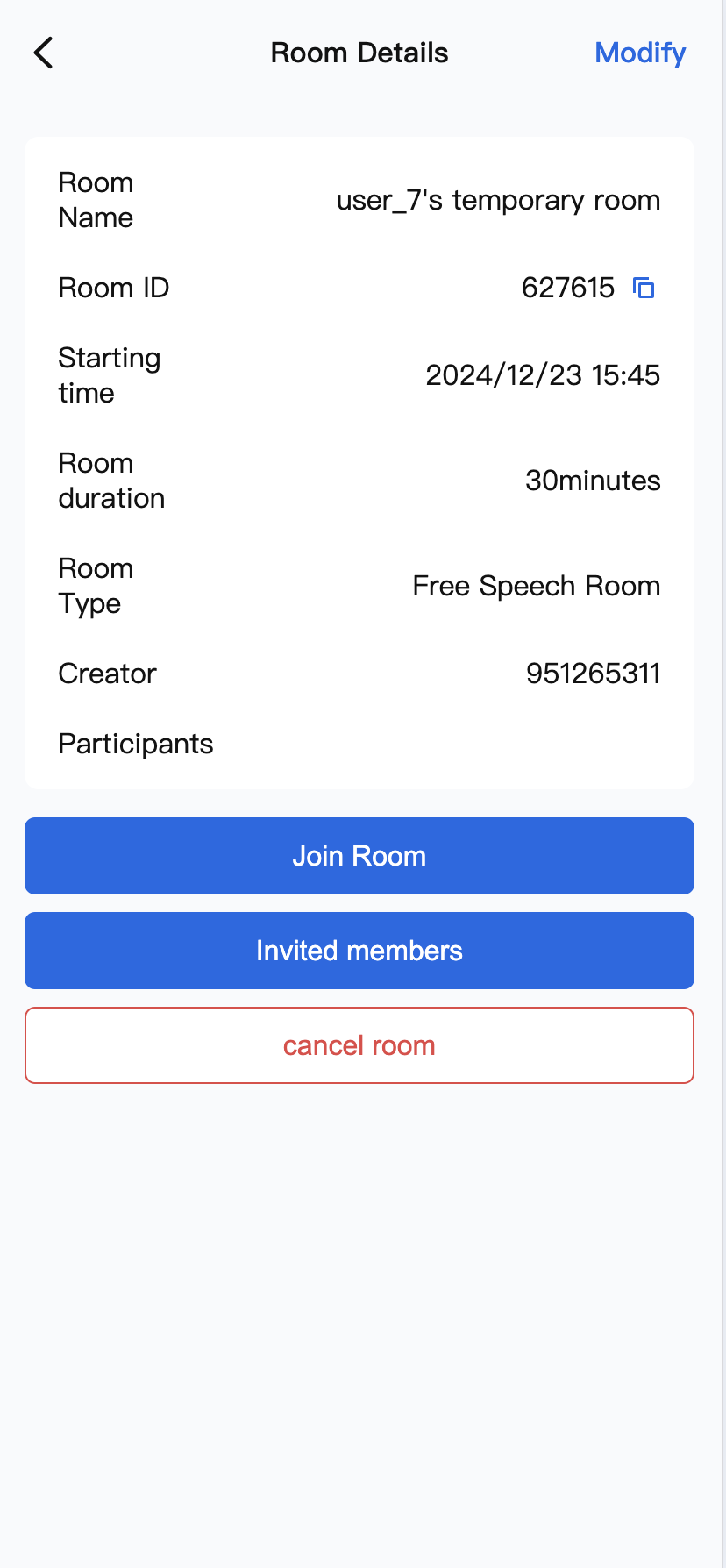
View Meeting Details: You can click on a meeting to view the details of that meeting.
Modify Meeting Information: You can modify the meeting information by clicking on a meeting in the meeting list, if the meeting is not in progress and you are the initiator of the meeting.
Meeting List | Meeting Details | Modify Meeting Information |
| | |
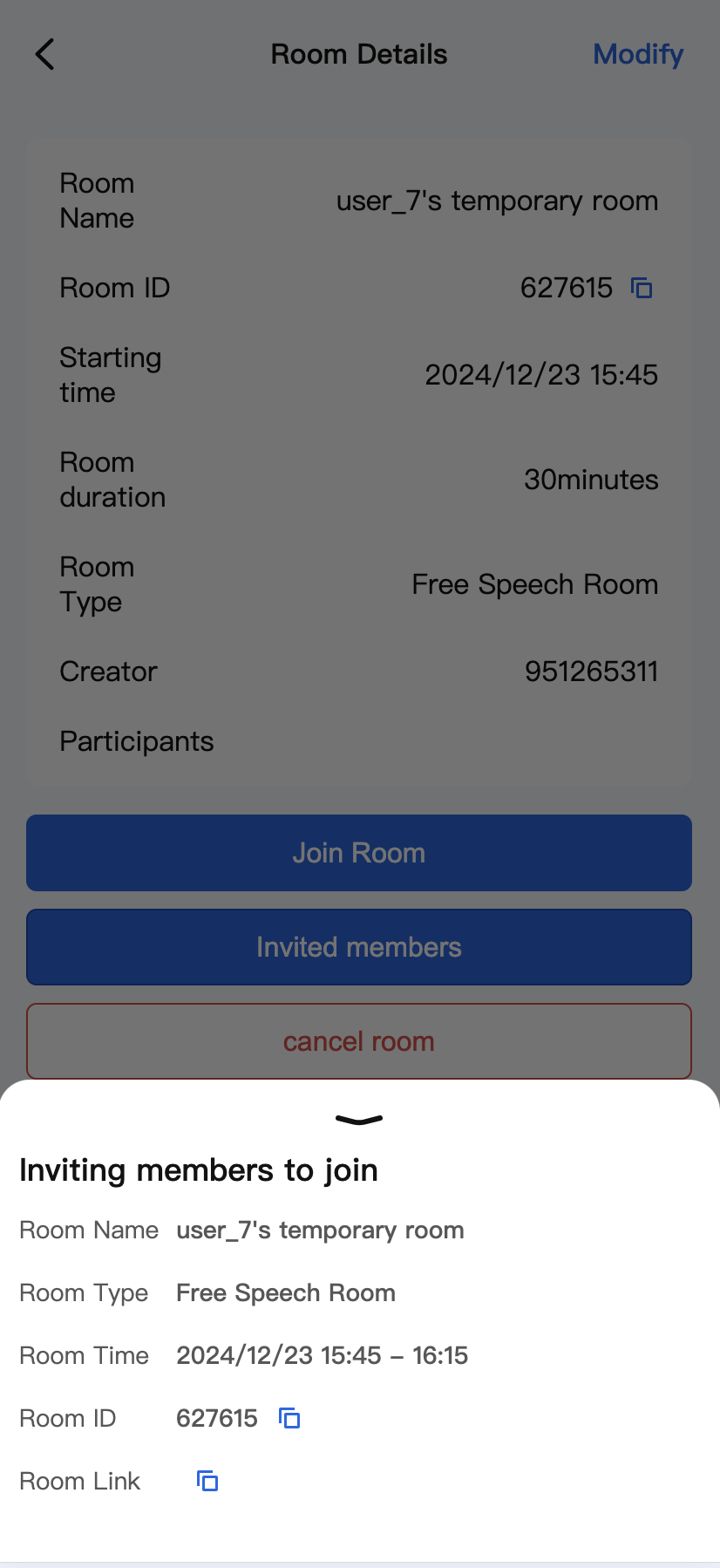
Invitation to the room
Users can click Invite members to bring up the meeting information invitation box, and copy the booked room information to the pasteboard to share with other users by clicking Copy Meeting Number.
Conference Details | Invited members |
| |
Attention
The room reservation start time cannot be earlier than the current time, but there is no limit to the number of days in advance.
If you want to book rooms for different dates/times at the same time, please select the times separately and submit them.
Once the room is booked, the room number will be reserved for 6 hours from the start time of the booking, if there are no users in the room, and you can return to the room at any time during this period.
Room number and reservation information will be available once the room is successfully booked.
Communication and Feedback
If you have any requests or feedback, please contact info_rtc@tencent.com.