tencent cloud

Tencent Real-Time Communication

Release Notes and Announcements
Release Notes
Recent Product Announcement
TRTC Live (TUILiveKit) Product Launch Announcement
TRTC Conference Official Editions Launched
The commercial version of Conference is coming soon
Terms and Conditions Applicable to $9.9 Starter Package
Rules for the "First Subscription $100 Discount" Promotion
Announcement on the Start of Beta Testing for Multi-person Audio and Video Conference
TRTC Call Official Editions Launched
License Required for Video Playback in New Version of LiteAV SDK
TRTC to Offer Monthly Packages
Product Introduction
Overview
Concepts
Features
Strengths
Use Cases
Performance Statistics
Tencent RTC Quickplay: Experience Ultimate Real-Time Audio and Video Interaction!
Purchase Guide
Billing Overview
Free Minutes
Monthly subscription
Pay-as-you-go
TRTC Overdue and Suspension Policy
FAQs
Refund Instructions
User Tutorial
Free Demo
Call
Overview
Activate the Service
Run Demo
Integration
Offline Call Push
Conversational Chat
On-Cloud Recording
AI Noise Reduction
UI Customization
Calls integration to Chat
Additional Features
No UI Integration
Server APIs
Client APIs
Solution
ErrorCode
Release Notes
FAQs
Conference
Overview(TUIRoomKit)
Activate the Service (TUIRoomKit)
Run Demo(TUIRoomKit)
Integration(TUIRoomKit)
Screen Sharing (TUIRoomKit)
Schedule a meeting (TUIRoomKit)
In-meeting Call (TUIRoomKit)
UI Customization(TUIRoomKit)
Virtual Background (TUIRoomKit)
Conference Control (TUIRoomKit)
Cloud Recording (TUIRoomKit)
AI Noise Reduction (TUIRoomKit)
In-Conference Chat (TUIRoomKit)
Robot Streaming (TUIRoomKit)
Enhanced Features (TUIRoomKit)
Client APIs (TUIRoomKit)
Server APIs (TUIRoomKit)
FAQs (TUIRoomKit)
Error Code (TUIRoomKit)
SDK Update Log (TUIRoomKit)
Live
Billing of Video Live Component
Overview
Activating the Service (TUILiveKit)
Run Demo
No UI Integration
UI Customization
Live Broadcast Monitoring
Video Live Streaming
Voice Chat Room
Advanced Features
Client APIs
Server APIs
Error Codes
Release Notes
FAQs
RTC Engine
Activate Service
SDK Download
API Examples
Usage Guidelines
API Reference Manual
Advanced Features
AI Integration
Overview
Configure MCP Server
Install Skills
Integration Guide
FAQ
RTC RESTFUL API
History
Introduction
API Category
Room Management APIs
Stream mixing and relay APIs
On-cloud recording APIs
Data Monitoring APIs
Pull stream Relay Related interface
Web Record APIs
AI Service APIs
Cloud Slicing APIs
Cloud Moderation APIs
Making API Requests
Call Quality Monitoring APIs
Usage Statistics APIs
Data Types
Appendix
Error Codes
Console Guide
Application Management
Package Management
Usage Statistics
Monitoring Dashboard
Development Assistance
Solution
Real-Time Chorus
FAQs
Migration Guide
Billing
Features
UserSig
Firewall Restrictions
How to Downsize Installation Package
Android and iOS
Web
Flutter
Electron
TRTCCalling for Web
Audio and Video Quality
Others
Legacy Documentation
RTC RoomEngine SDK(Old)
Integrating TUIRoom (Web)
Integrating TUIRoom (Android)
Integrating TUIRoom (iOS)
Integrating TUIRoom (Flutter)
Integrating TUIRoom (Electron)
TUIRoom APIs
On-Cloud Recording and Playback (Old)
RTC Analytics Monthly Packages (Previous Version)
Protocols and Policies
Compliance
Security White Paper
Notes on Information Security
Service Level Agreement
Apple Privacy Policy: PrivacyInfo.xcprivacy
TRTC Policy
Privacy Policy
Data Processing And Security Agreement
Glossary

Activate Service

PDF
Focus Mode
Font Size
Last updated: 2025-12-16 14:15:46

Activate Trial Service

You can follow these steps to activate Tencent RTC-Engine product service and create an application with the default trial version. Enjoy free usage to experience basic audio and video features, including: Audio/Video Call, cloud recording, Cloud-based Mixed-stream Transcoding, Relay to CDN for Cloud Live Streaming (CSS), and AI conversation service.
All Tencent Cloud accounts (UINs) with a monthly subscription package for Tencent RTC (including Call, Conference, Live, RTC-Engine) can receive a free usage package of 10,000 minutes per month within 1 year. A maximum of one free usage package can be received per month, and all TRTC (including Call, Conference, Live, RTC-Engine) generated usage is deductible. For details, see Free Minutes Description.
Note:
Remaining minutes per month will expire on the last day of the current cycle and cannot be used in the next cycle.
For example, the free usage package received on November 15, 2022 has a validity time from November 15, 2022 to December 14, 2022.
Note: You can view the specific effective time in the package management section of the console.
If the deducted minutes do not exceed 10,000, the service is free this month. If the 10,000-minute free quota is exhausted and no RTC-Engine monthly package, Call monthly package, Conference monthly package, or Live monthly package is purchased, the application will be suspended. After suspension, the service cannot be automatically restored. You need to purchase a package to reactivate it. After service resumption, the complimentary free minutes can continue to be used.
Note:
For UINs registered on or after July 25, 2024 (UTC+8), the free package is deductible for Audio/Video Call, Interactive Streaming, cloud recording, On-Cloud MixTranscoding, recording delivery to Tencent Cloud, recording delivery to third party, page recording, and Live video streaming audience duration.
You can enable Tencent RTC-Engine product service by following the procedure below:
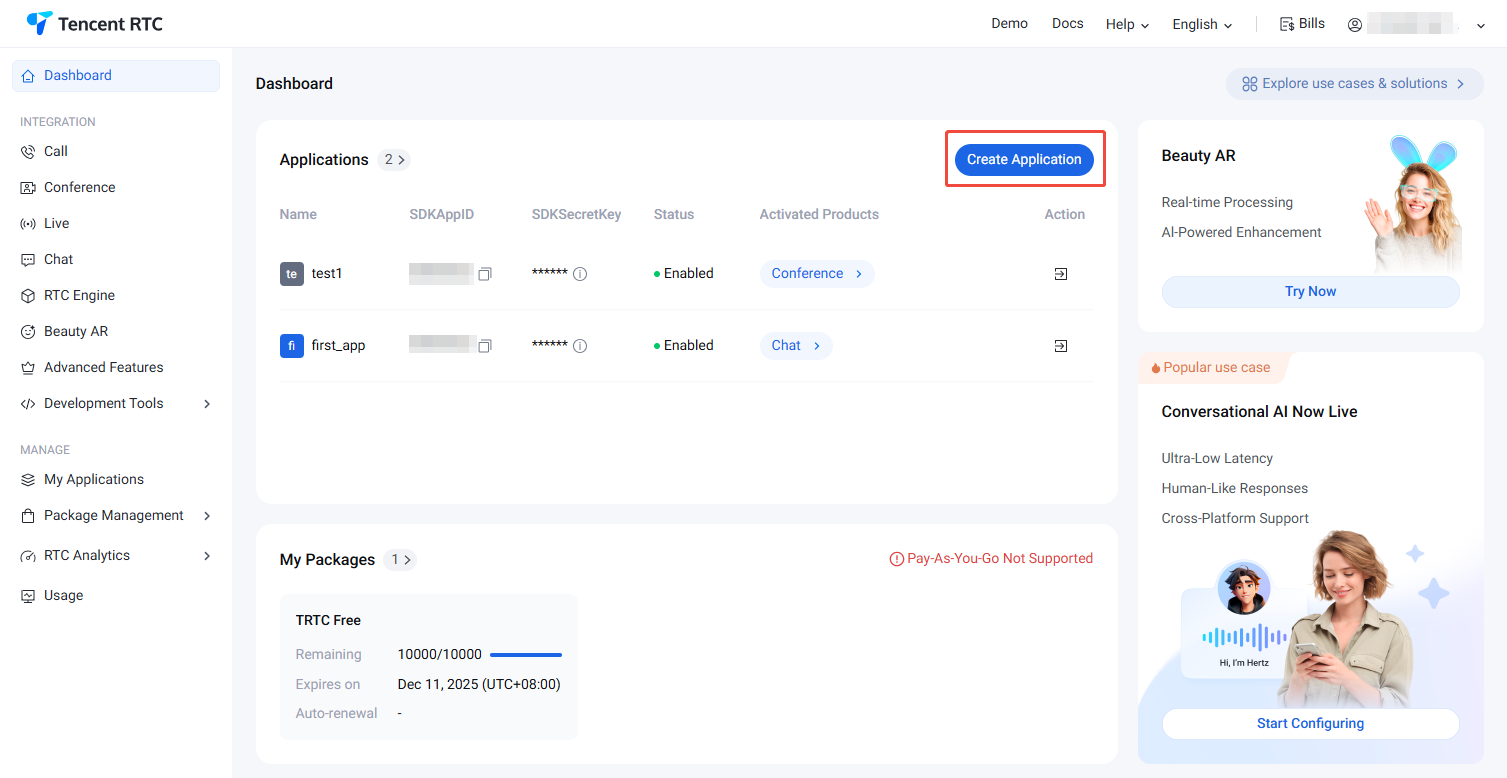
1. Log in to Tencent RTC console, click Create Application.

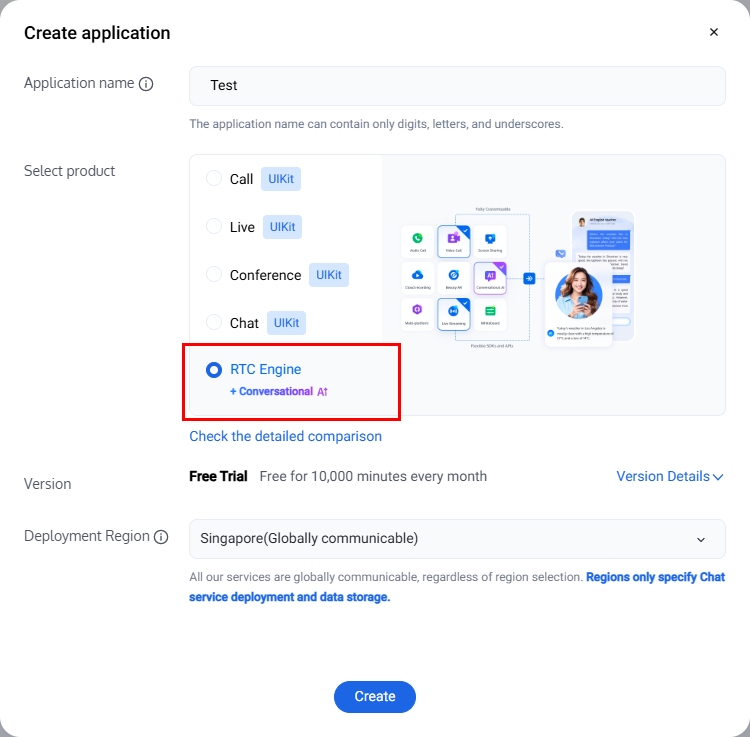
2. In the popup, enter an application name, select RTC-Engine, and choose the appropriate deployment region. Then click Create. This will create a TRTC application bound to the trial edition of TRTC Room.


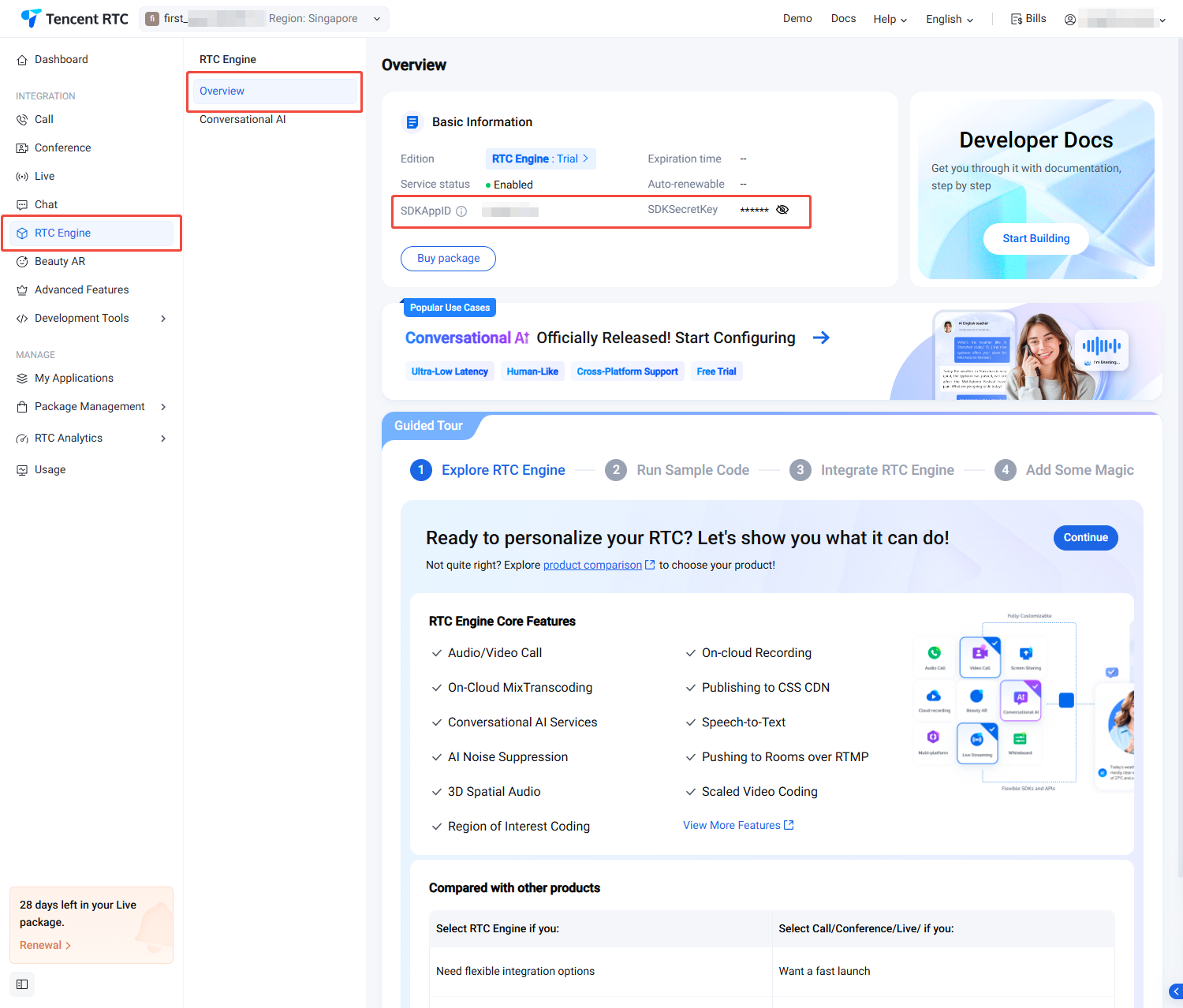
3. After completing application creation, you will enter the RTC-Engine product details page by default. At this point, you have quickly created an application and successfully claimed the TRTC (RTC-Engine SDK) trial version. You can view information on the current RTC-Engine Product Details Page or My Applications, and refer to the RTC-Engine Integration Guide to integrate. The SDKAppID and SDKSecretKey here will be used in the integration guide.


Running Demo

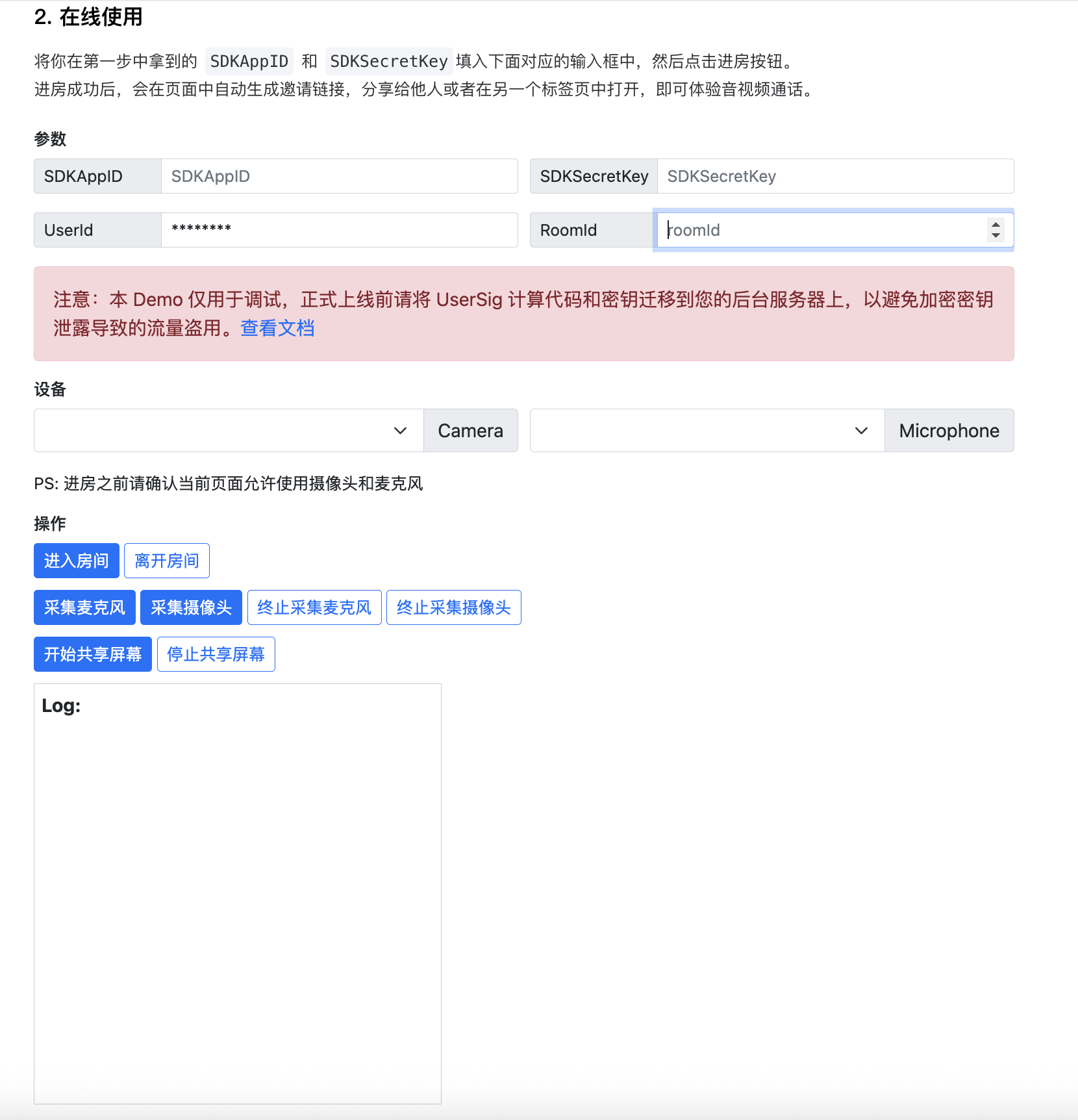
For the complete process, see Running Demo for RTC-Engine.
1. Refer to Enabling Trial Service to create an application in the Tencent RTC console. Users within the same application can enter the same room to perform audio and video calls. The SDKAppID and SDKSecretKey are the unique identifiers of this application. Obtain the SDKAppID and SDKSecretKey on the RTC-Engine Product Details Page or My Applications. We will use this information to log in to the Demo below.


2. You can enter the SDKAppID and SDKSecretKey obtained in step one into the corresponding input boxes on the Running Demo Page, then click the enter room button.


3. You can enter Running Demo to view more demos.

Purchasing the Official Editions

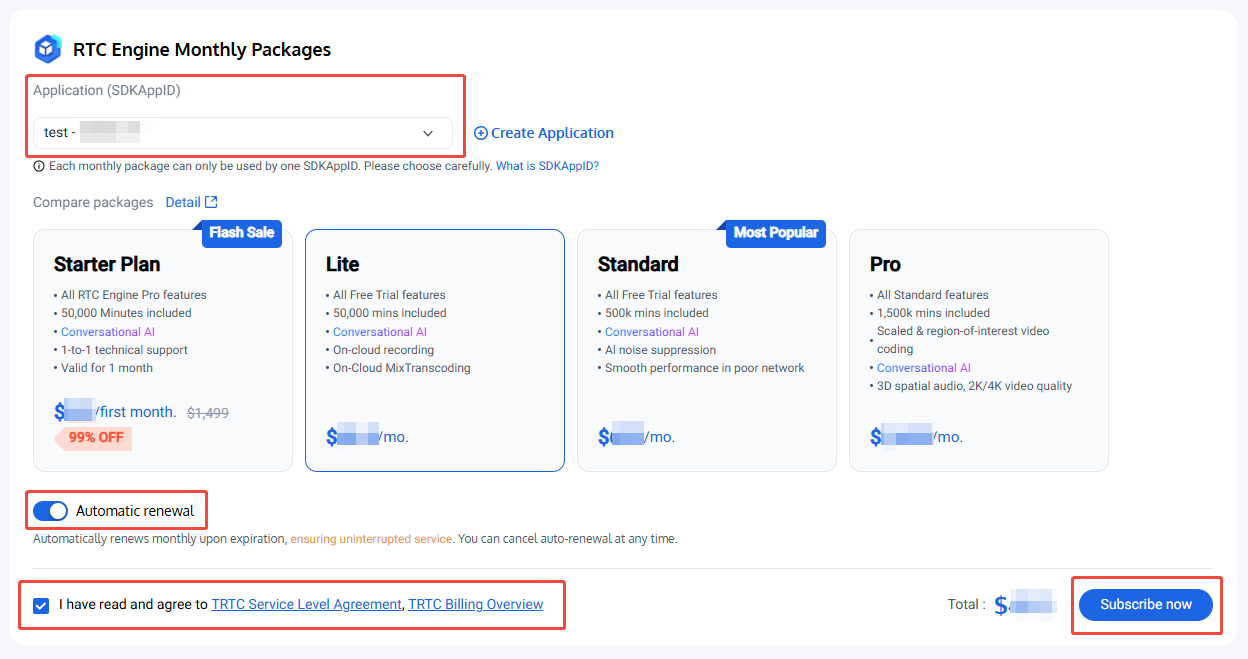
You need to purchase the RTC-Engine monthly subscription to use the RTC-Engine SDK. For price and feature comparison details of the RTC-Engine monthly subscription, see RTC-Engine Monthly Subscription. To purchase, follow the steps below:
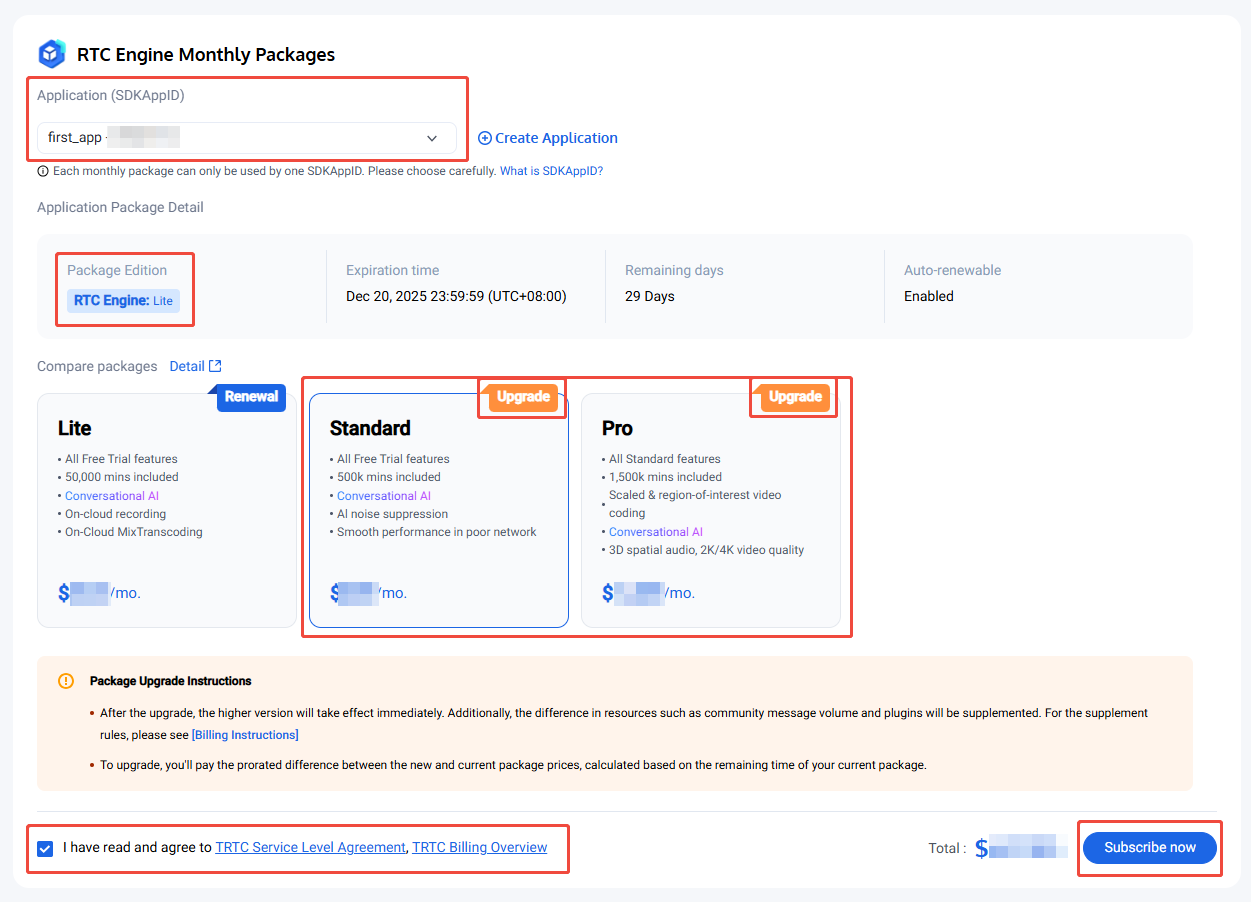
1. Visit RTC-Engine Purchase Page, select the application (SDKAppID) and version to purchase, and it is recommended to enable auto-renewal to avoid impacting business usage. After confirming purchase information and agreeing to the relevant agreement, click Subscribe now.


2. Proceed to the payment page to complete payment. After purchase completion, you can go to RTC-Engine Product Details Page or My Applications to view the application version info. See RTC-Engine Integration Guide to integrate.

Renew the Official Edition

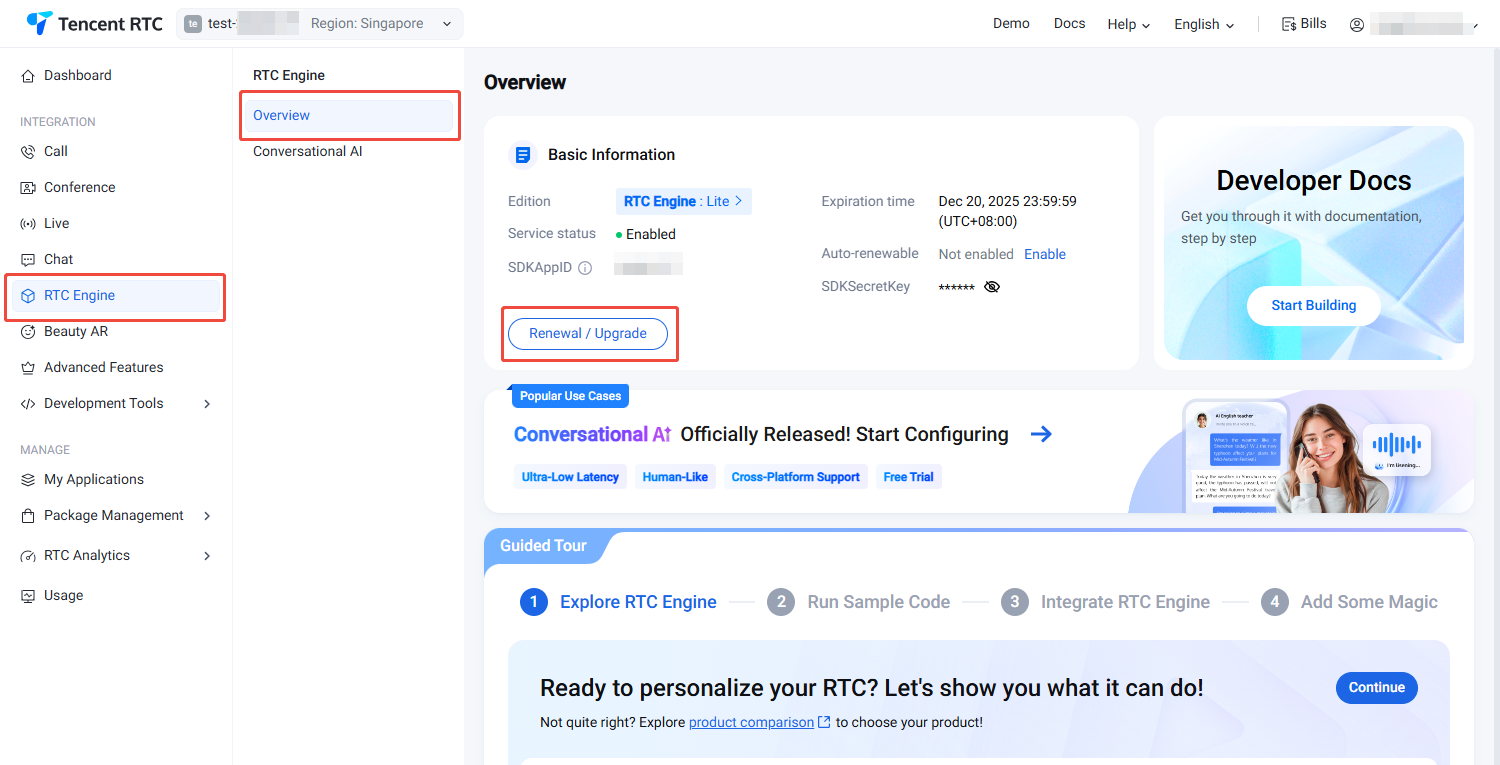
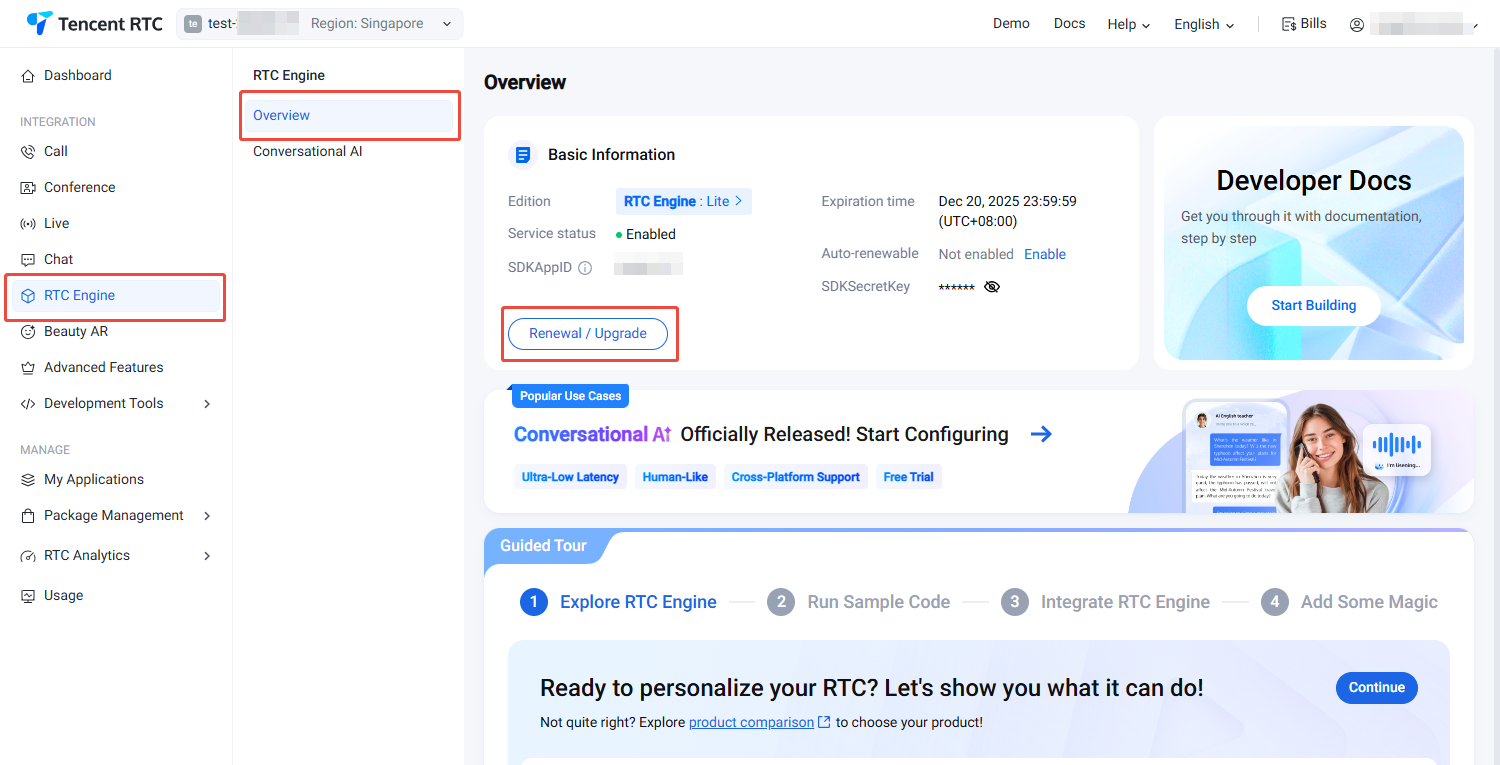
1. Visit RTC-Engine Product Details Page, click Renewal / Upgrade.


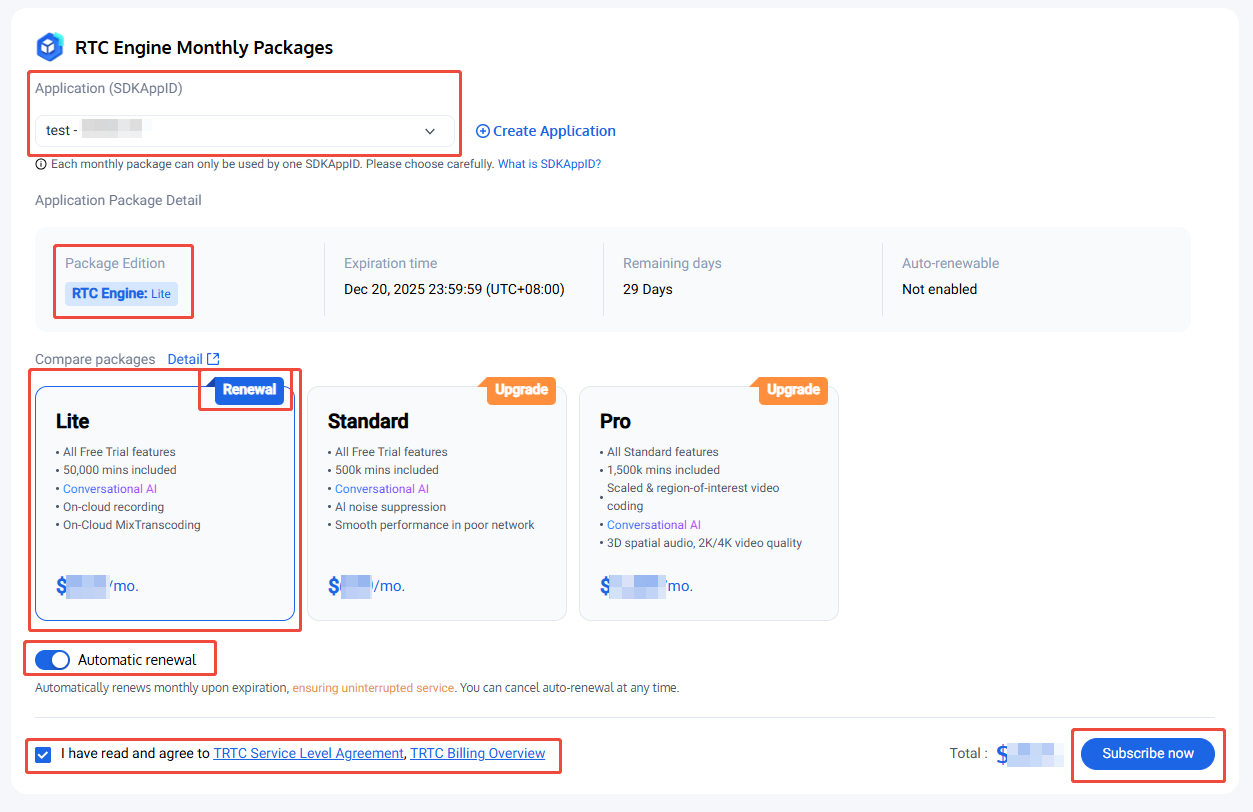
2. Visit RTC-Engine Purchase Page, confirm the application (SDKAppID) to purchase, select the version of the same application package, and it is recommended to enable auto-renewal to avoid impacting business usage. Once enabled, when the account balance is sufficient, it will automatically renew monthly upon expiration. After confirming purchase information and agreeing to the relevant agreement, click Subscribe now.


3. Proceed to the payment page to complete payment. After purchase completion, you can go to RTC-Engine Product Details Page or My Applications to view the application version info. See RTC-Engine Integration Guide to integrate.

Upgrading to Official Version

1. Visit RTC-Engine Product Details Page, click Renewal / Upgrade.


2. Visit RTC-Engine Purchase Page, confirm the application (SDKAppID) requiring upgrade, select a more advanced version than the application package, and it is recommended to enable auto-renewal to avoid impacting business usage. Once enabled, when the account balance is sufficient, it will automatically renew monthly upon expiration. After confirming purchase information and agreeing to the relevant agreement, click Subscribe now.


3. Proceed to the payment page to complete payment. After purchase completion, you can go to RTC-Engine Product Details Page or My Applications to view the application version info.

Automatic Renewal

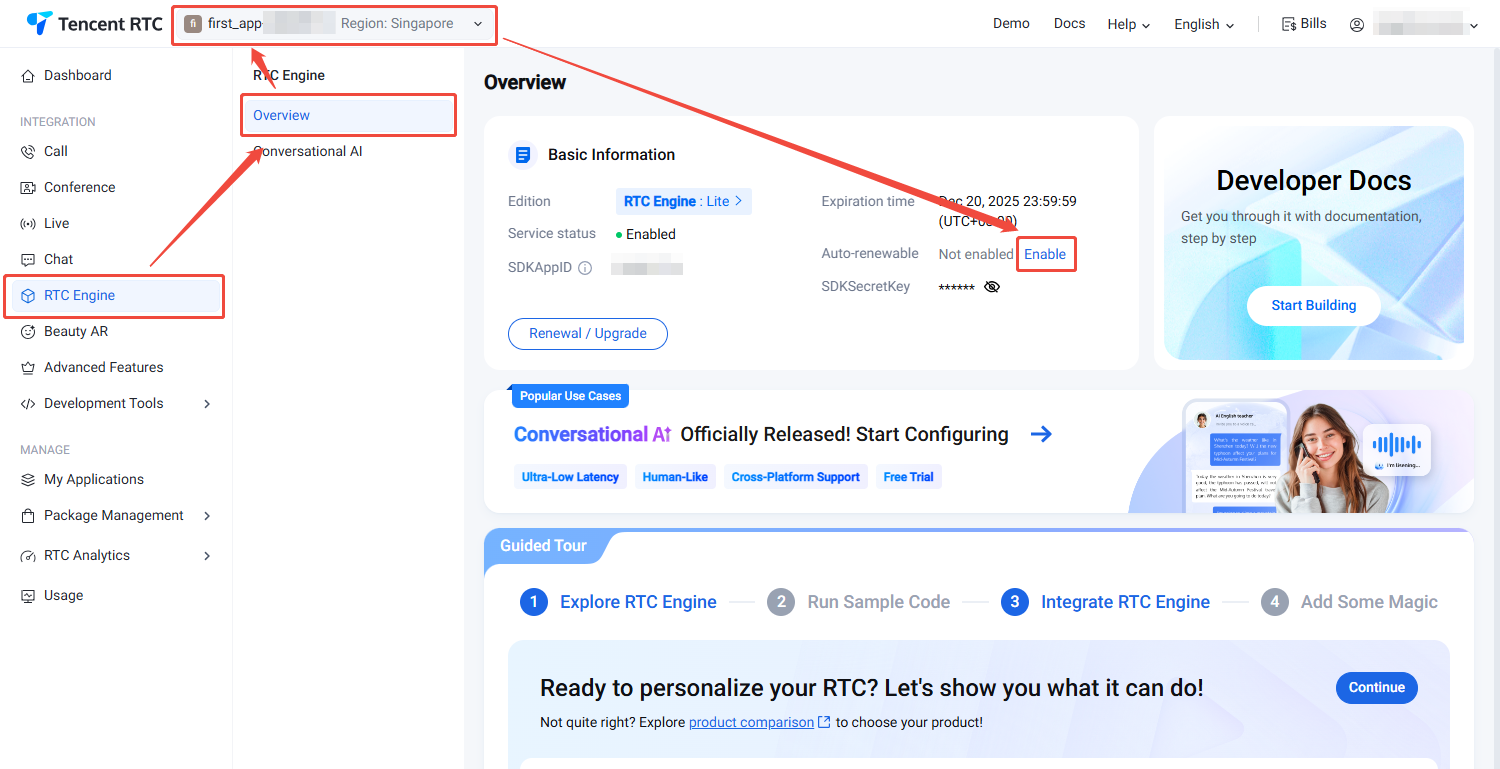
Specific steps to enable auto-renewal in the console are as follows:
2. Select the application that requires auto-renewal.
3. In the RTC-Engine product information, click the Auto-renewable Enable button. A confirmation pop-up will appear. Click Enable.


Help and Support

Was this page helpful?

Help us improve! Rate your documentation experience in 5 mins.

Feedback