tencent cloud

Tencent Real-Time Communication

Release Notes and Announcements
Release Notes
Recent Product Announcement
TRTC Live (TUILiveKit) Product Launch Announcement
TRTC Conference Official Editions Launched
The commercial version of Conference is coming soon
Terms and Conditions Applicable to $9.9 Starter Package
Rules for the "First Subscription $100 Discount" Promotion
Announcement on the Start of Beta Testing for Multi-person Audio and Video Conference
TRTC Call Official Editions Launched
License Required for Video Playback in New Version of LiteAV SDK
TRTC to Offer Monthly Packages
Product Introduction
Overview
Concepts
Features
Strengths
Use Cases
Performance Statistics
Tencent RTC Quickplay: Experience Ultimate Real-Time Audio and Video Interaction!
Purchase Guide
Billing Overview
Free Minutes
Monthly subscription
Pay-as-you-go
TRTC Overdue and Suspension Policy
FAQs
Refund Instructions
User Tutorial
Free Demo
Call
Overview
Activate the Service
Run Demo
Integration
Offline Call Push
Conversational Chat
On-Cloud Recording
AI Noise Reduction
UI Customization
Calls integration to Chat
Additional Features
No UI Integration
Server APIs
Client APIs
Solution
ErrorCode
Release Notes
FAQs
Conference
Overview(TUIRoomKit)
Activate the Service (TUIRoomKit)
Run Demo(TUIRoomKit)
Integration(TUIRoomKit)
Screen Sharing (TUIRoomKit)
Schedule a meeting (TUIRoomKit)
In-meeting Call (TUIRoomKit)
UI Customization(TUIRoomKit)
Virtual Background (TUIRoomKit)
Conference Control (TUIRoomKit)
Cloud Recording (TUIRoomKit)
AI Noise Reduction (TUIRoomKit)
In-Conference Chat (TUIRoomKit)
Robot Streaming (TUIRoomKit)
Enhanced Features (TUIRoomKit)
Client APIs (TUIRoomKit)
Server APIs (TUIRoomKit)
FAQs (TUIRoomKit)
Error Code (TUIRoomKit)
SDK Update Log (TUIRoomKit)
Live
Billing of Video Live Component
Overview
Activating the Service (TUILiveKit)
Run Demo
No UI Integration
UI Customization
Live Broadcast Monitoring
Video Live Streaming
Voice Chat Room
Advanced Features
Client APIs
Server APIs
Error Codes
Release Notes
FAQs
RTC Engine
Activate Service
SDK Download
API Examples
Usage Guidelines
API Reference Manual
Advanced Features
AI Integration
Overview
Configure MCP Server
Install Skills
Integration Guide
FAQ
RTC RESTFUL API
History
Introduction
API Category
Room Management APIs
Stream mixing and relay APIs
On-cloud recording APIs
Data Monitoring APIs
Pull stream Relay Related interface
Web Record APIs
AI Service APIs
Cloud Slicing APIs
Cloud Moderation APIs
Making API Requests
Call Quality Monitoring APIs
Usage Statistics APIs
Data Types
Appendix
Error Codes
Console Guide
Application Management
Package Management
Usage Statistics
Monitoring Dashboard
Development Assistance
Solution
Real-Time Chorus
FAQs
Migration Guide
Billing
Features
UserSig
Firewall Restrictions
How to Downsize Installation Package
Android and iOS
Web
Flutter
Electron
TRTCCalling for Web
Audio and Video Quality
Others
Legacy Documentation
RTC RoomEngine SDK(Old)
Integrating TUIRoom (Web)
Integrating TUIRoom (Android)
Integrating TUIRoom (iOS)
Integrating TUIRoom (Flutter)
Integrating TUIRoom (Electron)
TUIRoom APIs
On-Cloud Recording and Playback (Old)
RTC Analytics Monthly Packages (Previous Version)
Protocols and Policies
Compliance
Security White Paper
Notes on Information Security
Service Level Agreement
Apple Privacy Policy: PrivacyInfo.xcprivacy
TRTC Policy
Privacy Policy
Data Processing And Security Agreement
Glossary

Run Sample Demo

PDF
Focus Mode
Font Size
Last updated: 2025-11-18 15:07:43
This article provides a detailed guide on how to quickly run the TUILiveKit Demo. Following the instructions, you can run the demo in less than 10 minutes and experience a live online demo with a complete UI interface. You can also customize the page style, layout, and functionality according to your needs by following the free customization instructions on each page.


Step 1: Environment Preparation

Before running the demo, you need to refer tothe preparation guide to complete the required environment configuration and activate the corresponding services.

Step 2: Download the Demo

1. Download the TUILiveKit Demo from GitHub, or run the following command directly from the command line:
git clone https://github.com/Tencent-RTC/TUILiveKit.git
2. Install dependencies
cd TUILiveKit/Web/web-vite-vue3

npm install

Step 3: Configure Demo

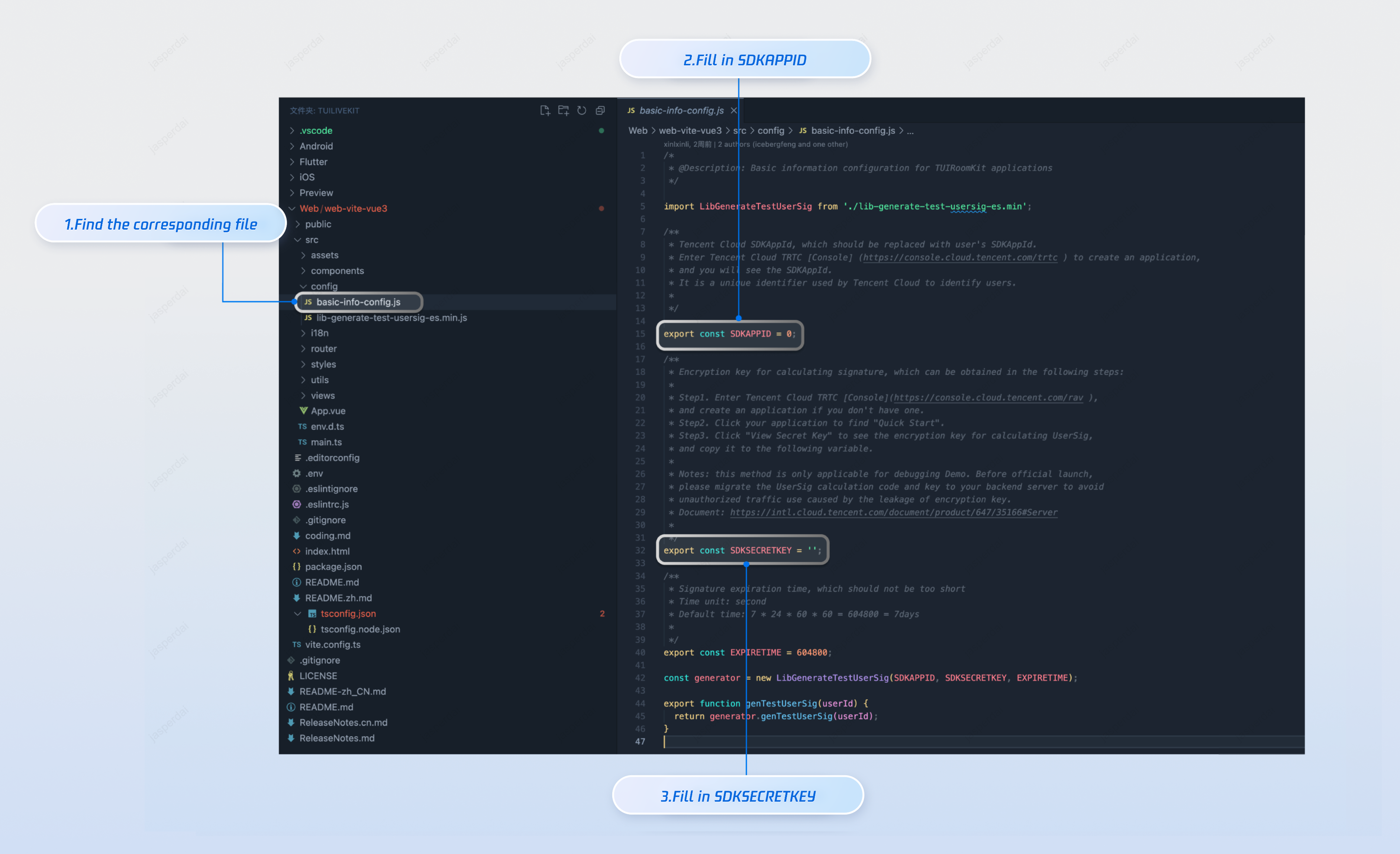
You need to refer to the preparation in step 1, open the TUILiveKit/Web/web-vite-vue3/src/config/basic-info-config.js file in the Demo, and enter the SDKAppID and SDKSecretKey obtained when activating the service in the preparation:


Step 4: Run the Demo

npm run dev

Step 5: Start the Live Stream

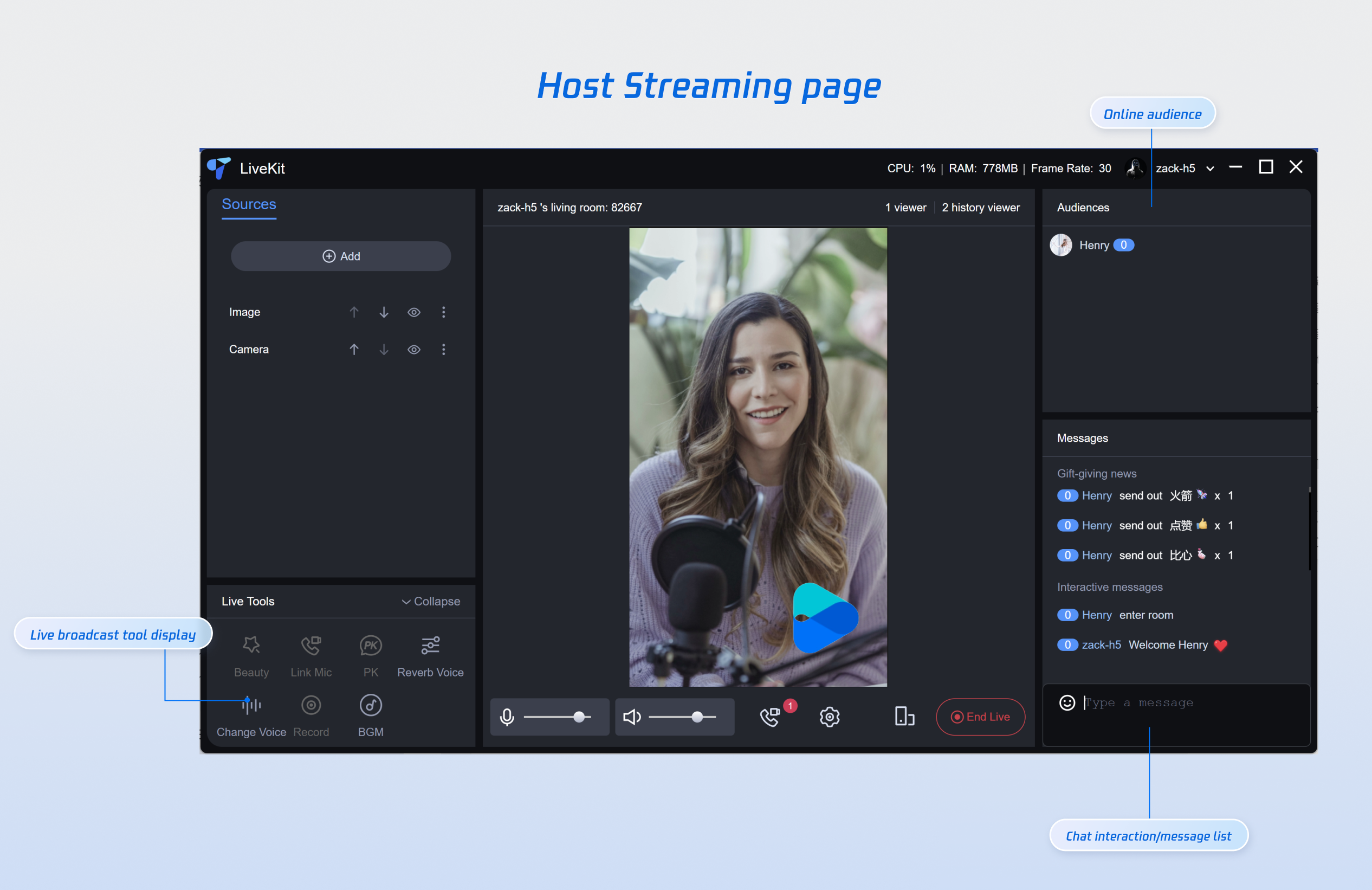
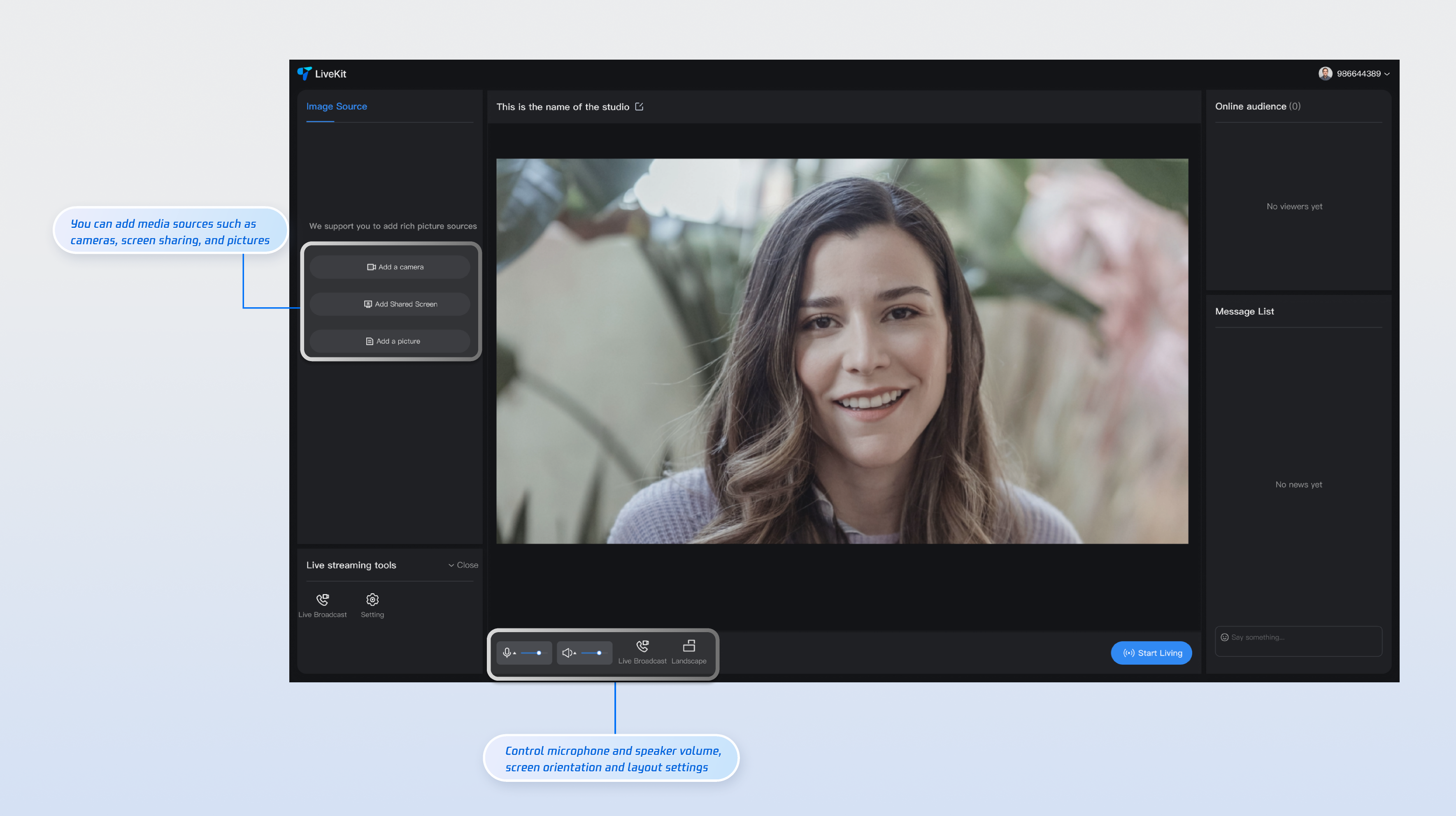
If you need to stream as a live streamer, you'll need to switch from the demo to the live streaming page. Simply change the URL in the navigation bar to http://localhost:5173/#/live-pusher to access the live streaming page. The live streaming page supports both landscape and portrait streaming. Additionally, you can add media sources to the page in the Add Sources area on the left. You can also click the Connect Viewer button below to accept or reject a viewer's request to connect.


Customization Guidelines

If you need to selectively integrate a page into an existing project, or need to customize the UI of a page, you can refer to the following links to the respective page documentation and follow the guidelines to customize the UI.
Page
Document Link
Host Streaming
Audience Viewing
Live Streaming List


Help and Support

Was this page helpful?

Help us improve! Rate your documentation experience in 5 mins.

Feedback