This guide introduces how to quickly integrate the TUILiveKit live gifting component into your project.
Component Overview
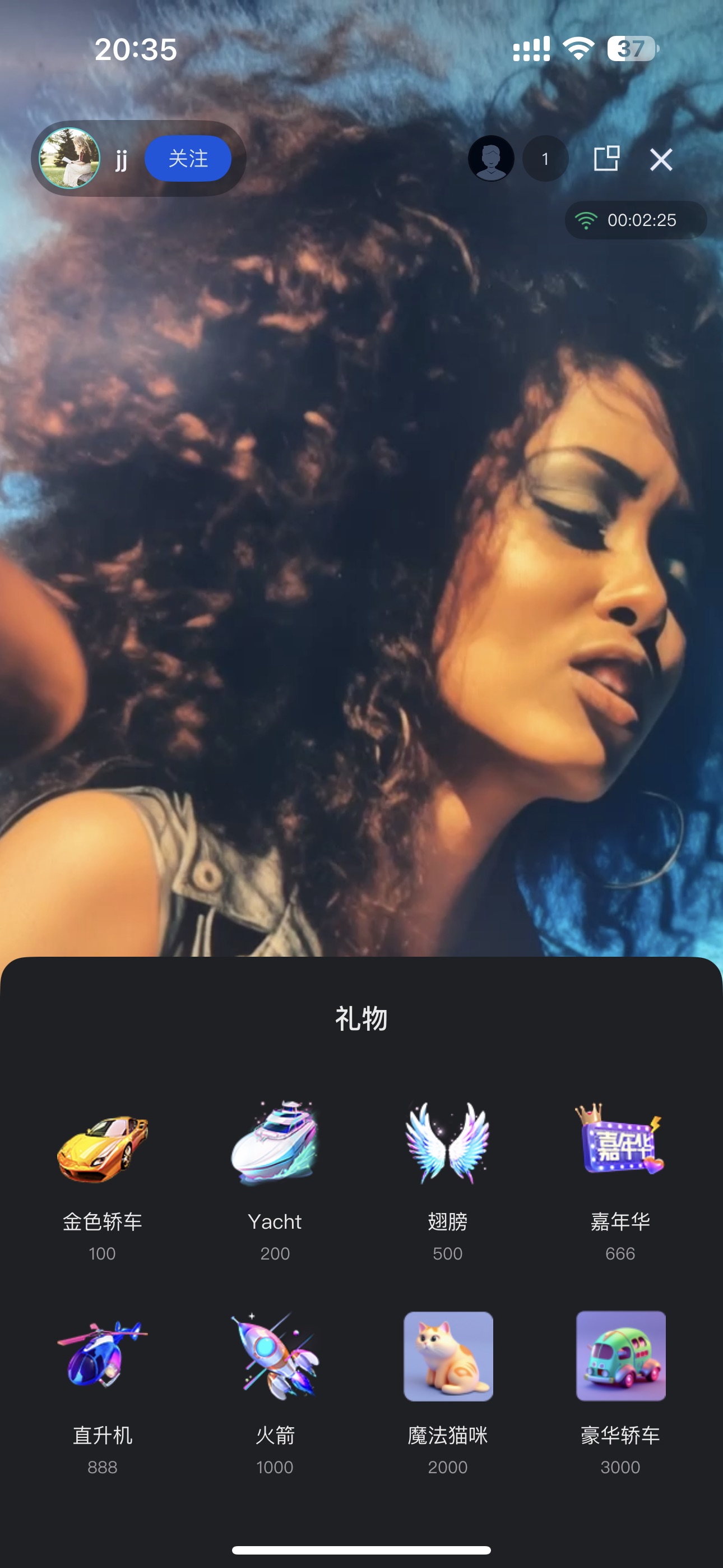
The gifting feature in TUILiveKit consists of two main UI components:
|
Gift Selection Panel | GiftListView
| Shows the available gifts and handles user selection and sending actions. |
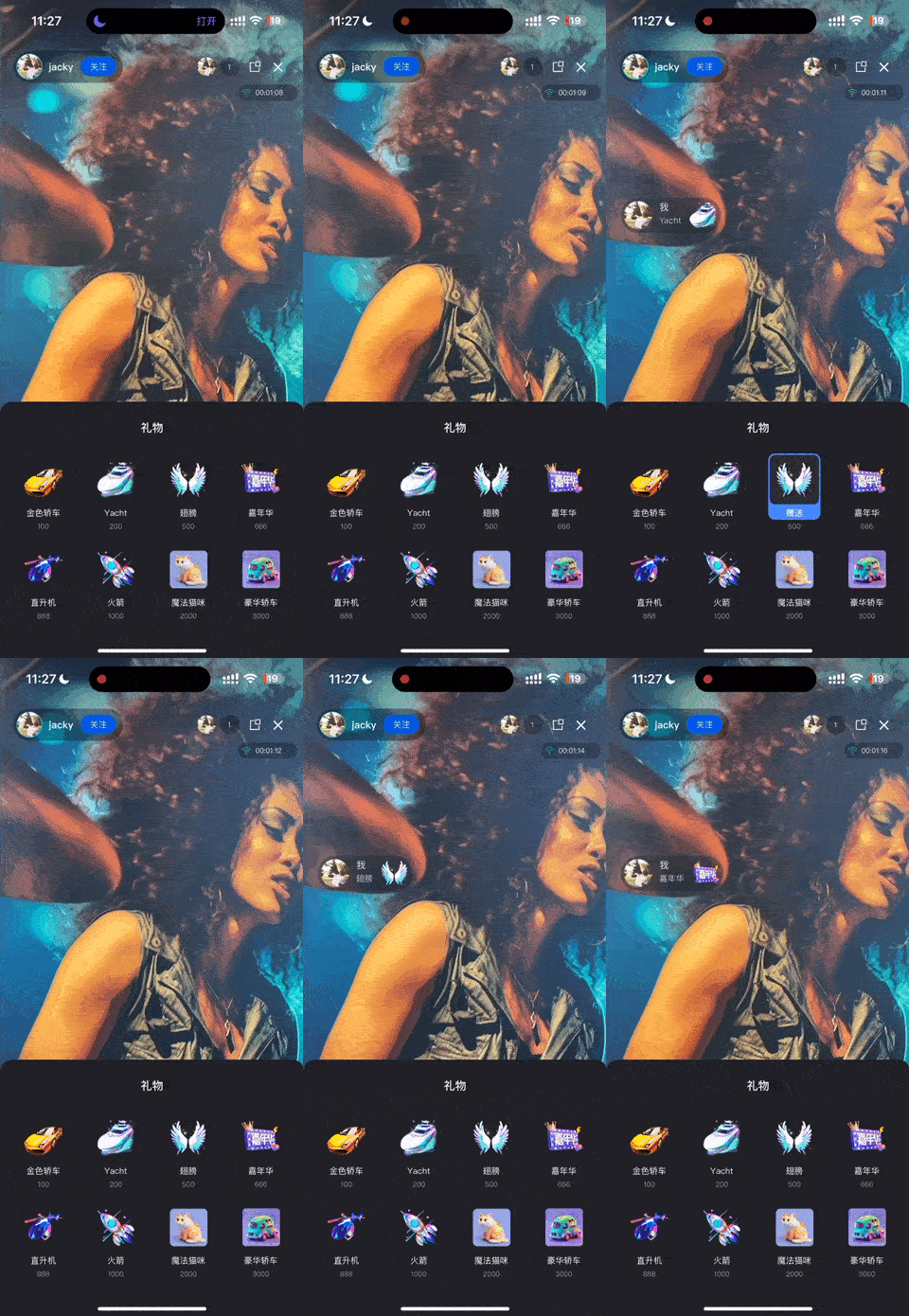
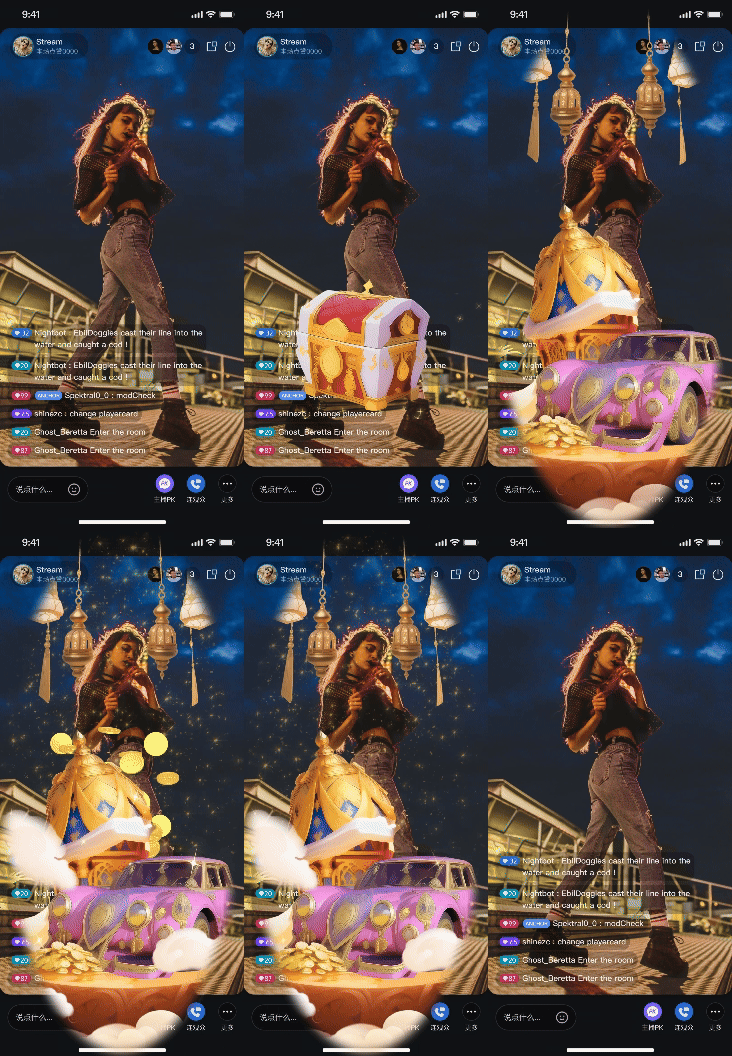
Gift Animation Display | GiftPlayView
| Receives gift messages and renders animations (e.g., SVGA) on screen. |
Demo Effects
Quick Start
Step 1. Activate the Service
Note:
To use the gifting system, activate either the Free Trial, or Pro edition. The number of configurable gifts depends on the selected package. For details, see the Gift System section in Feature and Billing Description and choose the package that fits your needs. Step 2: Configure Your Project
Project Configuration:
Version Requirement: TUILiveKit >= 3.2.0.
Step 3. Add Gift List Display Page
Add the gift list display page to your app so the audience can browse available gifts. Use the sample code below to create the GiftListView component and add it to your view:
import TUILiveKit
class YourGiftViewController: UIViewController {
lazy var giftListView = {
let view = GiftListView(roomId: liveId)
return view
}()
private let liveId: String
public override func viewDidLoad() {
super.viewDidLoad()
view.addSubView(giftListView)
giftPlayView.snp.remakeConstraints { make in
make.leading.trailing.equalToSuperview()
make.height.equalTo(256)
make.bottom.equalToSuperview()
}
}
}
Step 4. Add Gift Animation Playback Page
Add the gift animation playback page to your app. The GiftPlayView component automatically receives gift messages and plays the corresponding animations. Use the sample code below to create the GiftPlayView component and add it to your view:
import TUILiveKit
class YourAnchorViewController: UIViewController {
lazy var giftPlayView = {
let view = GiftPlayView(roomId: liveId)
return view
}()
private let liveId: String
public override func viewDidLoad() {
super.viewDidLoad()
view.addSubView(giftPlayView)
giftPlayView.snp.remakeConstraints { make in
make.edges.equalToSuperview()
}
}
}
Next Steps
After completing the UI integration, your app will support basic gifting functionality. To build a production-ready gifting system, refer to the Backend Integration and Advanced Features guide to implement the following: Custom Gift Configuration: Upload custom gift icons, animations, and pricing via Server APIs.
Payment Integration: Configure callback URLs to handle balance verification and payment processing through your billing backend.
PK Score Sync: Convert gift values to PK scores in real-time during host battles.
Analytics: Access gift transaction records, revenue metrics, and other operational data.
Upgrade Gift Effect SDK: If SVGA does not meet your needs, you can integrate advanced animation players to support MP4, PAG, or other high-quality transparent animation formats.