Host Live Streaming(Android)
다운로드
포커스 모드
폰트 크기
TUILiveKit Voice Chat Room is a ready-to-use interface providing all the core functionalities for starting a live stream. It enables you to integrate a host broadcasting flow into your app with simple steps.Feature Overview
Pre-Live Preview: Allows hosts to configure personalized settings such as room name and cover image before going live.
Seat Management: Supports seat management operations including taking a seat, leaving a seat, muting, and locking seats.
Audience Interaction: Enables interactive features such as live chat (bullet comments), virtual gifts, and likes.
Live Room Management: Displays the online user list and provides moderation controls such as muting or removing users from the live room.
Pre-Live Preview | Seat Management | Audience Interaction | Live Room Management |
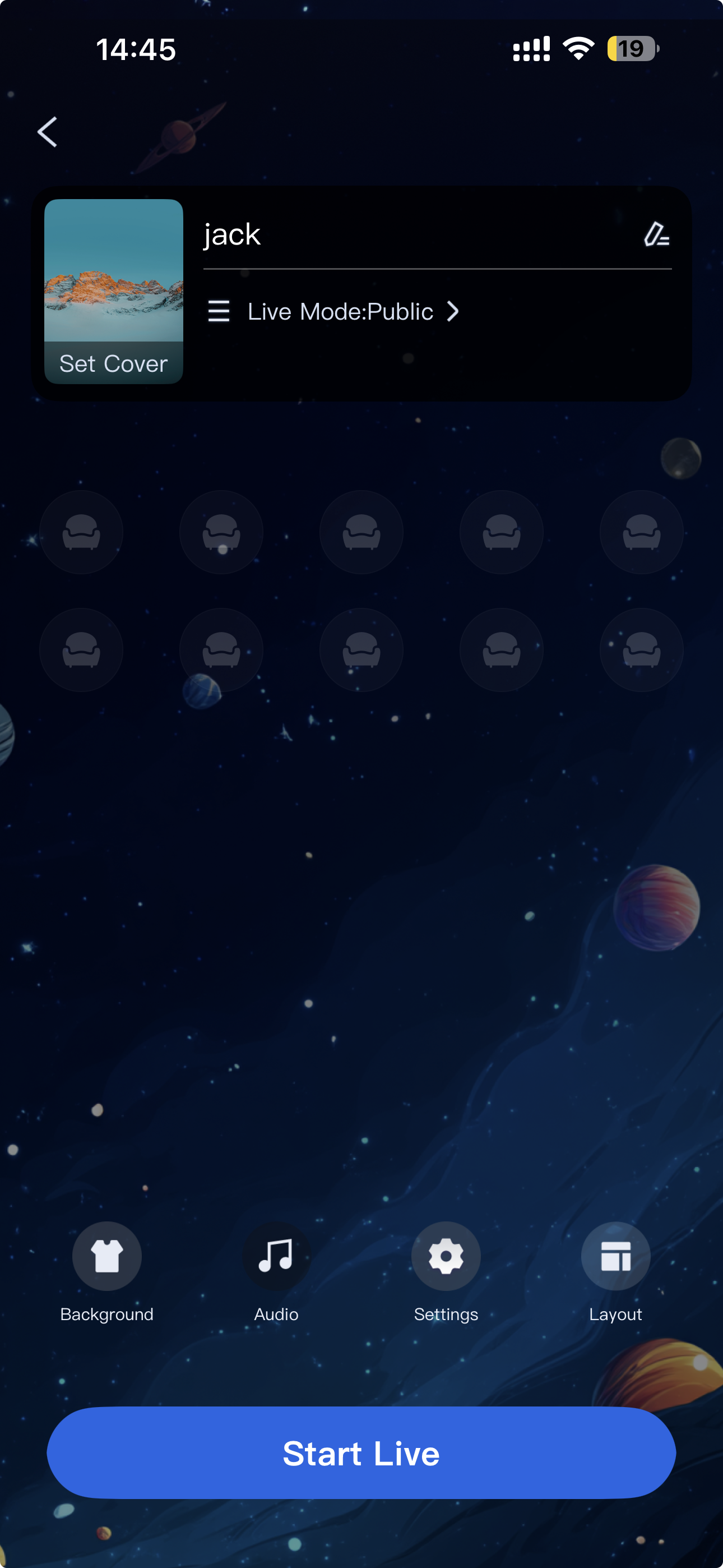 | 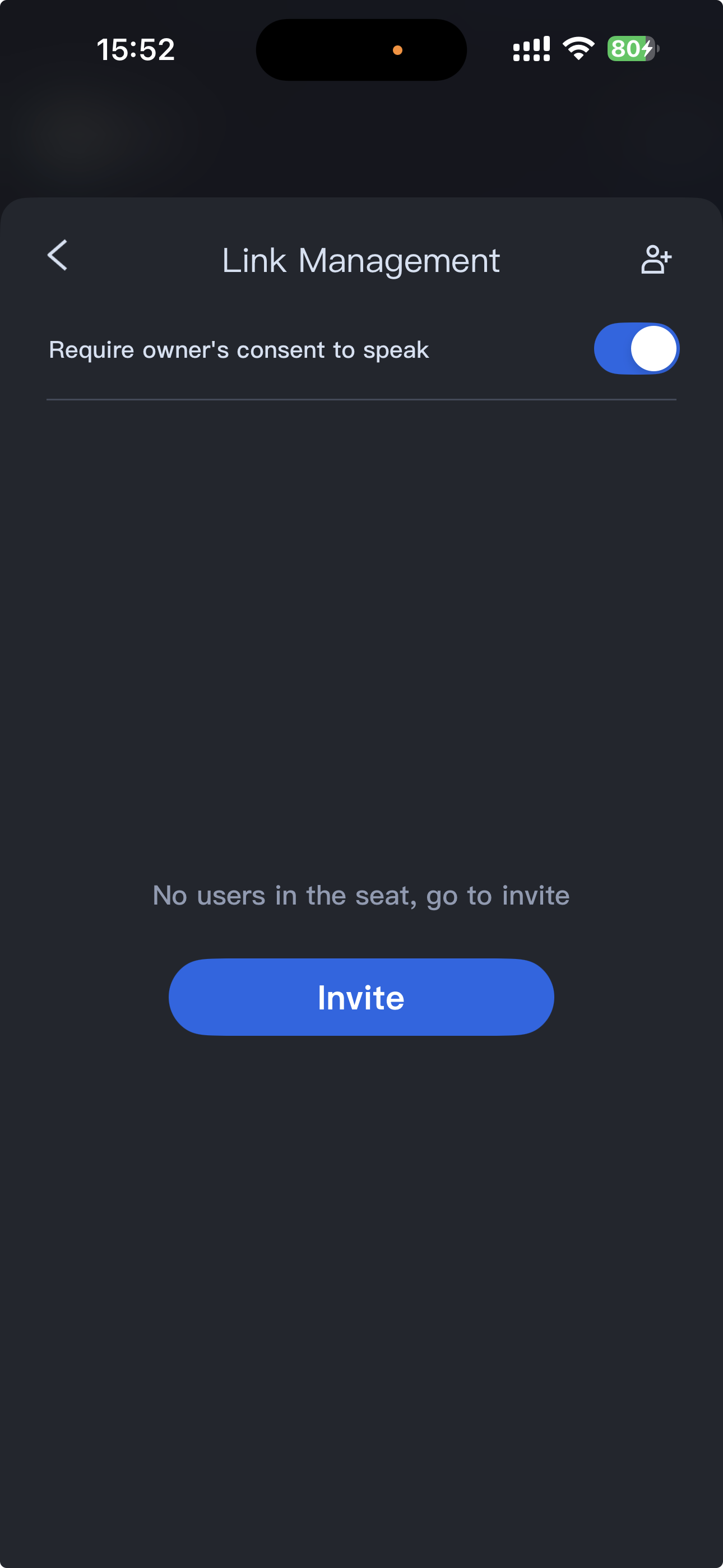 | 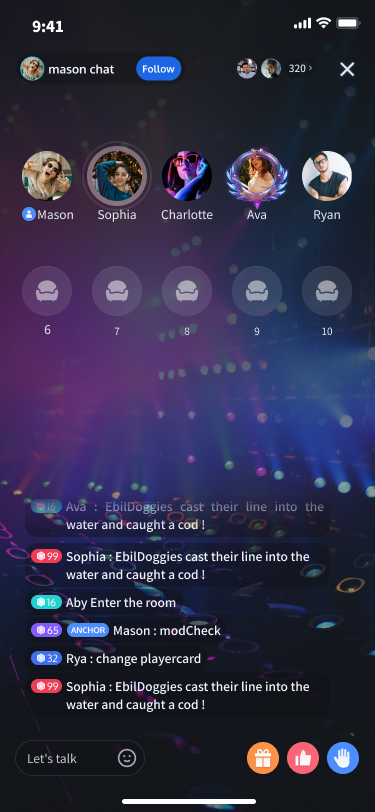 | 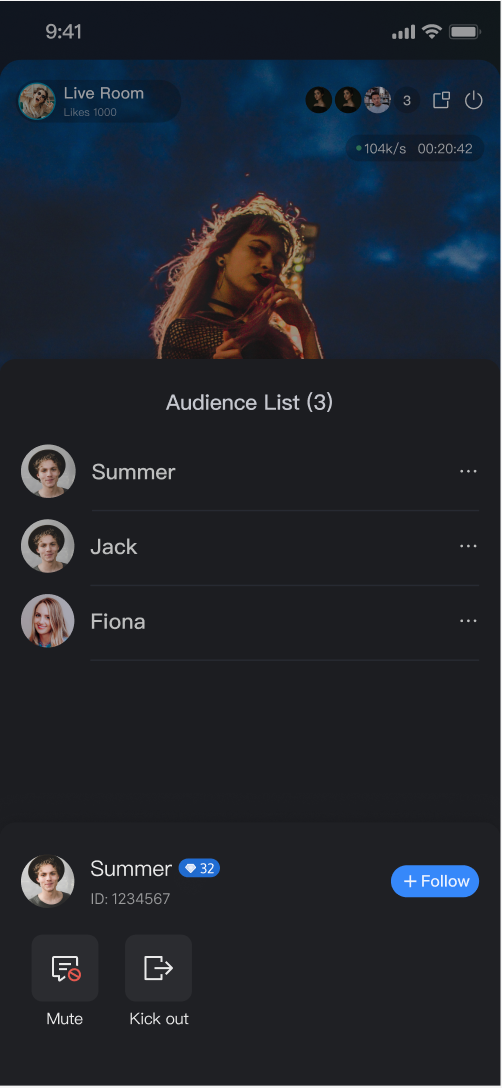 |
Quick Integration
Enable the Service
Component Integration
Create and Display the Voice Chat Room Activity
The
VoiceRoomActivity component includes a complete built-in UI and business logic for the host side of the voice chat room. To enable host live streaming, simply launch this Activity. We recommend triggering the following logic in your app's Start Live button click event:import android.content.Intentimport androidx.appcompat.app.AppCompatActivityimport com.tencent.cloud.tuikit.engine.room.TUIRoomDefine.SeatModeimport com.trtc.uikit.livekit.voiceroom.view.TUIVoiceRoomFragment.RoomBehavior.PREPARE_CREATEimport com.trtc.uikit.livekit.voiceroom.view.TUIVoiceRoomFragment.RoomParamsimport com.trtc.uikit.livekit.voiceroom.view.VoiceRoomActivity// YourActivity represents the page from which you start the live streamclass YourActivity : AppCompatActivity() {// Handle the "Start Live" button click eventfun onStartVoiceRoomClicked() {// 1. Configure room parameters (RoomParams)// RoomParams must implement the Parcelable interfaceval params = RoomParams().apply {maxSeatCount = 10 // Maximum number of seatsseatMode = SeatMode.APPLY_TO_TAKE // Seat mode}// 2. Prepare the Intent and pass in the necessary parametersval roomId = "test_voice_room_id"val intent = Intent(this, VoiceRoomActivity::class.java).apply {putExtra(VoiceRoomActivity.INTENT_KEY_ROOM_ID, roomId)// behavior: PREPARE_CREATE means entering the pre-live preview page firstputExtra(VoiceRoomActivity.INTENT_KEY_CREATE_ROOM_PARAMS, params)putExtra(VoiceRoomActivity.INTENT_KEY_ROOM_BEHAVIOR, PREPARE_CREATE.ordinal)}// 3. Navigate to the voice chat room pagestartActivity(intent)}}
Intent Extra Parameter Description:
Parameter | Type | Description | |
VoiceRoomActivity.INTENT_KEY_ROOM_ID | | string | Globally unique live room ID. |
VoiceRoomActivity.INTENT_KEY_ROOM_BEHAVIOR | | Int | Room entry behavior: AUTO_CREATE: Automatically create the live room and enter.PREPARE_CREATE: Enter the pre-live preview page first; after the user clicks "Start Live", create the live room and enter.JOIN: Audience joins the room. |
roomParams | | RoomParams | Host live stream parameters. See the next section for details. |
RoomParams Parameter Description:
Parameter | Type | Description |
maxSeatCount | Int | Maximum number of seats in the live room. |
seatMode | TUIRoomDefine.SeatMode | Audience seat mode: APPLY_TO_TAKE: Audience must apply and be approved by the host before taking a seat.FREE_TO_TAKE: Audience can take a seat without host approval. |
Customize UI
TUILiveKit provides flexible interface customization to meet a variety of business needs. You can choose different layout templates and easily replace UI text and icons.Live Layout Template Selection
TUILiveKit Voice Chat offers two layout styles. Select your preferred style using the layout button on the pre-live preview page: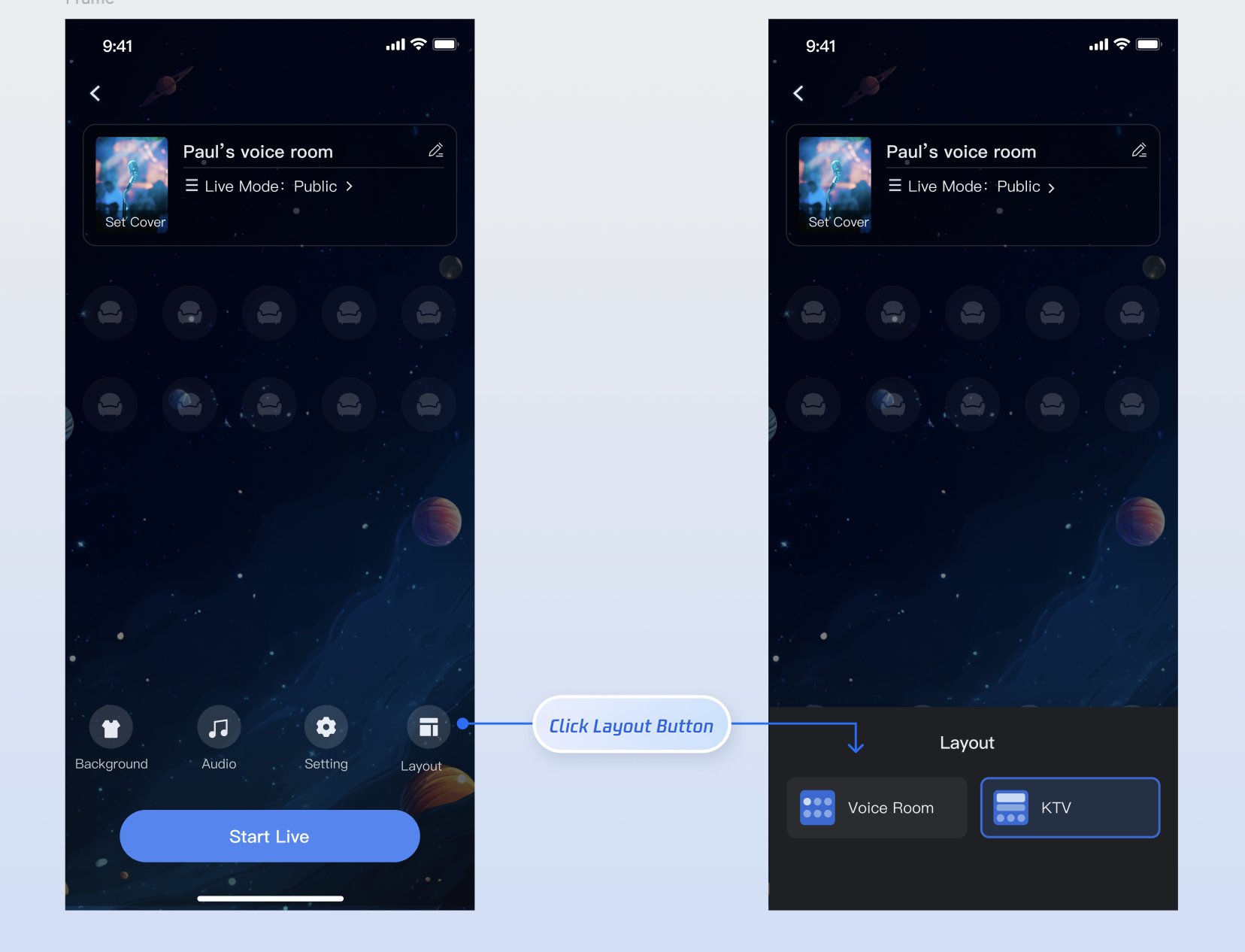
Layout Overview:
| Chat Room | KTV |
Description | Default layout; displays only the seat grid. | Displays a KTV song player above the seat grid. |
Preview | 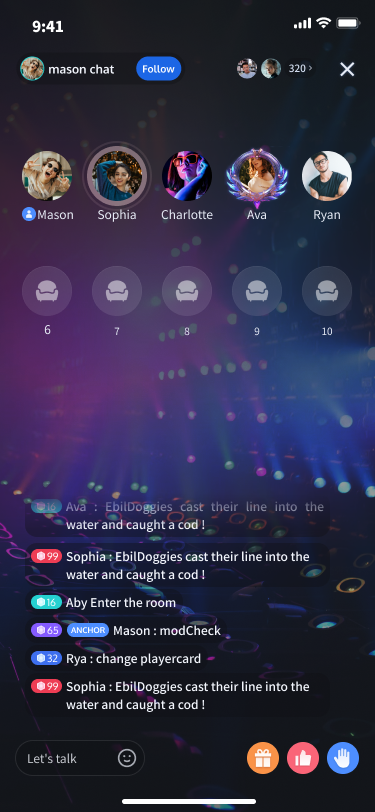 | 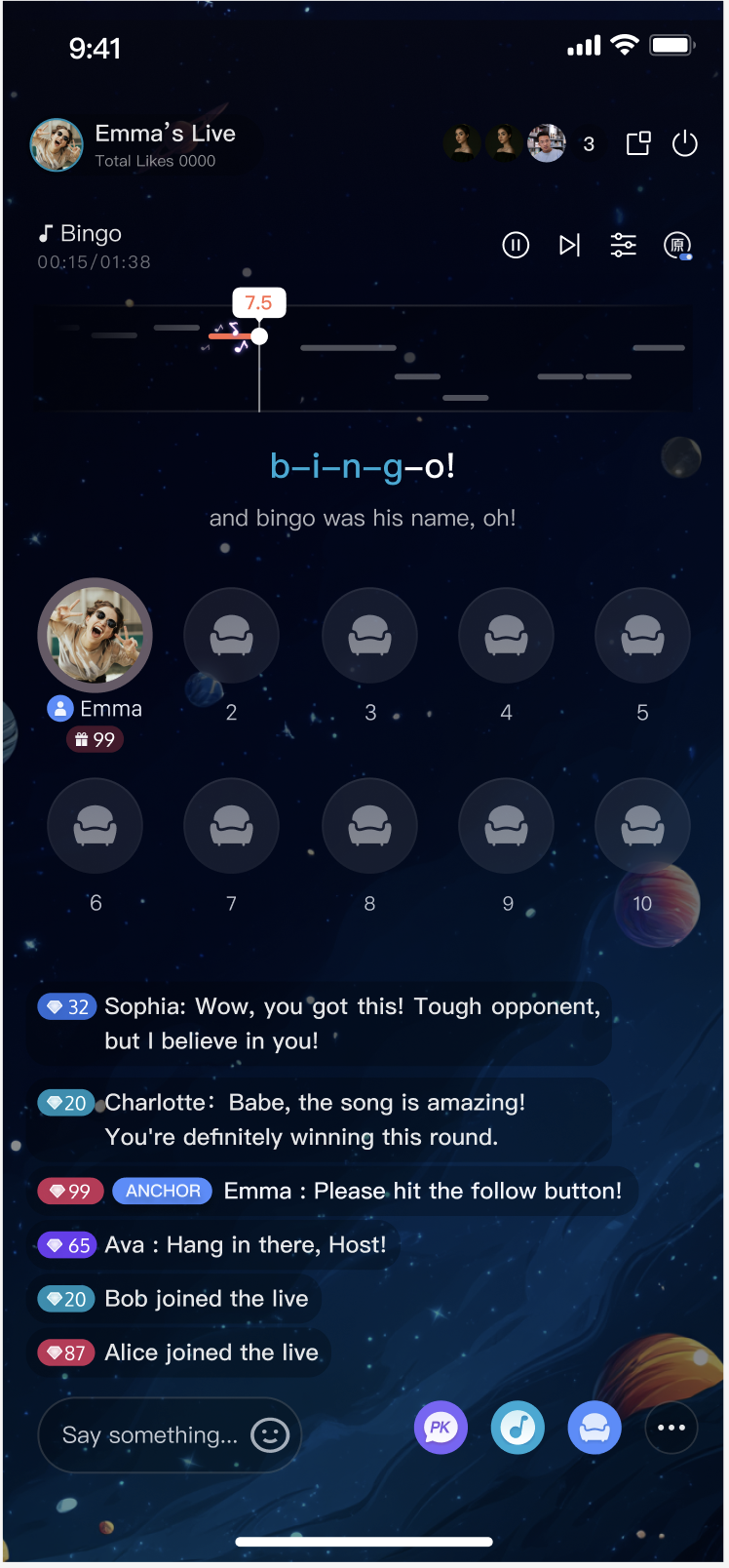 |
Text Customization (String Resources)
TUILiveKit uses standard Res-Common>Values>Strings.xml files to manage the text displayed in the UI. You can directly modify the strings that need adjustment via the XML file: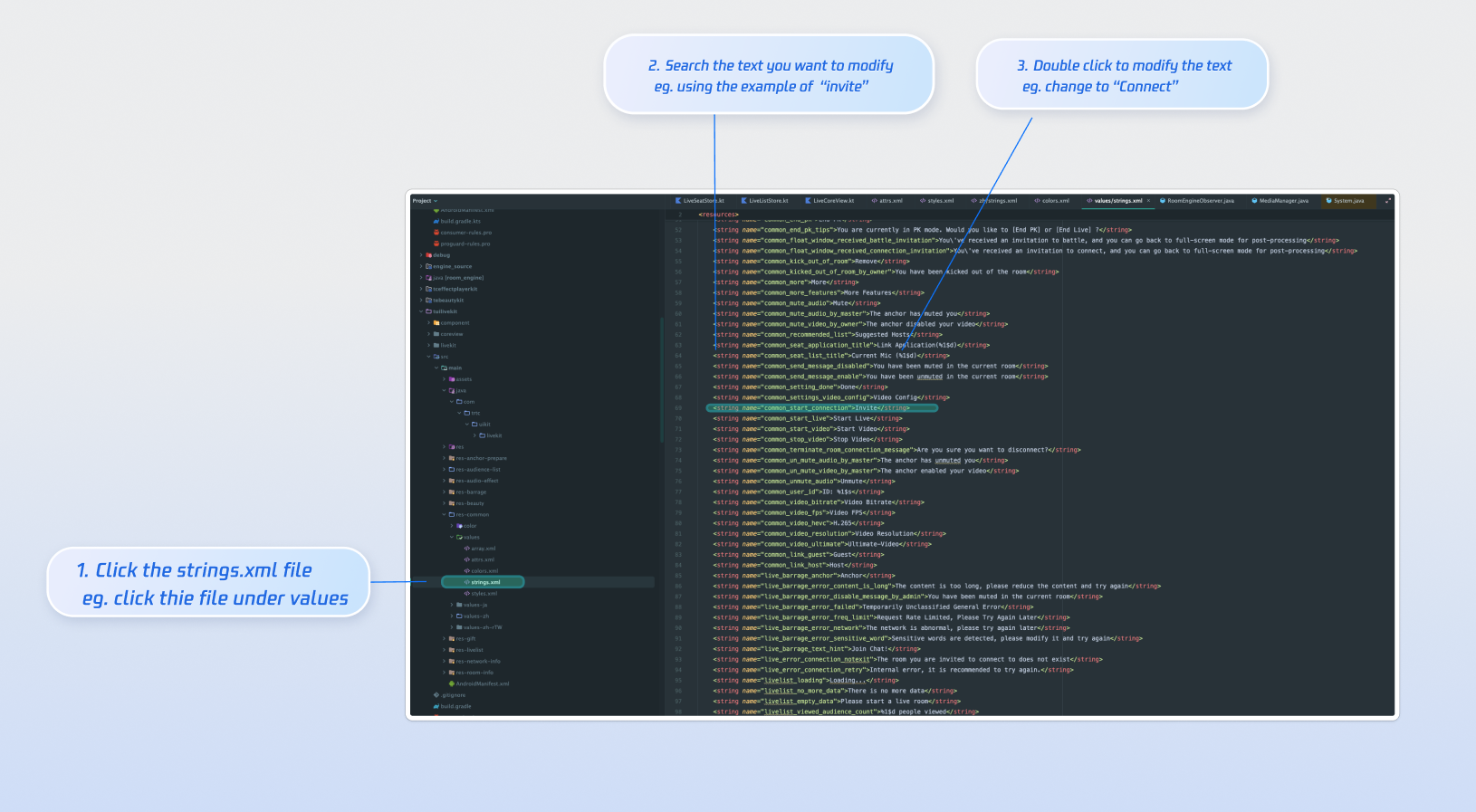
Icon Customization (Drawable Resources)
TUILiveKit uses the standard Android drawable resource folder to manage the image resources for the UI. You can quickly change the custom icons by replacing the resource files. When replacing, ensure that the new file names are consistent with the original file names.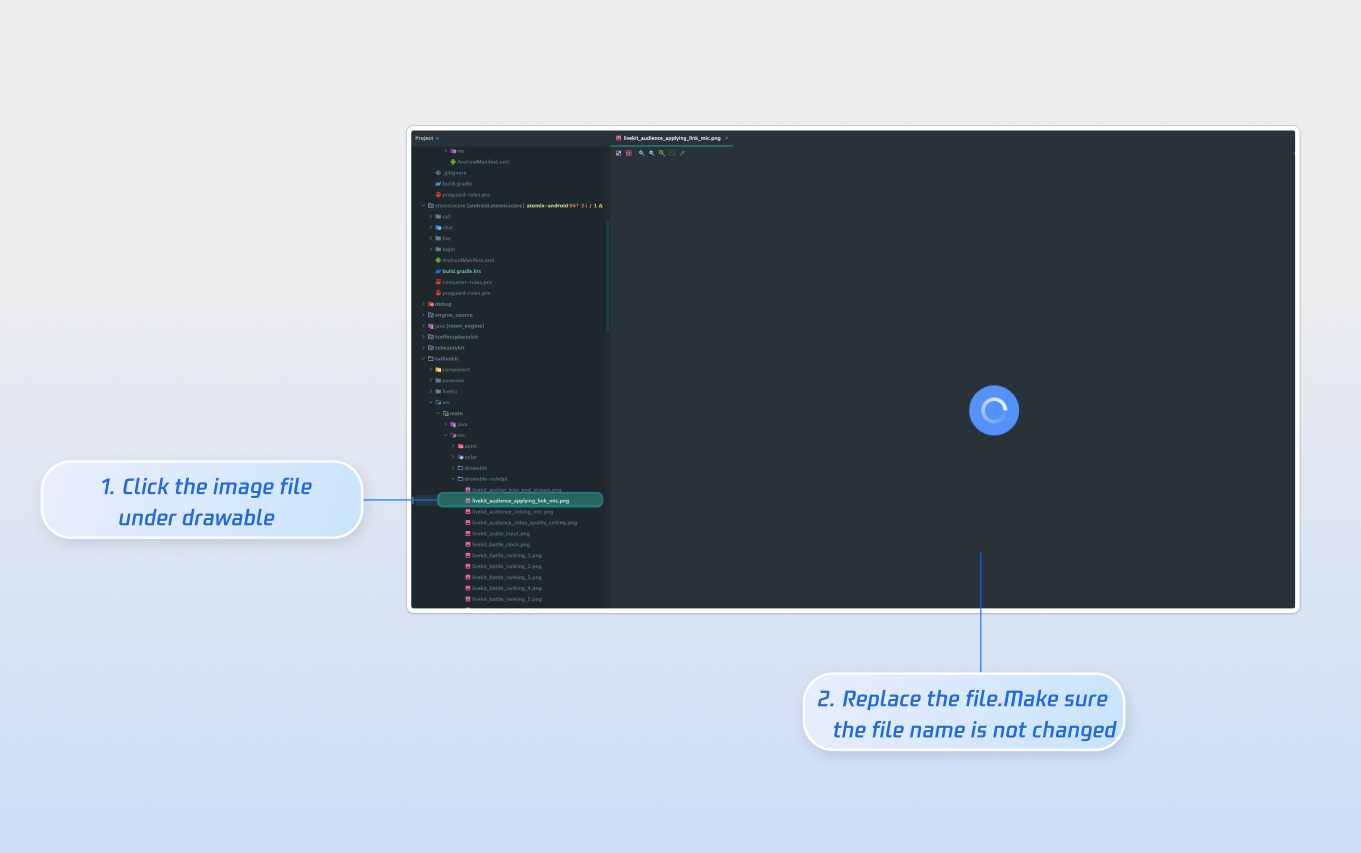
Next Steps
You have now successfully integrated host live streaming. Next, implement features such as audience listening, live stream list and gift system. See the table below for details:
Feature | Description | Integration Guide |
Audience Listening | Enables users to join as audience members, listen to the host, take seats, and view live chat (bullet comments). | |
Live Stream List | Displays a list of live rooms and their details. | |
Gift System | Support custom gift asset configuration, billing system integration, and gift-sending in PK scenarios. |
FAQs
No sound after going live?
Ensure the app has microphone permission. Go to your phone's
App Info > Permissions > Microphone and verify that microphone access is enabled.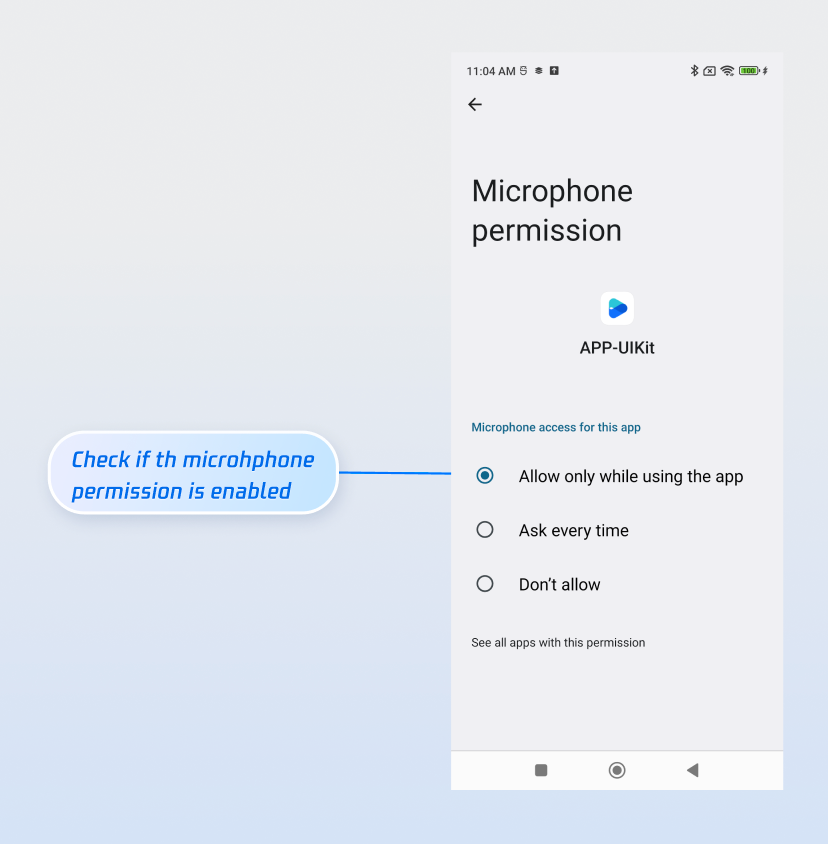
Unable to go live when clicking the start button, with a "Not Logged In" prompt?
피드백