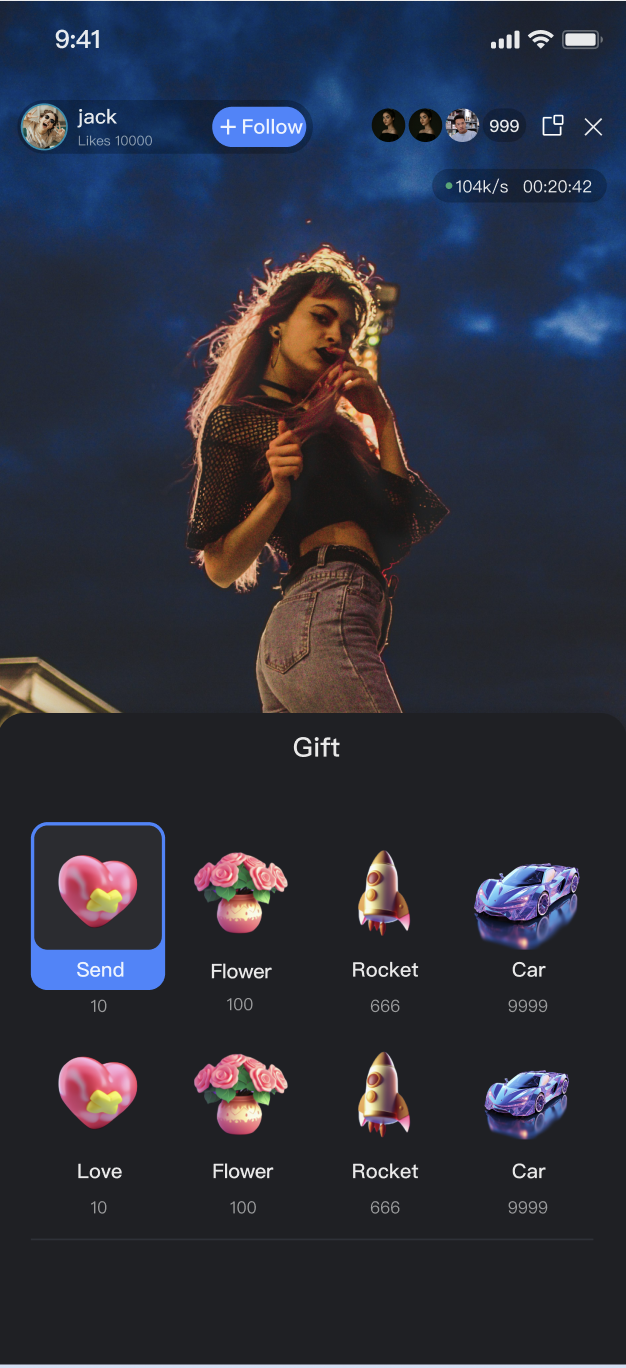
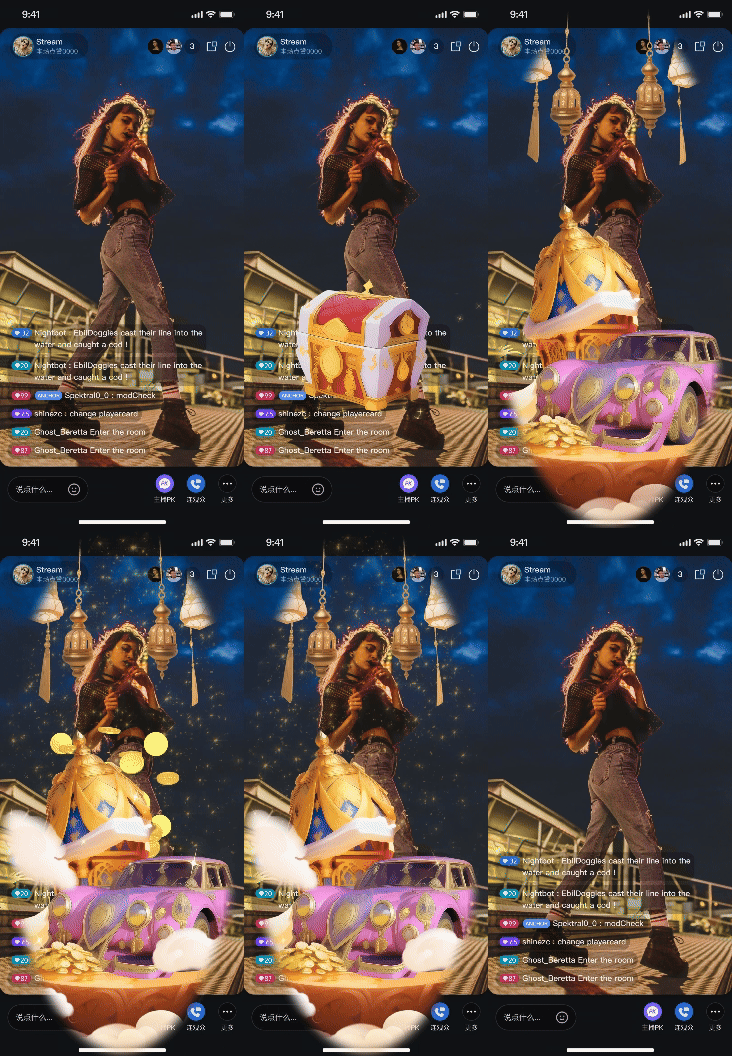
GiftStore is a dedicated module within AtomicXCore for managing live room gifting features. It enables you to build a complete gifting system for your live streaming application, supporting robust monetization and interactive experiences.
Core Features
Gift List Retrieval: Retrieve gift panel data from the server, including gift categories and details.
Send Gift: Viewers can send virtual gifts to the host.
Gift Event Broadcasting: Real-time synchronization of gift events across all clients in the room to trigger animations and barrage notifications.
Core Concepts
|
Gift
| struct
| Represents a gift data model, including ID, name, icon URL, animation resource URL (resourceURL), price (coins), and more. |
GiftCategory
| struct
| Represents a grouping of gifts (e.g., "Popular", "Luxury"). Contains a category name and an array of Gift objects. |
GiftState
| struct
| Represents the current state of the gift module. The core property, usableGifts, is a StateFlow containing the full gift list from the server. |
GiftEvent
| enum
| Defines the event listener for gift events in the live room. Currently, only onReceiveGift is available. This event is broadcast to all users in the room (including the sender) whenever a gift is successfully sent. |
GiftStore
| class
| The core management class for gift features. Used to fetch gift lists, execute send requests, and listen for global gift events. |
Implementation
Step 1: Component Integration
Video Live Streaming: Please refer to Quick Start to integrate AtomicXCore. Voice Chat Room: Please refer to Quick Start to integrate AtomicXCore. Step 2: Initialize and Listen for Gift Events
Obtain a GiftStore instance and set up subscribers to receive gift events and gift list updates.
Implementation
1. Get Instance: Call GiftStore.create(liveID:) to obtain a GiftStore instance bound to the current live room.
2. Subscribe to Events: Subscribe to giftStore.giftEventPublisher to receive .onReceiveGift events.
3. Subscribe to State: Subscribe to giftStore.state to obtain the usableGifts gift list.
Code Example
import Foundation
import AtomicXCore
import Combine
class GiftManager {
private let liveId: String
private let giftStore: GiftStore
private var cancellables = Set<AnyCancellable>()
let giftEventPublisher = PassthroughSubject<GiftEvent, Never>()
let giftListPublisher = CurrentValueSubject<[GiftCategory], Never>([])
init(liveId: String) {
self.liveId = liveId
self.giftStore = GiftStore.create(liveID: liveId)
subscribeToGiftState()
subscribeToGiftEvents()
}
private func subscribeToGiftEvents() {
giftStore.giftEventPublisher
.receive(on: DispatchQueue.main)
.sink { [weak self] event in
self?.giftEventPublisher.send(event)
}
.store(in: &cancellables)
}
private func subscribeToGiftState() {
giftStore.state
.subscribe(StatePublisherSelector(keyPath: \\GiftState.usableGifts))
.receive(on: DispatchQueue.main)
.assign(to: \\.value, on: giftListPublisher)
.store(in: &cancellables)
}
}
Gift List Struct Parameters
GiftCategory Parameter Description
|
categoryID
| String
| Unique ID of the gift category. |
name
| String
| Display name of the gift category. |
desc
| String
| Description of the gift category. |
extensionInfo
| [String: String]
| Extension information field. |
giftList
| | Array of Gift objects contained in this category. |
Gift Parameter Description
|
giftID
| String
| Unique ID of the gift. |
name
| String
| Display name of the gift. |
desc
| String
| Description of the gift. |
iconURL
| String
| Gift icon URL. |
resourceURL
| String
| Gift animation resource URL. |
level
| UInt
| Gift level. |
coins
| UInt
| Gift price. |
extensionInfo
| [String: String]
| Extension information field. |
Step 3: Retrieve Gift List
Call the refreshUsableGifts method to fetch gift data from the server.
Implementation
1. Call API: Call giftStore.refreshUsableGifts (typically after entering the room).
2. Handle Callback: Handle the completion block for error checking.
3. Receive Data: Upon success, the data flows automatically through the giftListPublisher set up in Step 2. Code Example
extension GiftManager {
func fetchGiftList() {
giftStore.refreshUsableGifts { result in
switch result {
case .success:
print("Gift list fetched successfully")
case .failure(let error):
print("Failed to fetch gift list: \\(error.localizedDescription)")
}
}
}
}
Step 4: Send Gift
Trigger the sending logic when a user interacts with the gift panel.
Implementation
1. Prepare Data: Retrieve the selected giftID and quantity (count) from your UI.
2. Call API: Call giftStore.sendGift(giftID:count:completion:).
3. Handle Result: Use the completion block only to handle failures (e.g., balance errors). Successful sends are handled via the global .onReceiveGift event listener to ensure consistency.
Code Example
extension GiftManager {
func sendGift(giftID: String, count: UInt) {
giftStore.sendGift(giftID: giftID, count: count) { result in
switch result {
case .success:
print("Gift \\(giftID) sent successfully")
case .failure(let error):
print("Failed to send gift: \\(error.localizedDescription)")
}
}
}
}
sendGift API Parameters
|
giftID
| String
| The unique ID of the gift to send. |
count
| UInt
| The number of gifts to send. |
completion
| CompletionClosure?
| Callback after sending is complete. |
Advanced Features
The GiftStore module is designed to work seamlessly with your backend infrastructure. This section outlines how to configure assets and integrate advanced playback features.
Gift Asset Configuration
You can fully customize your gift inventory (names, icons, prices, animations) to match your branding.
Implementation
1. Server-Side Configuration: Use the LiveKit server REST API to manage gift information, categories, and multi-language support. See the Gift Configuration Guide. 2. Client Fetch: On the client, call refreshUsableGifts to retrieve configuration data.
3. UI Display: Use the retrieved List<GiftCategory> to render the gift panel.
Configuration Sequence Diagram
Related REST API Interfaces Overview
|
Gift Management | Add Gift Information | |
| Delete Gift Information | |
| Query Gift Information | |
Gift Category Management | Add Gift Category Information | |
| Delete Specific Gift Category Information | |
| Get Specific Gift Category Information | |
Gift Relationship Management | Add Relationship between a Specific Gift Category and Gift | |
| Delete Relationship between a Specific Gift Category and Gift | |
| Get Gift Relationships under a Specific Gift Category | |
Gift Multi-language Management | Add Gift Multi-language Information | |
| Delete Specific Gift Multi-language Information | |
| Get Gift Multi-language Information | |
| Add Gift Category Multi-language Information | |
| Delete Specific Gift Category Multi-language Information | |
| Get Gift Category Multi-language Information | |
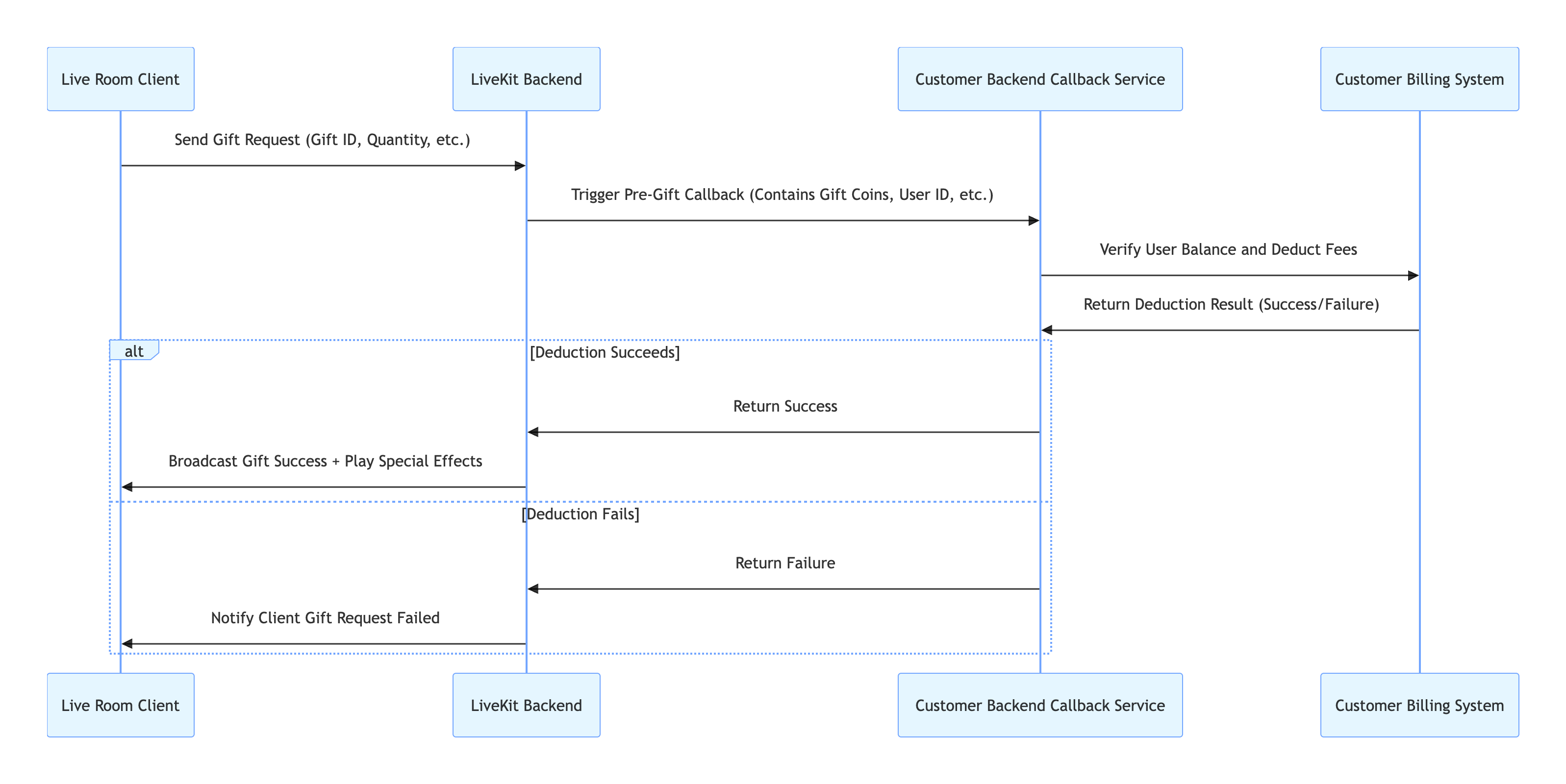
Billing and Gift Deduction Process
AtomicXCore delegates the billing logic to your backend to ensure security and flexibility.
Workflow
2. Client Request: The client calls sendGift.
3. Backend Verification: The LiveKit backend calls your callback URL; your billing system processes the deduction and returns the result.
4. Result Synchronization: If succeeds, AtomicXCore broadcasts the onReceiveGift event; if fails, the completion callback of sendGift receives an error.
Call Flow
Related REST API Interfaces Overview
|
Callback Configuration - Callback before sending a gift | Pre-gifting validation hook. Allows your backend to intercept gift requests to perform necessary checks (e.g., sufficient balance, risk control) before the gift is processed. | |
Full-Screen Animation (SVGA Integration)
When a user sends a luxury gift (e.g., "Rocket", "Carnival"), play a full-screen animation (such as SVGA) to enhance engagement.
Implementation
AtomicXCore does not include a built-in gift animation player. Integrate a third-party library based on your requirements. Below is a comparison of two options:
|
Billing | Free (open source) | |
Integration Method | Manual integration via Gradle | Requires additional integration and authentication |
Formats | SVGA only | SVGA, PAG, WebP, Lottie, MP4, and more |
Performance | Good for files < 10MB | Optimized for large assets & complex layering |
Recommended Scenario | Uniform SVGA format, controllable file size | Multiple formats or higher performance/device compatibility needs |
Basic Solution Implementation: Using SVGAPlayer
1. Integrate SVGAPlayer: In your Podfile, add the dependency for SVGAPlayer and run pod install in the terminal.
target 'YourApp' do
pod 'SVGAPlayer'
end
2. Listen for Gift Events: Subscribe to GiftStore's giftEventPublisher.
3. Parse and Play: When receiving an .onReceiveGift event, check if gift.resourceURL is valid and points to an SVGA file. If so, use SVGAParser to parse the URL and pass the parsed SVGAVideoEntity to the SVGAPlayer instance for playback.
Code Example
import UIKit
import AtomicXCore
import Combine
import SVGAPlayer
class LiveRoomViewController: UIViewController, SVGAPlayerDelegate {
private var giftManager: GiftManager!
private var cancellables = Set<AnyCancellable>()
private let svgaPlayer = SVGAPlayer()
private let svgaParser = SVGAParser()
override func viewDidLoad() {
super.viewDidLoad()
setupSVGAPlayer()
}
private func setupSVGAPlayer() {
svgaPlayer.delegate = self
svgaPlayer.loops = 1
svgaPlayer.clearsAfterStop = true
view.addSubview(svgaPlayer)
svgaPlayer.frame = view.bounds
svgaPlayer.isHidden = true
}
func setupGiftSubscription(liveId: String) {
self.giftManager = GiftManager(liveId: liveId)
giftManager.giftEventPublisher
.sink { [weak self] event in
guard case .onReceiveGift(_, let gift, _, _) = event else { return }
if !gift.resourceURL.isEmpty, let url = URL(string: gift.resourceURL) {
self?.playAnimation(from: url)
}
}
.store(in: &cancellables)
}
private func playAnimation(from url: URL) {
svgaParser.parse(with: url, completionBlock: { [weak self] videoItem in
guard let self = self, let videoItem = videoItem else { return }
DispatchQueue.main.async {
self.svgaPlayer.videoItem = videoItem
self.svgaPlayer.isHidden = false
self.svgaPlayer.startAnimation()
}
}, failureBlock: { error in
print("Failed to parse SVGA animation: \\(error?.localizedDescription ?? "unknown error")")
})
}
func svgaPlayerDidFinishedAnimation(_ player: SVGAPlayer!) { }
}
Display Gift Notifications in Barrage
Enhance social interaction by displaying a system notification in the public barrage (chat) area whenever a gift is sent (e.g., "[User] sent [Gift] x [Count]").
Implementation
1. Listen for Events: Subscribe to giftStore.giftEventPublisher.
2. Extract Information: After receiving the .onReceiveGift event, extract the sender, gift, and count.
3. Get Barrage Store: Use BarrageStore.create(liveID:) to get the instance bound to the current room.
4. Compose Message: Create a Barrage struct, set messageType = .text, and set textContent to the composed string (e.g., "[sender.userName] sent [gift.name] x [count]").
5. Insert Locally: Call barrageStore.appendLocalTip(message: giftTip) to insert the message into the local list.
Code Example
private func setupGiftToBarrageFlow() {
giftStore.giftEventPublisher
.receive(on: DispatchQueue.main)
.sink { [weak self] event in
guard case .onReceiveGift(_, let gift, let count, let sender) = event else { return }
guard let self = self else { return }
let tipText = "\\(sender.userName) sent \\(gift.name) x \\(count)"
var giftTip = Barrage()
giftTip.messageType = .text
giftTip.textContent = tipText
self.barrageStore.appendLocalTip(message: giftTip)
}
.store(in: &cancellables)
}
API Documentation
For complete details on all public interfaces, properties, and methods of GiftStore and related classes, see the official API documentation for AtomicXCore. Key stores referenced in this guide include: |
GiftStore | Fetch gift list, send/receive gifts, listen for gift events (including sender and gift details). | |
BarrageStore | Send text/custom barrage, maintain barrage list, listen to barrage status in real time. | |
FAQs
The gift list in GiftStore is empty. What should I do?
You must call refreshUsableGifts(completion) to fetch gift data from your backend. Ensure your backend is configured with gift data via the server REST API.
How do I implement multi-language display for gifts (e.g., Chinese, English)?
Use the GiftStore.setLanguage(language: String) API before calling refreshUsableGifts, passing the target language code (e.g., "en" or "zh-CN"). The server will return gift names and descriptions in the specified language.
I called sendGift, but the gift animation plays twice. Why?
The onReceiveGift event is broadcast to all room members, including the sender. If you update the UI both in the sendGift completion callback and in the onReceiveGift event, the animation will play twice.
Best Practice: Only update the UI (e.g., play animations, show barrage) in the onReceiveGift event handler. Use the sendGift completion callback only for handling failures (such as "Send failed" or "Insufficient balance").
Where is the gift deduction logic implemented?
Gift deduction is handled entirely by your billing system. AtomicXCore integrates with your billing system via a backend callback. When the client calls sendGift, your backend performs the deduction. After returning the result to the AtomicXCore backend, it determines whether to broadcast the gift event.
Will gift notifications be blocked by mute or message frequency controls?
No. Gift notifications (onReceiveGift events) are not affected by mute or frequency controls and are always delivered reliably.
What should I do if gift animation playback stutters?
Check your SVGA file size; the basic player recommends files no larger than 10MB. For large or complex animations, consider integrating the advanced effects player provided by TUILiveKit for improved performance.