tencent cloud

Tencent Real-Time Communication

Release Notes and Announcements
Release Notes
Recent Product Announcement
TRTC Live (TUILiveKit) Product Launch Announcement
TRTC Conference Official Editions Launched
The commercial version of Conference is coming soon
Terms and Conditions Applicable to $9.9 Starter Package
Rules for the "First Subscription $100 Discount" Promotion
Announcement on the Start of Beta Testing for Multi-person Audio and Video Conference
TRTC Call Official Editions Launched
License Required for Video Playback in New Version of LiteAV SDK
TRTC to Offer Monthly Packages
Product Introduction
Overview
Concepts
Features
Strengths
Use Cases
Performance Statistics
Tencent RTC Quickplay: Experience Ultimate Real-Time Audio and Video Interaction!
Purchase Guide
Billing Overview
Free Minutes
Monthly subscription
Pay-as-you-go
TRTC Overdue and Suspension Policy
FAQs
Refund Instructions
User Tutorial
Free Demo
Call
Overview
Activate the Service
Run Demo
Integration
Offline Call Push
Conversational Chat
On-Cloud Recording
AI Noise Reduction
UI Customization
Calls integration to Chat
Additional Features
No UI Integration
Server APIs
Client APIs
Solution
ErrorCode
Release Notes
FAQs
Conference
Overview(TUIRoomKit)
Activate the Service (TUIRoomKit)
Run Demo(TUIRoomKit)
Integration(TUIRoomKit)
Screen Sharing (TUIRoomKit)
Schedule a meeting (TUIRoomKit)
In-meeting Call (TUIRoomKit)
UI Customization(TUIRoomKit)
Virtual Background (TUIRoomKit)
Conference Control (TUIRoomKit)
Cloud Recording (TUIRoomKit)
AI Noise Reduction (TUIRoomKit)
In-Conference Chat (TUIRoomKit)
Robot Streaming (TUIRoomKit)
Enhanced Features (TUIRoomKit)
Client APIs (TUIRoomKit)
Server APIs (TUIRoomKit)
FAQs (TUIRoomKit)
Error Code (TUIRoomKit)
SDK Update Log (TUIRoomKit)
Live
Billing of Video Live Component
Overview
Activating the Service (TUILiveKit)
Run Demo
No UI Integration
UI Customization
Live Broadcast Monitoring
Video Live Streaming
Voice Chat Room
Advanced Features
Client APIs
Server APIs
Error Codes
Release Notes
FAQs
RTC Engine
Activate Service
SDK Download
API Examples
Usage Guidelines
API Reference Manual
Advanced Features
AI Integration
Overview
Configure MCP Server
Install Skills
Integration Guide
FAQ
RTC RESTFUL API
History
Introduction
API Category
Room Management APIs
Stream mixing and relay APIs
On-cloud recording APIs
Data Monitoring APIs
Pull stream Relay Related interface
Web Record APIs
AI Service APIs
Cloud Slicing APIs
Cloud Moderation APIs
Making API Requests
Call Quality Monitoring APIs
Usage Statistics APIs
Data Types
Appendix
Error Codes
Console Guide
Application Management
Package Management
Usage Statistics
Monitoring Dashboard
Development Assistance
Solution
Real-Time Chorus
FAQs
Migration Guide
Billing
Features
UserSig
Firewall Restrictions
How to Downsize Installation Package
Android and iOS
Web
Flutter
Electron
TRTCCalling for Web
Audio and Video Quality
Others
Legacy Documentation
RTC RoomEngine SDK(Old)
Integrating TUIRoom (Web)
Integrating TUIRoom (Android)
Integrating TUIRoom (iOS)
Integrating TUIRoom (Flutter)
Integrating TUIRoom (Electron)
TUIRoom APIs
On-Cloud Recording and Playback (Old)
RTC Analytics Monthly Packages (Previous Version)
Protocols and Policies
Compliance
Security White Paper
Notes on Information Security
Service Level Agreement
Apple Privacy Policy: PrivacyInfo.xcprivacy
TRTC Policy
Privacy Policy
Data Processing And Security Agreement
Glossary

Account Management

PDF
Focus Mode
Font Size
Last updated: 2025-12-22 16:56:38
Log in to the Chat console, navigate to the target application to access the application management page, and select Chat > Users in the left sidebar. You can manage accounts according to your business needs.
Note:
Live and Instant Messaging (Chat) share the same account system.

Creating an Account

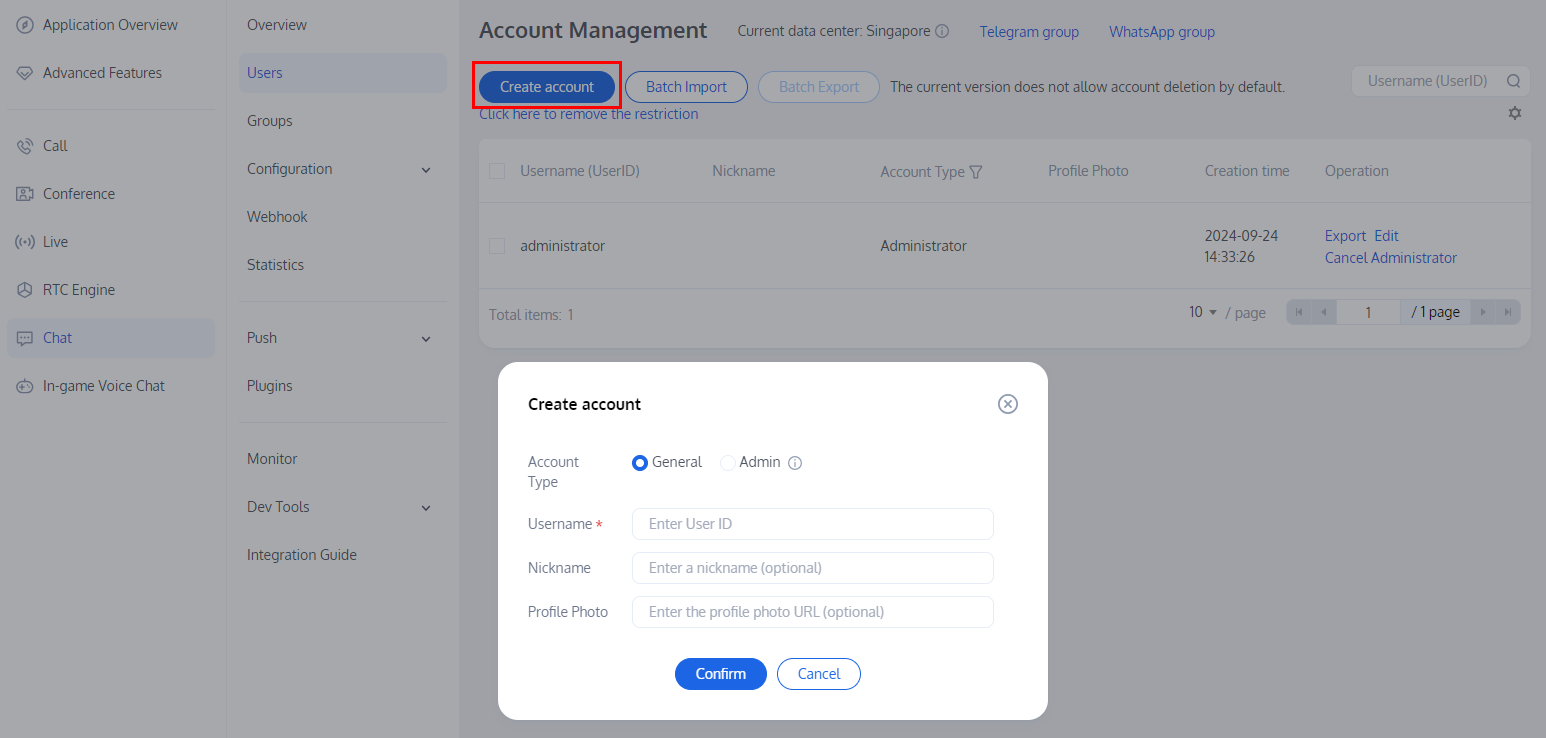
1. On the Account Management page, click Create account.
2. Configure the following parameters in the pop-up dialog box:


Account Type: Select General or Admin. The role of app admin has the highest level of management permissions. It can call RESTful APIs to perform operations such as creating or disbanding a group, and sending messages to all members. Each app supports up to 10 admins.
Username: Enter the user ID. This field is required.
Nickname: Enter the nickname. This field is optional.
Profile Photo: Enter the URL to the user's profile photo. This field is optional.
3. Click Confirm.
4. After the account is created, you can see the account's username, nickname, type, profile photo, and creation time in the account list.

Deleting Accounts

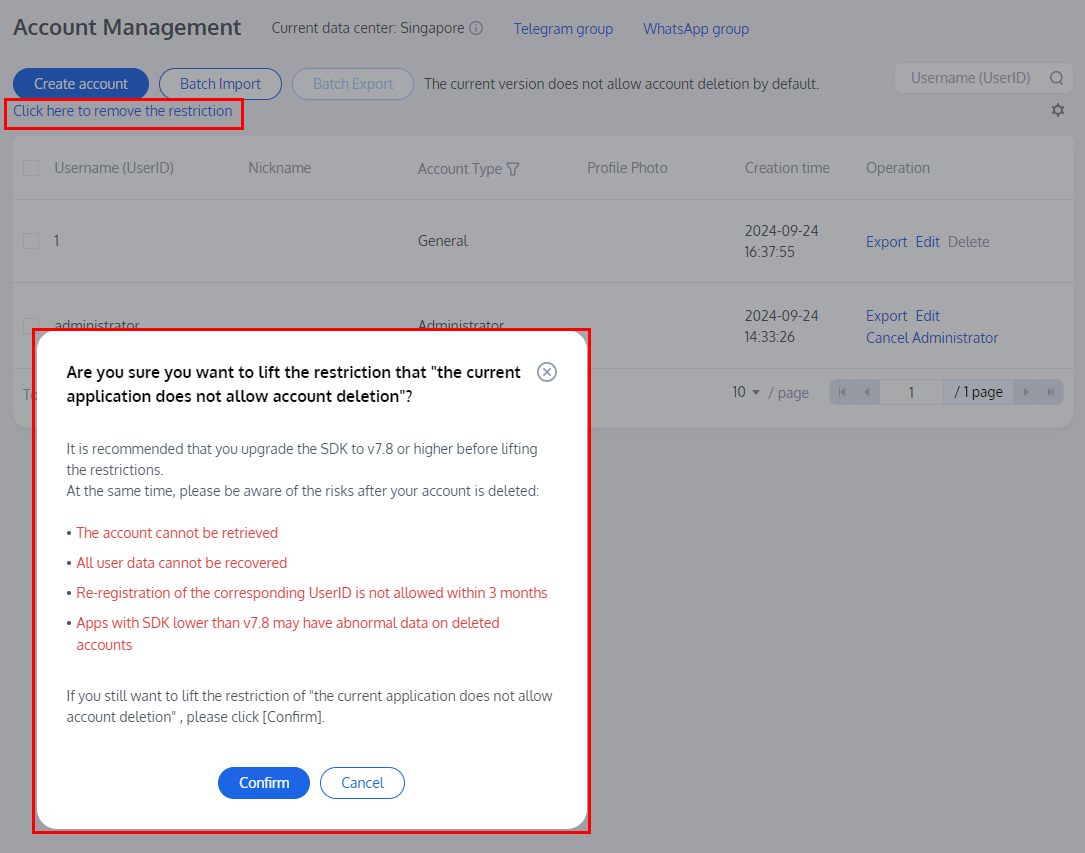
1. By default, account deletion is not permitted. However, this restriction can be lifted to allow for account deletion. To do so, click on Click here to remove the restriction. In the confirmation dialog that appears, after acquainting yourself with the associated risks, click Confirm to lift the restriction.


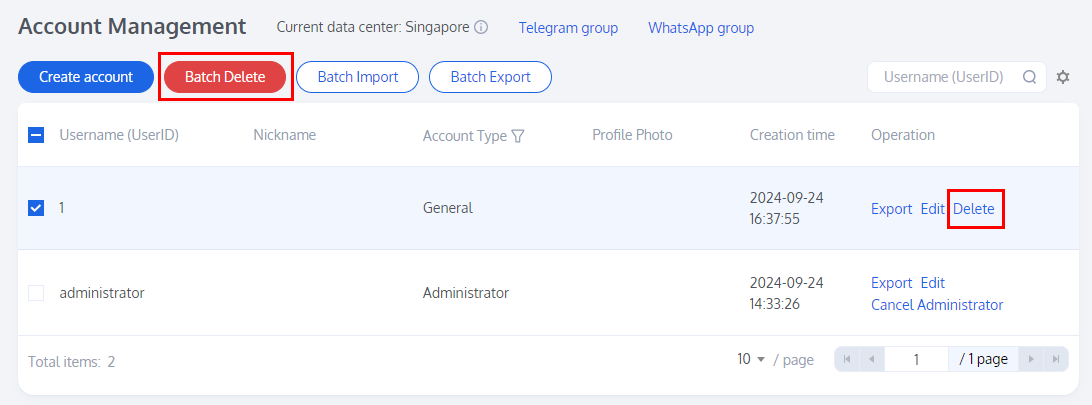
2. On the Account Management page, select the account(s) you wish to delete from the list and click Batch Delete.

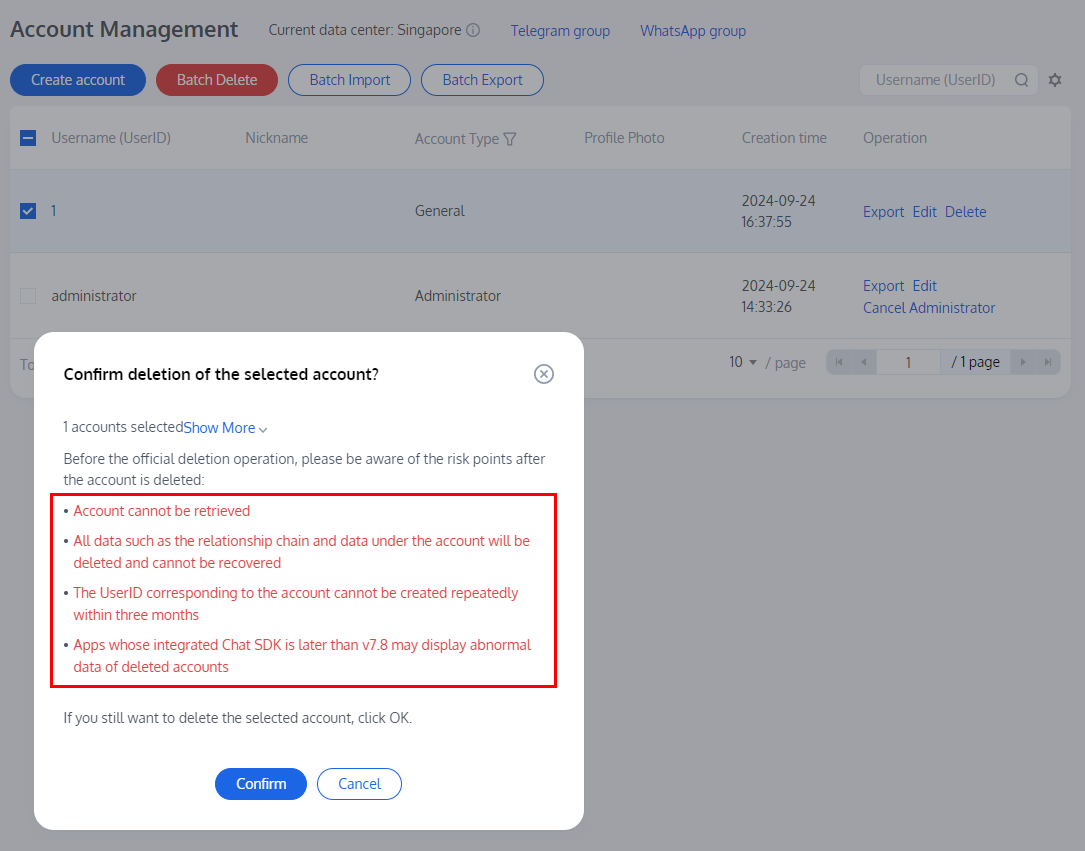
3. In the confirmation dialog that appears, after understanding the associated risks, click Confirm to delete the account. Please be aware that once deleted, the data cannot be recovered. Exercise caution in this operation.


Editing an Account

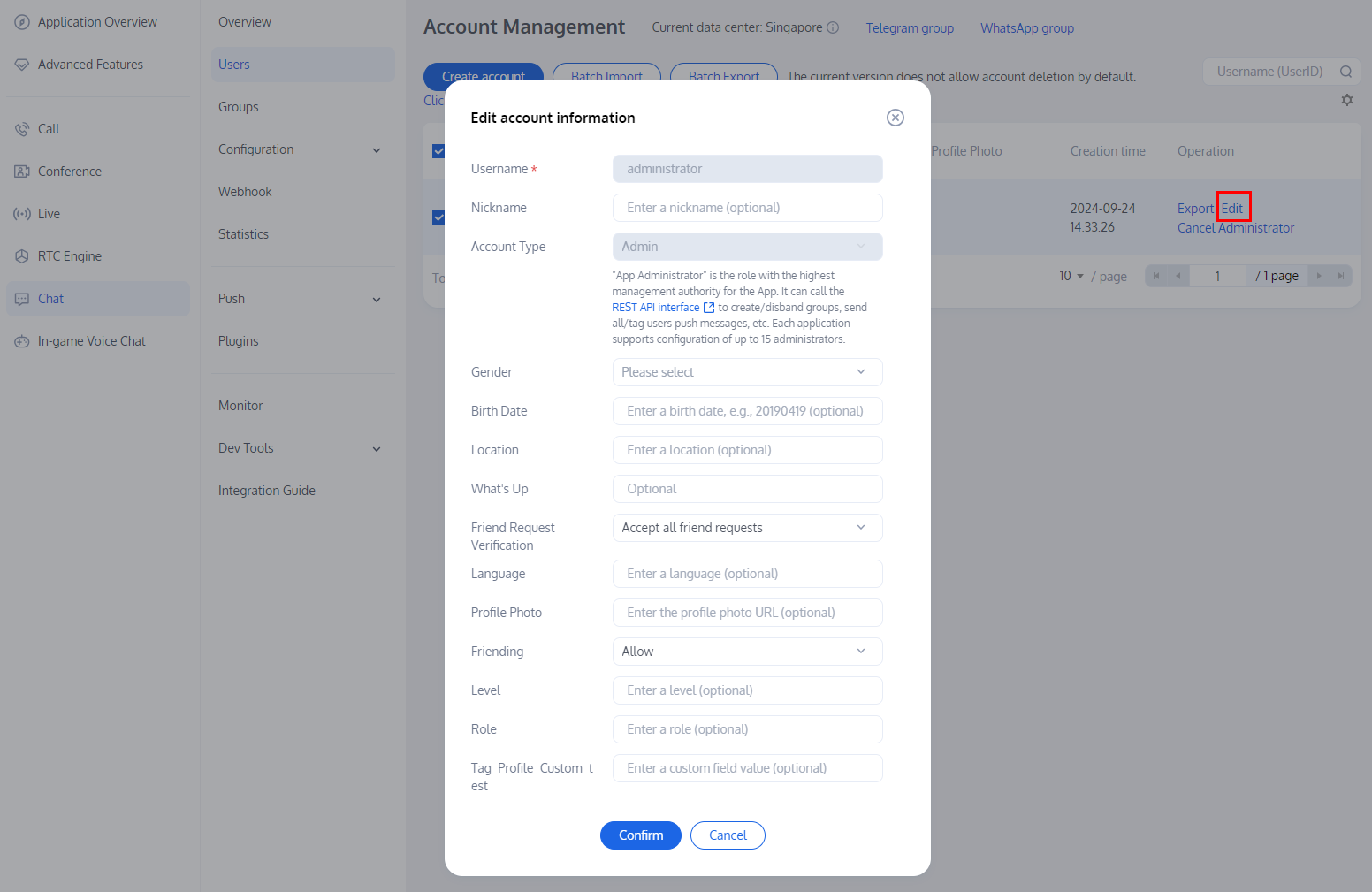
1. On the Account Management page, locate the account to edit and click Edit in the Operation column.
2. Configure the following parameters in the pop-up dialog box:
Username: This field cannot be edited.
Nickname: You can edit the user's nickname. This field is optional.
Account Type: This field cannot be edited.
Gender: You can edit the user's gender. This field is optional.
Birth Date: You can edit the user's birthday. This field is optional.
Location: You can edit the location. This field is optional.
What's Up: You can edit the status. This field is optional.
Friend Request Verification: You can edit the friend request verification mode.
Language: You can edit the language. This field is optional.
Profile Photo: You can edit the profile photo. This field is optional.
Message settings: You can select message settings. This field is optional.
Friending: You can specify whether the admin prohibits the user from initiating a friend request. This field is optional.
Level: You can edit the level. This field is optional.
Role: You can edit the role. This field is optional.


3. Click Confirm.

Exporting Accounts

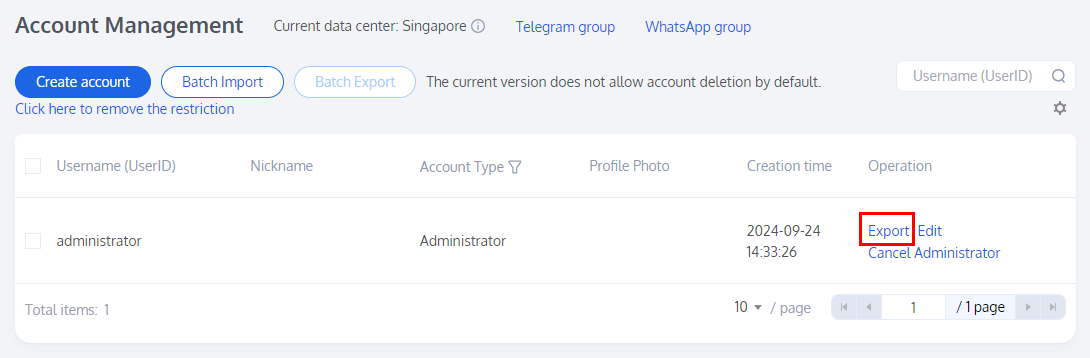
1. Single account export: On the Account Management page, locate the account to export and click Export in the Operation column.

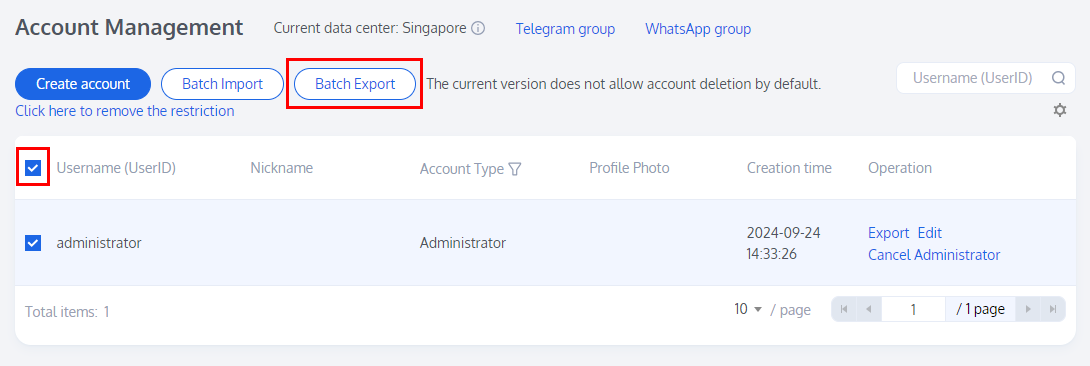
2. Batch export: On the Account Management page, select the accounts to export and click Batch Export above the account list.

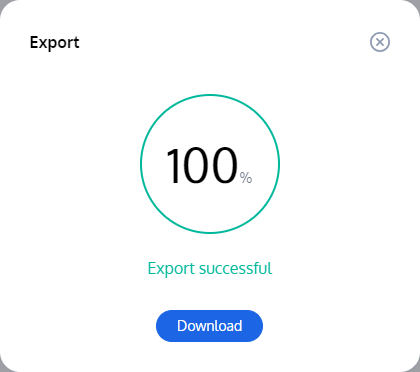
3. In the pop-up dialog box that reads Export successful, click Download.


Help and Support

Was this page helpful?

Help us improve! Rate your documentation experience in 5 mins.

Feedback