Audience List (Flutter)
Download
Focus Mode
Font Size
This documentation guides you through using the core component of the AtomicXCore SDK, LiveCoreWidget, to quickly build a basic live streaming app with host broadcasting and audience viewing functionality.
Core Features
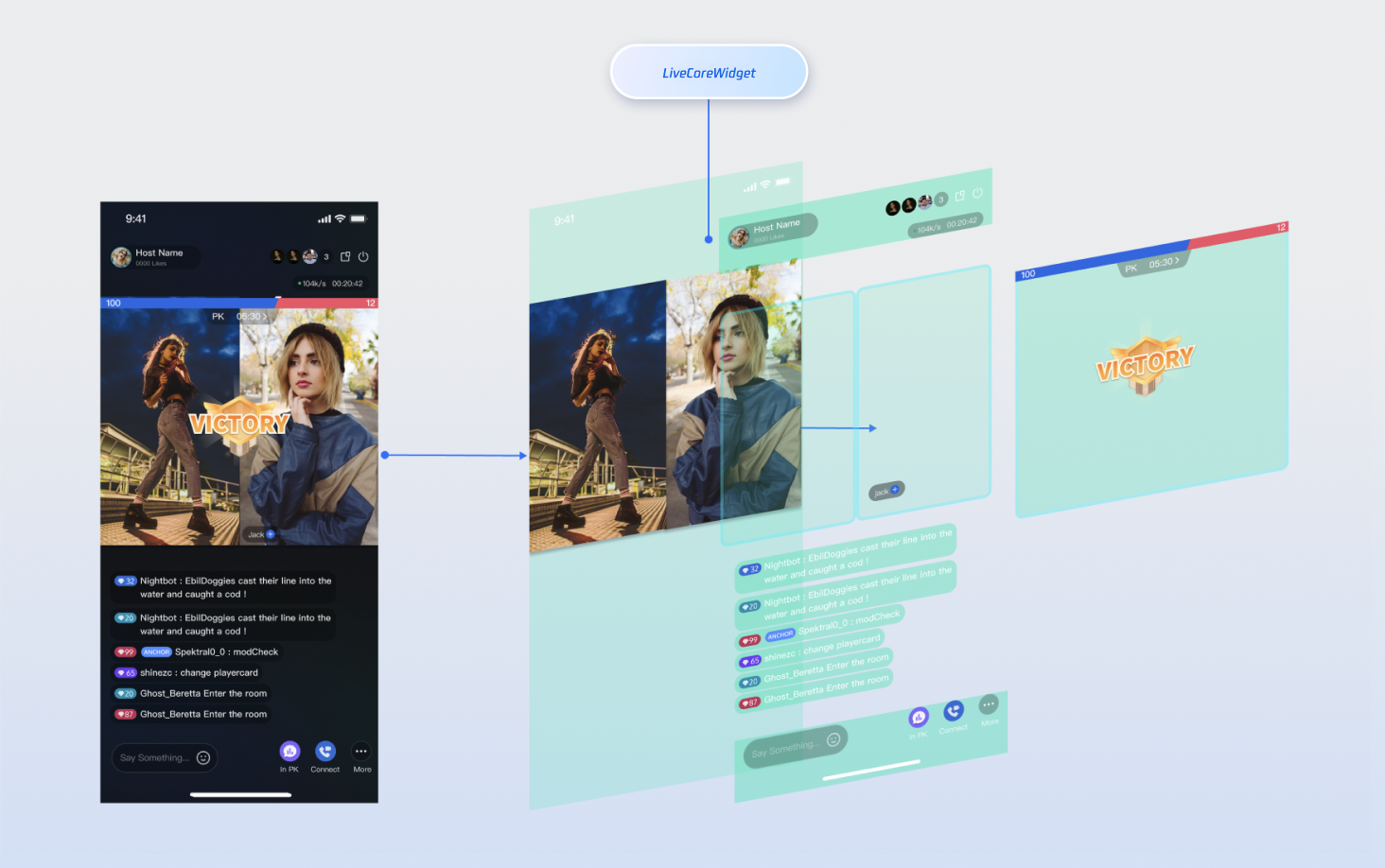
LiveCoreWidget is a lightweight widget built for live streaming scenarios. As the foundation of your live streaming implementation, it abstracts away the complexities of streaming, co-hosting, and audio and video rendering. Use LiveCoreWidget as the video canvas for your live stream, so you can focus on building your UI and interactive features.
The image below shows how LiveCoreWidget fits into the live streaming interface:
Preparations
Step 1: Activate the Service
See Activate the Service to obtain either the trial or paid version of the SDK. Then, go to the Console for application management, and get the following:
SDKAppID: Application identifier (required). TRTC uses SDKAppID for billing and details.SDKSecretKey: Application secret key.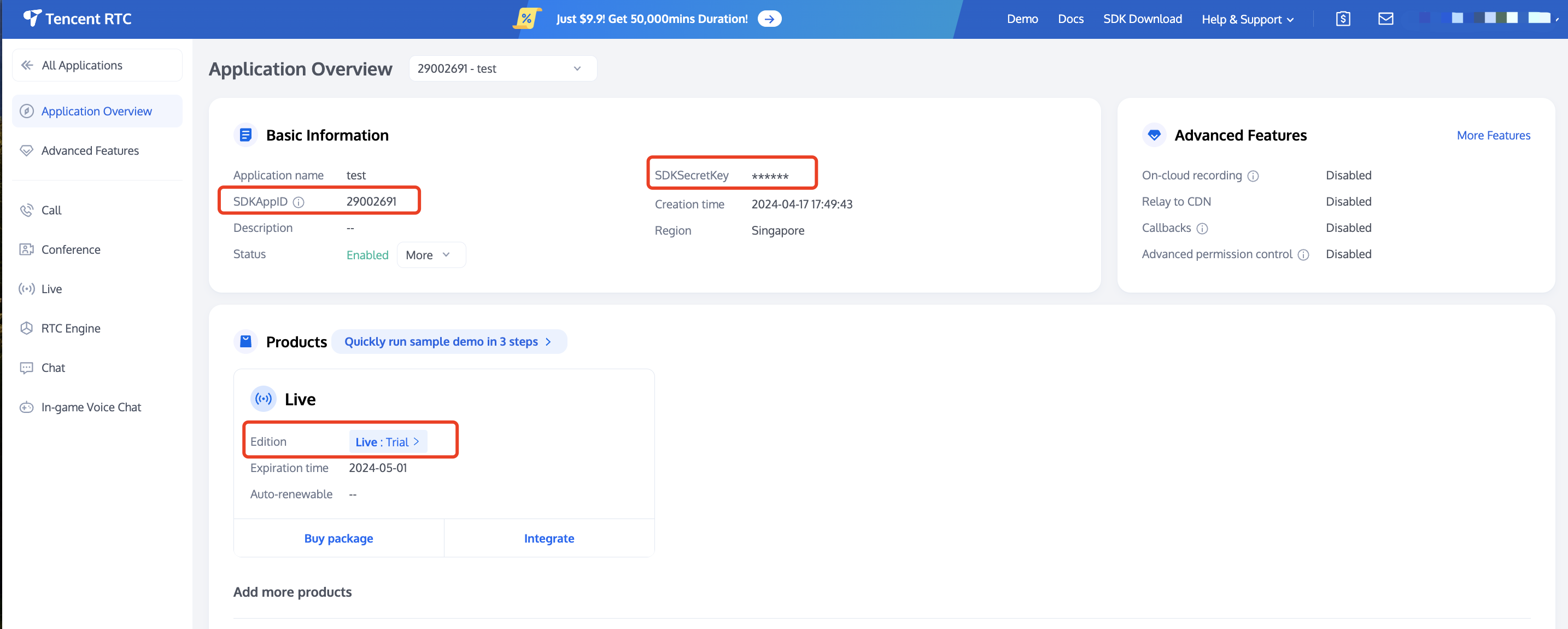
Step 2: Import AtomicXCore into Your Project
1. Install the SDK: Add the
atomic_x_core dependency in your pubspec.yaml file and execute flutter pub get.dependencies:atomic_x_core: ^3.6.0
2. Configure project permissions: Both Android and iOS projects require configuration.
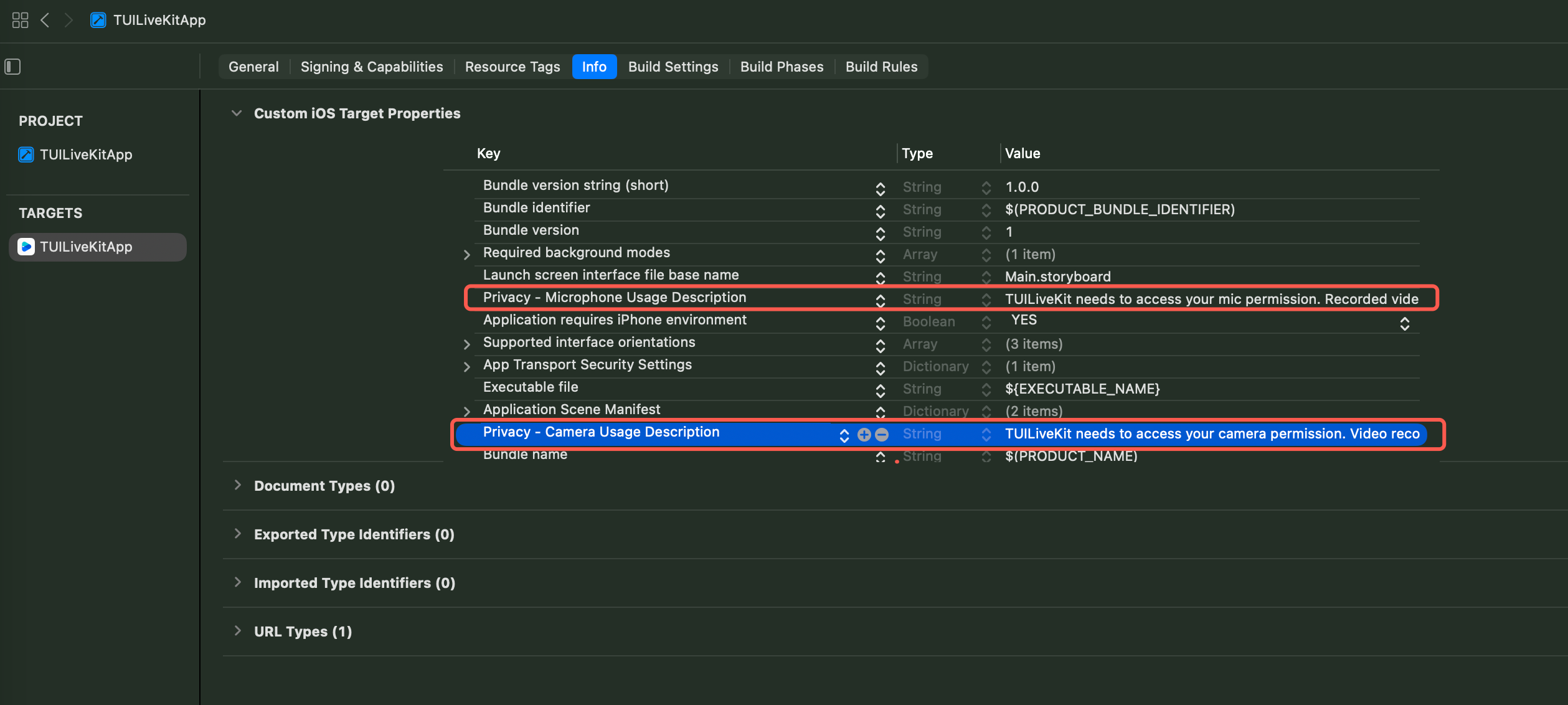
Add camera and microphone permissions to your
android/app/src/main/AndroidManifest.xml file.<uses-permission android:name="android.permission.CAMERA" /><uses-permission android:name="android.permission.RECORD_AUDIO" />
Add camera and microphone usage descriptions to your app’s Podfile in the
iOS directory and to the Info.plist file in the ios/Runner directory.Podfile:
post_install do |installer|installer.pods_project.targets.each do |target|flutter_additional_ios_build_settings(target)target.build_configurations.each do |config|config.build_settings['GCC_PREPROCESSOR_DEFINITIONS'] ||= ['$(inherited)','PERMISSION_MICROPHONE=1','PERMISSION_CAMERA=1',]endendend
Info.plist:
<key>NSCameraUsageDescription</key><string>TUILiveKit needs to access your camera permission. Video recording with picture only after enabling.</string><key>NSMicrophoneUsageDescription</key><string>TUILiveKit needs to access your mic permission. Recorded video will have sound when enabled.</string>
Step 3: Implement Login Logic
Call
LoginStore.shared.login in your project to log in. This is the key premise for using all functions of AtomicXCore.Important:
It is recommended to call
LoginStore.shared.login after successful log-in to your App's user account to ensure clear and consistent business logic.import 'package:flutter/material.dart';import 'package:atomic_x_core/atomicxcore.dart';void main() async {WidgetsFlutterBinding.ensureInitialized();final result = await LoginStore.shared.login(sdkAppID: 1400000001, // replace with your sdkAppIDuserID: "test_001", // replace with your userIDuserSig: "xxxxxxxxxxx", // replace with your userSig);if (result.isSuccess) {debugPrint("login success");} else {debugPrint("login failed code: ${result.errorCode}, message: ${result.errorMessage}");}runApp(const MyApp());}
Login API parameters:
Parameter | Type | Note |
sdkAppID | int | |
userID | String | The unique ID for the current user. Only letters, numbers, hyphens, and underscores are allowed. To avoid login conflicts across devices, do not use simple IDs like 1, 123, etc. |
userSig | String | Credential for TRTC authentication. Please note: In development environment: You can use the local GenerateTestUserSig.genTestSig function to generate a UserSig or generate a temporary UserSig via the UserSig Generation Tool.In production environment: To prevent SecretKey leakage, always generate UserSig on your server. For details, see Generating UserSig on the Server. |
Building a Basic Live Room
Step 1: Host Video Streaming Setup
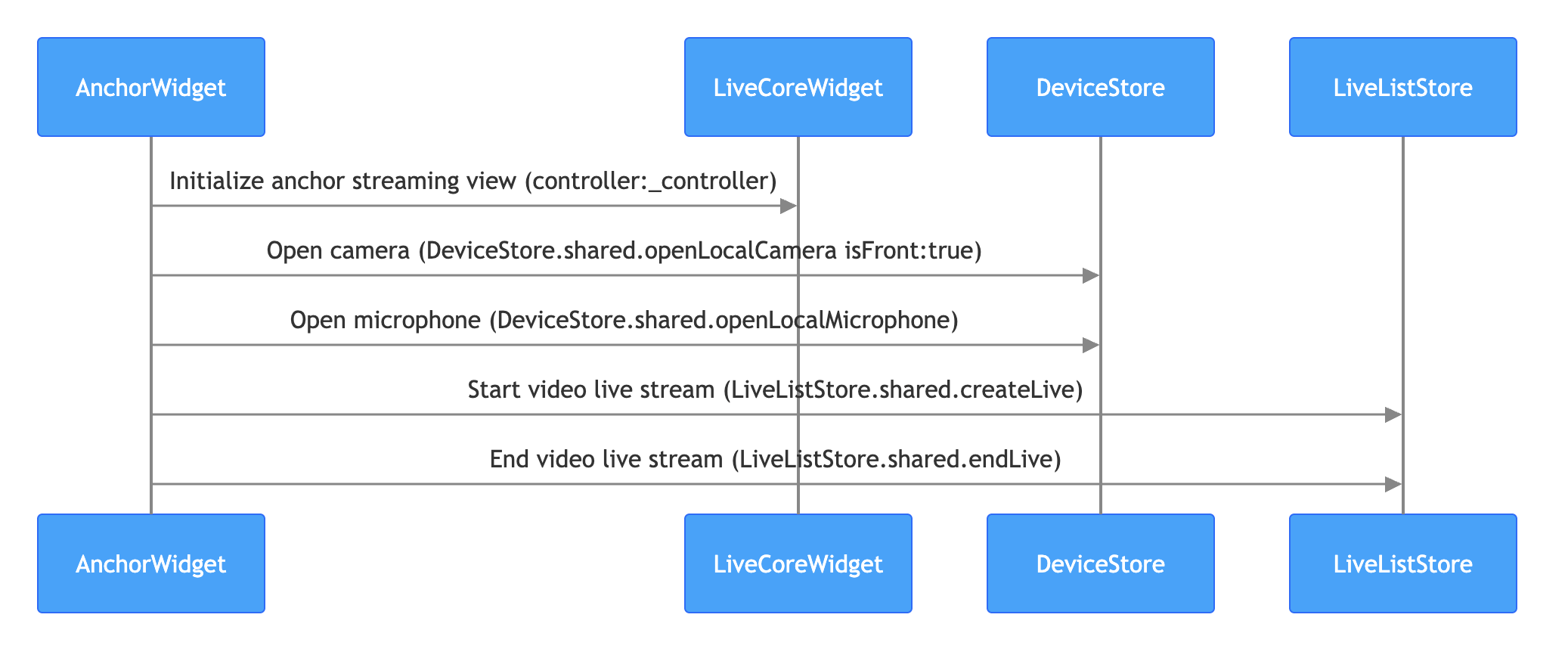
Follow these steps to quickly set up host video streaming:
Note:
For a complete host streaming implementation, see live_room_anchor_widget.dart in the TUILiveKit open-source project.
1. Initialize Host Streaming View
On your host page, create a
LiveCoreWidget instance and control the live stream behavior through LiveCoreController.import 'package:flutter/material.dart';import 'package:atomic_x_core/atomicxcore.dart';/// YourAnchorPage represents your anchor starts live streaming pageclass YourAnchorPage extends StatefulWidget {final String liveId;const YourAnchorPage({super.key, required this.liveId});@overrideState<YourAnchorPage> createState() => _YourAnchorPageState();}class _YourAnchorPageState extends State<YourAnchorPage> {// 1. Create a LiveCoreController instancelate final LiveCoreController _controller;@overridevoid initState() {super.initState();// 2. Initialize the controller_controller = LiveCoreController.create();// 3. Set up live streaming ID_controller.setLiveID(widget.liveId);}@overrideWidget build(BuildContext context) {return Scaffold(body: Stack(children: [// 4. Load the broadcaster stream page to your viewLiveCoreWidget(controller: _controller),// Your other UI components],),);}}
2. Turn on the camera and microphone
Call
DeviceStore.shared.openLocalCamera and DeviceStore.shared.openLocalMicrophone to enable the camera and microphone. LiveCoreWidget will automatically preview the camera video stream:import 'package:flutter/material.dart';import 'package:atomic_x_core/atomicxcore.dart';/// YourAnchorPage represents your anchor starts live streaming pageclass YourAnchorPage extends StatefulWidget {final String liveId;const YourAnchorPage({super.key, required this.liveId});@overrideState<YourAnchorPage> createState() => _YourAnchorPageState();}class _YourAnchorPageState extends State<YourAnchorPage> {late final LiveCoreController _controller;@overridevoid initState() {super.initState();_controller = LiveCoreController.create();_controller.setLiveID(widget.liveId);// Turn on the device_openDevices();}void _openDevices() {// 1. Open front cameraDeviceStore.shared.openLocalCamera(true);// 2. Turn on the microphoneDeviceStore.shared.openLocalMicrophone();}@overrideWidget build(BuildContext context) {return Scaffold(body: Stack(children: [LiveCoreWidget(controller: _controller),],),);}}
3. Start live streaming
By calling the LiveListStore
createLive API to start video live streaming:import 'package:flutter/material.dart';import 'package:atomic_x_core/atomicxcore.dart';/// YourAnchorPage represents your anchor starts live streaming pageclass YourAnchorPage extends StatefulWidget {final String liveId;const YourAnchorPage({super.key, required this.liveId});@overrideState<YourAnchorPage> createState() => _YourAnchorPageState();}class _YourAnchorPageState extends State<YourAnchorPage> {late final LiveCoreController _controller;@overridevoid initState() {super.initState();_controller = LiveCoreController.create();_controller.setLiveID(widget.liveId);_openDevices();}void _openDevices() {DeviceStore.shared.openLocalCamera(true);DeviceStore.shared.openLocalMicrophone();}// Call the go live API to start live streamingFuture<void> _startLive() async {// 1. Prepare the LiveInfo objectfinal liveInfo = LiveInfo(// Set up live streaming room idliveID: widget.liveId,// Set up live streaming room nameliveName: "test live stream",// Configure the layout template, default: 600 dynamic grid layoutseatLayoutTemplateID: 600,// Configure the anchor to always stay on the seatkeepOwnerOnSeat: true,);// 2. Call LiveListStore.shared.createLive to start live streamingfinal result = await LiveListStore.shared.createLive(liveInfo);if (result.isSuccess) {debugPrint("startLive success");} else {debugPrint("startLive error: ${result.errorMessage}");}}@overrideWidget build(BuildContext context) {return Scaffold(body: Stack(children: [LiveCoreWidget(controller: _controller),// Go live buttonPositioned(bottom: 50,left: 0,right: 0,child: Center(child: ElevatedButton(onPressed: _startLive,child: const Text('Start live broadcast'),),),),],),);}}
LiveInfo parameters:
Parameter Name | Type | Attribute | Description |
liveID | String | Required | Unique identifier for the live streaming room. |
liveName | String | Optional. | Name of the live streaming room. |
notice | String | Optional. | Announcement information of the live streaming room. |
isMessageDisable | bool | Optional. | Whether to mute ( true: yes, false: no). |
isPublicVisible | bool | Optional. | Whether the live room is publicly visible ( true: yes, false: no). |
isSeatEnabled | bool | Optional. | Enable seat feature ( true: enabled, false: disabled). |
keepOwnerOnSeat | bool | Optional. | Whether to keep the room owner on the seat. |
maxSeatCount | int | Optional. | Maximum seat count. |
seatMode | TakeSeatMode | Optional. | Seat mode: TakeSeatMode.free: free seatTakeSeatMode.apply: apply for seat |
seatLayoutTemplateID | int | Required | Seat layout template ID. |
coverURL | String | Optional. | Cover image URL of the live streaming room. |
backgroundURL | String | Optional. | Background image URL of the live streaming room. |
categoryList | List<int> | Optional. | Category tags for the live room. |
activityStatus | int | Optional. | Live stream status. |
isGiftEnabled | bool | Optional. | Whether to enable the gift function ( true: yes, false: no). |
4. End live streaming
When the live stream ends, call
LiveListStore.shared.endLive to stop streaming and close the room. The SDK will handle cleanup automatically.import 'package:flutter/material.dart';import 'package:atomic_x_core/atomicxcore.dart';/// YourAnchorPage represents your anchor starts live streaming pageclass YourAnchorPage extends StatefulWidget {final String liveId;const YourAnchorPage({super.key, required this.liveId});@overrideState<YourAnchorPage> createState() => _YourAnchorPageState();}class _YourAnchorPageState extends State<YourAnchorPage> {// ... Other code ...End live streamingFuture<void> _stopLive() async {final result = await LiveListStore.shared.endLive();if (result.isSuccess) {debugPrint("endLive success");} else {debugPrint("endLive error: ${result.errorMessage}");}}// ... Other code ...}
Step 2: Audience Room Entry and Viewing
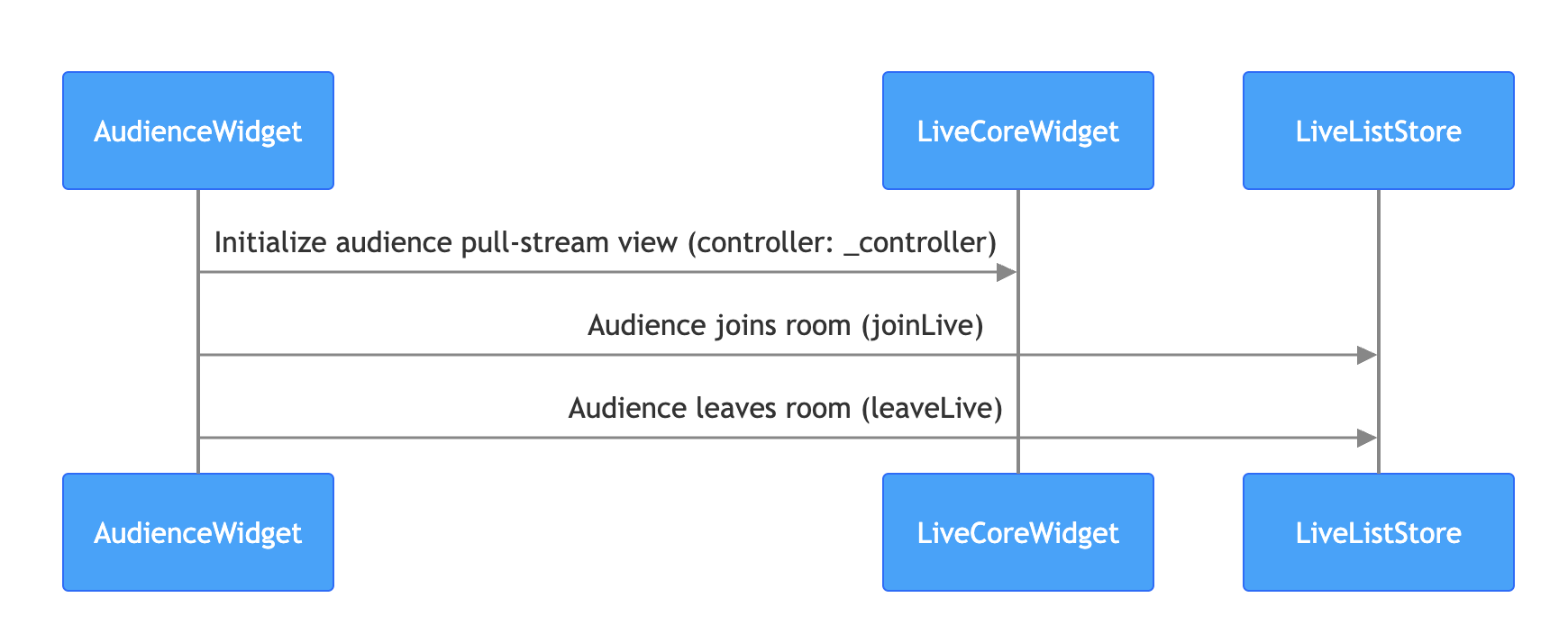
Enable audience live viewing with these steps:
Note:
For a complete audience implementation, see audience_widget.dart in the TUILiveKit open-source project.
1. Audience Streaming Page
On your audience page, create a
LiveCoreWidget instance and control the live stream behavior through LiveCoreController.import 'package:flutter/material.dart';import 'package:atomic_x_core/atomicxcore.dart';/// YourAudiencePage represents your audience viewing webpageclass YourAudiencePage extends StatefulWidget {final String liveId;const YourAudiencePage({super.key, required this.liveId});@overrideState<YourAudiencePage> createState() => _YourAudiencePageState();}class _YourAudiencePageState extends State<YourAudiencePage> {// 1. Create a LiveCoreController instancelate final LiveCoreController _controller;@overridevoid initState() {super.initState();// 2. Initialize the controller_controller = LiveCoreController.create();// 3. Bind live streaming id_controller.setLiveID(widget.liveId);}@overrideWidget build(BuildContext context) {return Scaffold(body: Stack(children: [// 4. Load the audience pull stream page to your viewLiveCoreWidget(controller: _controller),],),);}}
2. Join Live Room
Call
LiveListStore.shared.joinLive to join the live stream. LiveCoreWidget will automatically play the video stream:import 'package:flutter/material.dart';import 'package:atomic_x_core/atomicxcore.dart';/// YourAudiencePage represents your audience viewing webpageclass YourAudiencePage extends StatefulWidget {final String liveId;const YourAudiencePage({super.key, required this.liveId});@overrideState<YourAudiencePage> createState() => _YourAudiencePageState();}class _YourAudiencePageState extends State<YourAudiencePage> {late final LiveCoreController _controller;@overridevoid initState() {super.initState();_controller = LiveCoreController.create();_controller.setLiveID(widget.liveId);// Enter live room_joinLive();}Future<void> _joinLive() async {// Call LiveListStore.shared.joinLive to enter live room// - liveId: same liveId as anchor starts live streamingfinal result = await LiveListStore.shared.joinLive(widget.liveId);if (result.isSuccess) {debugPrint("joinLive success");} else {debugPrint("joinLive error: ${result.errorMessage}");// Failed to enter the room, must exit the page// if (mounted) Navigator.of(context).pop();}}@overrideWidget build(BuildContext context) {return Scaffold(body: Stack(children: [LiveCoreWidget(controller: _controller),],),);}}
3. Leave Live Room
When the audience leaves, call
LiveListStore.shared.leaveLive to exit. The SDK will stop streaming and leave the room automatically.import 'package:flutter/material.dart';import 'package:atomic_x_core/atomicxcore.dart';/// YourAudiencePage represents your audience viewing webpageclass YourAudiencePage extends StatefulWidget {final String liveId;const YourAudiencePage({super.key, required this.liveId});@overrideState<YourAudiencePage> createState() => _YourAudiencePageState();}class _YourAudiencePageState extends State<YourAudiencePage> {// ... Other code ...End live streamFuture<void> _leaveLive() async {final result = await LiveListStore.shared.leaveLive();if (result.isSuccess) {debugPrint("leaveLive success");} else {debugPrint("leaveLive error: ${result.errorMessage}");}}// ... Other code ...}
Step 3: Listen for Live Events
After the audience enters the live room, you should handle passive events such as the host ending the stream or the audience being kicked out. Without event handling, the audience UI may remain on a black screen, impacting user experience.
Use
LiveListListener to listen for live events:import 'package:flutter/material.dart';import 'package:atomic_x_core/atomicxcore.dart';/// YourAudiencePage represents your audience viewing webpageclass YourAudiencePage extends StatefulWidget {final String liveId;const YourAudiencePage({super.key, required this.liveId});@overrideState<YourAudiencePage> createState() => _YourAudiencePageState();}class _YourAudiencePageState extends State<YourAudiencePage> {late final LiveCoreController _controller;// 1. Define LiveListListener to manage event monitoringlate final LiveListListener _liveListListener;@overridevoid initState() {super.initState();_controller = LiveCoreController.create();_controller.setLiveID(widget.liveId);// 2. Listen to Live Event_setupLiveEventListener();// 3. Enter live room_joinLive();}// 4. Add a method to set up event listeningvoid _setupLiveEventListener() {_liveListListener = LiveListListener(onLiveEnded: (liveID, reason, message) {// Listen to live streaming enddebugPrint("Live ended. liveID: $liveID, reason: ${reason.value}, message: $message");// Handle the logic for exiting a live streaming room herein, such as closing current page// if (mounted) Navigator.of(context).pop();},onKickedOutOfLive: (liveID, reason, message) {// Listen to being kicked out of live streamdebugPrint("Kicked out of live. liveID: $liveID, reason: ${reason.value}, message: $message");// Handle the logic for exiting a live streaming room herein// if (mounted) Navigator.of(context).pop();},);LiveListStore.shared.addLiveListListener(_liveListListener);}Future<void> _joinLive() async {final result = await LiveListStore.shared.joinLive(widget.liveId);if (result.isSuccess) {debugPrint("joinLive success");} else {debugPrint("joinLive error: ${result.errorMessage}");}}Future<void> _leaveLive() async {final result = await LiveListStore.shared.leaveLive();if (result.isSuccess) {debugPrint("leaveLive success");} else {debugPrint("leaveLive error: ${result.errorMessage}");}}@overridevoid dispose() {// 5. Remove event listeningLiveListStore.shared.removeLiveListListener(_liveListListener);super.dispose();}@overrideWidget build(BuildContext context) {return Scaffold(body: Stack(children: [LiveCoreWidget(controller: _controller),],),);}}
Run and Test
After integrating LiveCoreWidget, you’ll have a clean video rendering view with full live streaming capabilities, but no interactive UI. See the next section, Enrich Live-Streaming Scenarios, to add more features to your live stream.
Layout | Dynamic Grid Layout | Floating Window Layout | Fixed Grid Layout |
Template ID | 600 | 601 | 800 |
Description | Default layout; grid size adjusts dynamically based on number of co-hosts. | Co-hosts are displayed as floating windows. | Fixed number of co-hosts; each occupies a fixed grid. |
Example |  | 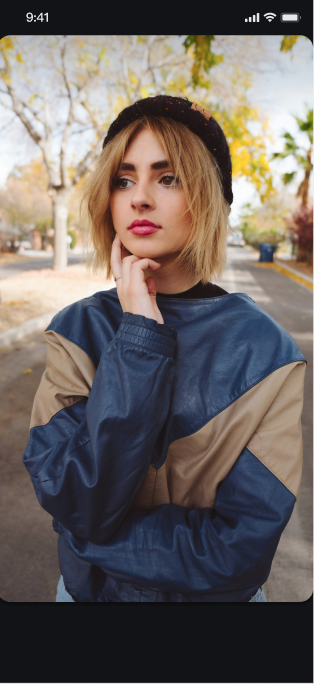 | 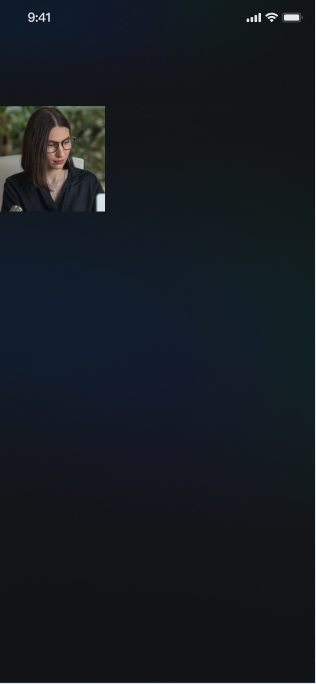 |
Enrich Live Streaming Scenarios
Once the basic live streaming functionality is in place, refer to the following guides to add interactive features to your live stream:
Feature | Description | Store | Implementation Guide |
Audience Audio/Video Co-hosting | Audience can apply to join the host and interact via real-time video. | ||
Host Cross-room PK | Hosts from different rooms can connect for interaction or PK. | ||
Live Comments Chat | Audience can send and receive real-time text messages in the live room. | ||
Gift System | Audience can send virtual gifts to the host, increasing engagement and fun. |
API documentation
Store/Component | Feature Description | API Documentation |
LiveCoreWidget | Core view for live video display and interaction: handles video rendering and widget management; supports host streaming, audience co-hosting, host cross-room connections, and more. | |
LiveCoreController | Controller for LiveCoreWidget: set live stream ID, control preview, and other operations. | |
LiveListStore | Live room lifecycle management: create, join, leave, destroy room; query room list; update live info (name, announcement, etc.); listen for live status (kicked out, ended). | |
DeviceStore | Audio/video device control: microphone (toggle/volume), camera (toggle/switch camera/video quality), screen sharing, real-time device status monitoring. | |
CoGuestStore | Audience co-host management: co-host application/invitation/accept/reject, member permissions (microphone/camera), status sync. | |
CoHostStore | Host cross-room connection: supports multiple layouts (dynamic grid, etc.), initiate/accept/reject connection, co-host interaction management. | |
BattleStore | Host PK battles: initiate PK (set duration/opponent), manage PK status (start/end), sync scores, listen for results. | |
GiftStore | Gift interaction: get gift list, send/receive gifts, listen for gift events (including sender and gift details). | |
BarrageStore | Live comments: send text/custom comments, manage comment list, monitor comment status in real time. | |
LikeStore | Like interaction: send likes, listen for like events, sync total like count. | |
LiveAudienceStore | Audience management: get real-time audience list (ID/name/avatar), count audience, listen for audience enter/leave events. | |
AudioEffectStore | Audio effects: voice changer (child/male), reverb (KTV, etc.), ear monitoring, real-time effect switching. | |
BaseBeautyStore | Basic beauty filters: adjust smoothing/whitening/rosy (0-100), reset beauty status, sync effect parameters. |
FAQs
Why is the screen black with no video after the host calls createLive or the audience calls joinLive?
Check setLiveID: Please ensure the correct
liveID has been set for the LiveCoreController instance before calling the live streaming or viewing API.Check device permission: Please ensure the app has obtained system usage permission for the camera and microphone.
Check anchor side: Whether the Anchor side normally called
DeviceStore.shared.openLocalCamera(true) to open the camera.Check the network: Please check whether the device network connection is normal.
How to Request Permission in a Flutter Project?
You can use the
permission_handler plug-in to request camera and mic permission:import 'package:permission_handler/permission_handler.dart';Future<void> requestPermissions() async {await [Permission.camera,Permission.microphone,].request();}
How to Handle Page Lifecycle in Flutter?
It is recommended to clean up resources in the
dispose method, such as removing event listeners:@overridevoid dispose() {LiveListStore.shared.removeLiveListListener(_liveListListener);super.dispose();}
Help and Support
Was this page helpful?
You can also Contact sales or Submit a Ticket for help.
Help us improve! Rate your documentation experience in 5 mins.
Feedback