开播与收听(Flutter)
下载
聚焦模式
字号
本文档将帮助开发者使用
AtomicXCore SDK 的 LiveListStore 和 LiveSeatStore 快速构建一个包含主播开播和观众进房功能的语聊房 App。核心概念
在开始集成之前,请先通过下表了解一下
LiveSeatStore 相关的几个核心概念:核心概念 | 类型 | 核心职责与描述 |
class | 麦位管理核心,负责管理房间内的所有麦位信息和麦位相关操作。 通过 liveSeatState.seatList 暴露实时的麦位列表数据流。 | |
class | 代表麦位的当前状态。 seatList 是一个 ValueListenable<List<SeatInfo>> 类型,存储了麦位列表的实时状态;speakingUsers 则代表当前正在说话的人和对应的音量。 | |
class | 单个麦位的数据模型。 LiveSeatStore 所推送的麦位列表(seatList)就是由多个 SeatInfo 对象组成的。关键字段:index(麦位的索引)。isLocked(麦位是否被锁定)。userInfo(麦位上的用户信息,如果麦位为空,此字段也为空对象)。 | |
class | 麦上用户的详细数据模型。当一个用户成功上麦后, SeatInfo 中的 userInfo 字段就会被填充为此用户。关键字段:userID(用户的唯一 ID)。userName(用户的昵称)。avatarURL(用户的头像 URL)。microphoneStatus(麦克风状态)。cameraStatus(摄像头状态)。 |
准备工作
步骤1:开通服务
步骤2:在当前项目中导入 AtomicXCore
1. 安装组件:请在您的
pubspec.yaml 文件中添加 atomic_x_core 依赖,然后执行 flutter pub get。dependencies:atomic_x_core: ^4.0.1
2. 配置工程权限:Android 和 iOS 工程都需要配置权限。
在
android/app/src/main/AndroidManifest.xml 文件中添加麦克风的使用权限说明。<uses-permission android:name="android.permission.RECORD_AUDIO" />
在应用
ios 目录的 Podfile 和 ios/Runner 目录的 Info.plist 文件中添加麦克风的使用权限说明。Podfile
post_install do |installer|installer.pods_project.targets.each do |target|flutter_additional_ios_build_settings(target)target.build_configurations.each do |config|config.build_settings['GCC_PREPROCESSOR_DEFINITIONS'] ||= ['$(inherited)','PERMISSION_MICROPHONE=1',]endendend
Info.plist
<key>NSMicrophoneUsageDescription</key><string>TUILiveKit需要访问您的麦克风权限,开启后录制的视频才会有声音</string>
步骤3:实现登录逻辑
在项目中调用
LoginStore.shared.login 完成登录,这是使用 AtomicXCore 所有功能的关键前提。重要:
推荐在您 App 自身的用户账户登录成功后,再调用 LoginStore.shared.login,以确保登录业务逻辑的清晰和一致。
import 'package:flutter/material.dart';import 'package:atomic_x_core/atomicxcore.dart';// main.dartvoid main() async {WidgetsFlutterBinding.ensureInitialized();// 登录final result = await LoginStore.shared.login(sdkAppID: 1400000001, // 替换为您的 sdkAppIDuserID: "test_001", // 替换为您的 userIDuserSig: "xxxxxxxxxxx", // 替换为您的 userSig);if (result.isSuccess) {debugPrint("login success");} else {debugPrint("login failed code: ${result.code}, message: ${result.message}");}runApp(const MyApp());}
登录接口参数说明:
参数 | 类型 | 说明 |
sdkAppID | int | |
userID | String | 当前用户的唯一 ID,仅包含英文字母、数字、连字符和下划线。为避免多端登录冲突,请勿使用 1、123等简单 ID。 |
userSig | String | 用于腾讯云鉴权的票据。请注意: 开发环境:您可以采用本地 GenerateTestUserSig.genTestSig 函数生成 UserSig 或者通过 UserSig 辅助工具 生成临时的 UserSig。生产环境:为了防止密钥泄露,请务必采用服务端生成 UserSig 的方式。详细信息请参见 服务端生成 UserSig。 |
构建基础语聊房应用
步骤1:实现房主创建语聊房
房主开播流程如下,您只需执行以下几步操作,即可快速搭建一个语聊房。
1. 初始化麦位 Store
在您的房主页面中,创建一个
LiveSeatStore 实例。您需要监听 liveSeatStore.liveSeatState 的变化,以实时获取麦位数据来渲染您的 UI。import 'package:flutter/material.dart';import 'package:atomic_x_core/atomicxcore.dart';// YourAnchorPage 代表您的房主页面class YourAnchorPage extends StatefulWidget {const YourAnchorPage({super.key});@overrideState<YourAnchorPage> createState() => _YourAnchorPageState();}class _YourAnchorPageState extends State<YourAnchorPage> {final _liveListStore = LiveListStore.shared;final _deviceStore = DeviceStore.shared;// 使用 liveID 初始化 LiveSeatStorefinal String _liveID = "test_voice_room_001";late final LiveSeatStore _liveSeatStore;late final VoidCallback _seatListListener = _onSeatListChanged;@overridevoid initState() {super.initState();_liveSeatStore = LiveSeatStore.create(_liveID);// 监听麦位列表变化_observeSeatList();}void _observeSeatList() {// 监听 liveSeatState.seatList 的变化,并更新您的麦位 UI_liveSeatStore.liveSeatState.seatList.addListener(_seatListListener);}void _onSeatListChanged() {// 在这里根据 seatInfoList 渲染您的麦位 UIfinal seatInfoList = _liveSeatStore.liveSeatState.seatList.value;debugPrint("Seat list updated: ${seatInfoList.length} seats");setState(() {});}@overridevoid dispose() {_liveSeatStore.liveSeatState.seatList.removeListener(_seatListListener);super.dispose();}@overrideWidget build(BuildContext context) {// 假设您有自己的布局return Container();}}
2. 打开麦克风
通过调用
DeviceStore 的 openLocalMicrophone 接口打开麦克风,示例代码如下:class _YourAnchorPageState extends State<YourAnchorPage> {// ... 其他代码 ...void _openDevices() {// 打开麦克风DeviceStore.shared.openLocalMicrophone();}}
3. 开始语聊
通过调用
LiveListStore 的 createLive 接口开始语聊房直播,完整示例代码如下:class _YourAnchorPageState extends State<YourAnchorPage> {// ... 其他代码 ...final String _liveID = "test_voice_room_001";@overridevoid initState() {super.initState();// ... 其他代码 ...// 开始语聊_startLive();}Future<void> _startLive() async {// 1. 准备 LiveInfo 对象final liveInfo = LiveInfo(// 2. 设置房间 idliveID: '',// 3. 设置房间名称liveName: "test 语聊房",// 4. 设置语聊房布局模板(传入 9 即代表有 9 个麦位)(启用麦位)seatTemplate: AudioSalon(10),// 5. 设置上麦模式,例如申请上麦seatMode: TakeSeatMode.apply,// 6. 设置主播开播后自动上麦keepOwnerOnSeat: true,);// 6. 调用 createLive 开始直播final result = await _liveListStore.createLive(liveInfo);if (result.isSuccess) {debugPrint("Response startLive onSuccess");// 房主创建成功后,默认会上麦,此时您可以调用 unmuteMicrophone_liveSeatStore.unmuteMicrophone();} else {debugPrint("Response startLive onError: ${result.message}");}}}
LiveInfo 参数说明:
参数名 | 类型 | 属性 | 描述 |
liveID | String | 必填 | 直播间的唯一标识符。 |
liveName | String | 选填 | 直播间的标题。 |
keepOwnerOnSeat | bool | 选填 | 主播开播后是否自动上麦。默认为 false。 当传入 true 时,主播创建房间后,会自动上到第一个麦位上。主播通过麦克风采集的声音会同步到直播间内。 当传入 false 时,主播创建房间后,不会自动上麦,主播通过麦克风采集的声音不会同步到直播间内。可以调用 LiveSeatStore.takeSeat 实现将主播上麦。 |
notice | String | 选填 | 直播间的公告信息。 |
isMessageDisable | bool | 选填 | 是否禁言( true:是,false:否)。 |
isPublicVisible | bool | 选填 | 是否公开可见( true:是,false:否)。 |
seatMode | TakeSeatMode | 选填 | 上麦模式( free:自由上麦,apply:申请上麦)。 |
seatTemplate | SeatLayoutTemplate | 必填 | 麦位布局模板。 |
coverURL | String | 选填 | 直播间的封面图片地址。 |
backgroundURL | String | 选填 | 直播间的背景图片地址。 |
categoryList | List<int> | 选填 | 直播间的分类标签列表。 |
activityStatus | int | 选填 | 直播活动状态。 |
isGiftEnabled | bool | 选填 | 是否启用礼物功能( true:是,false:否)。 |
4. 构建麦位 UI 界面
提示:
通过
LiveSeatStore 实例,监听 liveSeatState.seatList 的变化,以实时获取麦位数据来渲染您的 UI。您可以在页面中(例如 YourAnchorPage 或 YourAudiencePage)通过以下方式监听数据:class _YourAnchorPageState extends State<YourAnchorPage> {// ... 其他代码 ...late final LiveSeatStore _liveSeatStore;late final VoidCallback _seatListListener = _onSeatListChanged;@overridevoid initState() {super.initState();_liveSeatStore = LiveSeatStore.create("your_live_id");// ... 其他代码 ...// 监听 seatList 变化_observeSeatList();}void _observeSeatList() {// 监听 liveSeatState.seatList 变化,并更新您的麦位 UI_liveSeatStore.liveSeatState.seatList.addListener(_seatListListener);}void _onSeatListChanged() {// seatInfoList 即为最新的麦位列表 (List<SeatInfo>)final seatInfoList = _liveSeatStore.liveSeatState.seatList.value;// 在这里根据 seatInfoList 渲染您的麦位 UIdebugPrint("Seat list updated: ${seatInfoList.length} seats");setState(() {});}@overridevoid dispose() {_liveSeatStore.liveSeatState.seatList.removeListener(_seatListListener);super.dispose();}@overrideWidget build(BuildContext context) {return ValueListenableBuilder<List<SeatInfo>>(valueListenable: _liveSeatStore.liveSeatState.seatList,builder: (context, seatList, child) {return GridView.builder(gridDelegate: const SliverGridDelegateWithFixedCrossAxisCount(crossAxisCount: 4,),itemCount: seatList.length,itemBuilder: (context, index) {final seat = seatList[index];return _buildSeatItem(seat);},);},);}Widget _buildSeatItem(SeatInfo seat) {// 构建单个麦位 UIreturn Container();}}
5. 结束语聊
语聊结束后,房主可以调用
LiveListStore 的 endLive 接口结束语聊,SDK 会处理停止推流和销毁房间的逻辑。class _YourAnchorPageState extends State<YourAnchorPage> {// ... 其他代码 ...// 结束语聊Future<void> _stopLive() async {final result = await _liveListStore.endLive();if (result.isSuccess) {debugPrint("endLive success");} else {debugPrint("endLive error: ${result.message}");}}}
步骤2:实现观众进入语聊房
观众进房流程如下,通过简单几步操作,即可实现观众进入语聊房。
1. 初始化麦位 Store
在您的观众页面中,创建
LiveSeatStore 实例,并监听 liveSeatState.seatList 的变化,以渲染麦位 UI。import 'package:flutter/material.dart';import 'package:atomic_x_core/atomicxcore.dart';// YourAudiencePage 代表您的观众页面class YourAudiencePage extends StatefulWidget {const YourAudiencePage({super.key});@overrideState<YourAudiencePage> createState() => _YourAudiencePageState();}class _YourAudiencePageState extends State<YourAudiencePage> {final _liveListStore = LiveListStore.shared;// 确保 liveID 与房主一致final String _liveID = "test_voice_room_001";late final LiveSeatStore _liveSeatStore;late final VoidCallback _seatListListener = _onSeatListChanged;@overridevoid initState() {super.initState();_liveSeatStore = LiveSeatStore.create(_liveID);// 监听麦位列表变化_observeSeatList();}void _observeSeatList() {// 监听 liveSeatState.seatList 变化,并更新您的麦位 UI_liveSeatStore.liveSeatState.seatList.addListener(_seatListListener);}void _onSeatListChanged() {// 在这里根据 seatInfoList 渲染您的麦位 UIfinal seatInfoList = _liveSeatStore.liveSeatState.seatList.value;debugPrint("AudiencePage Seat list updated: ${seatInfoList.length} seats");setState(() {});}@overridevoid dispose() {_liveSeatStore.liveSeatState.seatList.removeListener(_seatListListener);super.dispose();}@overrideWidget build(BuildContext context) {// 假设您有自己的布局return Container();}}
2. 进入语聊房
通过调用
LiveListStore 的 joinLive 接口加入语聊房,完整示例代码如下:class _YourAudiencePageState extends State<YourAudiencePage> {// ... 其他代码 ...@overridevoid initState() {super.initState();// ... 其他代码 ...// 进入语聊房_joinLive();}Future<void> _joinLive() async {// 调用 joinLive 进入语聊房final result = await _liveListStore.joinLive(_liveID);if (result.isSuccess) {debugPrint("joinLive success");} else {debugPrint("joinLive error: ${result.message}");}}}
3. 构建麦位 UI 界面
4. 退出语聊房
观众退出语聊房时,需要调用
LiveListStore 的 leaveLive 接口来退出。class _YourAudiencePageState extends State<YourAudiencePage> {// ... 其他代码 ...Future<void> _leaveLive() async {final result = await _liveListStore.leaveLive();if (result.isSuccess) {debugPrint("leaveLive success");} else {debugPrint("leaveLive error: ${result.message}");}}}
运行效果
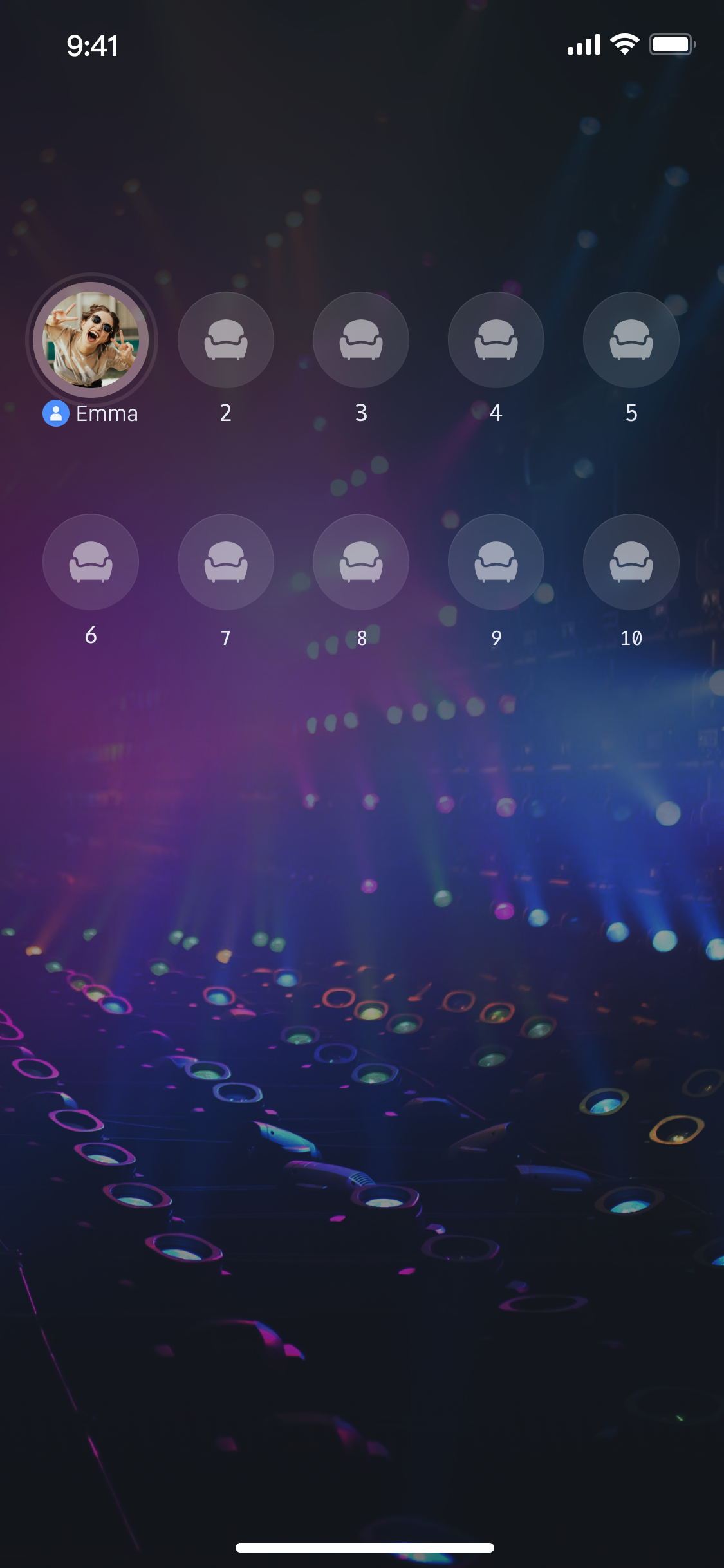
功能进阶
实现麦上用户说话音浪
在语聊房场景中,一个常见的需求是当麦上用户说话时,在其头像上显示一个波浪动画,以提示全房间用户"谁在说话",
LiveSeatStore 提供了 speakingUsers 数据流,专门用于实现此功能。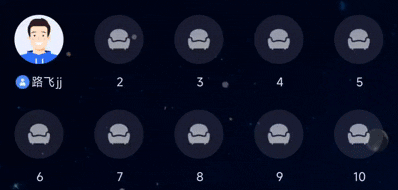
实现方式
提示:
在
YourAnchorPage 或 YourAudiencePage 中监听 speakingUsers 变化,并更新"正在说话"状态,代码示例如下:class _YourAnchorPageState extends State<YourAnchorPage> {late final VoidCallback _speakingUsersListener = _onSpeakingUsersChanged;// ... 其他代码 ...@overridevoid initState() {super.initState();// ... 其他代码 ...// 监听 speakingUsers 变化_observeSpeakingUsersState();}void _observeSpeakingUsersState() {// 监听 liveSeatState.speakingUsers 变化,并更新"正在说话"状态_liveSeatStore.liveSeatState.speakingUsers.addListener(_speakingUsersListener);}void _onSpeakingUsersChanged() {// 将 "正在说话" 的用户 ID 集合传递给 UI,更新 UI 状态final speakingUserMap = _liveSeatStore.liveSeatState.speakingUsers.value;debugPrint("Speaking users updated: ${speakingUserMap.length} users");setState(() {});}@overridevoid dispose() {_liveSeatStore.liveSeatState.speakingUsers.removeListener(_speakingUsersListener);super.dispose();}@overrideWidget build(BuildContext context) {return ValueListenableBuilder<Map<String, int>>(valueListenable: _liveSeatStore.liveSeatState.speakingUsers,builder: (context, speakingUsers, child) {// speakingUsers 是一个 Map,key 是 userID,value 是音量return YourSpeakingIndicatorWidget(speakingUsers: speakingUsers);},);}}// 示例:正在说话指示器组件class YourSpeakingIndicatorWidget extends StatelessWidget {final Map<String, int> speakingUsers;const YourSpeakingIndicatorWidget({super.key,required this.speakingUsers,});@overrideWidget build(BuildContext context) {return Container();}}
丰富语聊房场景
当您完成了基础的语聊房功能后,您可以参考以下功能指南来为语聊房添加丰富的互动玩法。
功能 | 功能介绍 | 功能 Stores | 实现指南 |
实现听众上麦 | 听众申请上麦,与房主进行实时语音互动。 | ||
添加弹幕聊天功能 | 房间内成员可以发送和接收实时文字消息。 | ||
构建礼物赠送系统 | 观众可以向主播赠送虚拟礼物,增加互动和趣味性。 |
API 文档
Store/Component | 功能描述 | API 文档 |
LiveListStore | 直播间全生命周期管理:创建 / 加入 / 离开 / 销毁房间,查询房间列表,修改直播信息(名称、公告等),监听直播状态(如被踢出、结束)。 | |
LiveSeatStore | 麦位管理核心:管理麦位列表、麦上用户状态、麦位相关操作(上麦、下麦、踢人、锁麦、开关麦克风/摄像头等),监听麦位事件。 | |
DeviceStore | 音视频设备控制:麦克风(开关 / 音量)、摄像头(开关 / 切换 / 画质)、屏幕共享,设备状态实时监听。 | |
CoGuestStore | 观众连麦管理:连麦申请 / 邀请 / 同意 / 拒绝,连麦成员权限控制(麦克风 / 摄像头),状态同步。 | |
CoHostStore | 主播跨房连线:支持多布局模板(动态网格等),发起 / 接受 / 拒绝连线,连麦主播互动管理。 | |
BattleStore | 主播 PK 对战:发起 PK(配置时长 / 对手),管理 PK 状态(开始 / 结束),同步分数,监听对战结果。 | |
GiftStore | 礼物互动:获取礼物列表,发送 / 接收礼物,监听礼物事件(含发送者、礼物详情)。 | |
BarrageStore | 弹幕功能:发送文本 / 自定义弹幕,维护弹幕列表,实时监听弹幕状态。 | |
LikeStore | 点赞互动:发送点赞,监听点赞事件,同步总点赞数。 | |
LiveAudienceStore | 观众管理:获取实时观众列表(ID / 名称 / 头像),统计观众数量,监听观众进出事件。 | |
AudioEffectStore | 音频特效:变声(童声 / 男声)、混响(KTV 等)、耳返调节,实时切换特效。 | |
BaseBeautyStore | 基础美颜:调节磨皮 / 美白 / 红润(0-100 级),重置美颜状态,同步效果参数。 |
常见问题
听众进房后无声音
检查设备权限:请确保
App 已在 Info.plist(iOS)或 AndroidManifest.xml(Android)中声明并获得了麦克风的系统使用权限。检查房主端:房主端是否正常调用
DeviceStore.shared.openLocalMicrophone() 打开了麦克风。检查网络:请检查设备网络连接是否正常。
麦位列表未显示或更新
检查 Store 初始化:请确保您在
createLive 或 joinLive 之前,已经使用相同的 liveID 正确创建了 LiveSeatStore 实例(LiveSeatStore.create(liveID))。检查数据监听:请检查您是否正确使用了
addListener 来监听 liveSeatStore.liveSeatState.seatList,并确保在 dispose 中调用 removeListener 移除监听。检查接口调用:请确保
createLive(房主)或 joinLive(听众)接口已成功调用(在回调结果的 isSuccess 为 true 时确认)。文档反馈