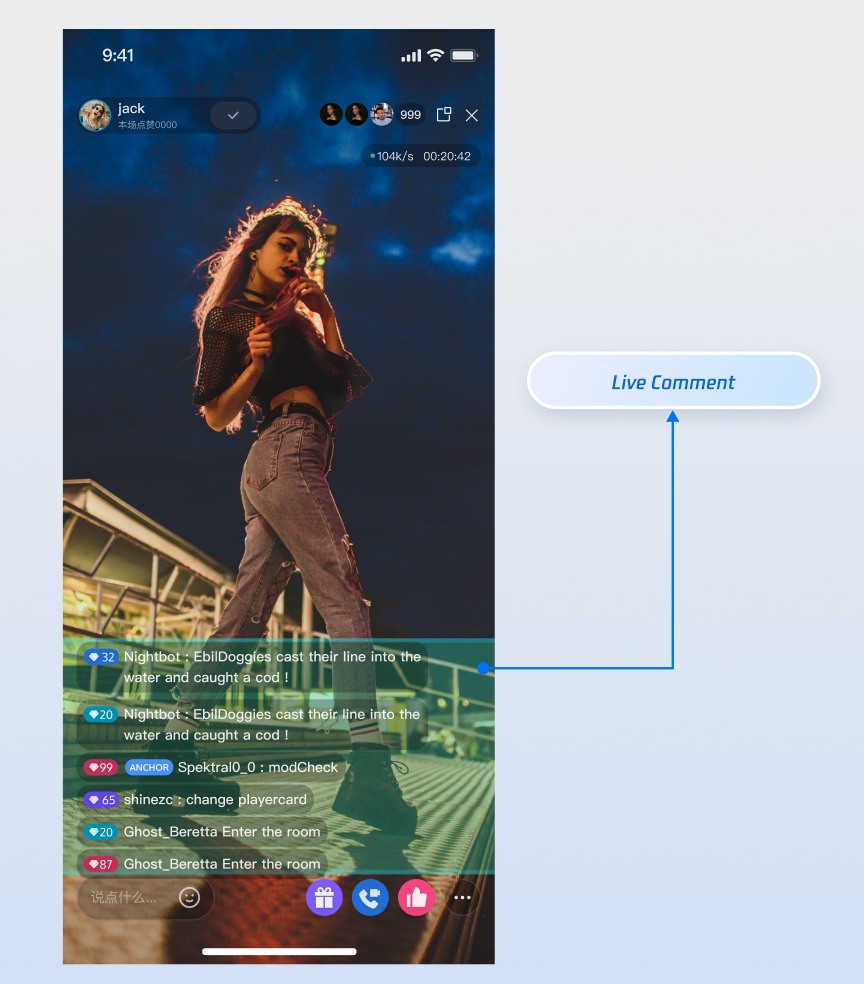
This guide shows how to use the BarrageStore module in the AtomicXCore framework to quickly add a robust, high-performance barrage (live chat overlay) system to your live streaming app.
Core Features
BarrageStore delivers a complete live comment solution for live streaming apps. Key features include:
Receiving and displaying live comments in the live room.
Sending live comments to engage with your audience.
Sending custom live comments to support advanced scenarios such as gifts, likes, and more.
Inserting system tips into the local message list (e.g., "Welcome to the live room").
Core Concepts
|
| class
| Represents a data model for a live comments. It contains all key information such as sender information (sender), message content (textContent or data), and message type (messageType). |
| class
| Represents the current status of the live comment module. Its core attribute messageList is a ValueListenable<List<Barrage>>, storing all live comments in the live streaming room in chronological order, serving as the data source for UI rendering. |
| class
| The central manager for live comments. Use it to send messages (sendTextMessage, sendCustomMessage) and listen to its barrageState.messageList property to receive and track all live comments updates. |
Implementation Steps
Step 1: Integrate the Component
Live streaming: Refer to quick integration for seamless integration with AtomicXCore and service access. Voice chat room: Refer to quick integration for seamless integration with AtomicXCore and service access. Return to the current project after integration.
Step 2: Initialize and Listen for Live Comment Updates
Create a BarrageStore instance bound to the current live room's liveId, and set up a listener to receive real-time updates of the complete live comment list.
import 'package:flutter/foundation.dart';
import 'package:atomic_x_core/atomicxcore.dart';
class BarrageManager {
final String liveId;
late final BarrageStore barrageStore;
late final VoidCallback _messageListChangedListener = _onMessageListChanged;
final ValueNotifier<List<Barrage>> messagesNotifier =
ValueNotifier<List<Barrage>>([]);
BarrageManager({required this.liveId}) {
barrageStore = BarrageStore.create(liveId);
_subscribeToBarrageUpdates();
}
void _subscribeToBarrageUpdates() {
barrageStore.barrageState.messageList.addListener(_messageListChangedListener);
}
void _onMessageListChanged() {
messagesNotifier.value = barrageStore.barrageState.messageList.value;
}
void dispose() {
barrageStore.barrageState.messageList.removeListener(_messageListChangedListener);
messagesNotifier.dispose();
}
}
Step 3: Send a Live Comment
Call the sendTextMessage method to broadcast a live comment to all users in the live streaming room.
extension BarrageManagerSend on BarrageManager {
Send a text bullet screen
Future<void> sendTextMessage(String text) async {
if (text.isEmpty) {
debugPrint("Bullet screen content cannot be empty");
return;
}
final result = await barrageStore.sendTextMessage(
text: text,
extensionInfo: null,
);
if (result.isSuccess) {
debugPrint("Bullet screen text '$text' sent successfully");
} else {
debugPrint("Bullet screen text sending failure: ${result.errorMessage}");
}
}
}
API parameters:
|
text
| String
| The text content to be sent. |
extensionInfo
| Map<String, String>?
| Additional extension info. |
Step 4: Send Custom Live Comments
Send messages containing custom business data, such as gifts or likes. These messages are invisible to other clients and must be parsed by your business logic.
import 'dart:convert';
extension BarrageManagerCustom on BarrageManager {
Future<void> sendGiftMessage({
required String giftId,
required int giftCount,
}) async {
const businessID = "live_gift";
final giftData = {"gift_id": giftId, "gift_count": giftCount};
final jsonString = jsonEncode(giftData);
final result = await barrageStore.sendCustomMessage(
businessID: businessID,
data: jsonString,
);
if (result.isSuccess) {
debugPrint("Gift message (custom barrage item) sent successfully");
} else {
debugPrint("Gift message send fail: ${result.errorMessage}");
}
}
}
API parameters:
|
businessID
| String
| Unique business identifier (e.g., "live_gift") to distinguish custom messages. |
data
| String
| Business data, typically a JSON-formatted string. |
Step 5: Insert Local Tip Messages
Insert a local message into the current user's message list. This message will not be sent to other users in the live streaming room. It is suitable for displaying system welcome, warning or operation prompt information.
extension BarrageManagerLocal on BarrageManager {
Insert a welcome notification into the local message list
void showWelcomeMessage(LiveUserInfo user) {
final welcomeTip = Barrage(
messageType: BarrageType.text,
Welcome ${user.userName} to the live room.
);
barrageStore.appendLocalTip(welcomeTip);
}
}
Step 6: Manage User Messaging Permissions (Mute & Unmute)
As an Anchor or admin, you can manage the user speaking permission in the live streaming room to maintain a healthy communication environment.
Mute or Unmute Individual Users
Mute or unblock designated users can be achieved by the disableSendMessage API in LiveAudienceStore.
final liveId = "your_live_id";
final audienceStore = LiveAudienceStore.create(liveId);
final userIdToMute = "user_id_to_be_muted";
final shouldDisable = true;
final result = await audienceStore.disableSendMessage(
userID: userIdToMute,
isDisable: shouldDisable,
);
if (result.isSuccess) {
debugPrint("${shouldDisable ? "mute" : "unblock"} user $userIdToMute successfully");
} else {
debugPrint("Operation failure: ${result.errorMessage}");
}
Enable/Disable Global Mute
To mute all users in the live room (typically excluding the host), update the live room info via LiveListStore.
final liveListStore = LiveListStore.shared;
final currentLiveInfo = liveListStore.liveState.currentLive.value;
final updatedLiveInfo = LiveInfo(
liveID: currentLiveInfo.liveID,
liveName: currentLiveInfo.liveName,
isMessageDisable: true,
);
final result = await liveListStore.updateLiveInfo(
liveInfo: updatedLiveInfo,
modifyFlagList: [ModifyFlag.isMessageDisable],
);
if (result.isSuccess) {
debugPrint("Global mute status updated successfully");
} else {
debugPrint("Operation failure: ${result.errorMessage}");
}
Complete UI Example
import 'package:flutter/material.dart';
import 'package:atomic_x_core/atomicxcore.dart';
class BarrageWidget extends StatefulWidget {
final String liveId;
const BarrageWidget({Key? key, required this.liveId}) : super(key: key);
@override
State<BarrageWidget> createState() => _BarrageWidgetState();
}
class _BarrageWidgetState extends State<BarrageWidget> {
late BarrageManager _barrageManager;
final TextEditingController _inputController = TextEditingController();
final ScrollController _scrollController = ScrollController();
@override
void initState() {
super.initState();
_barrageManager = BarrageManager(liveId: widget.liveId);
}
void _scrollToBottom() {
WidgetsBinding.instance.addPostFrameCallback((_) {
if (_scrollController.hasClients) {
_scrollController.animateTo(
_scrollController.position.maxScrollExtent,
duration: const Duration(milliseconds: 200),
curve: Curves.easeOut,
);
}
});
}
@override
void dispose() {
_barrageManager.dispose();
_inputController.dispose();
_scrollController.dispose();
super.dispose();
}
@override
Widget build(BuildContext context) {
return Column(
children: [
Expanded(
child: ValueListenableBuilder<List<Barrage>>(
valueListenable: _barrageManager.messagesNotifier,
builder: (context, messageList, child) {
_scrollToBottom();
return ListView.builder(
controller: _scrollController,
itemCount: messageList.length,
itemBuilder: (context, index) {
final barrage = messageList[index];
return _buildBarrageItem(barrage);
},
);
},
),
),
_buildInputBar(),
],
);
}
Widget _buildBarrageItem(Barrage barrage) {
return Container(
margin: const EdgeInsets.symmetric(vertical: 4, horizontal: 8),
padding: const EdgeInsets.symmetric(horizontal: 12, vertical: 6),
decoration: BoxDecoration(
color: Colors.black54,
borderRadius: BorderRadius.circular(16),
),
child: RichText(
text: TextSpan(
children: [
TextSpan(
text: '${barrage.sender.userName}: ',
style: const TextStyle(
color: Colors.yellow,
fontSize: 14,
fontWeight: FontWeight.bold,
),
),
TextSpan(
text: barrage.textContent,
style: const TextStyle(color: Colors.white, fontSize: 14),
),
],
),
),
);
}
Widget _buildInputBar() {
return Container(
padding: const EdgeInsets.all(8),
color: Colors.white,
child: Row(
children: [
Expanded(
child: TextField(
controller: _inputController,
decoration: const InputDecoration(
hintText: 'Say something...',
border: OutlineInputBorder(),
contentPadding: EdgeInsets.symmetric(horizontal: 12),
),
onSubmitted: (_) => _sendMessage(),
),
),
const SizedBox(width: 8),
ElevatedButton(
onPressed: _sendMessage,
child: const Text('Send')
),
],
),
);
}
void _sendMessage() {
final text = _inputController.text.trim();
if (text.isNotEmpty) {
_barrageManager.sendTextMessage(text);
_inputController.clear();
}
}
}
Advanced Usage: Performance Optimization for High-Concurrency
After integrating the live comment feature with BarrageStore, you may need to handle more demanding scenarios to ensure a smooth and stable user experience, especially during high-concurrency live streams. The following use cases provide practical optimization strategies and code samples.
Scenario 1: Handle High-Concurrency Live Comments
During major events, a large number of viewers may join the live room, causing live comments to refresh dozens of times per second.
Technical Challenge
The SDK pushes the complete the live comment list at high frequency. If the UI rebuilds on every update, the main thread can become overloaded with layout and rendering, resulting in lag.
Optimization Strategy: Batch Processing and Debouncing
Instead of responding to every update, set a time threshold (e.g., 300ms). Only refresh the UI if enough time has passed since the last update. This reduces UI redraws from dozens per second to just a few, greatly improving smoothness.
class BarrageUIManager {
List<Barrage>? _latestMessageList;
Timer? _refreshTimer;
final void Function(List<Barrage>) onUpdate;
BarrageUIManager({required this.onUpdate}) {
_refreshTimer = Timer.periodic(
const Duration(milliseconds: 300),
(_) => _refreshUIIfNeeded(),
);
}
void update(List<Barrage> fullList) {
_latestMessageList = fullList;
}
void _refreshUIIfNeeded() {
final newList = _latestMessageList;
if (newList == null) return;
_latestMessageList = null;
onUpdate(newList);
}
void dispose() {
_refreshTimer?.cancel();
}
}
Scenario 2: Maintain Memory Stability for Long Streams
Your app may need to support hours-long or even all-day continuous live streaming, such as gaming or slow live streams. The app must remain stable and avoid crashes due to long-term operation.
Technical Challenge
The SDK's messageList grows indefinitely during long streams. Even with throttled UI updates, the underlying data array can consume excessive memory, eventually leading to crash
Optimization Strategy: Fixed-Size Circular Buffer
Limit the number of messages your data source retains. Regardless of the SDK's full list size, only display the latest messages in your app.
void _refreshUIIfNeeded() {
final fullList = _latestMessageList;
if (fullList == null) return;
_latestMessageList = null;
const capacity = 500;
final cappedList = fullList.length > capacity
? fullList.sublist(fullList.length - capacity)
: fullList;
onUpdate(cappedList);
}
API Documentation
For detailed information about ALL public interfaces, attributes, and methods of BarrageStore and its related classes, see the official API documentation included with the AtomicXCore framework. FAQs
How can I implement colored live comments, gifts, or other custom styles?
Use custom messages with sendCustomMessage. BarrageStore gives you full flexibility for business-specific live comments.
1. Define data structure: Work with your client and server team to define the JSON structure of custom messages. For example, a color bullet screen can be defined as follows:
{ "type": "colored_text", "text": "This is a color bullet screen!", "color": "#FF5733" }
2. Sender: During sending, convert this JSON structure to a string and send it via the data parameter of sendCustomMessage. businessId can be set to a unique identifier representing your business, such as "barrage_style_v1".
3. Receiver: After receiving the live comments, check whether its messageType is .custom and whether businessId matches. If matched, parse the data string (usually parsing JSON), and render your custom UI style based on the parsed data (such as color, text).
If I call BarrageStore.create("some_id") in different classes or files, will this create multiple instances?
No. The internal logic of AtomicXCore ensures that as long as you use the same liveId, you always get the same BarrageStore instance for that live room. You don't need to manage the singleton yourself.
Why can't I see my sent message in the message list after calling sendTextMessage?
Troubleshooting:
1. Check the result: The sendTextMessage method provides a completion callback. Check if the result is success or failure. If it failed, the error message will indicate the reason (e.g., "You have been muted", "Network error", etc.).
2. Confirm subscription timing: Make sure you subscribe to barrageStore.state after the live room for the corresponding liveId has started. If you start listening before joining the live room, you may miss some messages.
3. Check liveId: Ensure the liveId used when creating the BarrageStore instance, joining the live room, and sending messages is exactly the same (case-sensitive).
4. Network issues: Make sure the device has a working network connection. Message sending depends on network connectivity.
How can new viewers see barrage messages sent before they joined the live room?
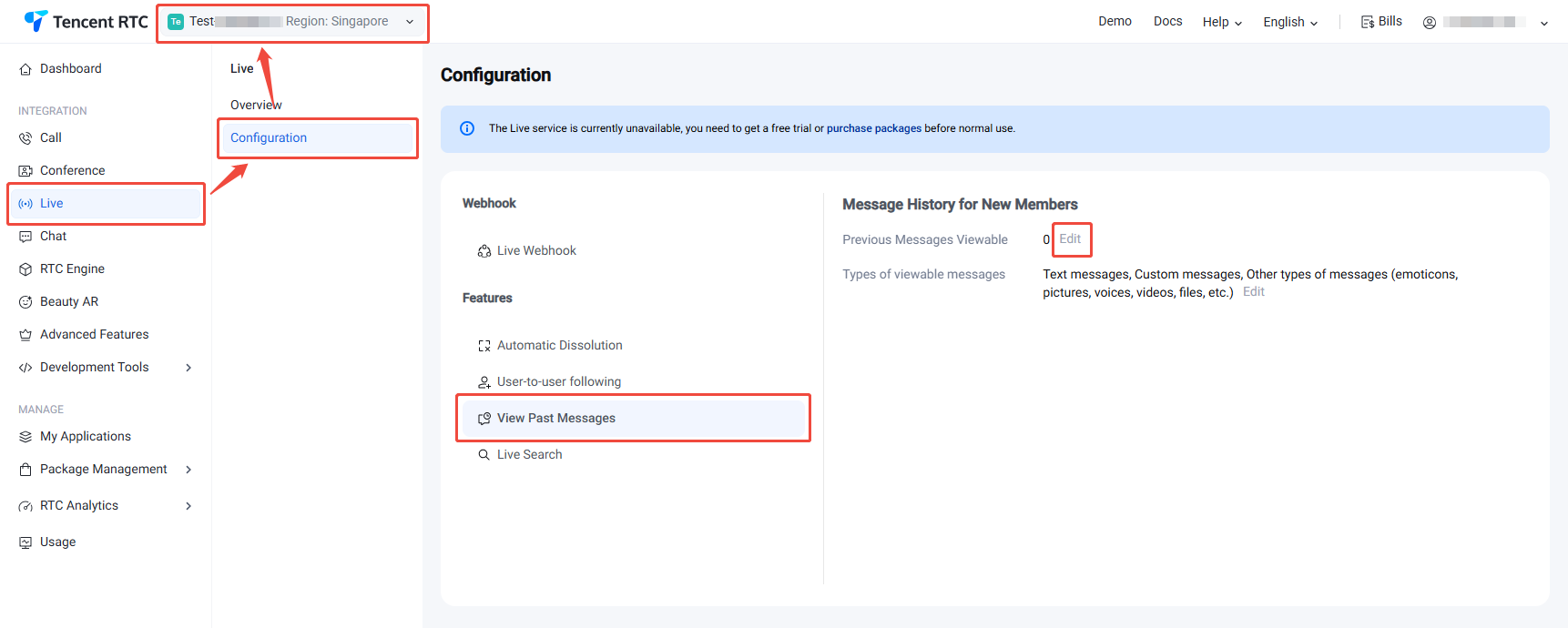
AtomicXCore supports pulling history live comments, but this requires you to perform one simple configuration in the server console. Once configured, the SDK will automatically handle everything subsequently with no need to write additional code.
Step 1: Configure in the Live Console
2. On the Live configuration page, select new member pull historical messages, modify new member viewable latest message count, supports a maximum of 50.
Step 2: Client Seamless Retrieval
After this configuration, no client code changes are needed.
When a new user joins the live room, AtomicXCore automatically retrieves the configured number of historical messages at the SDK level. These messages are delivered to your UI via the same v subscription you already use. Your app will receive and display these historical barrages just like real-time messages.