Access IP Whitelist
Unduh
Mode fokus
Ukuran font
Operation Scenario
When you need to add an IP allowlist layer beyond the SMTP password: only designated server IPs can use this SMTP account to send email. This document introduces "SMTP password + IP allowlist" two-factor authentication, which only allows access IPs within the allowlist to send email via SMTP, effectively preventing fraudulent transaction risk caused by SMTP password leaks and enhancing email security. To configure the IP allowlist for API email sending, check Limit IP Access.
Prerequisite
You must have the email service activated.
Configured at least one sender domain name.
Configured at least one sender address.
Configured SMTP password for sender address.
Note:
The feature is only available to some customers. If any requirements, contact your Dedicated Customer Manager.
Operation Steps
Step 1: Enable the IP allowlist
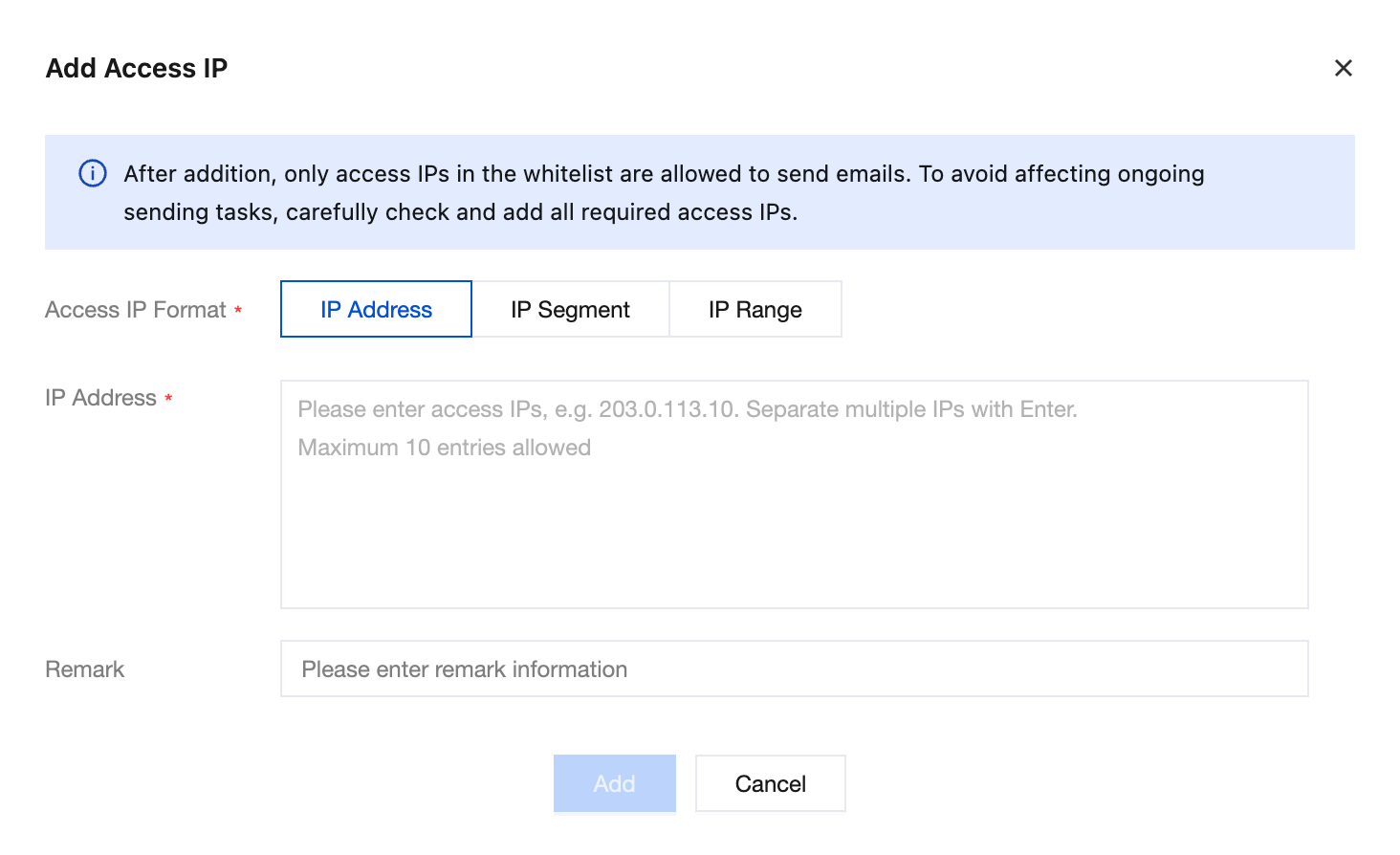
Log in to the push notification service console, select Configuration > Access IP Whitelist, enter the "Access IP Whitelist" webpage. Then click Start now, and enter the "Add Access IP" webpage. Select the IP format you want to add: IP Address, IP segment, or IP Range. You can only add one format at a time.
Note:
After addition, only allow access IPs within the allowlist to send email. To avoid affecting ongoing email sending tasks, carefully check and add all required access IPs.
Up to 10 can be added.
Step 2: Confirm to add
After adding the specified IP, click Add. The IP allowlist is successfully enabled. The backend will only allow access IPs within the allowlist to send email and block requests from IPs not in the allowlist.
Other Operations
Add access IP
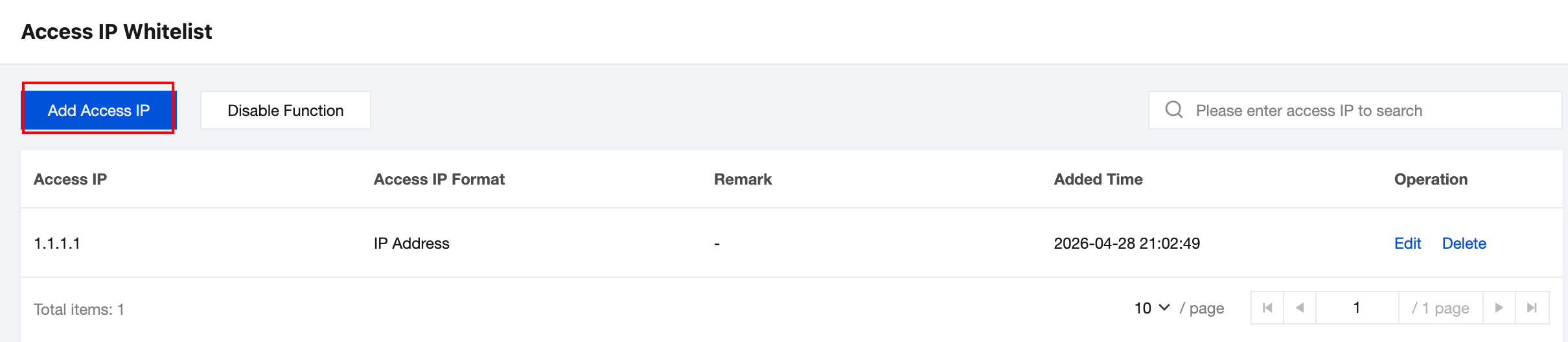
If you need to add access IP on the basis of the original IP address list, enter the "Access IP Whitelist" webpage, click Add Access IP to enter the "Add access IP" webpage. After successfully adding, the request to send email from this IP will not be blocked.
Edit
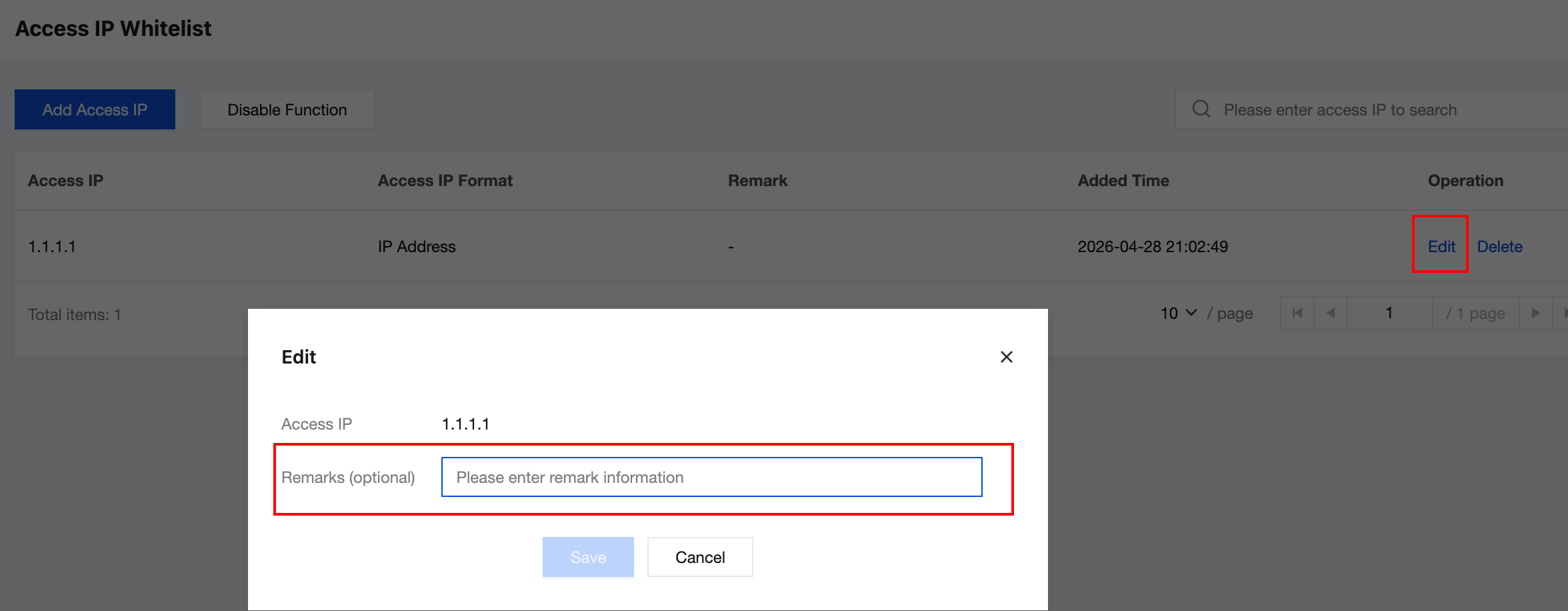
The edit feature is mainly for remarking IP information. You can click the Edit button to modify or add.
Delete
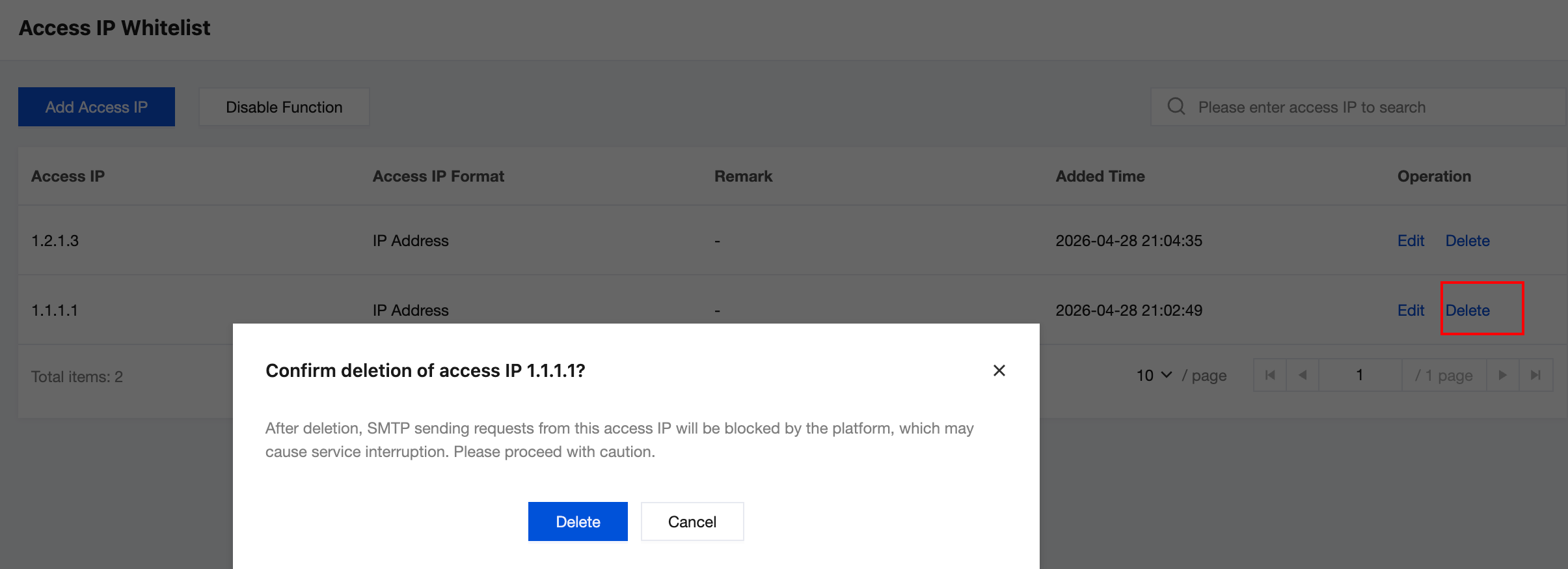
If you need to reduce access IPs on the basis of the original IP address list, enter the "Access IP Whitelist" webpage, click the Delete button corresponding to the IP. After successful deletion, request to send email from this IP will be blocked.
When you delete the last access IP, the allowlist feature will also be closed.
Disable
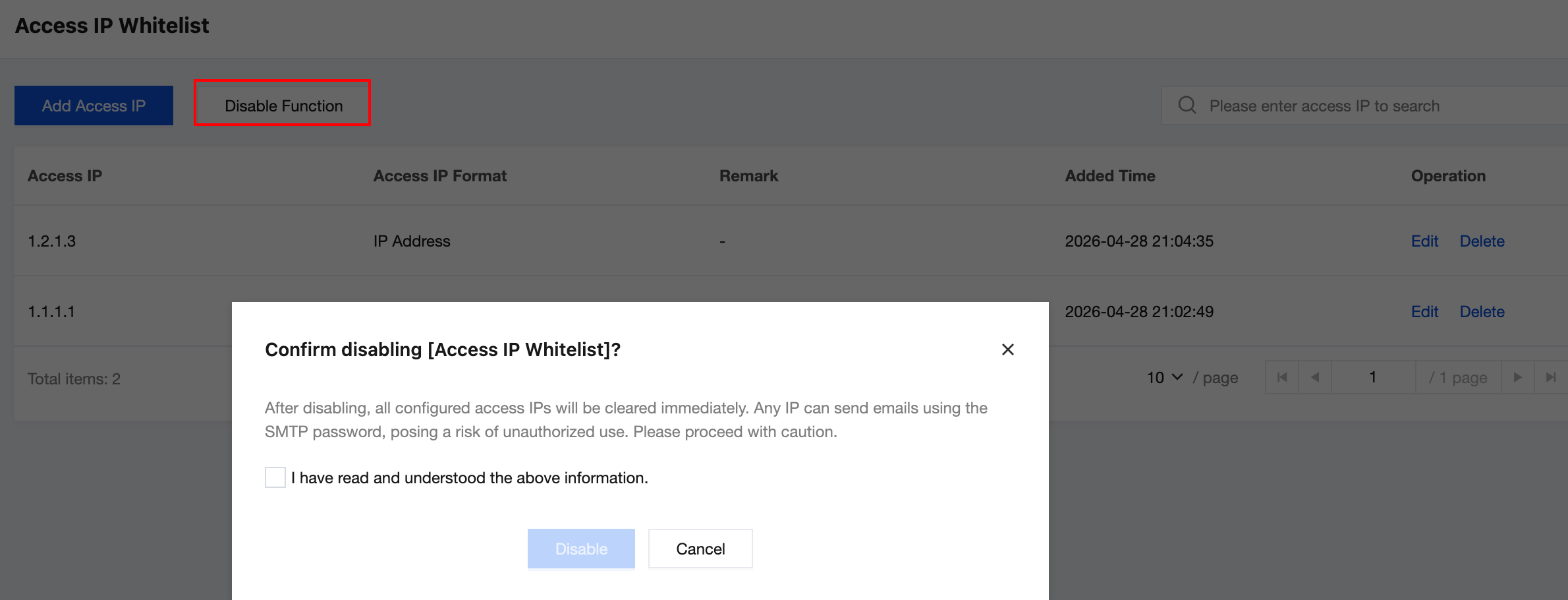
If you do not require IP-based access restrictions, please manage sending permissions via SMTP passwords; in this case, please click to disable this feature.
Note:
Upon confirming the deactivation, all configured access IP addresses will be cleared, allowing any IP address to send emails using the SMTP password. If you wish to re-enable this feature in the future, you will need to reconfigure the access IP whitelist.
More Help
Bantuan dan Dukungan
Apakah halaman ini membantu?
Anda juga dapat Menghubungi Penjualan atau Mengirimkan Tiket untuk meminta bantuan.
masukan