Full path secure acceleration
Unduh
Mode fokus
Ukuran font
Product Overview
Full-Path Secure Acceleration is an integrated end-to-end acceleration and security protection solution launched by Multiple Network Acceleration (Tencent Cloud Jutong) based on the EdgeOne platform. It targets business scenarios sensitive to network quality, such as real-time interaction, competitive gaming, financial transactions, and video conferencing. The solution uses a client SDK as the entry point. Leveraging Tencent Cloud's global 3200+ edge nodes and its proprietary backbone network, it performs multi-channel optimal acceleration and redundant disaster recovery across the entire link from user terminals to customer origin servers (including the mobile access segment, backbone transmission segment, and origin return segment). Additionally, it overlays security capabilities such as Anti-DDoS, origin server hiding, and traffic signature verification at the edge. This achieves the dual value of making weak networks more stable and attacks more difficult.
The solution integrates with business applications in a non-invasive manner, requiring no modification to existing business code. It can be flexibly used in conjunction with EdgeOne's Layer-4 proxy or customer's private gateways, and is compatible with various deployment models such as public cloud, hybrid cloud, and multi-cloud.
Typical Business Pain Points Addressed
1. Mobile access networks are highly unstable.
2. The global backbone network has a complex topology, and the quality of its carriers varies significantly.
3. Exposure of origin server IP addresses leads to uncontrolled Anti-DDoS costs.
Overall Solution Architecture
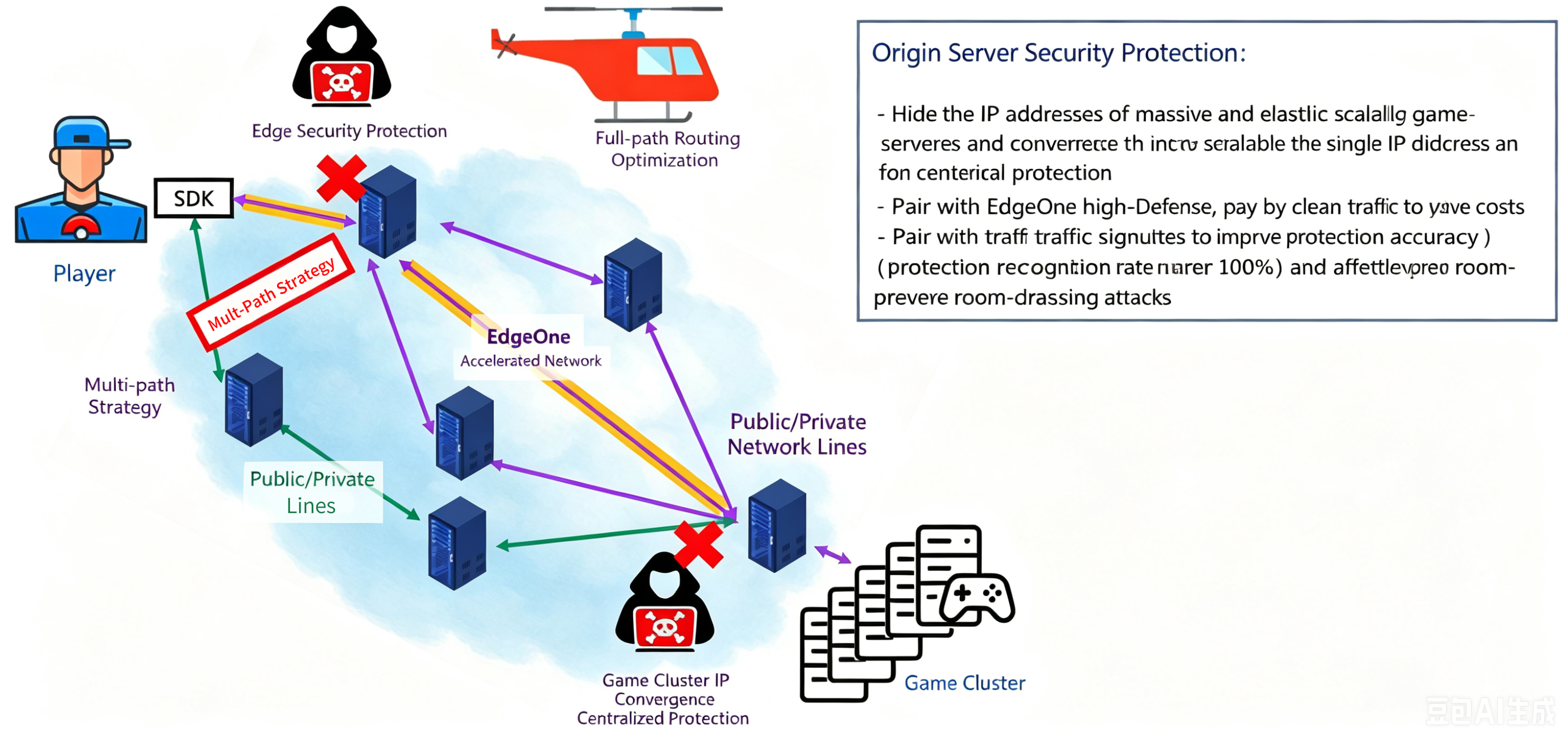
The solution establishes multiple redundant channels simultaneously across three segments: the client SDK, backbone transmission, and origin return. Correspondingly, the network is divided into three segments: T1 (access segment), T2 (backbone network segment), and T3 (origin return segment). Each segment provides multi-path optimal selection + redundant disaster recovery capabilities.
Segment | Coverage Path | Core Technical Means | Problem Solving |
T1 Access Segment | Terminal ↔ Edge Access Node | Wi-Fi/Cellular Multi-Path Optimization + Public Network Tunneling | Weak network jitter, Wi-Fi/cellular handover, last-mile packet loss |
T2 Backbone Network Segment | Edge Access Node ↔ Source Region Edge Node | EdgeOne Layer-4 Acceleration + Third-Party Dedicated Line + Public Network Line Intelligent Scheduling | Cross-border and cross-carrier high latency, interconnection point congestion, single-line jitter |
T3 Origin Return Segment | Source Region Edge Node ↔ Customer Origin Server | Accelerated Gateway Returning to Origin from the Nearest Point (Within Cloud Private Network/Same Data Center) | Back-to-origin distance, cross-cloud and cross-region latency |
Note:
On top of the T1+T2+T3 segments, the solution overlays full-path disaster recovery: when any segment experiences quality degradation, it automatically switches to a backup channel within milliseconds. This switching is transparent to applications, ensuring zero perception for players and end users.
Core Capabilities
1. Full-Path Acceleration Capability
Access Segment (T1): Wi-Fi/Cellular Dual Transmission + Public Network Tunnel Penetration (for example, Russia).
Backbone Network Segment (T2): EdgeOne Layer-4 Proxy Acceleration Capability.
Origin Return Segment (T3): The acceleration gateway returns to the origin from the nearest location.
Full-Path Disaster Recovery: The multi-segment redundant combination of T1×T2×T3 can form up to dozens of end-to-end alternative paths. A failure in any single segment does not affect overall connectivity.
Flexible Startup Policy: It supports two modes: "Full-Path Acceleration" and "On-Demand Acceleration". In On-Demand mode, the SDK continuously monitors network quality. Acceleration is triggered under poor network conditions and automatically disabled upon network recovery, balancing performance with traffic costs.
2. Integrated Security Protection Capability
Edge Anti-DDoS: Leveraging the inherently distributed architecture of EdgeOne edge nodes, it scrubs traffic at the location closest to the attack source. This prevents attack traffic from congesting backbone network and origin server bandwidth.
Origin Server IP Address Consolidation: It consolidates a massive number of dynamically scaling business origin server IP addresses into a small, fixed set of gateway IP addresses. This allows for unified configuration of anti-DDoS policies, significantly reducing the complexity of configuring protection rules and lowering anti-DDoS costs.
Origin Server Hiding
Domain Name Access Scenario
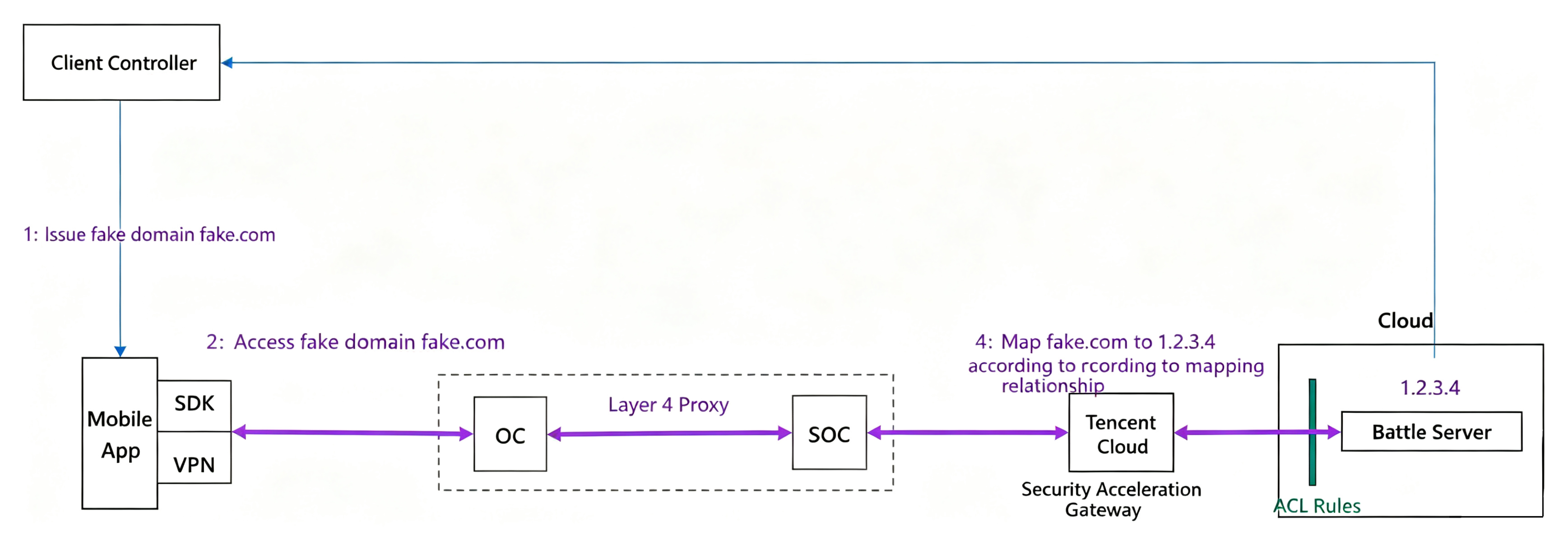
Full-Path Secure Acceleration uses a forward proxy approach to directly access the origin server domain. It is recommended to use a fake domain name for this solution. Otherwise, attackers may obtain the game server domain name through methods like decompilation or hooking, creating a security risk. The Full-Path Secure Acceleration solution provides a fake domain name scheme, ensuring the client never exposes the origin server's domain name. Its core principle is to access the fake domain name at the client side and return to the real IP address at the Full-Path Secure Acceleration gateway.
Attention:
This solution currently supports offline configuration only. If needed, please contact us. The productized solution will be launched subsequently.
1. Configure the domain name mapping relationship offline (for example, fake.com--->1.2.3.4).
2. The client controller delivers the fake game server domain name fake.com to the application APP.
3. The application APP initiates acceleration and establishes a connection to the fake domain name fake.com.
4. The Full-Path Secure Acceleration gateway accesses the real business IP address 1.2.3.4.
IP Address Access Scenario
Full-Path Secure Acceleration uses a forward proxy approach to directly access the origin server's real IP address. It is recommended to obfuscate the origin server's real IP address at the client side. Otherwise, attackers may obtain the game server IP address through methods like decompilation or hooking, creating a security risk. The Full-Path Secure Acceleration solution also provides an origin server IP address encryption scheme, ensuring the client never exposes the origin server's real IP address. Its core principle is to encrypt the real origin server IP address at the client side and decrypt the IP address for origin return at the Full-Path Secure Acceleration gateway.
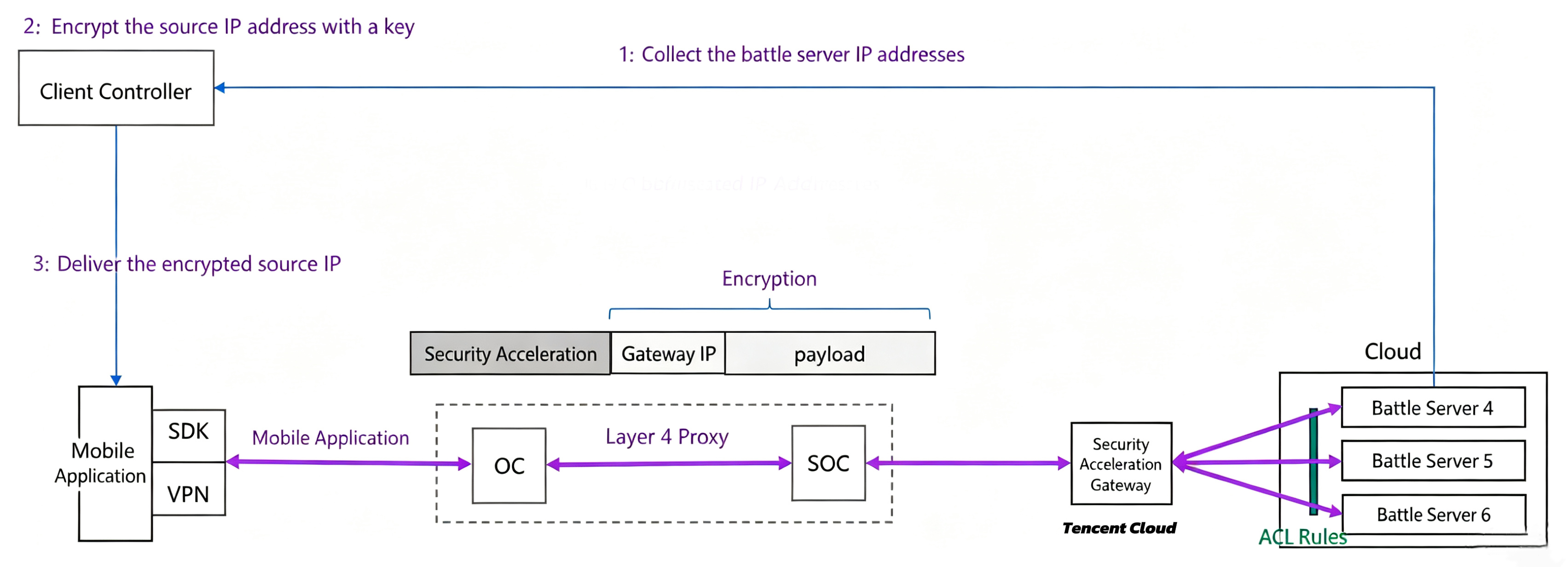
1. Obtain the encryption key. The encryption key is the same as the access key. For details, see Setting the Access Key.
2. When the client controller (that is, the management plane) delivers an IP address to the client, it encrypts the data using a key.
The encryption method uses ChaCha20 encryption. The sample code is as follows:
package mainimport ("crypto/sha256""fmt""net""golang.org/x/crypto/chacha20")// EncryptIPv4 encrypts IPv4 addresses (32-bit to 32-bit)func EncryptIPv4(ip net.IP, psk []byte) ([]byte, error) {if ip.To4() == nil {return nil, fmt.Errorf("invalid ipv4 address")}key := sha256.Sum256(psk)encryptKey := key[:32]nonce := make([]byte, 12)cipher, err := chacha20.NewUnauthenticatedCipher(encryptKey, nonce)if err != nil {return nil, err}// In-place encryption (32-bit exact output)ciphertext := make([]byte, net.IPv4len)cipher.XORKeyStream(ciphertext, ip.To4())return ciphertext, nil}// EncryptIPv6 encrypts IPv6 addresses (128-bit to 128-bit)func EncryptIPv6(ip net.IP, psk []byte) ([]byte, error) {if ip.To16() == nil {return nil, fmt.Errorf("invalid ipv6 address")}key := sha256.Sum256(psk)encryptKey := key[:32]nonce := make([]byte, 12)cipher, err := chacha20.NewUnauthenticatedCipher(encryptKey, nonce)if err != nil {return nil, err}// 128-bit exact outputciphertext := make([]byte, net.IPv6len)cipher.XORKeyStream(ciphertext, ip.To16())return ciphertext, nil}// Decryption Function (The same function is used for both encryption and decryption)var DecryptIPv4 = EncryptIPv4var DecryptIPv6 = EncryptIPv6func main() {psk := []byte("test-datakey")// IPv4 Testipv4 := net.ParseIP("192.168.1.1")encV4, err := EncryptIPv4(ipv4, psk)if err != nil {fmt.Println("encrypt ipv4 error:", err)return}decV4, err := DecryptIPv4(encV4, psk)if err != nil {fmt.Println("decrypt ipv4 error:", err)return}fmt.Printf("IPv4:\\n Original IP: %v\\n Ciphertext: %08x\\n Decrypted: %v\\n",ipv4, encV4, net.IP(decV4))// IPv6 Testipv6 := net.ParseIP("2001:db8::a1b2")encV6, err := EncryptIPv6(ipv6, psk)if err != nil {fmt.Println("encrypt ipv6 error:", err)return}decV6, err := DecryptIPv6(encV6, psk)if err != nil {fmt.Println("decrypt ipv6 error:", err)return}fmt.Printf("\\nIPv6:\\n Original IP: %v\\n Ciphertext: %032x\\n Decrypted: %v\\n",ipv6, encV6, net.IP(decV6))}
3. The mobile application enables the acceleration proxy, activates the IP address encryption capability (API), and accesses the encrypted IP addresses. The acceleration gateway decrypts the encrypted IP addresses and correctly routes the traffic back to the origin server.
Access Process
The Full-Path Secure Acceleration solution is part of Tencent Cloud EdgeOne and is used together with the EdgeOne L4 proxy. Therefore, you need to activate the EdgeOne site acceleration service and L4 proxy in advance. This document only describes the access instructions for the Full-Path Secure Acceleration solution.
Full path secure acceleration Gateway Configuration
1. Log in to the EdgeOne console using your Tencent Cloud account. Then, add new site or select a site within the console.
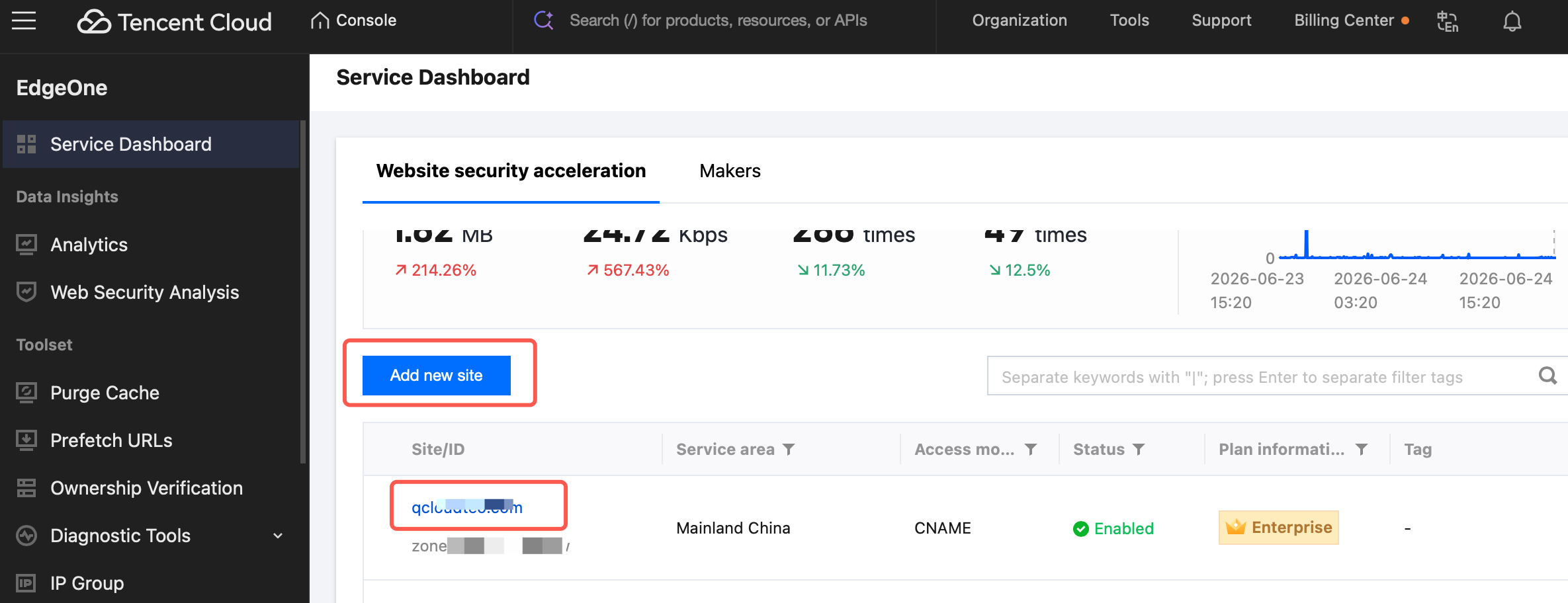
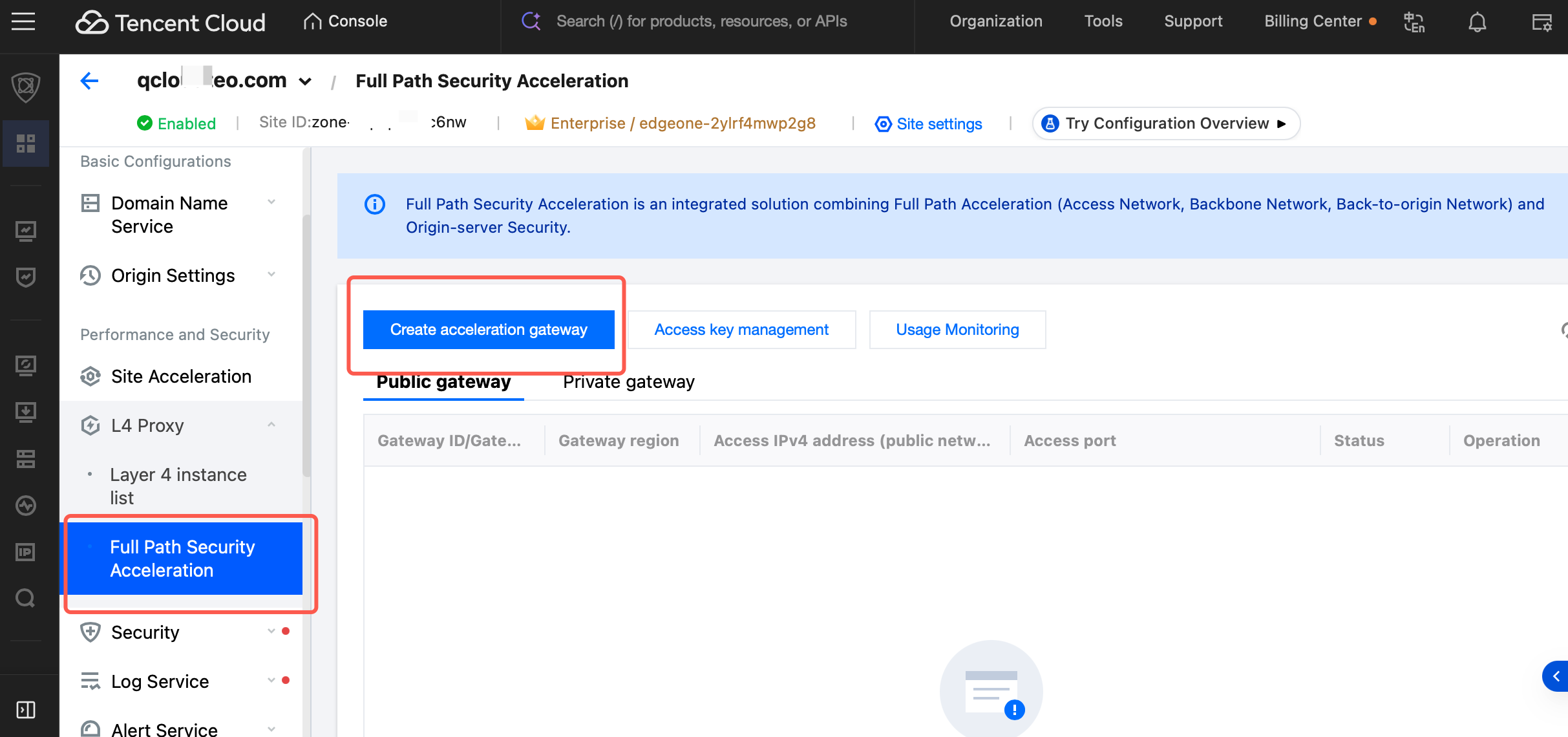
2. In the left-side L4 Proxy section, select Full Path Security Acceleration. Go to the Acceleration Gateway List page and click Create acceleration gateway.
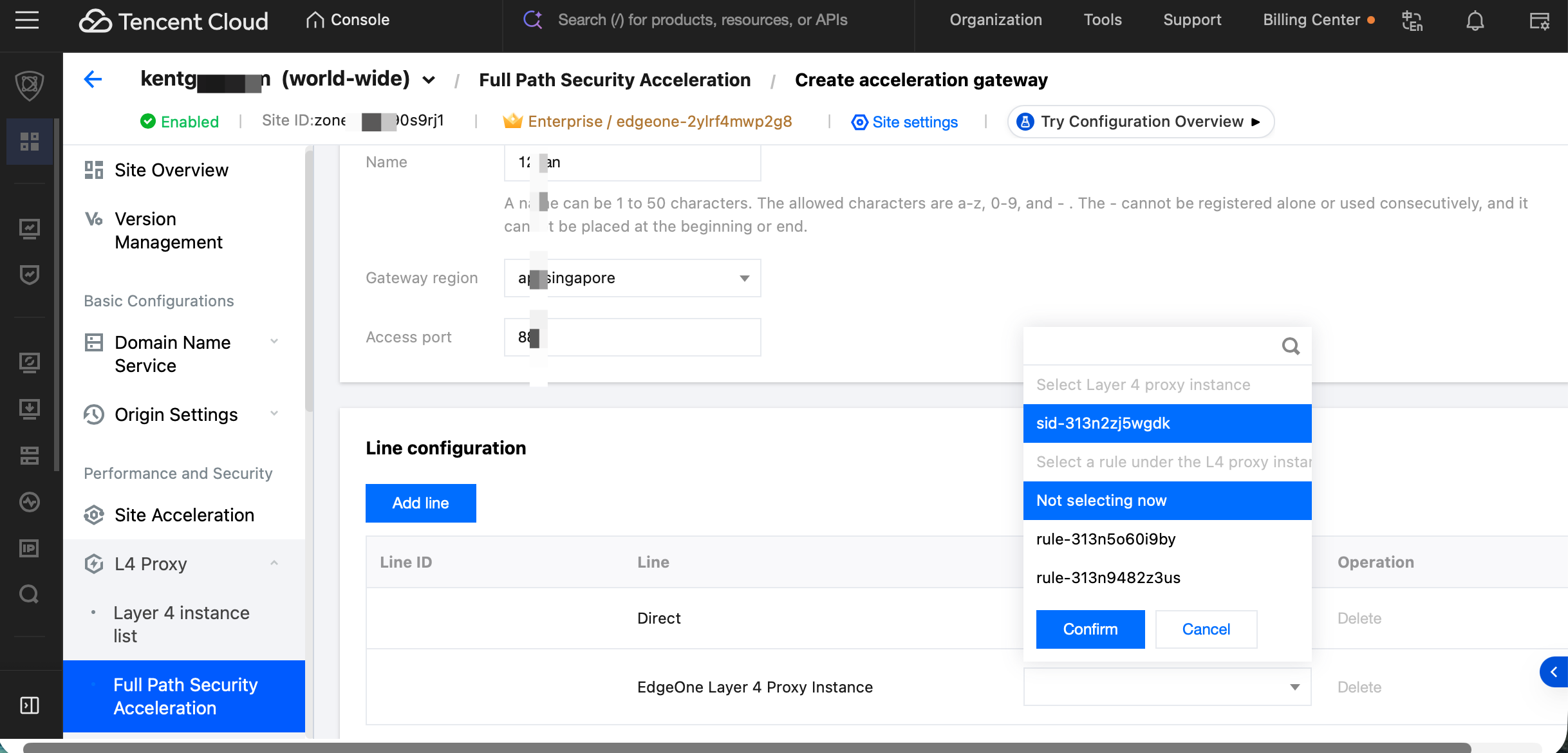
3. Create an acceleration gateway in the region where your origin server is located. Enter the name, region, and access port. Configure the route from the SDK to the gateway. This must include at least a direct route and an EdgeOne Layer-4 proxy route. The forwarding rules for the EdgeOne Layer-4 proxy can be left unconfigured for now. Click Create.

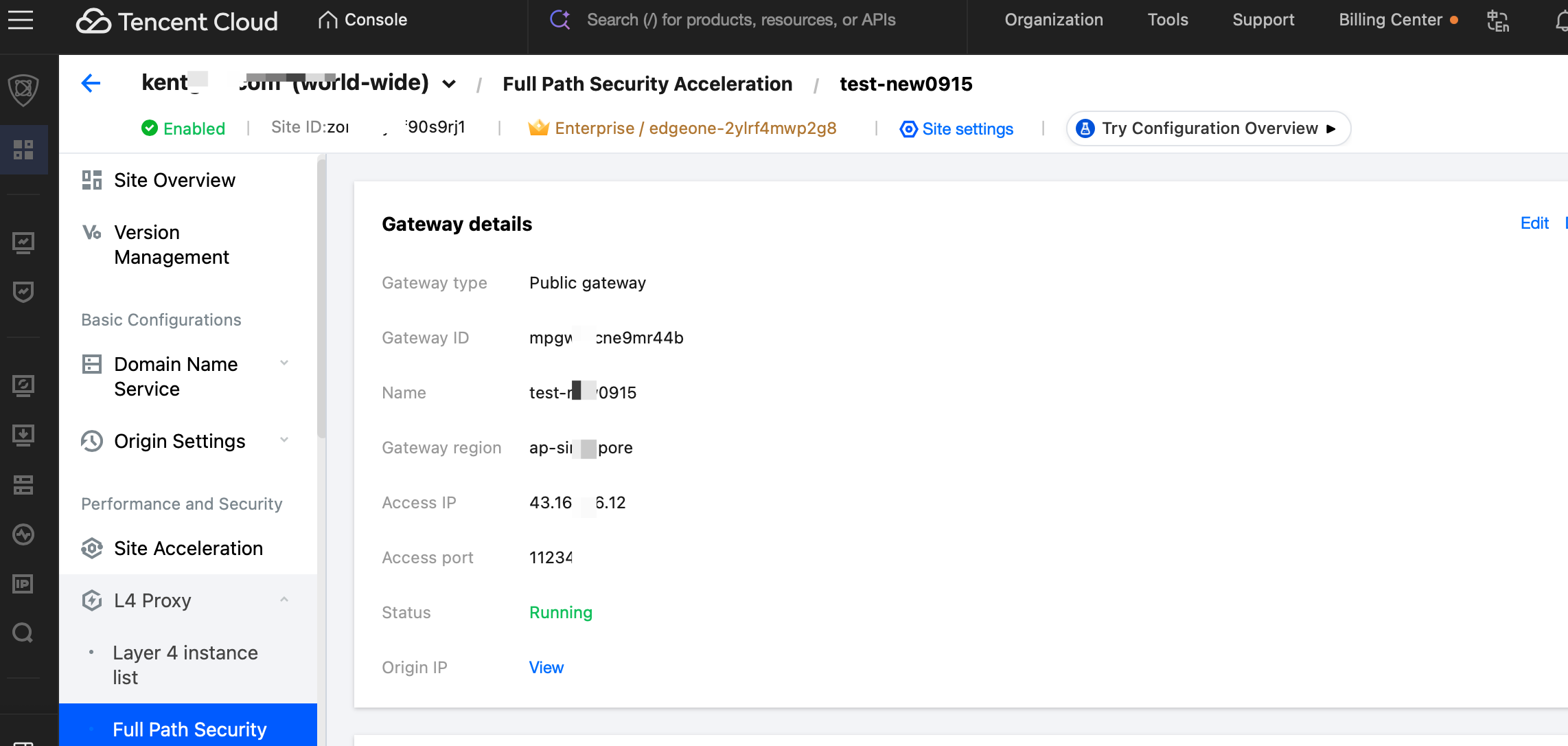
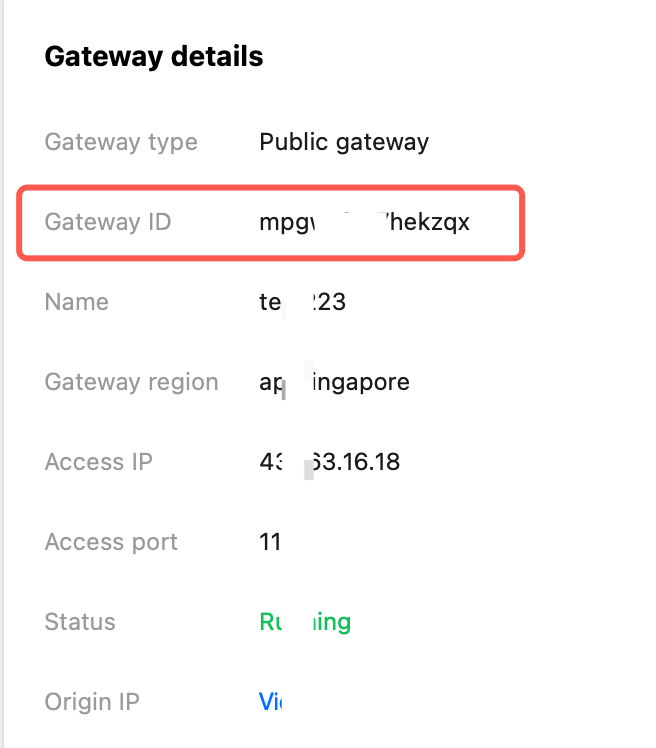
4. The acceleration gateway has been created successfully. You can view the gateway ID and the access IP address/port.

5. Provide the access IP address to the Tencent-side interface engineer to enable QUIC ID-based scheduling configuration for the access point. (Due to API limitations, this currently requires manual execution and will be adjusted to automatic modification later).
Configuring the Relationship Between Layer-4 Proxies and Gateways
1. Create a forwarding rule for the Layer-4 proxy and point the rule's origin server to the gateway's IP address and port.
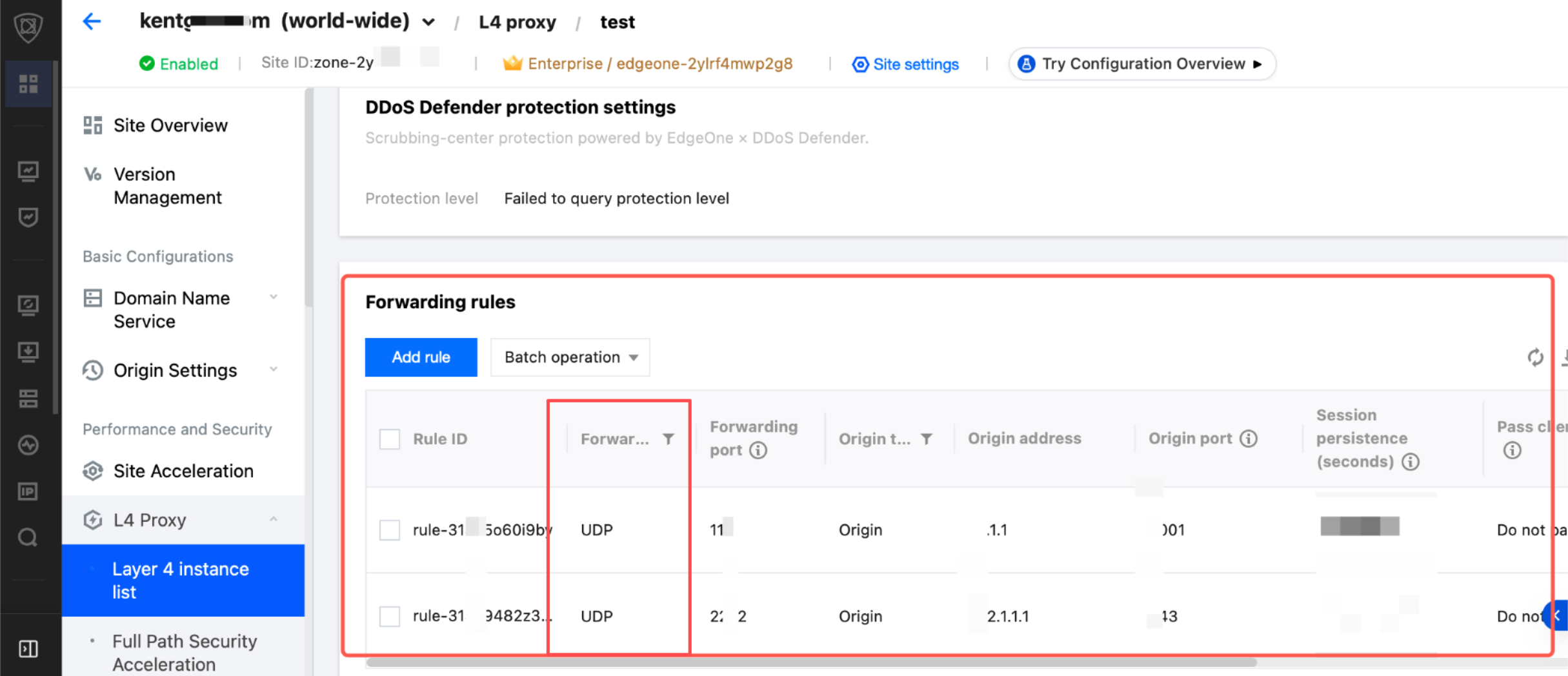
Attention:
In this step, the forwarding protocol must be UDP. If TCP is selected, the protocol stack will introduce additional connection state and retransmission logic at the outer layer of the tunnel, causing Multiple Network Acceleration to fail.
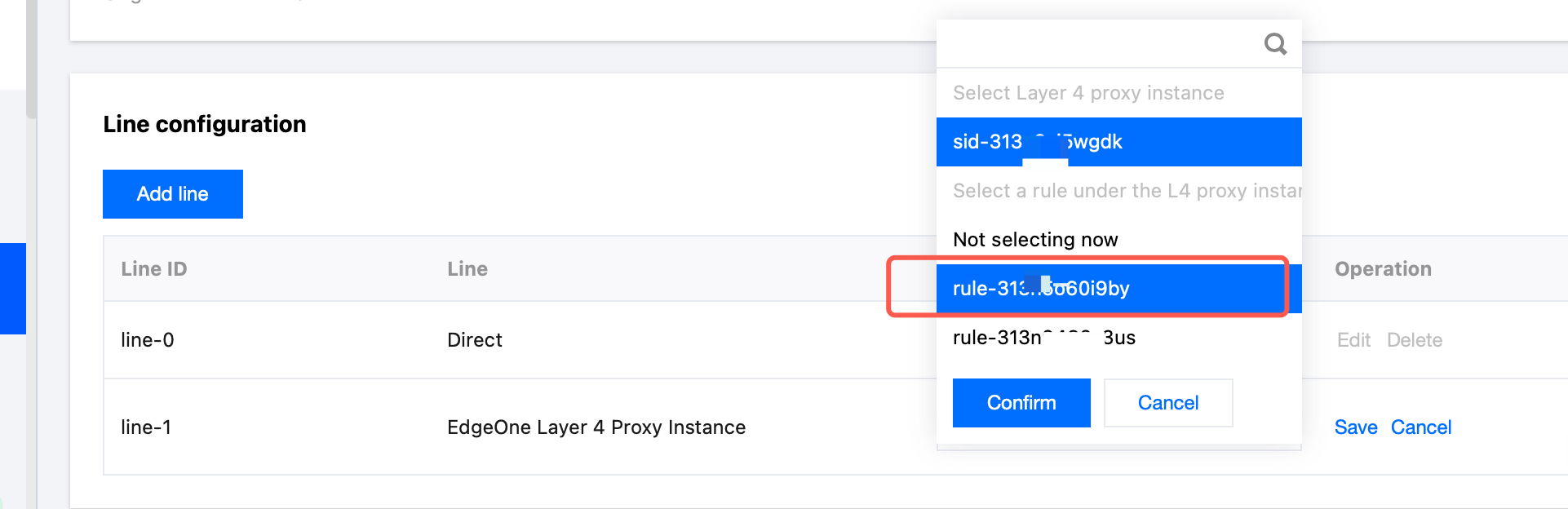
2. Configure the route for the acceleration gateway. For the EdgeOne L4 proxy instance route rule, select the rule ID you just created.
Setting Access Keys
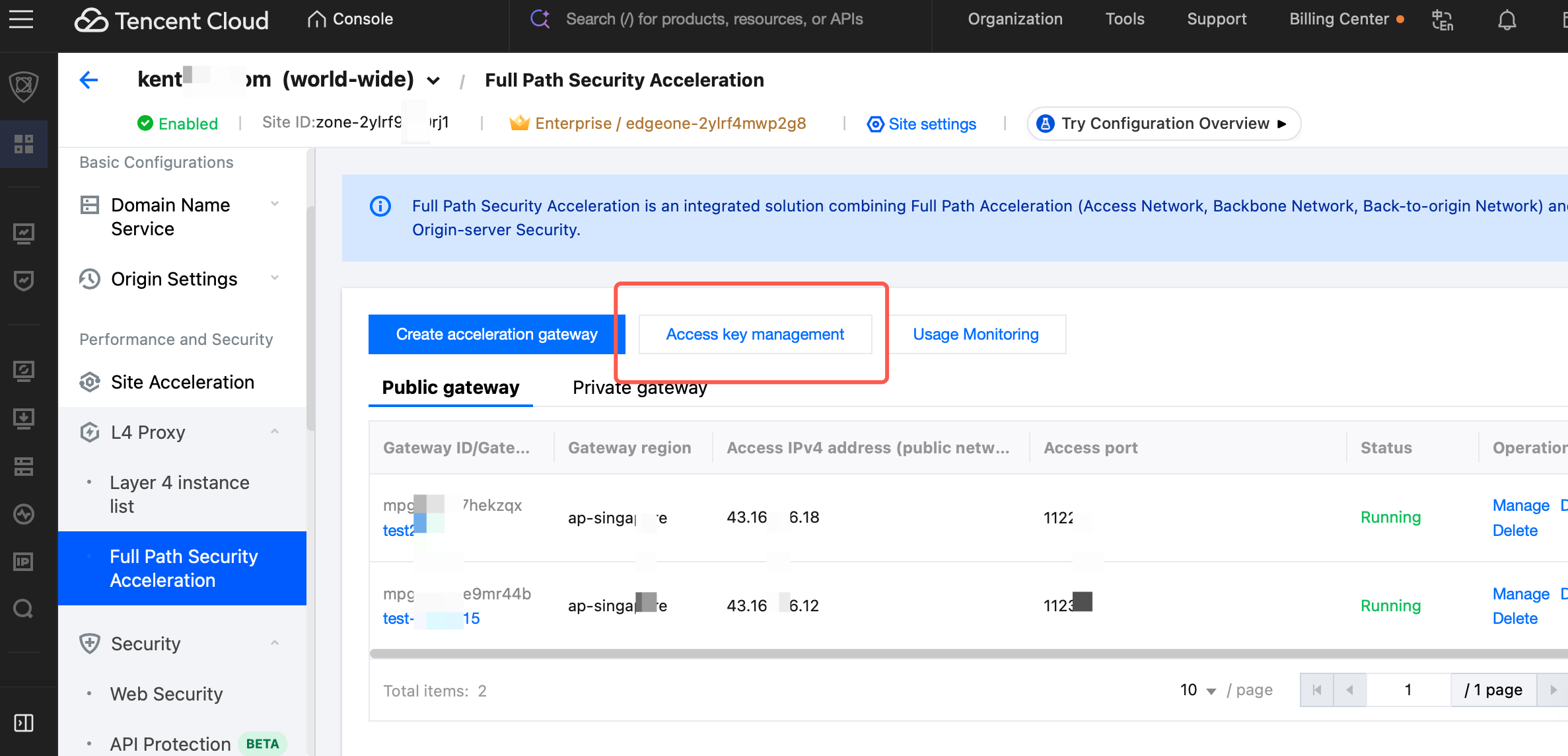
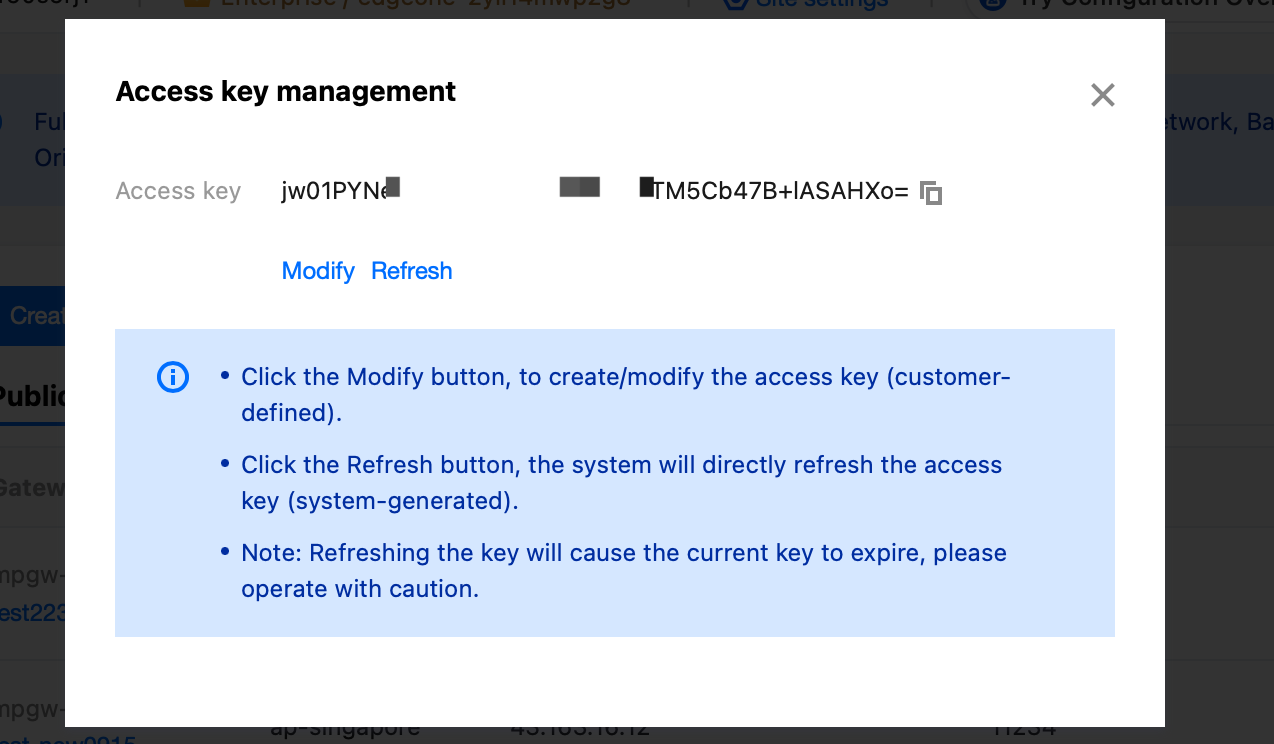
1. Click Access Key Management. You can click Refresh to have the system create an access key, or you can customize the key.
After completing the above steps, configure the Site ID, Gateway ID, and Access Key in the client SDK/DemoApp. You can then enable acceleration on the SDK side.
Demo App
You can quickly experience the product service through the Demo App. Please download the latest version of the installation package. For details, refer to the Demo App Download Guide.
The testing steps are as follows:
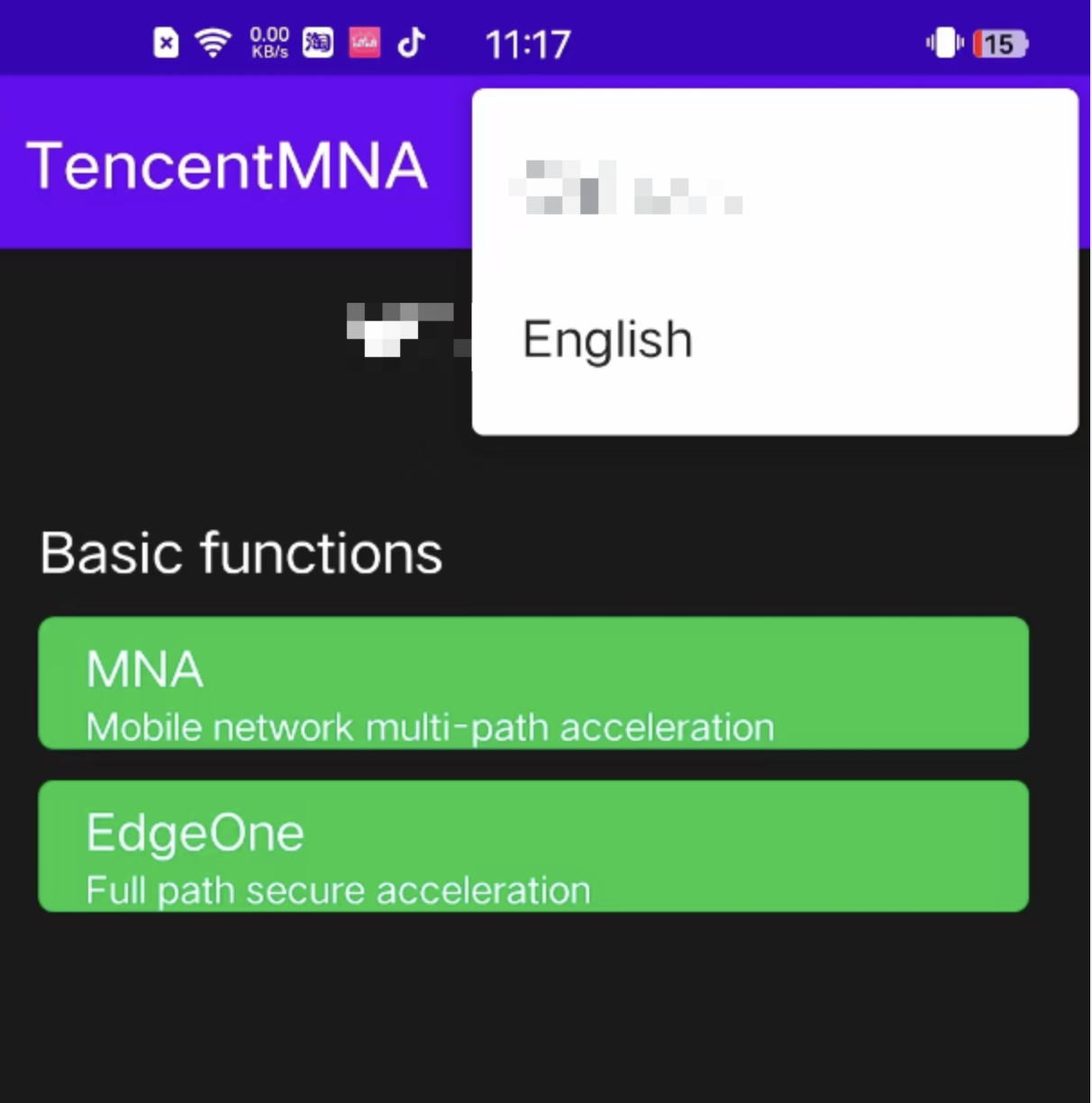
1. Select the language in the upper-right corner. Chinese/English are available. Under Basic Features, select EdgeOne Full-Path SCDN Experience.
2. Click the upper-right corner again to go to the Settings.
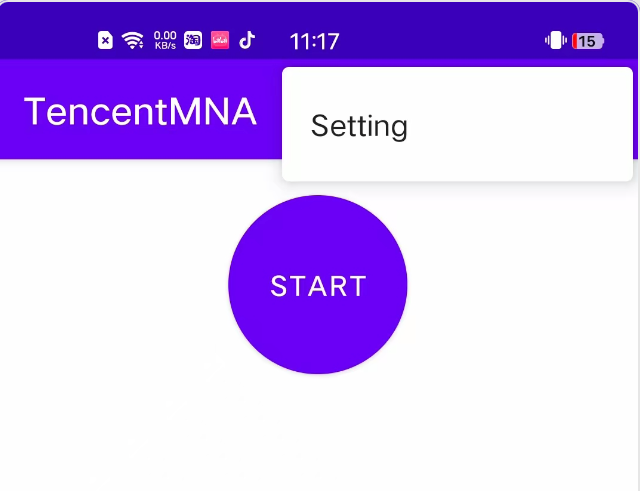
3. Configure acceleration.
Select the environment.
During the testing phase, it is recommended to select the release environment. This facilitates the R&D team in troubleshooting and technical integration.
During the launch verification phase, it is recommended to use the production environment. You can create a gateway in the console to verify the performance of the live service.
Acceleration parameters
Application Key: Enter the access key you created on the console.
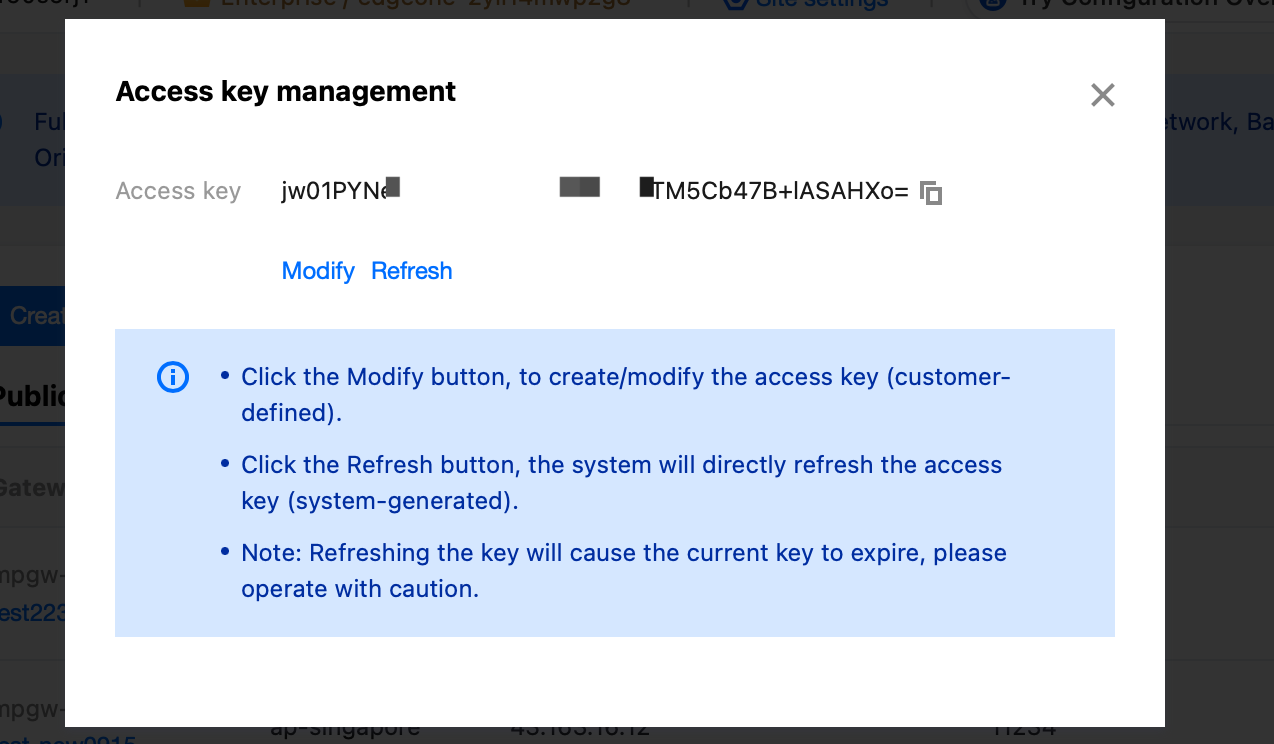
Zone ID: Enter your EdgeOne site ID.

Gateway ID: Enter the gateway ID you created on the console.
Acceleration Mode: Select Real-time Mode.
Accelerated Apps: Generally, you can select all apps to accelerate all traffic on the phone. You can also select specific apps of interest from the list for acceleration.
Log Level: Select Info.
Multiple NICs: When this feature is enabled, the Wi-Fi/cellular NICs on your phone are used for speed competition. Otherwise, they are not.
Store Logs: If you select the Store Logs option, acceleration logs are stored in the following directory after acceleration is enabled:
Android/data/com.android.tencentvpn/files/DocumentsYou can also obtain PING logs by using the Android adb tool with the following command:
adb logcat -b all | grep PING > $(date +\\%m\\%d-\\%H:\\%M:\\%S).log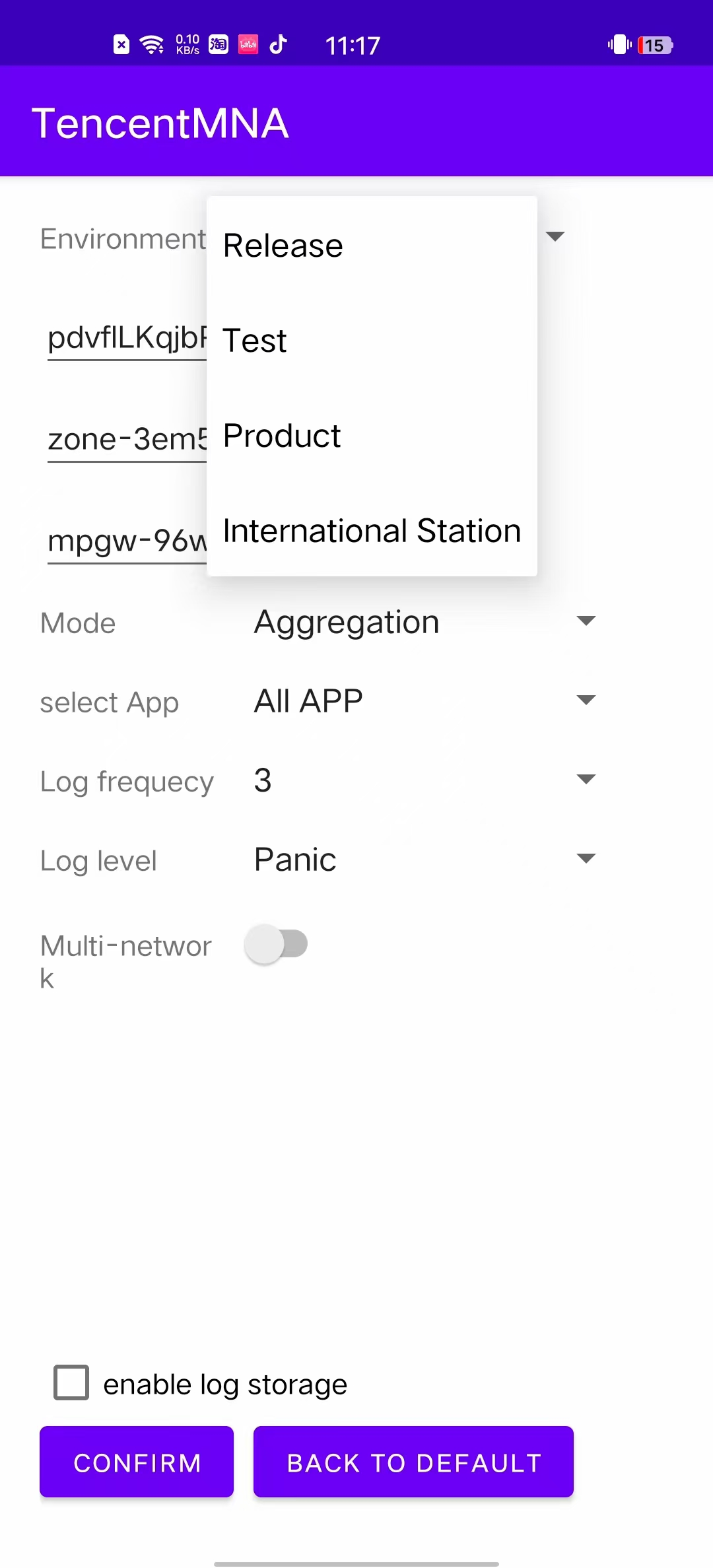
4. After completing the above configuration, click Confirm to return to the acceleration page.
5. Click Start Acceleration and grant VPN permissions. A VPN icon appears (the icon varies depending on the mobile phone manufacturer).
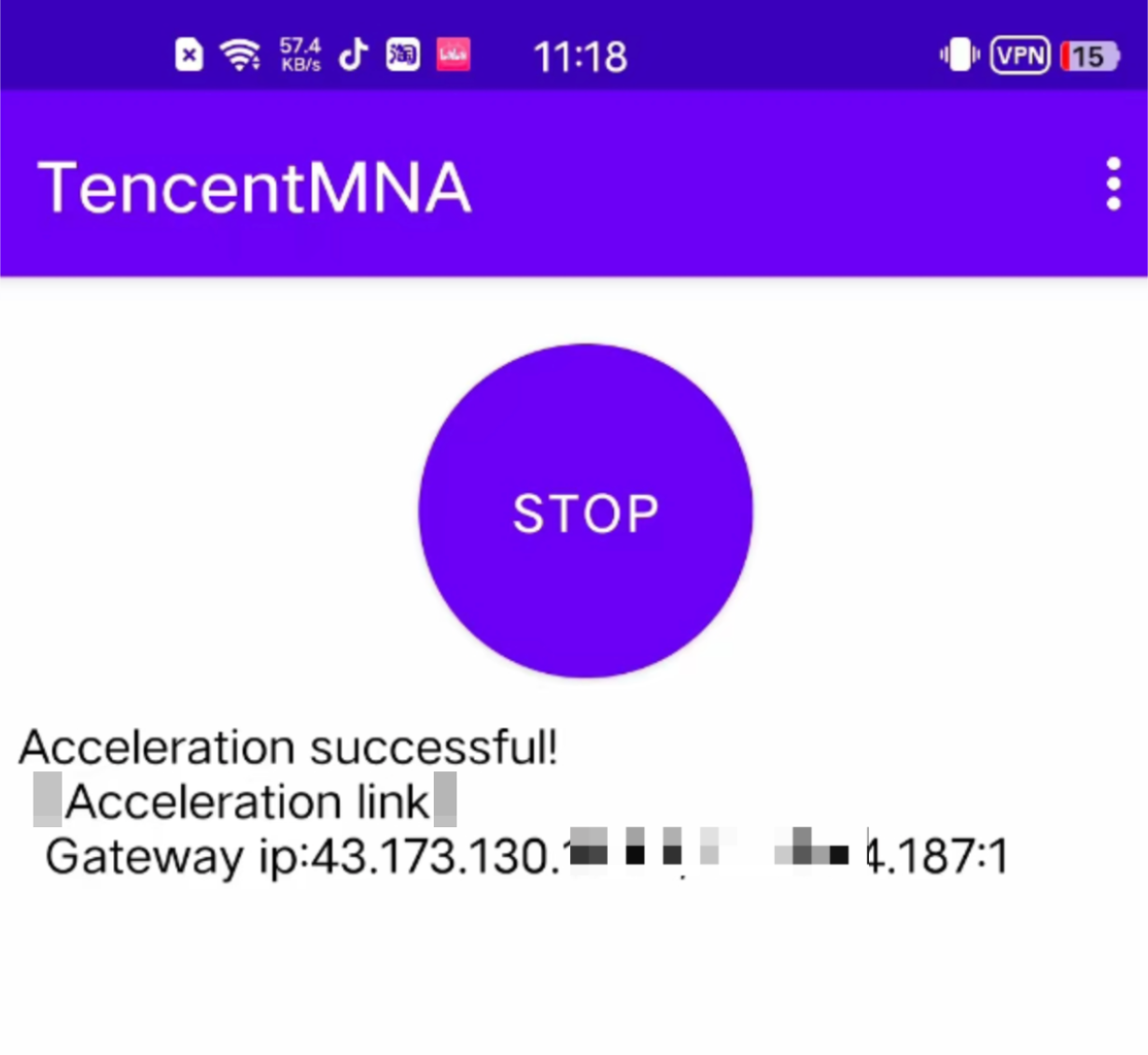
6. Click Stop. The disappearance of the VPN icon indicates that acceleration has stopped.
SDK Integration
Generating Device Sign Signatures for Applications
Generating the device Sign signature for an application-created device requires two parameters: the customer-defined business control device unique identifier, which is the deviceName, and the application key returned after successful creation in the figure above. Use these two parameters to run the script and complete the generation of the device Sign signature for the application-created device.
Java
package com.android.tencentvpn.util;import io.jsonwebtoken.Jwts;import io.jsonwebtoken.SignatureAlgorithm;import java.security.Key;import java.util.Date;import javax.crypto.spec.SecretKeySpec;public class SignGenerate {private static final long EXPIRE_TIME = 72 * 60 * 60 * 1000; // Expiration time, in milliseconds/*** @param deviceName The unique identifier of the device controlled by the business itself* @param SecretKey The application key returned by the TencentCloud api* @return The signature string required by the multi-network sdk, which is ultimately invoked via the setSign method.**/public static String generateSign(String deviceName, String SecretKey) {try {Date now = new Date();Date expireDate = new Date(now.getTime() + EXPIRE_TIME);Key key =new SecretKeySpec(SecretKey.getBytes(), SignatureAlgorithm.HS256.getJcaName());return Jwts.builder().claim("deviceName", deviceName).expiration(expireDate).signWith(key).compact();} catch (Exception e) {e.printStackTrace();}return "";}}
Objective-C
// Add pod 'JWT' to the podfile to integrate the JWT library.// .h file:@interface SignGenerator : NSObject/*** @deviceName The unique identifier of the device controlled by the business itself* @param SecretKey The application key returned by the TencentCloud api* @return The signature string required by the multi-network sdk, which is ultimately invoked via the setSign method.*/+ (NSString *)generateSignWithDeviceName:(NSString *)deviceName secretKey:(NSString *)secretKey;@end// .m file#import "SignGenerator.h"#import <JWT/JWT.h>@implementation SignGenerator+ (NSString *)generateSignWithDeviceName:(NSString *)deviceName secretKey:(NSString *)secretKey {// 1. Set the expiration time (after 72 hours)NSDate *currentDate = [NSDate date];NSDate *expireDate = [currentDate dateByAddingTimeInterval:72 * 60 * 60];// 2. Construct the Claims (payload)NSDictionary *claims = @{@"deviceName": deviceName,@"exp": @((long)[expireDate timeIntervalSince1970]) // Expiration};NSData *keyData = [secretKey dataUsingEncoding:NSUTF8StringEncoding];// 3. Sign using the HS256 algorithm and a secret keyJWTBuilder *builder = [JWTBuilder encodePayload:claims].secretData(keyData).algorithmName(@"HS256"); // Algorithm nameNSString *jwt = builder.encode;// 4. Error handlingif (builder.jwtError) {NSLog(@"JWT generation failed: %@", builder.jwtError);return @"";}return jwt;}
Go language
package mainimport ("fmt""github.com/dgrijalva/jwt-go/v4""time")func main() {sign, expireTime, err := GenerateSign("tencent-test")if err != nil {panic(err)}println(sign, expireTime)}// SignClaims JwtCustomClaimstype SignClaims struct {jwt.StandardClaimsDeviceName string `json:"deviceName"`}var (ExpireTime = 72 // Expiration time, in hoursSecretKey = []byte("your secretkey") // APP key)// GenerateSign generates a signaturefunc GenerateSign(deviceName string) (string, int64, error) {expireTime := time.Now().Add(time.Duration(ExpireTime) * time.Hour)claims := &SignClaims{StandardClaims: jwt.StandardClaims{NotBefore: jwt.Now(),ExpiresAt: jwt.At(expireTime),},DeviceName: deviceName,}println(fmt.Sprintf("%#v", claims))token := jwt.NewWithClaims(jwt.SigningMethodHS256, claims)sign, err := token.SignedString(SecretKey)if err != nil {return "", 0, err}return sign, expireTime.Unix(), nil}
Setting Application Signature Authentication
Call the setSign API, passing in the appId (application ID) and sign (signature string) recorded during application creation, to complete the setup of application signature authentication for the application-created device.
API Reference
Attention:
Console features correspond to the API documentation. You can use console access as a reference point to consult the API documentation. If the correspondence is unclear, you can open the browser's developer mode and locate the application API based on the interface name.
Bantuan dan Dukungan
Apakah halaman ini membantu?
Anda juga dapat Menghubungi Penjualan atau Mengirimkan Tiket untuk meminta bantuan.
masukan