Asset Catalog Inventory Check
Unduh
Mode fokus
Ukuran font
The asset catalog inventory mainly provides the capacity to inventory assets in the asset directory under the root account. The inventory objects include data tables and metrics.
Inventory for tables: add table, move table (batch move), listing/removing table (batch listing/removing), download table, modify table importance level, modify table business information.
Inventory for metrics: add metric, move metric (batch move), listing/removing metric (batch listing/removing), transfer metric business owner, transfer metric technical owner.
Note:
The asset catalog inventory does not support adjustments to the asset catalog. The catalog is built based on the global business classification in data planning. If adjustments are needed, please visit the data planning module.
In the asset directory, you can search by entering the directory name to quickly locate the directory node and view assets in the directory.
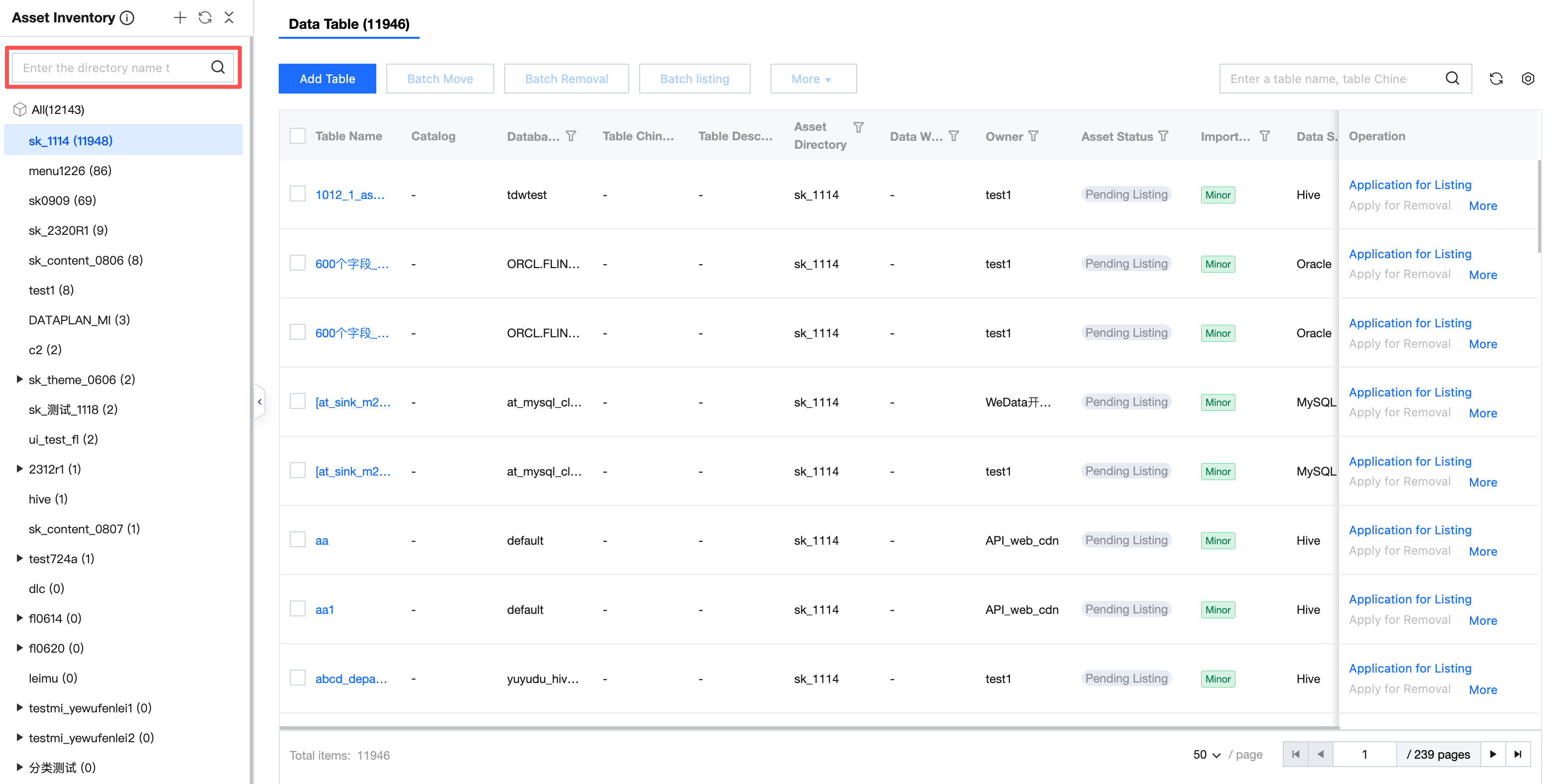
Data Table Inventory Check
In the list, you can select the asset catalog and perform an inventory check on the data table in the corresponding directory.
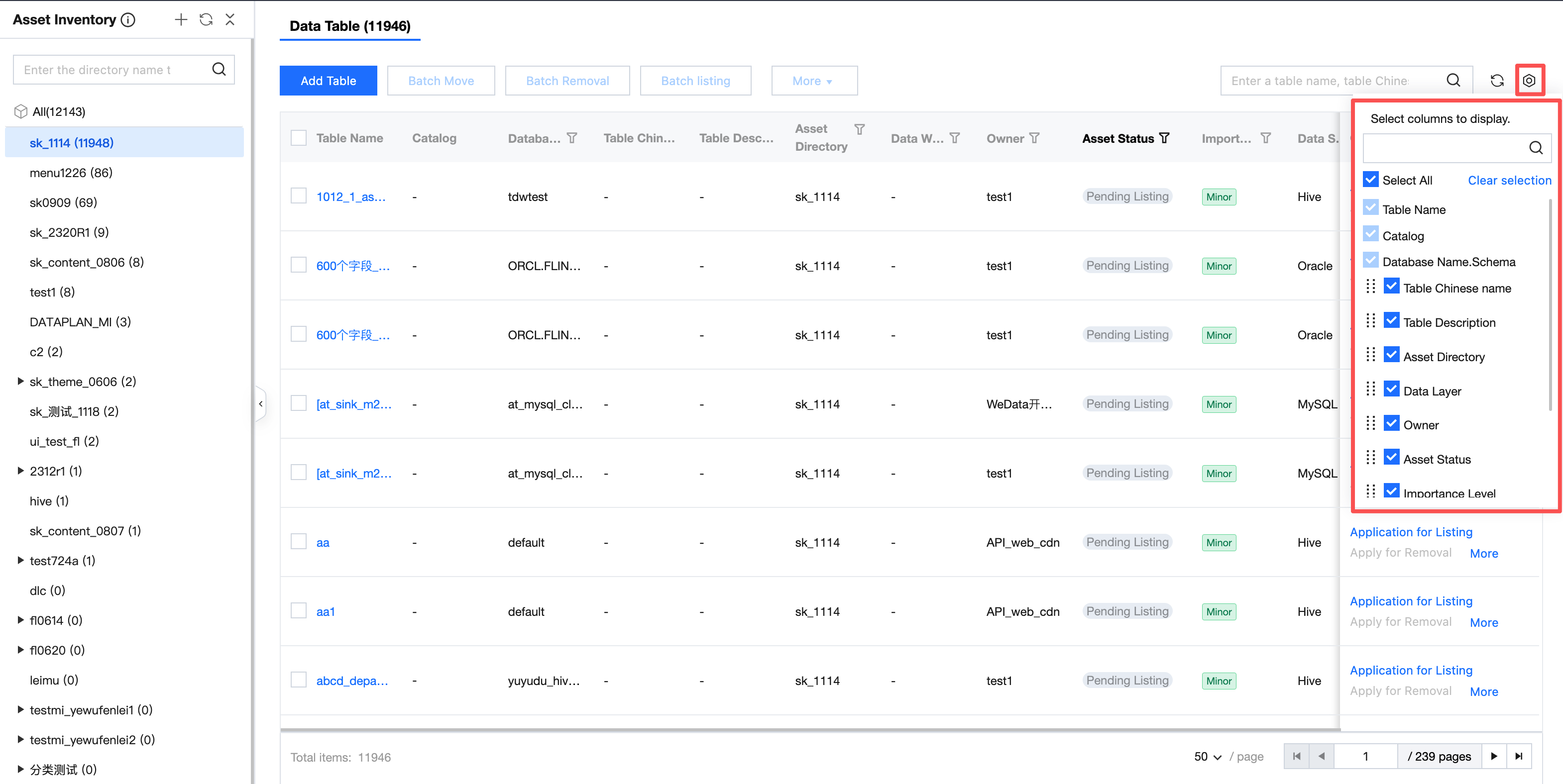
List Field
List fields support customization and can be customized based on needs.
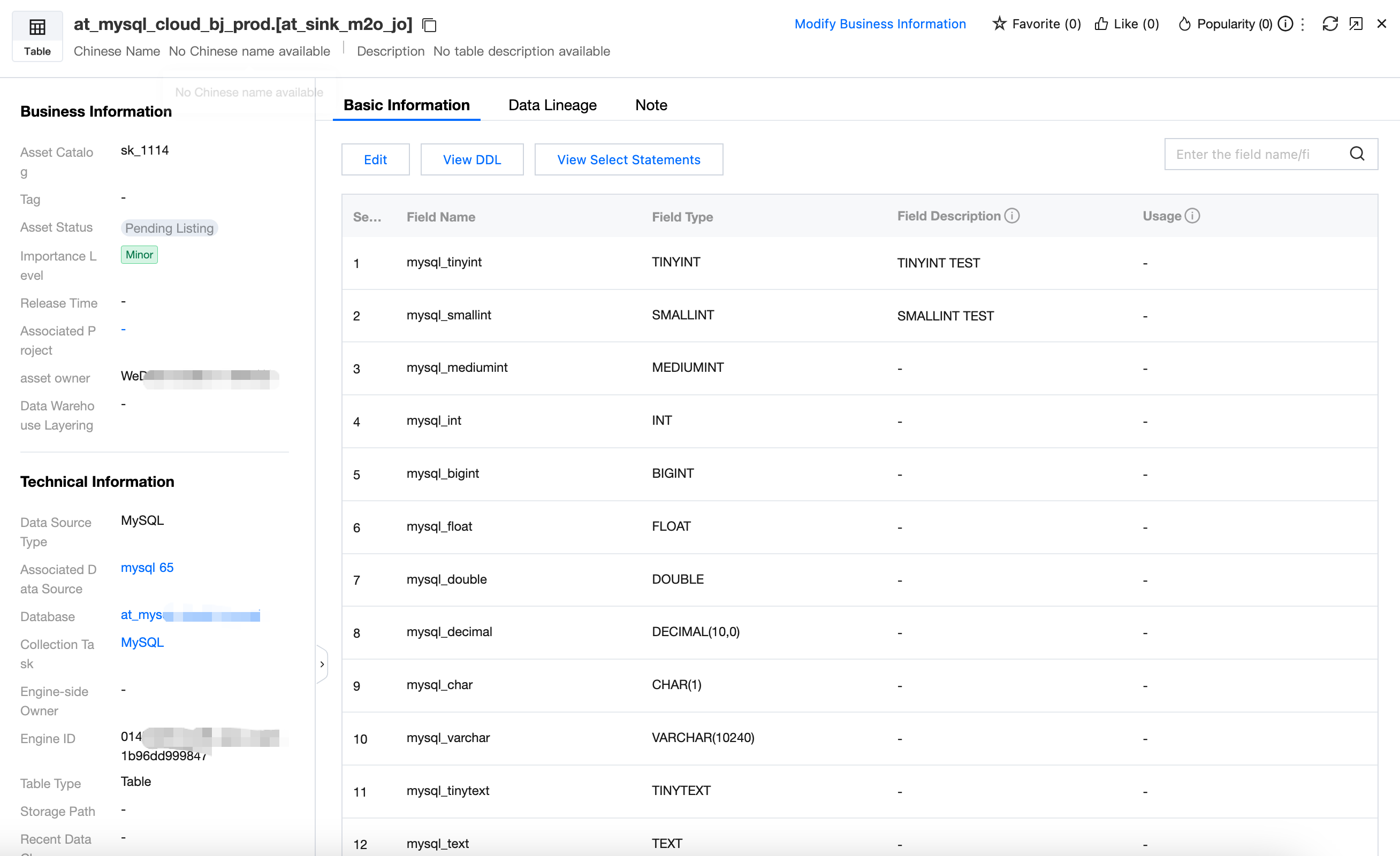
View Table Detail
Enter the asset catalog inventory page, click the table name in the list to view the table detail.
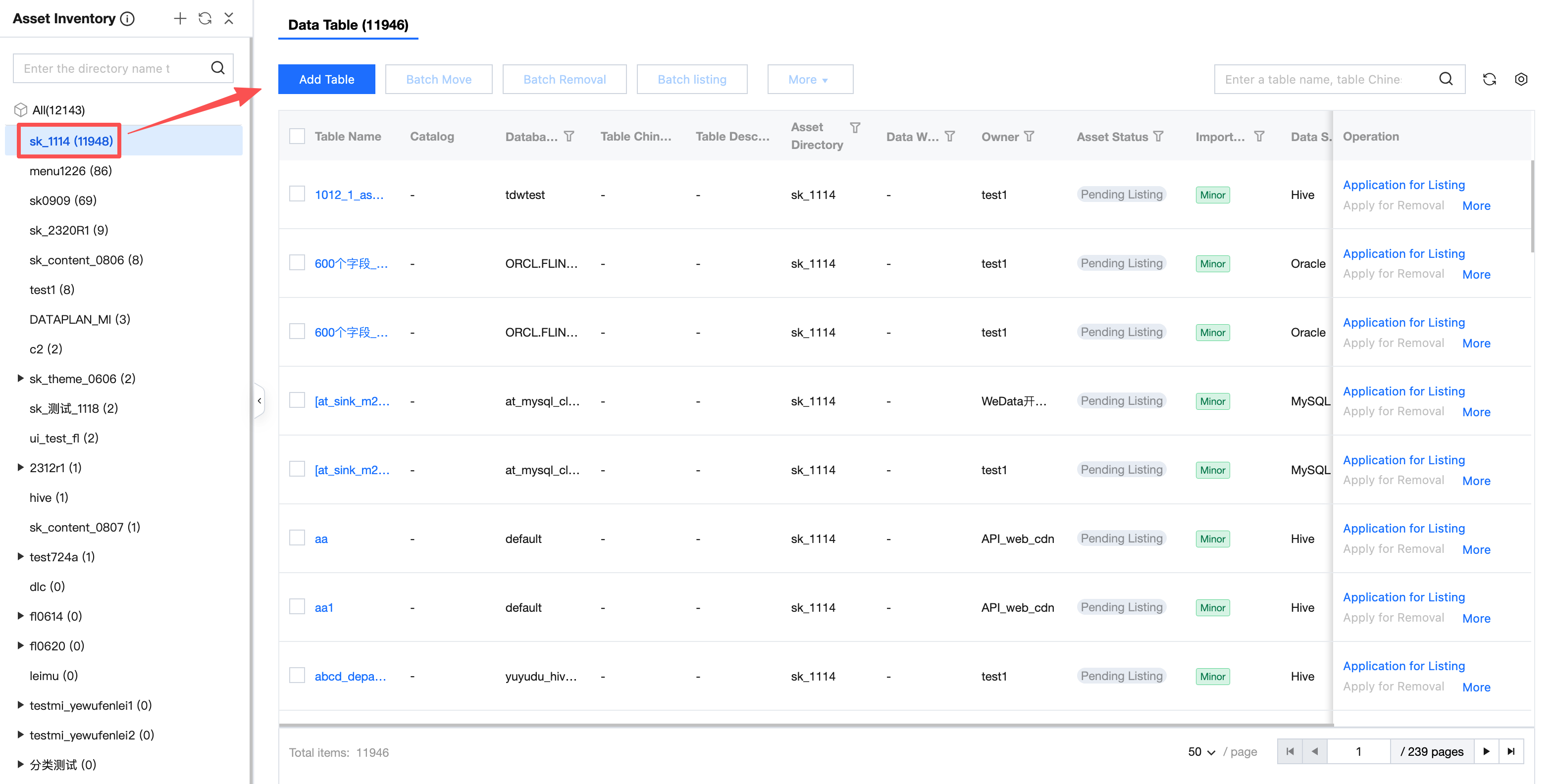
Adding a Table
Enter the asset catalog inventory page, select the target directory, and then click add table.
Click the add button and select the data table in the pop-up. Support quick filtering of tables through project, data source type, data source, table owner, importance level, tag, database, data warehouse layering, and keyword. You can also directly select database tables via the tree structure on the right.
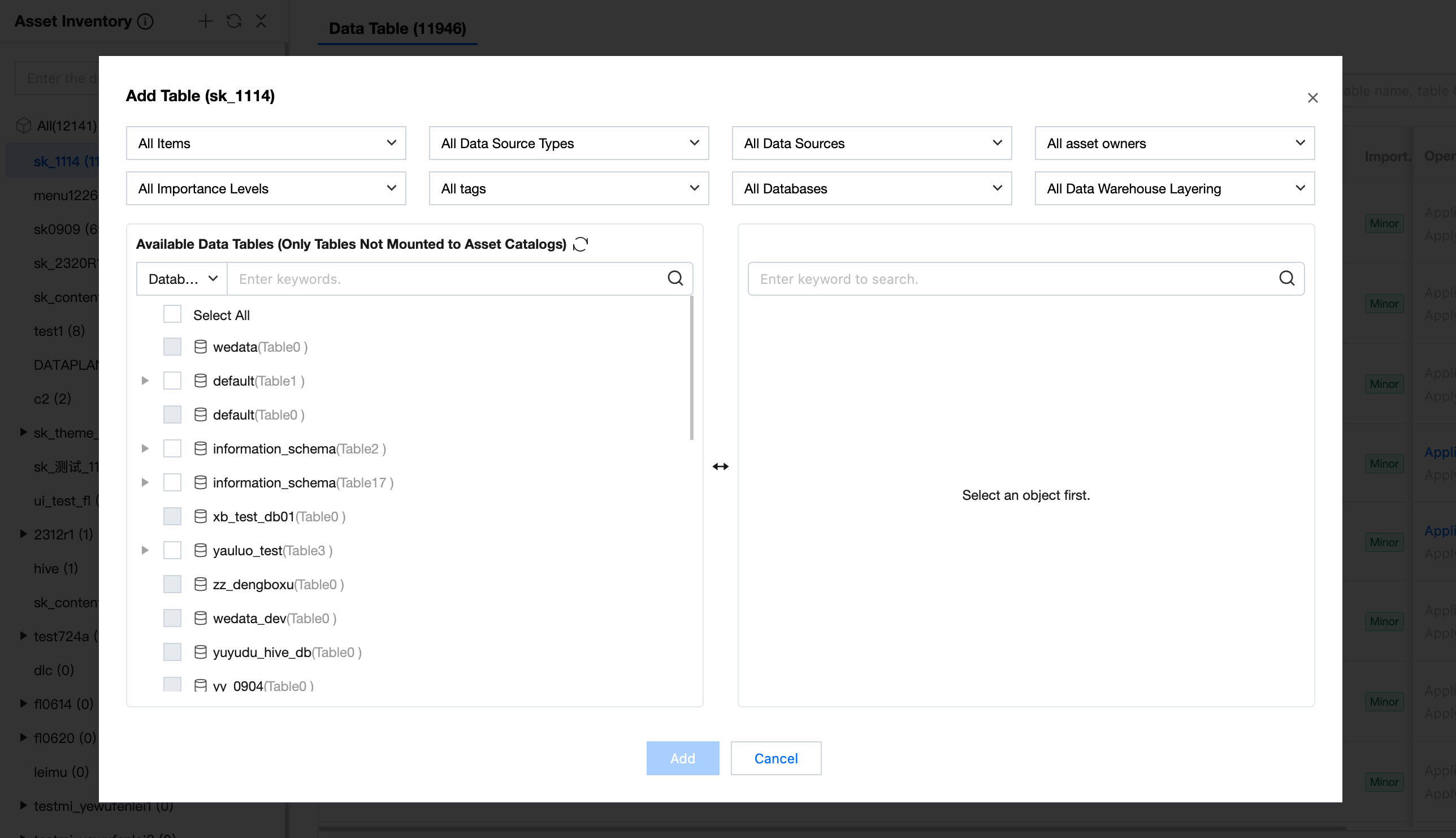
List view displays the database and the number of tables. Databases with 0 sheets are unsupported for selection.
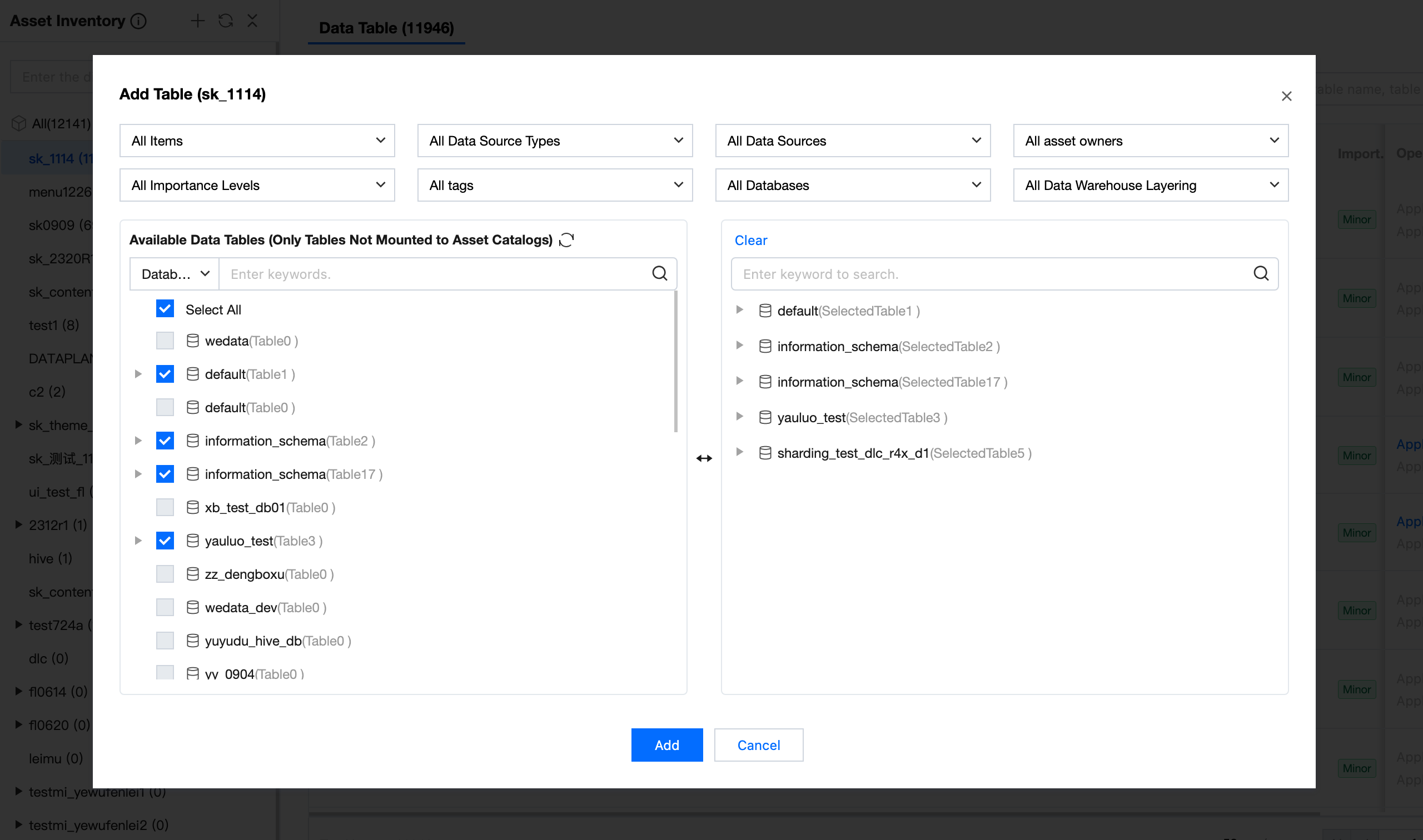
Note:
Only support adding tables not mounted to asset catalogs.
Batch Move
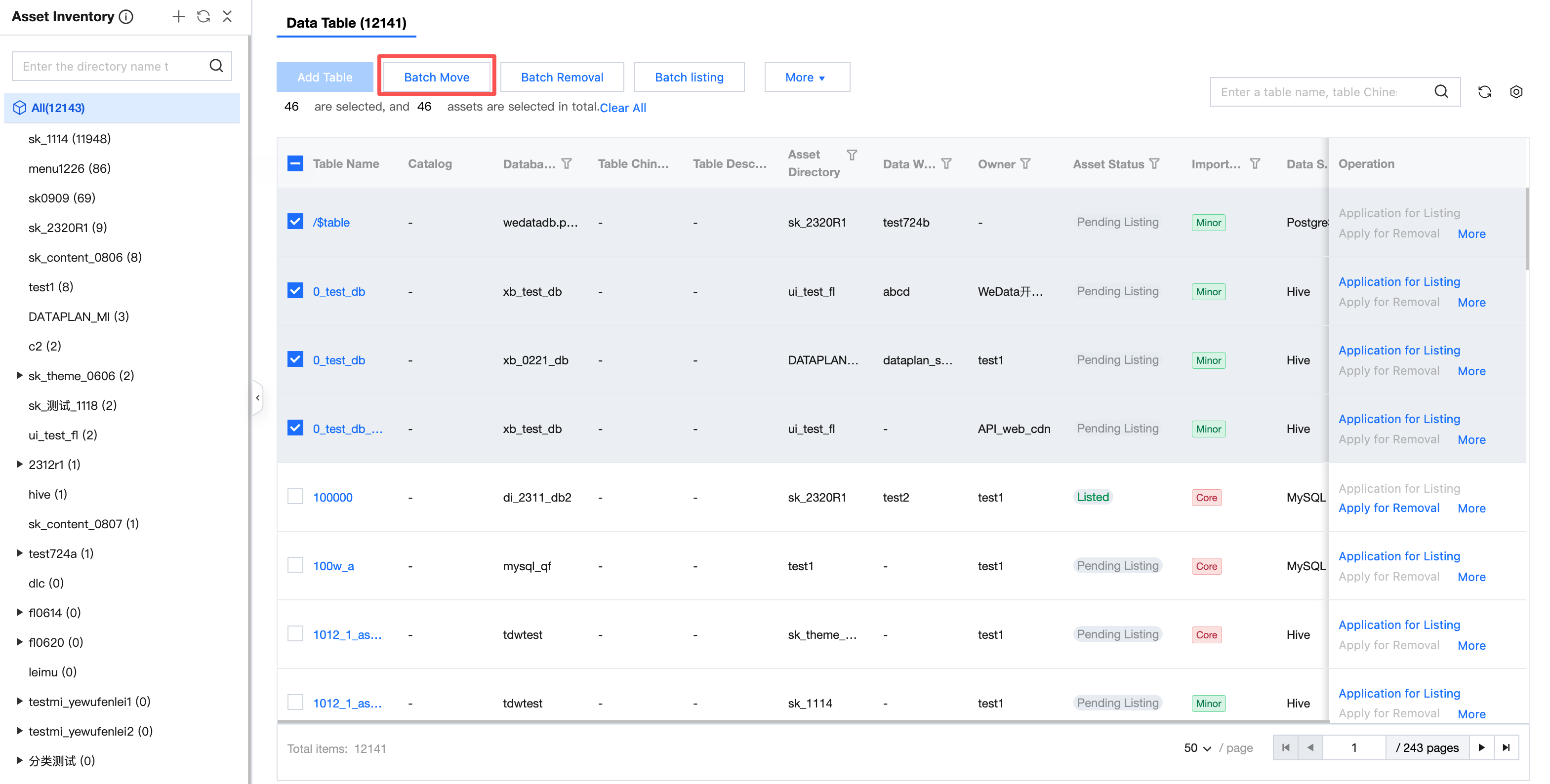
Enter the asset catalog inventory webpage, check the needed assets, click batch move at the top, and you can move the assets to another directory node in bulk.
Batch Removal
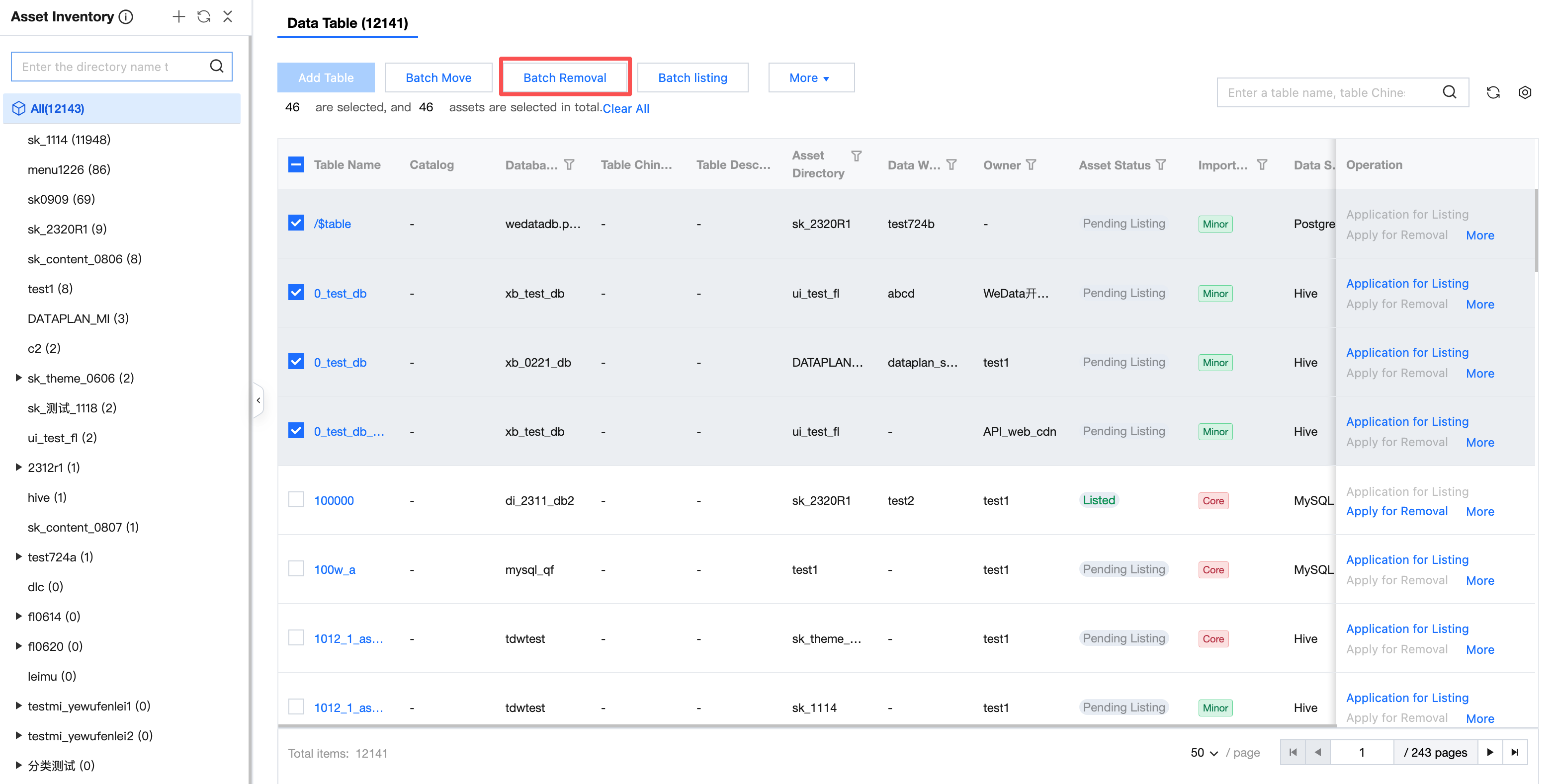
Enter the asset catalog inventory webpage, check the needed assets, click batch removal at the top, and you can batch remove the assets from the current directory node.
Note:
Listed assets cannot be moved out of the directory. You need to apply for delisting first, then proceed with the removal.
Batch Listing
Enter the asset catalog inventory webpage, check the assets that need to be released, click batch listing at the top, and you can batch list the assets at once.
Note:
1. Only assets that are on the shelf can be viewed in the asset directory.
2. Assets without an owner are not supported for shelving.
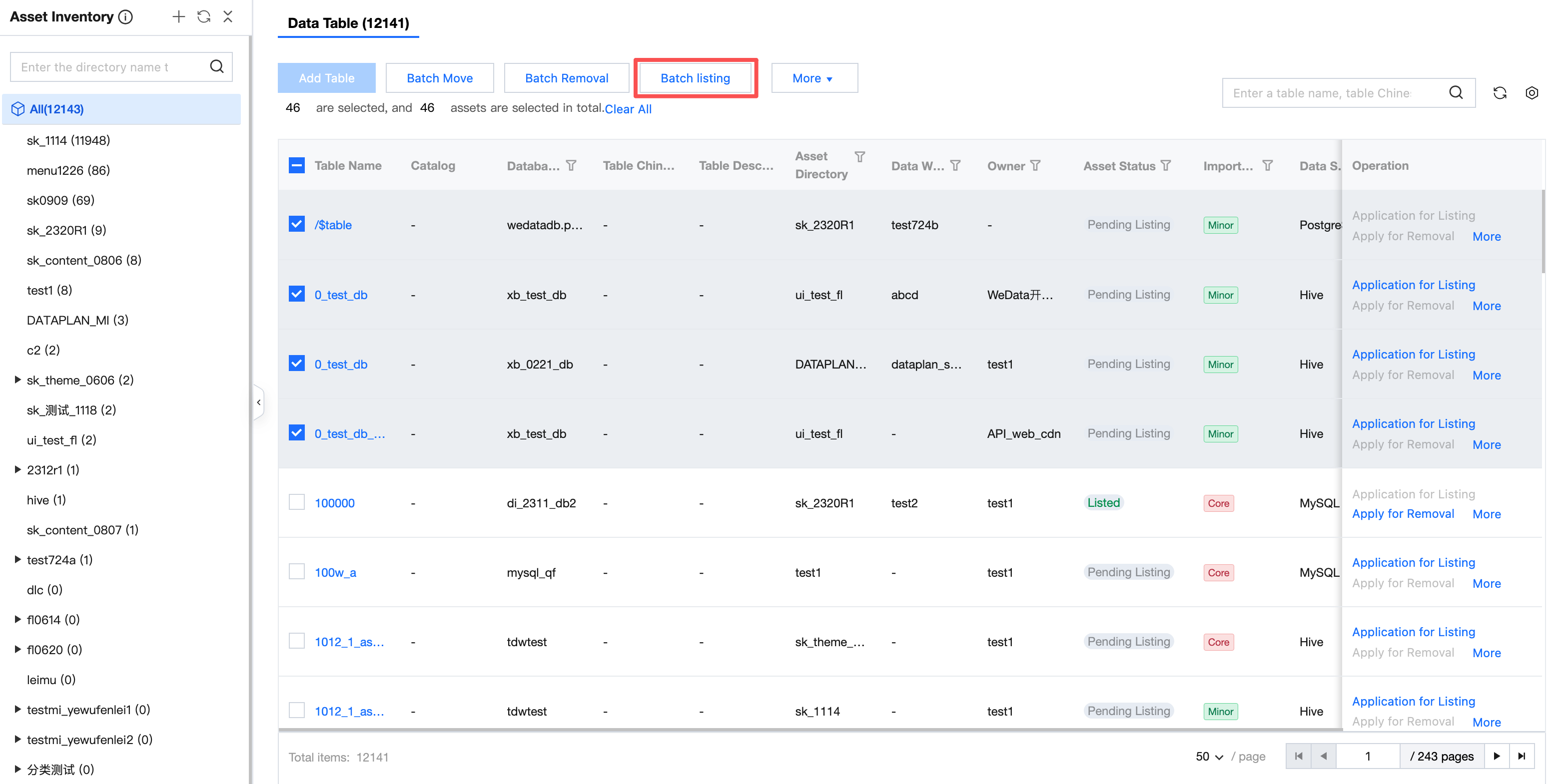
Batch Delisting
Enter the asset catalog inventory webpage, check the assets that need to go offline, click batch delisting, and you can batch delist the assets at once.
Note:
After delisting, assets will not be searchable in the asset catalog; users who have obtained usage rights can continue to use them.
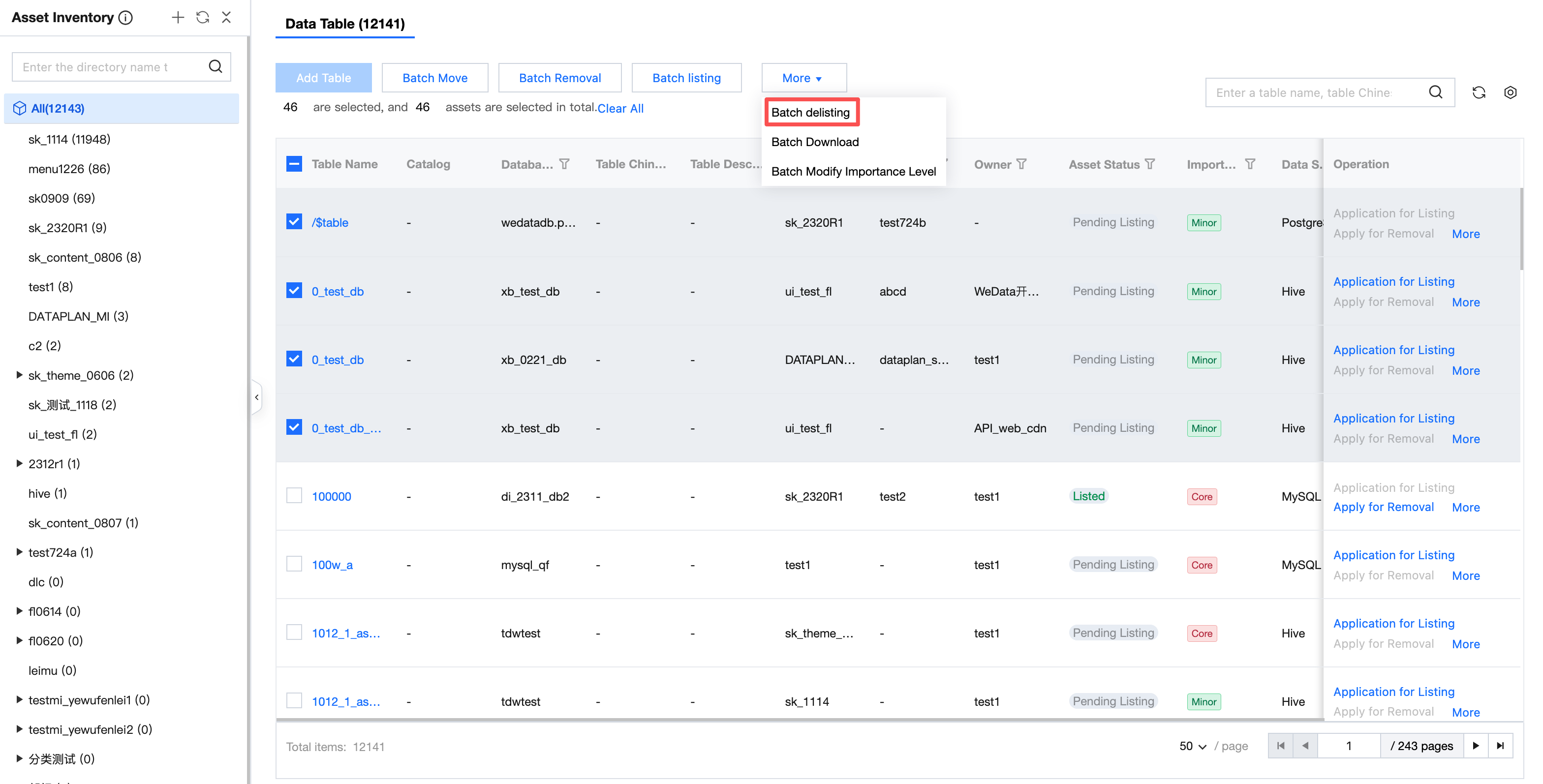
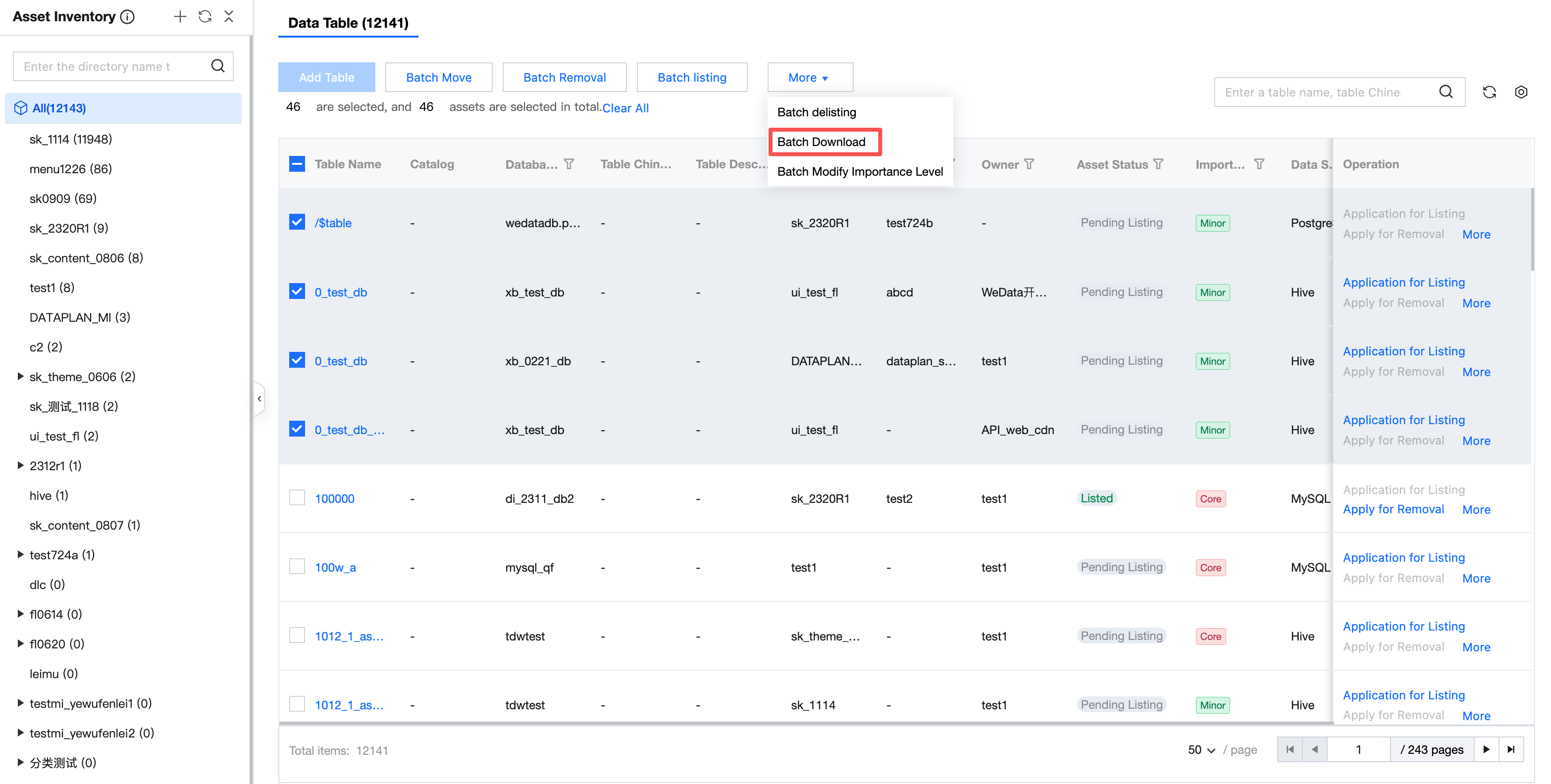
Batch Download
Enter the asset catalog inventory webpage, check the assets that need to be downloaded, click batch download, and you can batch download the assets at once.
Download the file in xlsx format. The field is the same as the list field.
Batch Modifying Importance Level
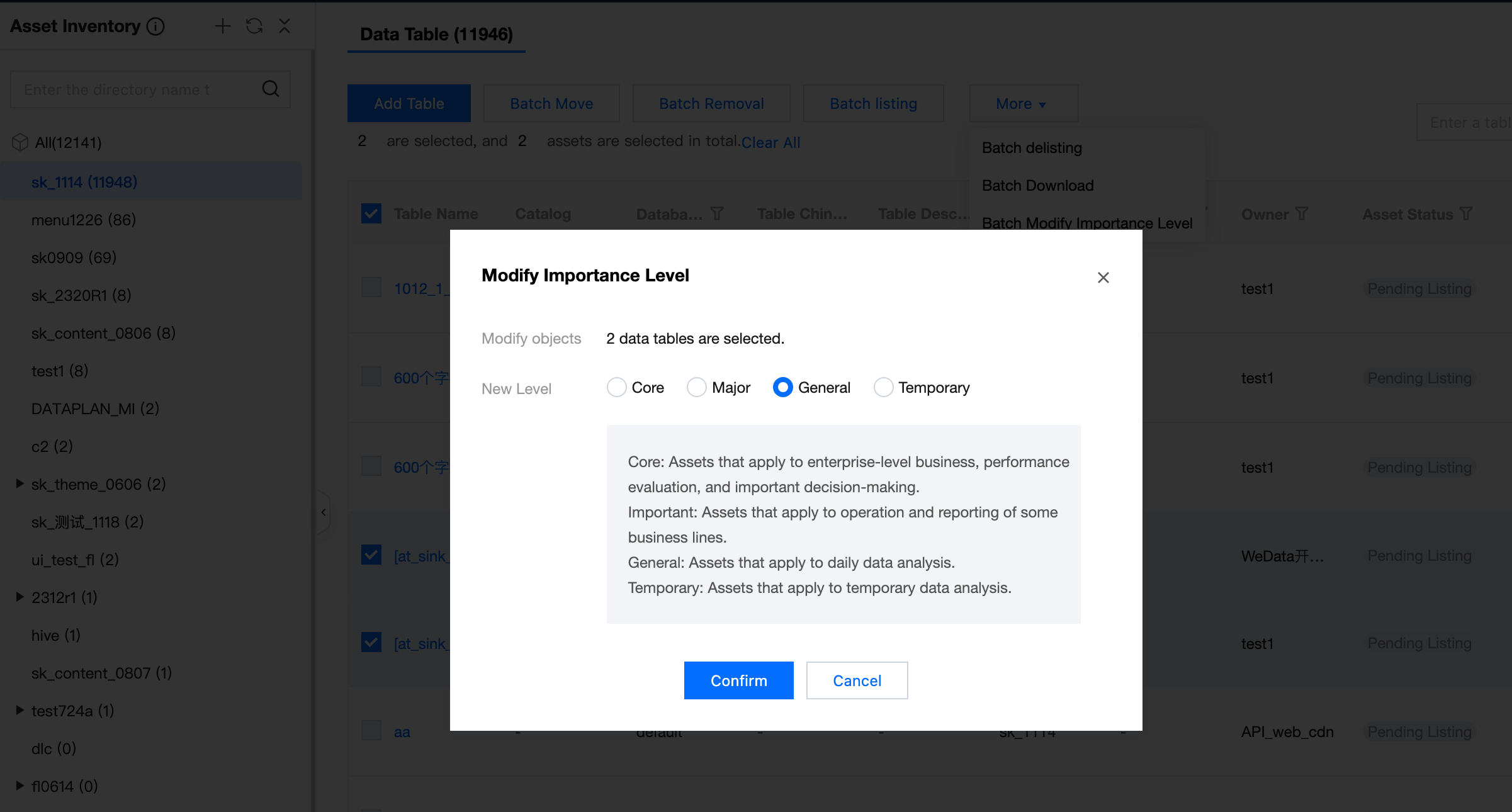
Enter the asset catalog inventory webpage, check the assets that need to modify importance level, click batch modify importance level.
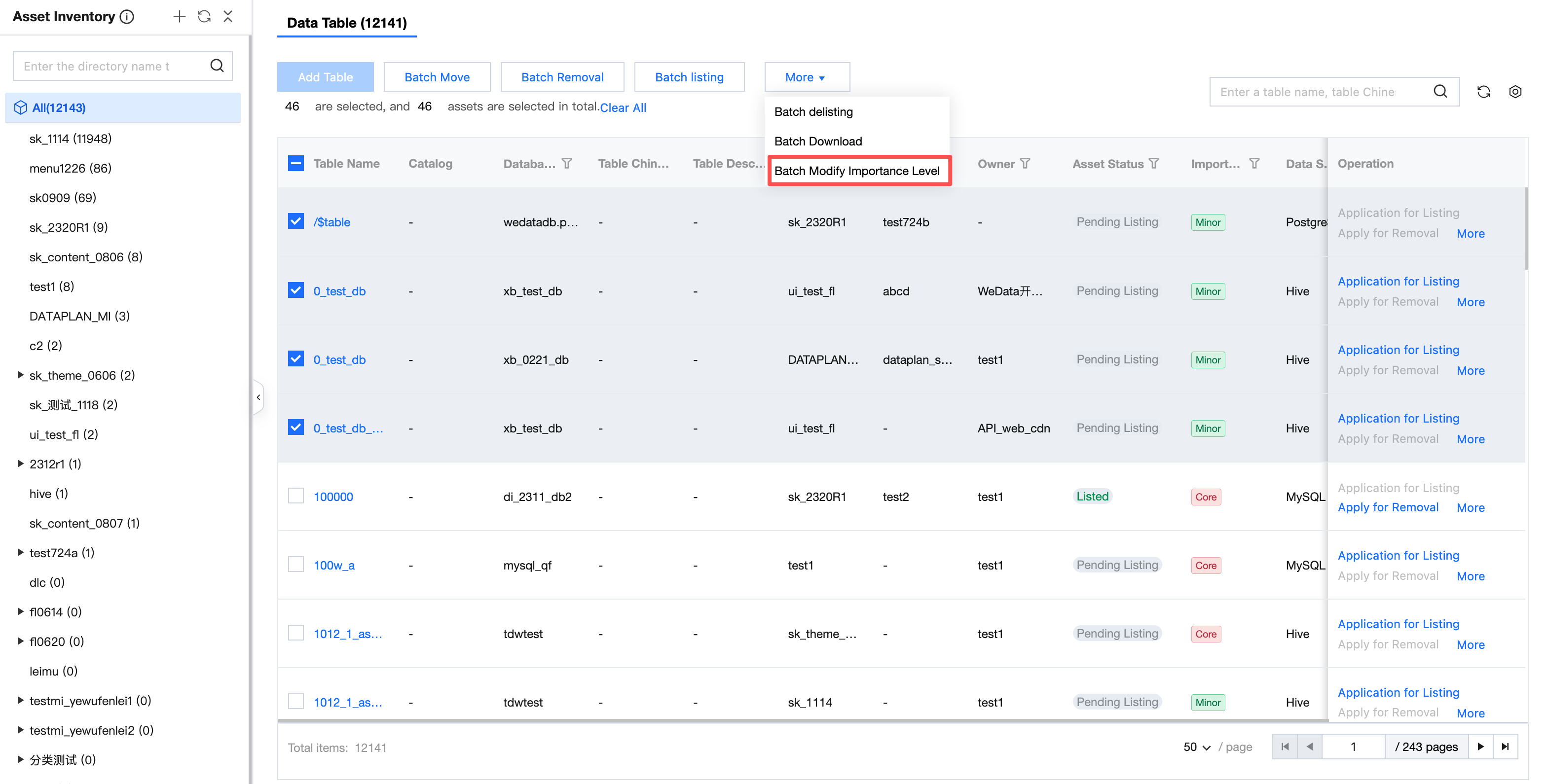
Enter the modify importance level page. It is advisable to classify according to business logic. Modifying the importance level makes it easy to retrieve and manage afterward. After completing the modification, click confirm.
Importance level is divided into 4 levels:
Core: assets suitable for enterprise-level business, effectiveness evaluation, and important decision-making.
Important: assets applicable to specific business line operations and reports.
General: assets for daily data analysis.
Temporary: assets for temporary data analysis.
Modify Business Information
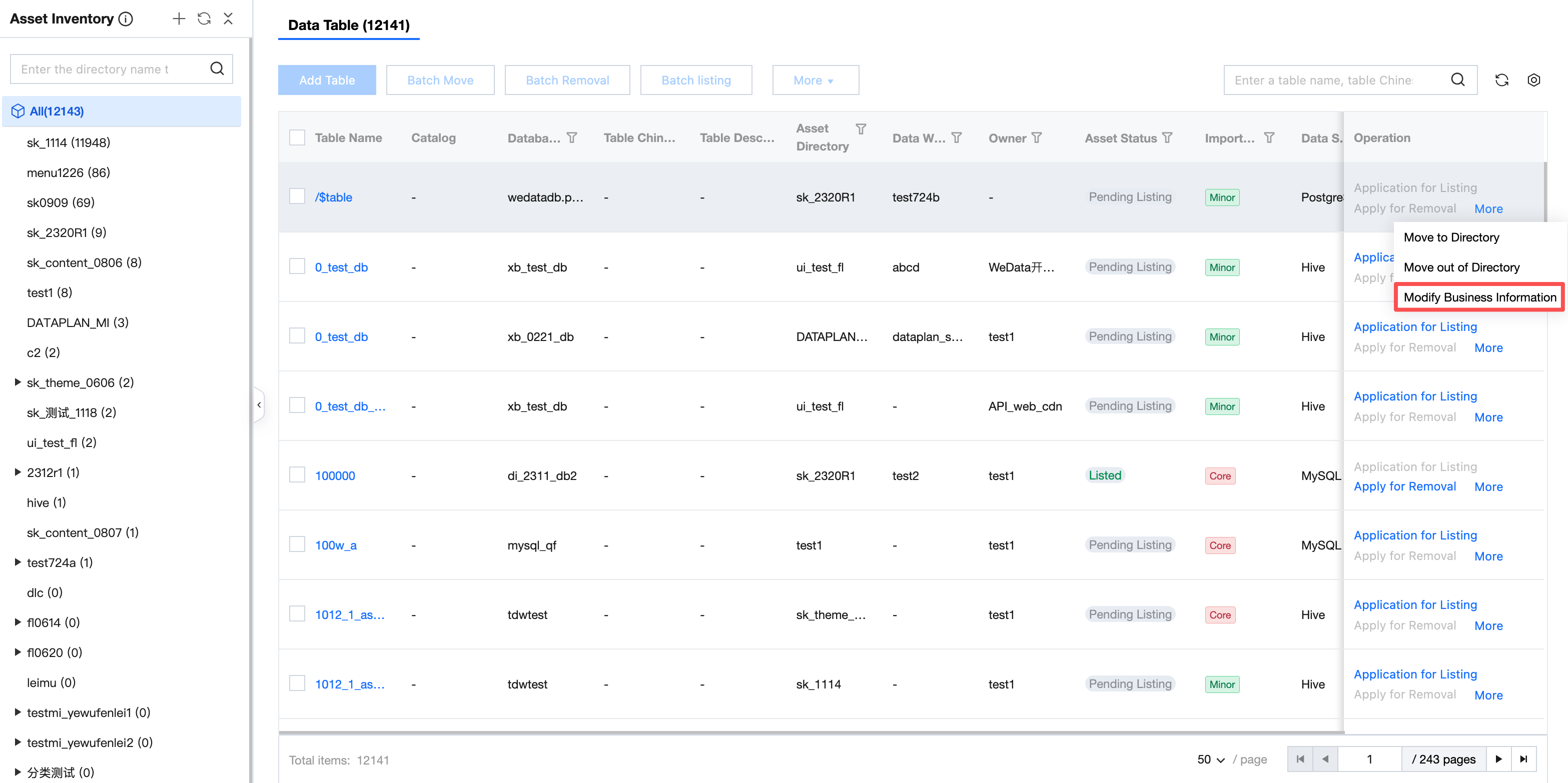
Enter the asset catalog inventory webpage, select the assets that need to modify business information, click modify business information.
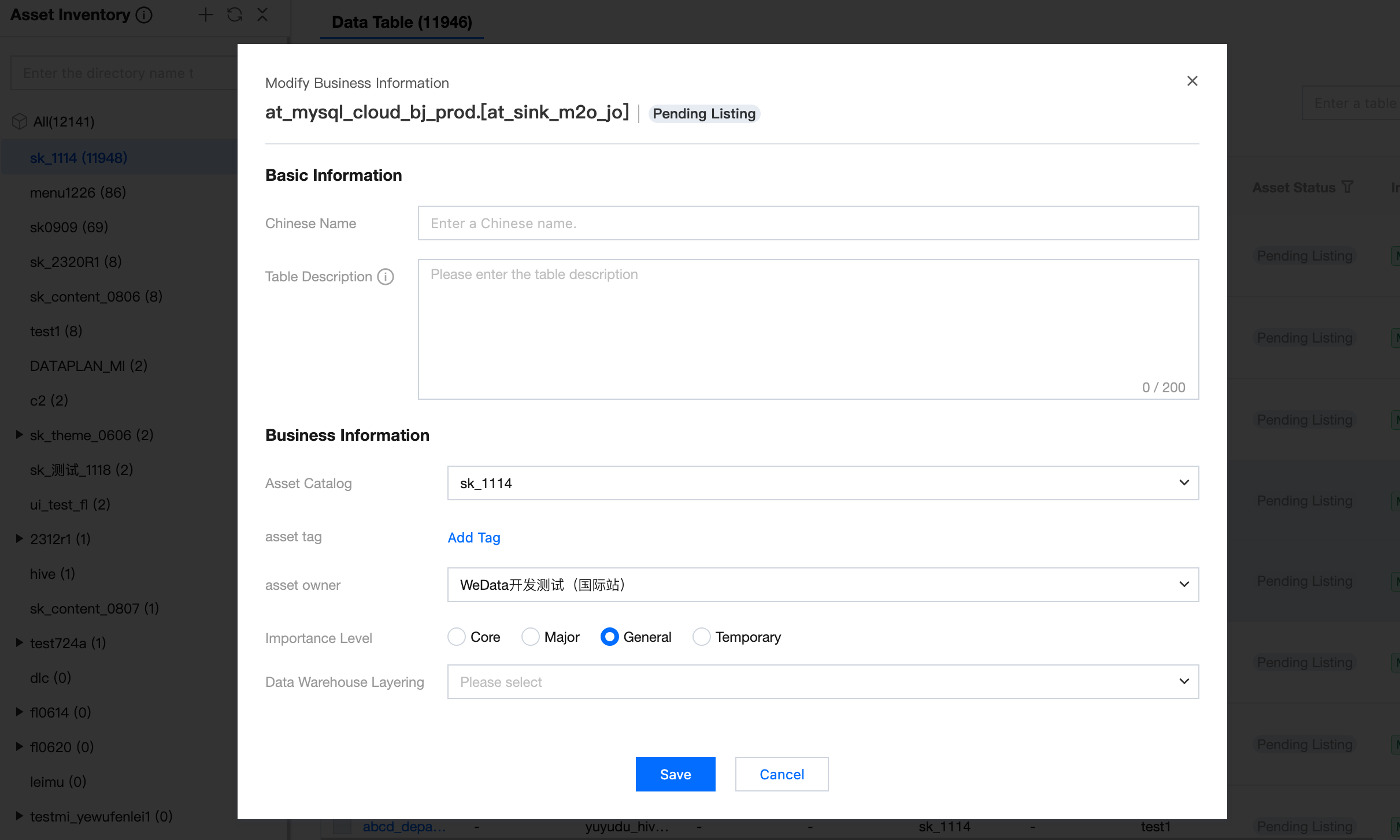
Enter the modify business information page, you can edit basic information and business information. After modification, click save.
Bantuan dan Dukungan
Apakah halaman ini membantu?
Anda juga dapat Menghubungi Penjualan atau Mengirimkan Tiket untuk meminta bantuan.
masukan