Studio Notebook provides built-in development tools such as the dlcutils function library and magic commands. These tools help developers implement advanced use cases, including parameterized Notebook execution, integration with SSM for key management, and multi-syntax switching. This document illustrates best practices for several of these built-in development tools.
Note:
The built-in development tools in WeData Notebook are only applicable for use when a DLC engine machine learning resource group of the Spark MLlib type is connected.
DLC Utilities(dlcutils)
dlcutils is a practical utility library provided by WeData based on the DLC engine. It is primarily used to simplify various operations within the Notebook environment and can help users perform tasks related to data processing, parameter passing, and environment configuration. For details, see the dlcutils Tool Library and Magic Commands Usage Guide.
Magic Commands
Magic syntax is a feature in Jupyter Notebook that allows users to perform specific operations using special commands, which typically begin with % or %%. Magic commands can be used to simplify common tasks and improve work efficiency. For details, see the dlcutils Tool Library and Magic Commands Usage Guide.
Practical Tutorial
Dynamic Parameter Substitution in Notebooks
Use Cases
Usage Scenario
Example Scenarios
Usage
Dynamic adjustment of a single parameter
The same code needs to be executed repeatedly, but with different input conditions. For example, data from the previous day needs to be queried daily, so the time parameter of the data will vary.
Define the time parameter as a dynamic variable, test by adjusting it without modifying other parts of the code, and avoid writing similar code repeatedly.
Isolation between development and production
In the development and production environments, different values need to be set for the same parameter.
Define project parameters and set values for debug runs, periodic scheduling, or for the development and production environments respectively, so that different values are retrieved from the corresponding scenarios during task debugging and scheduling runs.
Operation Description
Using Dynamic Parameters in Notebook Files
When debugging and running Studio Notebook files, you can use parameters configured at either the project or file level. If the same parameter is defined with different values in both places, the priority is: file > project.
1. Define parameters:
Currently, defining advanced parameters in a Notebook file supports two methods: code-based definition and visual page-based definition.
Code-based definition: In the code, use the dlcutils.widgets.text(name='your_name', defaultValue='your_value', label='your_name') function to define the parameter name, parameter value, and Tag respectively.
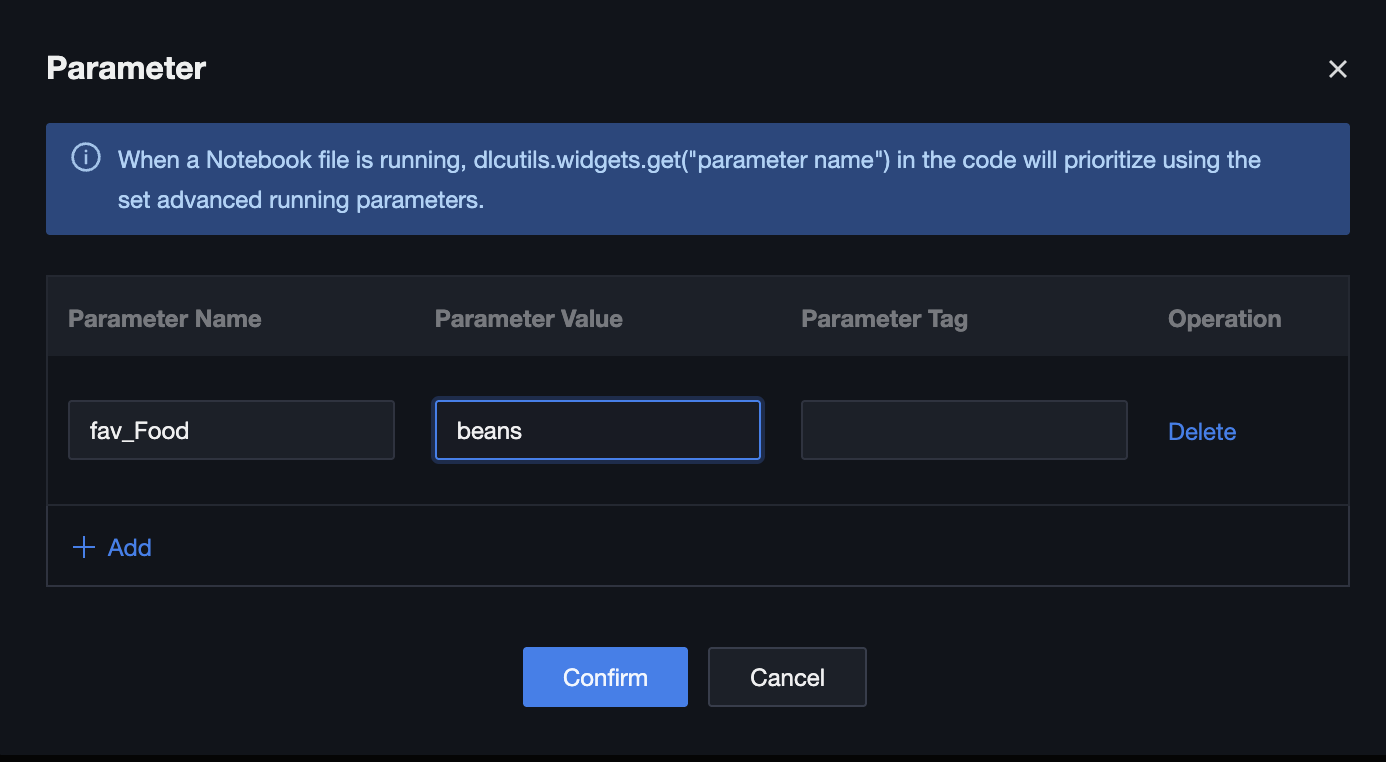
Page-based definition: Click Parameters > Add and manually set the parameter name, parameter value, and Tag.
2. Modify parameter values: On the "Parameters" page, modify the parameter values.
3. Obtain parameter values: In the code, use the dlcutils.widgets.get("your_name") function to obtain parameter values.
dlcutils.widgets.get("fav_Food")
# output beans
Using Project Parameters in Notebook Files
1. Define parameters:
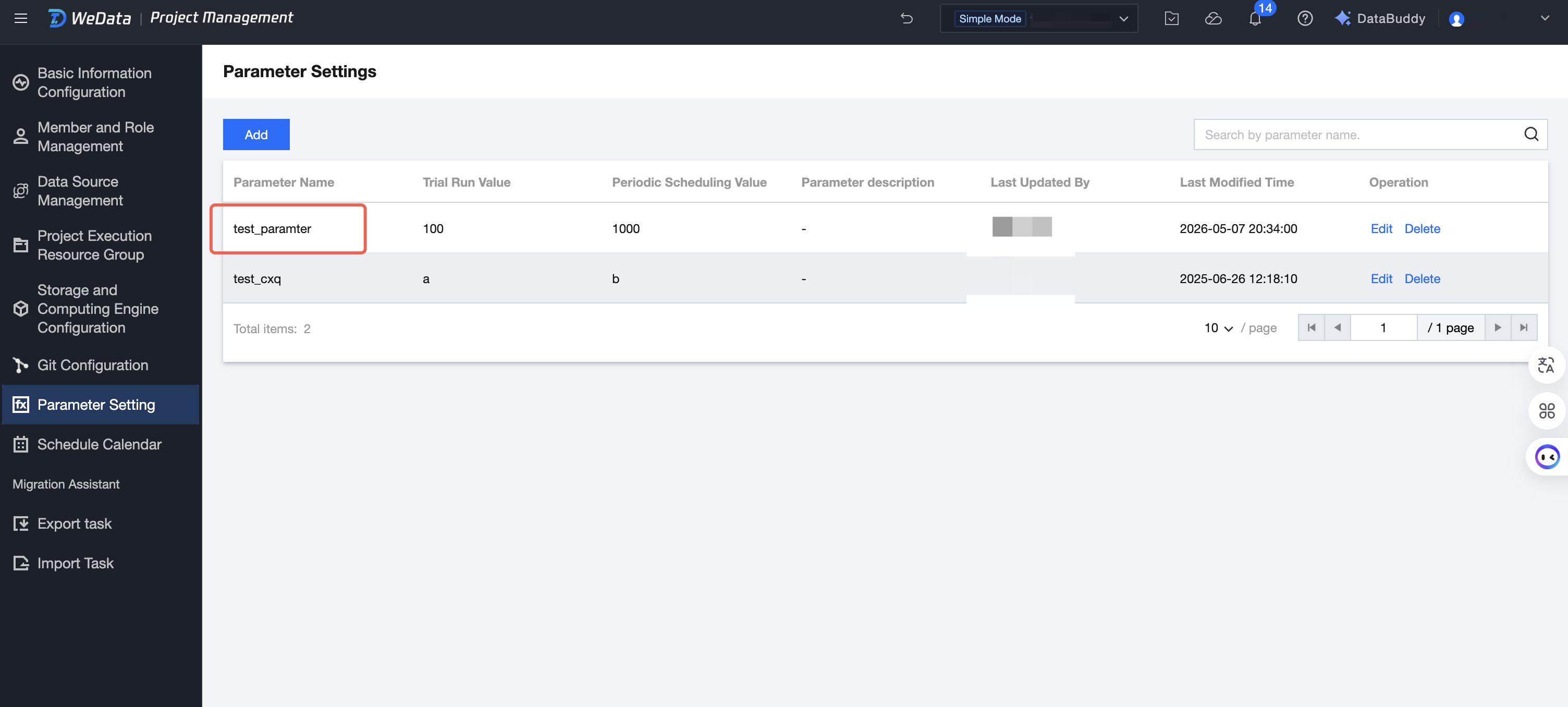
Go to the Project Management > Parameter Settings page, click Add to create project parameters.
2. Obtain parameter values:
If a parameter is already defined in the project management parameters, for example, a parameter named test_parameter with a value of 100, you can directly use the project parameter in the notebook.
# print project parameters
dlcutils.widgets.get("test_parameter")
# output 100
Using Project, Workflow, or Task Parameters in Notebook Tasks
1. Configure parameters.
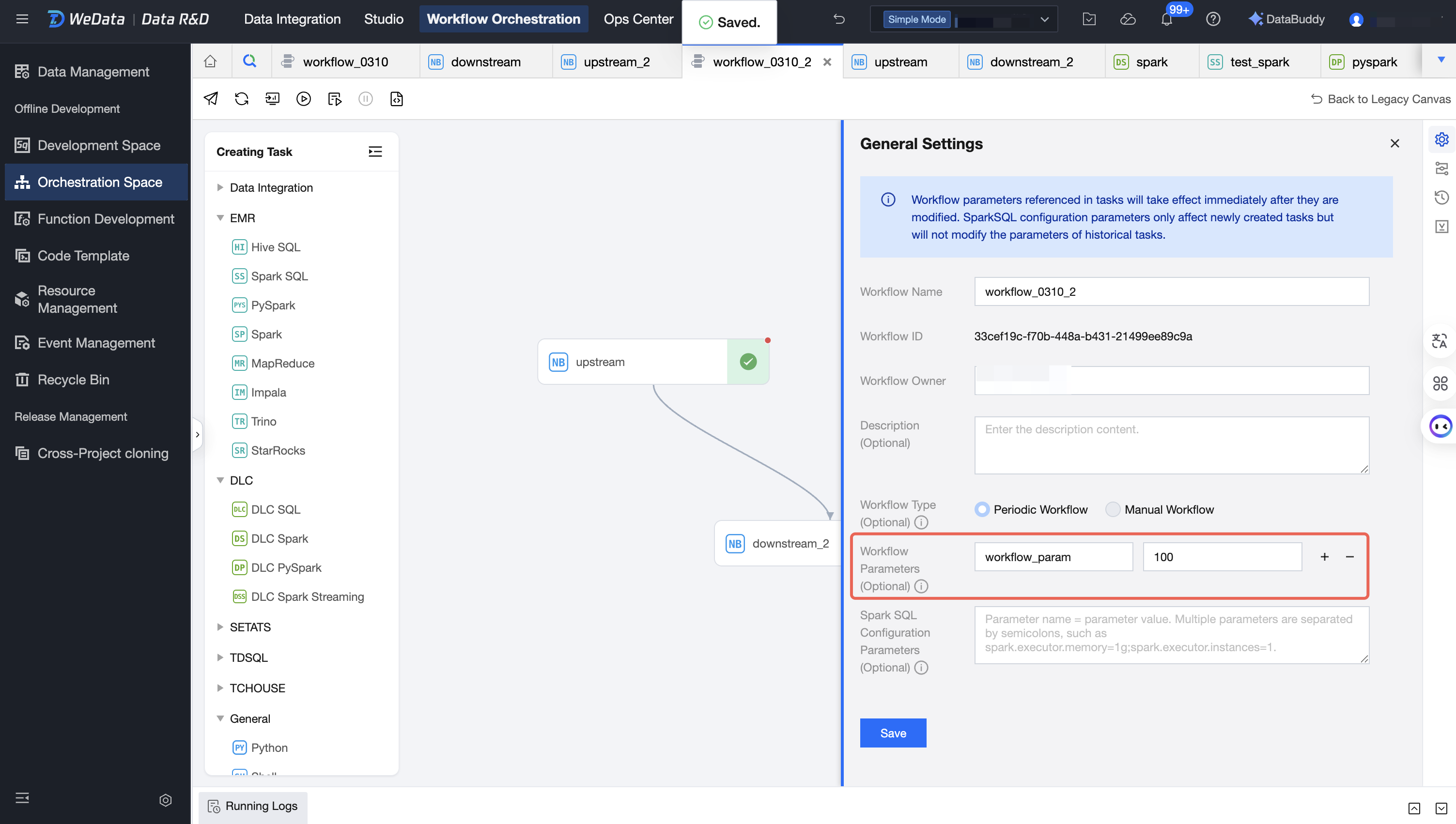
Workflow Parameters can be configured in the workflow general settings.
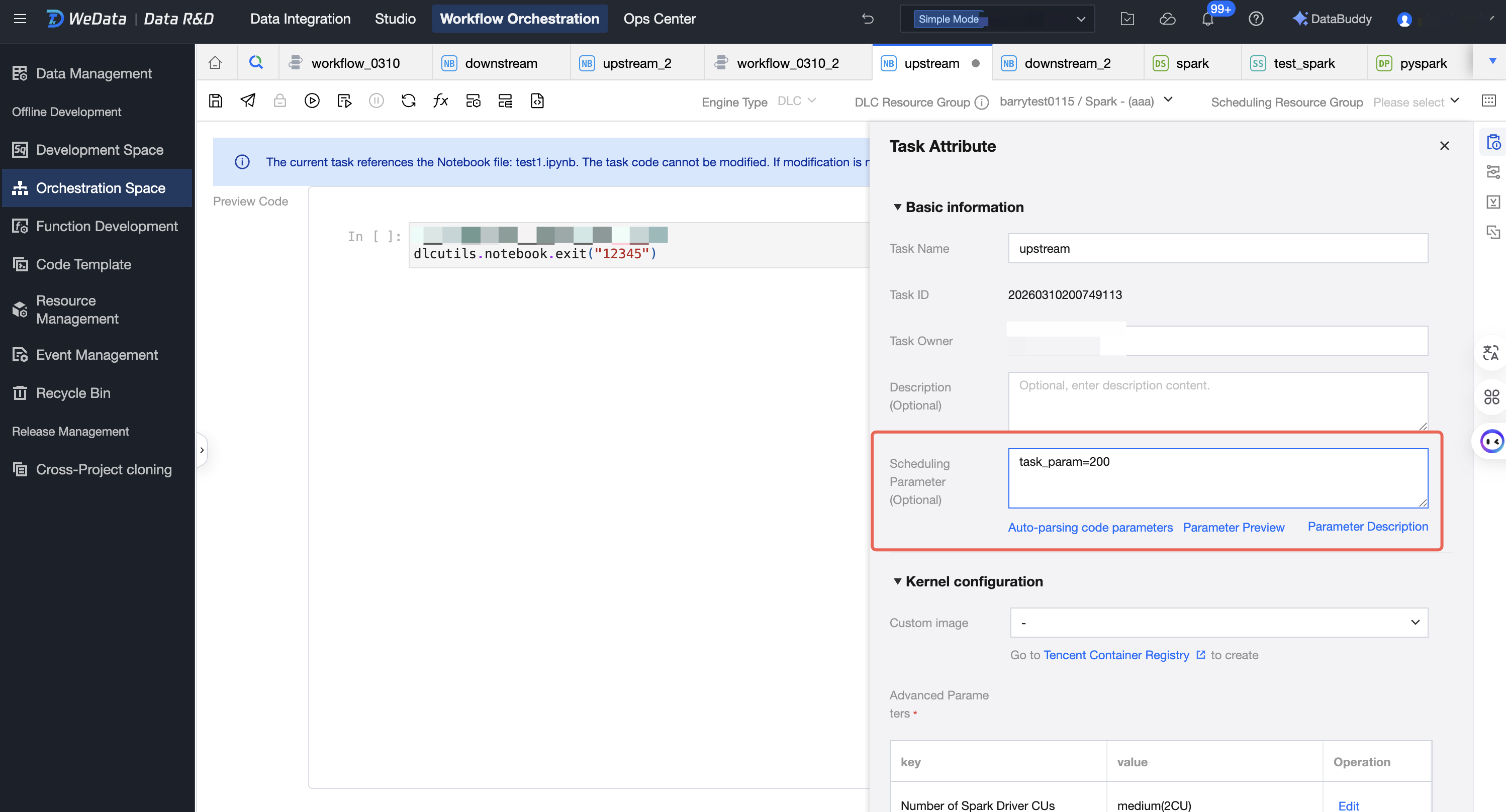
Scheduling Parameters can be configured in the task attributes.
2. Obtain parameter values.
When debugging or periodically running a Notebook task in the orchestration space, you can use the dlcutils.widgets.get() function to obtain parameters configured on the project, workflow, or task.
If different values for the same parameter are defined in three places, the priority is: task > workflow > project.
# get task_test_param value
# When testing and running in the notebook space,
# default values need to be set because the notebook file has not yet been associated with a task.
print(f"Using toy value: {workflow_test_param_value}")
Parameter Passing Between Notebook Tasks
Use Cases
Usage Scenario
Example Scenarios
Usage
Workflow Automation
Data processing workflow: In the ETL (Extract, Transform, Load) process, the first Notebook extracts and transforms data, and the second Notebook loads or further analyzes it.
Machine learning workflow: The first Notebook trains the model and saves the results, and the second Notebook uses the model for prediction or evaluation.
The output parameters of the first Notebook are directly used as the input for the second Notebook, achieving automated connection between tasks.
Completion of branch logic
Conditional processing: During data processing or analysis, different logic is executed based on different input conditions.
Dynamic decision-making: In machine learning or data science projects, different processing paths are selected based on variations in model predictions or data characteristics.
The second Notebook file selectively runs different code logic by judging the output of the first Notebook.
Operation Description
1. In Studio, create two notebook files: notebook_upstream.ipynb and notebook_downstream.ipynb. The file contents are as follows:
notebook_upstream.ipynb
# Exit the notebook and output parameters
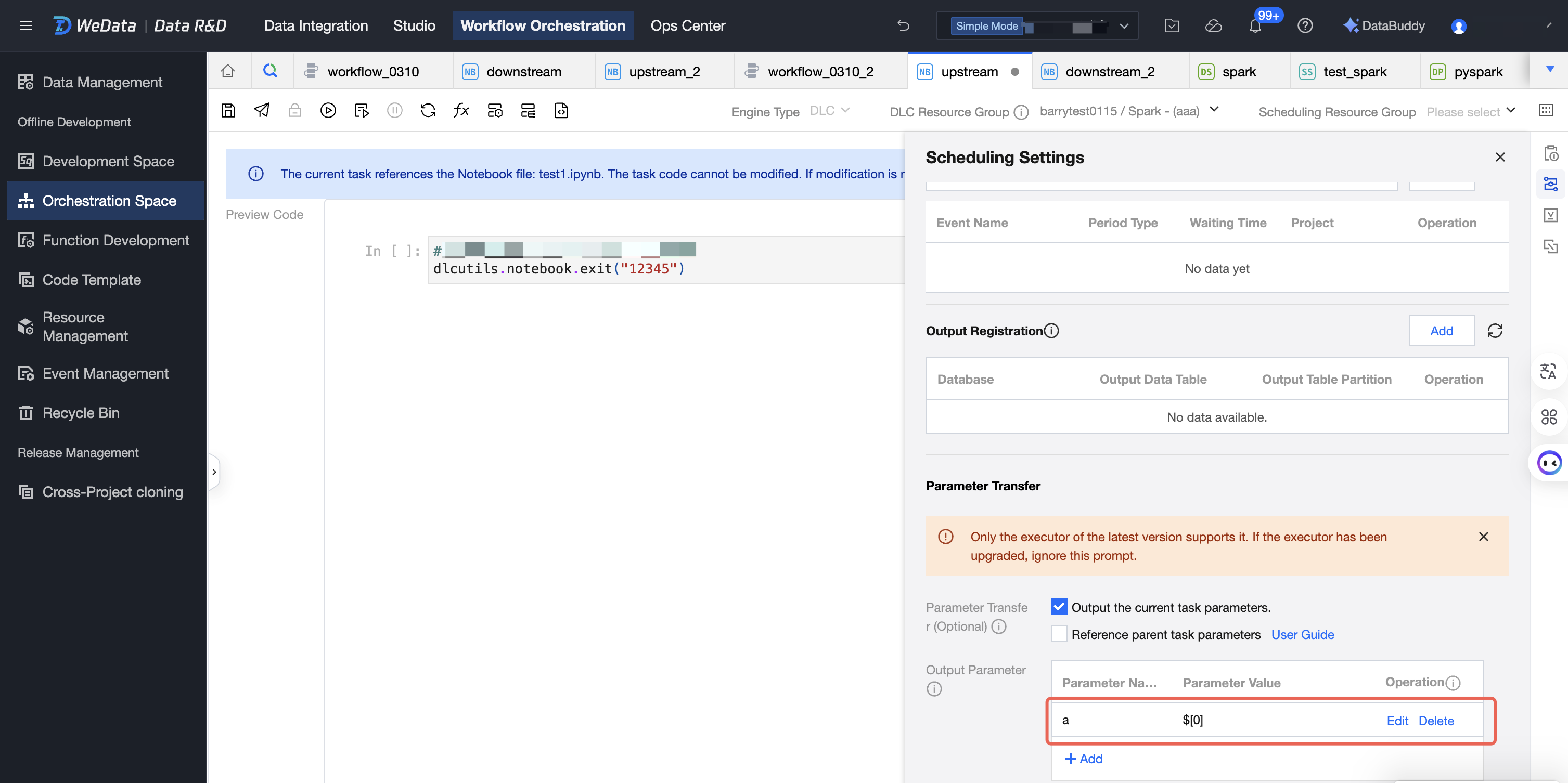
dlcutils.notebook.exit('12345')
notebook_downstream.ipynb
# get task_input_param value
# When testing and running in the notebook space,
# default values need to be set because the notebook file has not yet been associated with a task.
ifnot task_input_param:# If the obtained value is an empty string
task_input_param ='task_input_default_value'
except Exception:# If the parameter cannot be obtained at all
task_input_param ='task_input_default_value'
print(f"Using toy value: {task_input_param}")
2. At the same time, create two tasks, upstream and downstream, in the orchestration space, and select the two notebook files mentioned above respectively.
3. In the scheduling settings of the upstream task, set the output parameter a of the current task to $[0].
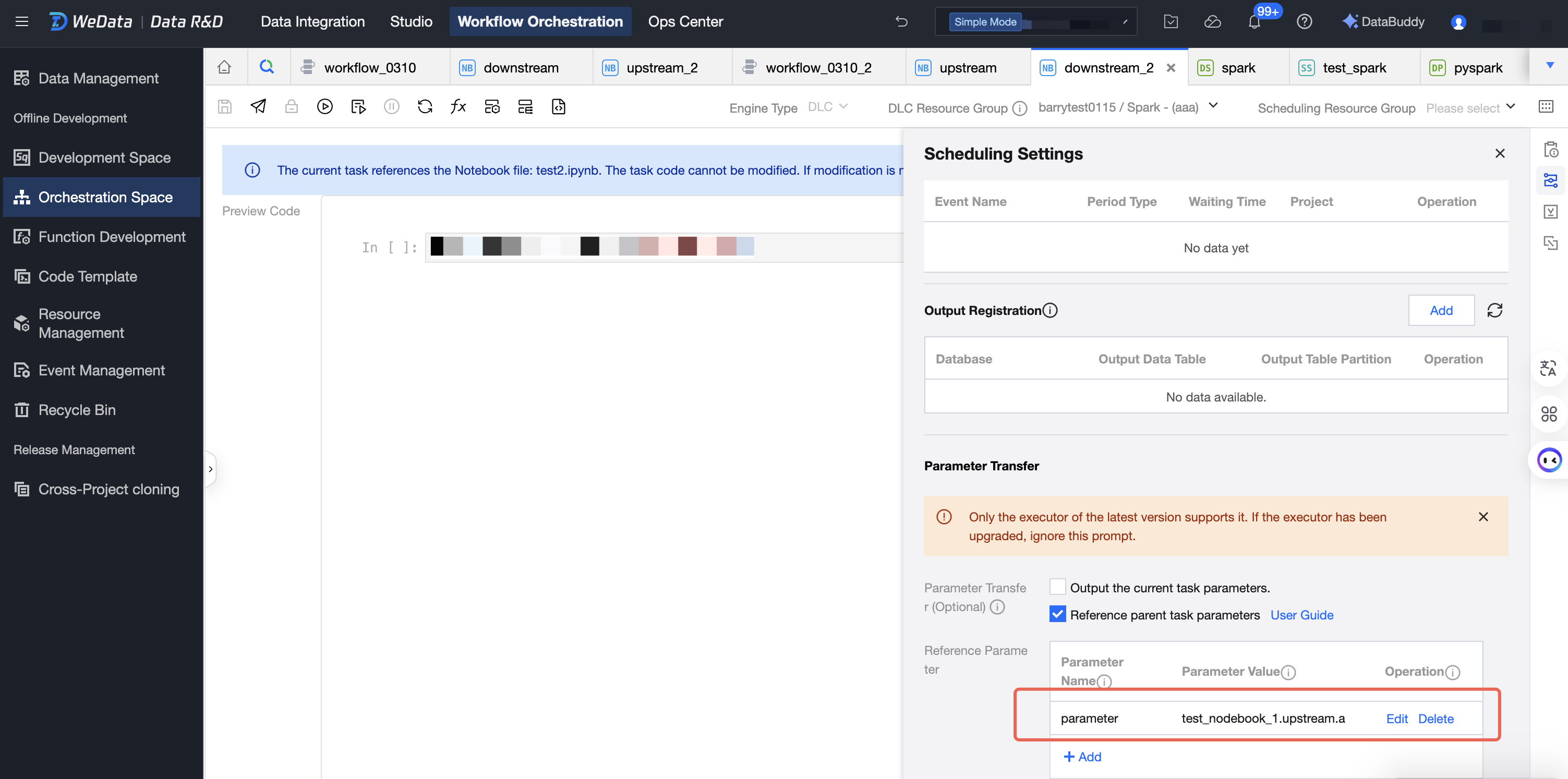
4. In the scheduling settings of the downstream task, set the parameter `parameter` to reference the parent task parameter `a`.
5. Finally, during workflow debugging or scheduled runs, you can view the output of the downstream task as 12345.
Integrating Notebook with SSM for Key Management
Use Cases
For security reasons, it is generally not advisable to write sensitive information such as keys in plaintext within code. Therefore, such information is stored in Tencent Cloud SSM, and keys are obtained by connecting Notebook to SSM. Example scenario:
The ak and sk information that needs to be passed when the SDK is called.
The username and password information for accessing the database.
Operation Description
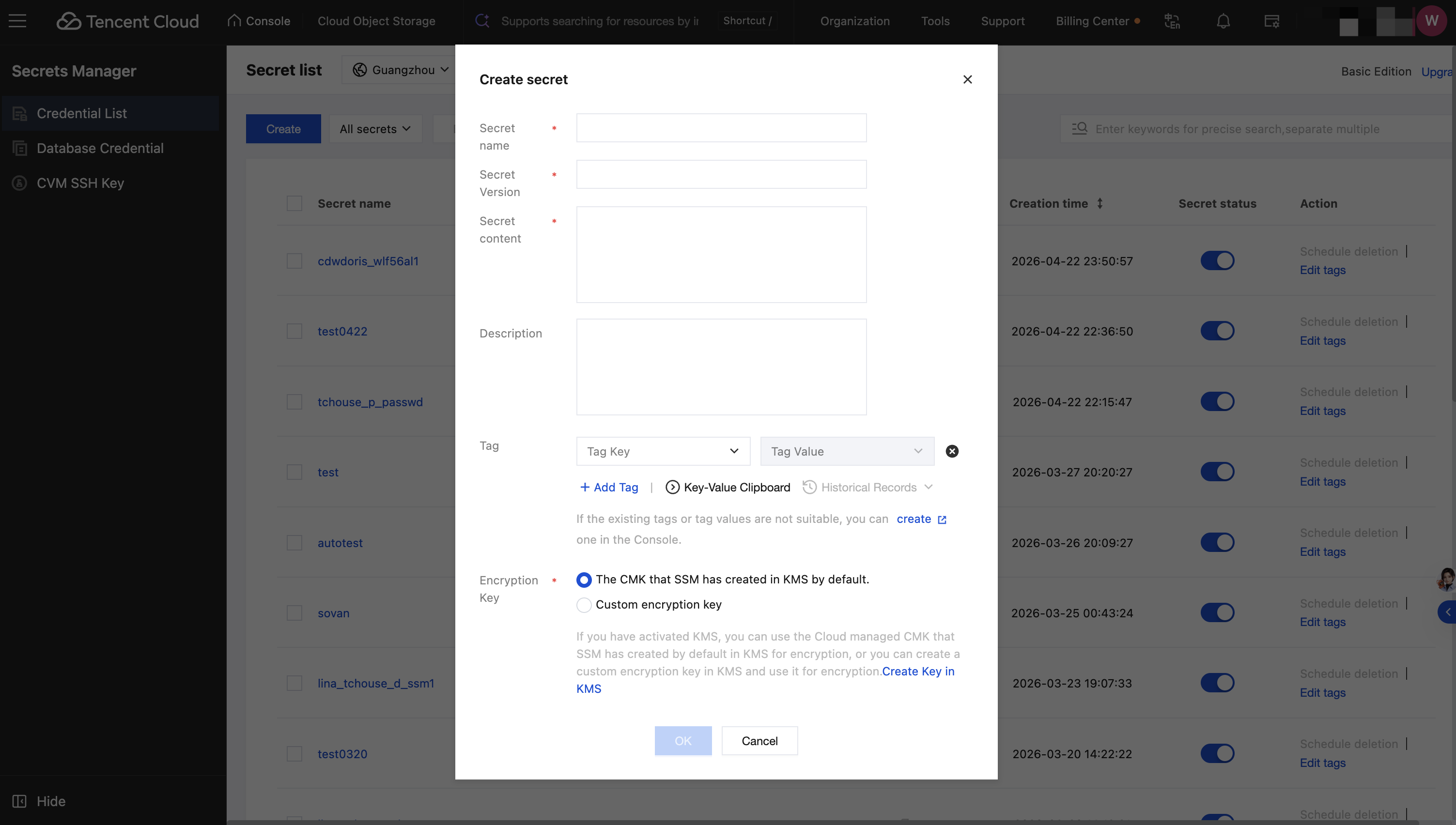
1. Log in to Tencent Cloud SSM, and define the credential name, version, and content in the custom credentials section.
2. In the Notebook, call the dlcutils.secrets.get(secretName, secretVersion, region) function to obtain the secret value.