CCN Connections
Download
Mode fokus
Ukuran font
Scenarios
When your CVM and TDSQL Boundless instance reside in different VPCs (including those under the same or different accounts, and in the same or different regions), you must use CCN to establish private network connectivity.
If you purchase a Lighthouse instance under the same Tencent Cloud account, note that Lighthouse uses a VPC automatically assigned by Tencent Cloud for network isolation. By default, the private network does not interconnect with TDSQL Boundless instances residing in a VPC. Consequently, you cannot directly access TDSQL Boundless from the Lighthouse instance. You must associate a CCN to establish a connection to the database.
Prerequisites
The TDSQL Boundless instance has been created, and account creation and connection address retrieval have been completed.
A CVM has been prepared. In this document, Lighthouse is used as an example. See Quickly Creating a Linux Lighthouse Instance.
Limitations
The private network interconnection feature for Lighthouse is free of charge. You only need to pay attention to the billing information of CCN. For details, see CCN Billing Overview. Bandwidth of 5 Gbps or less within the same region is free. To achieve cross-region private network interconnection, you must purchase non-cross-border bandwidth in CCN.
Lighthouse does not support cross-border private network interconnection by associating with a CCN, even if that CCN has purchased cross-border bandwidth.
Under the same account:
All Lighthouse instances within the same region reside in the same VPC. A VPC can be associated with only one CCN at a time.
Lighthouse instances in different regions reside in different VPCs. Each VPC must be associated with a CCN separately.
If a region contains no Lighthouse instances, you cannot perform the CCN association operation in that region.
Steps
1. Log in to the Lighthouse console, and select Interconnection in the left sidebar.
2. Select the region where the TDSQL Boundless instance resides, and apply for Associate with CCN.
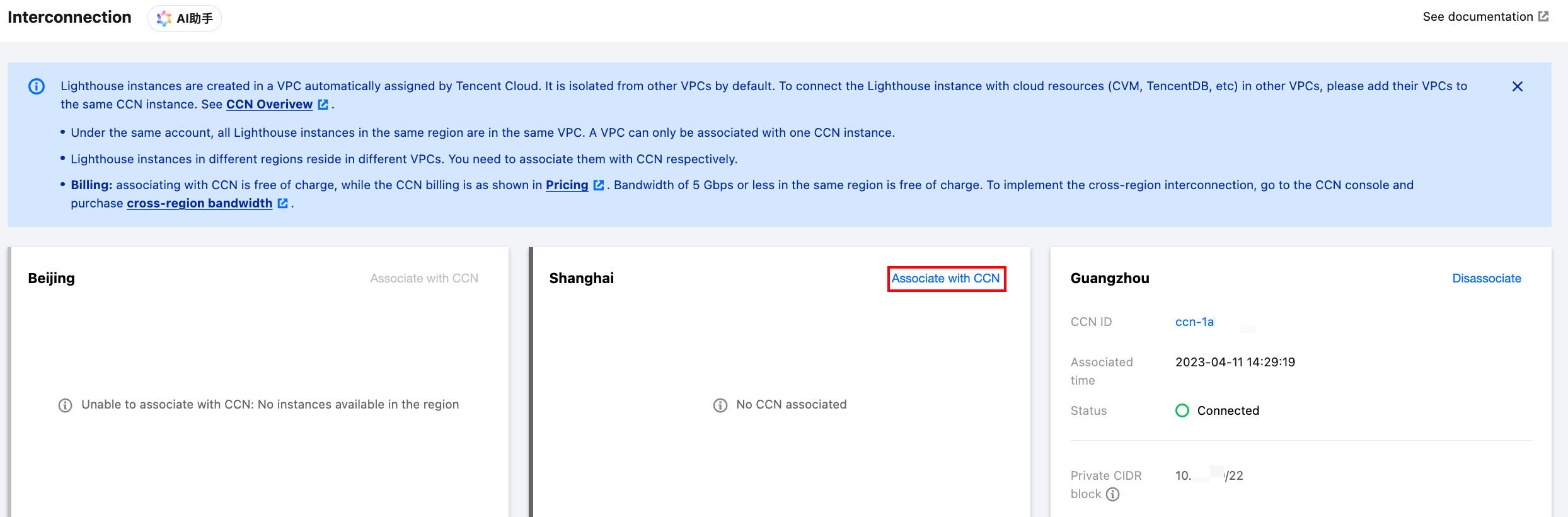
3. In the Associate with CCN window that pops up, click Create CCN instance.
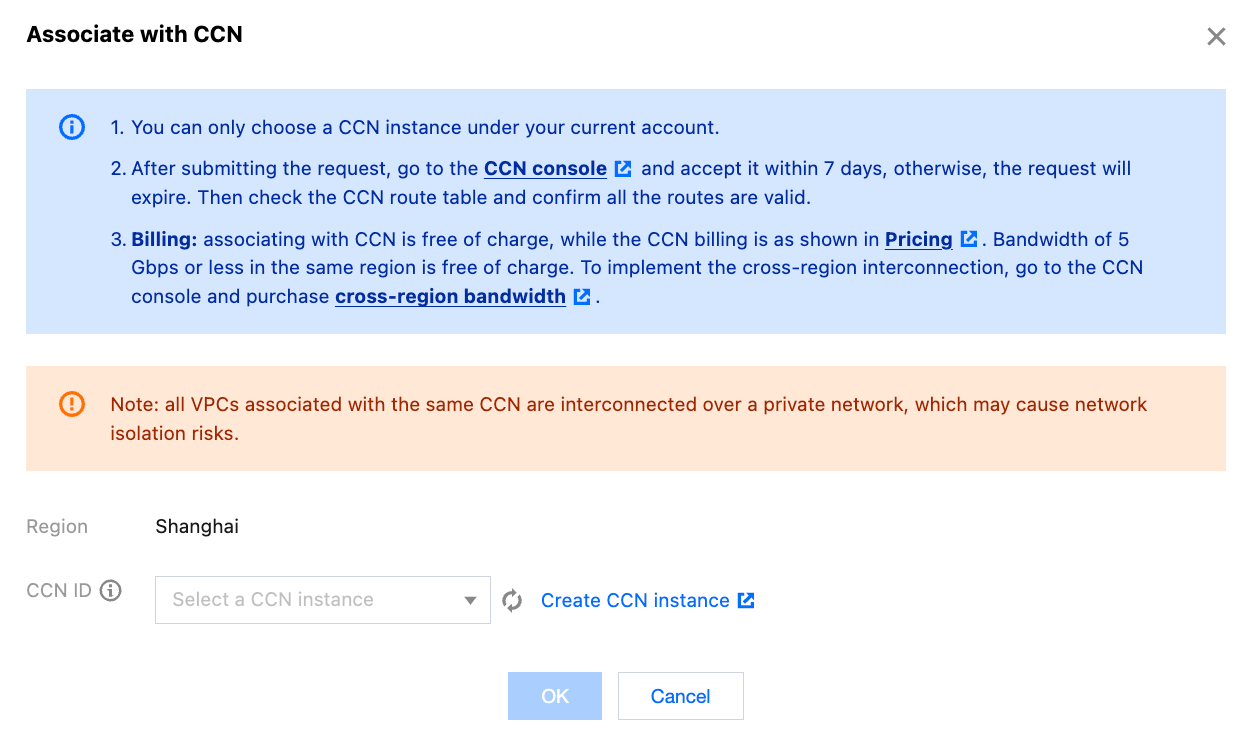
4. Complete the creation of the CCN instance in the pop-up window. Return to the Associate with CCN page under Lighthouse Private Network Interconnection, refresh to display the newly created CCN instance, and click OK.
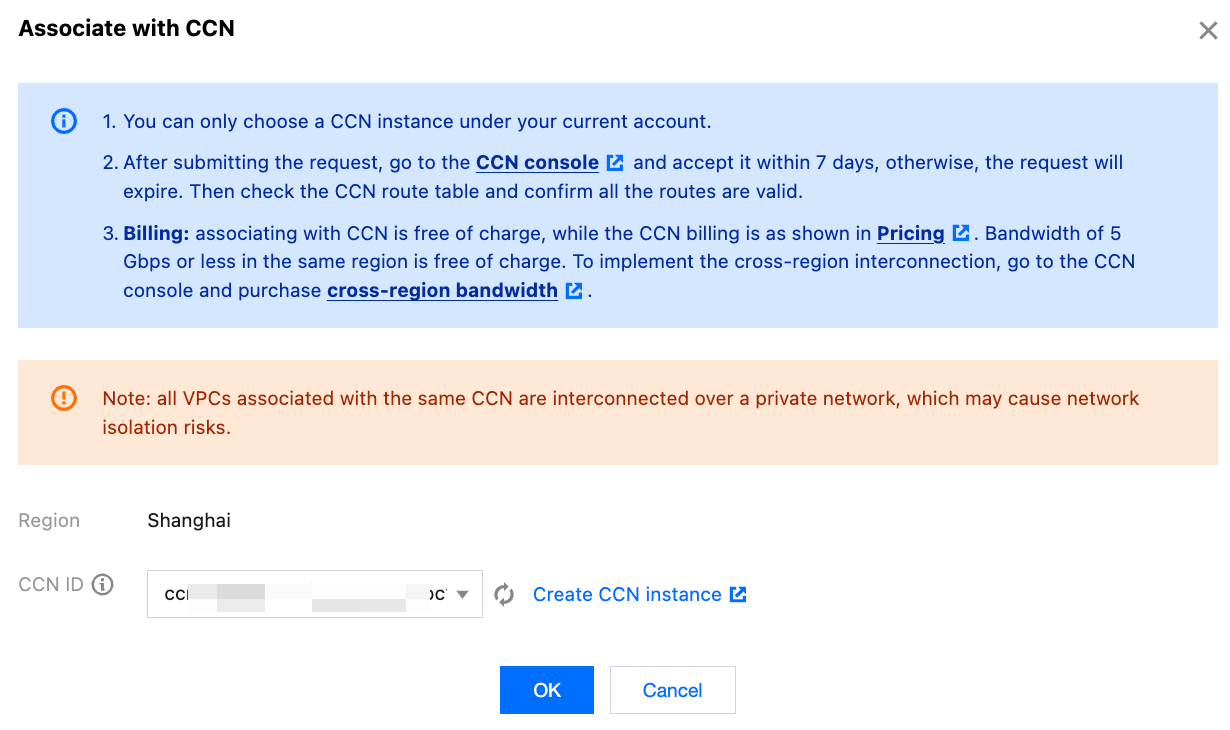
Note:
Only CCNs under the same account can be associated.
After submitting the association request, log in to the CCN console within 7 days to approve it. Otherwise, the request will expire after 7 days, and you will need to submit a new association request.
5. Log in to the CCN console, click the target CCN ID, and go to the CCN Details page.

6. On the CCN Details page, select Agree on the right side of the row for the association request.
The VPC instance for Lighthouse is tagged with the remark "Lighthouse VPC" by default. Please make your selection accordingly.
7. In the pop-up window, add the VPC network address of the target TDSQL Boundless instance, click Add Instance, select the region and VPC, and then click OK. The Private Network Interconnection page will display the status of that region as "Connected".
8. Return to the Interconnection page in the Lighthouse console and refresh it. The page will display a "Connection Successful" status.
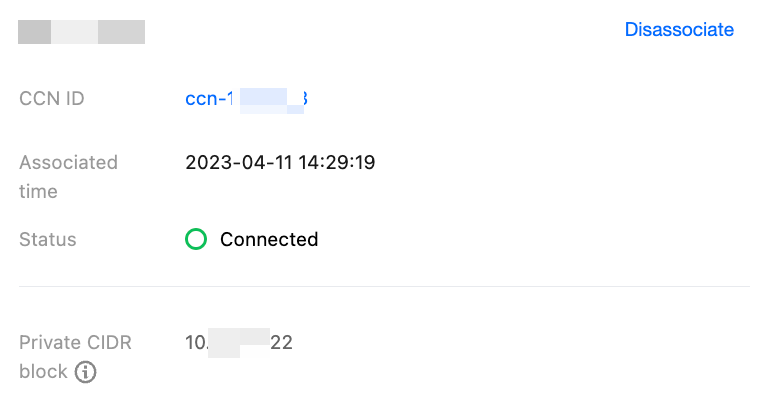
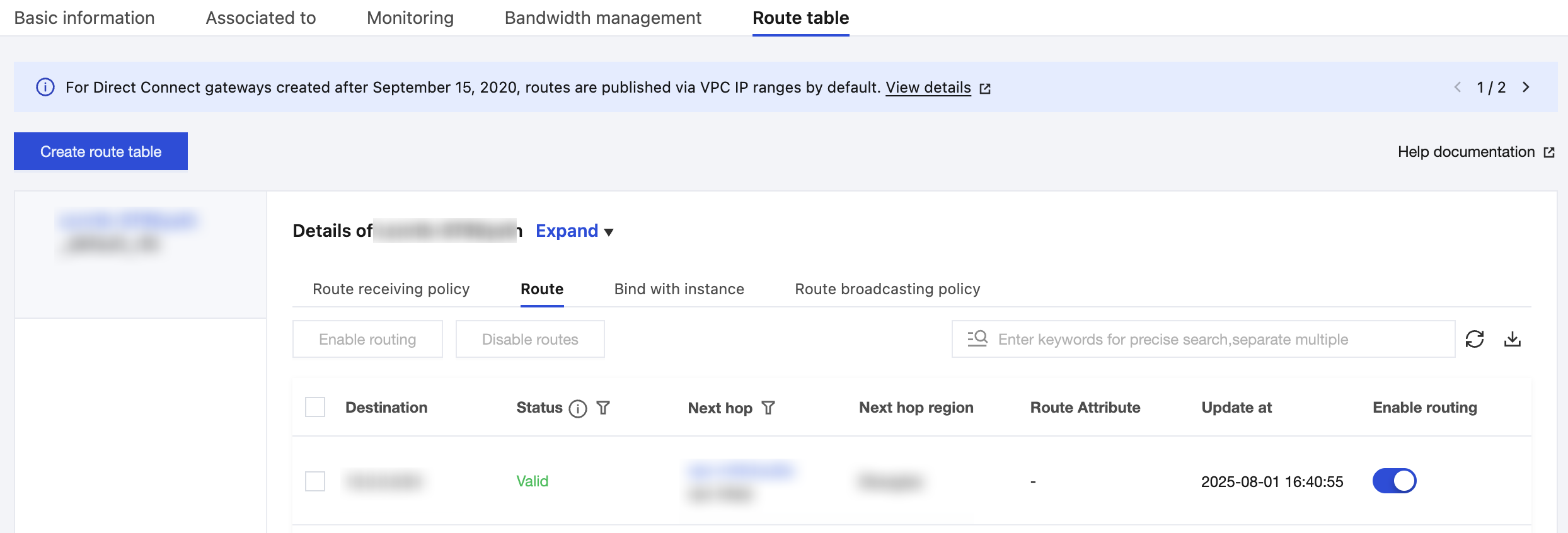
9. In the CCN console, click the target CCN ID to go to the CCN Details page. Check whether the route is valid. If any route is disabled, enable it.
10. In the Lighthouse console, locate the target Lighthouse instance, click Log In, select password login, enter the username, port, and password, and then click Log In.
11. After logging in successfully, run the following command to download and install MySQL.
yum install mysql -y
12. Run the following command to connect to and log in to TDSQL Boundless.
mysql -h <private IP address> -u <username> -P <port number> -p
<Private IP Address>: Replace it with the private IP address of the target TDSQL Boundless database instance. You can view the private IP address on the Instance Details page in the TDSQL Boundless console.<Username>: Replace it with the account of the prepared TDSQL Boundless database instance.<Private Port Number>: Replace it with the private port number of the target TDSQL Boundless database instance. The default port is 3306. If you have modified the port number, you can view the new private port number on the Instance Details page in the TDSQL Boundless console.FAQs
Is CCN Connection Billed?
When to Use CCN to Connect to TDSQL Boundless?
1. When your CVM and TDSQL Boundless instance reside in different VPCs (including those under the same or different accounts, and in the same or different regions), you can use CCN to connect to the database.
2. If the server you purchased is a Lighthouse instance, you need to use CCN to connect to the database.
How to Achieve Private Network Interconnection for Lighthouse?
Lighthouse uses a VPC automatically assigned by Tencent Cloud for network isolation. By default, its private network is not interconnected with the private networks of other Tencent Cloud resources in the VPC, such as CVMs and databases. To achieve interconnection, you need to associate it with CCN. For details, see Private Network Interconnection.
Note:
Lighthouse only supports association with CCNs under the same account. Lighthouse instances under different accounts cannot communicate with each other.
What Is the Service Level of CCN?
Tencent Cloud CCN provides three availability levels: platinum, gold, and silver.
The service level of data transfer in the same region is gold, which cannot be modified.
For cross-region interconnection, three service levels are provided: platinum, gold, and silver. When creating a CCN, you can select a service level.
Different service levels incur different charges. You can select a level based on your business needs. For details, see Billing Overview.
How to Troubleshoot CCN Connection Errors?
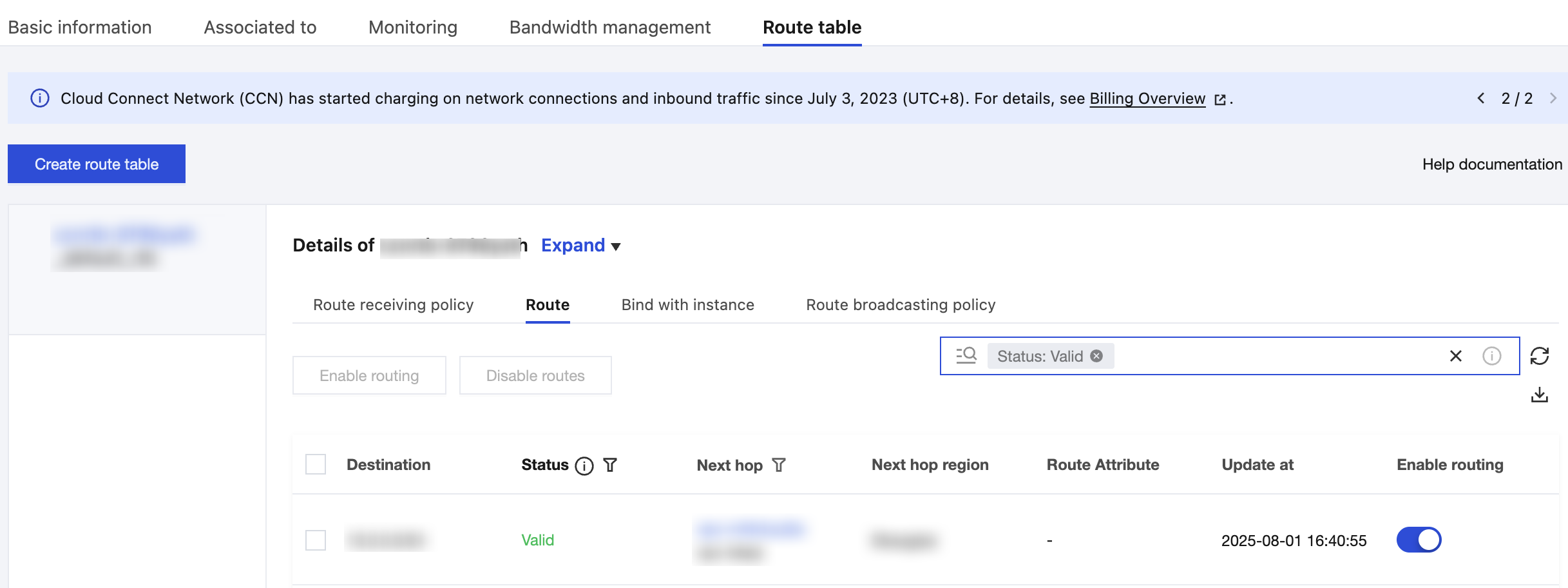
1. Check whether the CCN routing table is valid. Follow the steps below to perform the check:
1.1 On the Interconnection page, click the CCN ID in the region card to go to the corresponding CCN Details page.
1.2 On the CCN Details page, select the Route table tab.
1.3 Ensure that the newly added route entry is valid. If a CIDR conflict exists, the route entry may be invalid.
Note:
To use an invalid route, see Disabling a Route and Enabling a Route. For conflict rules and restrictions, see Use Limits.
2. After logging in to the Lighthouse instance, if you repeatedly fail to log in to the cloud database via command, check whether the username and password you use for database login are incorrect.
In the command line:
mysql -h <private IP address> -u <username> -P <port number, default 3306> -p. The username and password used for login must be correct. When you enter the password on the Lighthouse page, the password is not displayed as you type. You must enter it correctly in one go and press Enter. If you forget the password, you can reset the password and try again.Bantuan dan Dukungan
Apakah halaman ini membantu?
Anda juga dapat Menghubungi Penjualan atau Mengirimkan Tiket untuk meminta bantuan.
masukan