Using RDMA on TKE to Accelerate AI Inference and Training
Unduh
Mode fokus
Ukuran font
Introduction
RDMA (Remote Direct Memory Access) is a high-speed network interconnect technology designed to reduce processing latency and resource consumption on the sending and receiving ends during data transfer. RDMA enables computers to directly access the memory of remote computers, allowing data to be transferred at the memory level without frequent CPU involvement, thereby significantly enhancing network communication performance.
RDMA can increase network throughput and reduce network latency, effectively improving the performance of large-scale AI inference and training tasks. This document describes how to use RDMA networking on TKE to accelerate various AI workloads.
Scenarios
The TKE RDMA solution is suitable for the following AI scenarios:
Distributed training: Multiple nodes collaboratively train large-scale models, accelerating gradient synchronization and parameter updates through RDMA to significantly reduce training time.
Multi-node inference: Deploy large model inference services across nodes, leveraging RDMA to achieve low-latency cross-node communication and improve inference throughput.
Distributed KVCache: Share KV Cache across multiple nodes and achieve high-speed cache access through RDMA to optimize large model inference performance.
Prefill/Decode separation: Separate the Prefill and Decode phases onto different nodes, and efficiently transfer intermediate states through RDMA to improve resource utilization.
Solution Highlights
The TKE RDMA solution offers the following advantages (this document is based on the exclusive RDMA mode):
Unified GID Index: Users do not need to introduce additional scripts in Pods to dynamically obtain GIDs, simplifying NCCL communication configuration during distributed inference and training.
Optimized user experience: Users can directly join an HCC cluster through native nodes and use RDMA + GPU for training and inference in TKE.
NUMA affinity scheduling: Implements NUMA affinity assignment for GPU and RDMA devices to reduce cross-NUMA access and improve performance. (PCIE-Switch affinity is not guaranteed.)
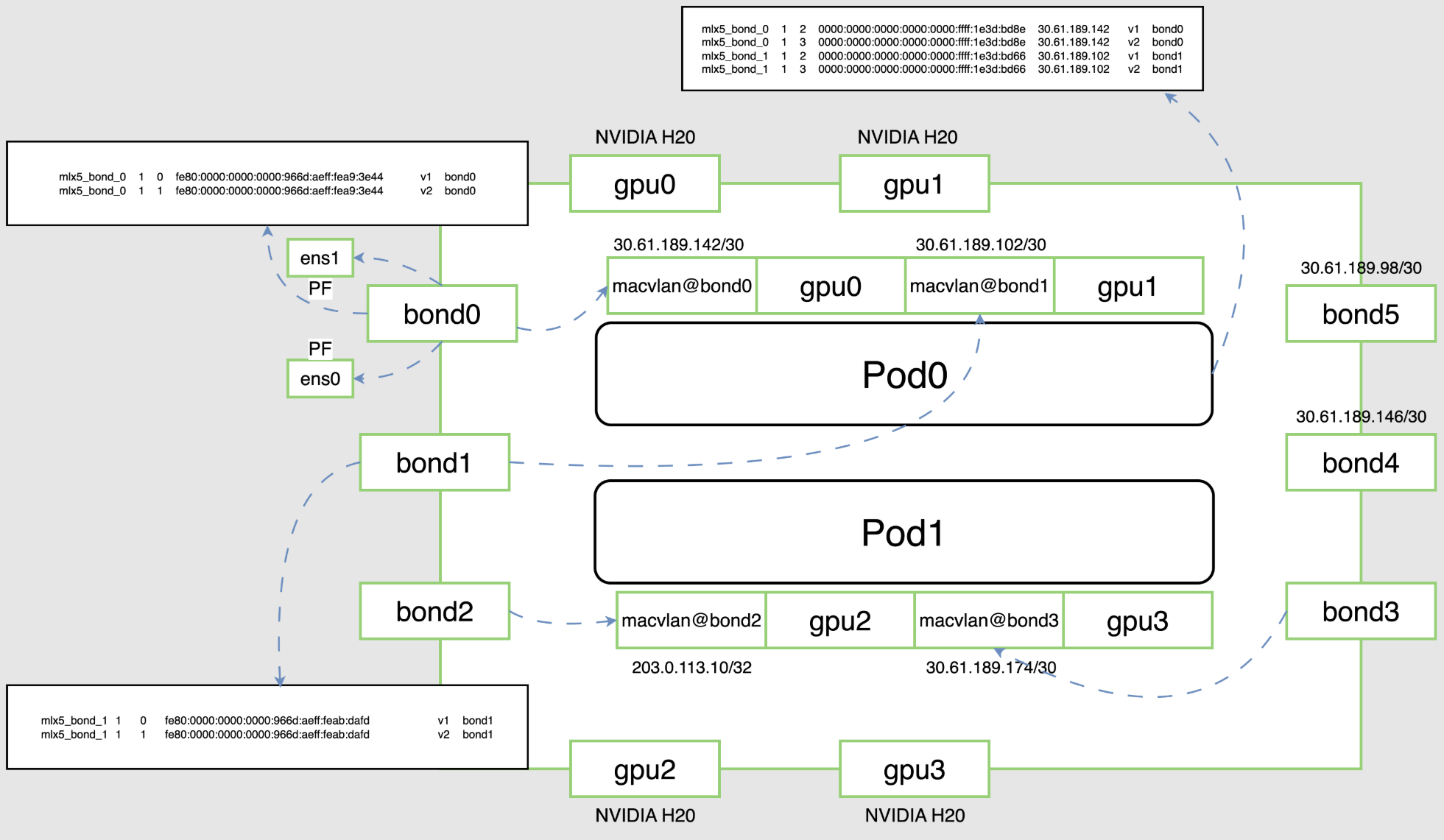
Preparing the Environment
Cluster Requirements
A TKE cluster has been created and deployed. If you do not have a cluster yet, see Creating a Cluster.
An RDMA instance has been purchased, and the RDMA netns is in shared mode.
Enable Topology Manager on Kubelet (recommended configuration:
topologyManagerPolicy: best-effort) to achieve NUMA affinity scheduling.Installing the rdma-agent Component
Installation steps:
1. Log in to the TKE console and select Clusters in the left sidebar.
2. On the cluster list page, click the target cluster ID to go to the cluster details page.
3. In the left sidebar, choose Component Management, and then click Create.
4. In the component list, select rdma-agent and click Done.
Creating a Node Pool
1. On the cluster details page in the TKE console, choose Node Management > Node Pools, click Create Native Node, and create an HCC cluster.
2. In Advanced Settings, when you add or modify labels for nodes in a node pool, you must add
feature.node.kubernetes.io/tke-shared-rdma=true by default:3. In Advanced Settings, add the Kubelet topology-manager-policy in Management and set it to best-effort
4. After adding or modifying, you can also select "Apply this Label/Annotation/Taint update to existing nodes" to apply the update to existing nodes.
5. For existing nodes, you can also add a label to the node by running the following command to deploy the rdma-agent component:
# Replace <nodeName> with the name of the existing node. You can query it by running kubectl get node.kubectl label node <nodeName> feature.node.kubernetes.io/tke-shared-rdma=true
Component Parameter Configuration
Parameter | Description |
CpuRequest | CPU required by the component when the component is running on each node. Default value: 10m. |
CpuLimit | Maximum CPU occupied by the component when the component is running on each node. Default value: 50m. |
MemoryRequest | Memory required by the component when the component is running on each node. Default value: 100Mi. |
MemoryLimit | Maximum memory occupied by the component when the component is running on each node. Default value: 500Mi. |
KubeletRootDir | Root directory of kubelet on the node where the component runs. Default value: /var/lib/kubelet. If the root directory is changed, update this configuration accordingly. |
NodeSelector | label key-value pair of the node where the component is required to run. The default configuration is feature.node.kubernetes.io/tke-shared-rdma=true. To customize the node label for deployment, modify this configuration. |
Environment Verification
Verifying Component Status
After the component is deployed, wait for the installation to complete and ensure that all
tke-rdma-shared-agent components are in the Running state:kubectl -n kube-system get po -o wide -l k8s-app=tke-rdma-shared-agent
Verifying RDMA Resources
Check the Capacity and Allocatable resources of the RDMA node to ensure that
tke.cloud.tencent.com/tke-shared-rdma is not 0:kubectl describe node <nodeName> | grep tke-shared-rdma
Expected output example (showing the actual number of bond devices):
tke.cloud.tencent.com/tke-shared-rdma: 8
Note:
The new version reports the actual number of bond devices (usually 8).
This enables the Kubernetes scheduler to accurately determine node resource capacity and avoid resource overcommitment.
Submitting an RDMA Job
Key YAML Configurations
Network Configuration
When a CNI is specified, the RDMA network plane and the VPC network plane are two separate network planes. To enable a Pod to connect to both the VPC network and the RDMA network simultaneously, specify the following annotation in the Pod template of the workload:
GlobalRouter network mode cluster:
annotations:tke.cloud.tencent.com/networks: "tke-bridge,tke-rdma-macvlan"
VPC-CNI shared ENI mode cluster:
annotations:tke.cloud.tencent.com/networks: "tke-route-eni,tke-rdma-macvlan"
The network mode of a cluster can be determined by the cni-agent configuration in the cluster:
kubectl -n kube-system get cm tke-cni-agent-conf -o yaml | grep defaultDelegates
Security Context Configuration
Specify the securityContext to enable inter-process communication:
securityContext:capabilities:add: ["IPC_LOCK"]
Resource Request Configuration
Set the resource requests for RDMA and GPU resources:
resources:limits:nvidia.com/gpu: "8"tke.cloud.tencent.com/tke-shared-rdma: "8"
Note:
nvidia.com/gpu: The number of requested GPUs.tke.cloud.tencent.com/tke-shared-rdma: The number of requested RDMA devices. It is recommended to be equal to the number of GPUs.Shared Memory Configuration
To support NCCL data sharing, system memory must be shared for IPC and pinned (page-locked) system memory resources:
Test and verify
The TKE RDMA solution provides two testing methods:
1. RDMA basic feature test: Deploy a test Pod to verify RDMA device and network connectivity.
2. NCCL communication test: Deploy a test Pod to verify the communication performance of NCCL over the RDMA network.
Test 1: Basic RDMA Feature Test
Deploying a Test Pod
Deploy the StatefulSet for the RDMA basic feature test.
YAML configuration:
apiVersion: apps/v1kind: StatefulSetmetadata:labels:k8s-app: ibv-appname: ibv-appnamespace: defaultspec:replicas: 4selector:matchLabels:k8s-app: ibv-appqcloud-app: ibv-appserviceName: ""template:metadata:annotations:tke.cloud.tencent.com/networks: "tke-route-eni,tke-rdma-macvlan"creationTimestamp: nulllabels:k8s-app: ibv-appqcloud-app: ibv-appspec:containers:- command:- sh- -c- |ls -l /dev/infiniband /sys/class/infiniband /sys/class/netsleep 1000000image: ccr.ccs.tencentyun.com/tke-eni-test/mofed-5.4-3.1.0.0:ubuntu20.04-amd64-testimagePullPolicy: Alwaysname: ibv-app-ctrsecurityContext:capabilities:add: ["IPC_LOCK"]resources:limits:nvidia.com/gpu: "4"tke.cloud.tencent.com/tke-shared-rdma: "4"volumeMounts:- mountPath: /dev/shmname: dshmvolumes:- emptyDir:medium: MemorysizeLimit: 64Giname: dshm
Save the above YAML as a file (for example,
rdma-test.yaml), and then deploy it:kubectl apply -f rdma-test.yaml
Wait for the Pod to start:
kubectl get pods -l k8s-app=ibv-app
Logging In to the Test Pod
kubectl exec -it ibv-app-0 -- bash
Verifying the RDMA Device
Use the
ibv_devinfo command to confirm that the RDMA device is functioning properly:# ibv_devinfohca_id: mlx5_bond_0transport: InfiniBand (0)fw_ver: 22.33.1048node_guid: 946d:ae03:00a9:3ed0sys_image_guid: 946d:ae03:00a9:3ed0vendor_id: 0x02c9vendor_part_id: 4125hw_ver: 0x0board_id: MT_0000000359phys_port_cnt: 1port: 1state: PORT_ACTIVE (4)max_mtu: 4096 (5)active_mtu: 4096 (5)sm_lid: 0port_lid: 0port_lmc: 0x00link_layer: Ethernet
Use the
show_gids command to obtain the GID. In the TKE RDMA solution, the GID index is uniformly the Host GID Index:# show_gidsDEV PORT INDEX GID IPv4 VER DEV--- ---- ----- --- ------------ --- ---mlx5_bond_0 1 0 fe80:0000:0000:0000:401d:55ff:fe14:6ce8 v1 bond0mlx5_bond_0 1 1 fe80:0000:0000:0000:401d:55ff:fe14:6ce8 v2 bond0mlx5_bond_0 1 2 0000:0000:0000:0000:0000:ffff:1e3d:b4ac 30.61.180.172 v1 bond0mlx5_bond_0 1 3 0000:0000:0000:0000:0000:ffff:1e3d:b4ac 30.61.180.172 v2 bond0
RDMA Performance Test
The following tests must be performed between two Pods, with one serving as the Server and the other as the Client.
Connectivity Test (ibv_rc_pingpong)
Use the
ibv_rc_pingpong command to test RDMA connectivity:Server-side configuration (run on ibv-app-0):
# ibv_rc_pingpong -d mlx5_bond_0 -g 3local address: LID 0x0000, QPN 0x003a22, PSN 0xc882ae, GID ::ffff:30.61.130.20remote address: LID 0x0000, QPN 0x001234, PSN 0x58320b, GID ::ffff:30.61.180.1728192000 bytes in 0.01 seconds = 7687.51 Mbit/sec1000 iters in 0.01 seconds = 8.52 usec/iter
Client-side configuration (run on ibv-app-1):
In the TKE RDMA solution, the GID index is uniformly the Host GID Index.
# ibv_rc_pingpong -d mlx5_bond_0 -g 3 30.61.130.20local address: LID 0x0000, QPN 0x001234, PSN 0x58320b, GID ::ffff:30.61.180.172remote address: LID 0x0000, QPN 0x003a22, PSN 0xc882ae, GID ::ffff:30.61.130.208192000 bytes in 0.01 seconds = 7924.55 Mbit/sec1000 iters in 0.01 seconds = 8.27 usec/iter
Write Bandwidth Test (ib_write_bw)
Use the
ib_write_bw command to test RDMA write bandwidth:Server-side configuration (run on ibv-app-0):
# ib_write_bw -d mlx5_bond_0 -x 3************************************* Waiting for client to connect... *************************************---------------------------------------------------------------------------------------RDMA_Write BW TestDual-port : OFF Device : mlx5_bond_0Number of qps : 1 Transport type : IBConnection type : RC Using SRQ : OFFCQ Moderation : 100Mtu : 4096[B]Link type : EthernetGID index : 3Max inline data : 0[B]rdma_cm QPs : OFFData ex. method : Ethernet---------------------------------------------------------------------------------------local address: LID 0000 QPN 0x3a25 PSN 0x8877cd RKey 0x00ca88 VAddr 0x007fb84630d000GID: 00:00:00:00:00:00:00:00:00:00:255:255:30:61:130:20remote address: LID 0000 QPN 0x1235 PSN 0xe2acbc RKey 0x007c3e VAddr 0x007f8f164b7000GID: 00:00:00:00:00:00:00:00:00:00:255:255:30:61:180:172---------------------------------------------------------------------------------------#bytes #iterations BW peak[MB/sec] BW average[MB/sec] MsgRate[Mpps]65536 5000 97.50 97.49 0.185950---------------------------------------------------------------------------------------
Client-side configuration (run on ibv-app-1):
# ib_write_bw -d mlx5_bond_0 -x 3 30.61.130.20 --report_gbits---------------------------------------------------------------------------------------RDMA_Write BW TestDual-port : OFF Device : mlx5_bond_0Number of qps : 1 Transport type : IBConnection type : RC Using SRQ : OFFTX depth : 128CQ Moderation : 100Mtu : 4096[B]Link type : EthernetGID index : 3Max inline data : 0[B]rdma_cm QPs : OFFData ex. method : Ethernet---------------------------------------------------------------------------------------local address: LID 0000 QPN 0x1235 PSN 0xe2acbc RKey 0x007c3e VAddr 0x007f8f164b7000GID: 00:00:00:00:00:00:00:00:00:00:255:255:30:61:180:172remote address: LID 0000 QPN 0x3a25 PSN 0x8877cd RKey 0x00ca88 VAddr 0x007fb84630d000GID: 00:00:00:00:00:00:00:00:00:00:255:255:30:61:130:20---------------------------------------------------------------------------------------#bytes #iterations BW peak[Gb/sec] BW average[Gb/sec] MsgRate[Mpps]65536 5000 97.50 97.49 0.185950---------------------------------------------------------------------------------------
Write Latency Test (ib_write_lat)
Test the latency of RDMA write operations:
Server side:
ib_write_lat -d mlx5_bond_0 -x 3
Client side:
ib_write_lat -d mlx5_bond_0 -x 3 <server-ip>
Send Bandwidth Test (ib_send_bw)
Test the bandwidth of RDMA send operations:
Server side:
ib_send_bw -d mlx5_bond_0 -x 3
Client side:
ib_send_bw -d mlx5_bond_0 -x 3 <server-ip> --report_gbits
Send Latency Test (ib_send_lat)
Test the latency of RDMA send operations:
Server side:
ib_send_lat -d mlx5_bond_0 -x 3
Client side:
ib_send_lat -d mlx5_bond_0 -x 3 <server-ip>
Read Bandwidth Test (ib_read_bw)
Test the bandwidth of RDMA read operations:
Server side:
ib_read_bw -d mlx5_bond_0 -x 3
Client side:
ib_read_bw -d mlx5_bond_0 -x 3 <server-ip> --report_gbits
Read Latency Test (ib_read_lat)
Test the latency of RDMA read operations:
Server side:
ib_read_lat -d mlx5_bond_0 -x 3
Client side:
ib_read_lat -d mlx5_bond_0 -x 3 <server-ip>
Test 2: NCCL Communication Test
The NCCL test is used to verify the communication performance of the NCCL library over the RDMA network, and is suitable for distributed training scenarios.
Deploying an NCCL Test Pod
Deploy the StatefulSet for the NCCL communication test.
YAML configuration:
apiVersion: apps/v1kind: StatefulSetmetadata:labels:k8s-app: nccl-testname: nccl-testnamespace: defaultspec:replicas: 2selector:matchLabels:k8s-app: nccl-testqcloud-app: nccl-testserviceName: ""template:metadata:annotations:tke.cloud.tencent.com/networks: "tke-route-eni,tke-rdma-macvlan"creationTimestamp: nulllabels:k8s-app: nccl-testqcloud-app: nccl-testspec:containers:- command:- sh- -c- |ls -l /dev/infiniband /sys/class/infiniband /sys/class/netsleep 1000000image: ccr.ccs.tencentyun.com/qcloud-ti-platform/nccl_ofed:cu12.0imagePullPolicy: IfNotPresentname: nccl-testsecurityContext:capabilities:add: ["IPC_LOCK"]resources:limits:nvidia.com/gpu: "8"tke.cloud.tencent.com/tke-shared-rdma: "8"volumeMounts:- mountPath: /dev/shmname: dshmvolumes:- emptyDir:medium: MemorysizeLimit: 64Giname: dshm
Save the above YAML as a file (for example,
nccl-test.yaml), and then deploy it:kubectl apply -f nccl-test.yaml
Wait for the Pod to start:
kubectl get pods -l k8s-app=nccl-test
Configuring SSH Password-Free Login
Because mpirun needs to log in to other nodes through ssh to execute related commands, passwordless login must be configured.
Run the following on nccl-test-0:
# Generate a keyssh-keygen# View the public keycat ~/.ssh/id_rsa.pub
Run the following on nccl-test-1:
# Create the sshd runtime directorymkdir -p /run/sshd# Start sshd/usr/sbin/sshd# Create the .ssh directorymkdir -p ~/.ssh# Add the public key of nccl-test-0 to authorized_keys# <id_rsa.pub> is the content of /root/.ssh/id_rsa.pub in the nccl-test-0 Podecho "<id_rsa.pub>" >> ~/.ssh/authorized_keys
Test passwordless login:
On nccl-test-0, test whether you can log in to nccl-test-1 without a password. Assume that the IP address of nccl-test-0 is 172.21.4.8 and the IP address of nccl-test-1 is 172.21.5.6:
# Run the following on nccl-test-0ssh root@172.21.5.6
If you can log in directly without a password, the configuration is successful.
Starting an NCCL Test Task
Running
mpirun on nccl-test-0 starts the NCCL all_reduce_perf test:mpirun --allow-run-as-root -np 16 \\-npernode 8 -H 172.21.4.8:8,172.21.5.6:8 \\-mca btl_tcp_if_include bond0 \\-x NCCL_IB_DISABLE=0 \\-x NCCL_IB_GID_INDEX=3 \\-x NCCL_DEBUG=INFO \\/root/nccltest/all_reduce_perf -b 1G -e 1G -f 2 -g 1 -n 20
Parameter description:
mpirun parameters:
--allow-run-as-root: Allows running as the root user.-np 16: The total number of processes (2 nodes × 8 GPUs).-npernode 8: The number of processes per node.-H 172.21.4.8:8,172.21.5.6:8: Specifies the hosts and the number of processes per host.MPI environment variables:
btl_tcp_if_include: Specifies the network interface used for OpenMPI runtime communication. Because the network environment has multiple network segments (each RDMA has its own segment, and eth0 has one segment), you must specify to use only bond0 or eth0 for communication. If this variable is not set, the following error occurs: Open MPI failed to TCP connect to a peer MPI process.NCCL environment variables:
NCCL_IB_DISABLE: 0 indicates that NCCL uses IB/RoCE for transport, and 1 disables IB/RoCE transport for NCCL. In this case, NCCL falls back to IP sockets.NCCL_IB_GID_INDEX: Specifies the global ID index used in RoCE mode. To obtain it, see the Verifying RDMA Devices section in this document. Note: This variable only needs to be set before NCCL 2.21. In NCCL 2.21 and later, the value is set dynamically and does not need to be configured. For details, see the official NCCL documentation.NCCL_DEBUG: Controls the debug information displayed by NCCL.NCCL test parameters:
-b 1G: The initial data size is 1 GB.-e 1G: The final data size is 1 GB.-f 2: The growth factor for the data size.-g 1: The number of GPUs used by each process.-n 20: The number of iterations.Test Result
After the above test tasks succeed, the output is similar to the following:
## out-of-place in-place# size count type redop root time algbw busbw #wrong time algbw busbw #wrong# (B) (elements) (us) (GB/s) (GB/s) (us) (GB/s) (GB/s)1073741824 268435456 float sum -1 6455.8 166.32 311.85 0 6426.3 167.09 313.29 0# Out of bounds values : 0 OK# Avg bus bandwidth : 312.571#
Result description:
size: Data size in bytes.time: Operation duration in microseconds.algbw: Algorithm bandwidth in GB/s.busbw: Bus bandwidth in GB/s.Avg bus bandwidth: The average bus bandwidth, which is a key metric for measuring RDMA performance.If you see output similar to the above and
busbw reaches a high value (typically greater than 300 GB/s), the RDMA network is configured successfully and can be used for distributed training tasks.Use Limits
When a Pod starts, the TKE RDMA solution removes the IP address of the allocated bond NIC from the node and assigns it to the Pod. Therefore, the following usage limitations apply:
HostNetwork Mode Limitations
Mixing HostNetwork mode and RDMA Pods on the same node is not recommended.
Reason: When an RDMA Pod starts, the bond IP address on the node is removed, which may affect the network connectivity of HostNetwork Pods.
Recommendation: Deploy RDMA workloads and HostNetwork workloads on different nodes.
Resource Capacity Limits
Because the new version reports the actual number of bond devices (usually 8), the resource capacity of a node is limited:
If a node has 8 bond devices, it can run at most 1 Pod that requests 8 RDMA resources.
Or it can run at most 2 Pods that request 4 RDMA resources each.
When resources are insufficient, the Pod remains in the Pending state, waiting for resources to be released.
GID Index Usage Instructions
A key advantage of the TKE RDMA solution is unified GID Index. With the TKE RDMA solution, the GID Index of all Pods is fixed and can be obtained from the node's GID Index. Users do not need to introduce additional scripts in Pods to dynamically obtain GIDs, which simplifies the configuration of distributed training and inference.
About the NCCL_IB_GID_INDEX environment variable:
Before NCCL 2.21, you need to manually set the
NCCL_IB_GID_INDEX=3 environment variable.For NCCL 2.21 and later, this value is set dynamically and does not need to be set manually.
Bantuan dan Dukungan
Apakah halaman ini membantu?
Anda juga dapat Menghubungi Penjualan atau Mengirimkan Tiket untuk meminta bantuan.
masukan