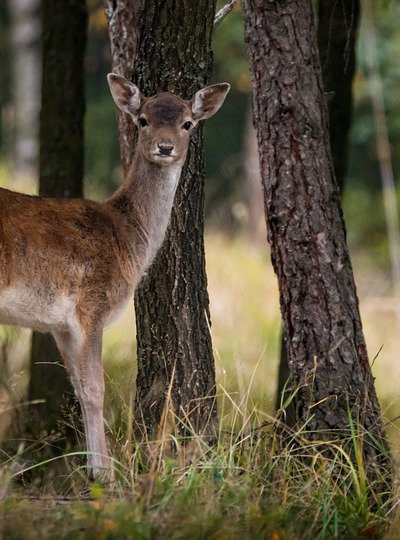
CI uses the imageView2 API to provide a common image processing template. You can append parameters to the download URL to generate the desired thumbnail. The input image cannot be larger than 32 MB, with its width and height not exceeding 30,000 pixels and the total number of pixels not exceeding 250 million. The width and height of the output image cannot exceed 9,999 pixels. For an input animated image, the total number of pixels (width x height x number of frames) cannot exceed 250 million (GIF frame limit: 300).
When this feature is used by a sub-account, relevant permissions must be granted as instructed in Authorization Granularity Details.
Parameters
Parameter
Description
ObjectKey
Object name, such as folder/sample.jpg.
/1/w/<Width>/h/<Height>
Specifies the minimum width and height of the thumbnail. In this mode, the image will be first scaled down until one of the minimum values set is reached. Then, the image will be centered and evenly cropped on both sides to meet the specified values. If only one value is set, a square thumbnail will be generated.
For example, if the input image size is 1000x500 and this parameter is set to ?imageView2/1/w/500/h/400, the image will be scaled down to 800x400 first. Then, 150 pixels will be cropped from the left and right sides respectively, outputting a 500x400 thumbnail.
/2/w/<Width>/h/<Height>
Specifies the maximum width and height of the thumbnail.
In this mode, the image is scaled down until both the width and length are not greater than the maximum values set.
For example, if the input image size is 1000x500 and this parameter is set to ?imageView2/2/w/500/h/400, the image is scaled down to 500x250.
If only one value is set, the image will be adapted.
/3/w/<Width>/h/<Height>
Specifies the minimum width and height of the thumbnail. In this mode, the image will be scaled down until both the width and height are not smaller than the minimum values set.
For example, if the input image size is 1000x500 and this parameter is set to ?imageView2/3/w/500/h/400, the image will be scaled down to 800x400. If only one value is set, a square thumbnail will be generated.
/4/w/<LongEdge>/h/<ShortEdge>
Mode 4: specifies the minimum values of the long edge and short edge of the thumbnail to scale down the image.
If only one value is set, a square thumbnail will be generated.
/5/w/<LongEdge>/h/<ShortEdge>
Mode 5: specifies the maximum values of the long edge and short edge of the thumbnail to scale down the image. The image will be then centered and cropped.
If only one value is set, a square thumbnail will be generated.
After the scaling, the excess will be cropped.
/format/<Format>
Format of the thumbnail, which can be JPG, BMP, GIF, PNG, or WebP. Default value: format of the input image
/q/<Quality>
Image quality. Value range: 0−100. Default value: quality of the input image. The smaller value between the input image quality and the specified quality will be used. If there is an exclamation mark (!) after <Quality>, the specified quality will be used.
/rq/<quality>
Relative quality of the image, relative to that of the input image. Value range: 0−100. For example, if the input image quality is 80 and rquality is set to 80, the quality of the output image is 64 (that is, 80 x 80%).
/lq/<quality>
The lowest quality of the output image. Value range: 0−100.
If the input image quality is 85 and lquality is set to 80, the quality of the output image is 85.
If the input image quality is 60 and lquality is set to 80, the quality of the output image will be improved to 80.
Examples
Note:
Processing upon download is used as an example here, which does not store the output image in a bucket. If you need to store the output image, see Persistent Image Processing and use Processing upon upload or Processing in-cloud data.
Example 1: Using mode 1
The following example uses mode 1, and sets the minimum width and height of the thumbnail to 400x600, and the absolute quality to 85:
This example processes the image in the same way as in the example above except that a signature is carried. The signature is joined with other processing parameters using an ampersand (&):
You can obtain the value of <signature> by referring to Request Signature.
Notes
To prevent unauthorized users from accessing or downloading the input image by using a URL that does not contain any processing parameter, you can add the processing parameters to the request signature, making the processing parameters the key of the parameter with the value left empty. The following is a simple example for your reference (it might have expired or become inaccessible). For more information, see Upload via Pre-Signed URL.