Defense and Traceability
下载
聚焦模式
字号
Defense Overview
1. On the Honeypot Service page, you can quickly check the numbers of honeypot services, exposed probes, hit honeypots, scanned probes, attack IP addresses, and scanning IP addresses.
2. You can scale out the Network Honeypot quota based on your actual needs. Click Purchase quota to purchase additional quota.
Viewing Alarms
1. Log in to the CFW console. In the left sidebar, click Network Honeypot > Honeypot Service.
2. On the honeypot service page, click View Alarms to navigate to Alarm Center > Attack Deception Events, where you can view details of attack deception events detected by Network Honeypot.
Note:
You can block, allow, or ignore dangerous IPs that generate Network Honeypot alarms. For details, see Viewing and Handling of Deception Events.
Viewing Log
1. On the Honeypot Service page, click View Logs to navigate to Log Auditing > Intrusion Defense Logs > Network Honeypot.
2. On the Network Honeypot tab, you can view log information of attack deception events detected by Network Honeypot.
Honeypot Policy Visualization
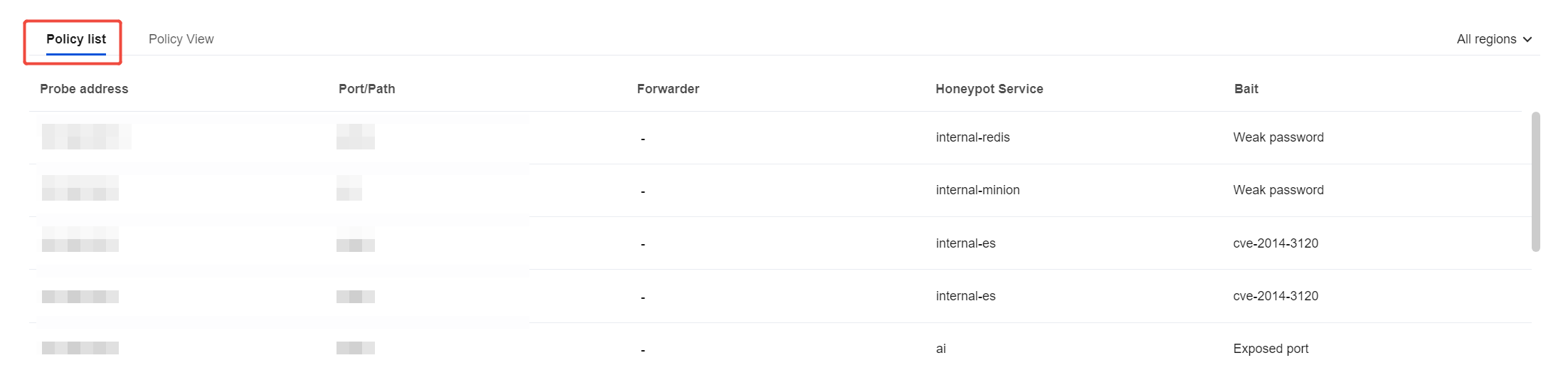
The honeypot policy diagram includes a policy list and a policy view. The policy list and policy view display different paths corresponding to different probe addresses, different honeypot service types, and different decoy types in table and connection diagram formats, respectively.
Policy List
The policy list displays detailed honeypot information corresponding to different probe addresses in a table format.
Policy View
The policy view uses a connection diagram to intuitively and clearly display honeypot information corresponding to different probe addresses in different regions.
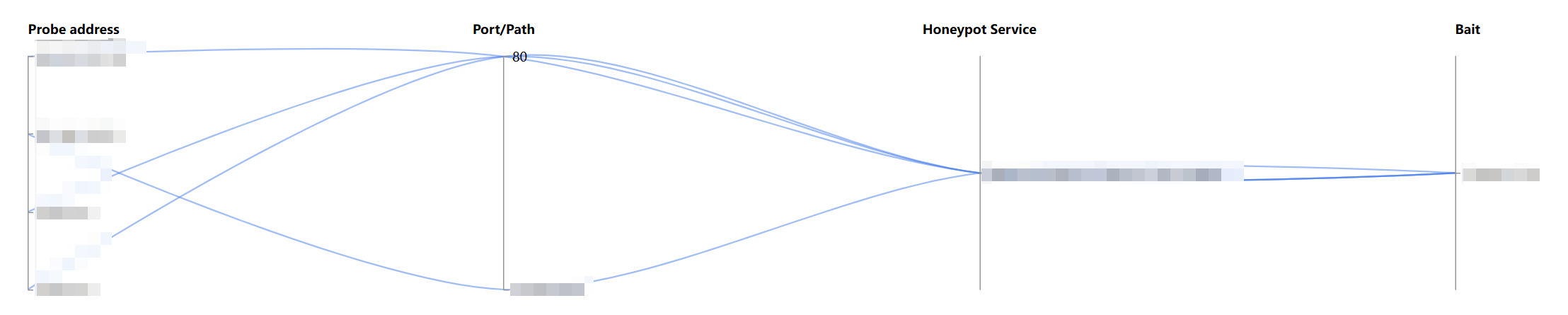
The policy view supports locating corresponding probe addresses by using honeypot filters. For example, users can click ① Probe address and ② Honeypot Service to find the corresponding probes and decoys associated with honeypot services. When hovering over a specific policy connection line, you can also view the region where the probe is deployed, port/path, corresponding honeypot service, and decoy information.

文档反馈