cgroup Resource Limits
ダウンロード
フォーカスモード
フォントサイズ
Use cgroup to implement fine-grained quota control over core resources such as CPU and memory of Linux processes, preventing system crashes caused by resource contention among business processes at the source.
cgroup Overview
cgroup (Control Group) is a resource management mechanism provided by the Linux kernel. It organizes processes into a hierarchical structure and allocates resource limits to processes in each hierarchy. With cgroup, you can limit resources, adjust resource access priorities, monitor and report resource usage, and control the status of all processes in batches.
Cgroups are organized into a hierarchical structure and then control resources for processes, forming a many-to-many relationship, as shown in the following figure.
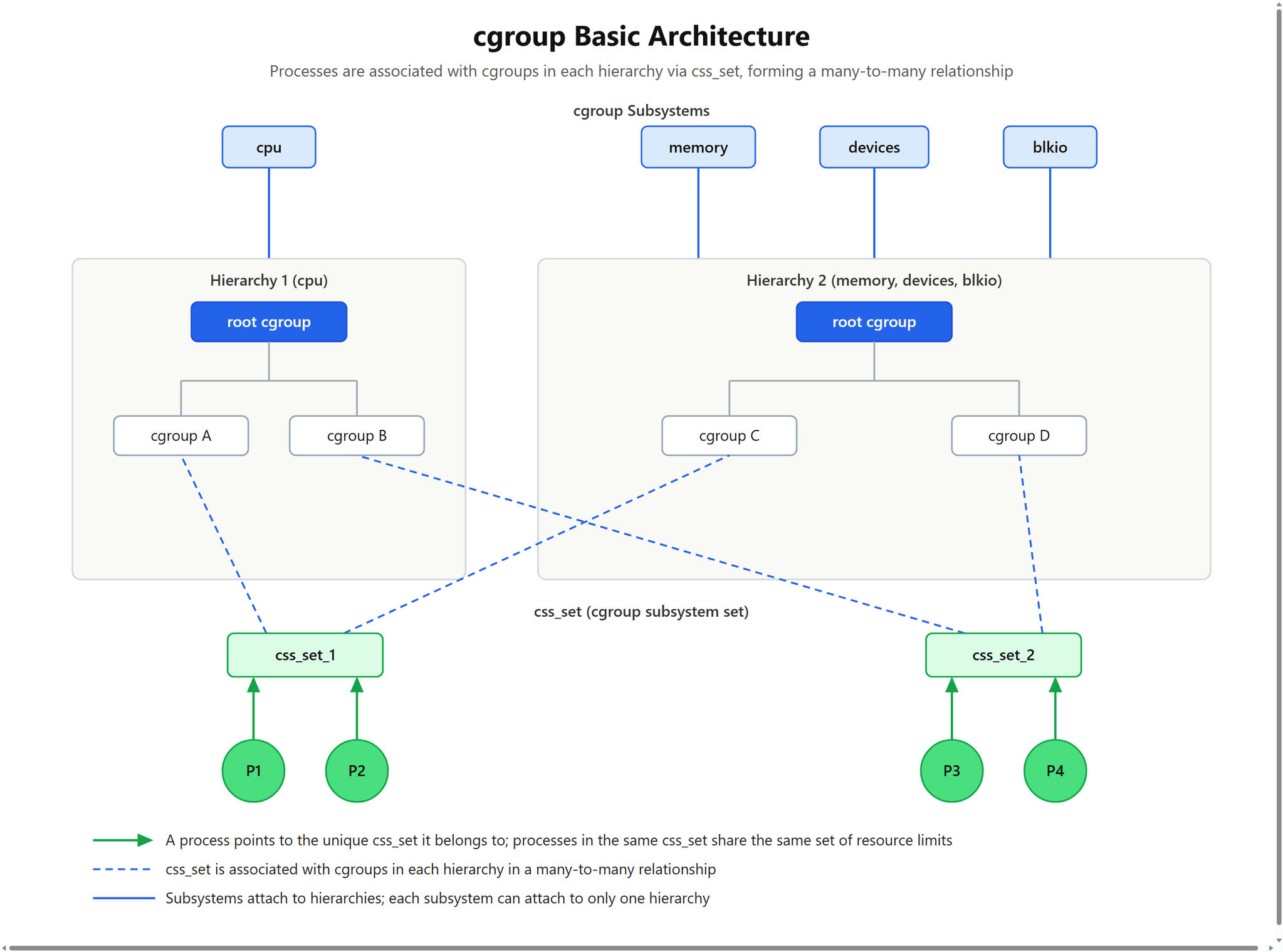
cgroup subsystems (top layer): target each controllable resource, such as the cpu, memory, and devices subsystems. Each cgroup subsystem can be attached to only one hierarchy. A cgroup subsystem controls and monitors specific resources. If it is attached to multiple hierarchies, resource allocation and limit conflicts occur, affecting system stability and reliability.
A cgroup hierarchy (middle layer): one or more cgroup subsystems can be attached to it, and resource limits can be imposed on the attached cgroup subsystems.
Processes and css_set (bottom layer): Each process points to one css_set (cgroups subsystem set) and can belong to only one css_set. A css_set can contain multiple processes, and processes belonging to the same css_set are subject to the resource limits associated with that css_set.
Environment Default Settings
cgroup Versions
cgroup capability is provided by default. You can run the following command to check whether it is supported:
Check whether the kernel has the cgroup basic framework enabled.
grep CONFIG_CGROUPS=y /boot/config-$(uname -r)
The returned result is as follows:
CONFIG_CGROUPS=y
Check whether the kernel has cgroup scheduler support enabled.
grep CONFIG_CGROUP_SCHED=y /boot/config-$(uname -r)
The returned result is as follows:
CONFIG_CGROUP_SCHED=y
TencentOS Server 4 uses cgroup v2 by default, while TencentOS Server 3 uses cgroup v1 by default.
You can run the following command to check the current cgroup version:
stat -fc %T /sys/fs/cgroup/
The returned results for different cgroup versions are as follows:
cgroup2fs # cgroup v2 is currently in use.tmpfs # cgroup v1 is currently in use.
The directory structure of cgroup v2 is as follows:
ls /sys/fs/cgroup/
The returned result is as follows:
cgroup.controllers cgroup.threads init.scope memory.numa_stat sys-kernel-debug.mountcgroup.max.depth cpu.pressure io.cost.model memory.pressure sys-kernel-tracing.mountcgroup.max.descendants cpuset.cpus.effective io.cost.qos memory.reclaim system.slicecgroup.pressure cpuset.mems.effective io.pressure memory.stat user.slicecgroup.procs cpu.stat io.prio.class misc.capacitycgroup.stat dev-hugepages.mount io.stat sys-fs-fuse-connections.mountcgroup.subtree_control dev-mqueue.mount irq.pressure sys-kernel-config.mount
The directory structure of cgroup v1 is as follows:
ls /sys/fs/cgroup/
The returned result is as follows:
blkio cpuacct cpuset freezer memory net_cls net_prio pids systemdcpu cpu,cpuacct devices hugetlb misc net_cls,net_prio perf_event rdma unified
Warning: Switching cgroup versions requires modifying kernel boot parameters and restarting the system, which is a high-risk operation. Before switching, confirm service compatibility with the cgroup version and prepare a rollback plan.
cgroup Subsystems
Query
/proc/cgroups to check the subsystems supported by the current cgroup:cat /proc/cgroups
The returned result is as follows, and the subsystems supported by default are as follows:
#subsys_name hierarchy num_cgroups enabledcpuset 0 132 1cpu 0 132 1cpuacct 0 132 1blkio 0 132 1memory 0 132 1devices 0 132 1freezer 0 132 1net_cls 0 132 1perf_event 0 132 1net_prio 0 132 1hugetlb 0 132 1pids 0 132 1rdma 0 132 1misc 0 132 1
Query
/sys/fs/cgroup/cgroup.controllers to check the subsystems enabled in the current cgroup hierarchy:cat /sys/fs/cgroup/cgroup.controllers
The returned result is as follows:
cpuset cpu io memory hugetlb pids rdma misc
Add the subsystems that are supported by the system but not enabled to the specified mount point by using the
mount command:mkdir -p /mnt/cgroups/freezermount -t cgroup -o freezer freezer /mnt/cgroups/freezerls /mnt/cgroups/freezer/
The returned result is as follows:
cgroup.clone_children cgroup.procs cgroup.sane_behavior notify_on_release release_agent tasks
Use
lscgroup to confirm that the subsystem has been added:lscgroup | grep freezer
The returned result is as follows:
freezer:/
If it is no longer needed, you can unmount it by using the
umount command:umount /mnt/cgroups/freezer
cgroup Usage Instructions
Using systemd to Manage cgroups
systemd simplifies resource management to the application level by binding the cgroup hierarchy to the systemd unit tree. Users can manage unit-related resources directly through systemctl commands or by modifying the systemd unit configuration files.
For resource management, systemd provides three types of units:
service: One or a group of processes started by systemd based on the unit configuration file. A service encapsulates specified processes so that they can be started or terminated as a whole.
scope: A group of externally created processes. These processes are started and terminated through the fork() function, and are then registered and encapsulated by systemd at runtime. For example, user sessions, containers, and virtual machines are typically considered scopes.
slice: A group of units arranged in a hierarchy. A slice does not contain processes itself, but forms a hierarchical structure in which scopes and services are placed. Actual processes are contained in scopes or services. In this hierarchical tree, the name of each slice unit corresponds to a path leading to a position in the hierarchy.
Viewing the cgroup Hierarchy
You can view the cgroup hierarchy by using the
systemd-cgls command:systemd-cgls
The returned result is as follows:
Control group /:-.slice├─user.slice (#1203)│ → user.invocation_id: f7d3942d34cd4635a9a1567f35cf247a│ → trusted.invocation_id: f7d3942d34cd4635a9a1567f35cf247a│ └─user-0.slice (#41553)│ → user.invocation_id: d1ff03802e014648a616ac2bdafbb73a...├─init.scope (#25)│ └─1 /usr/lib/systemd/systemd --switched-root --system --deserialize 31└─system.slice (#65)├─rngd.service (#2701)│ → user.invocation_id: eb2c44177aec4afc8095560dc6269402│ → trusted.invocation_id: eb2c44177aec4afc8095560dc6269402│ └─674 /usr/sbin/rngd -f -x pkcs11 -x nist...
Starting a service
You can use the
systemd-run command to create and start a temporary service or scope unit, and run custom commands within that unit. The format is as follows:systemd-run --unit=name --scope --slice=<slice_name> command
If no
slice is specified, it belongs to system.slice by default.Setting service Properties
After the service starts, you can use
systemctl set-property to modify the cgroup:systemctl set-property name parameter=value
Compared with cgroup v1, v2 has many adjustments to its properties. You can run the following command to query the specific types of properties currently supported:
man 5 systemd.resource-control
libcgroup Tools
libcgroup is one of the main tools for managing cgroups in the current version. You can install it by running the following command. The tools subpackage will also pull in the main package as a dependency and install it in the environment:
dnf install -y libcgroup-tools
Displaying the cgroup Hierarchy
libcgroup provides
lscgroup to display the cgroup hierarchy, which can directly list all currently enabled cgroup subsystem information:lscgroup
The returned result is as follows:
cpuset,cpu,io,memory,hugetlb,pids,rdma,misc:/cpuset,cpu,io,memory,hugetlb,pids,rdma,misc:/sys-fs-fuse-connections.mountcpuset,cpu,io,memory,hugetlb,pids,rdma,misc:/sys-kernel-config.mountcpuset,cpu,io,memory,hugetlb,pids,rdma,misc:/sys-kernel-debug.mountcpuset,cpu,io,memory,hugetlb,pids,rdma,misc:/dev-mqueue.mount...
You can also specify a subsystem and its path:
lscgroup -g cpuset:/sys-fs-fuse-connections.mount
The returned result is as follows:
cpuset,cpu,io,memory,hugetlb,pids,rdma,misc:/sys-fs-fuse-connections.mount/
Creating/Deleting Control Groups
libcgroup provides the
cgcreate/cgdelete command pair for creating/deleting control groups.Before use, you need to mount the subsystem first, for example:
mkdir -p /mnt/cgroups/freezermount -t cgroup -o freezer freezer /mnt/cgroups/freezer
Use
cgcreate to create a control group:cgcreate -g freezer:/cgcreate_child
After completion, you can confirm by running the
lscgroup command:lscgroup | grep freezer
The returned result is as follows:
freezer:/freezer:/freezerfreezer:/cgcreate_child
At this point, a
cgcreate_child subdirectory appears under /mnt/cgroups/freezer, containing freezer-related files:ls /mnt/cgroups/freezer/cgcreate_child/
The returned result is as follows:
cgroup.clone_children freezer.parent_freezing freezer.state taskscgroup.procs freezer.self_freezing notify_on_release
Alternatively, you can directly use
mkdir instead of cgcreate:mkdir /mnt/cgroups/freezer/childgroup
Confirm the creation result by running
lscgroup:lscgroup | grep freezer
The returned result is as follows:
freezer:/freezer:/freezerfreezer:/childgroupfreezer:/cgcreate_child
View the contents of the newly created subdirectory:
ls /mnt/cgroups/freezer/childgroup
The returned result is as follows:
cgroup.clone_children freezer.parent_freezing freezer.state taskscgroup.procs freezer.self_freezing notify_on_release
If it is no longer needed, you can delete the subgroup by running the
cgdelete command:cgdelete freezer:/cgcreate_childcgdelete freezer:/childgroup
Confirm the deletion result:
lscgroup | grep freezer
The returned result is as follows:
freezer:/freezer:/freezer
Adding Processes to a Control Group
You can start a process in a manually created cgroup by running the
cgexec command. The syntax of cgexec is as follows:cgexec -g controllers:path_to_cgroup command arguments
If the process is already started, you can run the
cgclassify command to move it to a cgroup:cgclassify -g controllers:path_to_cgroup pidlist
Example of moving process 15729 to
childgroup:cgclassify -g freezer:/childgroup 15729
View the process list in
childgroup:cat /mnt/cgroups/freezer/childgroup/tasks
The returned result is as follows:
15729
Reference Examples
Adding a service to a cgroup with systemd-run
This section uses the cgroup memory subsystem as an example.
Warning: The following example creates a memory leak scenario and triggers OOM. It is only for demonstrating the effect of cgroup memory limits. Do not run it in production environments.
1. Edit
demo
as follows to create a scenario of slow memory leakage. Under normal circumstances, this process runs for a long time before it is killed due to OOM:#include <stdio.h>#include <stdlib.h>#include <string.h>#include <unistd.h>#define SIZE 1024 * 10 // 10kBint main() {char *ptr;while (1) {ptr = (char *) malloc(SIZE);memset(ptr, 0, SIZE);sleep (1);}return 0;}
2. Start the service by running the
systemd-run command:systemd-run --unit=my_malloc --slice=test ./my_malloc
After the service is started, you can find it by running the
systemd-cgls command:systemd-cgls
The returned result is as follows:
Control group /:-.slice...├─test.slice (#5581)│ → user.invocation_id: 41e6db3f95094ae99a7f4d7ce471d3a1│ → trusted.invocation_id: 41e6db3f95094ae99a7f4d7ce471d3a1│ └─my_malloc.service (#5637)│ → user.invocation_id: 02d4d4b8d38b4101b5f6ef5af2addfb3│ → trusted.invocation_id: 02d4d4b8d38b4101b5f6ef5af2addfb3│ └─2124 /home/./my_malloc
If no
slice is specified, it belongs to system.slice by default.systemd-run --unit=my_malloc ./my_malloc
View the cgroup hierarchy:
systemd-cgls
The returned result is as follows:
Control group /:-.slice├─user.slice (#1123)│ → user.invocation_id: 17274220636d448c8b14dca5d4ce1d45│ → trusted.invocation_id: 17274220636d448c8b14dca5d4ce1d45...└─system.slice (#65)...├─my_malloc.service (#4501)│ → user.invocation_id: 7d25225645844d228f300b1f6dc21905│ → trusted.invocation_id: 7d25225645844d228f300b1f6dc21905│ └─2146 /home/./my_malloc
3. After the service is started, you can find the information about the my_malloc service in the cgroup root directory:
ls /sys/fs/cgroup/test.slice/my_malloc.service
The returned result is as follows:
cgroup.controllers cgroup.threads memory.low memory.swap.eventscgroup.events cgroup.type memory.max memory.swap.highcgroup.freeze cpu.pressure memory.min memory.swap.maxcgroup.kill cpu.stat memory.numa_stat memory.zswap.currentcgroup.max.depth io.pressure memory.oom.group memory.zswap.maxcgroup.max.descendants irq.pressure memory.peak pids.currentcgroup.pressure memory.current memory.pressure pids.eventscgroup.procs memory.events memory.reclaim pids.maxcgroup.stat memory.events.local memory.stat pids.peakcgroup.subtree_control memory.high memory.swap.current
4.
memory.max is set to max by default. We set it to 10k through systemctl. First, check the current value:cat memory.max
The returned result is as follows:
max
Set the memory limit to 10K:
systemctl set-property my_malloc.service MemoryMax=10K
5. You can see that the service exited early due to oom:
systemctl status my_malloc
The returned result is as follows:
× my_malloc.service - /home/./my_mallocLoaded: loaded (/run/systemd/transient/my_malloc.service; transient)Transient: yesDrop-In: /run/systemd/transient/my_malloc.service.d└─50-MemoryMax.confActive: failed (Result: oom-kill) since Tue 2023-05-23 17:20:46 CST; 12s agoDuration: 6min 15.691sProcess: 2124 ExecStart=/home/./my_malloc (code=killed, signal=KILL)Main PID: 2124 (code=killed, signal=KILLCPU: 16msMay 23 17:14:30 controller systemd[1]: Started my_malloc.service - /home/./my_malloc.May 23 17:20:46 controller systemd[1]: my_malloc.service: A process of this unit has been killed by the OO>May 23 17:20:46 controller systemd[1]: my_malloc.service: Main process exited, code=killed, status=9/KILLMay 23 17:20:46 controller systemd[1]: my_malloc.service: Failed with result 'oom-kill'.
Managing Tasks with /sys/fs/cgroup
In addition to using systemd commands, you can also directly operate
/sys/fs/cgroup. This section still uses the demo from the previous section for illustration.1. List the subsystems supported by controllers:
cat /sys/fs/cgroup/cgroup.subtree_control
The returned result is as follows:
cpuset cpu io memory pids
2. Enable the memory subsystem:
echo "+memory" >> /sys/fs/cgroup/cgroup.subtree_control
You can use the
man command to query the specific usage of cgroup.subtree_control:man 7 cgroups
3. Create the
/sys/fs/cgroup/Example/ directory:mkdir /sys/fs/cgroup/Example/
At this point, the subsystem files are also automatically created in the directory:
ls /sys/fs/cgroup/Example/
The returned result is as follows:
cgroup.controllers cgroup.type cpuset.mems memory.events memory.statcgroup.events cpu.idle cpuset.mems.effective memory.events.local memory.swap.currentcgroup.freeze cpu.max io.bfq.weight memory.high memory.swap.eventscgroup.kill cpu.max.burst io.latency memory.low memory.swap.highcgroup.max.depth cpu.pressure io.max memory.max memory.swap.maxcgroup.max.descendants cpu.stat io.pressure memory.min memory.zswap.currentcgroup.pressure cpu.weight io.prio.class memory.numa_stat memory.zswap.maxcgroup.procs cpu.weight.nice io.stat memory.oom.group pids.currentcgroup.stat cpuset.cpus io.weight memory.peak pids.eventscgroup.subtree_control cpuset.cpus.effective irq.pressure memory.pressure pids.maxcgroup.threads cpuset.cpus.partition memory.current memory.reclaim pids.peak
At this point,
Example/cgroup.subtree_control needs to be enabled. It is empty when first created:cat /sys/fs/cgroup/Example/cgroup.subtree_control
4. Enable the memory subsystem of Example:
echo "+memory" >> /sys/fs/cgroup/Example/cgroup.subtree_control
Confirm that it is enabled:
cat /sys/fs/cgroup/Example/cgroup.subtree_control
The returned result is as follows:
memory
5. Create the
/sys/fs/cgroup/Example/tasks/ directory:mkdir /sys/fs/cgroup/Example/tasks/
At this point, the tasks directory contains only files related to the memory subsystem:
ls /sys/fs/cgroup/Example/tasks/
The returned result is as follows:
cgroup.controllers cgroup.procs io.pressure memory.max memory.statcgroup.events cgroup.stat irq.pressure memory.min memory.swap.currentcgroup.freeze cgroup.subtree_control memory.current memory.numa_stat memory.swap.eventscgroup.kill cgroup.threads memory.events.local memory.peak memory.swap.highcgroup.max.depth cgroup.type memory.high memory.pressure memory.swap.maxcgroup.max.descendants cpu.pressure memory.low memory.reclaim memory.zswap.current
6. Check the maximum value of memory. The default is max:
cat /sys/fs/cgroup/Example/tasks/memory.max
The returned result is as follows:
max
Set the maximum memory value to 10K:
echo "10K" > /sys/fs/cgroup/Example/tasks/memory.max
Confirm the setting result:
cat /sys/fs/cgroup/Example/tasks/memory.max
The returned result is as follows:
8192
Note that
echo outputs 10k, but the displayed value is 8k, indicating that it is aligned to 4k.7. Obtain the pid of demo:
./my_malloc &
The returned result is as follows:
[1] 2475
Add the process to the cgroup:
echo "2475" > /sys/fs/cgroup/Example/tasks/cgroup.procs
8. After execution, demo will be
killed by the system:[1]+ Killed ./my_malloc
Managing Subsystems with cgconfig.conf
libcgroup-tools provides the cgconfig.service to help users easily add and delete hierarchies. This service is disabled by default. After editing
/etc/cgconfig.conf, users can enable the service to manage hierarchies. An example is provided below.1. Display the currently supported subsystems:
cat /proc/cgroups
The returned result is as follows:
#subsys_name hierarchy num_cgroups enabledcpuset 0 90 1cpu 0 90 1cpuacct 0 90 1blkio 0 90 1memory 0 90 1devices 0 90 1freezer 0 90 1net_cls 0 90 1perf_event 0 90 1net_prio 0 90 1hugetlb 0 90 1pids 0 90 1rdma 0 90 1misc 0 90 1
2. Make sure that the subsystem to be mounted is not occupied. Using freezer as an example, run the following command to ensure that the subsystem is not occupied:
lscgroup | grep freezer
When a subsystem is occupied, the cgconfig service fails to start. Taking the occupied memory subsystem as an example, the error is as follows:
systemctl status cgconfig
The returned result is as follows:
× cgconfig.service - Control Group configuration serviceLoaded: loaded (/usr/lib/systemd/system/cgconfig.service; disabled; vendor preset: disabled)Active: failed (Result: exit-code) since Tue 2023-05-23 20:53:49 CST; 1min 10s agoProcess: 2420 ExecStart=/usr/sbin/cgconfigparser -l /etc/cgconfig.conf -s 1664 (code=exited, status=101)Main PID: 2420 (code=exited, status=101)CPU: 3msMay 23 20:53:49 controller systemd[1]: Starting cgconfig.service - Control Group configuration service...May 23 20:53:49 controller cgconfigparser[2420]: /usr/sbin/cgconfigparser; error loading /etc/cgconfig.conf: Cgroup mounting failedMay 23 20:53:49 controller cgconfigparser[2420]: Error: cannot mount memory to /mnt/cgroups/memory: Device or resource busyMay 23 20:53:49 controller systemd[1]: cgconfig.service: Main process exited, code=exited, status=101/n/aMay 23 20:53:49 controller systemd[1]: cgconfig.service: Failed with result 'exit-code'.May 23 20:53:49 controller systemd[1]: Failed to start cgconfig.service - Control Group configuration service.
3. Create a mount entry by editing
/etc/cgconfig.conf and entering the following content:mount {freezer = /mnt/cgroups/freezer;}
Restart the cgconfig service:
systemctl restart cgconfig
Note that the configuration will be lost after a restart. To persist it, enable the service:
systemctl enable cgconfig
At this point, subsystem files will appear in the specified
/mnt/cgroups/freezer directory:ls /mnt/cgroups/freezer/
The returned result is as follows:
cgroup.clone_children cgroup.procs cgroup.sane_behavior notify_on_release release_agent tasks
The configuration in the preceding steps is equivalent to the following operations:
mkdir -p /mnt/cgroups/freezermount -t cgroup -o freezer freezer /mnt/cgroups/freezer
After completing the preceding steps, you can refer to the cgroup usage described earlier to control process resources.
フィードバック