You can create alarm policies to trigger alarms and send alarm notifications when the Tencent Cloud service status changes. The created alarm policies can determine whether an alarm needs to be triggered according to the difference between the monitoring metric value and the given threshold at intervals.
You can take appropriate precautionary or remedial measures in a timely manner when the alarm is triggered by changed product status. Therefore, properly created alarm policies can help you improve the robustness and reliability of your applications. For more information on alarms, see Creating Alarm Policy in Cloud Monitor.
To send an alarm for a specific status of a product, you need to create an alarm policy at first. An alarm policy is composed of three compulsory components, that is, the name, type and alarm triggering conditions. Each alarm policy is a set of alarm triggering conditions with the logical relationship "OR", that is, as long as one of the conditions is met, an alarm will be triggered. The alarm will be sent to all users associated with the alarm policy. Upon receiving the alarm, the user can view the alarm and take appropriate actions in time.
Note:
Make sure that you have set the default alarm recipient; otherwise, no notifications will be sent based on the default alarm policy of TencentDB.
2. Select the region at the top of the page, and click the instance ID in the instance list or Manage in the Operation column of the target instance to enter the instance management page.
3. On the instance management page, selectSystem Monitoring, and click any monitoring metric to enter alarm policy page.
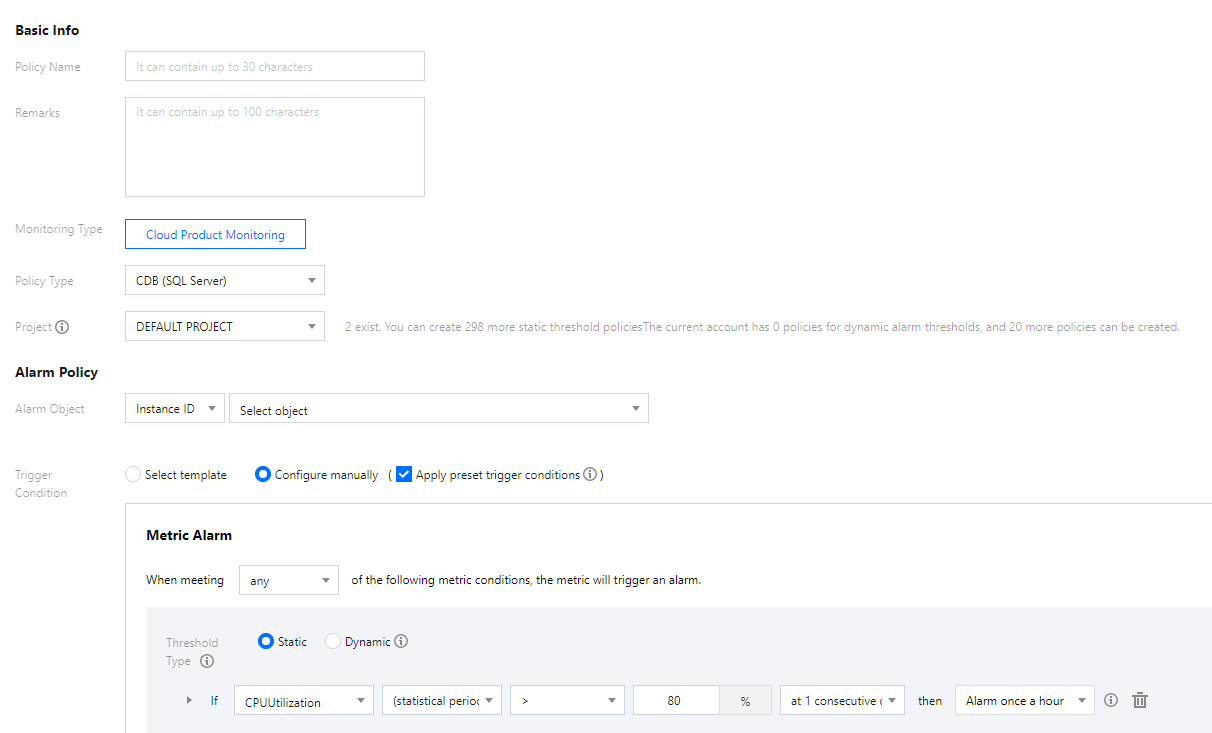
4. On the Create Alarm Policy page, set the policy name, policy type, project, alarm object, and trigger condition, etc. After confirming that everything is correct, click Complete.
Policy Name: It can contain up to 30 characters.
Remarks: It can contain up to 100 characters.
Monitoring Type: Select Cloud Product Monitoring.
Policy Type: Select TencentDB for SQL Server.
Project: It is used for alarm policy classification and limit management, and it doesn't have strong binding to SQL Server instance project.
Alarm Object: The instance to be associated with the policy alarm. You can find the desired instance by selecting the region where it is located or searching for its ID.
Trigger Condition: You can select Select template or Configure manually and Use preset trigger condition (The common trigger conditions of the alarm policy for the corresponding cloud products are automatically set according to the preset template of the system). An alarm trigger is a semantic condition composed of metric, comparison, threshold, statistical period, and duration. For example, if the metric is disk utilization, the comparison is >, the threshold is 80%, the statistical period is 5 minutes, and the duration is two statistical periods, then the data on disk utilization of a database will be collected once every five minutes, and an alarm will be triggered if the disk utilization exceeds 80% for two consecutive times.
Configure Alarm Notification: You can select a preset or custom notification template. Each alarm policy can be bound to three notification templates at most. For more information, see Setting Alarm Notification.
2. Associate objects
After the alarm policy is created, you can associate alarm objects with it. When an alarm object satisfies an alarm trigger condition, an alarm notification will be sent.
1. In the Alarm Policy list, click the name of an alarm policy to enter the alarm policy management page.
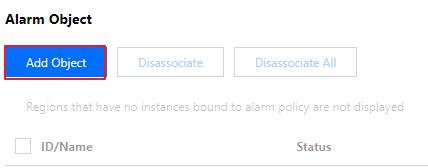
2. Click Add Object in the Alarm Object section.
3. In the pop-up dialog box, select the alarm objects to be associated with, and click OK.