tencent cloud

TencentDB for SQL Server

Release Notes and Announcements
Release Notes
Product Announcements
User Guide
Product Introduction
Overview
Product Architecture
Strengths
Use Cases
Regions and AZs
Major Version Lifecycle Explanation
Features and Differences
Instance Types
Instance Specifications
Storage Types
Common Concepts
Network Environment
License Statement
Purchase Guide
Billing Overview
Product Pricing
Purchase Methods
Renewal Instructions
Payment Overdue
Refund
From Pay-as-You-Go to Monthly Subscription
Instance Adjustment Fees Description
Local Backup Space Billing
Cross-Region Backup Billing
Viewing Bill Details
Getting Started
Creating TencentDB for SQL Server Instance
Connecting to TencentDB for SQL Server Instance
Managing TencentDB for SQL Server Instance
Operation Guide
Constraints and Limits
Usage Specifications and Suggestions
Maintaining Instance
Adjusting Instance Configuration
Read-Only Instance
Network and Security
Account Management
Database Management
Data Security
Parameter Configuration
Monitoring and Alarms
Backup and Restoration 
Log Management
Publish-Subscribe
SSIS
Data Migration (New)
Data Migration (Legacy)
Data Synchronization (DTS) 
Practical Tutorial
TencentDB for SQL Server Methods for Regular Maintenance
TencentDB for SQL Server Optimization of Slow SQL
How to Better Use Tempdb
Cross-Account Backup Restoration
Creating VPC for TencentDB for SQL Server
Connecting Kingdee K/3 WISE to TencentDB for SQL Server
Account Permissions and Permission Control
Enabling and Disabling the CDC Feature
Shrinking a Database
API Documentation
History
Introduction
API Category
Making API Requests
Sales and fee related APIs
Instance Management related APIs
Operation and maintenance management related APIs
Network management related APIs
Account management related APIs
Database management related APIs
Security group management related APIs
Data security encryption related APIs
Parameter configuration related APIs
Extended Event related APIs
Log management related APIs
Read only instance management related APIs
Publish and subscribe related APIs
Backup related APIs
Rollback related APIs
Data migration (cold standby migration) related APIs
SQL Server Integration Services (SSIS) related APIs
Data migration (DTS old version) related APIs
Data Types
Error Codes
FAQs
Overview
Model Selection
Pricing and Selection
Connection and Network
Account and Permission
Backup and Rollback
Data Migration
Publish/Subscribe
Read-Only Instance
Version and Architecture Upgrade
Disk Space and Specification Adjustment
Monitoring and Alarms
Log-Related
Parameter Modification
Features
Performance, Space, and Memory-Related FAQs
Service Agreement
Service Level Agreement
Terms of Service
Performance Evaluation
Performance Test Report
Glossary
Contact Us

Viewing Monitoring Charts

PDF
フォーカスモード
フォントサイズ
最終更新日: 2025-05-19 17:01:12
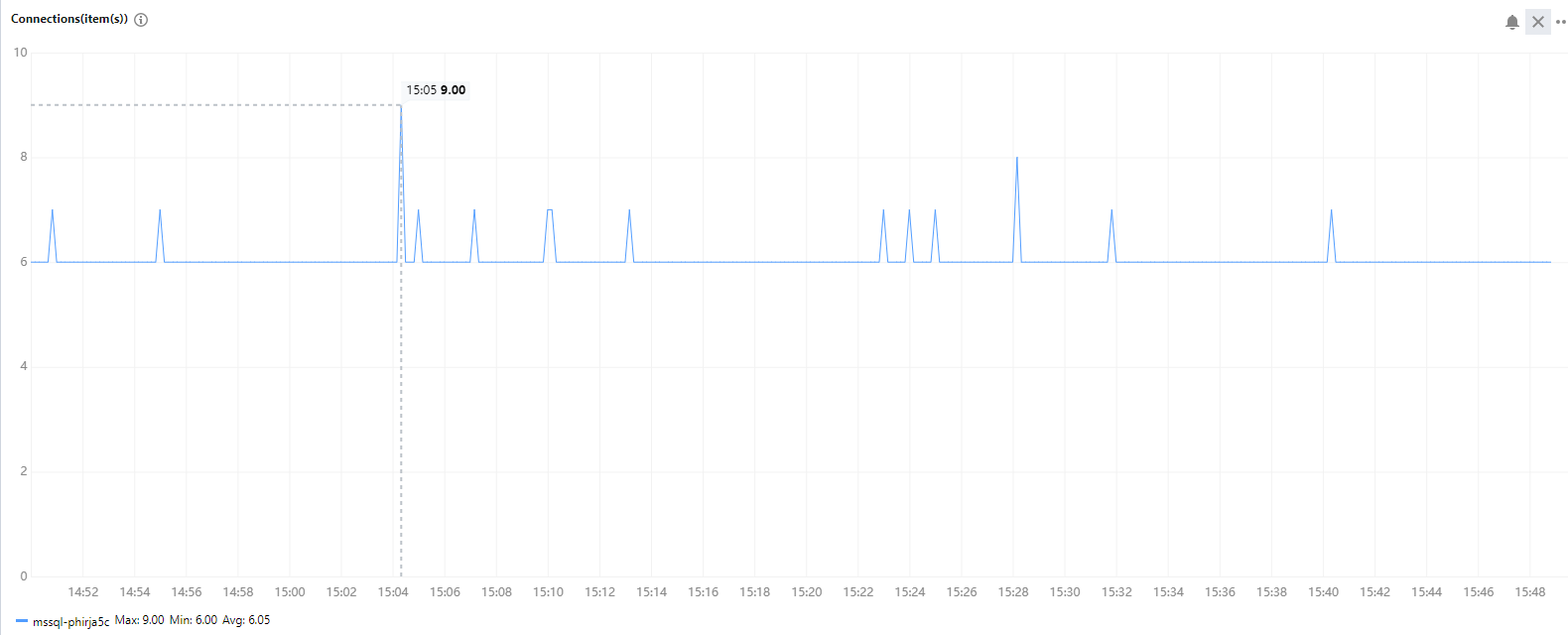
To make it easier for you to view and stay up to date with how instances work, TencentDB for SQL Server provides a wide variety of performance monitoring metrics and convenient monitoring features (custom view, time comparison, merged monitoring metrics, etc.).
This document describes how to view monitoring chart info in the console.
Note:
If the number of tables in a single instance exceeds one million, database monitoring may be affected. Make sure that the number of tables in a single instance is below one million.

Types of instances for monitoring

TencentDB for SQL Server primary and read-only instances can be monitored, and each instance is provided with a separate monitoring view for easy query.

Viewing monitoring data

2. Select the region at the top, find the target instance, and click the target instance ID or Manage in the Operation column to enter the instance management page.

3. On the instance management page, select the System Monitoring page to view monitoring metrics.
Note:
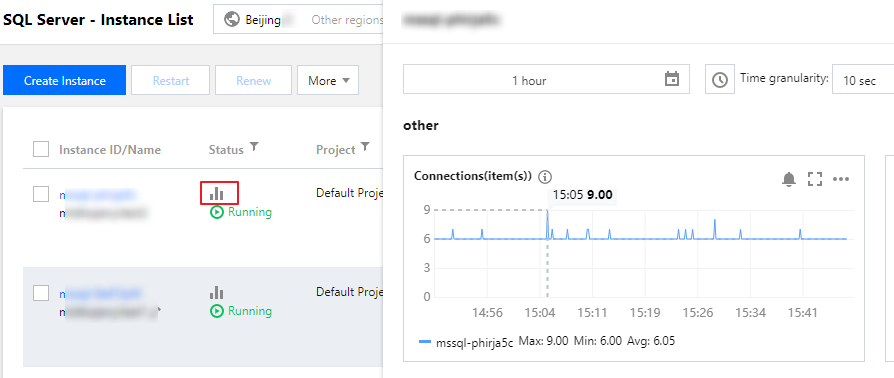
On the instance list, you can also click the monitoring icon of the target instance to quickly view its monitoring status.


Copying Charts to Dashboards

You can copy monitoring charts of instances to dashboards for visualization and analysis, which makes the monitoring data more intuitive. For the dashboard definition, see Overview.
Go to the System Monitoring page, click the

icon in front of Display Legends, and click Copy to Dashboard.


Displaying a chart in full screen

You can display a single metric in full screen for a clearer preview of metric data.
1. On the System Monitoring page, you can click icon

on the right of the corresponding metric to display the metric in full screen.
2. After the preview data is displayed in full screen, you can click the

icon in the upper right corner to close the full screen display window.


Exporting data

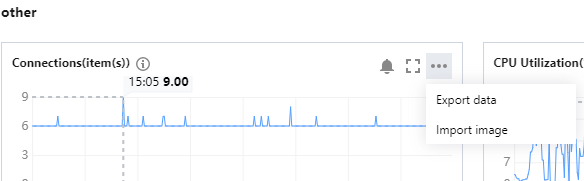
You can export the desired metric data individually.
On the System Monitoring page, you can click icon

on the right of the corresponding metric to export data or pictures of the metric to the local system.


Selecting monitoring time range

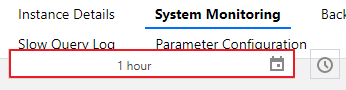
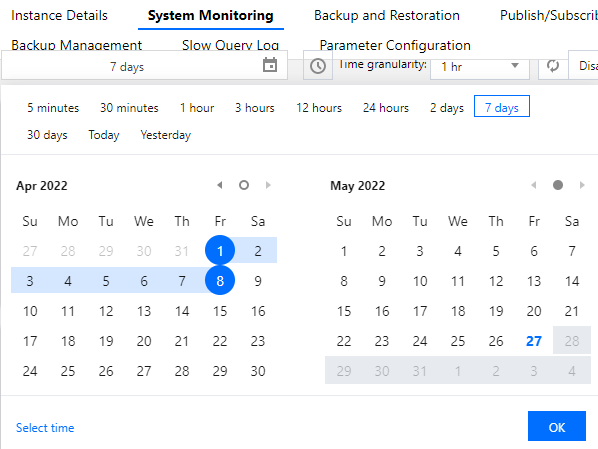
You can select or customize a time range to query the monitoring over this time period.
1. On System Monitoring page, click the time box.

2. In the pop-up window, you can select 5 minutes, 30 minutes, 1 hour, 3 hours, 12 hours, 24 hours, 2 days, 7 days, 30 days, today, yesterday, the start and end date, or the time range of them, then click OK.


Adding time comparison

You can compare monitoring data from multiple time ranges by adding time comparisons.
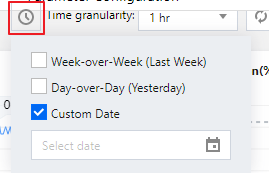
1. On [System Monitoring] page, click Add Time icon behind time box.

2. Select Week-over-Week(Last Week), Day-over-Day (Yesterday), or Custom Date from the drop-down list to compare the monitoring data within the corresponding time range.


Monitoring granularity

You can view instance monitoring at different time granularities within the selected time period. On [System Monitoring] page, select the time period, and then you can select the desired time granularity in the drop-down list after Time Granularity to view the monitoring data.

Time Periods and Corresponding Chart Granularities
Time period
Time granularity
5 minutes
10 seconds, 1 minute
30 minutes, 1 hour
10 seconds, 1 minute, 5 minutes
3 hours
10 seconds, 1 minute, 5 minutes, 1 hour
12 hours, today, yesterday
1 minute, 5 minutes, 1 hour
24 hours, 2 days
1 minute, 5 minutes, 1 hour, 24 hours
7 days, 30 days
1 hour, 24 hours

Setting refresh time

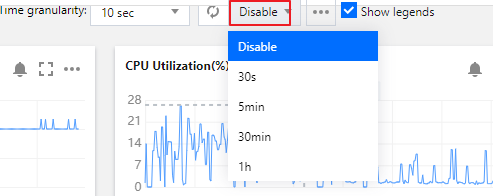
You can set the refresh time on the system monitoring page (disabled by default) to observe changes of instance monitoring in real time.
Go to the System Monitoring page, click the drop-down button next to

to set the time frequency of data refresh, which can be 30 seconds, 5 minutes, 30 minutes, and 1 hour.

ヘルプとサポート

この記事はお役に立ちましたか?

フィードバック