Manually Create Latest Blocking and Deadlock Events
Unduh
Mode fokus
Ukuran font
TencentDB for SQL Server supports manually creating the latest blocking events and deadlock events after the collection of blocking events and deadlock events is enabled. You can immediately create and download blocking event and deadlock event files when needed. This document describes how to manually create the latest blocking and deadlock events through the console.
Note:
Only SQL Server 2012 Enterprise and later editions support manually creating the latest blocking and deadlock events. SQL Server 2008 R2 Enterprise does not support this feature.
The log time defaults to Beijing time. If the default time zone is modified, the storage time of log data will be displayed in the time zone of the instance server, while the console will show Beijing (UTC+8) time.
Scenarios
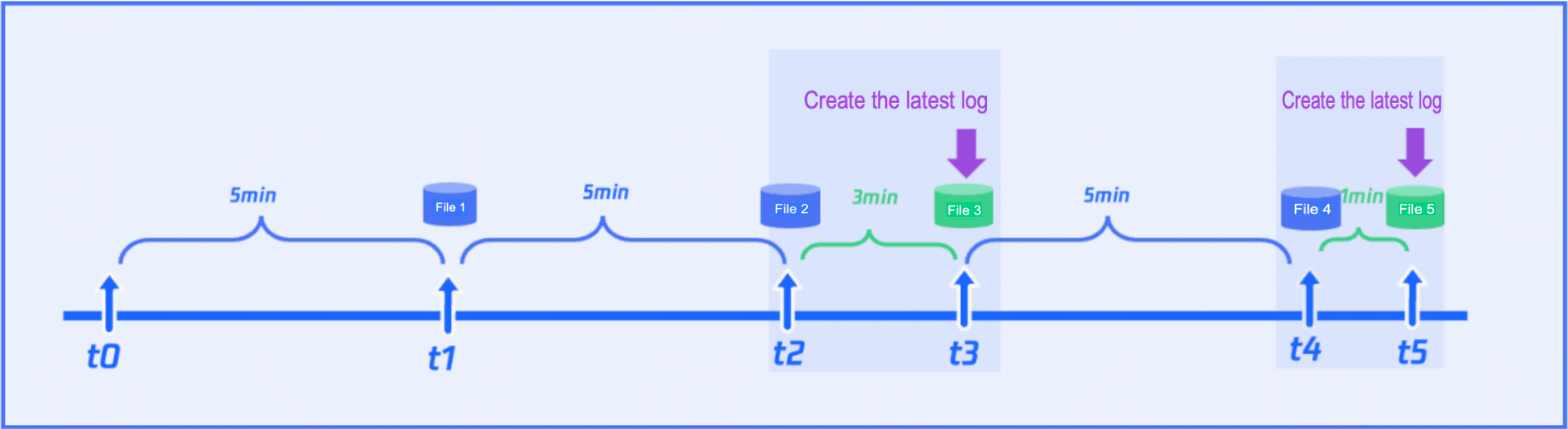
TencentDB for SQL Server collects blocking event and deadlock event files every 5 minutes by default after the collection of these events is enabled. This means that within every 5-minute interval, executed SQL statements that exceed the collection threshold will be recorded and generate files. Currently, you can immediately generate blocking event and deadlock event files when needed. For example, within a log file generation cycle (every 5 minutes), when only 3 minutes of the latest logs have been collected, you can immediately download the log files generated during these 3 minutes by manually creating the latest blocking and deadlock events.
Prerequisites
Manually Create Latest Blocking and Deadlock Events
1. Log in to the SQL Server console.
2. Select a region at the top, find the target instance, click Instance ID or click Manage in its Operation column to go to the instance management page.

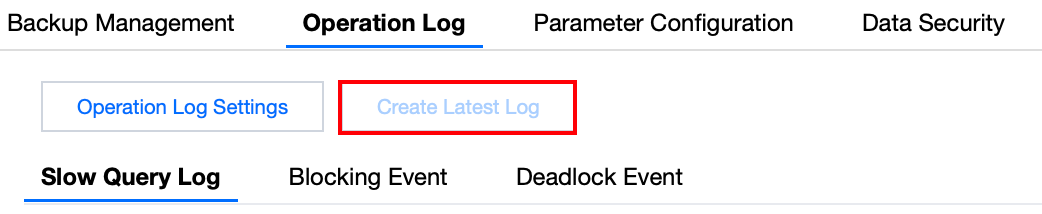
3. On the instance management page, select the Operation Log tab.
4. Click Create Latest Log.
5. In the pop-up window, click Save.
Note:
Creating the latest log will immediately cut off and package the file that is being generated but has not met the packaging time for upload. Specifically: with a collection frequency of generating one log file every 5 minutes, if the latest file has only been collected for 3 minutes, clicking "Create Latest Log" will immediately cut off, package, and upload the current 3-minute log for user download. Subsequent log files will resume generation from the cutoff time according to the established collection frequency.
Parameter | Description |
Log Type | By default, both blocking events and deadlock events are supported. Currently, you can only create both types together; creating blocking events or deadlock events separately is not supported. |
Collection Threshold | SQL statements exceeding the collection threshold will be recorded as blocking SQL and deadlock SQL. The default threshold here is consistent with the settings when blocking and deadlock events are enabled. |
Retention Period | By default, it is 7 days. |
Subsequent Operations
FAQs
Why Can't I Click the Create Latest Log Feature Option in the Console?
1. Your instance may not have enabled the collection of blocking and deadlock events. You need to enable event collection first. For details, refer to Enabling Collection of Blocking and Deadlock Events.
2. The feature for manually creating the latest blocking and deadlock logs is currently supported only in SQL Server 2012 Enterprise and later editions. Your instance may be running SQL Server 2008 R2 Enterprise, which does not support this feature.
How Do I Modify the Collection Threshold?
Since the SQL collection threshold recorded in the manually generated latest log files is related to the settings when the collection of blocking and deadlock events is enabled, you can modify it in Operation Log > Operation Log Settings.
Bantuan dan Dukungan
Apakah halaman ini membantu?
Anda juga dapat Menghubungi Penjualan atau Mengirimkan Tiket untuk meminta bantuan.
masukan