Shrinking a Database
ダウンロード
フォーカスモード
フォントサイズ
After data is cleared in a SQL Server database, although the corresponding data pages are removed from the data file, the disk space occupied by the data file is not released automatically. To reclaim the unused space, the database shrink feature should be used to manually release the disk space occupied by the data file.
Data Clearing and Disk Space Available for Releasing
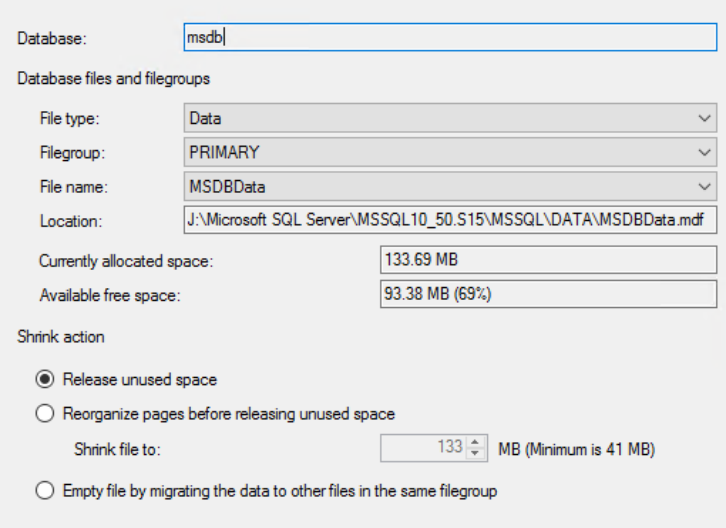
As shown in the figure above, the data file still occupies 133 MB of disk space after data clearing, and the available free space is 93 MB. This indicates that the database shrink feature can be used to release up to 93 MB of disk space.
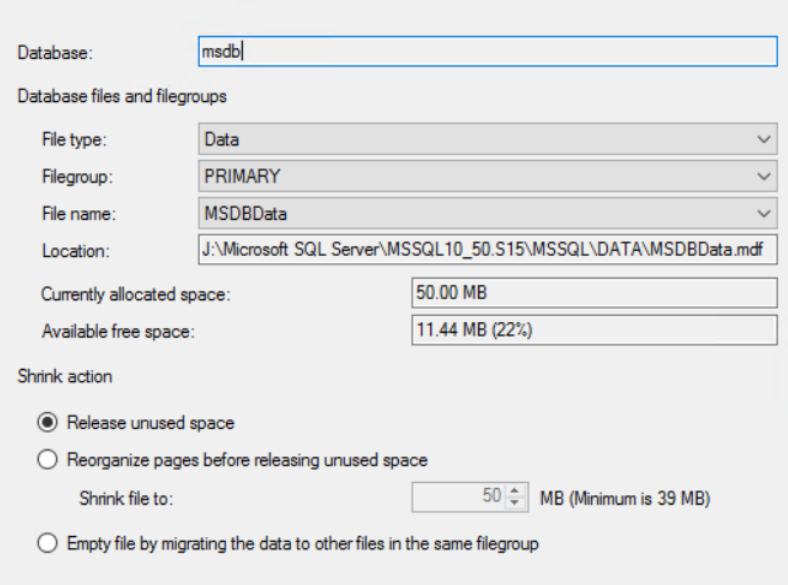
As shown in the figure above, the data file occupies 50 MB of disk space after the database shrink feature is used to reclaim part of the available free space.
Database Shrink Solution of TencentDB for SQL Server
Solution 1: Shrinking the Database Through the Console
1. Log in to the TencentDB for SQL Server console and click Instance ID or Manage in the Operation column in the instance list to enter the instance management page.
2. On the instance management page, select the Database Management tab, locate the row where the target database is located, and select Others > Shrink Database in the Operation column.

3. Once enabled, the process will automatically shrink in cycles of 2 GB at a time until all available free space is released.
Solution 2: Using SSMS to Connect to Instances and Executing Scripts for Shrinking
Note:
Shrinking a database may generate large logs and cause blocking. Therefore, when a script is used to perform the shrink operation, it is not recommended to shrink a large amount at once (for example, more than 50 GB in a single operation). It is recommended to shrink a smaller amount multiple times during off-peak hours.
Step 1: Connecting to SQL Server Instances Through SSMS
For detailed operations, see the connection methods in Connecting to TencentDB for SQL Server Instance from Windows CVM Instance or Connecting to TencentDB for SQL Server Instance from Local System.
Step 2: Executing Scripts for Shrinking
Note:
When the following command is used, replace the variables with actual information:
[database]: Replace it with your target database name, for example, [MyDB].
N'Database_logic_file_name': Replace it with the file of the database you want to shrink, for example, N'MyDBData'.
Target shrinking size: Replace it with the actual target size for shrinking, for example, if the value is 40, it means shrinking to 40 MB.
USE [database]GODBCC SHRINKFILE (N'database_logic_file_name', target shrinking size)GO
Example: Shrink the data file MyDBData of MyDB to 40 MB.
USE [MyDB]GODBCC SHRINKFILE (N'MyDBData' , 40)GO
フィードバック