Domain registration is essentially to pay for the right to use a domain for one or multiple years. You can easily get your domain in several simple steps:
Step 1. Query the domain
Before registering a domain, you need to query whether the domain or its suffix has already been registered by somebody else, and if so, you need to choose an unregistered domain or suffix before proceeding to the next step.
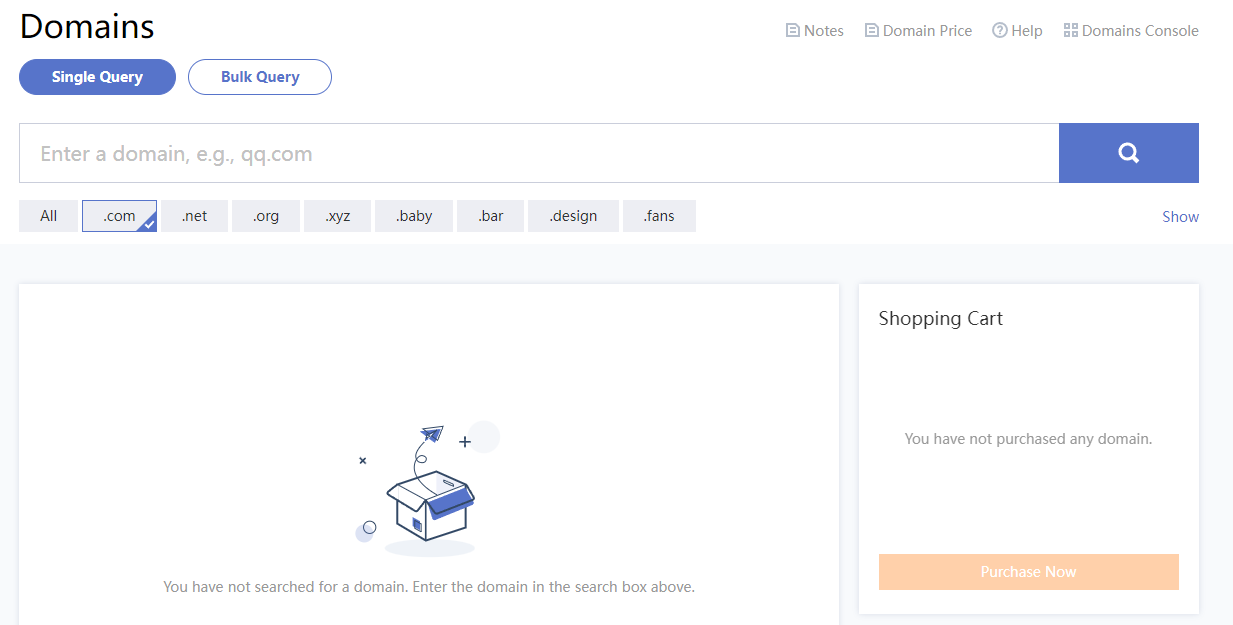
2. On the Domain Registration page, enter the target domain and suffix and click
to view its registration status as shown below:
For example, enter example.com.
If the returned query result shows Registered, the domain has already been registered, and you need to change the domain or suffix.
If the returned query result shows Add to Cart, the domain can be registered.
Step 2. Add to cart
1. Select the domain to be registered such as example.com and click Add to Cart.
Note:
You can also add multiple suffixes to protect your brand; for example, you can add example.cn, example.net, and example.org to the cart.
2. In the cart on the right, click Purchase Now.
Step 3. Enter the domain information
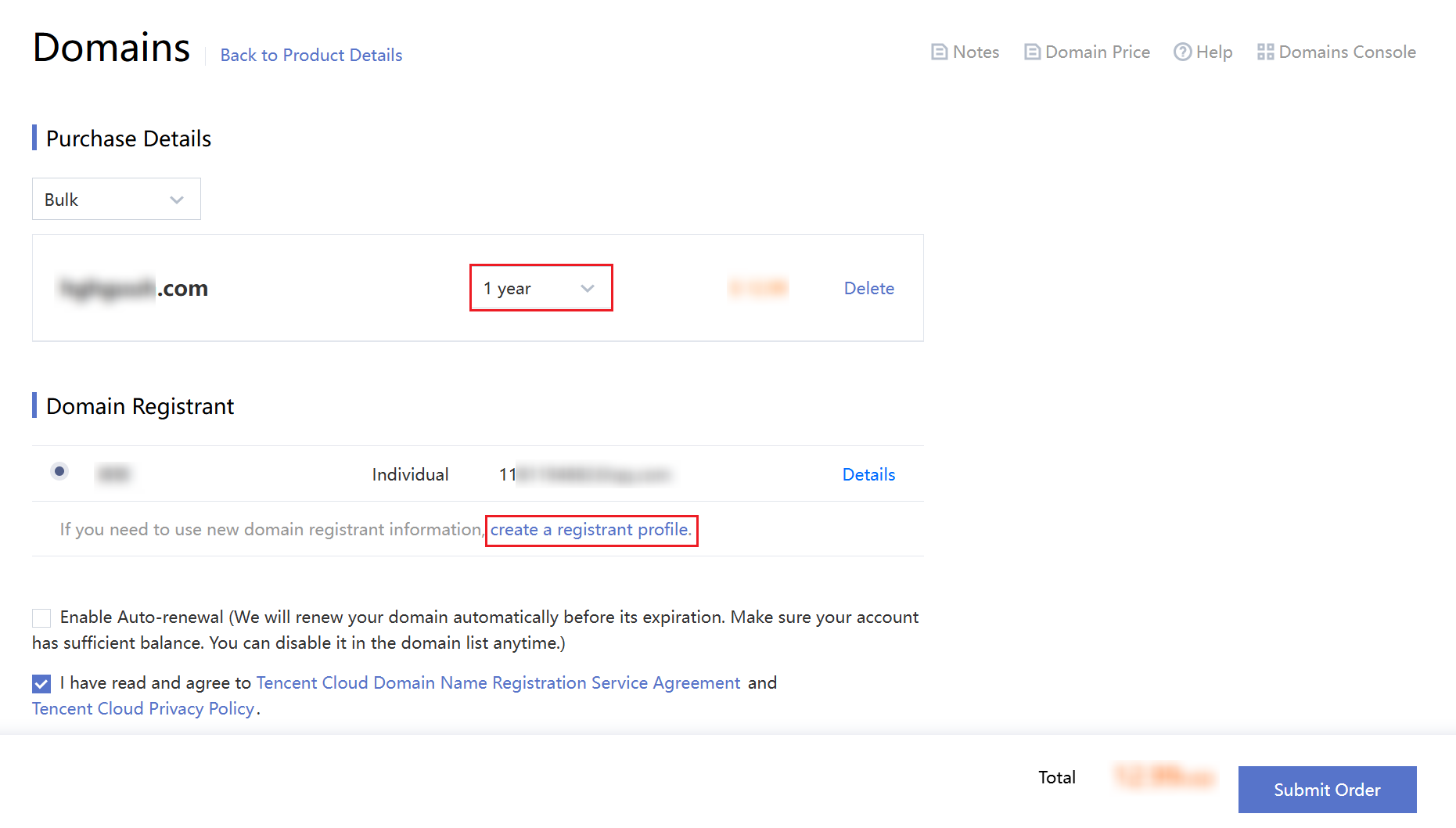
1. On the Submit Order page, confirm the domain purchase term, enter the domain information, and select I have read and agree to Tencent Cloud Domain Registration Agreement and Tencent Cloud Privacy Policy.
Note:
You can use the previously entered domain information. If you want to use new domain information, we recommend you create a template as shown above then register the domain as prompted.
If you want to set auto-renewal upon domain expiration, select Enable auto-renewal.
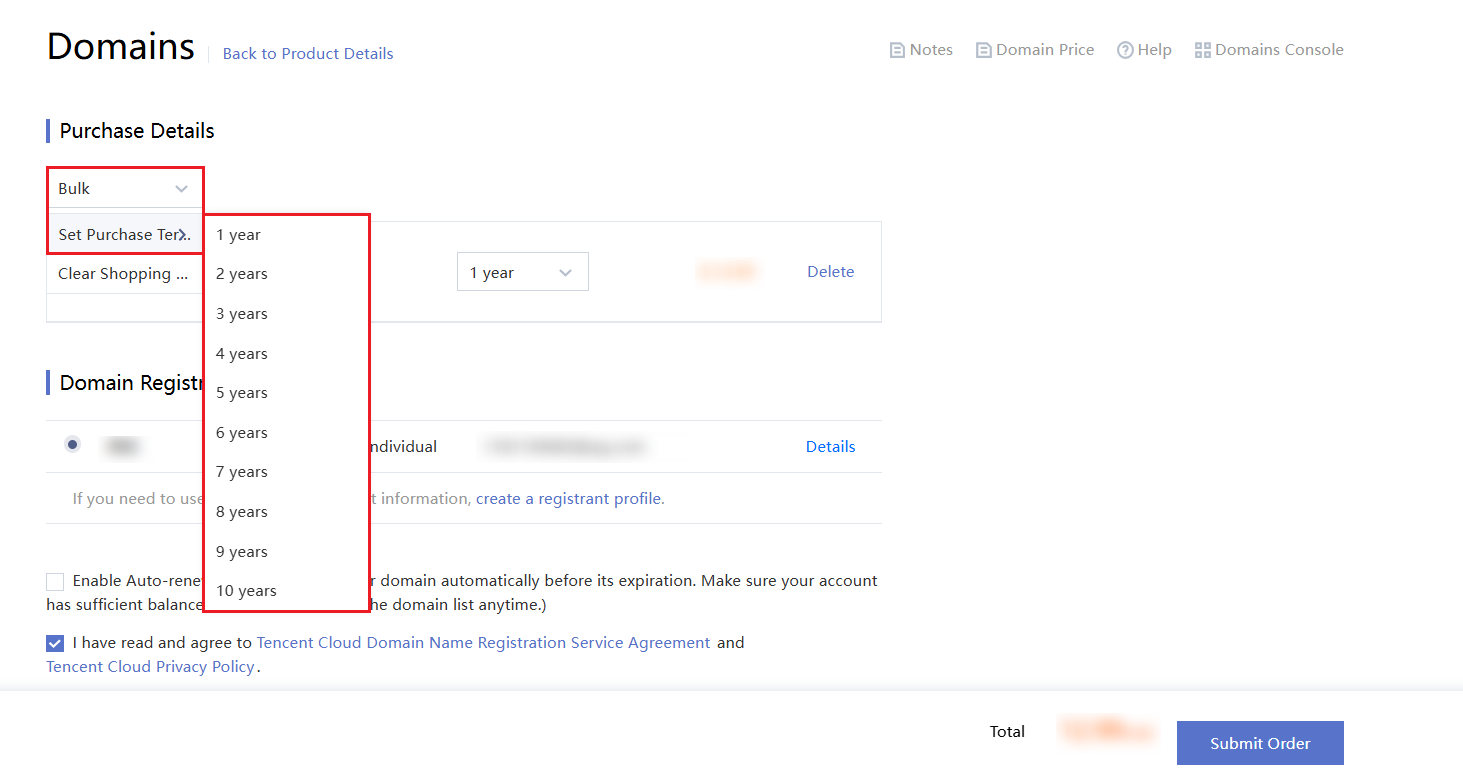
In the domain information, 1 year is displayed as purchase term options by default. If you want to select another period such as 7 years, click Drop-down box and select 7 years.
For multiple domains requiring the same registration period, use Bulk > Set Purchase Term to apply the duration uniformly.
2. Click Submit Order.
Step 4. Check the information
1. On the Check Information page, check whether your domain information, purchase term, and fees are correct.
2. Click Submit Order to enter the payment page.
Step 5. Make the payment
On the Payment page, select a payment method as appropriate.
Note:
After making the payment, you can view/manage your domain in My Domains.
If you need an invoice, you can apply for it in Billing Center > Bills > Invoicing.
If you encounter any problems during domain registration, you can try troubleshooting as instructed in Registration Process. If the problem persists, contact technical support for assistance.