The Player SDK offers a trial License, including Mobile trial License and Web trial License. You can refer to this document for guidance and apply for a free trial as needed.
You can apply for a free trial of the Player Mobile License (valid for total of 28 days) for testing. When applying for the test module, you can choose to create a new trial License and select Player trial License or apply for a new License in an existing test application.
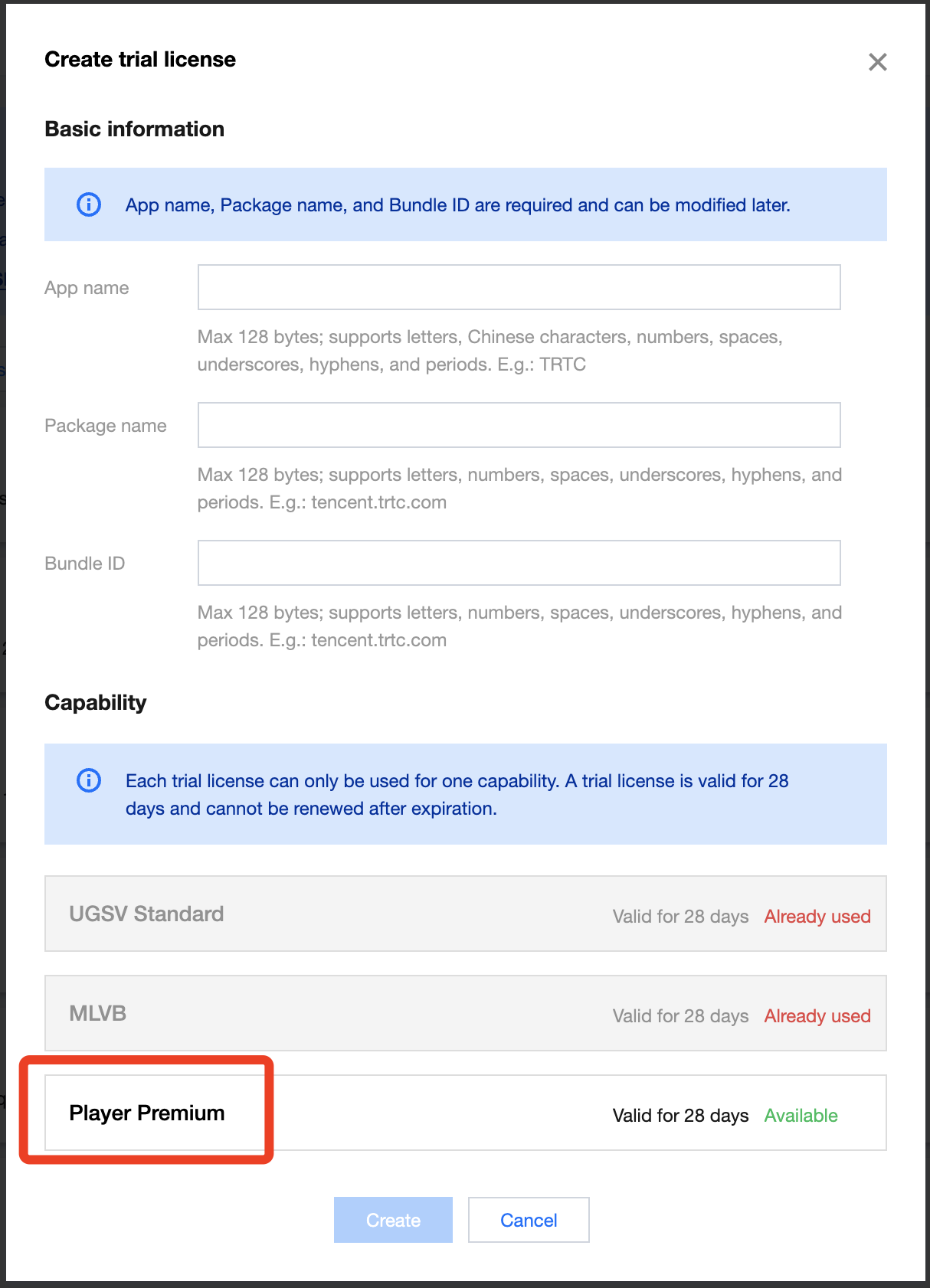
Method 1: Create a new trial License and select Player trial License
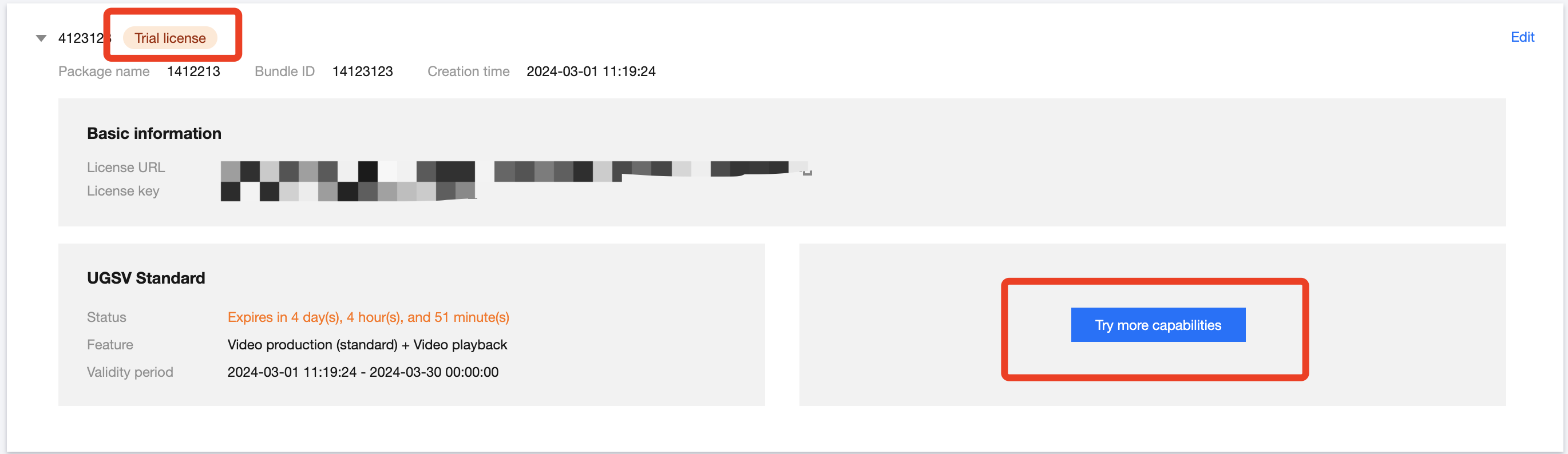
Method 2: Apply for a New Trial License within an Already Created Test Application
1. Sign in VOD console or CSS console> License Management > Mobile Client License, click Create Trial License.
2. Fill in the App Name, Package Name, and Bundle ID according to actual needs, select Player Premium , and click Create.
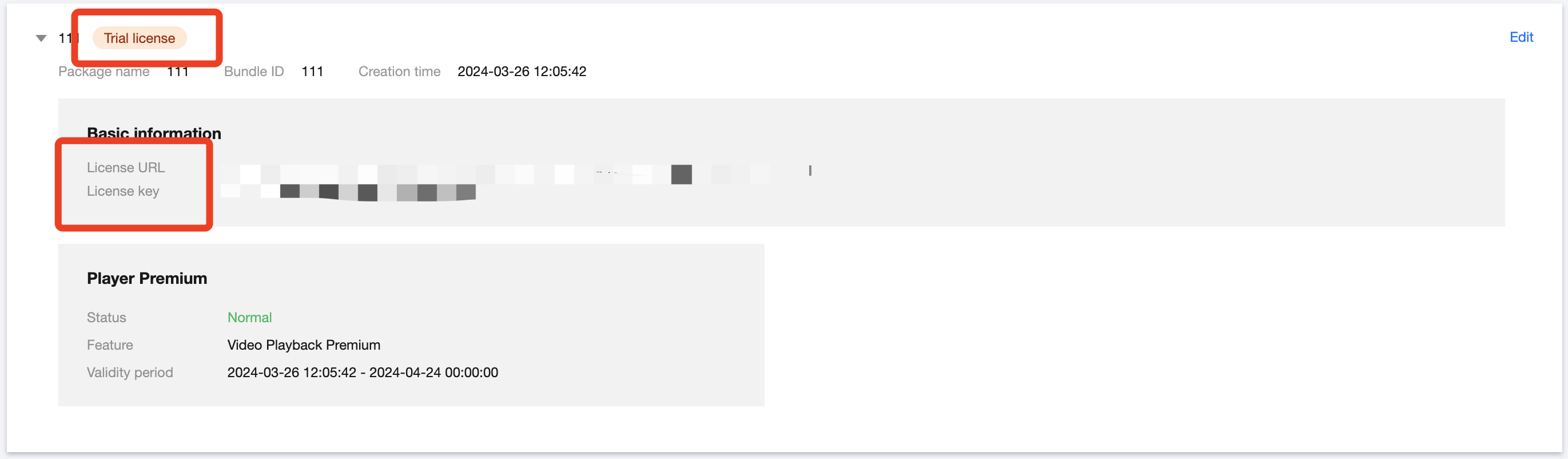
3. After the trial License is successfully created, the page will display the generated License information. When initializing the SDK configuration, you need to input both the Key and License URL. Please save the following information accordingly.
Note:
For the same application, the License URL and Key are unique. When the trial License upgrades to an official version, the License URL and Key remain unchanged.
If you wish to apply for a trial of the Player feature within an already created test application, follow these steps:
1. Sign in to VOD console or CSS console> License Management > Mobile License, select the application you wish to test, and click Test New Feature.
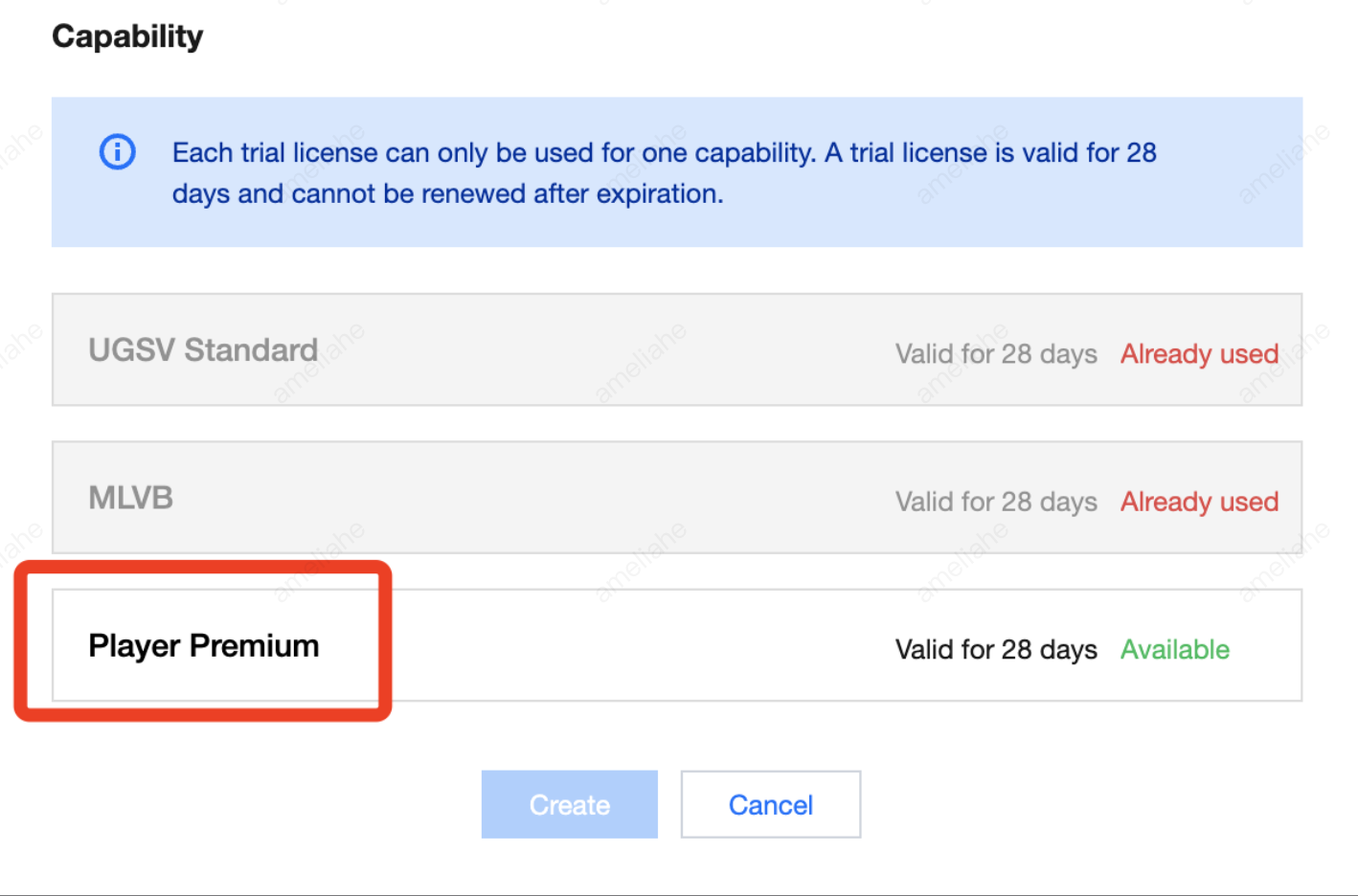
2. Select Player Premium, and click OK.
Note
During the trial License's validity period, you can click on the Edit button on the right, enter to modify the Bundle ID and Package Name information, and click OK to save.
If there is no Package Name or Bundle ID, you may fill in "-".
Web Trial License
Trial License Application
You can apply for a free Player Web Client trial License (valid for 28 days) for a test experience.
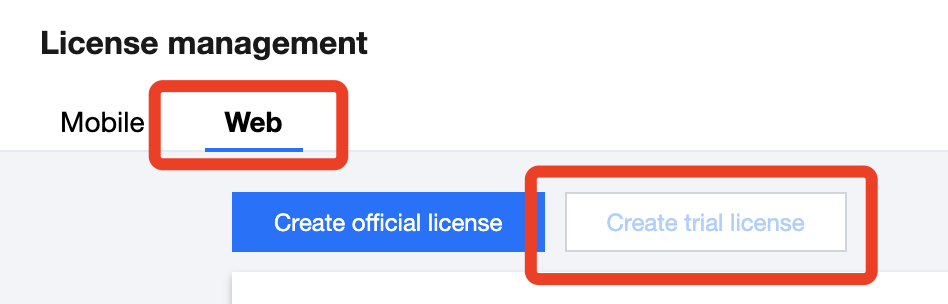
1. Sign in to VOD console or CSS console> License Management >, click Create Trial License.
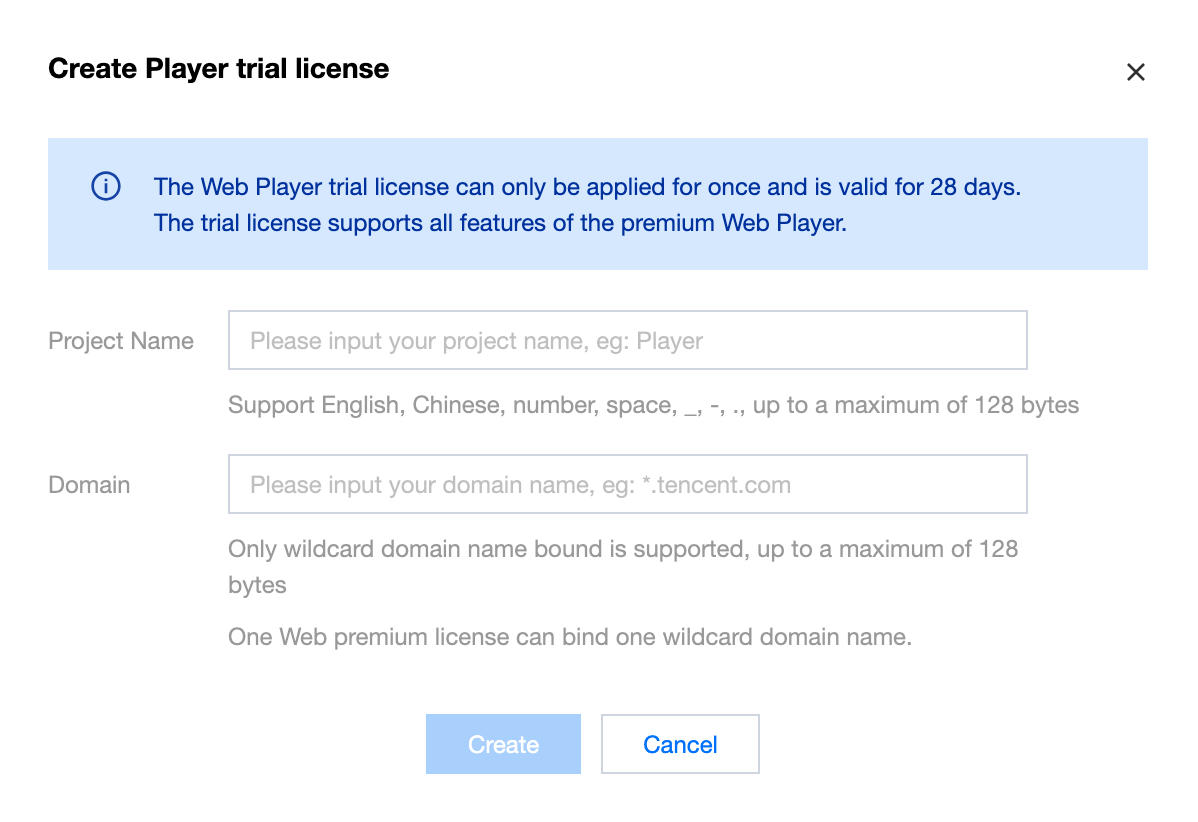
2. Fill in the Project Name and Domain, then click Create to complete the application.
Note:
Only version 5.1.0 and above of the Web Player SDKsupport the use of wildcard domain authorization.
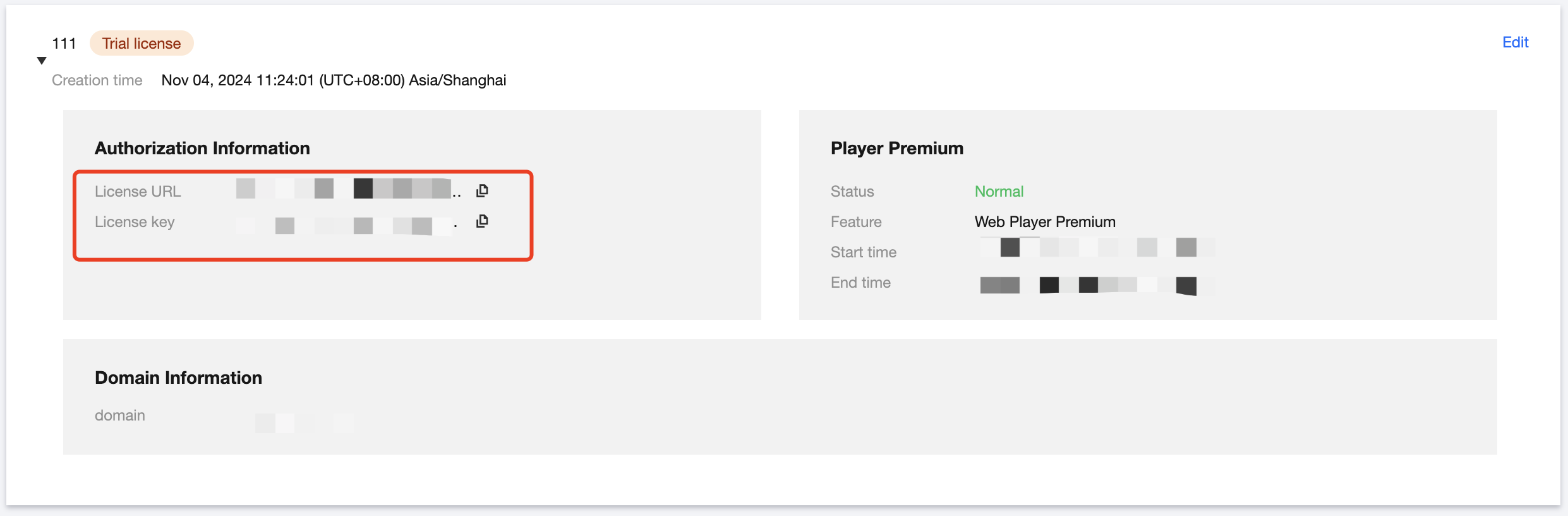
3. After the trial License is successfully created, the page will display the generated License information. When initializing the SDK configuration, you need to input both the Key and License URL. Please save the following information accordingly.
Note:
A single Web Premium Version License can only be associated with one wildcard domain.
You can click the Edit on the right side to modify the domain name.