This document explains how to configure notifications so you can receive CWPP alerts in time, including security events, log storage alerts, client status alerts, and security intelligence updates.
Alert Catalog
Alert rules currently support two notification methods: Internal messages/SMS/Email, etc. and Robot notification.
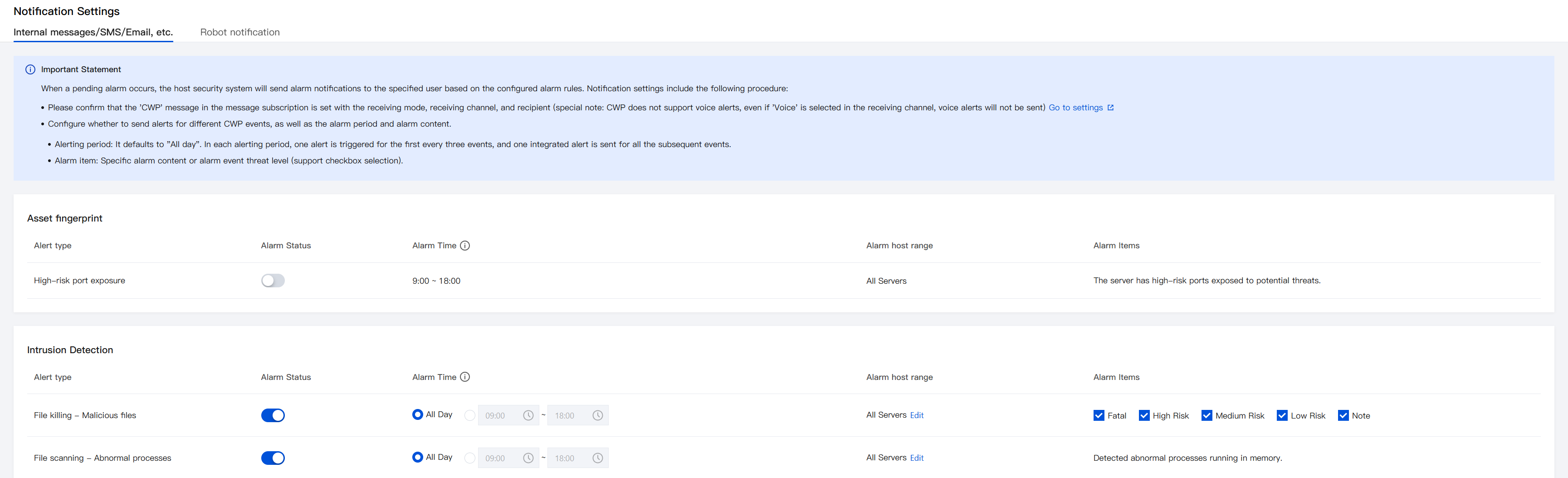
The server has high-risk ports exposed to potential threats.
All Servers
9:00 ~ 18:00
Not supported currently
Intrusion Detection
File killing - Malicious files
Fatal, High Risk, Medium Risk, Low Risk, Note
All Servers / Specified Servers
All Day / Custom
Note:
To reduce disturbance to users, Alarms have the following restrictions:
At the start of the alarm time period, receive real-time notifications for the first 3 security alarms, followed by a summary notification every 2 hours.
Alarms generated during the non-alarm time period will be summarized and notified at the start of the alarm time.
Real-time
File scanning - Abnormal processes
Detected abnormal processes running in memory.
Unusual Login
High Risk, Suspicious
Password Cracking
Sign-in password cracked
Malicious Requests
The server requested a malicious domain name.
High Risk Commands
High Risk, Medium Risk, Low Risk
Local Privilege Escalation
A low-privileged user is trying to escalate their privilege level in the system
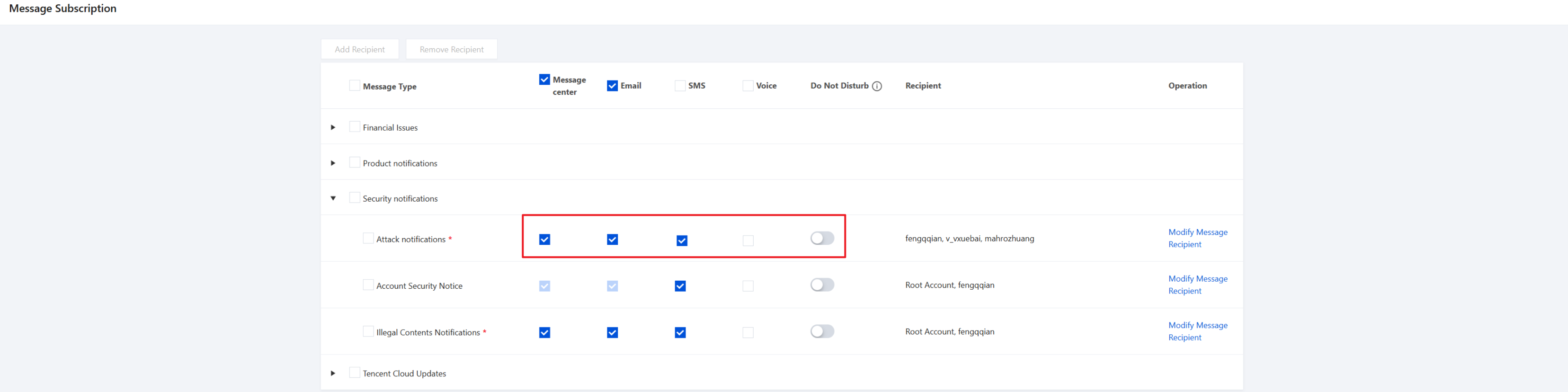
In Message Center > Message Subscription, find Attack notifications and make sure Do Not Disturb is turned off. For notification channels, select Message Center, Email, and SMS (CWPP does not currently support voice notifications. Selecting voice will not take effect).
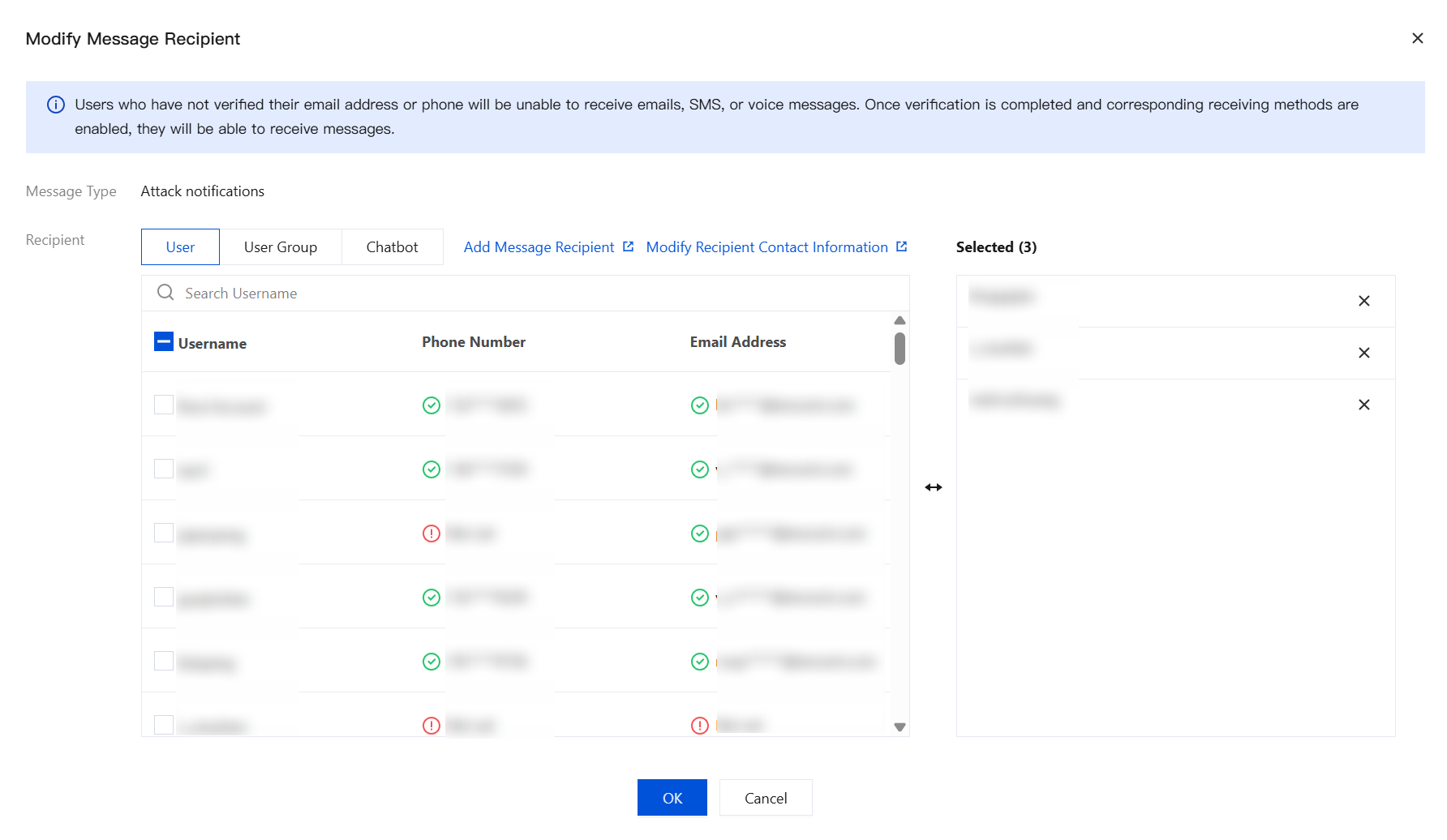
Click Modify Message Recipient to open the dialog. Configure recipients as needed, then click OK to complete the baseline CWPP notification subscription.
Note:
Message recipients must be users or user groups. For IM group or robot-based notifications, see Robot notification.
2. In the CWPP console, go to Settings > Notification Settings, and select Internal messages/SMS/Email, etc. to configure alert rules.
Robot notification
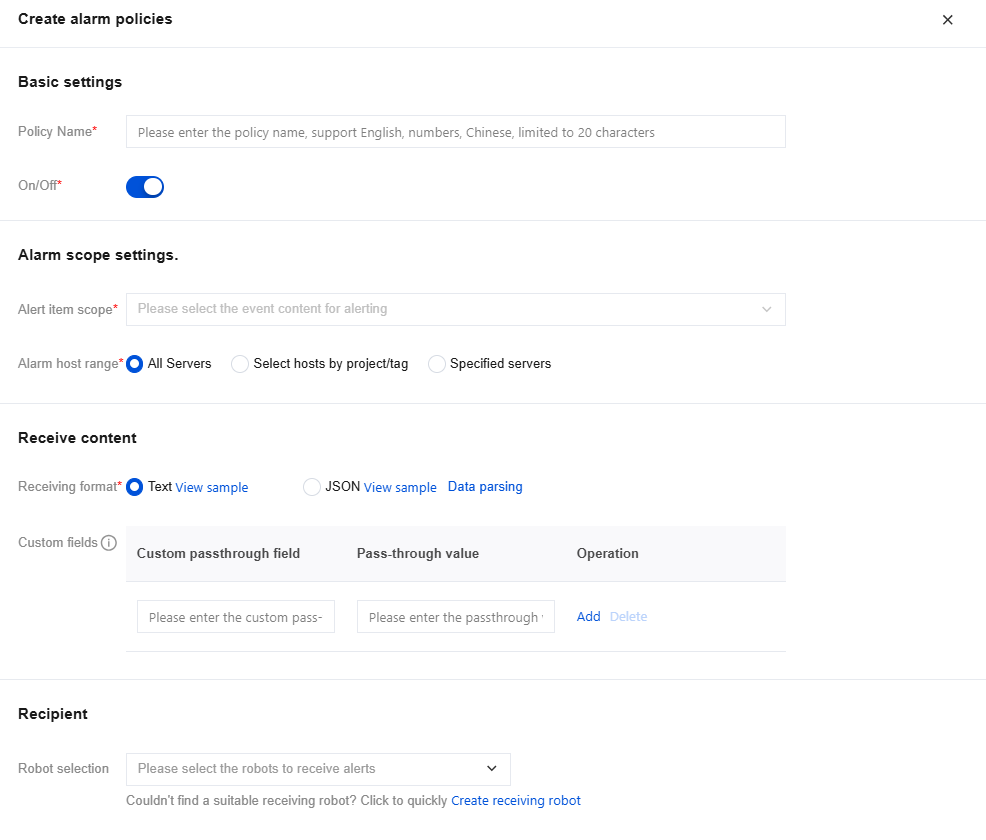
Under Internal messages/SMS/Email, etc., message recipients only support users or user groups. To send alerts to IM groups, configure Robot notification. You can also create different alert policies for different robots to deliver differentiated notifications.
Note:
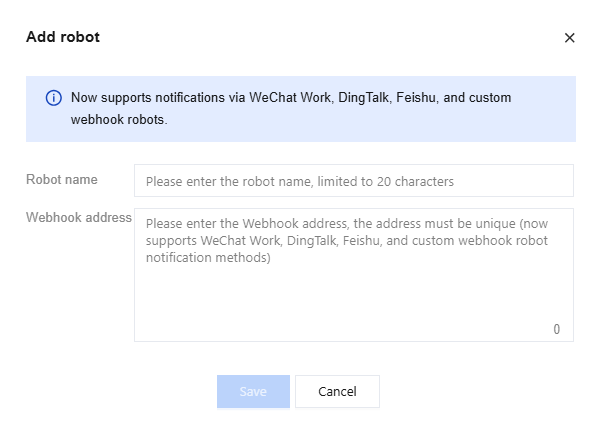
Before configuring robot notifications, create a group robot in your IM group (such as WeCom) and obtain its Webhook URL. For details, see WeCom robot setup guide.
1. Log in to the CWPP console, and in the left navigation pane select Settings > Notification Settings.
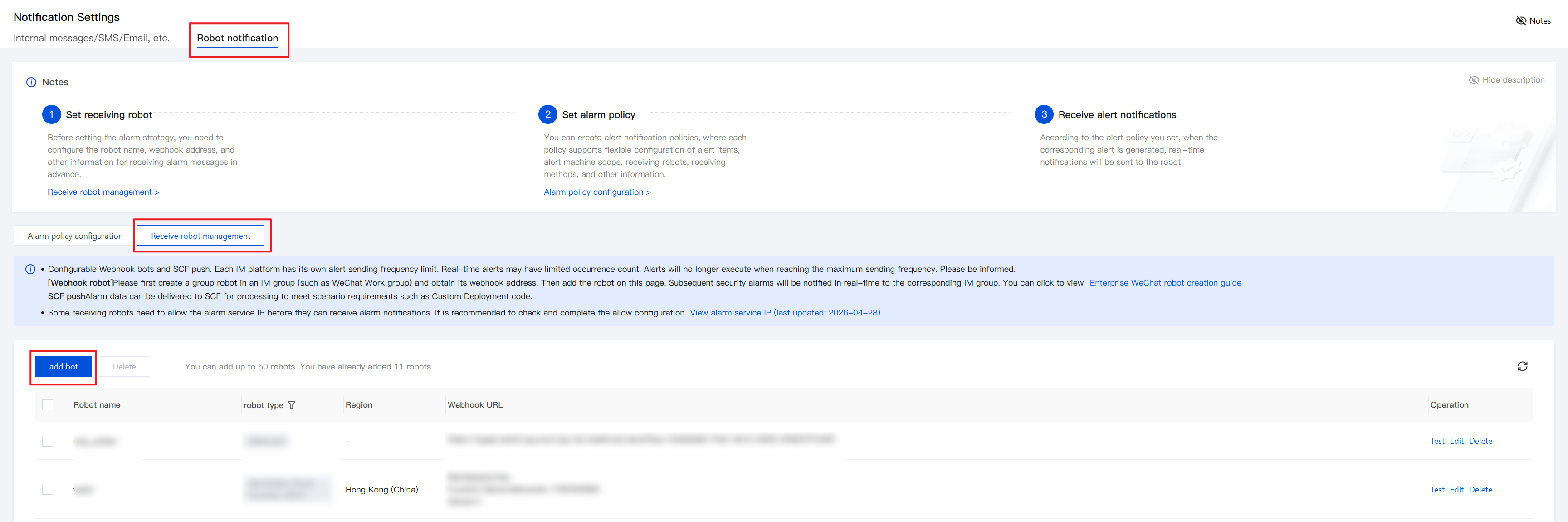
2. On the Notification Settings page, select Robot notification > Receive robot management.
3. Click add bot, enter the robot name and Webhook URL, and click Save.
4. Select Alarm policy configuration, click Create a new alarm policy, configure policy name, status, and alert scope, then associate the receiving robot you just created.
5. Click Save. Subsequently, CWPP will send message notifications according to your configuration.