Managing Unsubscribed Users
ダウンロード
フォーカスモード
フォントサイズ
Scenarios
In Tencent Cloud SMS, you can configure and manage end-user MO opt-out and opt-in for global SMS. This enables end users to autonomously manage their subscription status by sending specific SMS commands, thereby meeting SMS service compliance requirements and improving user experience. With this guide, you can quickly learn how to configure and manage inbound addresses, unsubscribe/subscribe keywords, and blocking rules, as well as how to view and manage unsubscribed users.
Note:
Currently, MO opt-out management is supported only for the United States and Canada.
Before using and configuring this feature, ensure that you have applied for US and Canada-related codes (including TFN, 10DLC, and Short Code) and have contacted the Tencent Cloud SMS technical support team to complete the backend configuration.
Concepts
Inbound Address
It refers to a number used to receive unsubscribe/subscribe commands sent by end users. Under the same account, multiple application IDs can share the same inbound address.
Keyword
It refers to the SMS content in a reply from an end user to the corresponding inbound address that can trigger an unsubscribe/subscribe status. Common unsubscribe keywords include STOP, UNSUBSCRIBE and QUIT. Common subscribe keywords include START and SUBSCRIBE.
Blocking Rules
Blocking rules define which SMS sends are affected by unsubscribe status. When an end user is in an unsubscribe state, the platform blocks the delivery of relevant SMS messages according to the latest configured blocking rules. Blocking rules can be configured by SMS application ID and SMS type (including marketing SMS, notification SMS, and verification code SMS).
Operation Steps
Managing Inbound Addresses
Adding an Inbound Address
1. Log in to the SMS console.
2. In the left sidebar, choose General Management > Opt-out Users List.
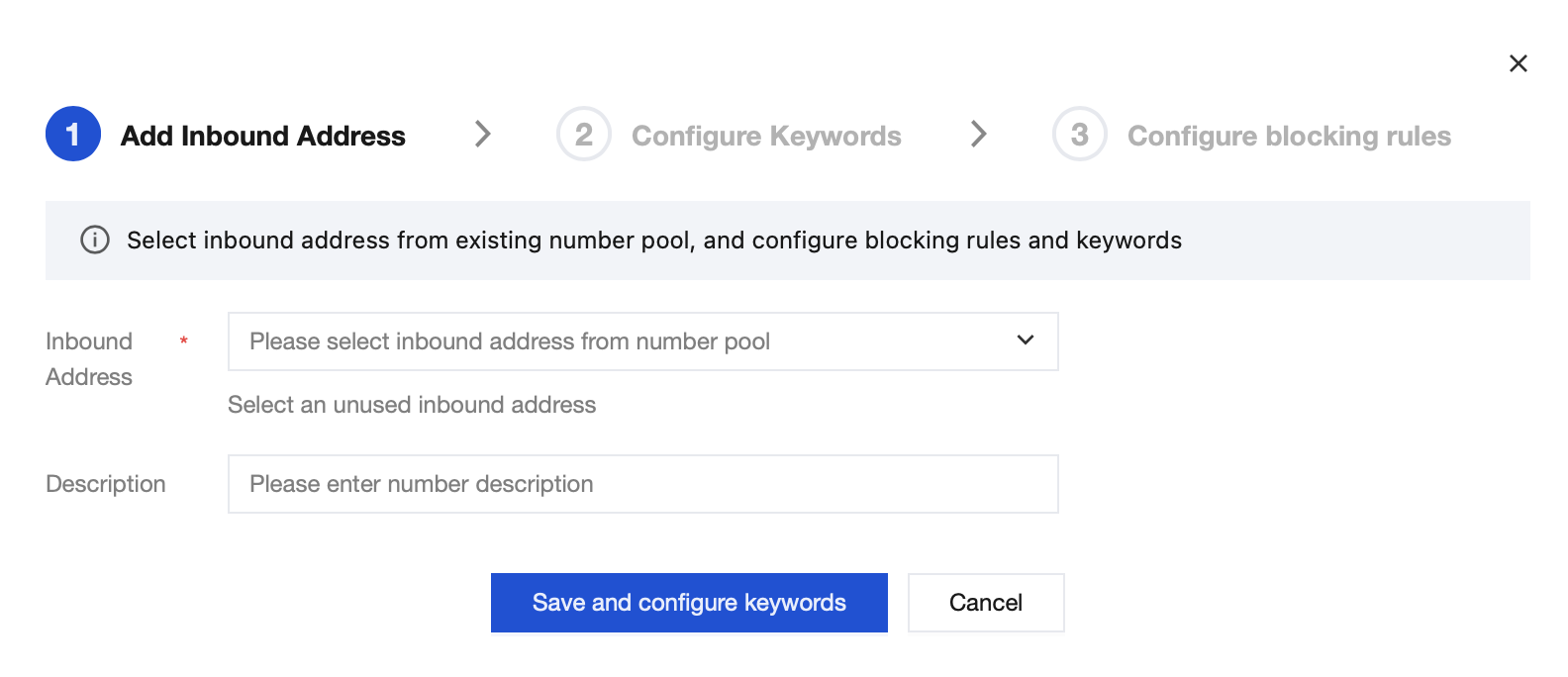
3. Go to the Inbound Address Management page and click Add Inbound Address.
4. Select a required inbound address from the dropdown, enter a description, and click Save and Configure Keywords. If you cannot find the required inbound address, contact the Tencent Cloud technical support team.
Configuring Keywords
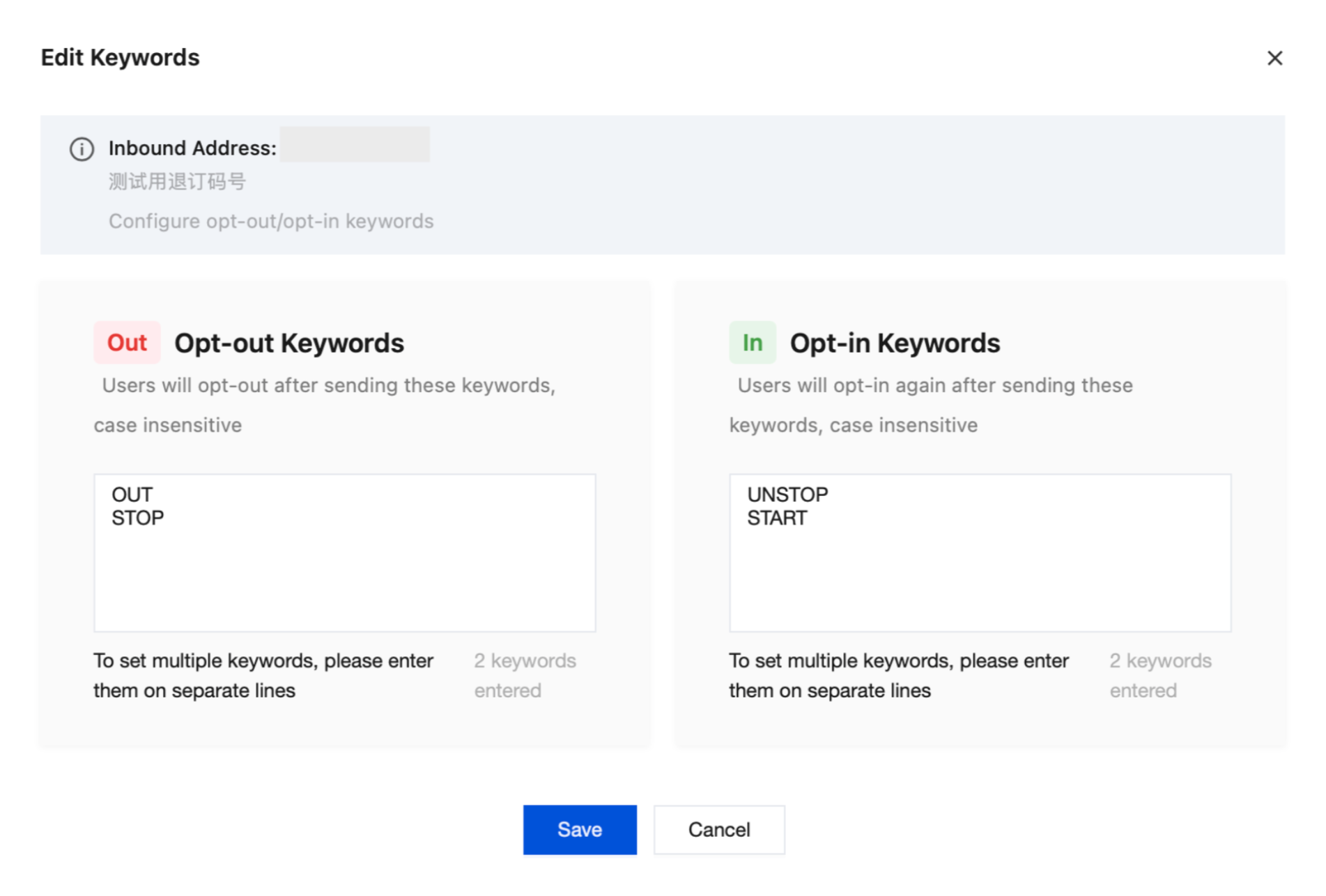
Configure unsubscribe and subscribe keywords for the corresponding inbound address according to your business needs, and click Save. Keywords are case-insensitive.
Type | Example Keywords |
Unsubscribe Keywords | STOP,UNSUBSCRIBE,QUIT |
Subscribe Keywords | START,SUBSCRIBE |
Configuring Blocking Rules
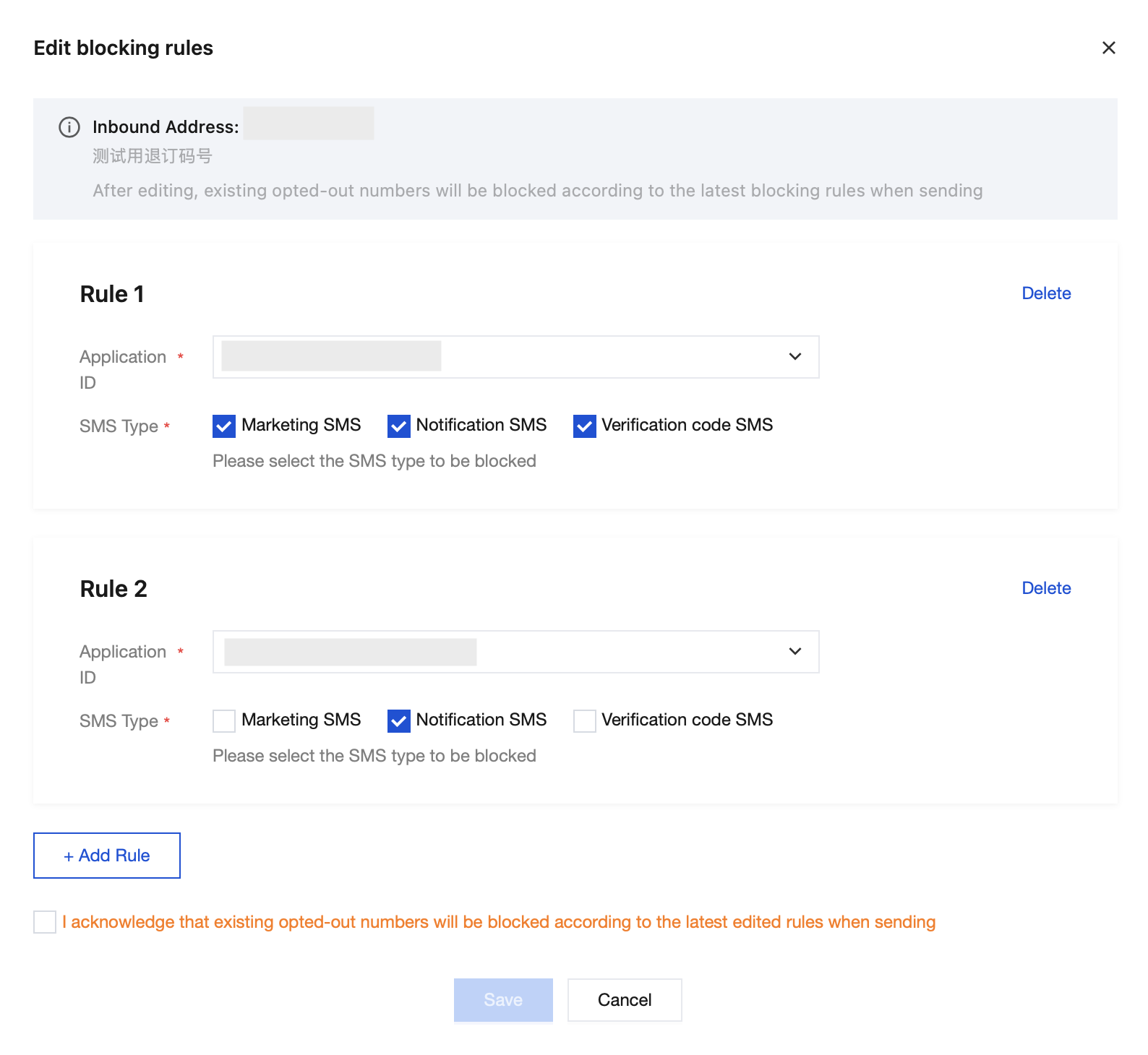
After configuring keywords, you can configure blocking rules based on a combination of SMS application ID and SMS type (including marketing SMS, notification SMS, and verification code SMS), and then click Save.
Note:
Under the same inbound address, only one blocking rule can be configured for each application ID.
After the blocking rules are edited, existing unsubscribed numbers will be blocked according to the latest rules during subsequent SMS sends.
Viewing and Managing Inbound Address
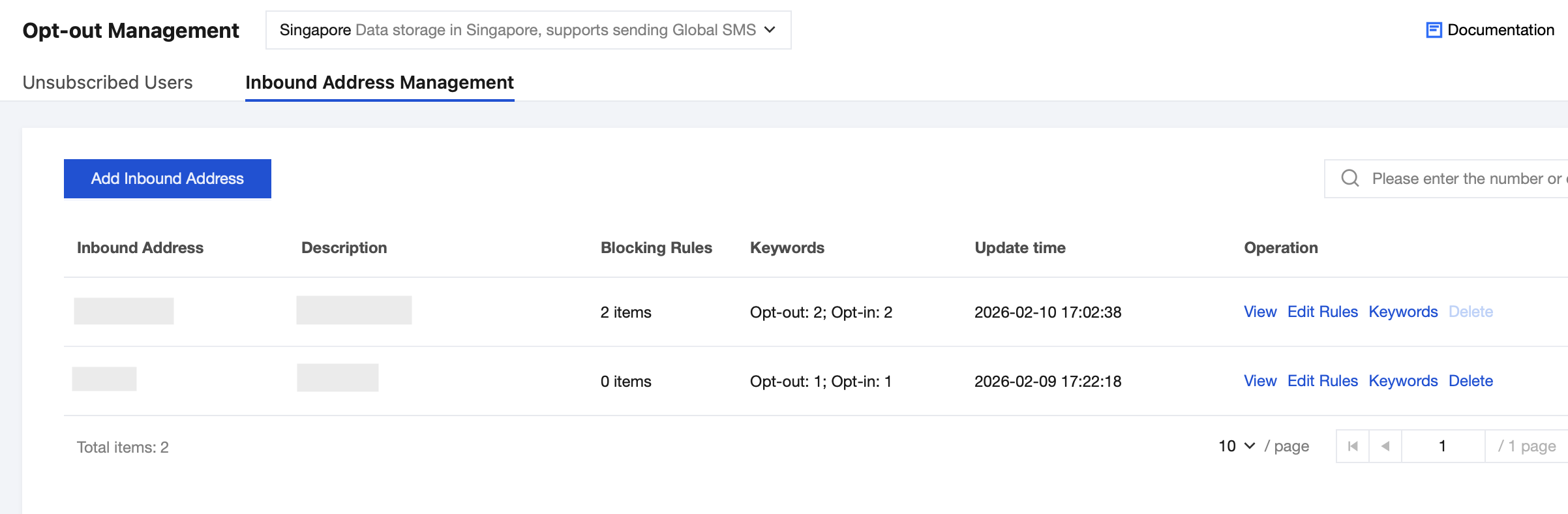
After configuration is completed, the inbound address and its corresponding details, such as blocking rules and keywords, are displayed in the inbound address list. You can edit blocking rules, edit keywords, or delete a single inbound address.
Managing Unsubscribed Users
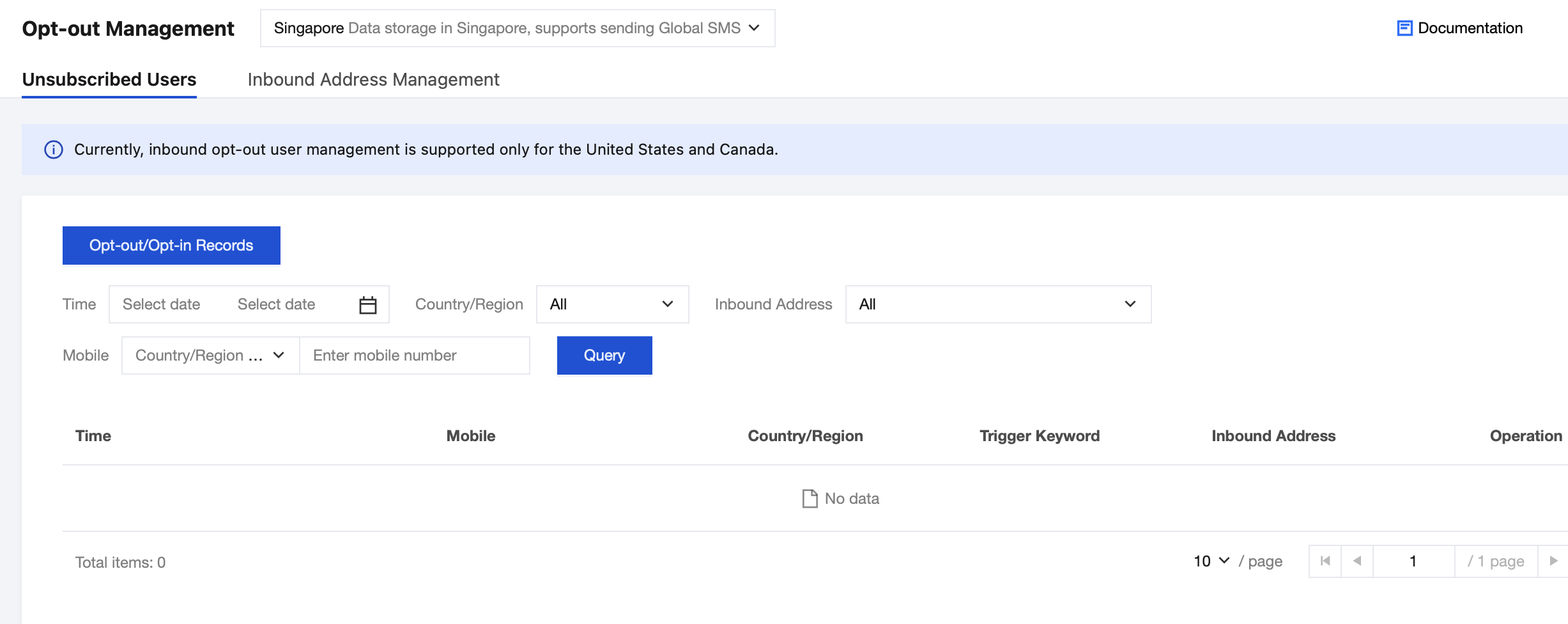
Viewing and Managing Unsubscribed Users
1. Log in to the SMS console.
2. In the left sidebar, choose General Management > Opt-out Users List.
3. Go to the Unsubscribed Users Page, where you can view and manage end users currently in the unsubscribed state.
Viewing Unsubscription/Subscription Records
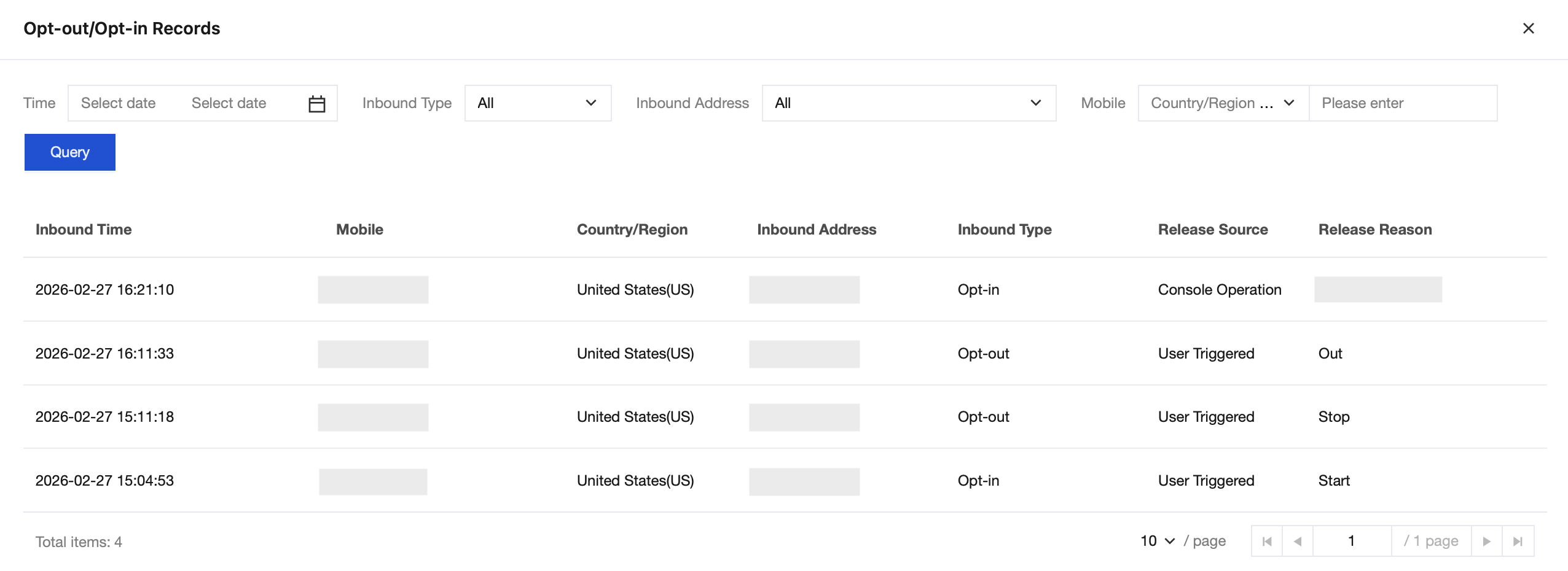
On the Unsubscribed Users Page, click Opt-out/Opt-in Records to view all user Opt-out/Opt-in history, including unsubscription records, subscription records, and the reasons for subscription status changes.
フィードバック