VPC Network Access
Download
フォーカスモード
フォントサイズ
Scenarios
This task uses the Python client as an example to guide you to access TDMQ for CKafka (CKafka) in the Virtual Private Cloud (VPC) network and send and receive messages.
Prerequisites
You have obtained the client connection parameters as instructed in SDK Overview.
Operation Steps
Upload pythonkafkademo from the downloaded demo to the Linux server, log in to the Linux server, and go to the pythonkafkademo directory.
Step 1: Adding Python Dependency Libraries
Run the following command to perform the installation:
pip install kafka-python
If Python 3 is used, run the following command to install python3-pip, and then install kafka-python.
yum install -y python3-pippip3 install kafka-python
Step 2: Producing Messages
1. Note that the configuration parameters in the message production program producer.py must be modified.
from kafka import KafkaProducer# Create a producer.producer = KafkaProducer(bootstrap_servers='$domainName:$port', # Replace with your Kafka address.api_version=(2, 8, 0), # Explicitly specify the protocol version (to be adjusted based on the cluster instance).retries=2147483647, # Set the number of retries to the maximum value for integer data type (infinite retries).retry_backoff_ms=1000, # Retry interval of 1 second.acks=1 # Wait for the acknowledgment only from the leader, but not all replicas.)# Send messages.for i in range(5):msg = f"Message {i}"future = producer.send('$topic_name', value=msg.encode('utf-8')) # $topic_name needs to be created in the console in advance, and be sure to replace it.result = future.get(timeout=10)print(f"Sent successfully: '{msg}' -> Partition={result.partition}, Offset={result.offset}")producer.close()
Parameter | Description |
bootstrap_servers | Access network. On the Basic Info page of the instance in the console, select the Access Mode module and copy the network information from the Network column. |
topic_name | Topic name. Copy the name on the Topic List page in the console. |
2. Compile and run producer.py.
3. View the running results.
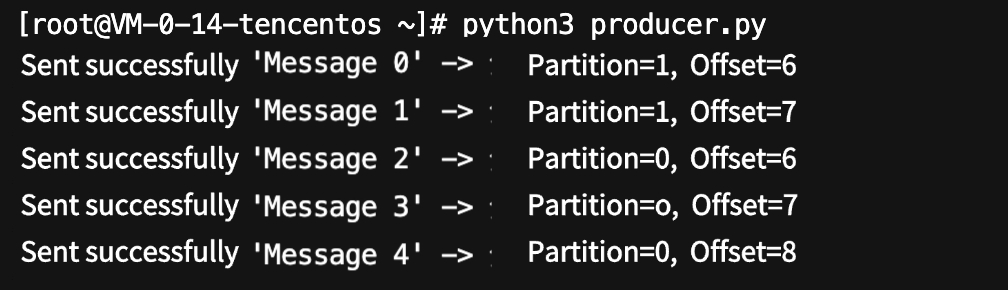
4. On the Topic List page in the CKafka console, select the target topic, and choose More > Message Query to view the message just sent.
Step 3: Consuming Messages
1. Modify the configuration parameters in the consumption message program consumer.py.
from kafka import KafkaConsumer# Create a consumer.consumer = KafkaConsumer('$topic_name', # Topic name.bootstrap_servers='$domainName:$port', # Replace with your Kafka address.group_id='$group_id', # Specify the consumer group name.auto_offset_reset='earliest', # Start reading from the earliest message.api_version=(2, 8, 0), # Explicitly specify the protocol version.enable_auto_commit=True)print("Start consuming messages...")try:for msg in consumer:value = msg.value.decode('utf-8')print(f"Received the message: {value}")except KeyboardInterrupt:print("Consumers have stopped.")finally:consumer.close()
Parameter | Description |
bootstrap_servers | Access network. On the Basic Info page of the instance in the console, select the Access Mode module and copy the network information from the Network column. |
group_id | Consumer group ID. Define the group ID according to business requirements. |
topic_name | Topic name. Copy the name on the Topic List page in the console. |
2. Compile and run consumer.py.
3. View the running results.
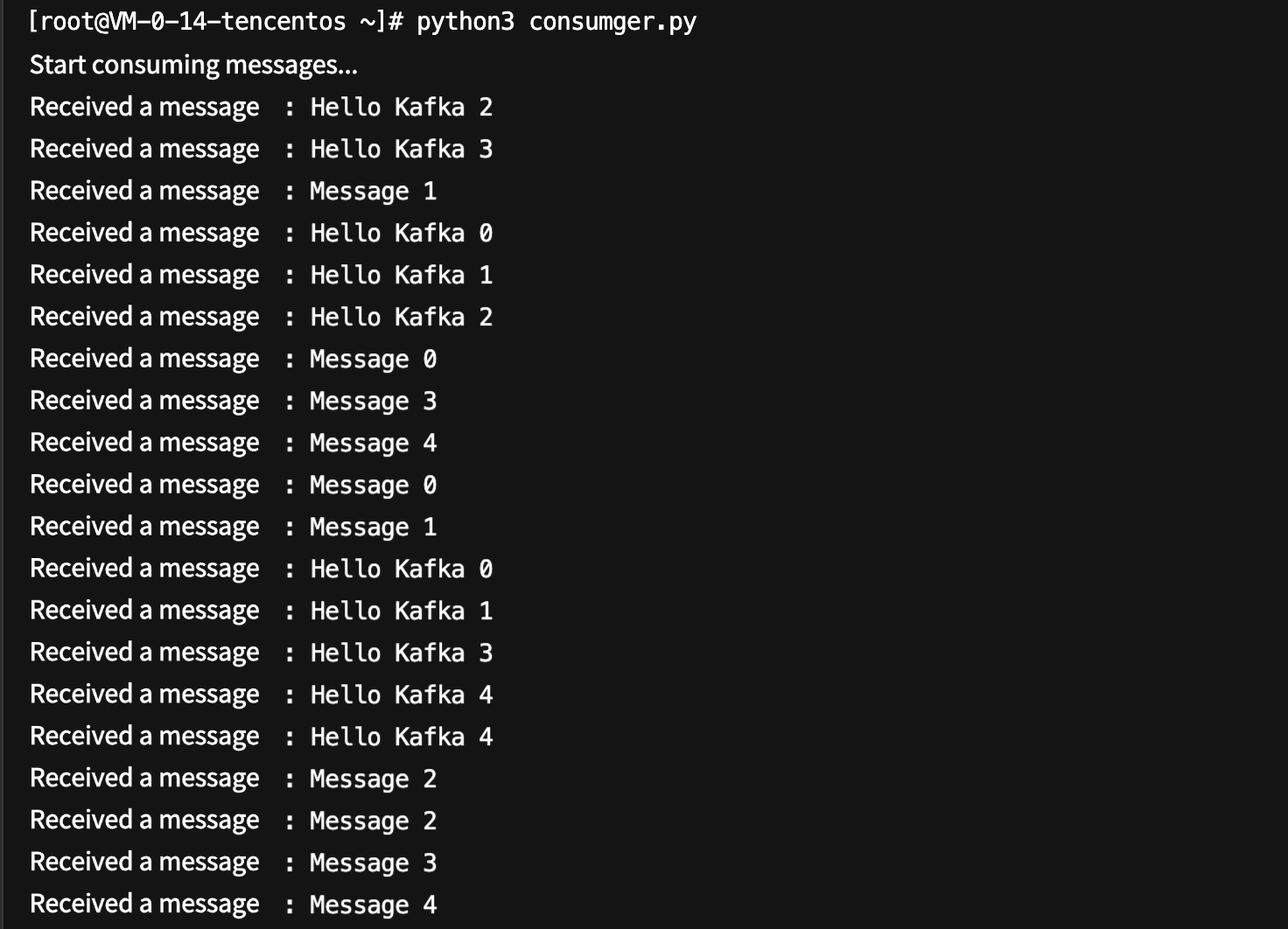
4. On the Consumer Group page in the CKafka console, select the target consumer group name, enter the topic name in the Topic Name area, and click View Details to view consumption details.
フィードバック