The access log feature is used to record access log information for domain names protected by SaaS WAF. It provides access log recording, querying, and downloading capabilities for domains with the switch for access logs enabled within user-defined retention periods (7 to 184 days). After enabling this feature, you can query and download access logs as needed.
If you need to disable the access log feature, please find the corresponding domain name on the Domain Onboarding page and disable the access log feature.
If you need to disable auto-renewal for the access log feature, please find the corresponding billing item for the service package for security logs on the Renewal Management page and cancel its auto-renewal.
After the service package expires, the system will stop storing new access logs.
After resource destruction, all historical logs will be cleared within 24 hours. This operation is irreversible, please proceed with caution.
After the service package for security logs expires, the resources will be retained for 7 days. Renewals made during this period are considered as renewals, with the billing cycle starting from the original expiration date. If no renewal is made after this period, the log resources will be destroyed, and subsequent purchases will be considered as new orders.
When the stored log volume exceeds the purchased capacity, the system will automatically stop collecting new access logs. Historical logs will still be retained until they are automatically deleted upon reaching the preset storage period. To prevent new logs from being lost due to exceeded log volume, we recommend that you regularly monitor your usage of the log storage capacity and expand your storage capacity in a timely manner to ensure complete recording of access logs.
Operation Steps
Enable Access Log
Log in to the WAF console. In the left sidebar, choose Connection Management > Domain Onboarding to go to the Connection Management page. Then, select a domain name in the domain list and click
to enable the Access Logs switch.
Configure Storage for Access Logs
Note:
The full configuration for log storage is only displayed when "All instances" and "All domains" are selected. When "Single domain" is selected, you can only modify the settings for the log storage fields for that domain.
1. Log in to the WAF console, select Access Logs in the left sidebar, and click Log collection.
2. On the Log collection page, you can switch between instances and domains in the upper-left corner. Click Configuration storage in the upper-right corner to view and modify configurations for log storage.
Valid Domain Scope: allows you to view the number of domains for which access logs are enabled. You can click Set now to enable or disable the access log switch for individual domains in the domain list.
Log retention period: Click Edit to modify the log retention period. Set the desired duration between 7 to 184 days. The storage duration can be modified once every two months.
Note:
After the log storage duration is modified, the system will process each log entry according to its respective retention policy:
Logs stored before the modification will be automatically deleted upon expiration of the original storage duration.
Newly generated logs after the modification will be automatically deleted upon expiration of the new storage duration.
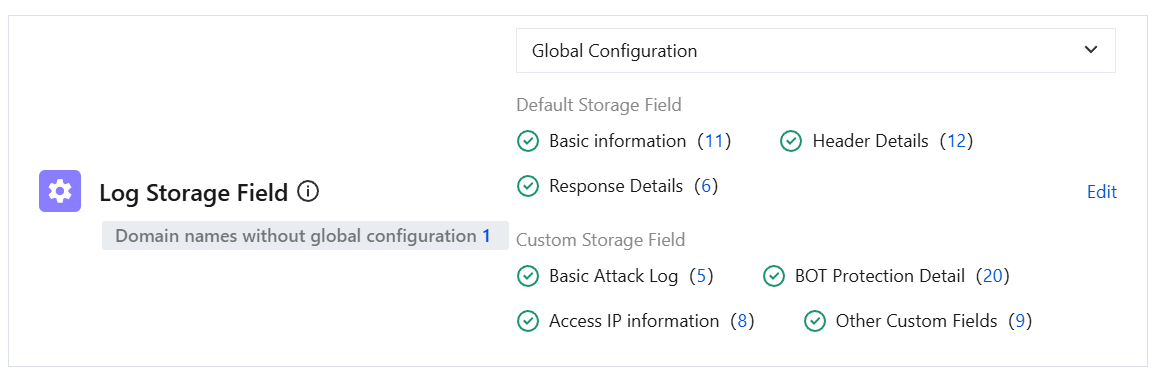
Log Storage Field: Click Edit to select whether to save BOT information, request content Request Body, and custom Headers.
Note:
Settings for log fields can be configured for all domains or individual domains. When policies are configured for both all domains and individual domains, the policy configured for the individual domain takes precedence.
Number of log clearances: Click Manual Clearance to delete all currently stored historical logs. Some statistics and report data will be discarded, and this operation is irreversible. A maximum of 4 clearance operations are allowed per calendar month.
Note:
Manual clearance applies only to all current logs and the operation is expected to take approximately 10 minutes, during which log ingestion will be suspended.
Storage Alarm Settings: Click Edit to set the notification threshold percentage. When the log storage reaches the threshold percentage you set, alarm notifications will be triggered via SMS, in-site messages, emails, WeChat, and other channels for the current account.
Note:
Alarm frequency: After the set percentage is reached, alarm messages for log storage will be sent a maximum of 1 time per day to avoid excessive notifications.
Receiving channels and recipient settings: To modify message recipients or receiving methods, please go to Recipient Management to configure.
3. On the Log collection page, you can view the log usage progress bar in the top-right corner. Click Learn more to jump to the WAF billing details page.
Search Access Logs
1. Log in to WAF console, select Access Logs in the left sidebar.
2. On the access logs page, click Log collection to switch to the Log collection page.
3. Before searching access logs, please first set the search scope. Select the instance and domain, set the time range, and click
.
Interactive mode: Access Logs are searched based on interaction criteria.
3.1.1 On the Access logs > Log collection page, select Interactive mode.
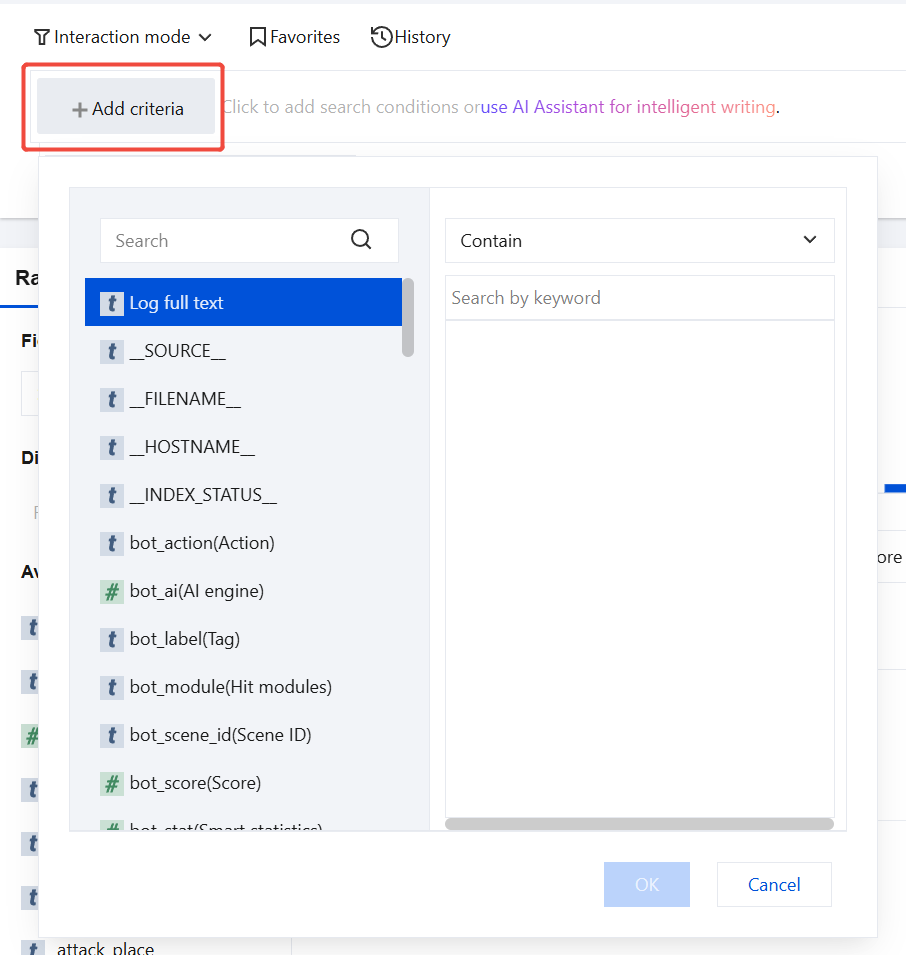
3.1.2 Click Add Search Condition, select fields of log details and logical relations, then click OK. For descriptions of log details fields, see Field Descriptions for Log Details.
3.1.3 Repeat the previous step until all search conditions are added, then click
.
Statement mode: Search access logs based on search statements.
3.1.4 On the access logs > Log collection page, choose statement mode.
3.1.5 You can write query statements in the following two ways:
Enter the search statement directly in the statement box, then click
to query. For details on search syntax, see Syntax Rules.
Click AI Intelligent Writing beside the input box for query statements. Enter your query requirements, click Send or press the Enter key, and the system will generate the query statement for you.
Analyze Access Logs
Raw Log
1. Log in to WAF console, select Access Logs in the left sidebar.
2. On the access logs page, click Log collection > Raw logs.
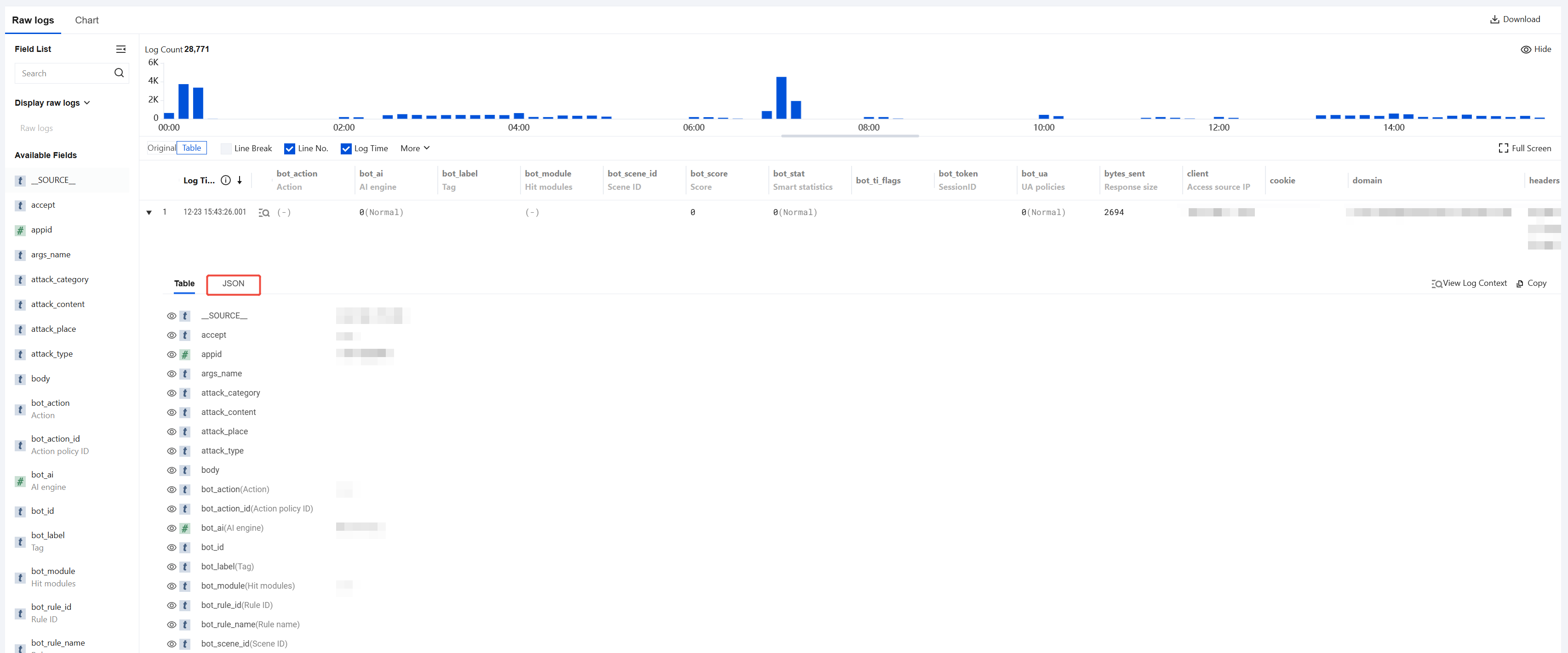
Above the raw logs, you can view key information such as the total number of logs matching the current search conditions and their time distribution. You can also change the display style of raw logs using the settings panel below.
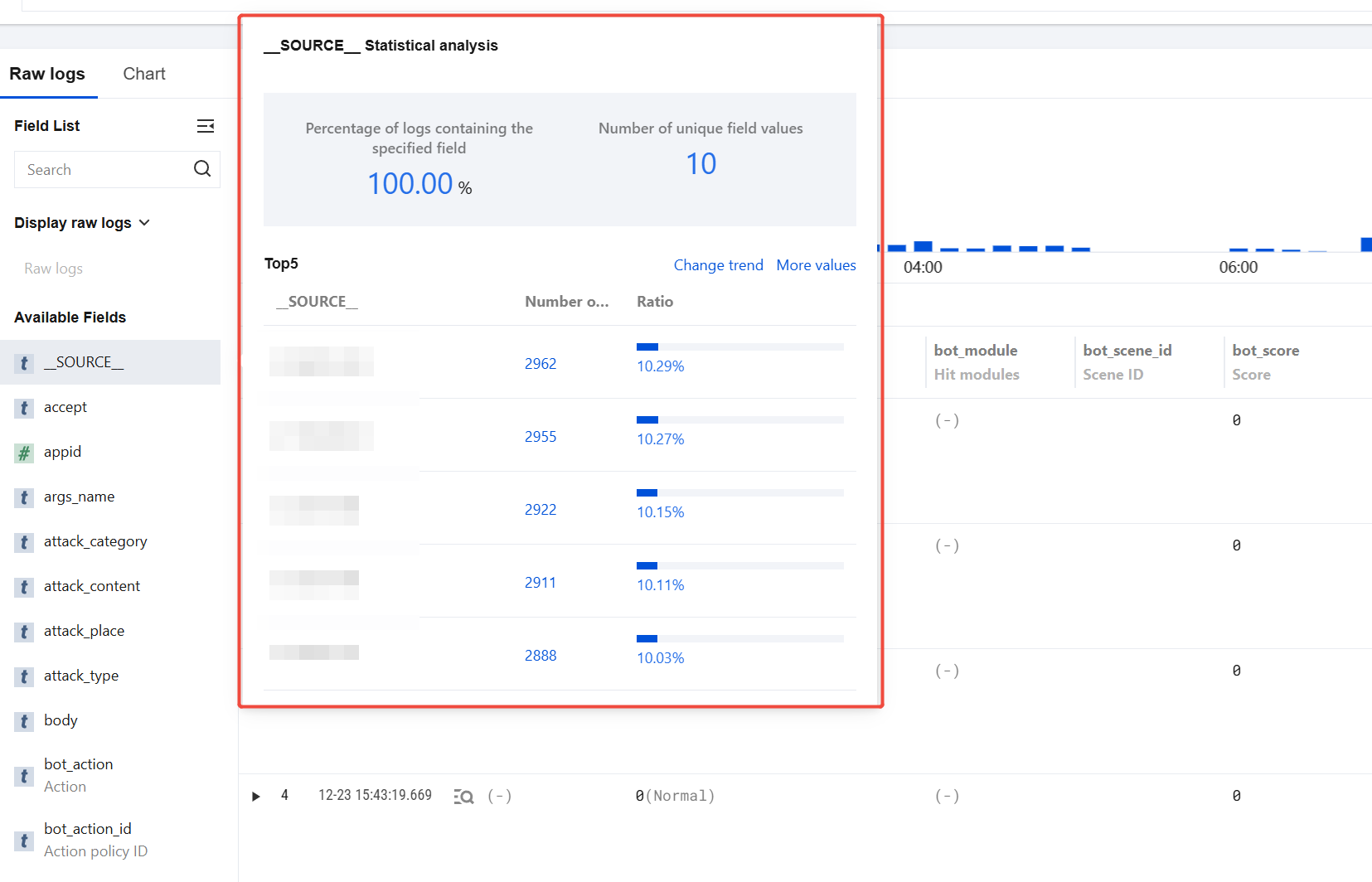
In the raw logs data list, click a field name on the left. The system displays the TOP 5 matching field details and their log quantity percentages, sorted by log quantity. For descriptions of log details fields, see Field Descriptions for Log Details.
In the access logs data list, click
to the left of the occurrence time for each displayed log to view field details. Click JSON to view field details in JSON format. For descriptions of log details fields, see Field Descriptions for Log Details.
Chart
1. Log in to WAF console, select Access Logs in the left sidebar.
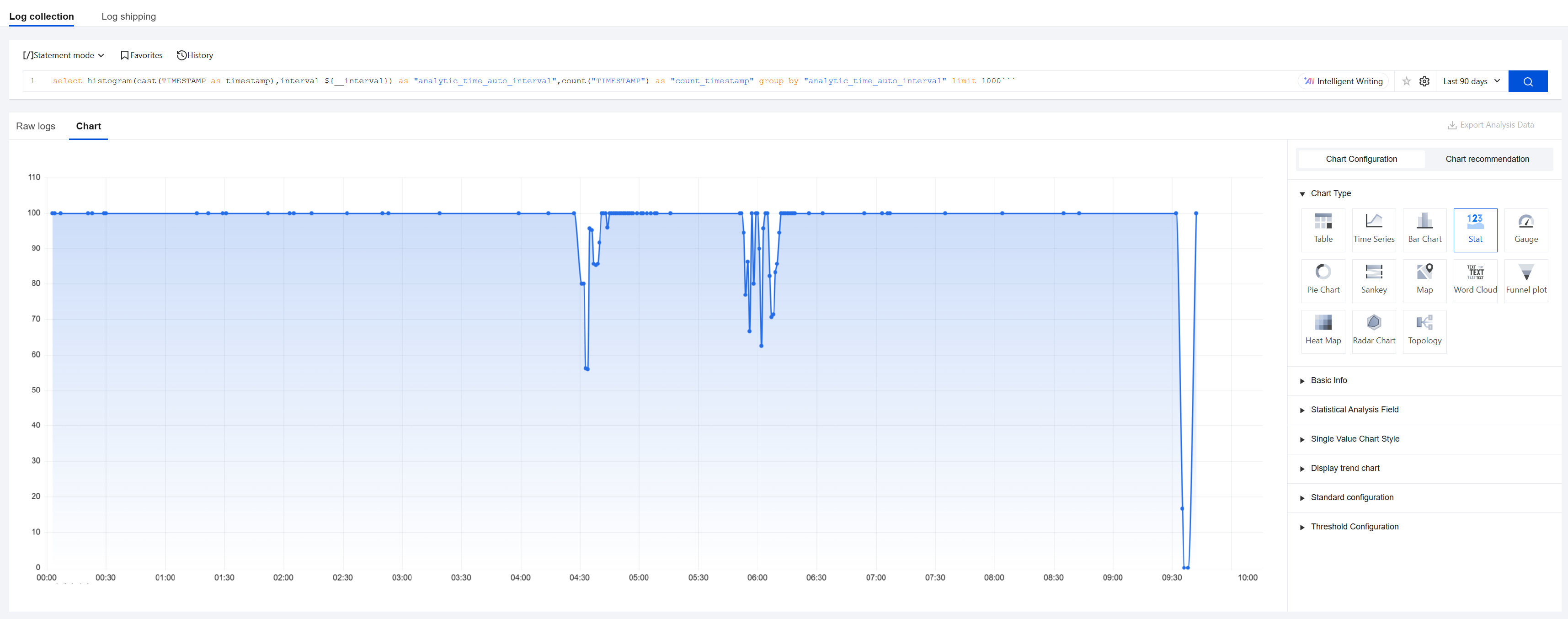
2. On the access logs page, click Log collection > Chart.
3. When generating charts, you can select:
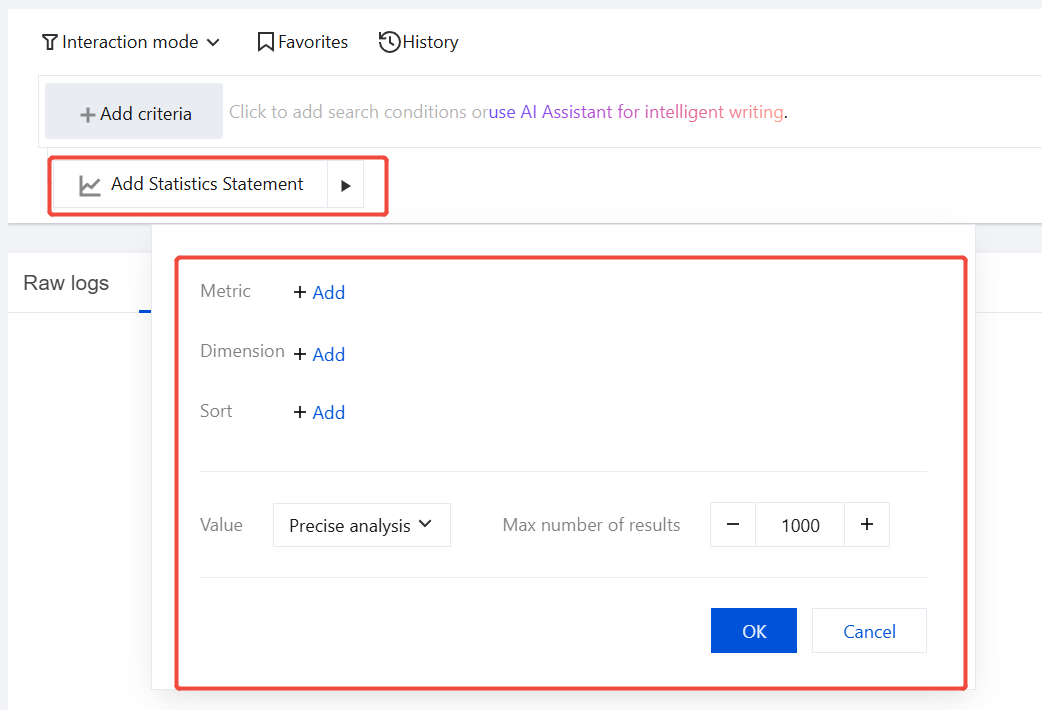
Interactive mode: Generate charts by adding statistical statements. Click Add Statistical Statement, configure specific metrics, dimensions, sorting methods, and statistical approaches; set the maximum number of returned results, and click Confirm.
Statement Mode: Directly use query statements to generate charts:
Enter the search statement directly in the statement box, then click
to query. For details on search syntax, see Syntax Rules.
Click AI Intelligent Writing beside the input box for query statements. Enter your query requirements, click Send or press the Enter key, and the system will generate the query statement for you.
4. After the chart is generated, you can adjust its presentation through the following two methods:
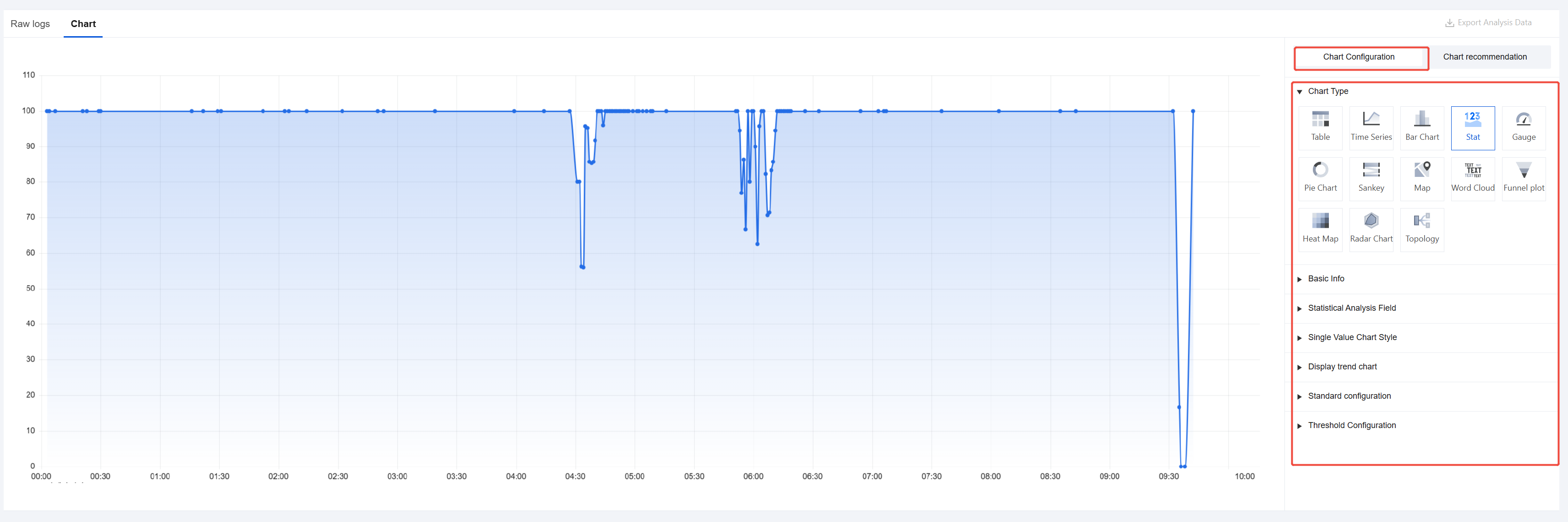
In chart configuration, directly modify the chart type.
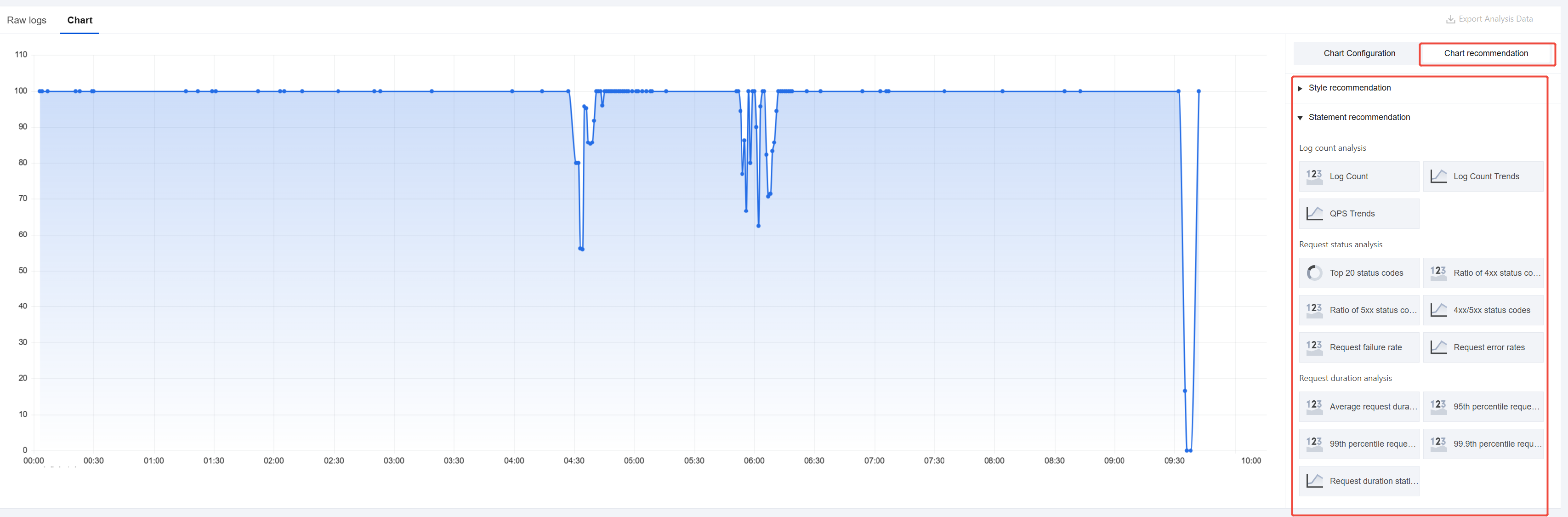
Use the styles or statement templates provided by chart recommendations to quickly optimize the presentation.
Download Access Logs
1. Log in to WAF console, select Access Logs in the left sidebar.
2. On the access logs page, click Log collection> Raw logs.
3. In the upper-right corner of the raw logs data list, click
to slide out the download tasks page.
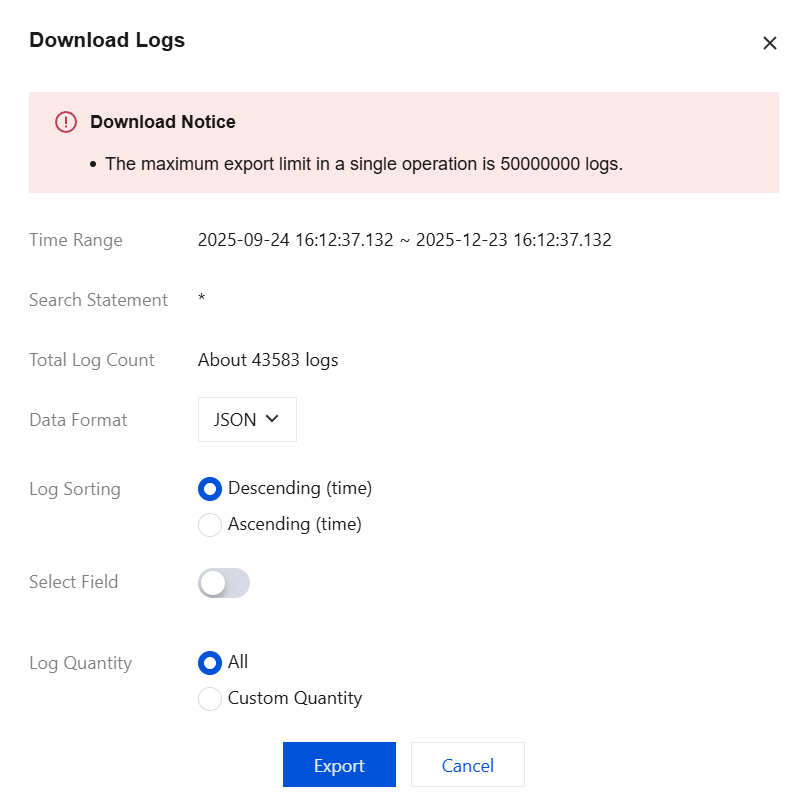
Click Download Logs to go to the Download Log Data page. Configure data format, log sorting, selected fields, log quantity, and other options as needed, then click Export.
Note:
The scope of the current search logs is downloaded by default.
Only one download task can be created within the same time period. Please wait patiently.
A maximum of 50 million logs can be downloaded in a single task. If you need to download more than 50 million logs, we recommend that you split the download into multiple tasks.
When a wildcard domain (such as: *.abc.com) is selected, logs from all associated subdomains (ending with .abc.com) will also be downloaded.
A maximum of five download tasks can be created. Please note the number of download tasks.
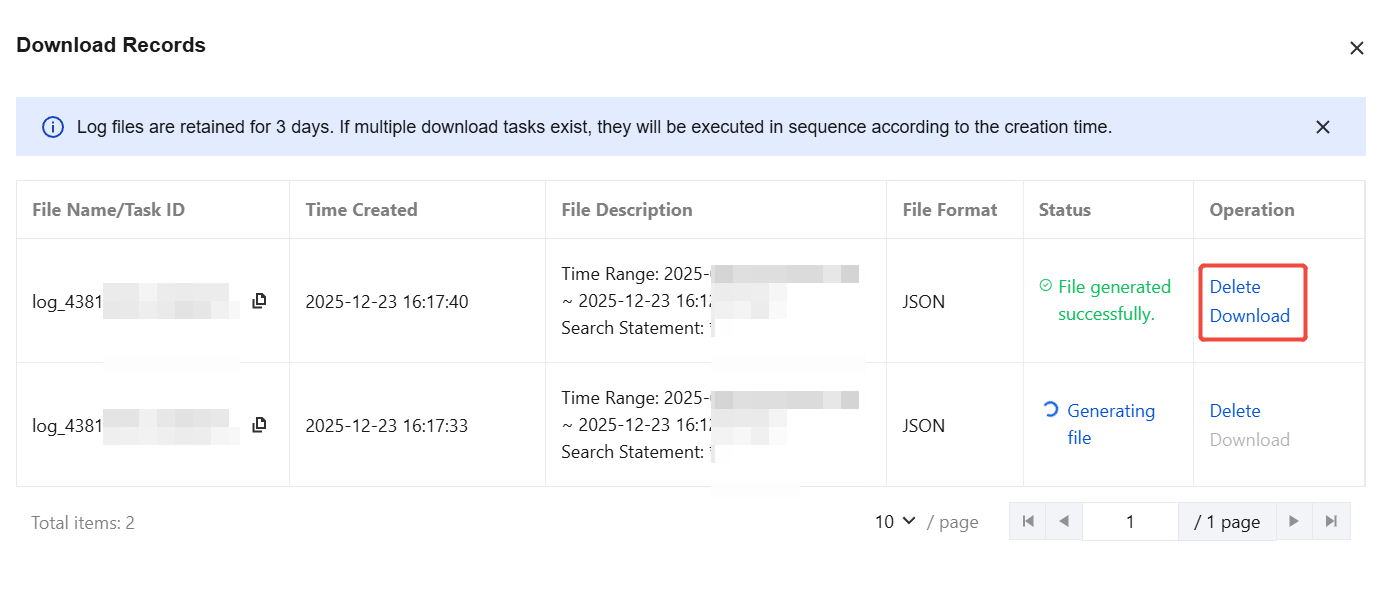
Click Download Records to go to the download records page. Here, you can view all information related to download tasks and perform delete or download operations on completed download tasks.
Note
Successfully created tasks for downloading logs are retained for 3 days. Log files will be deleted after 3 days. Please download them in a timely manner.
Log shipping
Log delivery supports all field data from access logs currently collected by the WAF engine. All you need is simple configuration in the WAF console to complete the near real-time delivery service for access log data. For details about log delivery, see Log shipping.
Appendix
Field Descriptions for Log Details
Information Type
Field Name
Description
Example
Basic Information
domain
The domain name information accessed by the client request. For wildcard domain names or object access, it is the precise domain name.
clbwaf-example.qcloudwaf.com
request_time
Request duration: the time required for a client request to reach the WAF and return from it. Unit: second.
0.003
client
Source IP: the source IP address of the client request.
1.1.1.1
uuid
Request UUID: the unique identifier for an HTTP request.
The Query String of the client HTTP request, with a maximum length of 1K Byte.
content=article&post_id=123
time
The time when the client HTTP request occurred, as recorded by NGINX and presented in a locally readable time format.
23/Jun/2025:11:58:22 +0800
timestamp
The ISO 8601 standard format timestamp for when the client HTTP request occurred.
2025-06-23T11:58:22+08:00
appid
The APPID of the user's Tencent Cloud account.
1234567891
Header Details
url
A client HTTP request header field that records the content between the first "/" after the domain name and the "?" in the client's complete request path.
/products/item123
accept
A client HTTP request header field used to inform the server of the response content types supported by the client.
text/html
encoding
A client HTTP request header field used to inform the server of the compression algorithms supported by the client.
gzip
language
A client HTTP request header field used to inform the server of the language supported by the client.
en-US
connection
A client HTTP request header field that controls connection behavior, such as keeping the connection alive or closing it.
close
content_type
A client HTTP request header field that specifies the MIME type of the request body.
application/x-www-form-urlencoded
cookie
A client HTTP request header field that records the Cookie information of the request, with a maximum length of 1K. Unit: Byte.
k1=v1;k2=v2
host
A client HTTP request header field that records the domain name requested by the client.
1.1.1.1:80
referer
A client HTTP request header field that records the source URL information of the request. If the request has no source URL information, this field displays "-".
http://example.com
x_forwarded_for
A client HTTP request header field that records all proxy IP addresses through which the client request passes and the client's real IP address.
XX.XX.XX.XX
user_agent
A client HTTP request header field that records the software and operating system information of the client.
Mozilla/5.0 (Windows NT 6.1) AppleWebKit/537.36 (KHTML, like Gecko) Chrome/49.0.2623.112 Safari/537.36
request_length
The number of bytes of the client HTTP request. Unit: Byte.
435
Response Details
upstream_status
The response status code returned by the origin server to the WAF.
0
status
The response status code returned by the SAAS WAF to the client:
200: Normal Request
202: Frontend Defense
302: Redirect
403: Block
4XX: Refer to the HTTP response status code standard definition.
5XX: Refer to the HTTP response status code standard definition.
The response status code returned by the CLB WAF to the CLB:
600: Normal Request
624: Frontend Defense
621: Redirect
615: Block
600
bytes_sent
The size of the response body. Unit: Byte.
Note:
In Cloud Native WAF mirror mode, this field is an internal fixed value between WAF and CLB and does not represent the actual response size of the origin server. To obtain the actual response size, query the CLB access logs. For details, see Configuring Access Logs.
73
upstream_connect_time
The connection time required for a client request to travel from the WAF to the origin server. Unit: second.
0.033
upstream_response_time
The time required for a client request to return from the origin server to the WAF. Unit: second.
0.033
upstream
The IP address of the origin server.
1.1.1.1
Basic Attack Logs
attack_type
Attack Type: The specific type of attack that was triggered.
XSS attack
sec_action
The handling action triggered by a client attack, including four types of processing results: Observe (0), Block (1), Human-Machine Verification (2), and Redirect (3).
1
rule_id
Rule ID: The ID of the rule that triggered the protection policy.
10000244
risk_level
Risk Level: The risk level triggered by a client attack, including three levels: High (1), Medium (2), and Low (3).
1
sec_chain
The security modules that the request passed through and their corresponding handling actions.