Creating a Stream Lake Engine Setats Service
Download
포커스 모드
폰트 크기
Overview
A Setats cluster is the fundamental unit for running the Setats service and serves as the core infrastructure for data storage and processing. Creating a cluster is the first step in using Setats and forms the foundation for building a streaming data lakehouse platform.
A Setats cluster is composed of two types of nodes: Manager and Worker.
Manager node: responsible for cluster data management and scheduling coordination.
Worker node: responsible for actual data read/write and processing.
After a cluster is created, you must also configure Warehouse (data warehouse) to use it in actual jobs. Warehouse defines key configurations such as data storage location (HDFS/COS) and authentication methods.
Note:
Currently, the Setats service feature of the stream-lake engine is available through an allowlist. If you need to use the Setats service, submit a ticket to apply for activation.
Prerequisites
1. You have created a Tencent Cloud account. For account creation, refer to Register Tencent Cloud.
2. If you log in with a sub-account, you need to obtain access authorization for the user account. For details, see CAM and Stream Compute Service Delegated Authorization.
Operation Steps
Creating a Setats Service
To create a Setats service, log in to the SCS console. Navigate to Compute Resources > Compute Cluster > Stream-Lake Engine Setats, and then click Create Setats Service to purchase a cluster.
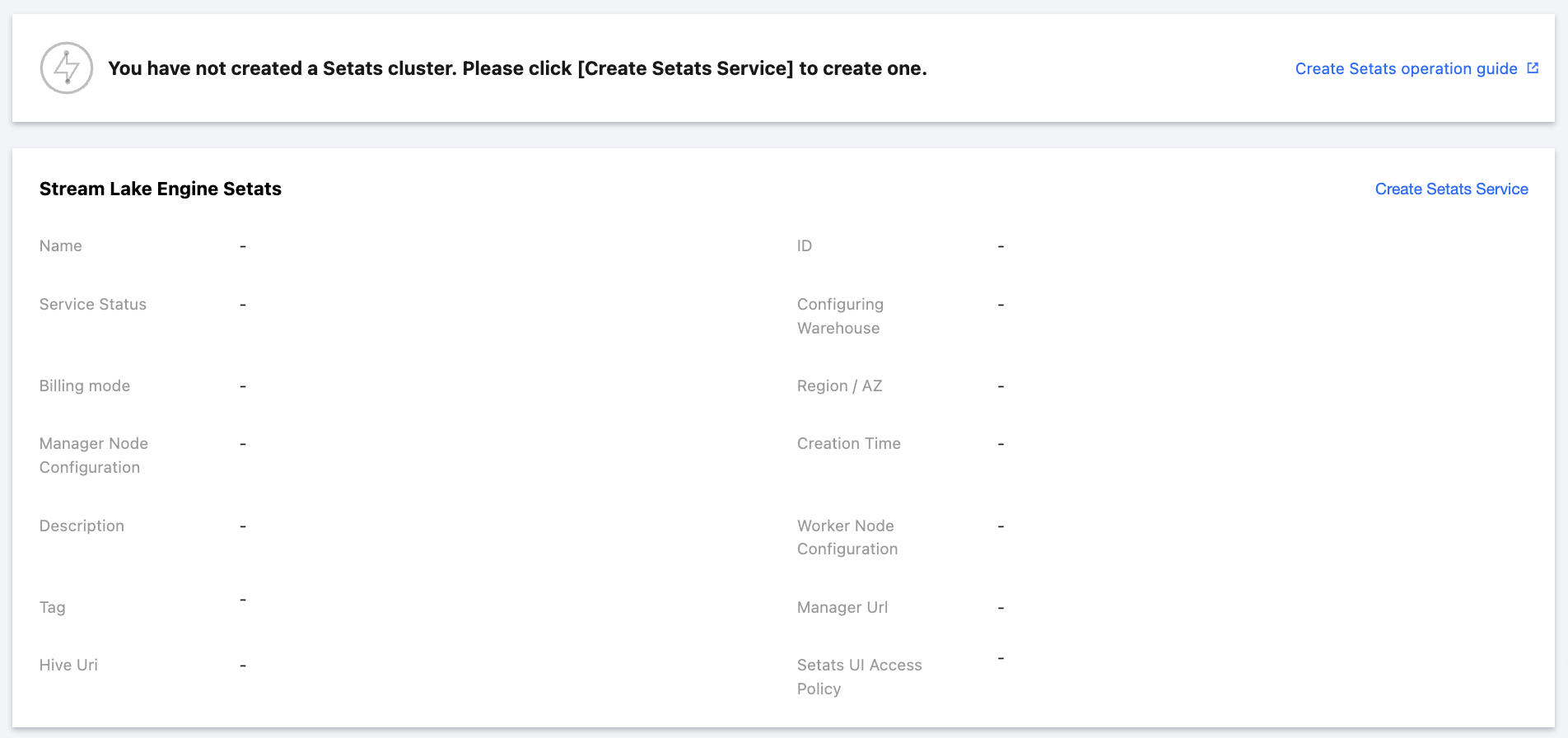
Configure resources based on the estimated data volume.
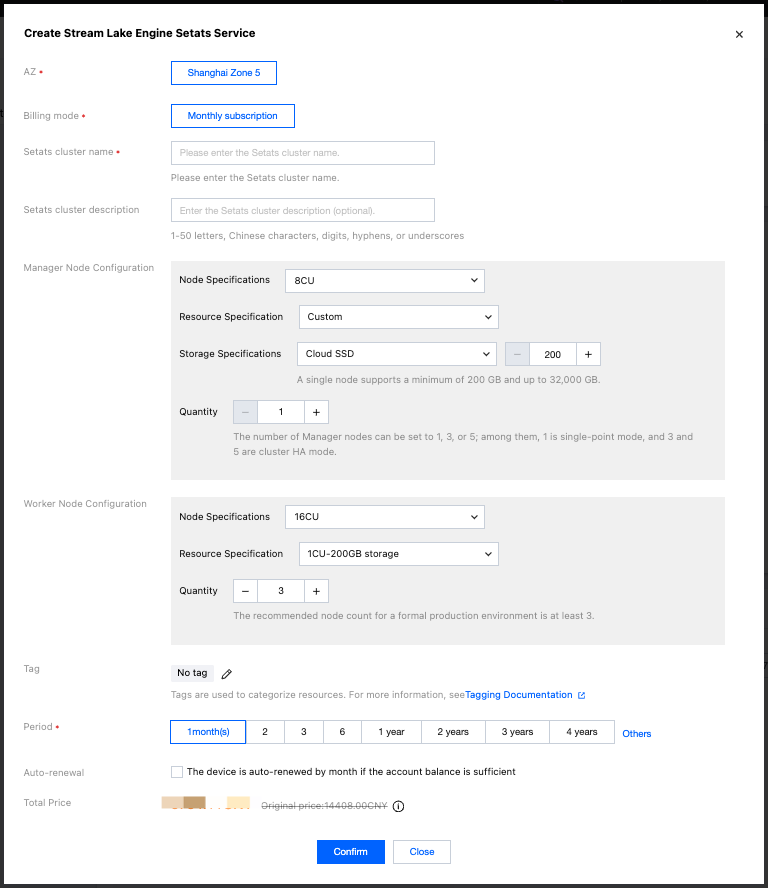
Configuring Resources
AZ: The system automatically configures the AZ for the current cluster.
Billing Mode: Yearly/Monthly subscription.
Manager Node Configuration:
Configuration Item | Valid Value | Recommended Value | Remarks |
Node specifications | 8CU / 16CU / 32CU | 8CU | |
Resource Specification | 1 CU - 200 GB storage / 1 CU - 400 GB storage / Custom | Custom | 1 CU - 200 GB storage: 200 GB of storage per CU. 1 CU - 400 GB storage: 400 GB of storage per CU. Custom: Set the storage specification and configure CBS for the node. |
Storage specifications | Type: SSD CBS / General Purpose SSD CBS / Enhanced SSD CBS Size: 200 GB to 32,000 GB | Configure based on business needs. | When the resource specification is in custom mode, configure CBS. |
Quantity | 1,3,5 | 3 | |
Worker Node Configuration:
Configuration Item | Valid Value | Recommended Value | Remarks |
Node specifications | 16CU / 32CU | 16CU | |
Resource Specification | 1 CU - 200 GB storage / 1 CU - 400 GB storage / Custom | 1 CU - 200 GB storage | 1 CU - 200 GB storage: 200 GB of storage per CU. 1 CU - 400 GB storage: 400 GB of storage per CU. Custom: Set the storage specification and configure CBS for the node. |
Storage specifications | Type: SSD CBS / General Purpose SSD CBS / Enhanced SSD CBS Size: 200 GB to 32,000 GB | - | When the resource specification is in custom mode, configure CBS. |
Quantity | 1 – 100 | 3 | - |
Tag: Configure cluster tags.
Purchase Duration: Select the purchase duration.
Auto-renewal: It is not selected by default. To avoid service interruption, you are advised to select auto-renewal. If you select the auto-renewal mode and your account balance is sufficient, the device will be automatically renewed on a monthly basis upon expiration.
After the configuration is complete, confirm the configuration information. Click Confirm to proceed with payment and complete the cluster purchase. Clicking Close will abandon the current cluster creation operation.
Note:
When a fixed-ratio storage resource specification (1 CU - 200 GB storage / 1 CU - 400 GB storage) is selected, the storage disk is a local disk.
When the custom mode is selected for the resource specification, the storage disk is a CBS.
Attention:
CBS storage can only be scaled out and does not support scaling in. When configuring, carefully select and configure based on your actual needs.
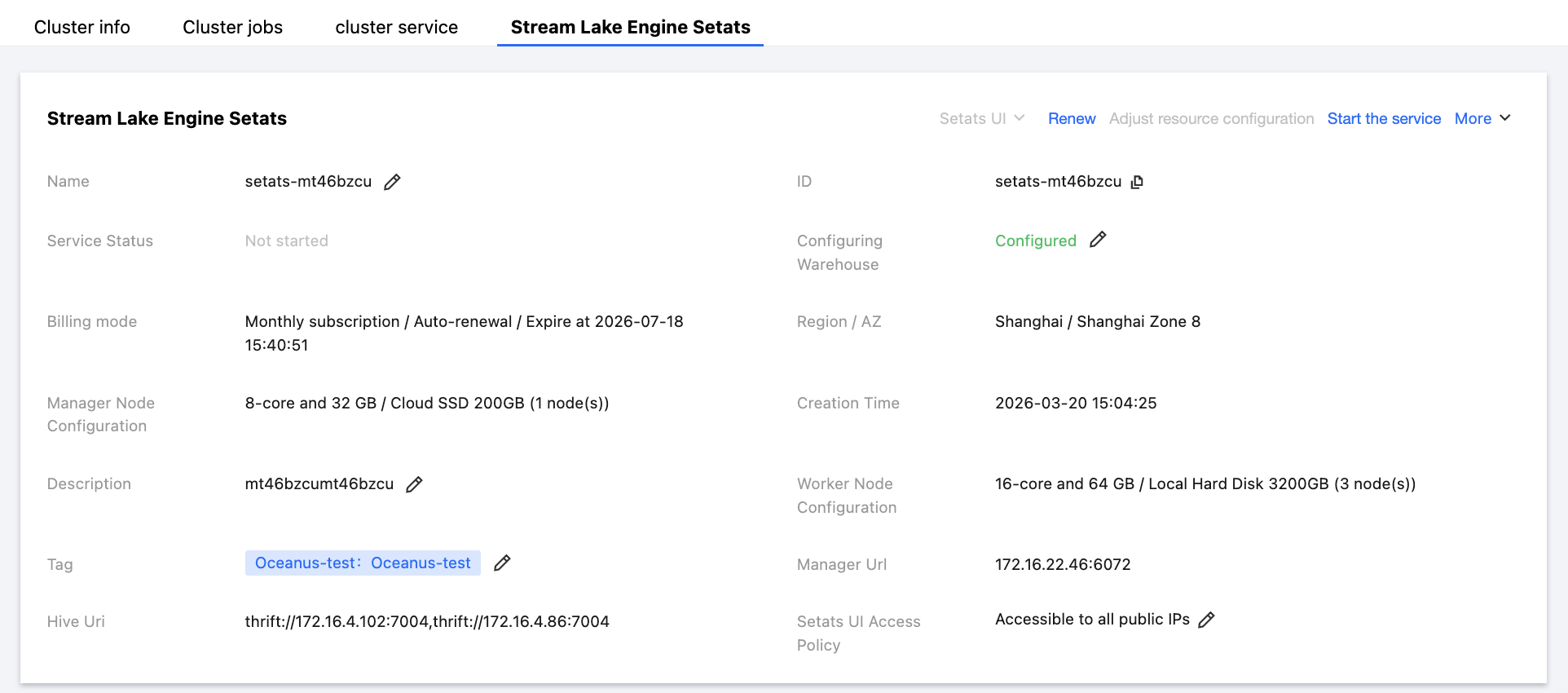
After the purchase is completed, you need to configure the Warehouse.
FAQs
Can a Cluster Be Used Immediately After Creation?
No. You must configure the Warehouse before you can use it in jobs.
Recommended Configurations for Manager and Worker
Node Type | Development and Testing | Production Environment |
Manager | One | 3 (HA) |
Worker | 1-2 | Configure based on business volume. It is recommended to have at least 3 nodes. |
피드백