tencent cloud

Tencent Cloud Organization

  • Product Introduction
  • Purchase Guide
  • Operation Guide
    • Console Overview
    • Organization Settings
    • Department Management
    • Member Account Management
    • Member Finance Management
    • Member Access Management
    • Resource Management
    • Member Audit
    • Identity Center Management
  • API Documentation
    • History
    • Introduction
    • API Category
    • Making API Requests
    • Organization Settings APIs
    • Department and Member Management APIs
    • ListOrganizationIdentity
    • Unified Member Login APIs
    • Organization Service Management APIs
    • Organization Management Policy APIs
    • Resource Sharing APIs
    • Identity Center Management APIs
    • Identity Center User Management APIs
    • Identity Center User Group Management APIs
    • Identity Center Management SCIM Synchronization APIs
    • Identity Center Single Sign-On Management APIs
    • Identity Center Permission Configuration Management APIs
    • Identity Center Multi-Account Authorization Management APIs
    • Identity Center Sub-User Synchronization Management APIs
    • Data Types
    • Error Codes
    • TCO API 2018-12-25
  • Related Agreement
  • FAQs
  • Glossary

Viewing Member List and Basic Information

PDF
포커스 모드
폰트 크기
마지막 업데이트 시간: 2025-01-02 18:00:28
This document describes how to view the member list and basic member information in the TCO console.

Directions

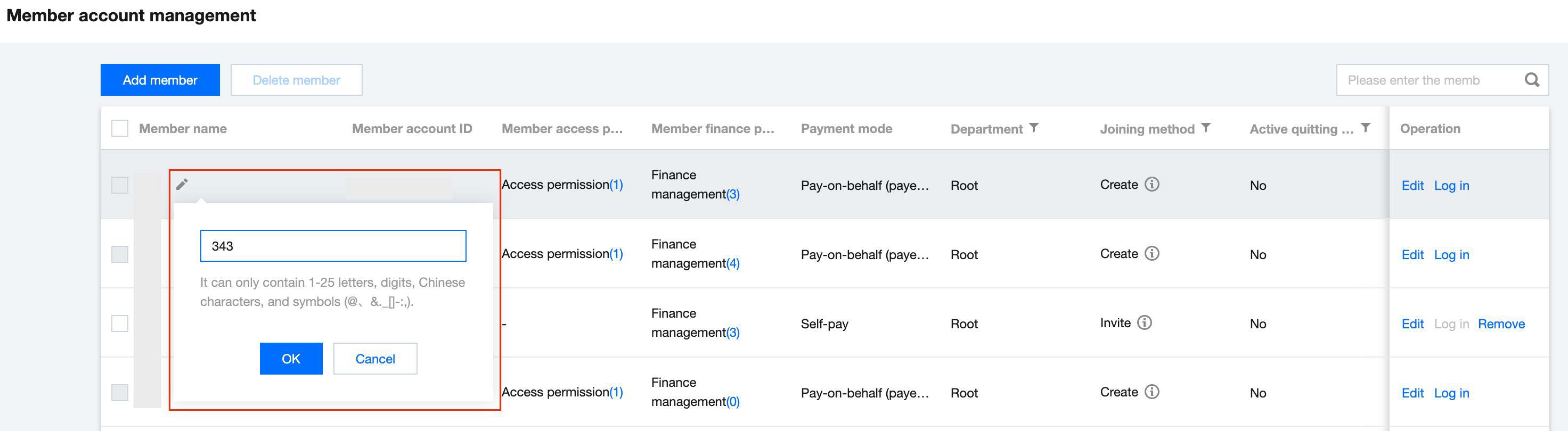
1. Log in to the TCO console and select Member account management on the left sidebar to view the information of members in the current organization. The member information includes the member name, member account ID, access permission, finance permission, payment mode, department, joining method, and whether the member is allowed to quit the organization. You can change the member name, finance permission, payment mode, and department.
2. To modify a member name, go to the Member list page and click the edit icon next to the member name you want to modify. In the pop-up editing box, enter the new member name and click OK to save your modification.


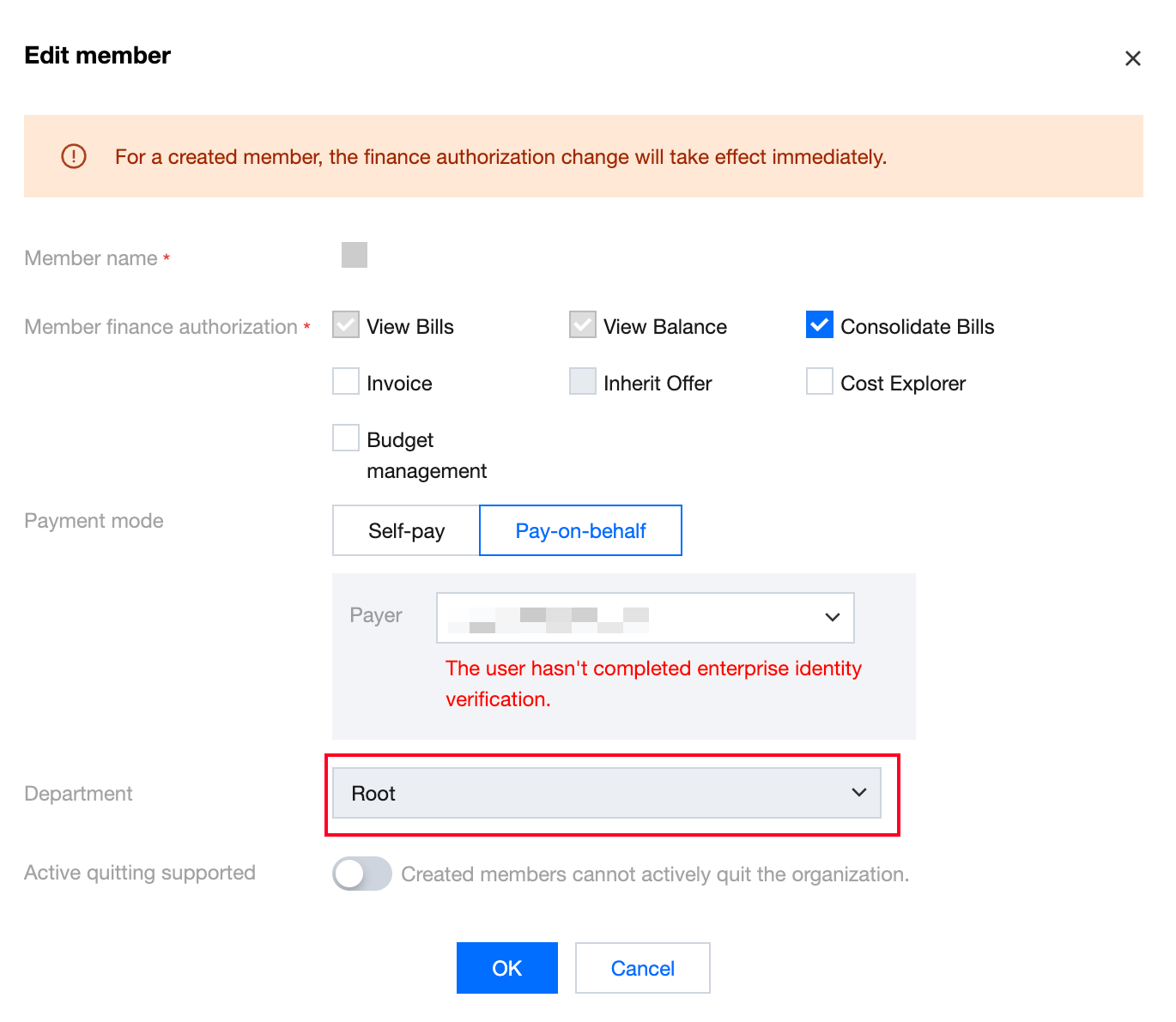
3. To modify a member's department, click Edit on the right of the target member in the Operation column. In the Edit member pop-up window, select the target department in the Department drop-down list and click OK to save your modification.


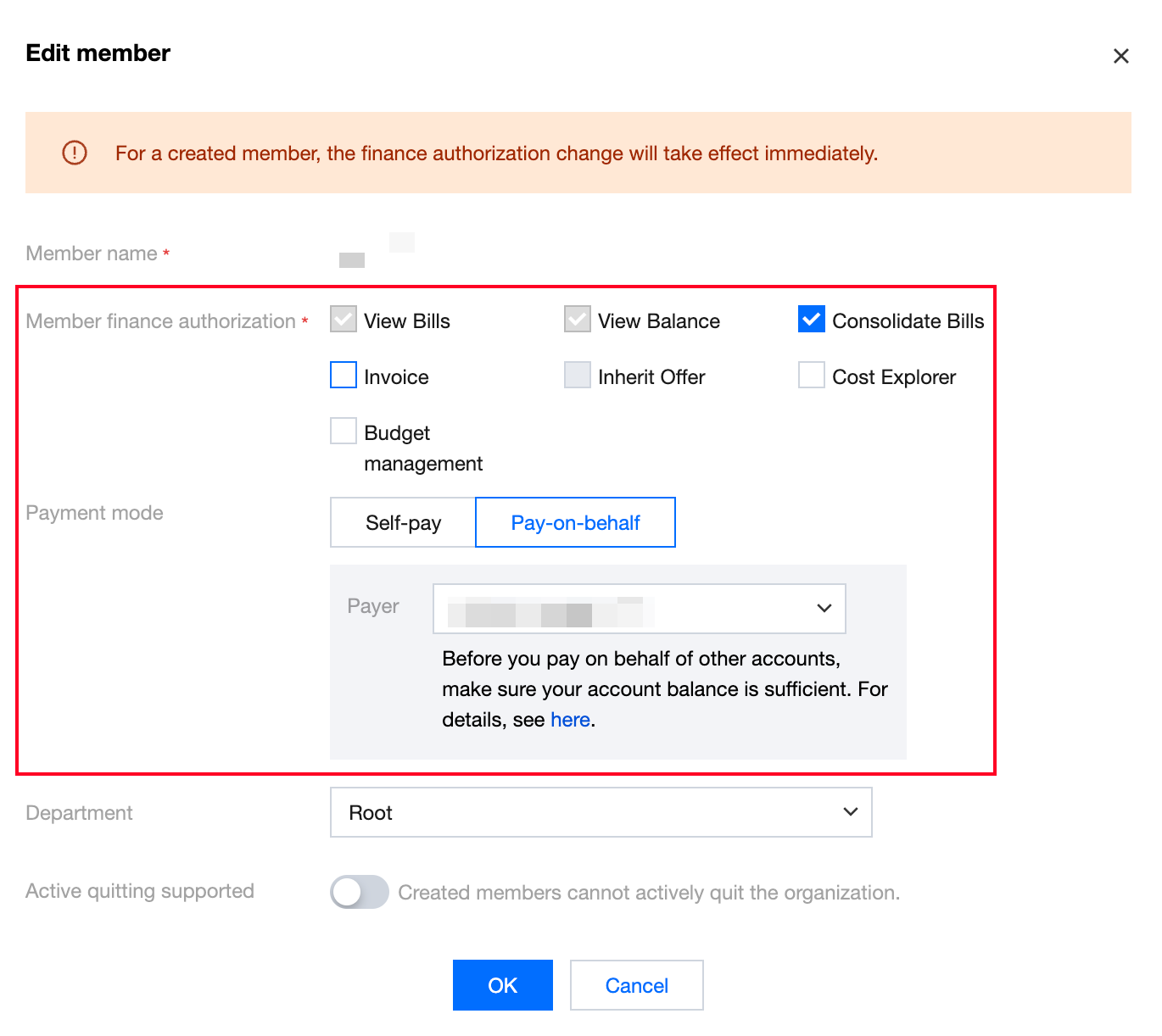
4. To modify a member's finance permission or payment mode, click Edit on the right of the target member in the Operation column. In the Edit member pop-up window, modify the finance permission and payment mode as needed, and click OK to save your modification.


도움말 및 지원

문제 해결에 도움이 되었나요?

피드백