Operation Log
다운로드
포커스 모드
폰트 크기
CodeBuddy enables super administrators to view member operation logs in the management console, including details such as the operator, operation content, and operation time. This helps super administrators centrally manage logs, making member operations viewable and traceable. This functionality can be used for team collaboration tracking, issue troubleshooting, and security compliance.
Date Filtering
The feature supports quick filtering using date options such as yesterday, today, this week, this month, the last 7 days, and the last 30 days. It also supports manual date selection for filtering. Using quick filters, you can quickly view operation logs.

Search
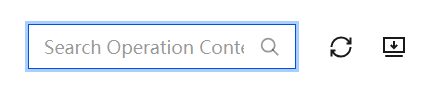
In addition to date filtering, you can also quickly filter operation logs by searching operation content and performing fuzzy matching based on the text.
Refreshing
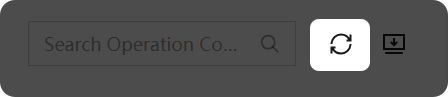
Click the Refresh button to refresh the current page and synchronize the latest operation log data.
Operation Log List Contents
The list includes fields for operation, operation content, operation source, operator, IP address, and operation time. These entries are displayed in chronological order, with the most recent data appearing first.

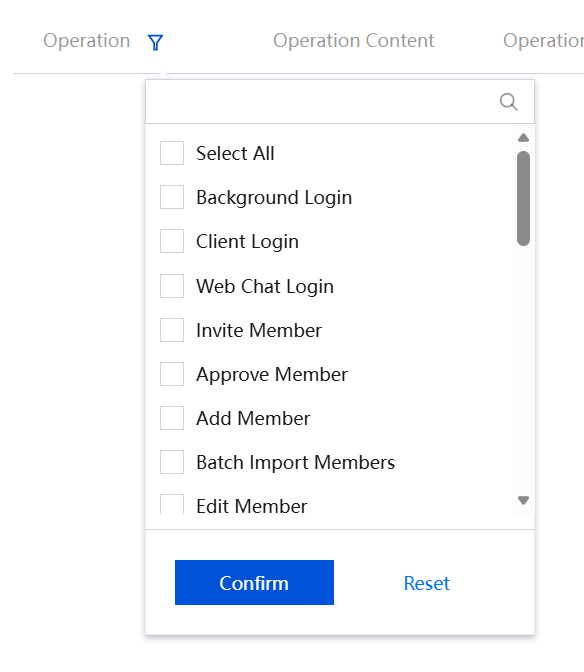
Operation: This refers to the operation type, which includes background login, plugin login, web chat login, inviting members, approving members, adding members, and more. The feature supports filtering by clicking the Filter button and also supports search by entering keywords, as shown in the following figure.
Operation Content: This logs the specific actions performed by enterprise members, such as data export or backend login operations.
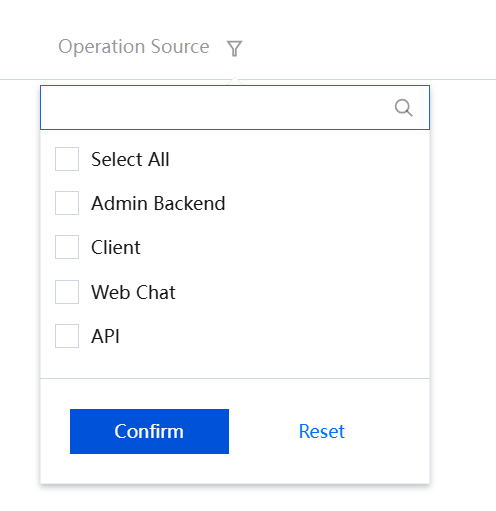
Operation Source: This includes the enterprise management backend, IDE plugin, web chat, and API. It logs which source an enterprise member uses for an operation. The feature also supports filtering by clicking the Filter button and search by entering keywords.
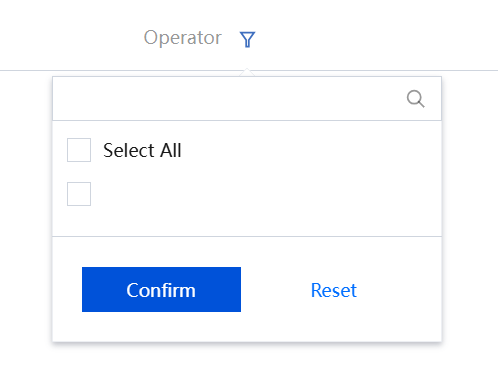
Operator: This refers to the owner of the operation log, which includes all members within the enterprise, as well as deleted members. The feature supports quick filtering by clicking the Filter button and also supports search by entering keywords.
IP Address: This logs the IP address from which an enterprise member operates on a client.
Operation Time: This logs the timestamp of the operator's action. Currently, the precision is only to the second.
Exporting Operation Logs
You can export an Excel file of operation logs by clicking the Download button. In addition to the fields from the operation list, the file also includes the enterprise name and the data's statistical timestamp.
피드백